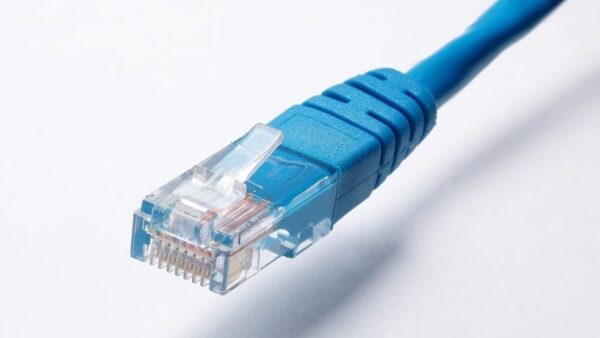
Yes, Windows 11 can stay connected to Ethernet and Wi-Fi at the same time: plug in the cable, then connect to the Wi-Fi network manually from quick settings, and Windows keeps both links up.
This guide shows how to connect both, how to choose which one carries your internet traffic, how to stop Windows dropping Wi-Fi when the cable goes in, and how to set encrypted DNS on each adapter.
How to use Ethernet and Wi-Fi at the same time on Windows 11
Windows always keeps an Ethernet connection, and it also keeps any network you connect to by hand during your session. A manual Wi-Fi connection is the simplest way to hold both.
- Plug the Ethernet cable into your PC and into a LAN port on the router, not the router's internet port.
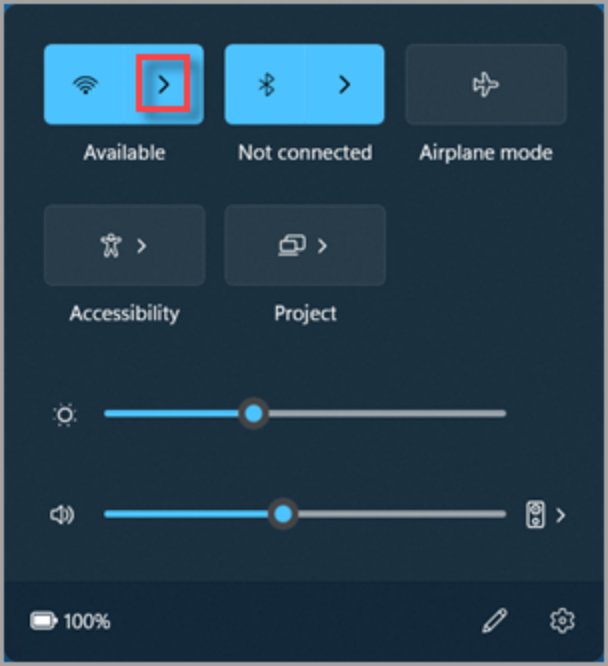
- Select the Network, Sound or Battery icon on the taskbar to open quick settings.
- On the Wi-Fi quick setting, select Manage Wi-Fi connections.
- Choose the Wi-Fi network you want, then select Connect.
- Type the network password if asked, then select Next.
- Open Settings > Network & internet and check that both the Ethernet and Wi-Fi connections show Connected.
Both adapters now have an address. Internet traffic goes through whichever connection has the lower interface metric, which is usually Ethernet.
Can I turn on Wi-Fi and Ethernet at the same time?
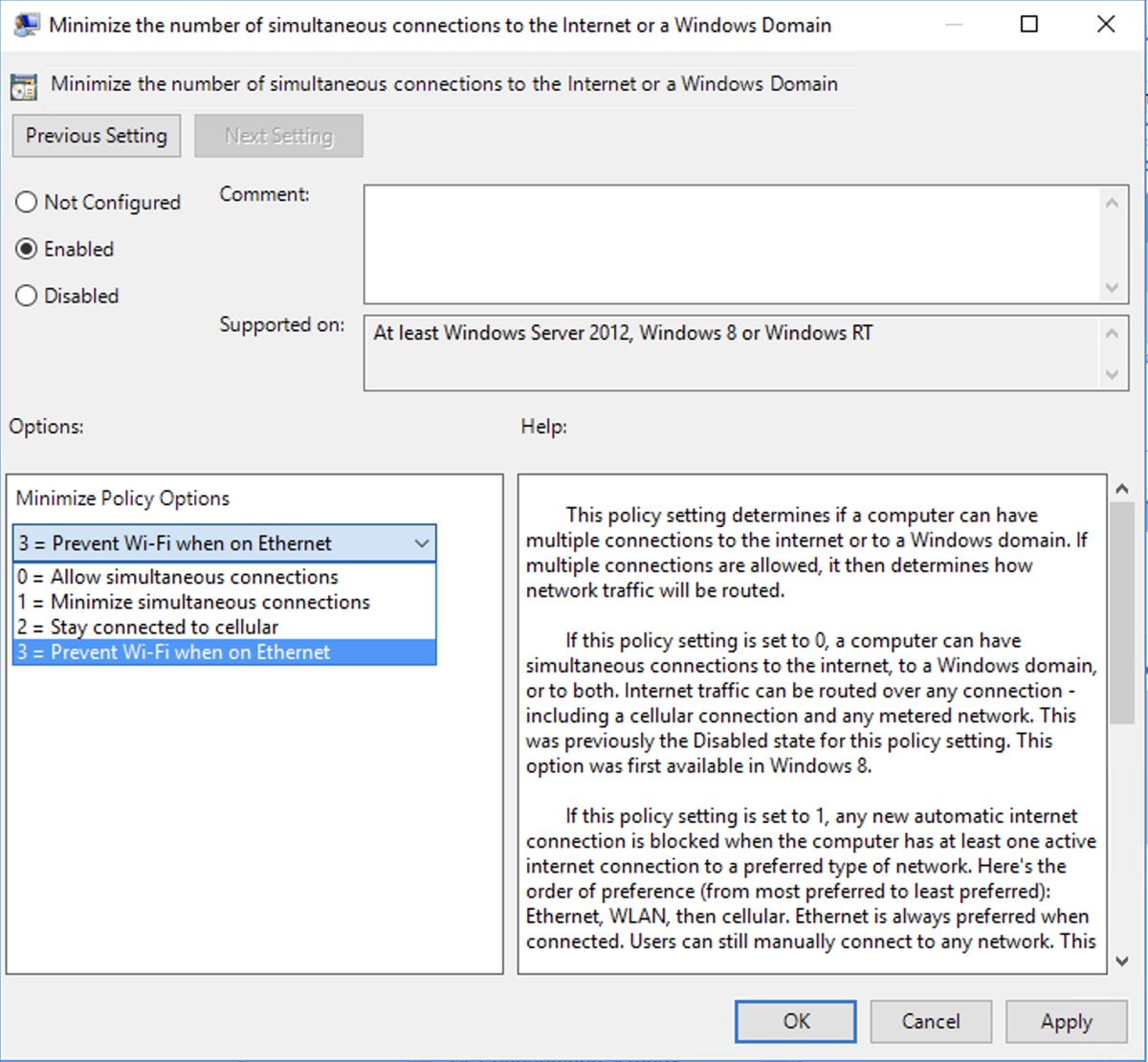
You can, but Windows Connection Manager decides whether an automatic Wi-Fi connection stays up once Ethernet is connected. Its Minimize the number of simultaneous connections to the Internet or a Windows Domain policy is on by default and orders networks as Ethernet first, then WLAN, then cellular.
| Policy value | What Windows 11 does with Wi-Fi while Ethernet is connected |
|---|---|
| 0 | Ethernet and Wi-Fi can both stay connected, and internet traffic can use either one |
| 1 (the default behaviour) | New automatic Wi-Fi connections are blocked while Ethernet is up, but you can still connect to Wi-Fi manually |
| 2 | Same as 1, and a cellular data connection stays up for services that need it |
| 3 | Same as 2, but you cannot connect to Wi-Fi at all, even manually, while Ethernet is connected |
When Windows decides a network should go, it soft-disconnects it: existing sessions keep running, and Windows checks traffic every 30 seconds before dropping the link once it goes quiet.
How to manually set Network Priority in Windows
Network priority on Windows 11 is the interface metric, one of the network adapter settings each connection has. When both adapters can reach the internet, Windows sends traffic over the route with the lowest total metric, so the adapter with the smaller number wins.
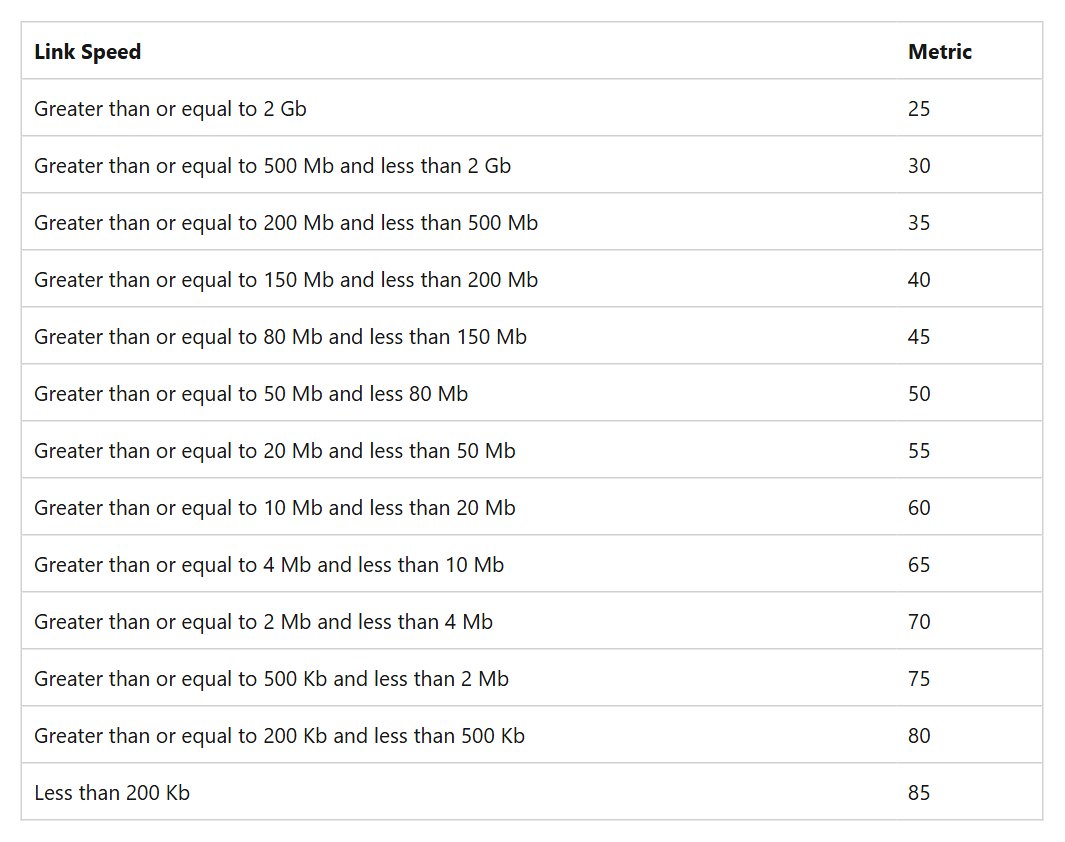
By default Automatic metric sets the number from link speed. On Windows 10 and later, a 1 Gbps wired adapter gets 25 and a Wi-Fi adapter linked at 500 Mbps to 2 Gbps gets 30, which is why Ethernet normally wins.
- Press Win + R, type
ncpa.cpland press Enter to open Network Connections. - Right-click the adapter you want to prefer, such as Ethernet, and select Properties.
- Select Internet Protocol Version 4 (TCP/IPv4), then select Properties.
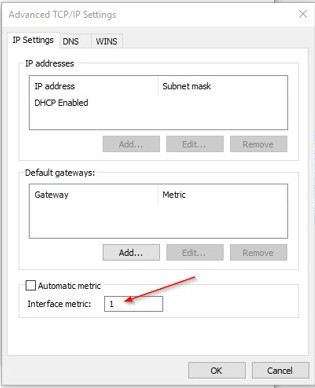
- On the General tab, select Advanced.
- On the IP Settings tab, clear the Automatic metric check box.
- Type a low number in Interface metric, for example
10, then select OK on each open dialog. - Repeat the steps for the Wi-Fi adapter and give it a higher number, for example
50.
To make Wi-Fi the main connection instead, give the Wi-Fi adapter the lower number and Ethernet the higher one. Set the same order under Internet Protocol Version 6 (TCP/IPv6) if your network uses IPv6.
Change network adapter priority in Windows 11 with PowerShell
PowerShell sets the same interface metric in one line. Run Windows PowerShell or Terminal as administrator, and use the adapter names shown in Network Connections.
Set-NetIPInterface -InterfaceAlias "Ethernet" -InterfaceMetric 10
Set-NetIPInterface -InterfaceAlias "Wi-Fi" -InterfaceMetric 50
Set-NetIPInterface changes the interface metric for each named adapter. Setting -InterfaceMetric turns Automatic metric off for that adapter, and the lower number gets preference.
You should see: The command returns no output. Run Get-NetIPInterface afterwards and the InterfaceMetric column shows 10 for Ethernet and 50 for Wi-Fi.
If your adapters have other names, such as Ethernet 2, use those names in quotes. Add -AddressFamily IPv4 to change only the IPv4 interface.
Connect to Wi-Fi while connected to Ethernet automatically
A manual connection lasts for your session. To let Windows keep automatic Wi-Fi connections alongside Ethernet on Windows 11 Pro, Enterprise or Education, set the Connection Manager policy to 0.
- Press Win + R, type
gpedit.mscand press Enter. - Go to Computer Configuration > Administrative Templates > Network > Windows Connection Manager.
- Double-click Minimize the number of simultaneous connections to the Internet or a Windows Domain.
- Select Enabled, then set the policy option to 0.
- Select Apply, then OK, and restart the PC.
- Open quick settings, select your Wi-Fi network and tick Connect automatically before you select Connect.
The policy is stored under HKLM\Software\Policies\Microsoft\Windows\WcmSvc\GroupPolicy. Work and school PCs may have this policy set by IT, in which case the local setting is overwritten.
If the second connection is a phone hotspot, set it as a metered connection so background downloads do not eat your mobile data.
How to add and use Private DNS in Windows 11
Windows 11 can encrypt DNS lookups with DNS over HTTPS, set separately on the Ethernet and Wi-Fi adapters. If you use both connections, set it on each one, or lookups on the other adapter stay unencrypted. The setting is not available in Windows 10.
- Open Settings > Network & internet.
- Select Ethernet and your Ethernet network, or select Wi-Fi > Manage known networks and choose your Wi-Fi network.
- Next to IP assignment, select Edit.
- Under Edit IP settings, choose Manual, then turn on IPv4.
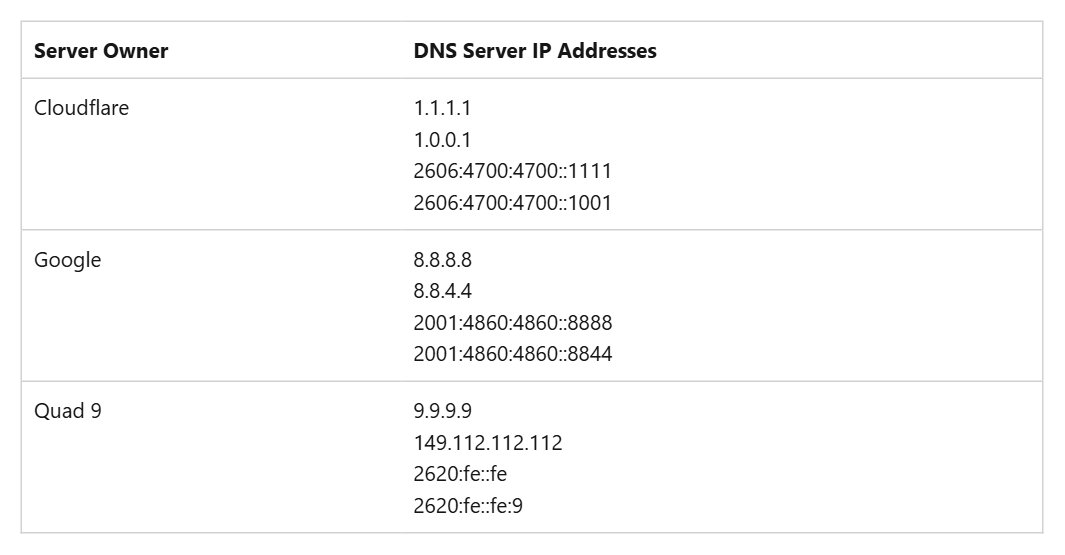
- Fill in IP address, Subnet mask and Gateway for your network, then type a DNS over HTTPS server in Preferred DNS, such as
1.1.1.1,8.8.8.8or9.9.9.9. - Under DNS over HTTPS, choose On (automatic template).
- Turn Fallback to plaintext off if lookups must never go unencrypted, or leave it on so DNS keeps working when HTTPS fails.
- Select Save.
Cloudflare, Google and Quad9 servers are on the built-in list of known DoH servers, so the automatic template works for them. For another provider, choose On (manual template) and enter its template address.
How to see which connection Windows 11 is using for internet
Settings shows that both links are up, but only the metric tells you which one carries internet traffic.
Get-NetIPInterface -AddressFamily IPv4 | Sort-Object InterfaceMetric | Format-Table InterfaceAlias, InterfaceMetric, ConnectionStateLists every IPv4 interface with its metric and connection state, lowest metric first.
You should see: The first row that shows Connected and belongs to a real adapter (Ethernet or Wi-Fi, not Loopback) is the connection Windows prefers for internet traffic.
In Settings > Network & internet, select Properties near each connected network to see its IPv4 address. Two addresses confirm both connections are active.
Should you have Ethernet and Wi-Fi connected at the same time?
Keeping both is useful when each link reaches something different. It does not combine the two into one faster connection, because Windows picks one route per destination by metric.
| Your situation | Keep both connected? | Why |
|---|---|---|
| Ethernet to a work or lab network, Wi-Fi to the internet | Yes | Each adapter reaches a network the other cannot |
| You want a backup if the cable or switch fails | Yes | Wi-Fi is already connected when Ethernet drops |
| Both connect to the same home router | Usually no | Traffic uses one link anyway, and Ethernet is normally faster |
| Work PC joined to a domain | Ask IT first | A policy may block non-domain Wi-Fi while domain Ethernet is connected |
| You share the PC's internet with other devices | Yes, with a plan | One adapter brings internet in and the other shares it out |
If you want one adapter to share your internet over Ethernet or Wi-Fi, keep both connected and set the incoming one as the priority.
How to reset network adapter priority to automatic in Windows 11
- Press Win + R, type
ncpa.cpland press Enter. - Right-click the adapter, select Properties, then select Internet Protocol Version 4 (TCP/IPv4) > Properties.
- Select Advanced and tick Automatic metric on the IP Settings tab.
- Select OK on each dialog, then repeat for the other adapter.
- To undo the policy change, set Minimize the number of simultaneous connections to the Internet or a Windows Domain back to Not Configured and restart.
In PowerShell the same reset is Set-NetIPInterface -InterfaceAlias "Wi-Fi" -AutomaticMetric Enabled, run once for each adapter.
Why is my Ethernet not working but Wi-Fi is on Windows 11?
Ethernet shows an error or Action needed while Wi-Fi works
A loose cable, the wrong router port, or a faulty network adapter driver.
- Check that the cable is seated at both ends and that it is in a LAN port on the router.
- Try a different Ethernet cable.
- Open Settings > Network & internet and select Ethernet to see the error.
- Run
netsh winsock reset,netsh int ip reset,ipconfig /release,ipconfig /renewandipconfig /flushdnsin an administrator Command Prompt. - In Device Manager, expand Network adapters, right-click the Ethernet adapter, select Uninstall device and restart so Windows reinstalls it.
Wi-Fi disconnects when the Ethernet cable is plugged in
Windows soft-disconnects automatic Wi-Fi connections because Ethernet is preferred.
- Connect to the Wi-Fi network manually from quick settings after the cable is in.
- For a permanent change on Pro, Enterprise or Education, set the Windows Connection Manager policy to 0 as shown above.
Internet uses Wi-Fi instead of Ethernet
The Wi-Fi adapter has a lower interface metric, often from an old manual setting.
- Run
Get-NetIPInterface -AddressFamily IPv4and compare the InterfaceMetric values. - Give Ethernet the lower metric, or tick Automatic metric on both adapters.
Cannot connect to Wi-Fi at all while Ethernet is connected
The Connection Manager policy is set to 3, or a domain policy blocks non-domain networks.
- Check the Minimize the number of simultaneous connections policy in Windows Connection Manager.
- On a work PC, ask IT whether Prohibit connection to non-domain networks when connected to domain authenticated network is enabled.
Neither Ethernet nor Wi-Fi works after changes
Adapter settings were left in a broken state, and you need to reset network settings to their defaults.
- Open Settings > Network & internet > Advanced network settings > Network reset.
- Select Reset now, then Yes, and wait for the PC to restart.
- Reconnect to Wi-Fi and check whether networks need to be set to Private network again.
Ethernet and Wi-Fi at the same time FAQ
Can Wi-Fi and Ethernet work together on Windows 11?
Yes. Both adapters can be connected at once, and Windows routes internet traffic through the one with the lower interface metric. Ethernet is preferred by default, so Wi-Fi acts as a second link to another network or a ready backup.
Does Ethernet make Wi-Fi better?
Not directly. Plugging in Ethernet does not change the Wi-Fi link itself. It moves your PC's internet traffic to the cable, because Windows gives the wired adapter a lower metric, while Wi-Fi stays connected as a second route.
How do I choose Ethernet over Wi-Fi?
Give the Ethernet adapter a lower interface metric than Wi-Fi. Open ncpa.cpl, open the Ethernet adapter's IPv4 properties, select Advanced, clear Automatic metric and type a small number such as 10, then give Wi-Fi a higher number.
How do I use Wi-Fi instead of Ethernet?
Set the Wi-Fi adapter's interface metric lower than Ethernet's, or run Set-NetIPInterface with a lower -InterfaceMetric for Wi-Fi. If you never need the cable, unplug it, and Windows moves all traffic to Wi-Fi.
Should I use Ethernet and Wi-Fi at the same time?
Use both when each reaches a different network, or when you want an instant backup. If both connect to the same router, Ethernet alone is simpler, because Windows sends traffic over one route at a time.
Can you connect both Ethernet and Wi-Fi to the same router?
Yes. Each adapter gets its own IP address from the router. Windows still prefers the lower-metric adapter for internet traffic, so most traffic uses the Ethernet cable.
Does using Ethernet and Wi-Fi together double internet speed?
No. Windows picks one route per destination using the interface metric, so a single download does not split across both adapters. Two connections give you reach and redundancy, not combined bandwidth.
Why use an Ethernet cable instead of Wi-Fi?
Microsoft describes a wired Ethernet connection as the way to get a fast internet connection, and Windows prefers it over Wi-Fi by default. A cable also avoids Wi-Fi signal problems, so it suits large downloads, games and video calls.