To set up a metered connection in Windows, open Settings > Network & internet, select your Wi-Fi or Ethernet network, and turn on Metered connection.
This guide covers the exact steps on Windows 11 and Windows 10, plus the update, Delivery Optimization and app settings that still use data afterwards.
Set up Windows 10/11 metered connections to stop surprise data usage (Wi-Fi & Ethernet)
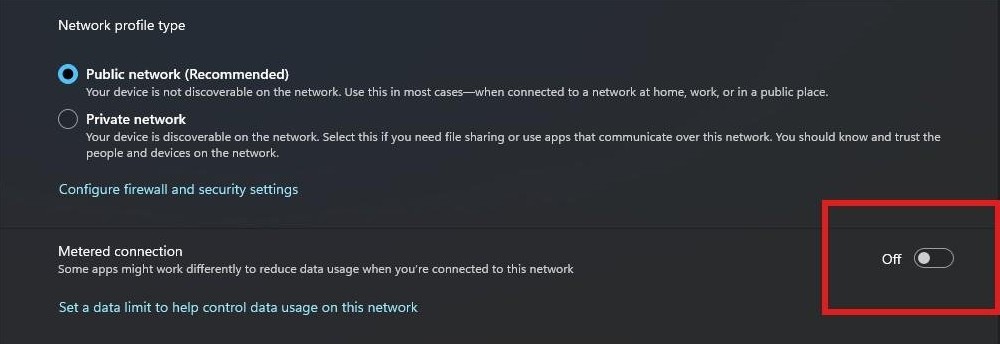
These steps match Windows 11. Windows 10 uses a slightly different label, covered in its own section below.
- Connect to the network you want to limit.
- Open Settings > Network & internet.
- Select Wi-Fi or Ethernet, then select the network you're connected to.
- Turn on Metered connection.
Cellular connections are metered by default, so they need no change unless your plan is unlimited.
Metered connection requirements on Windows 10 and 11
The prerequisites are short, and most home PCs already meet them. Microsoft ended Windows 10 support on October 14, 2025, but the setting still exists there.
| Requirement | Why it matters | How to check |
|---|---|---|
| An active connection | The steps start from the network you're connected to | Open Settings > Network & internet |
| An administrator account, if the toggle is locked | Microsoft lists this as a fix for a greyed-out toggle | Open Settings > Accounts and look for Administrator under your name |
| No organization policy on the setting | IT can set it, and you then can't change it | Ask your IT support person on a work PC |
| No data limit forcing the setting | A data limit can keep the toggle on | Check the network under Data usage |
Step-by-step: Set a Wi-Fi connection as metered
The Settings path depends on your Windows version. Connect the PC to the Wi-Fi network first, because the path starts from the connected network.
| Windows version | Settings path | Toggle name |
|---|---|---|
| Windows 11 | Network & internet > Wi-Fi > your connected network | Metered connection |
| Windows 10 | Network & Internet > Wi-Fi > your connected network > Properties | Set as metered connection |
Repeat the steps on any other limited network you join, such as a phone hotspot. If your PC shares its internet over Wi-Fi or Ethernet, set the metered connection on the PC that holds the limited plan.
Set Wi-Fi as metered on Windows 11 (22H2/23H2/24H2)
Later Windows 11 versions use the same Microsoft path.
- Select Start > Settings.
- Select Network & internet > Wi-Fi.
- Select the Wi-Fi network you're connected to.
- Turn on Metered connection.
Set Wi-Fi as metered on Windows 10 (1909/20H2/21H2/22H2)
Windows 10 places the toggle one page deeper, under the network's properties.
- Select Start > Settings.
- Select Network & Internet > Wi-Fi.
- Select your connected network, then open Properties.
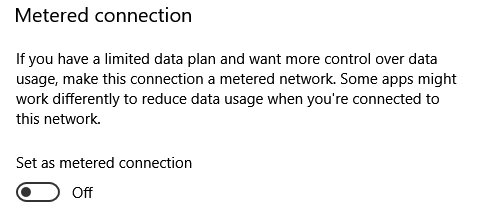
- Turn on Set as metered connection.
Step-by-step: Set an Ethernet (wired) connection as metered
Microsoft's network page has a shortcut to the connected network's details, which saves a click on a wired PC. Use the version sections below if your screen differs.
- Plug in the Ethernet cable and wait for the connection.
- Open Network & internet in Settings.
- Select Properties near your connected network.
- Turn on the metered setting on that page.
Set an Ethernet connection as metered in Windows 11
- Select Start > Settings.
- Select Network & internet > Ethernet.
- Select the network you're connected to.
- Turn on Metered connection.
Set an Ethernet connection as metered in Windows 10
- Select Start > Settings.
- Select Network & Internet > Ethernet.
- Select the network you're connected to.
- Turn on Set as metered connection.
Optional (recommended): Reduce update surprises even further
A metered connection still lets Windows Update download priority updates. These three settings close the remaining gaps.
| Your situation | Setting to use | Effect |
|---|---|---|
| You're on a tight data cap for the next few weeks | Pause updates | Stops updates that need a restart, for a limited time |
| Windows keeps downloading large updates on this network | Download updates over metered connections off | Windows Update won't use the metered network beyond priority updates |
| You want to cap update bandwidth or uploads on other networks | Delivery Optimization limits | Sets download, upload and monthly upload limits |
1) Pause Windows updates (temporary safety net)
Pausing is a short-term tool, because updates resume automatically when the pause ends. To go further on Windows 11, you can pause or stop updates in Windows 11 26H2 using the same page.
- On Windows 11, select Start > Settings > Windows Update.
- Select Pick a date on the Pause updates control and choose an end date up to 35 days away.
- On Windows 10, select Start > Settings > Update & Security > Windows Update.
- Select Pause updates for 7 days, or open Advanced options and pick a date under Pause updates.
During a pause, updates that need a restart aren't downloaded or installed. Windows 11 also cancels any update already in progress.
2) Disable “Download updates over metered connections” (if available)
This setting decides whether Windows Update treats your metered network like any other. Leave it off on a limited plan, and turn it on only when you choose to install an update.
- On Windows 11, open Settings > Windows Update > Advanced options.
- On Windows 10, open Settings > Update & Security > Windows Update > Advanced options.
- Turn off Download updates over metered connections.
- Connect to an unlimited network later to install the pending updates.
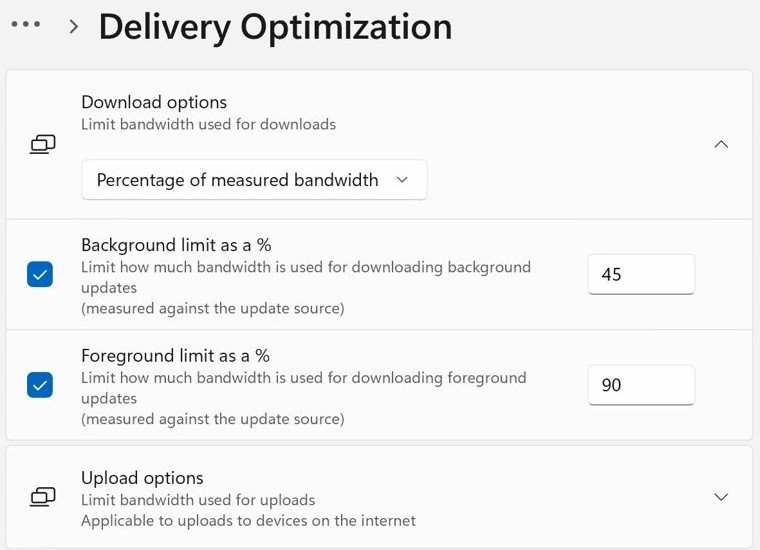
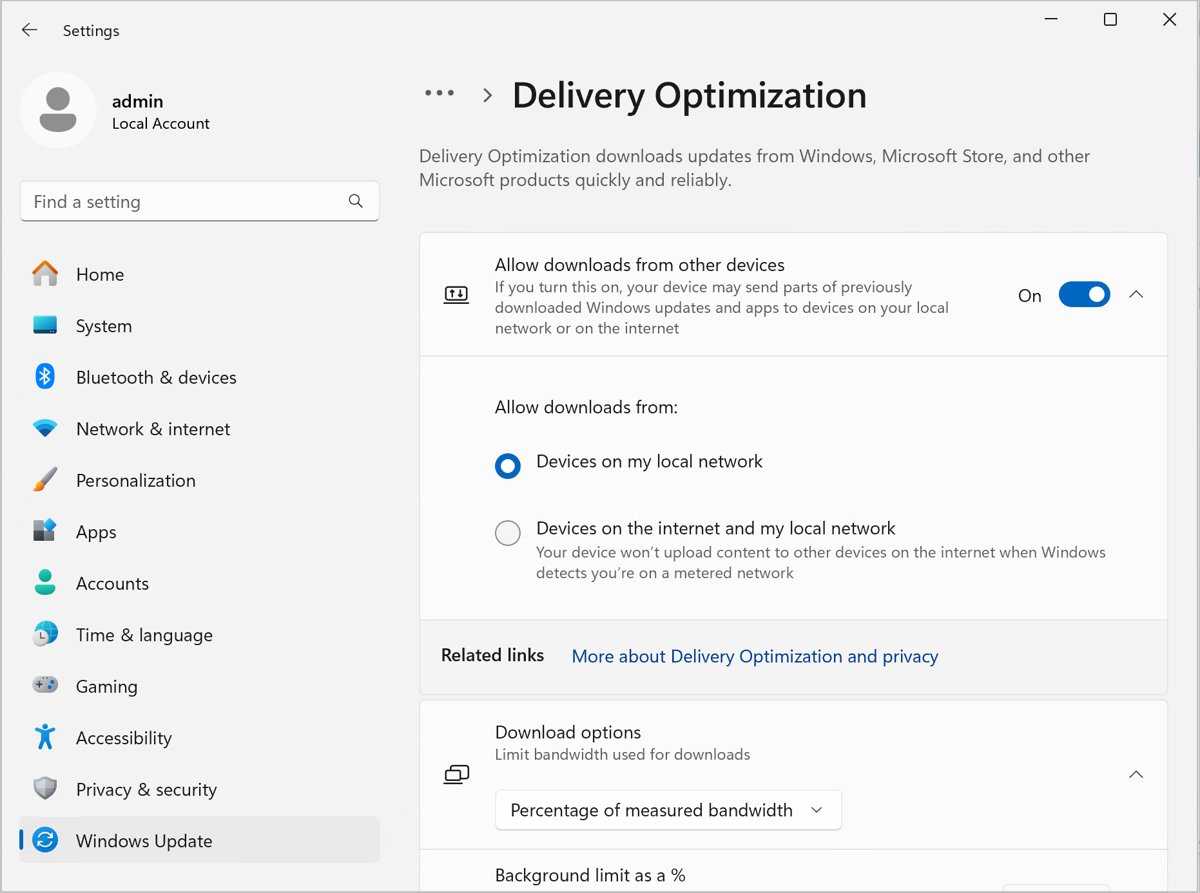
3) Limit Delivery Optimization (peer-to-peer update sharing)
Delivery Optimization fetches parts of updates and Store apps from other PCs, and can send them too. Microsoft says it won't automatically download or send parts on a metered connection, so these limits matter most on your unlimited networks.
- On Windows 11, open Settings > Windows Update > Advanced options > Delivery Optimization.
- On Windows 10, open Settings > Update & Security > Delivery Optimization.
- Turn off Allow downloads from other devices, labelled Allow downloads from other PCs on Windows 10.
- Open the bandwidth options, labelled Download options on Windows 11 and Advanced options on Windows 10.
- Set Absolute bandwidth limit in Mbps or Percentage of measured bandwidth for background and foreground downloads.
- Set the upload percentage and a Monthly upload limit between 1 and 500 GB.
If these options are greyed out, your organization manages them.
What metered connections actually do
A metered connection reduces background data use. It doesn't block data outright, and it doesn't cap the amount you can use.
| Windows feature | Behavior on a metered connection |
|---|---|
| Windows Update | Only priority updates download, and some updates won't install automatically |
| Microsoft Store downloads | App downloads might be paused |
| Offline files | Files might not sync automatically |
| OneDrive | Sync pauses automatically |
| Delivery Optimization | No automatic download or sending of update parts |
| Internet-connected apps | Data they download or display may be limited |
Windows sets Wi-Fi as non-metered by default, and mobile broadband as metered. If your internet provider charges by data used or slows your speed past a limit, the setting is worth turning on.
How to tell if a connection is metered in Windows 11
- Open Settings > Network & internet.
- Select Properties near your connected network.
- Read the Metered connection toggle. On means Windows treats this network as metered.
- Repeat for each network you want to check after you connect to it.
How to set a data limit in Windows 11
A data limit warns you when you're near your plan's allowance and when you pass it. Windows can also set the metered connection for you when a limit exists.
- Select Start > Settings > Network & internet > Wi-Fi.
- Select the Wi-Fi network you're connected to.
- Select Set a data limit to help control data usage on this network.
- Select Enter limit and choose the Limit type for your plan.
- Enter the other limit details, then select Save.
Use Data Usage to confirm what's consuming data
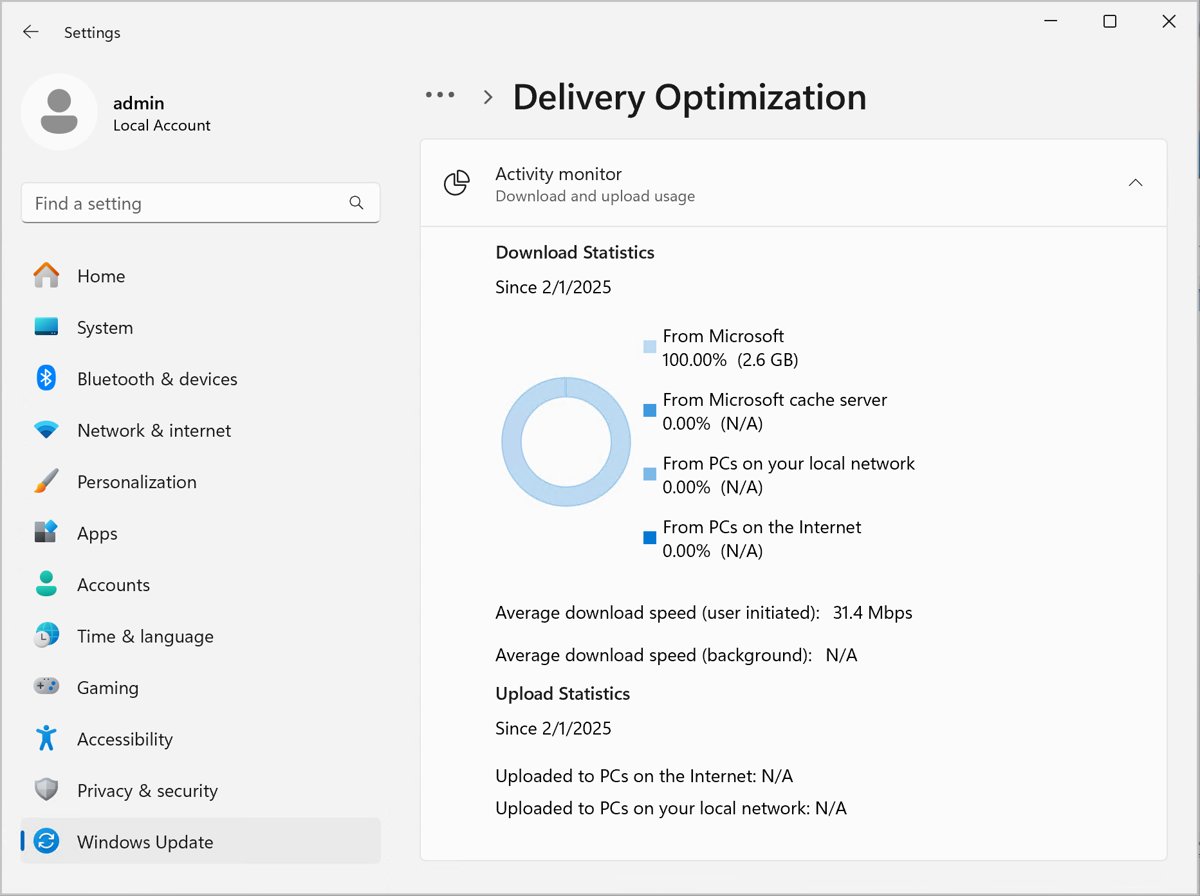
Check two places, because update traffic is reported separately on the Delivery Optimization page.
- On Windows 11, open Network & internet > Advanced network settings > Data usage.
- On Windows 10, open Network & Internet > Data usage.
- Select your network connection and review what it reports.
- Open Delivery Optimization > Activity monitor to see this month's update downloads by source, plus uploads.
If you don't see the “Metered connection” toggle
Start with the symptom that matches your screen. Microsoft documents the locked-toggle cases below.
Metered connection is on and greyed out
A data limit is set on the connection.
- Go to Network & internet > Advanced network settings > Data usage.
- Select the network connection.
- Select Remove limit > Remove.
Metered connection is locked on a standard account
Your account doesn't have administrator rights.
- Open Settings > Accounts.
- Look for Administrator under your account name.
- Sign in with an administrator account and try again.
Metered connection is locked on a work PC
Your organization sets this value.
- Ask your IT support person to change it. The setting can't be changed from your account.
Toggle is missing on Windows 10
Windows 10 uses a different label on a deeper page.
- Select your connected Wi-Fi network, then open Properties.
- Look for Set as metered connection, not Metered connection.
Wi-Fi page doesn't appear in Windows 10 Settings
The PC isn't detecting a Wi-Fi adapter or network.
- Connect to the network first, then return to the Wi-Fi page.
- Fix Wi-Fi not showing up on Windows 10 if the adapter or the list of networks has gone.
Tips, notes, and troubleshooting
Each of these is expected behavior on a metered network, so the fix is a choice rather than a repair.
Windows Update won't install an update on a metered connection
Some updates don't install automatically on a metered network.
- Connect to an unlimited network and check for updates, or turn on Download updates over metered connections for one session.
- Turn the setting off again when the download ends.
Microsoft Store downloads are stuck on a metered connection
Store downloads can pause on metered networks.
- Finish the download on an unlimited network.
- Turn off Metered connection for that network only if your plan can absorb the download.
OneDrive shows paused on a metered connection
OneDrive pauses automatically on a metered network.
- Select the paused OneDrive icon in the notification area.
- Resume syncing from the activity center if you want the files now.
How to turn off a metered connection in Windows 11 and 10
Turn it off only on a network with no data limit. Microsoft warns that a limited plan left unmetered can go over its allowance and incur charges.
- Open Settings > Network & internet, using Network & Internet on Windows 10.
- Select Wi-Fi or Ethernet, then select the connected network.
- Open Properties on Windows 10 Wi-Fi.
- Turn off Metered connection, labelled Set as metered connection on Windows 10.
Don't forget apps with their own auto-updaters
Microsoft notes that some app publishers manage their own updates through their app. Those updaters may ignore Windows settings, so check each large app's own options.
| App type | What to change | Where |
|---|---|---|
| Microsoft Store apps | Turn off automatic app updates | Microsoft Store > Profile > Store Settings > App updates |
| OneDrive sync | Limit the upload and download rate, from 50 to 100,000 KB/sec | OneDrive Settings > Sync and back up > Advanced settings |
| OneDrive, short term | Pause for 2, 8 or 24 hours | Right-click the OneDrive icon on the taskbar |
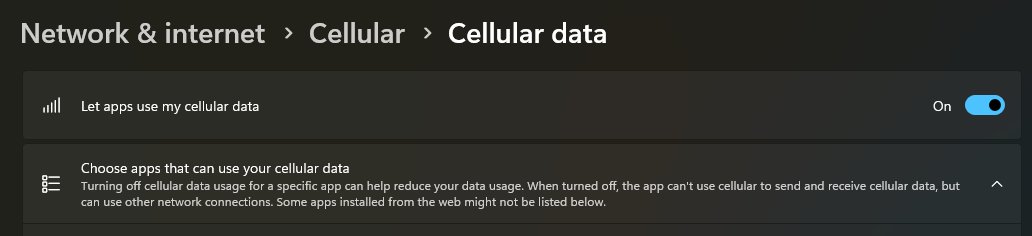
| Apps on cellular data | Block apps from cellular data | Choose apps that can use your cellular data in cellular settings |
| Apps with their own updater | Turn off or schedule automatic updates | Each app's own settings |
Windows metered connection FAQ
What is a metered connection in Windows?
A metered connection is a network Windows treats as having limited data, so it reduces what apps and services use on it. Internet providers that charge by data used, or slow your speed past a limit, are the usual reason to turn it on.
Does a metered connection stop Windows updates?
No, a metered connection doesn't stop Windows updates completely. Windows Update still downloads priority updates, while some other updates won't install automatically. To stop updates for a while as well, use Pause updates, which lasts up to 35 days on Windows 11.
Can you set Ethernet as a metered connection?
Yes, you can set Ethernet as metered in Windows 11 and Windows 10. Open Settings, select Network & internet, then Ethernet, and select your connected network. Turn on Metered connection on Windows 11 or Set as metered connection on Windows 10.
Why is Metered connection greyed out?
Metered connection is usually greyed out because a data limit is set, your account isn't an administrator, or your organization controls it. Remove the limit under Data usage, sign in as an administrator, or ask your IT support person to change it.
Is a Wi-Fi network metered by default in Windows?
No, Windows sets Wi-Fi networks as non-metered by default, and mobile broadband as metered. You need to turn the setting on yourself for a Wi-Fi network on a limited plan. Change a mobile broadband network to non-metered only if your plan is unlimited.
How do you install updates on a metered connection?
Turn on Download updates over metered connections to install updates on a metered network. Open Settings, select Windows Update, then Advanced options. Turn the setting off again when the download ends, because data charges can apply on a limited plan.
Does OneDrive sync on a metered connection?
No, OneDrive pauses automatically when your PC connects to a metered network. You can resume it from the OneDrive icon in the notification area when you want files to sync, or pause it manually for 2, 8 or 24 hours on other networks.