To share your internet in Windows, open Settings > Network & internet > Mobile hotspot, pick the connection to share, and turn on Mobile hotspot so other devices can join over Wi-Fi.
This guide covers the Mobile hotspot route, Internet Connection Sharing (ICS) over an Ethernet cable, sharing Wi-Fi through a USB or dock Ethernet adapter, the netsh hosted network commands, and fixes when the mobile hotspot is not working.
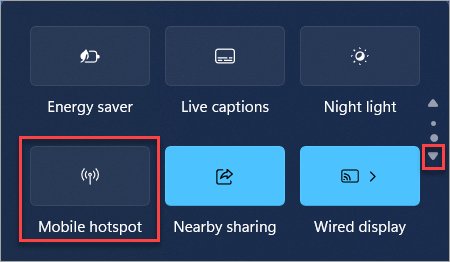
Method 1: Share internet using the Windows Mobile Hotspot feature
Mobile hotspot turns your PC into a Wi-Fi access point. It can share a Wi-Fi, Ethernet or cellular connection, and it is the fastest route on Windows 11.
- Open Settings and go to Network & internet > Mobile hotspot.
- Under Share my internet connection from, choose the connection you want to share, such as Ethernet or Wi-Fi.
- Under Share over, choose Wi-Fi (the default, and usually faster) or Bluetooth.
- Optional: expand Properties, select Edit, change the network name, password or network band, then select Save.
- Turn on the Mobile hotspot toggle.
- On the other device, open its Wi-Fi settings, select your PC's network name, and enter the password or scan the QR code.
You can also start the hotspot from Quick Settings on the taskbar with the Mobile hotspot quick action. It starts with the last settings used and shows how many devices are connected.
On Windows 10, go to Start > Settings > Network & Internet > Mobile hotspot and turn on Share my Internet connection with other devices. Sharing a cellular connection uses data from your plan.
Devices join the hotspot the same way they connect to any Wi-Fi network, and phones can join with the QR code Windows shows.
Mobile hotspot vs Internet Connection Sharing vs netsh
| Your situation | Use this | Why |
|---|---|---|
| Phones, tablets or laptops need Wi-Fi from your PC | Mobile hotspot (Method 1) | Built into Settings, with a password and QR code |
| A desktop, console or TV has only an Ethernet port | Internet Connection Sharing (Method 2) | Shares one adapter's internet to a second adapter over a cable |
| Your laptop is on Wi-Fi and has no Ethernet port | USB Ethernet adapter or dock plus ICS (Method 3) | The adapter adds the second network connection ICS needs |
| You want to script sharing or your hotspot page is missing | netsh hosted network (Method 4) | Command-line control, but only on adapters whose driver supports it |
Method 2: Share Ethernet internet connection via network adapter properties (ICS)
Internet Connection Sharing makes your PC a small gateway. It gives connected devices private IP addresses, forwards DNS, and translates their traffic onto the adapter that has internet access.
You need two network connections: the one with internet (the public side) and the one the other device plugs into (the private side). You also need to sign in as an administrator.
- Connect the second device to your PC's spare Ethernet port with a network cable.
- Press Win + R, type
ncpa.cpland press Enter to open Network Connections. - Right-click the adapter that has internet access, such as Wi-Fi or Ethernet, and select Properties.
- Open the Sharing tab.
- Select Allow other network users to connect through this computer's Internet connection.
- Under Home networking connection, choose the adapter the other device is plugged into.
- Select OK, then restart the network connection on the second device.
Leave the second device set to get its IP address and DNS server automatically. ICS hands out addresses in the 192.168.137.0/24 range.
Method 3: Share Wi-Fi internet over Ethernet using a USB adapter or docking station
Many thin laptops have Wi-Fi but no Ethernet port. A USB-to-Ethernet adapter or a dock with an Ethernet jack adds the second connection ICS needs, so a wired-only device can use the laptop's Wi-Fi.
- Plug the USB Ethernet adapter or dock into the laptop and let Windows install its driver.
- Run an Ethernet cable from the adapter to the wired-only device, such as a desktop, game console or smart TV.
- Press Win + R, type
ncpa.cpland press Enter. - Confirm a new Ethernet connection appears for the adapter.
- Right-click Wi-Fi, select Properties, and open the Sharing tab.
- Select Allow other network users to connect through this computer's Internet connection, then pick the adapter's Ethernet connection under Home networking connection.
- Select OK and set the wired device to obtain an IP address automatically.
If the adapter does not appear in Network Connections, open Device Manager, expand Network adapters, and confirm Windows lists it.
You can review the new adapter's details in the Wi-Fi and network adapter settings page of Windows 11.
Method 4: Share internet using Command Prompt (netsh) for advanced control
The netsh hosted network creates a software access point from Command Prompt. It works only when the Wi-Fi driver supports the hosted network feature, and many current drivers do not.
Open Command Prompt as administrator, then check support first with netsh wlan show drivers and look for the hosted network line.
netsh wlan set hostednetwork mode=allow ssid=MyPCNetwork key=YourPassword123
netsh wlan start hostednetwork
The first line enables the hosted network and sets its name and password (8 to 63 characters). The second line starts it. Stop it later with netsh wlan stop hostednetwork.
You should see: Windows reports that the hosted network started, and netsh wlan show hostednetwork lists its status as started with the SSID you set.
The hosted network alone only links devices to your PC. To give them internet, open ncpa.cpl, open the internet adapter's Sharing tab, and choose the new hosted network adapter under Home networking connection.
The hosted network stops when the PC sleeps, hibernates or restarts, and it does not restart by itself. Run the start command again after each restart.
Once devices share one network, you can also share files and folders between them.
Is my Windows hotspot working? Confirm connected devices and IP addresses
- On the host PC, open Settings > Network & internet > Mobile hotspot and look at the list of connected devices.
- On the client device, open its network details and confirm it received an IPv4 address automatically.
- For ICS, expect the client's address to start with 192.168.137 and its gateway to be the host PC.
- Open a website on the client device to confirm traffic reaches the internet, not just the host PC.
Turn off internet sharing in Windows
- For Mobile hotspot, turn off the Mobile hotspot toggle in Settings or in Quick Settings.
- For ICS, open
ncpa.cpl, right-click the shared adapter, select Properties, open Sharing, and clear Allow other network users to connect through this computer's Internet connection. - For the hosted network, run
netsh wlan stop hostednetworkin an administrator Command Prompt, ornetsh wlan set hostednetwork mode=disallowto disable it.
Windows mobile hotspot or Internet Connection Sharing not working
Devices connect but show no internet access
The shared adapter has no internet itself, or a VPN on the host is taking the traffic.
- Confirm the host PC can open websites on the adapter you chose to share.
- Disconnect any VPN on the host PC, because ICS traffic from clients is forwarded over a VPN connection.
- Turn sharing off and on again, then reconnect the client.
The Sharing tab or ICS option is missing
Windows needs two network connections, and a policy can hide the setting on managed PCs.
- Connect the second adapter or USB Ethernet adapter so Windows has two connections.
- Sign in with an administrator account, because standard users cannot configure ICS.
- On a work or school PC, ask the administrator about the Prohibit use of Internet Connection Sharing on your DNS domain network policy.
ICS stops working after a restart
ICS can lose its settings after the service or PC restarts, and it shuts down after 4 minutes with no traffic.
- Open the adapter's Sharing tab and turn sharing off and on again.
- Press Win + R, type
services.msc, open Internet Connection Sharing (ICS), and set Startup type to Automatic.
The hosted network will not start in Command Prompt
The Wi-Fi driver does not support the hosted network feature.
- Run
netsh wlan show driversand read the hosted network support line. - If support is not listed, use Mobile hotspot in Settings instead.
The Ethernet connection keeps failing
A loose cable, wrong port or broken network settings on the host.
- Make sure the cable is firmly plugged into both devices.
- Open Settings > Network & internet > Advanced network settings > Network reset if the host's own connection is broken. This removes installed network adapters and their settings.
Frequently asked questions about sharing internet in Windows
Can I share Wi-Fi from my laptop to another device over Wi-Fi?
Yes. Mobile hotspot can share the Wi-Fi connection your PC is already using, as long as your Wi-Fi adapter supports it. Choose Wi-Fi under Share my internet connection from, then turn on Mobile hotspot.
Can I share an Ethernet connection over Wi-Fi in Windows?
Yes. Plug the PC into Ethernet, open Settings > Network & internet > Mobile hotspot, choose Ethernet as the connection to share, and share over Wi-Fi. Other devices then join the PC's network name with its password.
Can I share Wi-Fi to a device over an Ethernet cable?
Yes, with Internet Connection Sharing. Open the Wi-Fi adapter's Properties, open Sharing, allow other network users to connect, and choose the Ethernet connection as the home networking connection. A USB Ethernet adapter works if the laptop has no port.
What IP address does Internet Connection Sharing use?
Full Internet Connection Sharing uses the 192.168.137.0/24 range, and the host PC acts as the gateway. The netsh hosted network on its own uses 192.168.173.0/24 for connected devices.
Does sharing my internet slow down my PC's connection?
All shared devices use the same internet connection as the host, so bandwidth is split between them. Heavy downloads on one device reduce the speed every other device gets.
Is netsh hostednetwork still supported on Windows 11?
The netsh wlan hostednetwork commands are still documented, but they only work when the Wi-Fi driver supports the hosted network feature. Run netsh wlan show drivers to check, and use Mobile hotspot if it is not supported.
Does Mobile hotspot work on Windows 10?
Yes. Go to Start > Settings > Network & Internet > Mobile hotspot and turn on Share my Internet connection with other devices. Windows 10 support ended on October 14, 2025, so Microsoft recommends moving to Windows 11.