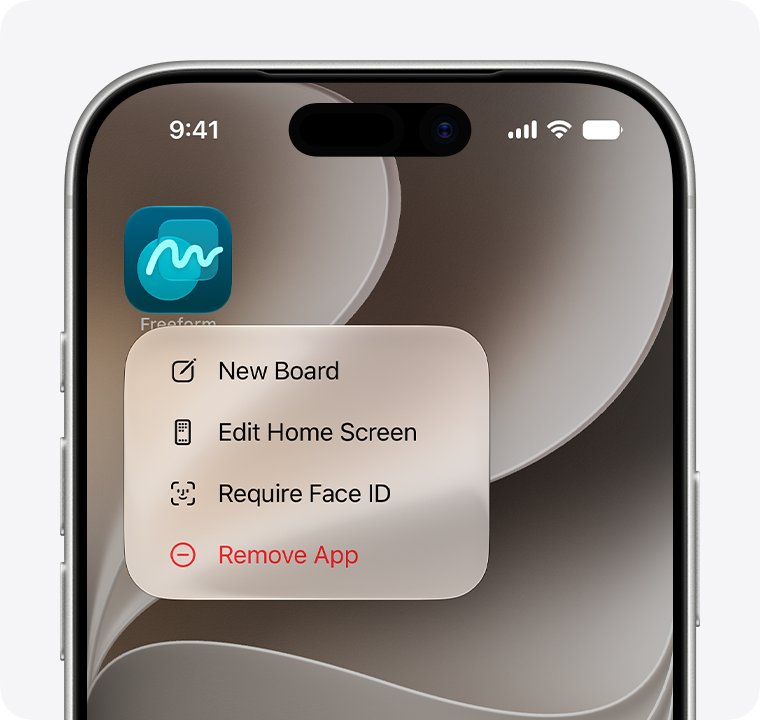
Touch and hold the app, tap Remove App, tap Delete App, then tap Delete to confirm; the Remove from Home Screen option only moves the app to App Library.
The sections below also cover deleting apps from App Library, Spotlight and Settings, what happens to subscriptions and iCloud data, and the same job on iPad, Android, Windows and Mac.
How do I delete an app from my iPhone
These steps work from the Home Screen and remove both the app and its data from the iPhone.
- Go to the Home Screen and find the app.
- Touch and hold the app icon until the menu opens.
- Tap Remove App.
- Tap Delete App, not Remove from Home Screen.
- Tap Delete to confirm.
If the icons start to jiggle instead of showing a menu, tap the Remove icon in the upper-left corner of the app. Tap Delete App, tap Delete, then tap Done at the top of the screen.
Delete App vs Remove from Home Screen on iPhone
Four iPhone options look similar but end in different places. Only Delete App takes the app and its data off the device.
| Option | Where the app goes | App data on iPhone | Pick it when |
|---|---|---|---|
| Delete App | Off the iPhone. You can reinstall it from the App Store. | Removed. Data stored in iCloud stays. | You want the app gone |
| Remove from Home Screen | App Library. It stays installed and still runs. | Kept | You only want a tidier Home Screen |
| Offload App | App is removed, and the icon stays with a cloud symbol. | Documents and data kept | You need storage back but plan to return |
| Hide and Require Face ID | Hidden folder at the bottom of App Library | Kept | You want the app out of sight, not deleted |
How to delete an app from App Library on iPhone
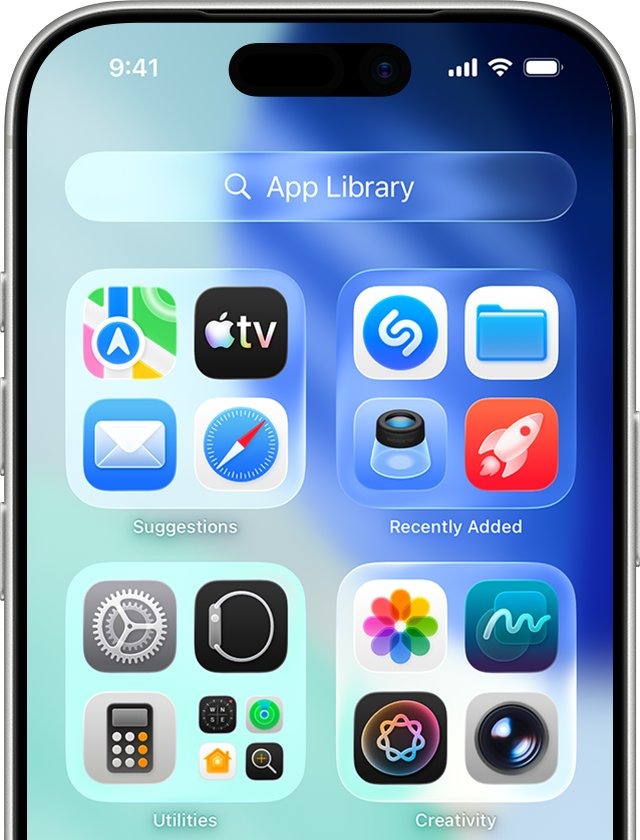
An app you already removed from the Home Screen is still installed, and this is where you finish the job. App Library also lets you delete an app that never had a Home Screen icon.
- Swipe left past all your Home Screen pages to reach App Library.
- Tap the search field at the top and enter the app's name.
- Touch and hold the app in the results.
- Tap Remove App or Delete App, whichever the menu shows.
- Tap Delete App or Delete in the next prompt to confirm.
How to delete an app using Spotlight search on iPhone
Spotlight is the quickest route when you know the app's name but cannot find its icon.
- Tap the search button on the Home Screen, or swipe down on the Home Screen.
- Enter the app's name in the search field.
- Touch and hold the app icon in the results.
- Tap Remove App or Delete App.
- Tap Delete App or Delete to confirm.
How to completely delete an app from iPhone Storage in Settings
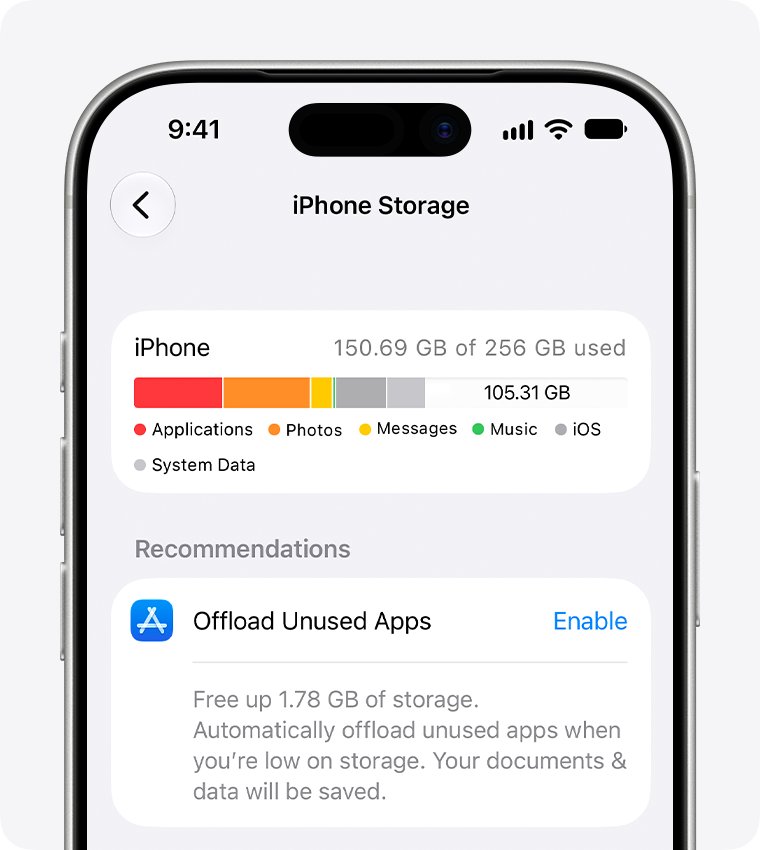
iPhone Storage shows how much space each app uses before you delete it. It also offers the offload option, which frees the app's storage but keeps its documents and data.
- Open Settings and tap General.
- Tap iPhone Storage.
- Tap the app's name in the list.
- Tap Delete App to remove the app and its related data, or Offload App to keep its documents and data.
- Confirm when the iPhone asks.
To let the iPhone offload unused apps on its own when storage is low, go to Settings > Apps > App Store and turn on Offload Unused Apps. Those icons stay on the Home Screen with a cloud symbol, so that setting is not a way to delete an app.
How do I delete an app on my iPad
Apple uses the same steps on iPad and iPhone, so the menu labels match.
- Touch and hold the app on the Home Screen or in App Library.
- Tap Remove App.
- Tap Delete App.
- Tap Delete to confirm.
If the icons jiggle, tap the Remove icon in the app's upper-left corner, tap Delete App and Delete, then tap Done.
Does deleting an app cancel the subscription on iPhone?
No. Deleting an app does not automatically cancel its in-app subscription, and billing continues until you cancel it. Cancel before you delete if you no longer want the service.
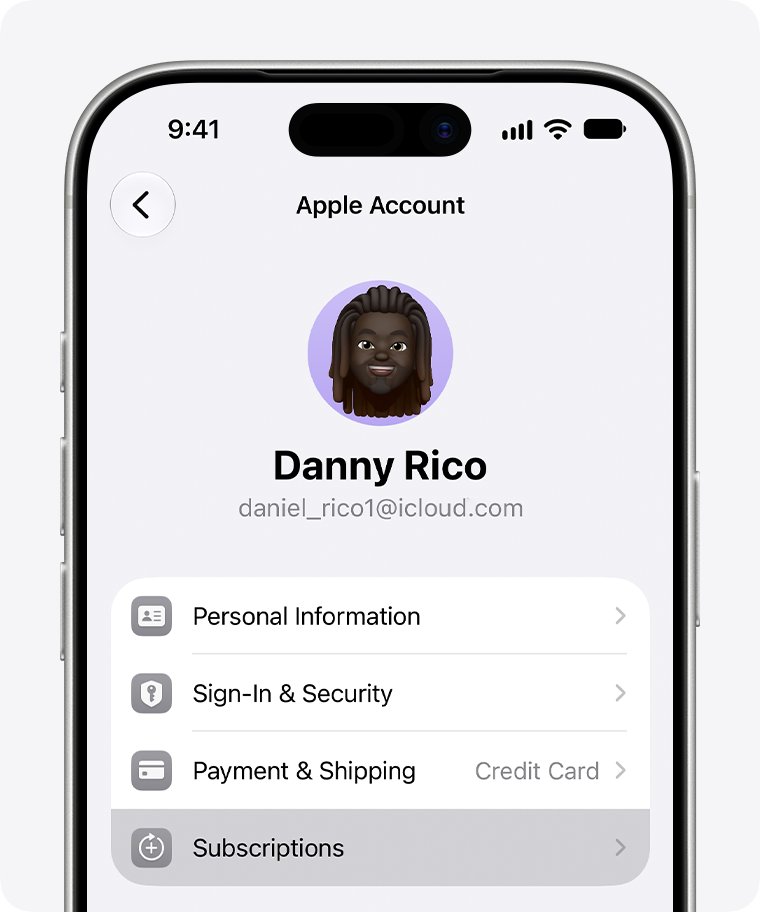
- Open Settings and tap your name.
- Tap Subscriptions.
- Tap the subscription you want to end.
- Tap Cancel Subscription. You might need to scroll down to find it.
If there is no Cancel button, or you see an expiration message in red text, the subscription is already canceled. Cancel a trial at least 24 hours before it ends if you do not want it to renew.
How to delete app data from iCloud on iPhone
Data an app stored in iCloud, such as saved photos or documents, stays there after you delete the app. An app's backup can be removed separately to free iCloud space.
- Open Settings, tap your name, then tap iCloud.
- Tap Storage or Manage Account Storage.
- Tap Backups, then tap the name of the device you are using.
- Turn off the app you no longer want backed up.
- Tap Turn Off to confirm, which removes that app's information from iCloud Backup.
Some apps are always backed up, so their switches cannot be turned off.
How do I delete an app on my Android phone
Google Play handles this on Android, though some of these steps work only on Android 13 and later.
- Open the Google Play Store app.
- Tap the Profile icon at the top right.
- Tap Manage apps & devices, then tap Manage.
- Select the name of the app you want to delete.
- Tap Uninstall.
A paid app can be reinstalled without buying it again, so you can completely delete apps on Android without losing the purchase.
How do I delete an app from my PC or laptop
Windows offers three places to uninstall, and Settings handles most apps. Control Panel picks up older programs that Settings cannot remove.
- Select Start > Settings > Apps > Installed apps.
- Find the app you want to remove.
- Select More > Uninstall.
- If the app is not listed there, enter Control Panel in taskbar search and open it.
- Select Programs > Programs and Features.
- Right-click the program and select Uninstall or Uninstall/Change, then follow the directions on the screen.
Some apps are built into Windows and cannot be uninstalled. Windows 11 readers can also uninstall apps from the Start menu with a right-click.
How to delete an app on a Mac computer
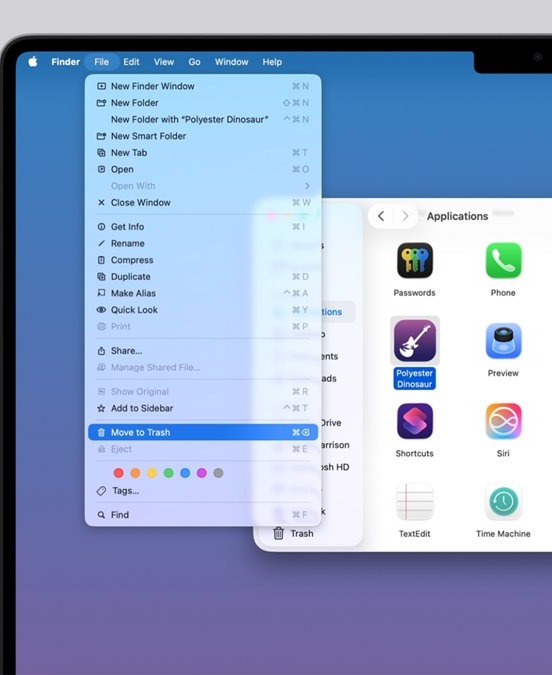
Mac apps go through the Finder, and an app's own uninstaller is the best choice when it has one. Quit the app before you start.
- Open a Finder window and click Applications in the sidebar.
- Look for an Uninstall or Uninstaller app in the same folder as the app, and run it if there is one.
- If there is no uninstaller, drag the app to the Trash.
- Enter an administrator name and password if asked.
- Choose Finder > Empty Trash to delete the app and free its storage.
Apps required by macOS, such as Mail, Music, Notes, Maps and Stocks, cannot be deleted through the Finder. You can also delete apps completely on macOS when leftovers remain.
How to tell if an app is deleted from iPhone
An app missing from the Home Screen proves nothing, because it could be in App Library, offloaded or hidden. Run these checks instead.
- Swipe left to App Library and search the app's name. A deleted app no longer appears as installed.
- Open Settings > General > iPhone Storage. A deleted app is gone from the list, though available storage may take a moment to update.
- Look for an icon with a cloud symbol on the Home Screen. That app was offloaded, not deleted.
- Open Settings > Apps > Hidden Apps. An app listed there is hidden, not deleted.
- Search the App Store for the app. A deleted app you previously downloaded offers a download button again.
Built-in apps that you can delete from iPhone or iPad
With iOS 14 or later and iPadOS, you can delete many Apple apps, and doing so also deletes their user data and configuration files. A few have side effects worth checking first.
| Built-in app | Can you delete it? | What changes |
|---|---|---|
| Calendar, Clock, Compass, Files, Freeform, Home, Mail, Measure, News, Notes, Reminders, Shortcuts, Tips, Translate, TV, Voice Memos, Wallet | Yes | The app and its data on the device are removed |
| Apple Books, Maps, Music, Podcasts | Yes | They stop being available in CarPlay. Without Music, some car stereos cannot play its library. |
| Stocks, Weather | Yes | That information also disappears from Notification Center and Apple Watch complications |
| Calculator | Yes | The calculator no longer appears in Control Center |
| Contacts | Yes | Your contact information remains in the Phone app |
| FaceTime | Yes | You can still make and receive FaceTime calls in Contacts and Phone |
| Find My | Yes | Location-sharing relationships stay in place, and owners lose sight of AirTag and other paired items |
| Health, Apple Watch app | Yes, with a condition | An alert asks you to unpair a paired Apple Watch first |
| Settings, Phone, Messages, Safari, Photos, Camera, App Store | Not on Apple's delete list | Remove from the Home Screen instead |
If you have an Apple Watch, deleting an app from your iPhone also deletes it from the watch. In the European Union, other built-in apps may also be deletable.
How to reinstall a deleted app on iPhone
You can reinstall any app you previously downloaded if it is still in the App Store. The app's on-device data does not come back unless it was stored in iCloud.
- Open the App Store app.
- Tap your account button or picture.
- Tap Apps & Purchase History, then tap Your Apps.
- In a Family Sharing group, tap My Apps or choose a family member.
- Find the app and tap the download button.
To restore a built-in Apple app, search the App Store for its exact name and tap the Redownload button.
Why can't I delete apps on my iPhone
Match what you see first, because a missing delete option on iPhone has different causes on different devices.
Why can't I delete an app on my iPhone when Delete App is missing
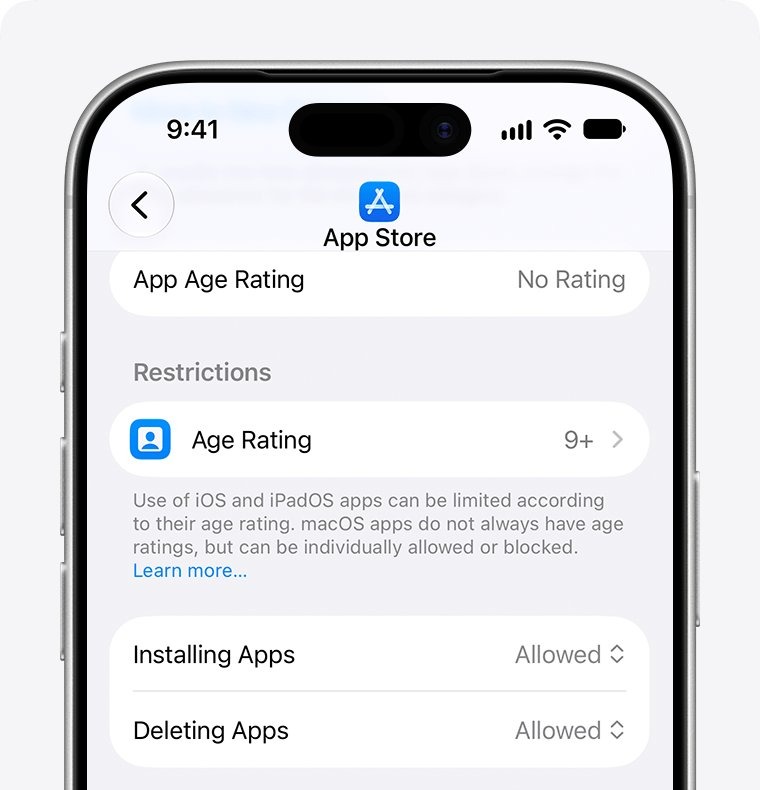
A Screen Time or parental control setting is blocking app removal for non-Apple apps.
- Open Settings and tap Screen Time.
- Tap Content & Privacy Restrictions, then tap iTunes & App Store Purchases.
- Set Deleting Apps to Allow.
- Go back to the Home Screen and try deleting the app again.
Why can't I delete apps on a child's iPhone
Family Sharing lets the parent or guardian control this from their own device.
- On the parent's iPhone, open Settings, tap Family, then tap the child's name.
- Tap Apps & Websites, entering the Screen Time passcode if asked.
- Tap App Store and allow deleting apps.
- Ask the child to try deleting the app again.
Why won't it let you delete apps on a work or school iPhone
A device managed by Mobile Device Management (MDM) may block app deletion.
- Open Settings > General > VPN & Device Management to see whether a management profile is installed.
- Contact your device administrator and ask them to remove the app or allow deletion.
How to delete app that won't delete because of an Apple Watch alert
The Health and Apple Watch apps cannot be deleted while an Apple Watch is paired.
- Read the alert that appears when you try to delete the app.
- Unpair the Apple Watch if you really want the app gone.
- Delete the app again from the Home Screen.
Why can't I delete a built-in Apple app
Some Apple apps can be removed from the Home Screen but cannot be deleted from the iPhone.
- Check the built-in app table above for the app's name.
- If it is not deletable, touch and hold it, tap Remove App, then tap Remove from Home Screen.
- Open it later from App Library if you need it.
Family Sharing setups vary by iOS version, and deleting apps on a child account has its own steps for each one.
Delete an app on iPhone FAQ
How do I delete an app?
On iPhone or iPad, touch and hold the app, tap Remove App, tap Delete App, then tap Delete. On Android, use Manage apps & devices in Google Play. On Windows, use Installed apps in Settings. On Mac, drag the app to the Trash and empty it.
Does removing an app from the Home Screen delete it?
No. Remove from Home Screen only moves the app to App Library, where it stays installed and can still be opened. Your data stays too. To take the app off the iPhone, choose Delete App in the same menu.
How to completely delete an app?
Choose Delete App rather than Remove from Home Screen, cancel any subscription in Settings, then turn off the app's iCloud backup under Backups in iCloud storage. Deleting an app does not remove data it stored in iCloud or end billing on its own.
How do I delete an app on my phone?
On an iPhone, touch and hold the app, tap Remove App, then Delete App and Delete. On an Android phone, open Google Play, tap the Profile icon, tap Manage apps & devices, tap Manage, select the app and tap Uninstall.
Why can't I delete apps on my iPad?
An iPad blocks deletion for the same reasons an iPhone does. The app may be a built-in Apple app that cannot be deleted, Deleting Apps may not be set to Allow in parental controls, or a school or company may manage the device through MDM.
Why won't an app delete?
The usual causes are a Screen Time restriction, device management, or an Apple app that can only leave the Home Screen. The Health and Apple Watch apps also ask you to unpair a paired watch first. Non-Apple apps delete normally once restrictions allow it.
How do I delete an app from my laptop?
On a Windows laptop, select Start, Settings, Apps, Installed apps, then More and Uninstall next to the app. Older programs may need Control Panel under Programs and Features. On a MacBook, use the app's uninstaller if it has one, or drag it to the Trash and empty it.
How to delete app that won't delete?
Find out what is blocking it first. Allow Deleting Apps in Screen Time if a restriction is on, ask an administrator on a managed device, or unpair the Apple Watch for the Health and Watch apps. A built-in app may only leave the Home Screen.