To fix an 'Access Denied' error in the Windows Temp folder, close the app using the file, restart, and reset the folder's permissions with icacls from an elevated Command Prompt.
This guide covers both Temp folders on Windows 11 and Windows 10, six repair methods, the system folder you should leave alone, and ways to clear temporary files without opening Temp at all.

How to fix access denied in the Windows Temp folder
These steps repair the Temp folder that belongs to your own account, which is the one most apps use.
- Save your work, close open apps, and restart the PC so running programs let go of their temporary files.
- Select Search, type
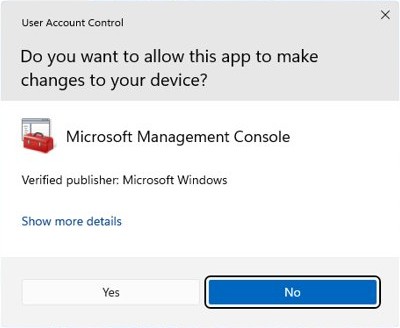
cmd, right-click Command Prompt, and select Run as administrator. - Run
icacls "%TEMP%"and copy the output into Notepad, so you have a record of the current permissions. - Run
icacls "%TEMP%" /reset /t /c /qto replace the permissions on the folder and everything inside it with the default inherited ones. - Press Windows logo key + R, type
%temp%, and select OK. Then retry the action that failed.
If you approve the elevation prompt with a different administrator's credentials, %TEMP% points to that account's folder. In that case, type the full path instead: C:\Users\<username>\AppData\Local\Temp.
Understanding the Temp folder
Windows has more than one Temp folder, and the right fix depends on which one refused you. You can open the Temp folder in Windows 11 from the Run dialog if you are unsure of the path.
| Folder | Typical path | Who uses it | Access to expect |
|---|---|---|---|
| User Temp | %USERPROFILE%\AppData\Local\Temp, opened with %temp% |
Programs running under your account | Your account can normally open and write to it |
| Windows Temp | %windir%\Temp, usually C:\Windows\Temp |
The system's temporary path | Windows may ask for administrator approval first |
| SystemTemp | C:\Windows\SystemTemp |
Processes running as SYSTEM | Blocked for everything else by design |
Programs store temporary information in these folders and usually delete it before they quit. Microsoft says temporary files that have not been modified within the last week can be deleted safely.
Common reasons for Access Denied errors
| Reason | How it shows up | Where to go |
|---|---|---|
| A running program has the file open | Some items delete and others refuse | Restart, then method 6 |
| The app is not elevated | An administrator account still runs apps with a standard user token until you approve elevation, so C:\Windows\Temp can refuse changes |
Run the tool as administrator |
| You are not the owner, or your account has no permission | The error remains even in an elevated window | Method 1 |
| Inheritance is turned off | New files or subfolders carry unexpected permissions | Method 2 or method 4 |
TEMP or TMP points to the wrong place |
Installers and apps fail while unpacking files | The TEMP and TMP section below |
You opened C:\Windows\SystemTemp |
Refused for every normal account | Leave it alone |
| Group Policy or a management agent restricts writes | Work or school PC, and the fixes do not stick | Contact your IT team |
| A third-party security tool locked the file | The file refuses only while that tool is active | Check the tool's quarantine or log, then try a clean boot |
| Windows system files are damaged | Other Windows features fail as well | Method 5 |
1. Gain complete control of the Temp folder
Take ownership of the one file or subfolder that refuses you, not the whole Temp folder. takeown makes you the owner, and icacls then lets you change the file or folder permissions.
- Open Command Prompt with Run as administrator.
- For a single file, run
takeown /f "%TEMP%\<item>", replacing<item>with the file name. - For a subfolder, run
takeown /f "%TEMP%\<item>" /r /d yinstead. - Run
icacls "%TEMP%\<item>" /grant "%USERNAME%":F /t /cto give your account full access. - Delete or open the item in File Explorer.
- For an item in the Windows Temp folder, use
%windir%\Temp\<item>as the path andadministrators:Fas the grant.
Answering y through /d replaces a directory's permissions with full control for you alone when you lacked list and read access. Do not run it on the top-level Temp folders, because other accounts and services need them.

2. Enable folder inheritance
Run icacls "%TEMP%" first. Entries marked (I) come from the parent folder, so a Temp folder with no (I) entries has inheritance turned off.
icacls "%TEMP%" /inheritancelevel:e
icacls "%TEMP%\*" /inheritancelevel:e /t /c
The first line turns inheritance back on for your Temp folder, and the second does the same for its contents. /t includes subfolders, and /c keeps going past files that return an error. For the Windows Temp folder, run only the second line with %windir%\Temp\* as the path.
You should see: (I) entries appear when you run icacls "%TEMP%" again.
3. Enable built-in Administrator account
Use this only when an elevated Command Prompt still fails. Windows setup disables this account, and Microsoft recommends keeping it disabled when possible, so turn it off again as soon as the repair is done.
- Open Command Prompt with Run as administrator.
- Run
net user administrator *and type a password when prompted. Microsoft notes that a blank password cannot be used for this account. - Run
net user administrator /active:yes. - Sign out, then sign in as Administrator.
- Repeat method 1 or method 4 with the full path, such as
C:\Users\<username>\AppData\Local\Temp, because%TEMP%now points to the Administrator profile. - Sign back in to your own account and run
net user administrator /active:nofrom an elevated Command Prompt.
4. Reset folder permissions
The /reset switch replaces permissions with the default ones inherited from the parent folder. That makes the target important, because the parent of C:\Windows\Temp is the Windows folder itself.
| Folder | Command | Why this target |
|---|---|---|
| User Temp | icacls "%TEMP%" /reset /t /c /q |
The folder inherits correctly from your own profile |
| Windows Temp | icacls "%windir%\Temp\*" /reset /t /c /q |
Resets the contents only and keeps the folder's own permissions |
| SystemTemp | No command | Its permissions are set this way on purpose |
/q hides success messages and /c continues past errors, so any error lines on screen name the items that failed. Retry those after a restart, because a program may have had them open.
5. Run DISM and SFC scans
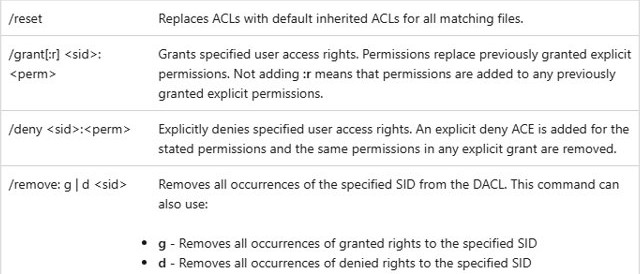
These tools repair Windows system files, not Temp folder permissions. Run them when other Windows features are failing as well. Use an elevated Command Prompt, and run DISM first because it fetches replacement files from Windows Update.
DISM.exe /Online /Cleanup-image /Restorehealth
sfc /scannow
DISM takes several minutes. Keep the window open until sfc /scannow reaches 100%.
You should see: Windows Resource Protection did not find any integrity violations. or Windows Resource Protection found corrupt files and successfully repaired them.
If SFC reports Windows Resource Protection could not perform the requested operation, run sfc /scannow again in Safe Mode.
6. Use a dedicated tool
Microsoft's free Sysinternals tools show what is holding a file or which permissions apply. Skip third-party unlockers and PC cleaners, because these tools reveal the cause without changing anything.
| Question | Microsoft tool | How to use it |
|---|---|---|
| Which program has this file open? | Process Explorer | Use its search to find the process holding the file, then close that program normally |
| The same question, from a command line | Handle | From an elevated prompt, run handle <part of the file name>. Do not use its -c switch, because Microsoft warns that closing handles can cause instability |
| What can my account actually do here? | AccessChk | Run accesschk -d "%USERNAME%" "%TEMP%". R means read access and W means write access |
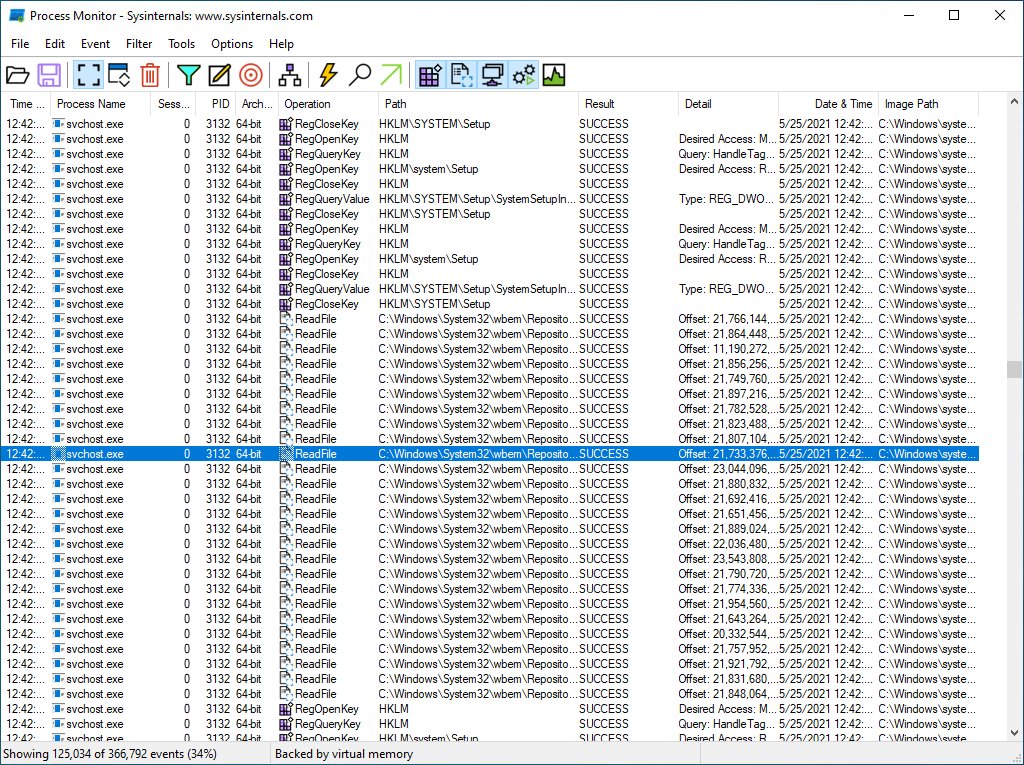
| What was refused, and which process tried? | Process Monitor | Capture file activity while the error happens, then filter on the Temp path |
Alternatives to accessing the Temp folder
If your goal is free disk space, you do not need to open Temp or change a single permission. Windows has built-in cleaners that delete temporary files for you.
| Your situation | Use this | How |
|---|---|---|
| You want to clear temporary files once | Cleanup recommendations in Settings | Go to Start > Settings > System > Storage > Cleanup recommendations, review Temporary files, and select Clean up |
| You want Windows to handle it from now on | Storage Sense | Go to Start > Settings > System > Storage and set Storage Sense to On |
| You prefer the classic tool | Disk Cleanup | Search for disk cleanup, choose the drive, select OK, tick the file types, and select Delete files |
| You also want system files removed | Disk Cleanup with system files | In Disk Cleanup, select Clean up system files first, then choose the drive |
Storage Sense runs when the device is low on disk space with its default settings, and it cleans only the system drive.
Set Windows Temp folder location with TEMP and TMP variables
Apps ask Windows for the temporary path, and Windows returns TMP first, then TEMP, then USERPROFILE, then the Windows folder. Windows does not test whether the app can write there, so a bad value produces Access Denied errors in otherwise healthy apps.
- Open Command Prompt without elevation and run
echo %TMP%, thenecho %TEMP%. - If either path is wrong or sits on a removed drive, open Control Panel and select System.
- Select Advanced System Settings, go to the Advanced tab, and select Environment Variables….
- Under the user variables, set TEMP and TMP to
%USERPROFILE%\AppData\Local\Temp. - Select OK, close the dialogs, and restart the app that failed.
Windows system Temp folder access denied
On current Windows versions, apps running as SYSTEM are directed to C:\Windows\SystemTemp. Microsoft states that this folder is inaccessible to non-SYSTEM processes and carries permissions chosen to prevent path redirection issues.
Do not take ownership of C:\Windows\SystemTemp. The refusal is the intended behavior, not a fault. To reclaim the space it uses, run Disk Cleanup or Storage Sense instead of changing its permissions.
How to test Temp folder permissions with icacls
- Open a normal Command Prompt, without Run as administrator.
- Run
icacls "%TEMP%"and look for your account name followed by(F), which means full access. - Run
echo test > "%TEMP%\temp-test.txt"to confirm your account can write there. - Run
del "%TEMP%\temp-test.txt"to confirm it can delete. Neither command should printAccess is denied.
How to undo Temp folder permission changes
- Remove a grant you added to an item with
icacls "<path>" /remove:g "%USERNAME%". - Return the item to inherited permissions with
icacls "<path>" /reset /t /c /q. - Compare the result with the output you saved in Notepad earlier.
- Disable the built-in account if you enabled it, with
net user administrator /active:no.
Windows Temp folder not opening or files won't delete
If the same error appears outside Temp, you can fix Access Denied on other Windows folders with a wider set of checks.
Windows Temp folder not opening
C:\Windows\Temp needs an administrator's approval, or its contents have damaged permissions.
- Sign in with an administrator account and open
C:\Windows\Tempin File Explorer. - Approve the prompt if Windows shows one.
- If it still refuses, run the Windows Temp command from method 4 and restart.
Windows temporary files won't delete
A program or service is using the file, even if no window is open.
- Restart the PC, then delete the files before opening other apps.
- Find the program holding the file with Process Explorer or Handle, and close it.
- Go to Settings > System > Recovery > Advanced startup and select Restart now.
- Select Troubleshoot > Advanced options > Startup Settings > Restart, then press 4 or F4 for Safe Mode.
- Delete the files, then restart normally.
Access is denied even as administrator
An explicit deny entry, a different owner, or a third-party tool is blocking the item.
- Run
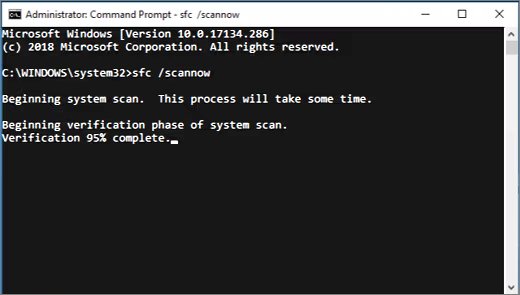
icacls "<path>"and look for your account with(N)or(DENY)beside it. - Remove a deny entry with
icacls "<path>" /remove:d "%USERNAME%", then repeat method 1. - To rule out other software, search for msconfig and open System Configuration.
- On the Services tab, check Hide all Microsoft services, select Disable all, and select Apply.
- Restart and test. Then return to Normal Startup on the General tab and select Enable all on the Services tab.
Windows Temp folder keeps filling up
Programs that do not finish normally can leave their temporary files behind.
- Go to Start > Settings > System > Storage.
- Set Storage Sense to On.
- Select Storage Sense and choose how often it runs under Run Storage Sense.
Windows Temp folder access denied FAQ
What is a Windows Temp folder?
A Windows Temp folder is where programs store temporary information while they run. Programs usually delete that information before they quit. Each account has its own folder at %USERPROFILE%\AppData\Local\Temp, and the system uses C:\Windows\Temp.
Where is the Windows Temp folder located?
Your own Temp folder is usually at C:\Users\<username>\AppData\Local\Temp, and typing %temp% in the Run dialog opens it. The system folder is usually at C:\Windows\Temp, which is the Windows folder on the system drive.
Why does the Temp folder say access denied?
The Temp folder usually says access denied because a running program has the file open, your app is not elevated, or the item's owner or permissions changed. Windows also blocks C:\Windows\SystemTemp for every process that does not run as SYSTEM.
Can I delete Windows Temp folder files?
Yes, you can delete files in the Windows Temp folder, and Microsoft says temporary files not modified within the last week are safe to remove. Delete the contents rather than the folder itself, and skip any file Windows reports as in use.
Is the Windows Temp folder safe to delete?
Its contents are safe to clear when they are older than a week, but keep the folder itself. Programs and Windows expect the temporary path to exist. The safest route is Cleanup recommendations in Settings, because it handles the selection for you.
Does the Windows Temp folder automatically delete files?
Only partly. Programs usually remove their own temporary files before they quit, and Storage Sense removes unnecessary temporary files when it runs. Storage Sense is off by default, although Windows may turn it on when the PC runs low on disk space.
Can I change the Windows Temp folder location?
Yes. Edit the TEMP and TMP user variables in the Environment Variables dialog, then restart your apps. Choose a folder your account can write to, because Windows does not check access rights before it hands the path to a program.
Should I take ownership of the whole Temp folder?
No. Take ownership of only the item that refuses you, then use icacls to grant access. Changing the top-level folder can lock out other accounts and services, and a recursive takeown can replace a directory's permissions with full control for you alone.