To fix the desktop refresh option in Windows 11, right-click an empty part of the desktop, select Refresh (or Show more options > Refresh), and restart Windows Explorer from Task Manager if nothing happens.
This guide covers the F5 shortcut, keyboard faults that stop it, key remapping tools, and system repairs for a refresh menu that stays broken.
Start with the correct desktop refresh command
Windows applies F5 to the active window, so a keypress meant for the desktop can land in whatever app has focus. Give the desktop focus first, then refresh it.
- Press Windows + D to display the desktop.
- Right-click an empty part of the desktop, not an icon or the taskbar.
- Select Refresh.
- If Refresh is not in that menu, select Show more options, then select Refresh.
- To use the keyboard instead, click an empty part of the desktop once and press F5.
Why is the desktop refresh option not working in Windows 11?
Match what you see to a row and go straight to that fix.
| What you see | Likely cause | Fix |
|---|---|---|
| Refresh is missing from the first right-click menu | The compact Windows 11 menu is showing | Select Show more options |
| Right-click does nothing, or the taskbar is frozen too | Windows Explorer has stalled | Restart Windows Explorer |
| The menu works, but F5 does nothing on the desktop | The desktop lacks focus, or the key has a fault | Check whether F5 works in other windows |
| F5 changes volume or brightness | The top row is sending its alternate command | Test the function-row mode |
| F5 types or triggers something else | A remapping tool or macro holds the key | Remove the remap |
| Refresh still fails after restarting Explorer | Damaged system files or a conflicting startup app | Run DISM and SFC, then a clean boot |
Check whether F5 works anywhere
This test separates a desktop problem from a keyboard problem. Microsoft lists F5 as the refresh key for the active window and for File Explorer.
- Press Windows + E to open File Explorer.
- Click inside the file list and press F5.
- Open a page in your browser, click the page and press F5.
- If F5 refreshes both windows but not the desktop, restart Windows Explorer.
- If F5 fails in both windows, test the function-row mode and the keyboard connection next.
Restart Windows Explorer
Windows Explorer draws the desktop and taskbar as well as File Explorer. Restarting it clears a stalled desktop without restarting the PC. The desktop and taskbar disappear for a moment while it reloads.
- Press Ctrl + Shift + Esc to open Task Manager.
- Find Windows Explorer in the process list.
- Right-click Windows Explorer and select Restart.
- If Windows Explorer is not listed, select Run new task, type
explorer.exeand select OK. - Right-click the desktop and select Refresh to test it.
Test the keyboard’s function-row mode
Many keyboards give the top row two jobs: the standard F1 to F12 commands and alternate commands such as media controls. When the alternate set is active, F5 never reaches the desktop.
- Click an empty part of the desktop.
- Hold Fn and press F5.
- If that refreshes the desktop and F5 alone does not, the row is using its alternate commands.
- Press F Lock if your keyboard has that key, which switches between standard and alternate commands.
- On the Microsoft All in One Media Keyboard, press Fn + Caps Lock together to turn Fn Lock on or off.
- Press F5 alone on the desktop to test the new mode.
Laptop makers handle this differently, so you may need to turn off Fn Lock with a model-specific key. You can also fix the F5 refresh key through the maker's app or BIOS/UEFI options.

Reconnect or isolate the keyboard
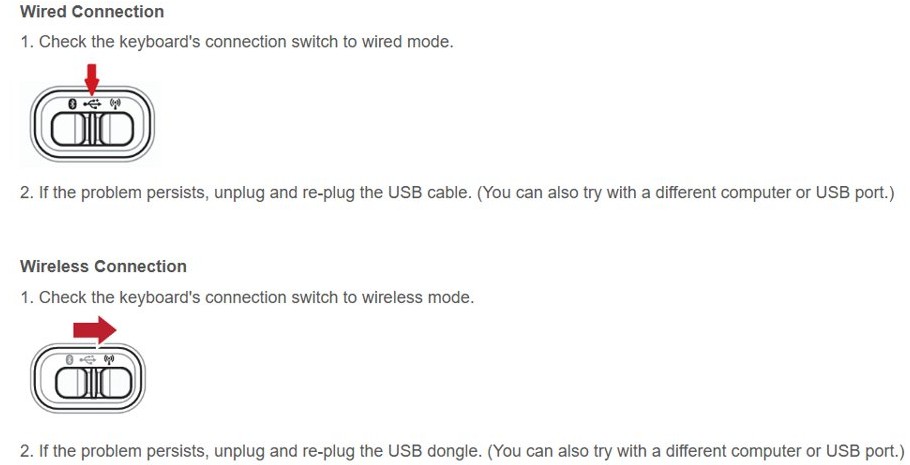
A loose connection or a failing keyboard stops F5 everywhere. These checks show whether the fault is in the keyboard, the port or Windows.
- Unplug the keyboard, wait briefly so Windows can unload its driver, and plug it back in.
- Try a different USB port, or connect directly to the PC instead of through a hub.
- Inspect the cable, charge or replace the batteries, and clear any dirt around the keys.
- On a wireless keyboard with a USB receiver, unplug the receiver for about 10 seconds and plug it back in.
- Test the keyboard on another PC. If F5 fails there too, the keyboard needs replacing.
Install available keyboard updates
Windows Update delivers driver updates when they exist, although there may be none for your keyboard. Device Manager is the direct route if Windows Update offers nothing.
- Search for Check for updates in the Start menu and open it.
- Select Check for updates and install anything offered.
- Restart the PC if Windows asks you to.
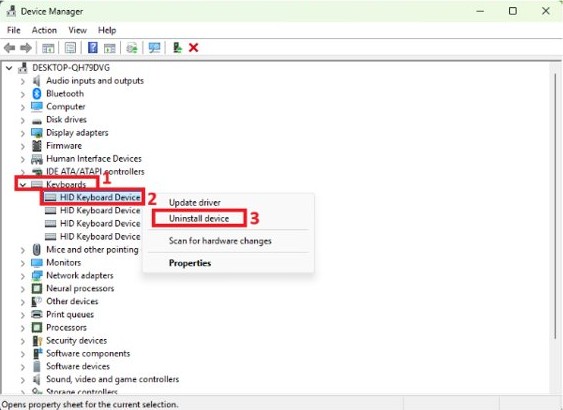
- Search for Device Manager and open it.
- Expand Keyboards and double-click your keyboard.
- On the Driver tab, select Update Driver, then select Search automatically for updated driver software.
Remove an F5 remap or macro
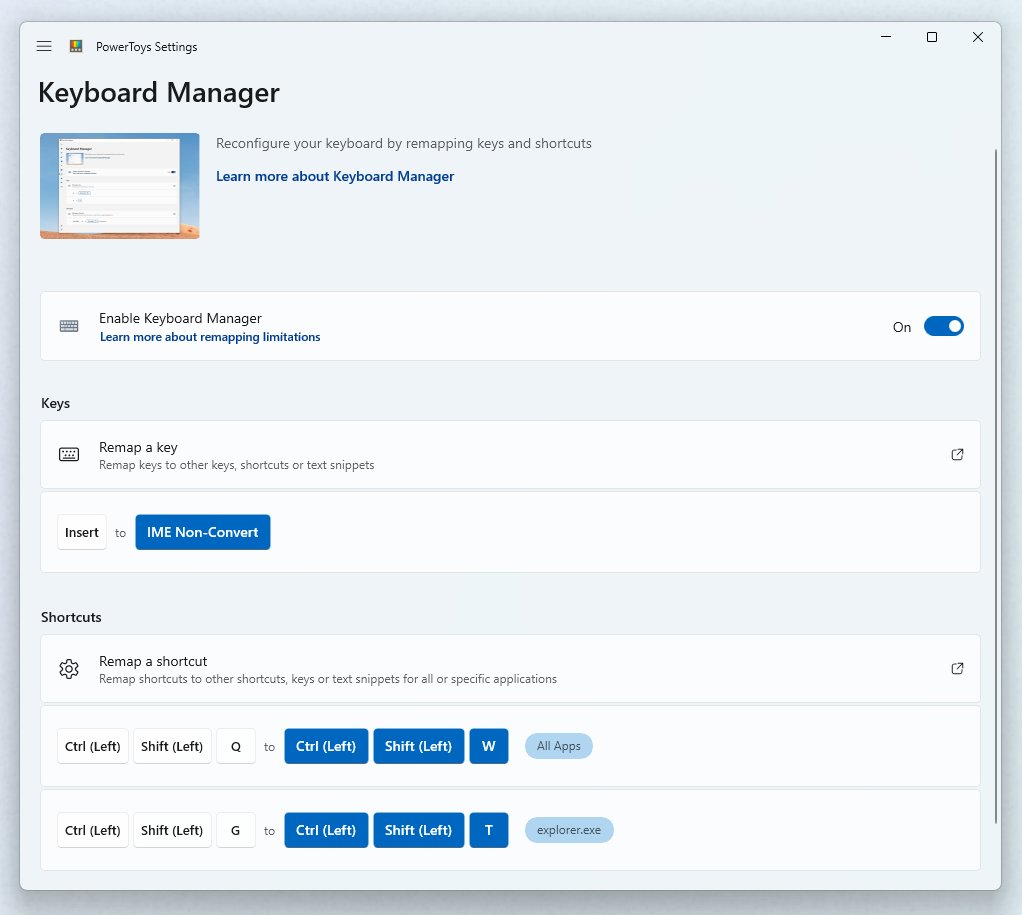
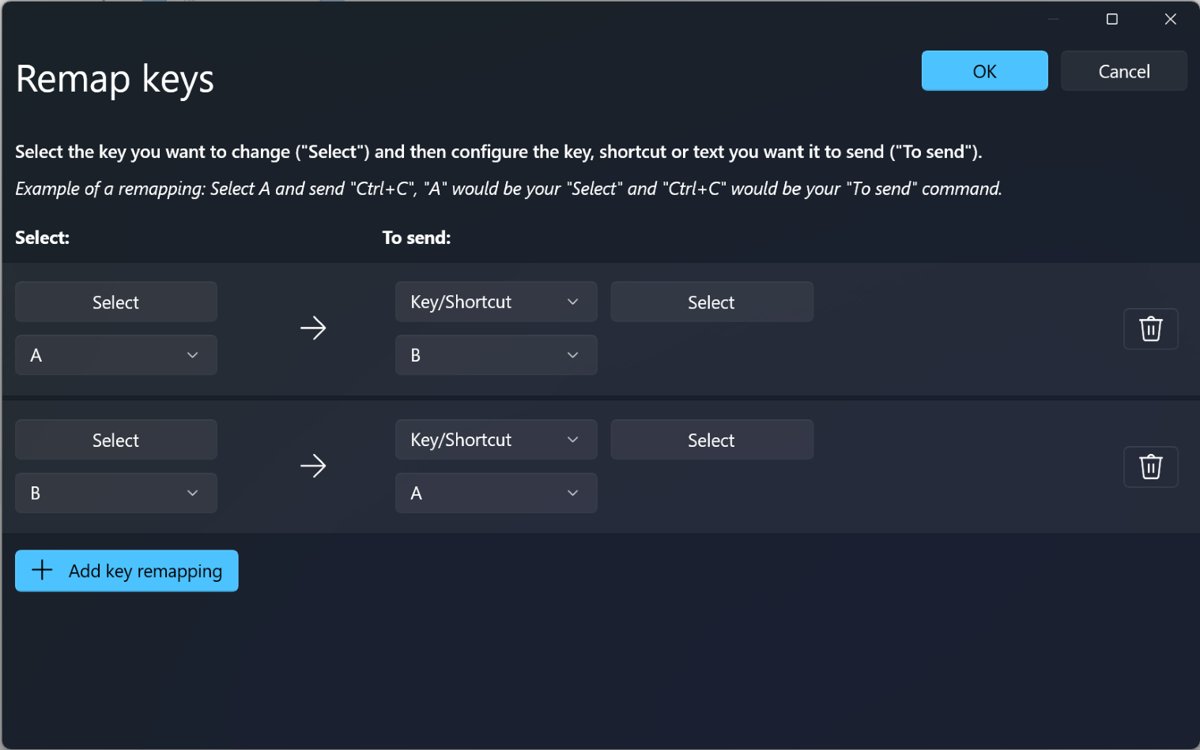
PowerToys Keyboard Manager can remap any key from F1 to F12, and the change applies across Windows unless it targets one app. Gaming keyboard software and AutoHotkey scripts can capture F5 the same way.
- Open PowerToys Settings and select the Keyboard Manager tab.
- Select Remap a key and look for F5 in the Select or To send columns.
- Delete any row that uses F5, then select OK.
- Select Remap a shortcut and repeat the check for any shortcut that uses F5.
- Turn off Keyboard Manager and press F5 on the desktop to test it.
- Close any AutoHotkey script or keyboard macro app that maps F5, then test again.
Changes in Keyboard Manager take effect as soon as you select OK, with no restart. New installations of PowerToys 0.100 and later open a redesigned editor by default, so the window layout can differ.
Use another way to refresh the desktop
Windows 11 has several refresh commands, so one failing route does not leave you stuck. Click an empty part of the desktop before using a keyboard option.
| Option | How to use it | When it helps |
|---|---|---|
| Right-click menu | Right-click the desktop and select Refresh | The keyboard is at fault |
| Show more options menu | Right-click the desktop, select Show more options, then Refresh | The first menu does not list Refresh |
| Ctrl + R | Press both keys together | F5 is broken or remapped |
| Ctrl + F5 | Press both keys together | F5 alone is claimed by the top row's alternate command |
| Fn + F5 | Hold Fn and press F5 | A laptop top row defaults to media keys |
| Restart Windows Explorer | Use Task Manager, as described above | No refresh command has any effect |
Refresh option in laptop with a touchpad or touchscreen
A laptop needs a right-click gesture to reach the same menu, so a touchpad fault can look like a missing refresh option.
- Press Windows + D to display the desktop.
- On a touchpad, tap with two fingers on an empty part of the desktop, or press down in the lower-right corner of the touchpad.
- On a touchscreen, press and hold an empty part of the desktop.
- Select Refresh, or select Show more options and then Refresh.
If those gestures do nothing, fix the touchpad itself or refresh the laptop from the keyboard in the meantime.
How to tell if the desktop refreshed in Windows 11
A refresh often shows only a brief flicker of the icons, and sometimes no visible change at all. This test gives you a result you can see.
- Press Windows + E and open the Desktop folder in File Explorer.
- Select New > Folder and name it
Test. - Return to the desktop, right-click an empty part and select Refresh.
- Check that the
Testfolder appears on the desktop. - Delete the
Testfolder.
When the desktop refresh menu is still broken
Windows desktop not refreshing after Explorer restarts
Missing or corrupted system files can keep the desktop from working normally. DISM repairs the Windows image, then System File Checker repairs the files.
- Type
cmdin the search box, right-click Command Prompt and select Run as administrator. - Run
DISM.exe /Online /Cleanup-image /Restorehealthand wait for it to finish, which can take several minutes. - Run
sfc /scannowin the same window and keep it open until the scan reaches 100%. - Restart the PC if the scan reports that it repaired corrupt files, then test Refresh.
Desktop refresh stopped working after installing an app
A third-party service or startup app can conflict with the desktop. A clean boot starts Windows without them so you can test it. Microsoft warns that misusing System Configuration can make the PC unusable, so change only the items listed here. Some functions can also be unavailable until you return to normal startup.
- Sign in as an administrator, search for
msconfigand open System Configuration. - On the Services tab, check Hide all Microsoft services, select Disable all, then select Apply.
- On the Startup tab, select Open Task Manager, disable each enabled startup app and note which ones you changed.
- Close Task Manager, select OK in System Configuration and restart the PC.
- Test Refresh. If it works, turn the disabled items back on a few at a time to find the app responsible.
- To return to normal, select Normal Startup on the General tab, select Enable all on the Services tab, re-enable your startup apps and restart.
Desktop refresh stopped working after a Windows update
Removing a recent update can show whether it caused the fault. Microsoft warns you to understand the risks before removing a security update, and some updates cannot be removed.
- Select Start > Settings > Windows Update.
- Under More options, select Update history.
- Under Related settings, select Uninstall updates.
- Choose the most recent update and select Uninstall.
- Restart the PC and test Refresh.
Windows desktop keeps refreshing or doesn't refresh automatically
My desktop keeps refreshing
Icons that blink repeatedly can point to Windows Explorer reloading, often because of a conflicting app or damaged system files.
- Open Task Manager with Ctrl + Shift + Esc and restart Windows Explorer.
- Run the DISM and
sfc /scannowcommands described above. - Perform a clean boot. If the blinking stops, re-enable your apps a few at a time to find the cause.
Desktop doesn't refresh automatically
New or deleted files normally appear without a manual refresh, so a delay points to a stalled Explorer process.
- Press Windows + D, click an empty part of the desktop and press F5.
- Restart Windows Explorer from Task Manager.
- Install any updates offered under Check for updates, then restart the PC.
- If new files still need a manual refresh, run the DISM and
sfc /scannowcommands.
Does refreshing desktop do anything?
Yes, but only for what the desktop displays. Refresh updates the contents of the active window, which helps when an icon or new file has not appeared. It is not a performance tool, so repeating it will not speed up the PC or fix a slow app.
How to completely refresh your computer
People also use "refresh" to mean reinstalling Windows. Microsoft's name for that is Reset this PC, and it is a last resort for this fault. Both options remove your apps and settings, so back up first.
- Select Start > Settings > System > Recovery.
- Under Recovery options, select Reset PC.
- Select Keep my files to keep personal files, or Remove everything to delete them as well.
- Follow the remaining prompts to reinstall Windows.
- Reinstall your apps, then test the desktop Refresh option.
Desktop refresh option FAQ
How do I refresh the desktop in Windows 11?
Right-click an empty part of the desktop and select Refresh, or select Show more options and then Refresh. You can also click the desktop once and press F5, Ctrl + R or Ctrl + F5.
Why does F5 work in Chrome but not on the Windows 11 desktop?
F5 refreshes the active window, and Chrome is often the active one. Click an empty part of the desktop first. If F5 still fails there after that, restart Windows Explorer from Task Manager.
Why does pressing F5 do nothing on my laptop?
The top row is usually sending its alternate command rather than F5. Hold Fn and press F5 to test it. If that works, the keyboard mode is the cause rather than Windows.
Is Ctrl+F5 the Windows 11 replacement for F5?
No. Microsoft lists F5 as well as Ctrl + R and Ctrl + F5 as refresh shortcuts in Windows 11. Ctrl + F5 is a useful alternative when the F5 key alone is broken or set to a media action.
Will restarting Windows Explorer fix a broken F5 key?
Not if the fault is in the keyboard. Restarting Windows Explorer helps when the desktop itself has stalled. If F5 fails in File Explorer and your browser too, check the keyboard mode and connection instead.
How can I tell whether PowerToys is blocking F5?
Turn off Keyboard Manager in PowerToys Settings and press F5 on the desktop. Remaps apply only while PowerToys runs with Keyboard Manager on, so a working F5 at that point means a mapping is responsible.
How do you refresh on a laptop?
Press Fn + F5 or Ctrl + R with the desktop active. With a touchpad, tap two fingers on the desktop or press the lower-right corner, then select Refresh from the menu.
How do you refresh the desktop in Windows 10?
Right-click an empty part of the desktop and select Refresh, or click the desktop and press F5 or Ctrl + R. Microsoft lists both keyboard shortcuts for refreshing the active window in Windows 10.
How do I refresh my computer?
For the desktop view, right-click the desktop and select Refresh. To reinstall Windows, open Settings > System > Recovery and select Reset PC, which removes your apps and settings even when you keep your files.