The Apple Music app for Windows 11 has no File, Edit and View menu bar to turn back on, because its menu commands sit behind the Sidebar Actions button at the top of the sidebar.
This guide shows where each old menu command went, how to import music and move playlists to an iPhone without a menu bar, and how to repair the app when the button or your library goes missing.
Where is the menu bar in Apple Music on Windows 11
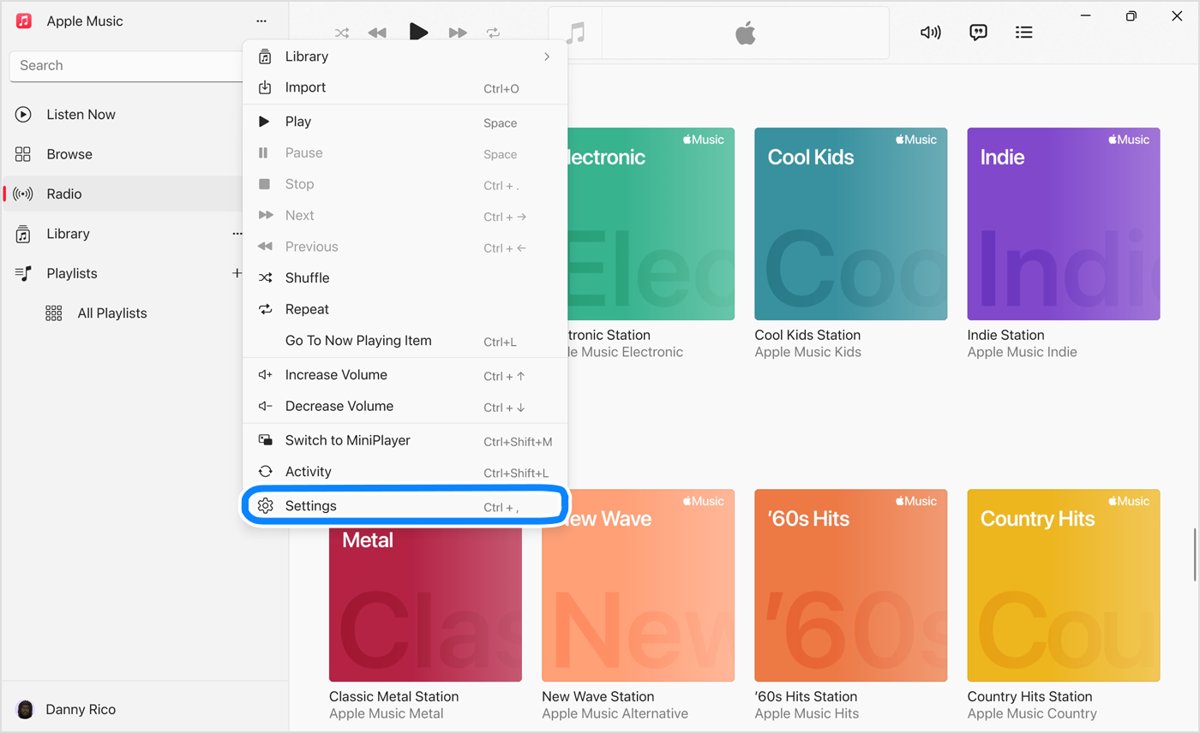
Apple's Windows guide routes the import, settings, equalizer and MiniPlayer commands through one button. It lists no option that adds a menu bar across the top of the window.
- Open the Apple Music app.
- Select the Sidebar Actions button at the top of the sidebar. From the keyboard, press Alt, then press M twice.
- Choose the command you want, such as Library, Equalizer, Switch to MiniPlayer or Settings.
A few commands live elsewhere. Your account sits under your name at the bottom of the sidebar, and sorting options sit in the Sort pop-up menu at the top right of a song list.
Apple Music menu bar commands on Windows and where they moved
Find the task in the left column, then use the path or the shortcut. Access keys work in sequence: press Alt first, then each letter.
| Task | Path in Apple Music for Windows | Keyboard |
|---|---|---|
| Add a file to the library | Sidebar Actions > Library > Add Files to Library | Ctrl + O |
| Add a whole folder to the library | Sidebar Actions > Library > Add Folder to Library | None listed |
| Open settings | Sidebar Actions > Settings | Ctrl + comma |
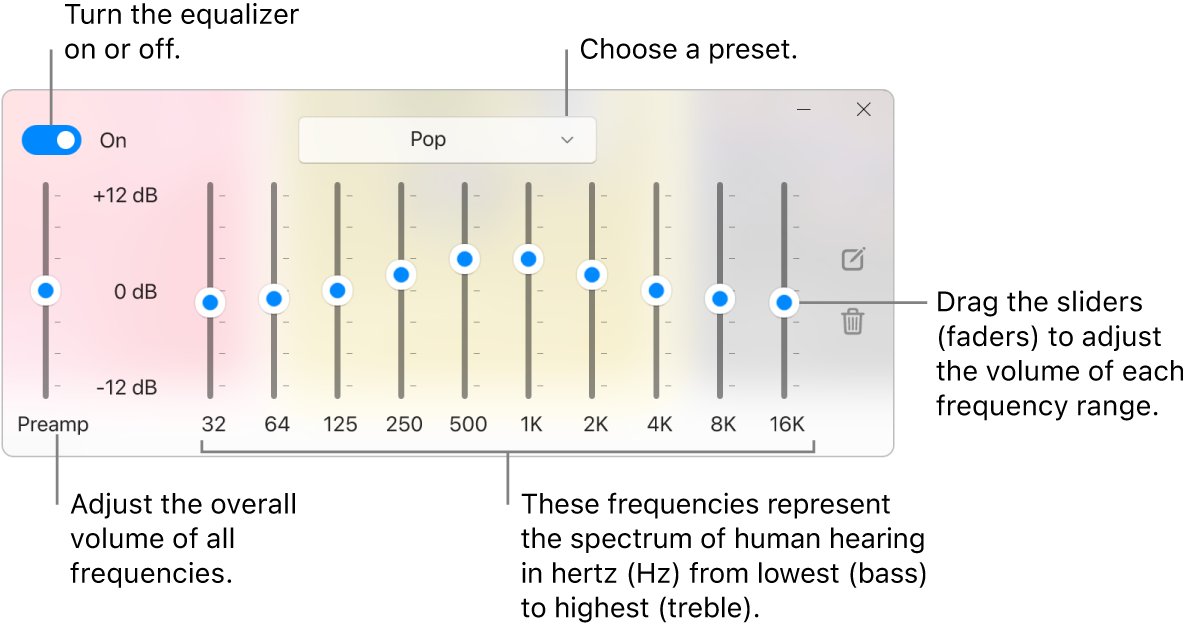
| Open the equalizer | Sidebar Actions > Equalizer | Ctrl + Shift + E |
| Open MiniPlayer | Sidebar Actions > Switch to MiniPlayer (a song must be playing) | Shift + Ctrl + M |
| Open the Full Screen Player | Sidebar Actions > Full Screen Player | Shift + Ctrl + F |
| Create a playlist | Add button next to Playlists > New Playlist | None listed |
| Create a playlist folder | Add button next to Playlists > New Playlist Folder | None listed |
| Show the column browser | Songs > Sort pop-up menu > Column Browser > Show Column Browser | None listed |
| Edit song details | More button for the song > Properties | Shift + F10 opens the contextual menu |
| Open your account | Your name at the bottom of the sidebar > View My Account | Alt, then N, U opens the account menu |
| Choose Library sidebar items | More button next to Library > Edit Library Sidebar | None listed |
| Open Help | Not listed in the guide | F1 |
Apple Music vs iTunes on Windows 11: which app has the menu bar
The classic menu paths you remember belong to iTunes. Apple's iTunes guide still uses commands such as View > Show Sidebar, while the Apple Music guide uses Sidebar Actions for the same kind of task.
| App | What Apple says it manages | Where commands live |
|---|---|---|
| Apple Music | Music from your iTunes library, including iTunes Store purchases | Sidebar Actions button, More buttons and the sidebar |
| iTunes | Podcasts and audiobooks on a Windows PC | Menu commands such as View |
| Apple Devices | Updating, backing up, restoring and syncing iPhone or iPad | Device entry and pages in its own sidebar |
All three come from the Microsoft Store, and Apple says to check for their updates there. If you still use both, iTunes and the Apple Devices app do different jobs on a PC.
How to import music into Apple Music on Windows without the menu bar
Import no longer needs a File menu. Use the Library entry in Sidebar Actions, or drag files in from File Explorer.
- Open the Apple Music app.
- Select the Sidebar Actions button near the top of the sidebar.
- Select Library.
- Choose Add Files to Library for individual files, or Add Folder to Library for a folder and everything inside it.
- Pick the files or the folder, and wait for them to appear in your library.
To skip the menu, drag a file or folder from File Explorer onto the Apple Music window. By default the app links to each file where it already is, so a song may stop playing if you move the original.
How to move Apple Music playlists to a new iPhone with Sync Library
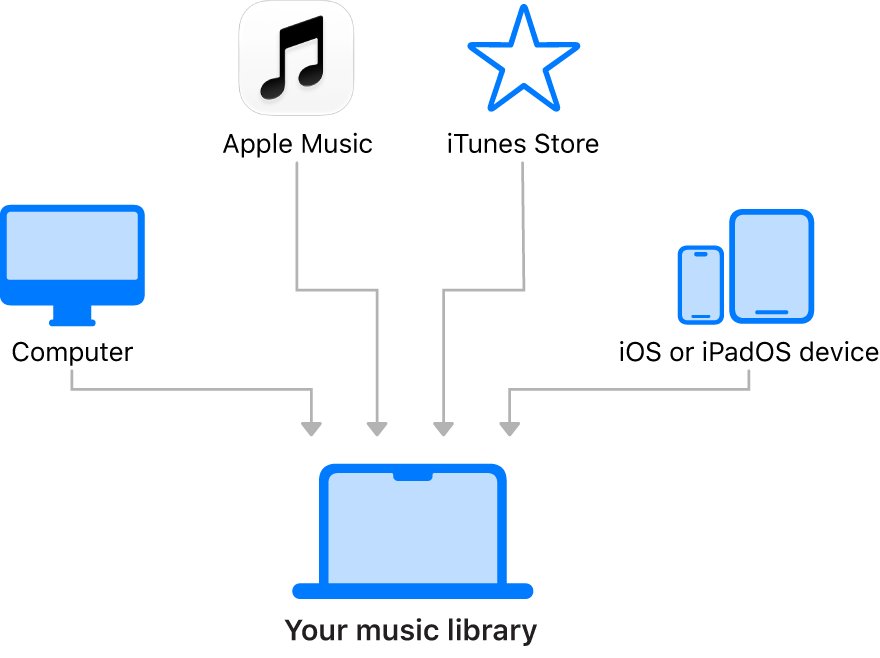
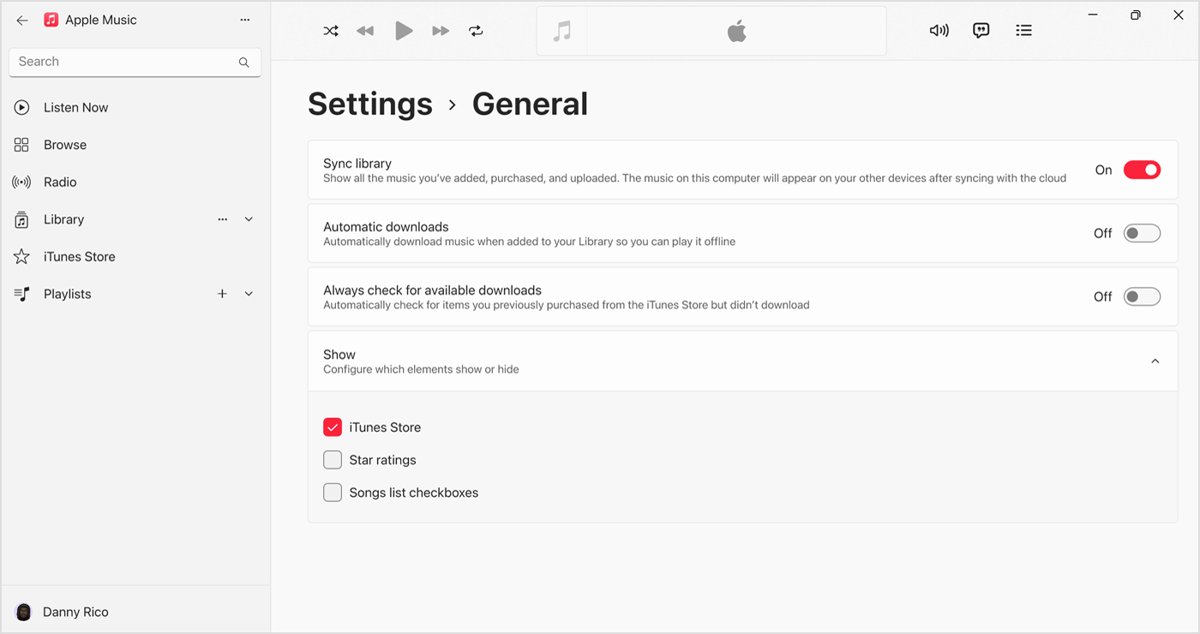
Sync Library is the route for Apple Music subscribers. Playlists, including songs and music videos, follow your Apple Account to each signed-in device, so nothing needs exporting.
- In the Apple Music app on Windows, select Sidebar Actions, choose Settings, then select General.
- Turn on Sync library.
- On the iPhone, go to Settings > Apps > Music.
- Sign in with the same Apple Account you use on the PC.
- Turn on Sync Library, then open the Music app and look under Library for your playlists.
The cloud library holds up to 100,000 songs, not counting iTunes Store purchases, and each file can be up to 200 MB.
Sync Apple Music playlists to iPhone with the Apple Devices app
Use a cable or Wi-Fi sync if you have no Apple Music subscription. The PC needs Apple Music and the Apple Devices app, and this method stays unavailable while Sync library is on.
- Connect the iPhone to the PC with a USB or USB-C cable, or over Wi-Fi.
- In the Apple Devices app, select the iPhone in the sidebar, then select Music.
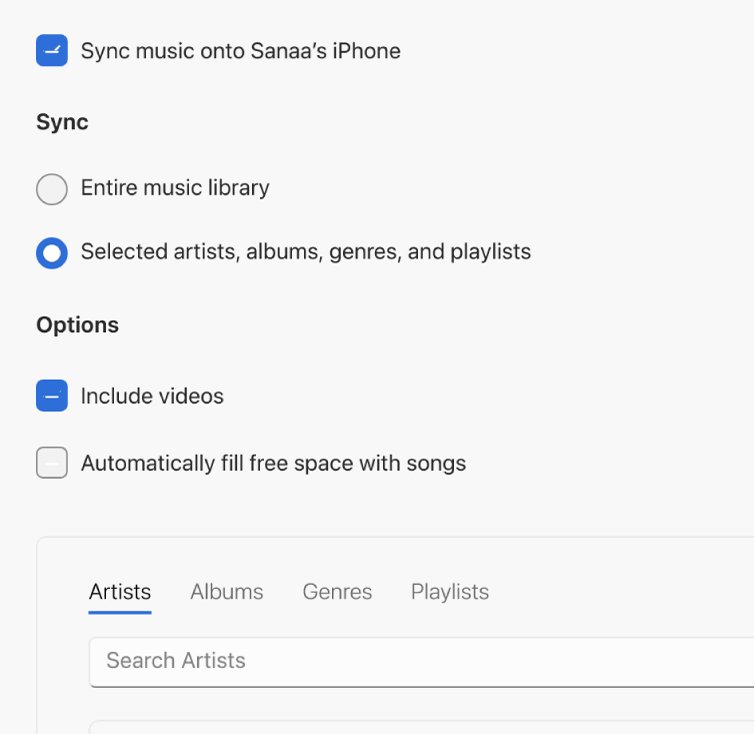
- Select Sync music onto [device name].
- Choose Selected artists, albums, genres, and playlists, or choose Entire music library to send everything.
- Select Playlists in the list, then tick the playlists you want.
- Select Apply, and select the Eject button before you unplug the iPhone.
Windows 10 PCs can hit a separate Apple Devices crash during music sync, which has its own fixes.
Apple Music settings on Windows: General, Playback, Files and Advanced
These panes hold the options you would expect in a preferences menu. Open them from Sidebar Actions > Settings, or press Ctrl + comma.
| Settings pane | What you change there |
|---|---|
| General | Library name, Sync library, automatic purchase downloads, and showing the iTunes Store, star ratings or song checkboxes |
| Playback | Song fades, sound enhancer and sound quality |
| Restrictions | Access to the iTunes Store, shared libraries and certain content types |
| Files | Location and organization of the Apple Music media folder, with a Reset option for the default folder |
| Advanced | Whether playlist songs join your library, keeping MiniPlayer on top, and other resets |
Apple Music menu not showing on Windows 11
Sidebar Actions button missing or not responding
The app is out of date or not running correctly, so it needs an update or a repair.
- Close Apple Music with the Close button, then reopen it.
- Press Alt, then M twice to select the button from the keyboard.
- Open Microsoft Store, select Library, select Get updates, and install any Apple Music update.
- Go to Start > Settings > Apps > Installed apps.
- Select the More icon next to Apple Music, then select Advanced options.
- Select Repair if it is available. If that fails, select Reset.
- If the problem stays, remove the app, then reinstall it from Library in Microsoft Store.
Apple Music library missing on Windows 11
The PC is signed in to a different Apple Account, or Sync Library is off.
- Select your name at the bottom of the sidebar and confirm the account matches your other devices.
- Select Sidebar Actions, choose Settings, then select General.
- Turn on Sync library if you subscribe to Apple Music or iTunes Match.
- If you do not see that option, sign in to your Apple Account and check your subscription.
Apple Music not showing my imported songs
Imported songs are links to the original files by default, so moved files can stop playing.
- Move the files back to their original folder, or find the new folder in File Explorer.
- Select Sidebar Actions > Library > Add Folder to Library and choose that folder.
- Open Settings > Files to see which media folder new imports use.
Purchased music missing in Apple Music
Purchases can sit in the iTunes Store section until you download them, and the Store can be hidden.
- Select iTunes Store in the sidebar. If it is not there, open Settings > General, select the down arrow next to Show, and select iTunes Store.
- Select Purchased on the right of the iTunes Store window.
- Select the Download button next to the item.
- If songs are still gone, get purchased music back with the wider account checks.
Apple Music not showing in iTunes
Apple now treats music as a job for the Apple Music app, and iTunes for podcasts and audiobooks on Windows.
- Open Microsoft Store, search for Apple Music, then select Get.
- Sign in with your Apple Account.
- Open your music, including iTunes Store purchases, in the Apple Music app instead of iTunes.
How to test Apple Music commands on Windows 11 with keyboard shortcuts
Shortcuts reach the same commands as the button, so they show whether the app responds. Results can vary by language and keyboard layout.
- Press Ctrl + comma. The settings window should open with the General, Playback and Files panes.
- Close settings, then press Ctrl + Shift + E. The equalizer should open.
- Press Ctrl + O. A file picker should open for importing a file.
- Press Alt, then N, then S. The library should open on Songs.
If these work but the button still looks wrong, keep using the shortcuts and run the repair steps above.
Apple Music menu bar on Windows 11 FAQ
Does Apple Music on Windows 11 have a menu bar?
No classic File, Edit and View bar is documented for the Windows app. Apple's guide sends those commands through the Sidebar Actions button at the top of the sidebar, including Library, Equalizer, MiniPlayer and Settings, and lists no option that adds a bar to the window.
Where is the menu bar on the Apple Music app?
On Windows, select the Sidebar Actions button at the top of the sidebar, or press Alt and then M twice. On a Mac, the Music app uses the menu bar, and Apple's steps there read Music > Settings instead of a sidebar button.
Where is the menu bar on Mac?
The Mac menu bar runs across the top of the screen, and it can hide itself automatically. If it keeps vanishing, you can keep the Mac menu bar on screen in System Settings. Apple Music on a Mac uses this bar for Music > Settings.
Where is the account menu in Apple Music on Windows?
Select your name at the bottom of the sidebar, then choose View My Account. You may have to sign in again. From the keyboard, press Alt and then N, U to open the account menu without using the mouse.
Why is Apple purchased music missing?
Purchases may not have downloaded, or the iTunes Store section may be hidden. Turn on iTunes Store under Settings > General > Show, then select Purchased in the iTunes Store window and download the items. If no Download button appears in your library, make sure Sync library is on.
Can I import music to Apple Music on Windows without a menu bar?
Yes. Select Sidebar Actions, select Library, then choose Add Files to Library or Add Folder to Library. You can also press Ctrl + O to import a file, or drag a file or folder from File Explorer onto the Apple Music window.
How do I get my Apple Music playlists on a new iPhone?
With an Apple Music subscription, turn on Sync library on the PC and Sync Library on the iPhone, using the same Apple Account. Without a subscription, connect the iPhone and sync the chosen playlists from the Music page in the Apple Devices app.
Why don't I see Sync library in Apple Music on Windows?
The option appears only when you are signed in as an Apple Music or iTunes Match subscriber. Sign in from the account area at the bottom of the sidebar, confirm your subscription, then return to Sidebar Actions > Settings > General to turn it on.