When F5 does not refresh in Windows 11, the key is usually sending its media or hardware action instead, so hold Fn and press F5, or press Ctrl + R to refresh the window from the keyboard right away.
This guide covers the Fn Lock toggle, making F5 refresh without Fn, keyboard driver fixes, and what to do when only one app or browser ignores the key.
Fix F5 refresh key not working in Windows 11/10
On most laptops and compact keyboards, the top row does two jobs. The printed icon (brightness, volume, mic mute) is the default, and the F5 function needs the Fn key.
- Click inside the window you want to refresh, such as File Explorer or a browser tab.
- Hold down the Fn key, usually at the bottom left of the keyboard.
- Press F5 while still holding Fn.
- If the window refreshes, the key works and only the Fn mode is set to media keys.
- If nothing happens, press Ctrl + R or Ctrl + F5, which also refresh the current window.
If Fn + F5 works, the next section makes F5 refresh on its own. If neither F5 nor Fn + F5 does anything, jump to the troubleshooting section.
Why is my F5 key not refreshing?
| What you see | Likely cause | Fix |
|---|---|---|
| F5 changes brightness, volume or mic | Top row is in media-key mode | Hold Fn, or turn on Fn Lock |
| Fn + F5 refreshes, F5 alone does not | Fn Lock is off | Toggle Fn Lock or change the setting in BIOS/UEFI or the maker's app |
| F5 works in File Explorer but not one app | The app does not use F5 for refresh | Use the app's own refresh button or Ctrl + R |
| F5 does nothing anywhere, other keys work | Stuck key, debris or a remapping tool | Clean the key, test an external keyboard, check remap software |
| Several keys stopped working at once | Keyboard driver or connection problem | Reinstall the keyboard in Device Manager, reconnect the keyboard |
How to set F5 as refresh button without Fn
Laptop makers label and place this switch differently, so the exact key and setting name depend on your model. Check the user manual or the maker's support page for your model if a step below does not match.
- Look for a key printed with a padlock and Fn, or Fn Lock, often shared with Esc.
- Press Fn together with that key once to switch the top row to standard F1–F12 keys.
- Press F5 alone in File Explorer to confirm it now refreshes.
- If there is no Fn Lock key, open the laptop maker's keyboard or settings app and look for a function key or hotkey mode option.
- If the app has no such option, restart, enter the BIOS/UEFI setup, and look for a function key or action key setting under the keyboard or configuration menu.
- Save the change, restart Windows, and test F5 again.
Windows 11 refresh shortcuts besides F5
| Shortcut | What it does | Where it works |
|---|---|---|
| F5 | Refreshes the active window | Desktop, File Explorer, browsers |
| Ctrl + R | Refreshes the current window | Most windows and browsers |
| Ctrl + F5 | Refreshes the current window | Most windows and browsers |
| Fn + F5 | Sends F5 when the top row is in media mode | Laptops and compact keyboards |
Ctrl + R is the quickest workaround because it needs no function row at all.
Test if the F5 key works in Windows 11
- Open File Explorer with Windows key + E.
- Create or rename a file in another window so the folder contents change.
- Click inside the File Explorer window and press F5.
- Confirm the file list updates without closing the window.
- Repeat in your browser: press F5 and watch the page reload.
F5 key not working on laptop or keyboard: fixes
F5 function key not working at all, even with Fn
The key is physically stuck, dirty or damaged, or the keyboard connection is loose.
- Turn off the PC or unplug the keyboard.
- Blow out debris around the F5 key and check that it moves freely.
- Reconnect a USB or Bluetooth keyboard, or try another USB port.
- Plug in a different keyboard; if F5 works there, the original keyboard is faulty.
F5 stopped working after an update or new software
A keyboard driver issue or a key remapping tool is intercepting F5.
- Right-click Start and select Device Manager.
- Expand Keyboards, right-click your keyboard and select Uninstall device.
- Restart the PC so Windows reinstalls the keyboard.
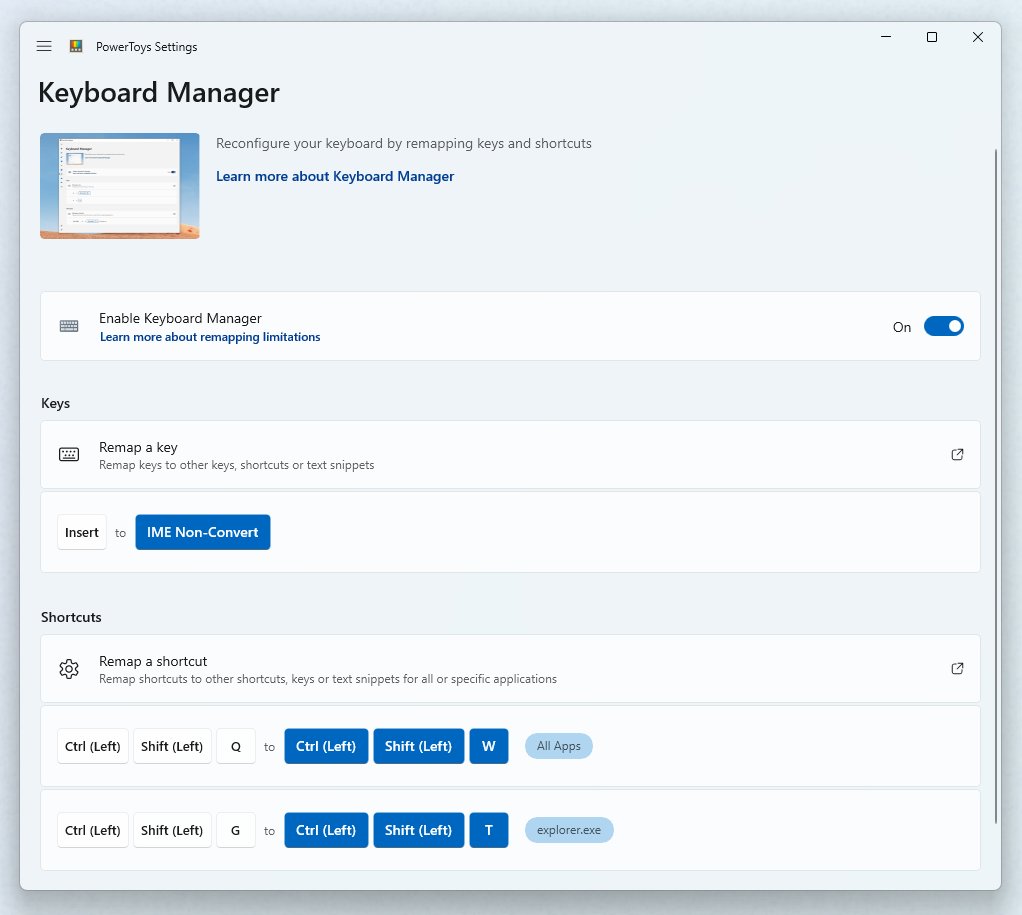
- Open any key remapping or macro software you installed and remove a mapping on F5.
F5 does not refresh page in a browser
Focus is in the address bar, a web app captures the key, or the browser has a custom shortcut.
- Click once on the page itself, not the address bar.
- Press F5 or Ctrl + R again.
- If only one site ignores F5, use the browser's reload button for that site.
Windows key or WinKey also not working on Windows 11
Gaming keyboards and some laptops have a Win Lock or Game Mode key that blocks the Windows key, and the same mode can change function row behavior.
- Look for a Win Lock, Game Mode or joystick icon key on the keyboard.
- Press it once to turn the mode off.
- Test the Windows key and F5 again.
- Check the keyboard maker's app for a Windows key or game mode lock setting.
If a Bluetooth keyboard drops several keys at once, work through the wireless keyboard connection fixes before replacing it.
F5 refresh key FAQ
Why is my F5 key not refreshing?
Most often the top row is set to media keys, so F5 runs a hardware action such as brightness or mic mute. Hold Fn and press F5, or turn on Fn Lock so F5 refreshes on its own.
How do I set F5 as the refresh button?
Turn on Fn Lock with the key marked with a padlock and Fn, or change the function key setting in your laptop maker's app or BIOS/UEFI. F5 then sends the standard refresh command without holding Fn.
How do I fix the F5 key not working?
Try Fn + F5 first, then toggle Fn Lock. If neither works, clean the key, test another keyboard, remove remapping software, and reinstall the keyboard from Device Manager.
How do I refresh without the F5 key?
Press Ctrl + R or Ctrl + F5. Windows treats both as refresh for the current window, and they work in File Explorer and most browsers without the function row.
How do I refresh with F keys on a laptop?
Hold the Fn key and press F5. On laptops where the top row defaults to media actions, Fn switches the key back to its F5 function for that one press.
Why does my F5 key not work in one app?
Each app decides what F5 does, and some do not use it for refresh at all. Use the app's own refresh button, or try Ctrl + R.
Is the F5 key the same on Windows 10 and Windows 11?
Yes. F5 refreshes the active window in both versions, and the Fn and Fn Lock behavior comes from the keyboard hardware, not the Windows version.