To uninstall Spotify on Windows 11, close Spotify, select Start > All apps, right-click Spotify, select Uninstall and confirm.
This guide covers both the Microsoft Store and desktop versions, startup removal, what happens to your downloads and Premium plan, reinstalling, and what to do when Spotify will not delete.
How to uninstall Spotify on Windows 11/10
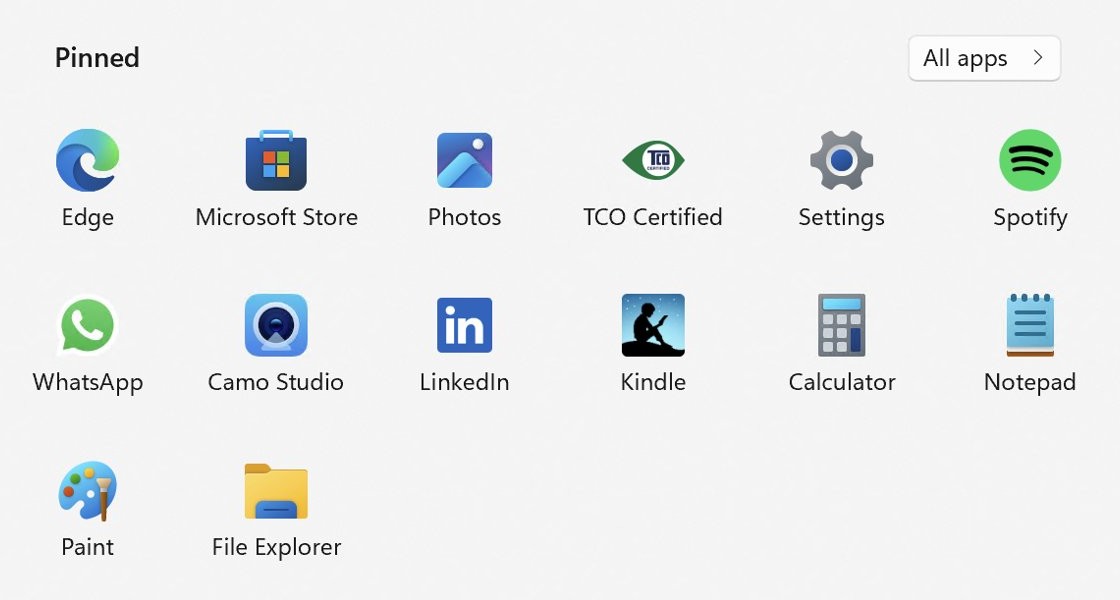
The Start menu is the shortest route, and it needs no commands or extra tools. It works for both the Microsoft Store and desktop versions of Spotify.
- Close Spotify if it is open.
- Select Start, then All apps.
- Scroll to Spotify in the list.
- Right-click Spotify, or press and hold it, and select Uninstall.
- Follow the on-screen prompts until the removal finishes.
If Spotify is missing from All apps or the option does nothing, use Settings or Control Panel below. The same routes work when you uninstall other apps on Windows 11.
Uninstall Spotify app on Windows 11: Store or desktop version
Spotify installs on Windows either from the Microsoft Store or from the SpotifySetup.exe download on Spotify's site. Your route depends on which one you have and how you prefer to work.
| Your situation | Use this | Why |
|---|---|---|
| Spotify shows in the Start menu | Start > All apps > right-click > Uninstall | Fewest steps |
| You want to search for every Spotify entry | Settings > Apps > Installed apps | One searchable list of installed apps |
You installed SpotifySetup.exe and Settings has no option |
Control Panel > Programs and Features | Microsoft notes some apps can be removed only here |
| You installed from the Microsoft Store and prefer a command | PowerShell Remove-AppxPackage |
Removes the app package without clicking through menus |
| You manage several PCs or use scripts | winget uninstall |
Also removes apps winget did not install |
| You only want Spotify to stop opening at sign-in | Settings > Apps > Startup | Keeps the app and stops the autostart |
How to remove Spotify app
Settings shows every installed app in one list, so you can confirm the exact Spotify entry before you remove it.
- Close Spotify if it is open.
- Select Start > Settings > Apps > Installed apps.
- Type Spotify in the search box above the list.
- Select More (the three dots) next to Spotify.
- Select Uninstall, then follow the prompts.
On Windows 10, go to Settings > Apps > Apps & features, select Spotify, then select Uninstall.
How to uninstall the Spotify EXE program
Control Panel lists desktop programs, which is where the SpotifySetup.exe version belongs. These steps are the same on Windows 11 and Windows 10.
- Close Spotify if it is open.
- Type Control Panel in the taskbar search box and open it.
- Select Programs, then Programs and Features.
- Right-click Spotify, or press and hold it.
- Select Uninstall or Uninstall/Change, then follow the on-screen directions.
If Spotify is not in this list, you probably have the Microsoft Store version. Remove it from Installed apps or with the command in the next section.
How to uninstall Spotify on Microsoft Store
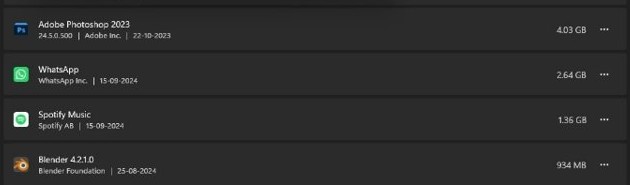
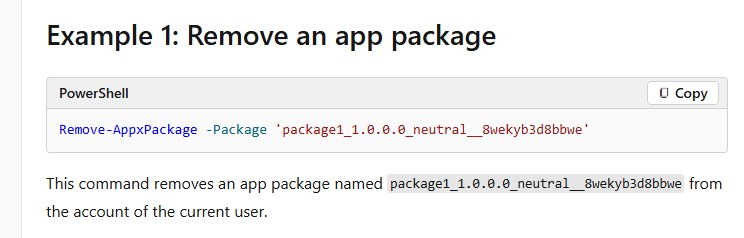
The Microsoft Store version is an app package, so PowerShell can remove it. Get-AppxPackage accepts wildcards in the package name, which means you do not need the exact Spotify package name.
Type PowerShell in the taskbar search box, open Windows PowerShell, and run this command after closing Spotify.
Get-AppxPackage -Name *Spotify* | Remove-AppxPackageGet-AppxPackage -Name *Spotify* finds installed app packages with Spotify in the name for your account, and Remove-AppxPackage removes each one passed to it. Run the first half alone if you want to see what the command will remove.
You should see: The prompt returns with no error, and Get-AppxPackage -Name *Spotify* then returns nothing.
The command removes the package for your account only. If it finds nothing while Spotify is still installed, you have the desktop version, so use Control Panel or winget.
Uninstall Spotify with winget on Windows 11
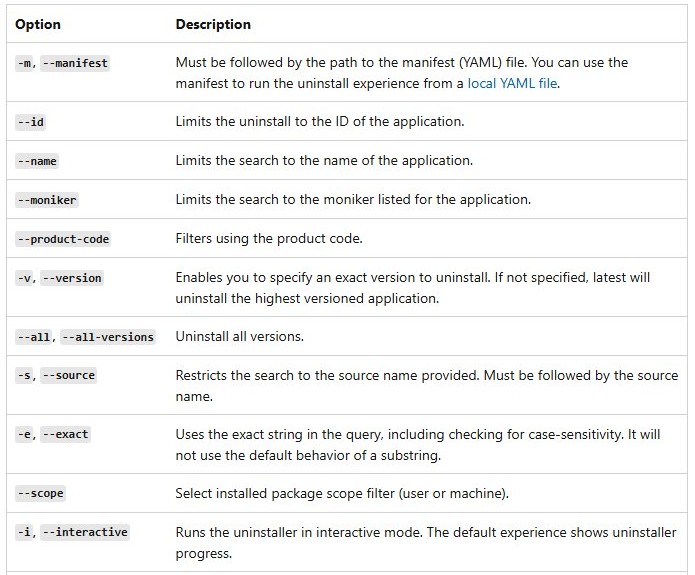
Windows Package Manager (winget) can remove apps it did not install, because winget list shows more than its own installs. Check the match first so you remove the right entry.
winget list spotify
winget uninstall --name Spotify
winget list spotify shows installed apps that match, with their Id. winget uninstall –name Spotify limits the search to the application name and then runs the uninstaller. If several apps match, winget shows them and you can rerun the command with –id and the Id from the list.
You should see: winget reports that the uninstall succeeded, and winget list spotify no longer shows the app.
If a Microsoft Store agreement prompt appears, add --source winget to the uninstall command, as Microsoft suggests. Add --silent to suppress the uninstaller's interface in a script.
How to remove Spotify from Startup in Windows 11/10?
This is the lighter option if you want to keep Spotify and stop it from opening when you sign in. Settings and Task Manager show the same list, and you can disable other startup programs from it too.
- Select Start > Settings > Apps > Startup.
- Find Spotify in the list.
- Set its toggle to Off.
- Alternatively, right-click Start, select Task Manager, open the Startup apps tab, select Spotify and select Disable.
How to completely uninstall Spotify
Clearing the cache first removes the music and podcast data Spotify stores for smooth playback. Spotify's own Windows reinstall steps list no separate cleanup after this.
- Open Spotify, click your profile picture at the top and select Settings.
- Scroll down to Storage and click Clear cache.
- Close Spotify.
- Uninstall it from Start > Settings > Apps > Installed apps.
- Select Start > Power > Restart.
- Search Installed apps for Spotify again and remove any entry that remains.
Tips for uninstalling Spotify on Windows 11
Removing the app affects only this PC. Check these points first if you pay for Premium or keep music for offline listening.
| What you care about | What happens | What to do |
|---|---|---|
| Downloaded music and podcasts | You have to download them again after reinstalling | Leave time for a fresh download, and keep at least 1GB free |
| Playlists and saved music | They stay with your account, even on the free plan | Log in with the same account after reinstalling |
| Premium subscription | You cancel on your account page, not by removing the app | Go to Manage your plan > Cancel subscription |
| Your Spotify account | Stays open until you close it | Use Close your account and delete your data on Spotify's support site |
| Listening without the app | The web player runs in Chrome, Firefox, Edge, Opera and Safari | Open the web player from Spotify's site |
How to tell if Spotify is uninstalled from Windows 11
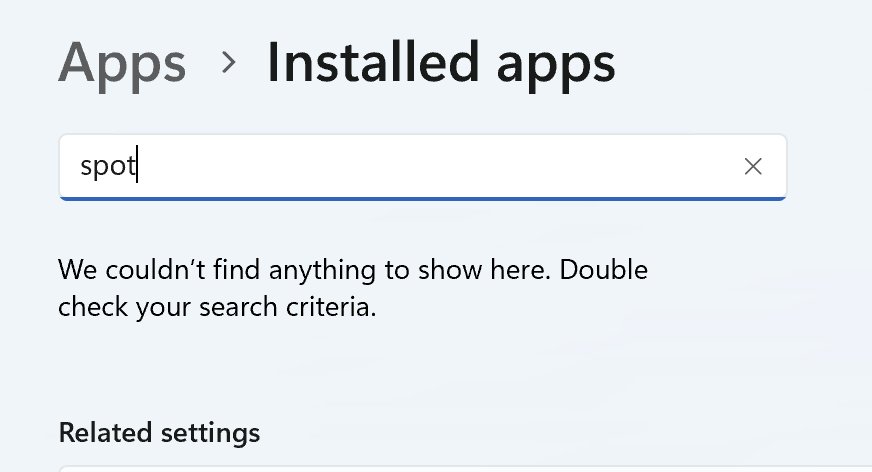
- Open Start > Settings > Apps > Installed apps and search for Spotify; no result should appear.
- Select Start > All apps and look under S; Spotify should be gone.
- Open Settings > Apps > Startup and confirm Spotify is not listed.
- In PowerShell, run
Get-AppxPackage -Name *Spotify*; an empty result means no Spotify app package remains.
How to uninstall and reinstall Spotify
Spotify recommends a reinstall to fix common technical issues. Spotify runs on Windows 10 (64-bit), Windows 11 or above.
- Uninstall Spotify with any route above.
- Open the Microsoft Store listing, or go to
spotify.com/download. - Select Get it from Microsoft or Download directly from Spotify.
- Install the app and log in with the same account.
- Download your offline music and podcasts again.
You can also download Spotify for Windows 11 if you want the installer details first. If the reinstalled app refuses your password, you can fix Spotify login issues.
Why can't I delete Spotify from my PC?
Can't uninstall Spotify on Windows 11 from Settings
Microsoft notes that some apps cannot be removed from Settings.
- Open Control Panel > Programs > Programs and Features.
- Right-click Spotify and select Uninstall or Uninstall/Change.
- If it is not listed, run
Get-AppxPackage -Name *Spotify* | Remove-AppxPackagein PowerShell.
Spotify will not uninstall because it is still running
Spotify must be closed before you uninstall it, and a background process can keep it open.
- Right-click Start and select Task Manager.
- On the Processes tab, right-click each Spotify entry and select End task.
- Run the uninstall again.
Spotify uninstaller fails or shows an error
An incomplete install or corrupted app data can block removal.
- Select Start > Power > Restart, then try again.
- Open Settings > Apps > Installed apps, select More next to Spotify, then Advanced options.
- Select Repair. If that does not help, select Reset.
- Uninstall Spotify from the same page and follow any guidance Windows shows.
- Contact Spotify support if the error remains, or try the other ways to remove apps that refuse to uninstall.
Spotify not working on Windows 11 after reinstall
"Page not available" or "Something went wrong" in Spotify
Spotify lists these as common technical errors in the app.
- Restart the Spotify app.
- Update the app to the latest version.
- Make sure your internet connection is stable and that your firewall is not blocking Spotify.
- Clear the cache under Settings > Storage > Clear cache.
Downloaded songs missing after you reinstall Spotify
Spotify requires you to download music and podcasts again after a reinstall.
- Go online and open the playlist you want to keep offline.
- Click the download button on the playlist.
- Check that you are under the 5-device download limit and have 1GB free.
Spotify will not install on the PC
The device does not meet Spotify's minimum system requirements.
- Confirm the PC runs 64-bit Windows 10 or Windows 11.
- Try the other install source, either the Microsoft Store or
SpotifySetup.exe. - Use the web player in a supported browser until the install works.
Uninstall Spotify on Windows 11 FAQ
How do I uninstall Spotify on PC?
Close Spotify, select Start > All apps, right-click Spotify and select Uninstall. You can also use Settings > Apps > Installed apps, select More next to Spotify, then Uninstall. Restart afterwards and search the list again to confirm no entry remains.
How do I uninstall Spotify on Windows 10?
Close Spotify, open Start > Settings > Apps > Apps & features, select Spotify and click Uninstall. Follow the on-screen instructions until removal finishes. Control Panel, PowerShell and winget work the same way on Windows 10 as they do on Windows 11.
How do I delete Spotify from Windows 11 completely?
Clear the cache first from Settings > Storage > Clear cache inside Spotify, then close the app and uninstall it from Installed apps. Restart the PC and search Installed apps again. Spotify's own Windows steps list no additional cleanup after the uninstall.
Does uninstalling Spotify delete my playlists?
No. Playlists and saved music belong to your Spotify account, so they return when you log in again. Spotify states that only downloaded music and podcasts must be downloaded again after a reinstall. Deleted playlists can be restored for 90 days from your account page.
Does uninstalling Spotify cancel Premium?
No. Premium is cancelled on your account page under Manage your plan > Cancel subscription. It stays active until your next billing date, then your account switches to the free plan, where you keep your playlists and saved music.
How do I delete my Spotify account after uninstalling?
Use the Close your account and delete your data link on Spotify's support site. Spotify emails a reactivation link valid for 7 days. After that, the account cannot be reactivated and Spotify starts deleting your data.
Can I use Spotify on Windows 11 without the app?
Yes. The Spotify web player runs in current versions of Chrome, Firefox, Edge, Opera and Safari with no install. It can serve as a stand-in while you troubleshoot the desktop app. Spotify allows playback on only one device at a time per account.