Press F5 (or Ctrl + R) to refresh the active window on a Windows 11 laptop, and press Windows + Ctrl + Shift + B when the screen itself is frozen or black.
This guide covers every keyboard refresh in Windows 11: windows and web pages, the display driver, Windows Explorer, a full restart, and the Reset this PC option that Microsoft also calls Refresh.
How to refresh your laptop with keyboard shortcuts in Windows 11
F5 works on the desktop, in File Explorer and in every major browser, so it is the one key to learn first.
- Click once on the window you want to refresh, or press Windows + D to put the focus on the desktop.
- Press F5 to refresh the active window.
- If F5 changes brightness or volume instead, hold Fn and press F5.
- If no F5 key responds at all, press Ctrl + R, which refreshes the current window without a function key.
Icons on the desktop and the file list in File Explorer redraw within a second. A browser reloads the open page.
Understanding what "refreshing" means in Windows 11
People use one word for five very different actions. Pick the row that matches what you actually want to happen.
| Kind of refresh | Keyboard route | What it changes | Open work |
|---|---|---|---|
| Refresh a window | F5 or Ctrl + R | Redraws the desktop, a File Explorer folder or an app view | Kept |
| Reload a web page | F5 or Ctrl + R in the browser; Ctrl + Shift + R ignores the cache | Downloads the page again | Unsaved form text can be lost |
| Reset the display | Windows + Ctrl + Shift + B | Resets the graphics driver | Kept |
| Restart the PC | Ctrl + Alt + Del, then Power > Restart | Closes every app and reloads Windows | Unsaved work is lost |
| Reset this PC (Keep my files) | Settings > System > Recovery | Reinstalls Windows, removes apps and settings | Personal files kept, apps removed |
Microsoft's own reset page labels the Keep my files option "Refresh" and Remove everything "Reset", which is where much of the confusion comes from.
Which keyboard refresh to use on a Windows 11 laptop
| Your situation | Press this | Why |
|---|---|---|
| A new file does not show in the folder | F5 | Refreshes the File Explorer window |
| A web page shows old content | Ctrl + Shift + R or Shift + F5 | Reloads the page while ignoring cached content |
| The screen is black, frozen or flickering | Windows + Ctrl + Shift + B | Resets the graphics driver without closing apps |
| The taskbar or Start menu stopped responding | Ctrl + Shift + Esc, then restart Windows Explorer | Reloads the shell without a full restart |
| The whole laptop is slow or glitchy | Ctrl + Alt + Del, then Power > Restart | Clears memory and reloads every driver |
| Problems survive a restart | Reset this PC with Keep my files | Reinstalls Windows and keeps personal files |
Preparing your laptop for refreshing
| Check | Applies to | What to do |
|---|---|---|
| Save open documents | Restart, Explorer restart, reset | Press Ctrl + S in each app first; a restart closes everything |
| Know your Fn behaviour | F5 refresh | Find out whether your top row sends F1-F12 or media keys by default |
| Back up personal files | Reset this PC | Copy documents and photos to an external drive or OneDrive |
| Have the BitLocker recovery key | Reset this PC | Microsoft recommends having it ready if the drive is encrypted |
| Plug in the charger | Restart and reset | A reset can take a long time and must not lose power |
Pressing F2 instead of F5 in File Explorer starts a rename. Press Esc to cancel, or undo the rename with Ctrl + Z if you already pressed Enter.
Refresh an HP, Dell or Lenovo laptop with the Fn key
Many laptop keyboards print a second command on the top row, such as brightness or volume. Holding Fn sends the other command for that one key press.
Keyboards with an F Lock or Fn Lock key switch the whole row between the standard F1-F12 keys and the alternate commands.
- Click the window you want to refresh.
- Hold Fn and press F5, then release both keys.
- If that works, you can keep using Fn + F5, or look for a lock key to make the change permanent.
- Press the F Lock or Fn Lock key if your keyboard has one, and watch its indicator light.
- Press F5 on its own to confirm the row now sends standard function keys.
- If your keyboard has no lock key, use Ctrl + R instead, which needs no function key.
On Microsoft keyboards with an F Lock light, the standard F1-F12 functions work when the light is on. The lock key and its position differ by laptop maker, so check the icons printed on your own keyboard.
Refresh a web page with the keyboard in Edge and Chrome
- Click inside the browser tab you want to reload.
- Press F5 or Ctrl + R to reload the current page.
- Press Ctrl + Shift + R or Shift + F5 to reload while ignoring cached content.
- Press Esc to stop a page that is taking too long to load.
- Press Ctrl + Shift + Delete to open the clear browsing data options if a cache-free reload still shows old content.
These shortcuts are identical in Microsoft Edge and Google Chrome on Windows.
Refresh the laptop screen with Windows + Ctrl + Shift + B
This shortcut resets the graphics driver. Use it when the screen goes blank, freezes on one image or flickers, while the laptop still seems to be running.
- Press Windows + Ctrl + Shift + B together.
- Listen for a beep or watch for a short screen flicker, which means the driver reset.
- Wait a few seconds for the picture to return.
- If the screen stays black, press Windows + P, press P again and press Enter to cycle the display mode.
Open apps stay open, so this is the safest refresh to try before a restart.
Step-by-step tutorial on how to refresh laptop with keyboard Windows 11
A restart is the full refresh most people mean. It works from the keyboard alone, even when the mouse or touchpad is unresponsive.
- Save your work, then press Ctrl + Alt + Delete to open the security screen.
- Press Tab until the Power icon in the lower-right corner is highlighted.
- Press Enter to open the power menu.
- Use the arrow keys to select Restart and press Enter.
- Wait for the laptop to shut down and start again.
- Sign back in with your PIN or password.
Restarting or resetting Windows 11 using keyboard
Two more keyboard routes reach Restart from the desktop. The second one is also the start of a reset from the recovery environment.
| Route | Keys | Result |
|---|---|---|
| Quick Link menu | Windows + X, arrow to Shut down or sign out, press Right arrow, select Restart, Enter | Normal restart |
| Shut down prompt | Windows + D, then Alt + F4, choose Restart with the arrow keys, Enter | Normal restart; Alt + F4 prompts to shut down when no window is active |
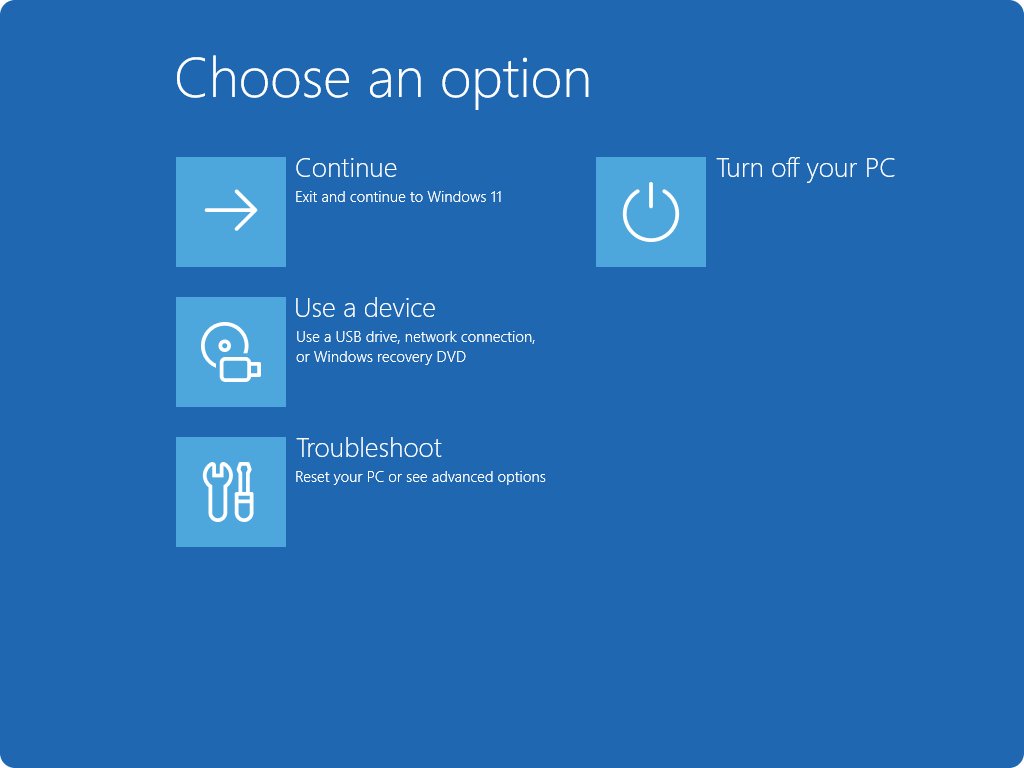
| Recovery restart | Hold Shift while you select Power > Restart | Opens the Windows Recovery Environment, which offers Reset this PC |
| Last resort | Hold the power button for about 20 seconds | Forced shutdown when the keyboard no longer responds |
A forced shutdown skips saving, so use it only when no keyboard route works.
Utilizing built-in Windows 11 features for refreshing: restart Windows Explorer
Windows Explorer draws the desktop, taskbar and Start menu. Restarting it refreshes all three without closing your other apps.
- Press Ctrl + Shift + Esc to open Task Manager.
- Open the Processes page and use the arrow keys to select Windows Explorer.
- Press Shift + F10 to open the context menu for the selected item.
- Select Restart and press Enter.
- Wait while the taskbar disappears briefly and redraws.
Open File Explorer windows close during this restart. Other apps, such as your browser, keep running.
Performing a full system refresh (reset or refresh Windows 11)
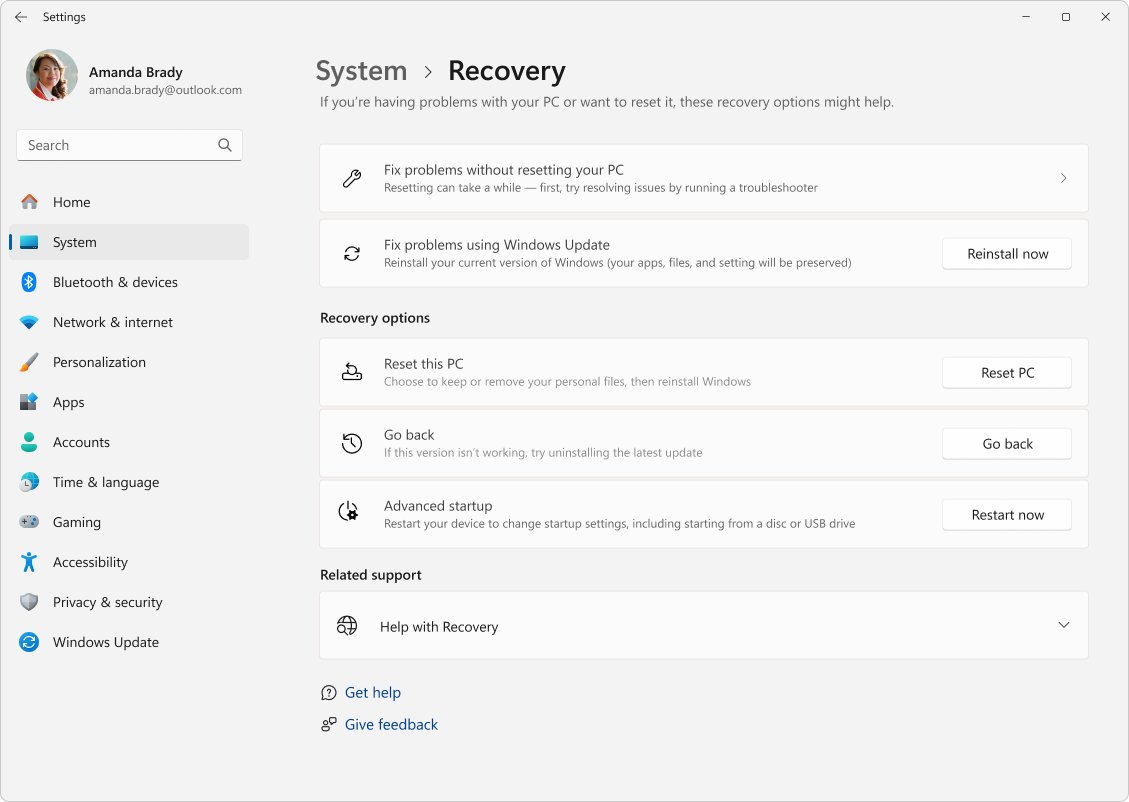
Reset this PC reinstalls Windows. Keep my files keeps documents and photos but removes apps and settings; Remove everything also deletes your personal files.
- Press Windows + I to open Settings.
- Select System > Recovery.
- Under Recovery options, select Reset PC.
- Choose Keep my files for a refresh, or Remove everything for a clean start.
- Choose Cloud download for a fresh copy with the latest updates, or Local reinstall to use files already on the laptop.
- Follow the on-screen instructions and keep the charger connected until Windows finishes.
Restore preinstalled apps brings back the laptop maker's customizations, and Clean data erases the drive more thoroughly before you sell or recycle the laptop.
How to check the Windows 11 refresh worked
- After F5 in File Explorer, confirm that a file you just added or deleted now appears or disappears in the list.
- After a cache-free browser reload, confirm the page shows the updated content or layout.
- After Windows + Ctrl + Shift + B, confirm the picture is back and open apps are still where you left them.
- After a restart, open Task Manager with Ctrl + Shift + Esc and check that only your startup apps are running.
- After Reset this PC, open Settings > Apps > Installed apps and confirm your own apps are gone while your files remain.
Tips for refreshing laptop with keyboard Windows 11
| Tip | Why it helps |
|---|---|
| Use Ctrl + R when the F-row is set to media keys | It refreshes the current window without Fn |
| Press Windows + D before Alt + F4 | Alt + F4 closes the active app first; on the desktop it prompts to shut down |
| Try Windows + Ctrl + Shift + B before a restart | It fixes many frozen or black screens without losing open work |
| Use Windows + L to step away instead of restarting | Locking keeps every app open |
| Keep the On-Screen Keyboard as a backup | It still sends F5 and Ctrl + R if a physical key fails |
If a key stops working, turn on the On-Screen Keyboard and click its keys with the touchpad until you can restart.
Tips for optimizing refresh and performance: change the screen refresh rate
Screen refresh rate is a different setting from F5. A higher rate in hertz makes scrolling and the pointer look smoother on laptops that support it.
- Press Windows + I to open Settings.
- Select System > Display > Advanced display.
- Next to Choose a refresh rate, select the rate you want.
- Avoid rates marked with an asterisk (*), because they also change your screen resolution.
- If your display supports it, use the Dynamic refresh rate toggle to let Windows lower the rate when you are not scrolling or drawing.
Dynamic refresh rate needs a variable refresh rate display that runs at 120 Hz or higher. Turn it off if a game appears capped at a lower rate.
Laptop refresh key not working in Windows 11
F5 changes brightness or volume instead of refreshing
The top row sends its alternate commands by default.
- Hold Fn and press F5.
- Press the F Lock or Fn Lock key if your keyboard has one.
- Use Ctrl + R as a refresh that needs no function key.
The laptop screen will not refresh or stays black
The graphics driver has stopped drawing the display.
- Press Windows + Ctrl + Shift + B and wait for a beep or flicker.
- Press Windows + P, then P again and Enter, to cycle display modes.
- Press Ctrl + Alt + Delete and restart from the Power icon.
- If nothing responds, hold the power button for about 20 seconds, then start the laptop again.
The desktop or taskbar does not refresh
Windows Explorer has stopped responding.
- Press Ctrl + Shift + Esc to open Task Manager.
- Select Windows Explorer on the Processes page.
- Press Shift + F10 and select Restart.
How to refresh the keyboard when keys stop responding
The keyboard driver has failed or needs reinstalling.
- Right-click Start and select Device Manager.
- Expand Keyboards, right-click your keyboard and select Uninstall device.
- Right-click Start and select Shut down or sign out > Restart.
- Let Windows reinstall the keyboard driver automatically during startup.
Additional resources for refreshing Windows 11
- Keyboard shortcuts in Windows — Microsoft's full list, including F5, Ctrl + R and Windows + Ctrl + Shift + B
- Keyboard shortcuts in Microsoft Edge — Reload and cache-free reload shortcuts for Edge
- Reset your PC — Keep my files, Remove everything, Cloud download and Local reinstall explained
- Troubleshooting blank screens in Windows — Graphics driver reset, display modes and forced restarts
- Change the refresh rate on your monitor in Windows — Refresh rate and Dynamic refresh rate settings
Refresh laptop with keyboard FAQ
How do I refresh my laptop with the keyboard?
Press F5 or Ctrl + R to refresh the active window in Windows 11. If F5 controls brightness or volume on your laptop, hold Fn and press F5. For a full refresh, press Ctrl + Alt + Delete, select the Power icon and choose Restart.
How do I refresh an HP laptop with the keyboard?
Press F5, or hold Fn and press F5 if the top row is set to media keys. Ctrl + R refreshes the current window on any HP laptop without using a function key. The Fn Lock key, where present, changes which command the top row sends by default.
How do I refresh a Dell laptop with the keyboard?
Press F5 or Fn + F5 to refresh the active window, or press Ctrl + R. These are Windows shortcuts, so they work the same on Dell laptops as on any other brand. Windows + Ctrl + Shift + B refreshes a frozen or black screen.
Which key refreshes a PC or desktop computer?
F5 refreshes the active window on a Windows desktop PC, and Ctrl + R does the same. To refresh the desktop itself, press Windows + D to focus it, then press F5. The desktop icons redraw straight away.
How do I refresh the laptop screen using the keyboard?
Press Windows + Ctrl + Shift + B. Windows resets the graphics driver, and you hear a beep or see a brief flicker. Your open apps stay open. If the screen stays black, press Windows + P, then P and Enter to cycle display modes.
How do I refresh the keyboard on a laptop?
There is no refresh key for the keyboard itself. Restart the laptop first. If keys still fail, open Device Manager, uninstall the keyboard under Keyboards, and restart so Windows reinstalls the driver. The On-Screen Keyboard works in the meantime.
What does refreshing my laptop do?
F5 only redraws the active window or reloads a page, so nothing is lost. A restart closes every app and reloads Windows. Reset this PC with Keep my files reinstalls Windows and removes your apps and settings but keeps personal files.
Will I lose my work if I refresh the laptop?
Not with F5, Ctrl + R or Windows + Ctrl + Shift + B, which leave open apps running. A restart closes apps, so unsaved work is lost. A browser reload can clear text typed into a web form that you have not submitted.
How long does it take to refresh a laptop?
F5 and the graphics driver reset take a second or two. A restart usually takes under a few minutes. Reset this PC takes much longer, especially with Cloud download or the Clean data setting, so keep the charger connected.
Is it safe to refresh my laptop often?
Yes. Pressing F5 or restarting Windows as often as you like does no harm. Reset this PC is different: it removes your installed apps and settings, so use it only when problems survive a restart.