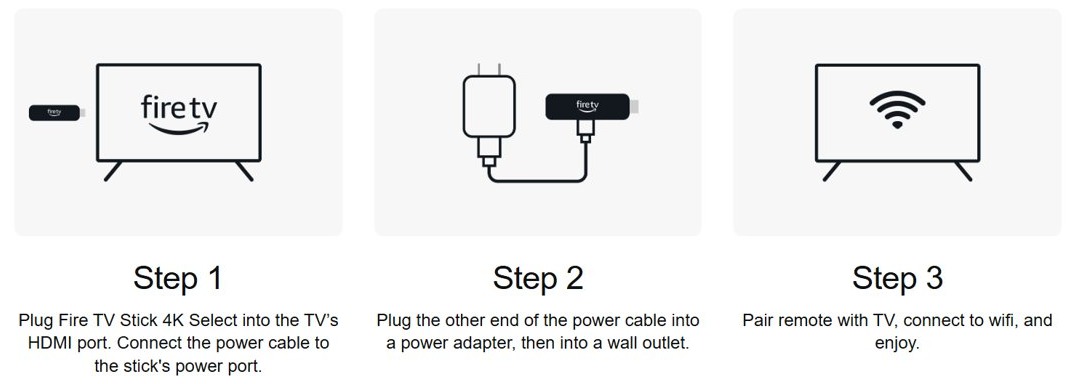
To set up a Firestick, plug it into your TV's HDMI port, connect its power cable, switch the TV to that HDMI input, then follow the on-screen prompts to join Wi-Fi and sign in to your Amazon account.
The steps below cover the requirements, the power differences between models, remote and account setup, and fixes for the problems that stop setup halfway.
Step by step tutorial: How to set up a Firestick
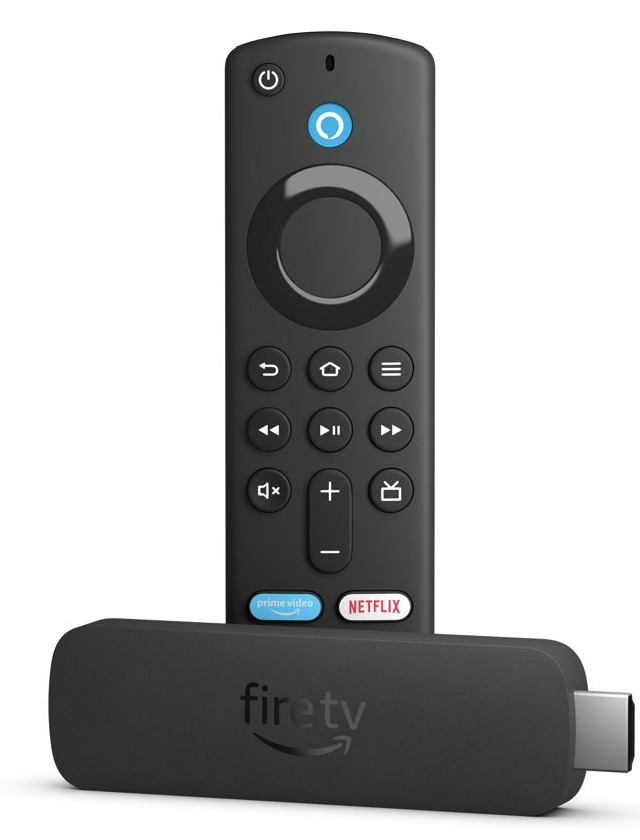
These steps work for most Fire TV Stick models, including the Fire TV Stick 4K Plus, 4K Select and 4K Max. The Fire TV Stick HD (2nd Generation) and 4K (3rd Generation) take power from the TV instead, so they have their own section below.
- Turn the remote upside down, press firmly on the back cover, slide it off and insert the AAA batteries.
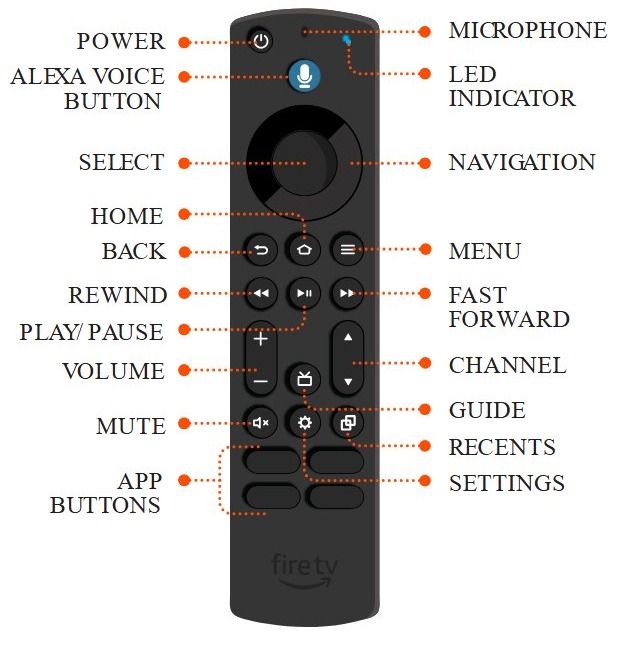
- Connect the power cable to the power adapter and to the Firestick.
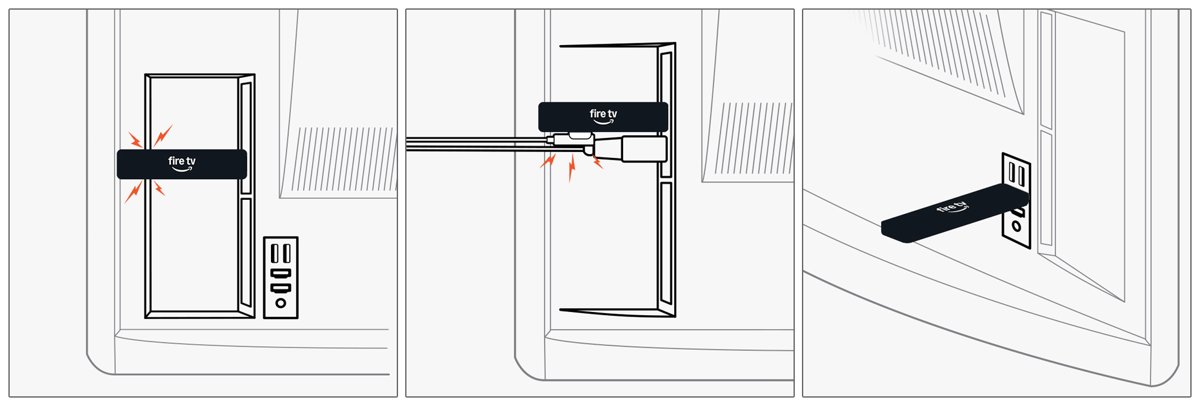
- Plug the Firestick into your TV's HDMI port. Use the HDMI extender cable if the port is hard to reach.
- Plug the power adapter into a wall outlet, not the TV's USB port.
- Turn on the TV and use the TV's own remote to switch to the HDMI input the Firestick is plugged into.
- Wait for the Fire TV remote to pair. If it does not, press and hold Home for about 10 seconds until the on-screen start prompt appears.
- Select your language, then connect to Wi-Fi by scanning the on-screen QR code with your phone or by choosing your network with the Fire TV remote.
- Register the Firestick by scanning the next QR code, or go to
amazon.com/codeon a phone or computer and enter the activation code shown on the TV. - Answer the on-screen questions about equipment control, such as your soundbar, to finish setup.
Amazon Firestick set up requirements
Gather these items first, because setup asks for the Wi-Fi password and the Amazon sign-in straight after the remote pairs.
| Item | Details |
|---|---|
| Firestick and in-box accessories | Remote, AAA batteries, power cable and, on most models, a power adapter; some models include an HDMI extender |
| TV | An available HDMI port; 4K needs an Ultra HD TV with HDCP 2.2 and HDMI that handles 2160p |
| Internet connection | Your Wi-Fi network name and password |
| Amazon account | Your email address or phone number and password; you can sign up during setup if you have no account |
| Phone or computer | Scans the QR codes or opens amazon.com/code to enter the activation code |
| Payment method (for some apps) | Apps may not download until your Amazon account has a default payment method |
| Streaming app passwords | Your sign-ins for services you already pay for, such as Netflix or Disney+ |
How to set up a Firestick on a smart TV
A Firestick connects the same way to a smart TV and a regular TV, because it runs its own apps and only needs an HDMI input. Match your TV to a row.
| Your TV | What to do | Why |
|---|---|---|
| Smart TV of any brand, such as Samsung, LG, Sony, Vizio or TCL | Plug into a free HDMI port and switch the TV's input to it | Fire TV runs on that input, separate from the TV's own apps |
| Non-smart HDTV | Follow the same steps | The TV only needs HDMI that handles 720p or 1080p at 50/60 Hz |
| 4K Ultra HD TV | Use a 4K model and an HDMI port with HDCP 2.2 | A 4K picture needs both a 4K stick and a TV that supports it |
| Amazon Ember or Fire TV Smart TV | Connect the TV to power and follow the prompts | Fire TV is already built in, so no stick is needed |
| TV with no HDMI port | A Firestick will not connect | The stick connects only through HDMI |
How to set up a Firestick on your TV with an HDMI extender
An HDMI extender gets the stick clear of a cramped back panel. Amazon suggests one when any of these situations applies to your TV.
| What you see at the back of the TV | What to do |
|---|---|
| The back panel pocket is smaller than 4.5 inches | Plug the extender into the HDMI port, then plug the stick into the extender |
| Other cables crowd the panel on either side | Use the extender to move the stick away from the neighboring cables |
| HDMI ports face backward and the TV is mounted or sits flush with the wall | Use the extender so the stick clears the wall |
| Your model came without an extender | Use any HDMI extender you already have, or buy one made for Fire TV Sticks |
How to set up a Firestick 4K
Setup is identical across 4K models apart from the power source and the remote in the box. Check your model here before you plug anything in.
| Model | Power | Remote in the box |
|---|---|---|
| Fire TV Stick 4K (3rd Generation) | Direct Power from the TV's USB port, with no wall adapter | Fire TV Remote |
| Fire TV Stick 4K Select | Power adapter into a wall outlet | Alexa Voice Remote |
| Fire TV Stick 4K Plus | Power adapter into a wall outlet | Alexa Voice Remote |
| Fire TV Stick 4K (2nd Generation) | Power adapter into a wall outlet | Alexa Voice Remote |
| Fire TV Stick 4K Max (2nd Generation) | Power adapter into a wall outlet | Alexa Voice Remote Enhanced |
| Fire TV Stick HD (2nd Generation), not 4K | Direct Power from the TV's USB-A port, with no wall adapter | Alexa Voice Remote |
All 4K models need an Ultra HD TV to show 4K. Not every service streams in 4K or HDR, and some of them need a separate subscription.
How to set up a Firestick 4K Max
The 4K Max follows the main steps above, with a few extras that come from its faster Wi-Fi and fuller remote.
- Connect the USB cable to the power adapter and the stick, then plug the stick into the TV's HDMI port and the adapter into the wall.
- Turn on the TV, switch to the correct HDMI input and let the Alexa Voice Remote Enhanced pair.
- Join your Wi-Fi network. Wi-Fi 6E needs a compatible router, and the stick also works with older routers.
- If your Amazon account has no password, press Back on the remote when the password prompt appears, then enter the verification code at
amazon.com/code. - Answer the equipment control questions so the remote's power, volume and mute buttons work with your TV, soundbar or receiver.
How to set up a Firestick without a wall adapter
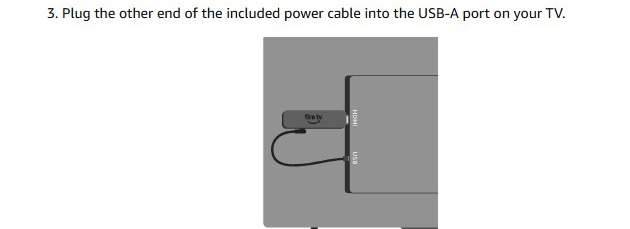
The Fire TV Stick HD (2nd Generation) has a short power cable designed to run straight into the TV. The Fire TV Stick 4K (3rd Generation) also uses Direct Power from the TV's USB port.
- Plug the included USB-C power cable into the Firestick's USB-C power port.
- Plug the Firestick into your TV's HDMI port.
- Plug the other end of the power cable into the USB-A port on your TV.
- Press your thumb firmly on the arrow on the back of the remote, slide the cover off and insert the AAA batteries.
- Turn on the TV with its own remote and switch to the correct input.
- Connect to Wi-Fi and sign in to your Amazon account with the on-screen QR codes or the Fire TV remote.
If the USB port is too far away, or a message reports insufficient power, connect the stick through a USB-C cable and a 5V 1A adapter plugged into a wall outlet.
Setting up a Firestick on Wi-Fi with a QR code or the remote
Setup offers two ways to join your network, and they end in the same place. The QR code saves typing a long password with the remote.
- When the Wi-Fi screen appears, decide between the QR code and manual setup.
- For the QR code, scan it with your phone to set up the Wi-Fi connection automatically.
- For manual setup, select your network with the Fire TV remote and enter its password.
- If your network is missing from the list, press Back on the remote to refresh it.
- To change networks after setup, go to Settings > Network.
Ethernet is also an option. Some Fire TV devices need an Ethernet adapter for it, and the Fire TV Stick 4K (3rd Generation) supports one.
How to register a Firestick to your Amazon account
Registering links the stick to your Amazon account, and setup asks for it straight after Wi-Fi. You sign in on your phone or computer rather than typing a password with the remote.
- Wait for the sign-in screen to appear after the Firestick connects to Wi-Fi.
- Scan the on-screen QR code with your phone, or open
amazon.com/codeon a phone or computer. - Enter the activation code shown on the TV if you used the web address.
- Sign in with your Amazon email address or phone number and password, or sign up for a new account.
- Return to the TV and follow the remaining prompts.
If your account has no password and the stick asks for one, press Back on the remote and use amazon.com/code with the verification code instead.
Can I set up Firestick without Amazon account?
No, a Firestick needs an Amazon account to finish setup. Amazon lists an account in its basic requirements for every Fire TV Stick. You can create one from the Create an Amazon Account page, or sign up from the setup screen, so you do not need one in advance.
Can I set up Firestick on laptop?
No, a Firestick is built for a TV or other screen with an HDMI input, and almost every laptop lacks one. A laptop's HDMI port normally sends its picture out to another screen, so it cannot display the stick. Amazon's setup requirements call for a TV with an available HDMI port.
The Firestick also works on a monitor with an HDMI input that supports HDCP, which is the nearest alternative when you have no TV.
How to set up a Firestick remote to a TV
Pairing lets the remote control the stick. Equipment control is the separate step that lets it control your TV's power, volume and mute, and it does not apply to Fire TV Smart TVs.
- Press Home on the Fire TV remote and go to Settings.
- Select Equipment Control, then Manage Equipment.
- Select TV.
- Under Change TV, check that the brand shown matches your TV.
- If it does not match, select Change TV and follow the on-screen instructions.
If a replacement remote will not respond to anything, reset the Fire TV remote with the button combination for your model, then pair it again.
How to tell if a Firestick is set up correctly
- Look for the remote's pairing confirmation in the lower-right corner of the TV screen during setup.
- Check that the Fire TV home screen appears on the HDMI input you chose.
- Open Settings > Network and confirm your Wi-Fi network is the connected one.
- Open an app such as Prime Video and play a title to prove the connection works.
- Sign in to Manage Your Content and Devices on Amazon's website and look for the stick under the Devices tab.
- Press the remote's volume and power buttons to check that equipment control works.
How to use a Firestick and install apps
Once setup ends, the remote does nearly everything from the main menu. Many popular apps are already there, and you add the rest from the Appstore.
- Press Home on the remote to open the main menu.
- Select Find and search for an app, or press the Alexa Voice button and say its name.
- Open the app's page and select Get or the Shopping Cart icon to download it.
- Open the app and sign in with your subscription for that service.
- Use the playback buttons to play, pause, rewind or fast forward what you are watching.
Only download from the Amazon Appstore. Fire TV disables apps that it identifies as using or giving access to unlicensed content.
Tips: How to enhance your Firestick experience
None of these are needed for setup, but they make the stick easier to live with day to day.
| Tip | How to do it |
|---|---|
| Find something to watch by voice | Press the Alexa Voice button and say a title or app name |
| Open favorite apps in one press | Use the preset app buttons at the bottom of the remote (these vary by remote) |
| Watch live news and sports | Choose Live on the main menu, or install a live TV app |
| Listen on Bluetooth speakers | Go to Settings > Controllers & Bluetooth Devices > Other Bluetooth Devices, then select your speaker in pairing mode |
| Control what kids can watch | Go to Settings > Preferences > Parental Controls, and reset the Fire TV PIN if you forget it |
| Keep the remote responsive | Use AAA alkaline batteries for best performance |
| Turn the TV into a display (4K Max) | Press the Alexa button and choose Ambient Experience from the Shortcuts Panel |
How to get your Firestick to work
Match what you see to a heading. Try the Wi-Fi fixes one at a time, and retry the connection after each one.
Firestick remote not pairing during setup
The remote is out of range or its batteries are weak.
- Move within 10 feet (3 m) of the Firestick.
- Press and hold Home until the on-screen start prompt appears, about 10 seconds.
- Remove the batteries, wait 30 seconds, put them back and hold Home again.
- Fit a new pair of AAA alkaline batteries.
- Unplug the Firestick, wait five seconds and plug it back in.
Firestick not connecting to Wi-Fi during setup
The network list is stale, or the router needs a restart. This also covers the "Network connection has been lost" message.
- Press Back on the remote to refresh the network list.
- Unplug the Firestick's power adapter, wait 1 minute and plug it back in.
- Unplug your modem and router and wait 1 minute.
- Plug in the modem, wait about 1 minute, then plug in the router and wait another minute.
- Move the Firestick and router closer together, or connect through an Ethernet adapter.
Firestick won't turn on or shows no picture
The TV is on the wrong input, or the stick lacks power.
- Press the source or input button on your TV remote and select the HDMI port the stick uses.
- Use the power cable and adapter that came with the stick.
- Unplug the power cord for several seconds, then plug it back in.
- Plug the stick directly into the TV if it runs through an HDMI hub.
Firestick shows a low power message
The TV's USB port cannot supply enough power. The message returns until you fix this, even if you select Got it or Ask me Later.
- Try a different USB port on the TV, or a USB 3.0 port if the TV has one.
- Connect the power cable to a 5W (5V, 1A or equivalent) power adapter, using a longer USB cable if needed.
- Plug the adapter into a wall outlet.
Firestick screen frozen during setup
The stick has hung and needs a restart.
- Press and hold Select and Play/Pause together for about 5 seconds.
- If the screen stays frozen, unplug the power cord, wait 60 seconds and plug it back in.
Amazon login error on Firestick
The password is wrong or forgotten.
- Open Amazon's Forgot Your Password page on a phone or computer and reset the password.
- Return to the sign-in screen and try again, or use the QR code.
Firestick apps won't download
The Amazon account has no default payment method.
- Add a default payment method under Your Payments on Amazon's website.
- Go back to the app's page and select Get again.
Firestick setup FAQ
Can I use a Firestick on a non-smart TV?
Yes. Any TV with an available HDMI port that handles at least 720p can run a Firestick, and it does not have to be a smart TV. The stick runs the apps itself, then sends the picture to the TV over HDMI.
How do I turn on a Firestick?
Connect the Firestick to power and to the TV's HDMI port, turn on the TV, then switch the TV to that HDMI input. If the screen stays blank, replace the remote's batteries and unplug the power cord for several seconds.
How do I get my Firestick working if it stops during setup?
Check that the TV is on the correct HDMI input, then replace the remote's batteries and unplug the power cord for several seconds. For a frozen screen, hold Select and Play/Pause for about 5 seconds to force a restart.
Can I watch live TV on a Firestick?
Yes. Choose Live on the main menu or install a live TV app such as YouTube TV, Hulu + Live TV, Sling TV or Fubo, each of which needs its own subscription. Pluto TV and Tubi offer free live channels.
How do I set up a Firestick for IPTV?
Install a licensed live TV app from the Amazon Appstore by searching in Find, then sign in with that service's account. Fire TV disables apps identified as using or providing access to unlicensed content, so use Appstore services, which include free options.
Can I plug a Firestick into the TV's USB port for power?
Only the Fire TV Stick HD (2nd Generation) and 4K (3rd Generation) are designed for it. Amazon tells owners of the other current models to use the power adapter and a wall outlet, and to avoid plugging the USB cable directly into the TV.
Can I set up a Firestick with Ethernet instead of Wi-Fi?
Yes, if you have an Ethernet adapter for Fire TV, because most sticks have no Ethernet port of their own. Amazon suggests a wired connection as a fix when Wi-Fi fails during setup. The adapter is sold separately.
What comes in a Firestick box?
Most boxes hold the Firestick, a remote, two AAA batteries, a power cable, a power adapter and a quick start guide. Some models add an HDMI extender. The Fire TV Stick HD (2nd Generation) runs from the TV and includes no wall adapter.
How long does it take to set up a Firestick?
Amazon says setup usually takes a few minutes, and most of it is plugging in the stick, joining Wi-Fi and signing in. Having your Wi-Fi password and Amazon sign-in ready before you start keeps it short.