To pair a Firestick remote, stand within 10 feet of the Firestick and press and hold Home for about 10 seconds until an on-screen start prompt appears; a remote in initial setup usually pairs on its own once its batteries are in.
The steps below cover adding a new remote with or without the old one, pairing through the Fire TV app, controlling TV volume and fixing a remote that refuses to pair.
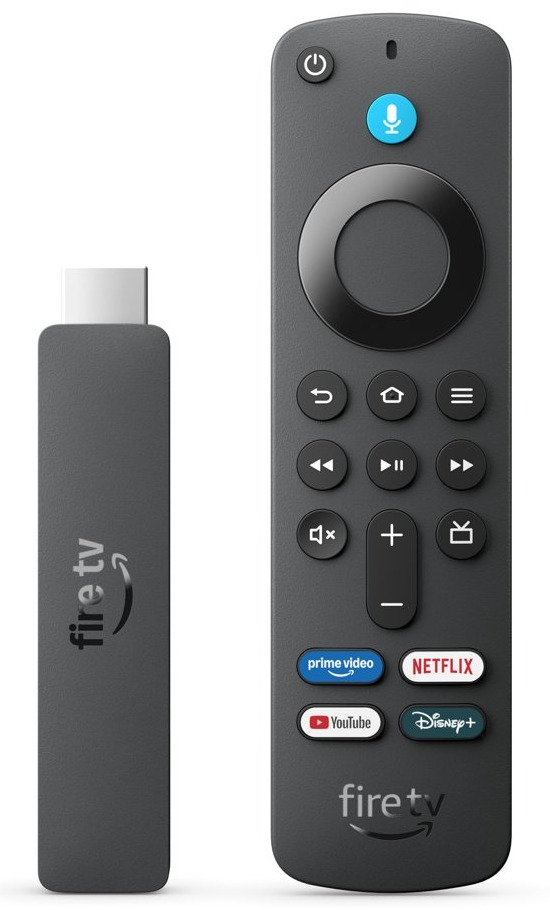
Step by step tutorial: How to pair Firestick remote
Start here for any Fire TV remote, whether you are setting up a new Firestick or the remote has lost its connection.
- Turn on the TV and switch to the HDMI input the Firestick uses.
- Insert the batteries in the remote and wait for it to pair automatically.
- Check the lower-right corner of the screen for the confirmation message.
- If no message appears, move within 10 feet (3 m) of the Firestick.
- Press and hold Home for about 10 seconds, until the on-screen start prompt appears.
- Press the button the prompt shows to start using the remote.
Pair new Firestick remote with the original remote
Use this route when your existing remote still works and you are adding a second or replacement remote.
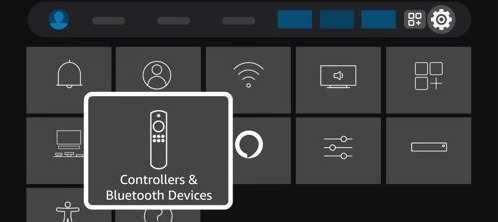
- Press Home on your current remote and go to Settings from the Fire TV menu.
- Select Controllers & Bluetooth Devices.
- Select Amazon Fire TV Remotes.
- Select Add New Remote.
- Insert the batteries in the new remote and wait for it to appear in the list.
- If it does not appear, press and hold Home on the new remote for 10 seconds.
Pair new Firestick remote without old remote
A restart makes the Firestick look for a remote, so you can pair a replacement without any menus.
- Keep the batteries out of the new remote for now.
- Restart the Firestick by unplugging it from power.
- Plug it back in and wait for the remote detection message, such as "Cannot detect your remote".
- Insert the batteries in the new remote; it should pair on its own.
- If it does not pair, press and hold Home for 10 seconds.
How to pair Firestick remote with the Fire TV app
The Fire TV app can stand in for a lost remote while you pair a new one. Your phone and the Firestick must be on the same Wi-Fi network.
- Download the Fire TV app on your phone and open it.
- Use the app to go to Settings from the Fire TV menu.
- Select Controllers & Bluetooth Devices.
- Select Amazon Fire TV Remotes.
- Select Add New Remote.
- Select the remote you want to pair.
How to pair Firestick remote to TV volume and power
Pairing connects the remote to the stick, while Equipment Control connects it to your TV's power, volume and mute. These steps do not apply to Fire TV Smart TVs.
- Go to Settings from the Fire TV menu.
- Select Equipment Control.
- Select Manage Equipment.
- Select TV.
- Under Change TV, check that the brand shown matches your TV.
- If it does not match, select Change TV and follow the on-screen instructions.
Your remote needs volume and power buttons for this to work. Equipment control can also cover soundbars, AV receivers, and cable or satellite boxes, though not every third-party device is supported.
How to pair Firestick remote to Samsung TV, LG TV, Sony TV, TCL TV or Roku TV
The remote pairs with the Firestick rather than with the TV, so the steps stay the same on any brand. Only the choice under Change TV differs.
| Your TV | What to do | Why |
|---|---|---|
| Samsung, LG, Sony or TCL TV | Pair the remote with the stick, then select your TV's brand under Change TV | Amazon's remotes control a wide range of IR-enabled TVs |
| Roku TV | Pair the remote with the stick plugged into the TV, then select the TV's brand under Change TV | The remote works the stick and the TV's power and volume, not the Roku software |
| Amazon Ember or Fire TV Smart TV | Pair from Controllers & Bluetooth Devices after you check the remote is compatible | Fire TV is built in, so Equipment Control steps for TV brands do not apply |
| TV brand not listed under Change TV | Keep using the TV's own remote for volume and power | Not all third-party devices are supported |
Roku devices use their own remote, and pairing a Roku remote follows a different process.
Which Firestick remote works with which Fire TV Stick
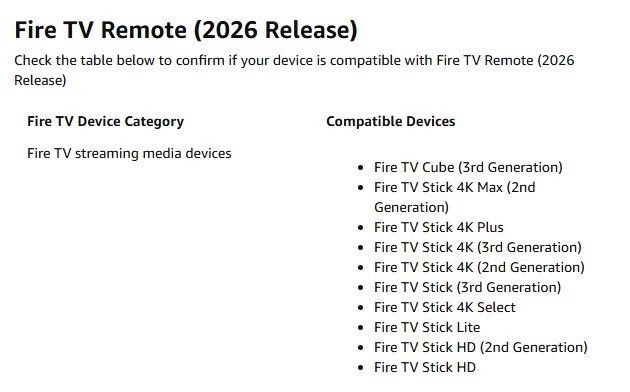
Not every remote pairs with every Fire TV Stick model, so check this before you buy a replacement. Amazon also lists Fire TV Cube, smart TV and Echo Show support for each remote.
| Remote | Compatible Fire TV Sticks |
|---|---|
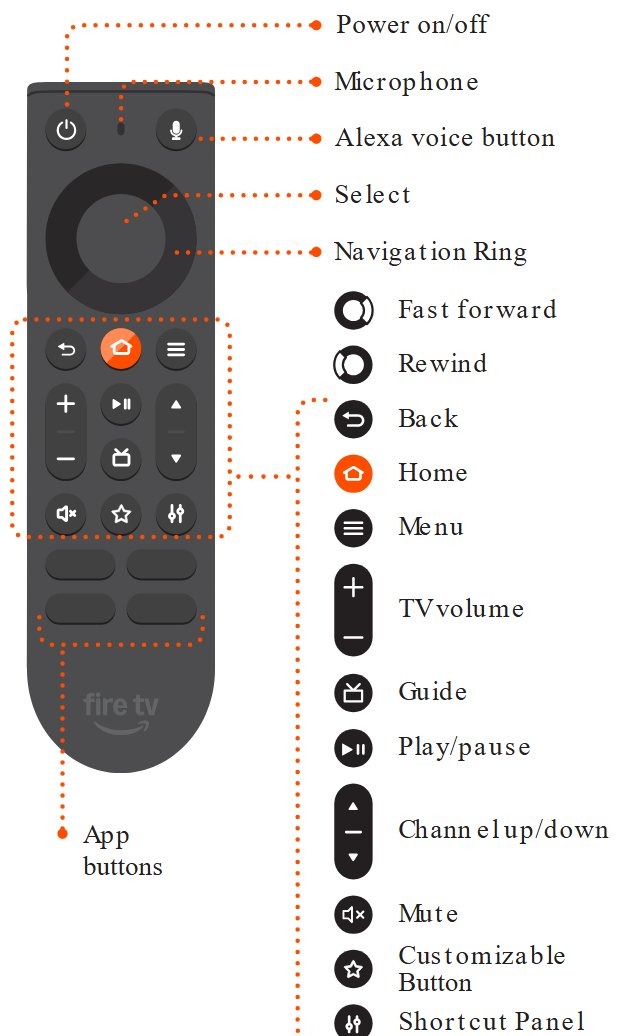
| Fire TV Remote (2026 release) | 4K Max (2nd Gen), 4K Plus, 4K (3rd and 2nd Gen), 4K Select, Fire TV Stick (3rd Gen), Lite, HD, HD (2nd Gen) |
| Alexa Voice Remote Pro | 4K Max (2nd and 1st Gen), 4K Plus, 4K (3rd, 2nd and 1st Gen), 4K Select, Fire TV Stick (3rd and 2nd Gen), Lite, HD |
| Alexa Voice Remote (2024 release) | 4K Select, 4K Max (2nd and 1st Gen), 4K Plus, 4K (3rd, 2nd and 1st Gen), Fire TV Stick (3rd Gen), Lite, HD |
| Alexa Voice Remote (3rd Gen) | 4K Max (2nd and 1st Gen), 4K Plus, 4K (2nd and 1st Gen), 4K Select, Fire TV Stick (3rd and 2nd Gen), Lite, HD |
| Alexa Voice Remote Enhanced | 4K (3rd Gen), 4K Max (2nd Gen) |
To check which Firestick you own, open Manage Your Content and Devices on Amazon's website and select the Devices tab.
How to tell if a Firestick remote is paired
- Look for the confirmation message in the lower-right corner of the screen.
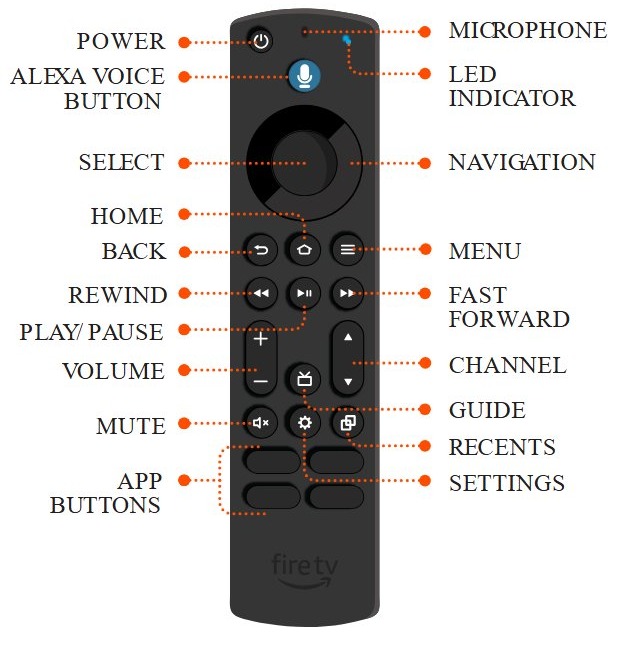
- On remotes with an LED indicator, watch for a blue blink.
- Go to Settings > Controllers & Bluetooth Devices > Amazon Fire TV Remotes and find the remote in the list.
- Press Home and move around the Fire TV menu with the remote.
Tips for pairing Firestick remote
| Tip | Why it helps |
|---|---|
| Stay within 10 feet (3 m) of the Firestick | The remote has to be in range to pair |
| Use new AAA alkaline or 1.2V NiMH rechargeable batteries | Dead batteries stop a remote from connecting |
| Hold Home for the full 10 seconds | The start prompt can take that long to appear |
| Remove controllers you no longer use | A Fire TV device holds seven paired controllers at most |
| Check the compatibility table before you buy | Not all remotes are compatible with every Fire TV device |
| Keep the Fire TV app on your phone | It can pair a new remote if you lose the original |
Why won't my Firestick remote pair?
Work through the fixes in order and try pairing after each one.
Can't pair Firestick remote or "Pairing failed" appears
The remote is out of range, or its batteries are weak.
- Move within 10 feet (3 m) of the Firestick.
- Press and hold Home until the on-screen start prompt appears, about 10 seconds.
- Remove the batteries, wait 30 seconds, put them back and hold Home again.
- Fit a new pair of alkaline batteries and hold Home again.
Cannot pair Firestick remote after new batteries
The remote needs a reset before it can pair again.
- Press and hold Left, Menu and Back at the same time for 12 seconds.
- Press and hold Home again.
- If the issue persists, unplug the Firestick, wait five seconds and plug it back in.
- For a Basic Edition or 1st-generation remote, reset the Fire TV remote with the button sequence for that model.
New Firestick remote not showing in the list
The remote may not be compatible, or seven controllers are already paired.
- Press and hold Home on the new remote for 10 seconds.
- Check the compatibility table for your remote and Firestick.
- Go to Settings > Controllers & Bluetooth Devices and remove a controller if seven are paired.
- Pair through the Fire TV app instead.
Firestick remote pairing FAQ
What do I do if my Firestick remote won't pair?
Move within 10 feet of the Firestick and hold Home for about 10 seconds. If that fails, take the batteries out for 30 seconds, fit new alkaline batteries, then reset the remote by holding Left, Menu and Back for 12 seconds.
Can I pair more than one remote to my Firestick?
Yes. Add each one from Settings, Controllers & Bluetooth Devices, Amazon Fire TV Remotes, Add New Remote. A Fire TV device holds up to seven paired controllers, so remove one first if you have already reached that limit.
Will this process work for all Firestick models?
The pairing steps are the same across Fire TV Sticks, but not every remote works with every stick. Amazon publishes a compatibility list by remote, so check that your remote supports your stick before you try to pair it.
Can I use a remote from a different Firestick on my Firestick?
Yes, if Amazon lists that remote as compatible with your stick. Pair it the same way as a new remote: select Add New Remote with a working remote or the Fire TV app, or restart the stick and insert the batteries at the detection message.
What should I do if I lost my Firestick remote?
Use the Fire TV app on your phone as a temporary remote, as long as the phone and Firestick share a Wi-Fi network. Then buy a compatible replacement and pair it from the app, or restart the stick to pair it without the original.
How do I pair a Firestick remote to a Fire TV Smart TV?
Press Home on the current remote, go to Settings, Controllers & Bluetooth Devices, Amazon Fire TV Remotes, then Add New Remote and insert the new remote's batteries. Without a working remote, restart the TV and wait for the remote detection message before inserting the batteries.
What batteries does a Firestick remote need?
Fire TV remotes take two AAA batteries, and Amazon recommends alkaline for best performance. Replace dead ones with new 1.5V alkaline or 1.2V NiMH rechargeable AAA batteries, then hold Home if the remote does not reconnect by itself.