Download Bonjour for Windows from Apple's Bonjour Print Services for Windows support page, or get it as part of iTunes for Windows.
This guide covers both downloads, the developer SDK, what Apple says about Windows 11, how to find Bonjour on your PC and how to remove it.
How to download Bonjour for Windows 11
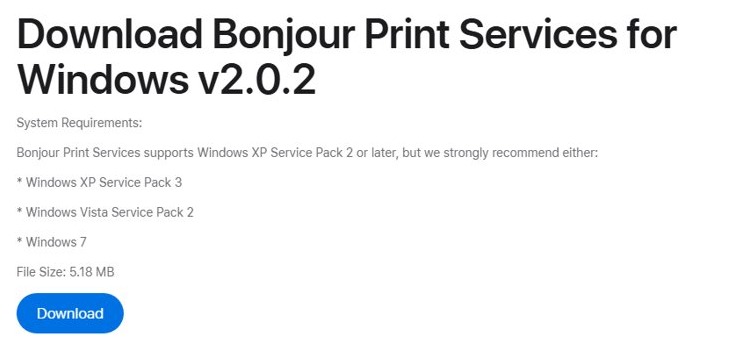
Apple's standalone installer is version 2.0.2, a 5.18 MB file named BonjourPSSetup.exe. Take it from Apple rather than a download site, so you know where the file came from.
- Open the Bonjour Print Services for Windows page on Apple Support.
- Select Download and save BonjourPSSetup.exe.
- Open the downloaded file and follow the installer prompts.
- Look for the Bonjour Printer Wizard shortcut on your desktop when setup finishes.
Windows 10 and Windows 11 readers use the same page. Apple publishes one Bonjour Print Services download for Windows, so there is no separate build to choose.
Bonjour software download for Windows: Print Services, iTunes or SDK
| Your situation | Download this | Why |
|---|---|---|
| You want to add a Bonjour printer | Bonjour Print Services for Windows | It installs the Bonjour Printer Wizard, which discovers and configures Bonjour-enabled printers |
| You use iTunes music sharing or Apple TV from a PC | iTunes for Windows | Apple lists mDNSResponder.exe, also known as Bonjour for Windows, among the iTunes background processes |
| You are writing software that uses Bonjour | Bonjour SDK for Windows | Apple lists it for developers on its Bonjour developer page |
| You want to read or build the code | mDNSResponder source on GitHub | Apple publishes its Bonjour implementation as open source under the Apache 2.0 license |
Does Bonjour work on Windows 11 and Windows 10?
Apple has not published a Windows 11 or Windows 10 compatibility statement for Bonjour Print Services. Its requirements say Windows XP Service Pack 2 or later and stop naming versions at Windows 7.
| Windows version | Bonjour Print Services page | iTunes for Windows page |
|---|---|---|
| Windows 11 | Not named | Not named |
| Windows 10 | Not named | Listed as the software requirement |
| Windows 7 | Recommended | Not named |
| Windows Vista | Recommended with Service Pack 2 | Not named |
| Windows XP | Service Pack 2 or later, with Service Pack 3 recommended | Not named |
Treat the wizard as older software on a current PC. Try the built-in Windows printer route first if a printer is your only reason for wanting Bonjour.
Bonjour for iTunes download
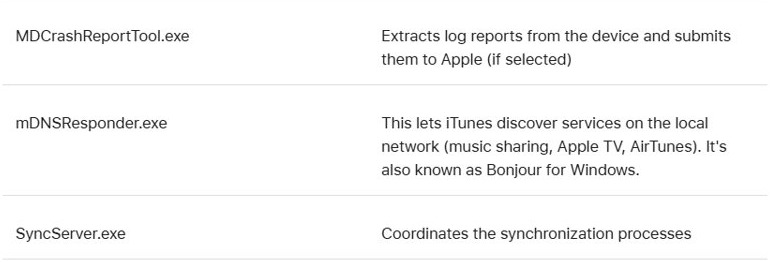
Use this route when you want the Bonjour features that iTunes relies on, such as finding music sharing and Apple TV on the local network. Apple says mDNSResponder.exe lets iTunes discover those services.
- Open Apple's iTunes page in your browser.
- Select Download iTunes for Windows now (64-bit), or use the Microsoft Store link on the same page.
- Run the installer and follow the prompts.
- Open Services afterward and look for an entry whose name begins with Bonjour.
Apple's pages do not say whether the Microsoft Store build installs Bonjour, so that last check matters. You can compare both routes on the iTunes for Windows download page.
Download Bonjour SDK for Windows
The SDK is for developers building Bonjour support into their own apps. You do not need it to use a printer or iTunes.
- Open Apple's Bonjour developer page.
- Select Bonjour SDK for Windows under Bonjour for Windows.
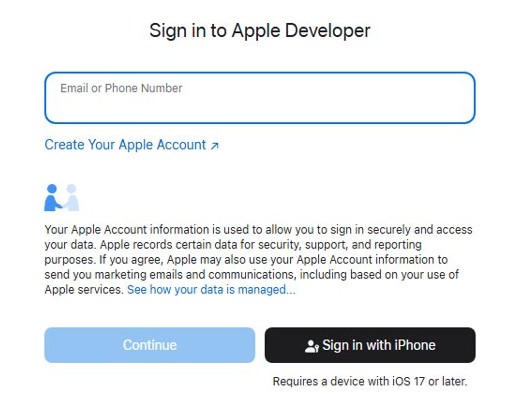
- Sign in with your Apple Account when the downloads site asks.
- Choose the SDK from the results and download it.
How to use Bonjour Printer Wizard on Windows
The wizard works with network printers on Wi-Fi or Ethernet, and with USB printers shared through a Mac or AirPort base station.
- Turn on the printer and connect it to the same local network as your PC.
- Open Bonjour Printer Wizard from the desktop shortcut.
- Select the printer the wizard finds and follow its prompts.
When the wizard closes, print a test page to prove the printer accepts jobs.
Add a printer in Windows 11 without Bonjour
Windows has its own way to add a printer in Windows 11 through Settings, so try it before installing older software.
- Turn on the printer and confirm it is on the same network as your PC.
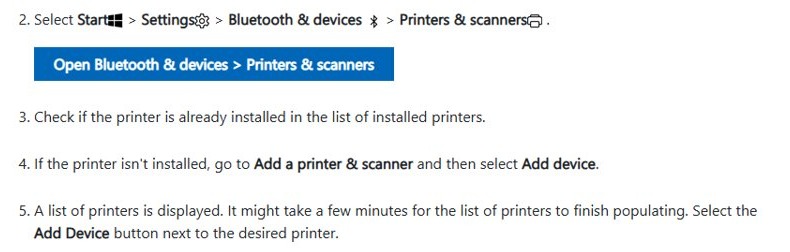
- Select Start > Settings > Bluetooth & devices > Printers & scanners.
- Check whether the printer is already in the installed list.
- If it is not, go to Add a printer & scanner and select Add device.
- Wait for the list to fill, then select Add Device next to your printer.
- If it does not appear, select Add a new device manually next to The printer that I want isn't listed.
On Windows 10, go to Start > Settings > Devices > Printers & scanners and select Add a printer or scanner.
Find Bonjour on my PC
Bonjour has no main window, so look for its service, process or folder. Any one of these shows it is installed.
- Select Start, type Services and press Enter.
- Scroll to an entry whose name begins with Bonjour and read its Status column.
- Or run
Get-Service -DisplayName "*Bonjour*"in PowerShell, which prints the same status. - Press Ctrl + Shift + Esc, open Details and look for mDNSResponder.exe.
- Open Program Files in File Explorer and look for the Bonjour Print Services folder.
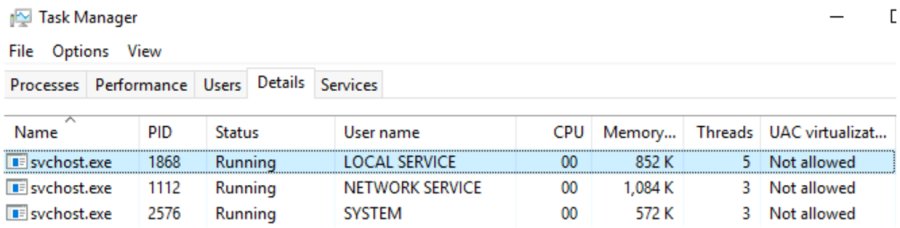
What is Bonjour in my Program Files?
These are the Bonjour items you can run into on a PC. None of them tells you which app added Bonjour, so check Installed apps in Settings for iTunes or Bonjour Print Services.
| Item | Where it comes from | What it does |
|---|---|---|
| Bonjour Print Services folder | Bonjour Print Services for Windows | Holds the Bonjour Printer Wizard in Program Files |
| Bonjour Printer Wizard shortcut | Bonjour Print Services for Windows | Starts the wizard from the desktop |
| mDNSResponder.exe | iTunes for Windows background processes | Discovers services on the local network |
| BonjourPSSetup.exe | Your download from Apple | Installs Bonjour Print Services |
Do I need Bonjour on my computer?
You need it only if something on the PC discovers devices through it. Knowing what the Bonjour service does helps you decide whether to stop or disable it.
| What you do on this PC | Bonjour needed? | Reason |
|---|---|---|
| Find music sharing or Apple TV through iTunes | Yes | Apple says mDNSResponder.exe handles this discovery |
| Print through a printer added with the wizard | Yes | The wizard is built around Bonjour discovery |
| Print through a printer added in Windows Settings | Not for that setup | That route uses the Windows Add device flow, not the wizard |
| Write software that publishes or finds network services | Yes, through the SDK | Apple's SDK exposes the Bonjour programming interface on Windows |
Uninstall Bonjour from Windows 11 and Windows 10
Apple advises against disabling the iTunes background processes, so remove Bonjour only if you no longer use the features above.
- Select Start > Settings > Apps > Installed apps. On Windows 10, select Apps & features instead.
- Find the entry whose name begins with Bonjour.
- On Windows 11, select More next to it, then Uninstall. On Windows 10, select the entry, then Uninstall.
- If the entry is not removable there, open Control Panel > Programs > Programs and Features, right-click it and select Uninstall.
Bonjour printer not found on Windows
Bonjour Printer Wizard does not list a network printer
Bonjour sends and receives packets on UDP port 5353. The installer sets up the Windows firewall on supported systems, but a separate firewall must allow this port too.
- Confirm the printer and PC are on the same local network.
- Allow UDP port 5353 for your private network in any separate firewall you use.
- Run Bonjour Printer Wizard again.
Bonjour Printer Wizard does not list a USB printer
A USB printer has to be shared through a Mac or an AirPort base station for the wizard to reach it.
- Connect the printer to the Mac or AirPort base station and share it there.
- Run Bonjour Printer Wizard again from the Windows PC.
If the printer stays hidden, work through the fixes for a PC that cannot find a wireless printer.
Bonjour for Windows FAQ
What is Bonjour on PC?
Bonjour is Apple's zero-configuration networking software. It automatically discovers devices and services on a local network using standard IP protocols, so apps can find printers and other services without you typing an address. On a PC it arrives with iTunes or Bonjour Print Services.
What program is Bonjour on my computer?
It is a background process named mDNSResponder.exe, which Apple describes as Bonjour for Windows. Apple lists it among the processes that iTunes for Windows installs. If you added Bonjour Print Services, you also have the Bonjour Printer Wizard in Program Files.
What does Bonjour do on my PC?
It lets iTunes discover music sharing, Apple TV and AirTunes on your local network, and it lets the Bonjour Printer Wizard find and configure compatible printers. It communicates over UDP port 5353 and works with devices on the same network as your PC.
What app is Bonjour?
Bonjour is not an app you open from the Start menu to use day to day. It runs as a background service for other Apple software. The only visible piece is the Bonjour Printer Wizard, which appears only after you install Bonjour Print Services for Windows.
What is the use of Bonjour software?
Its use is finding things on a local network without manual setup. Apple notes that it is built into most modern printers and many other consumer products, which is why a PC running Bonjour can discover them instead of asking for an IP address.
What is Bonjour file on my computer?
The file you most likely found is mDNSResponder.exe, BonjourPSSetup.exe or something inside the Bonjour Print Services folder. The first belongs to the iTunes background processes, the second is Apple's installer, and the folder holds the printer wizard in Program Files.
How to download Bonjour for Windows 11?
Go to Apple's Bonjour Print Services for Windows support page, select Download and run BonjourPSSetup.exe. Apple's requirements do not name Windows 11, and this version 2.0.2 installer is the standalone Bonjour Print Services download that Apple offers for Windows PCs.