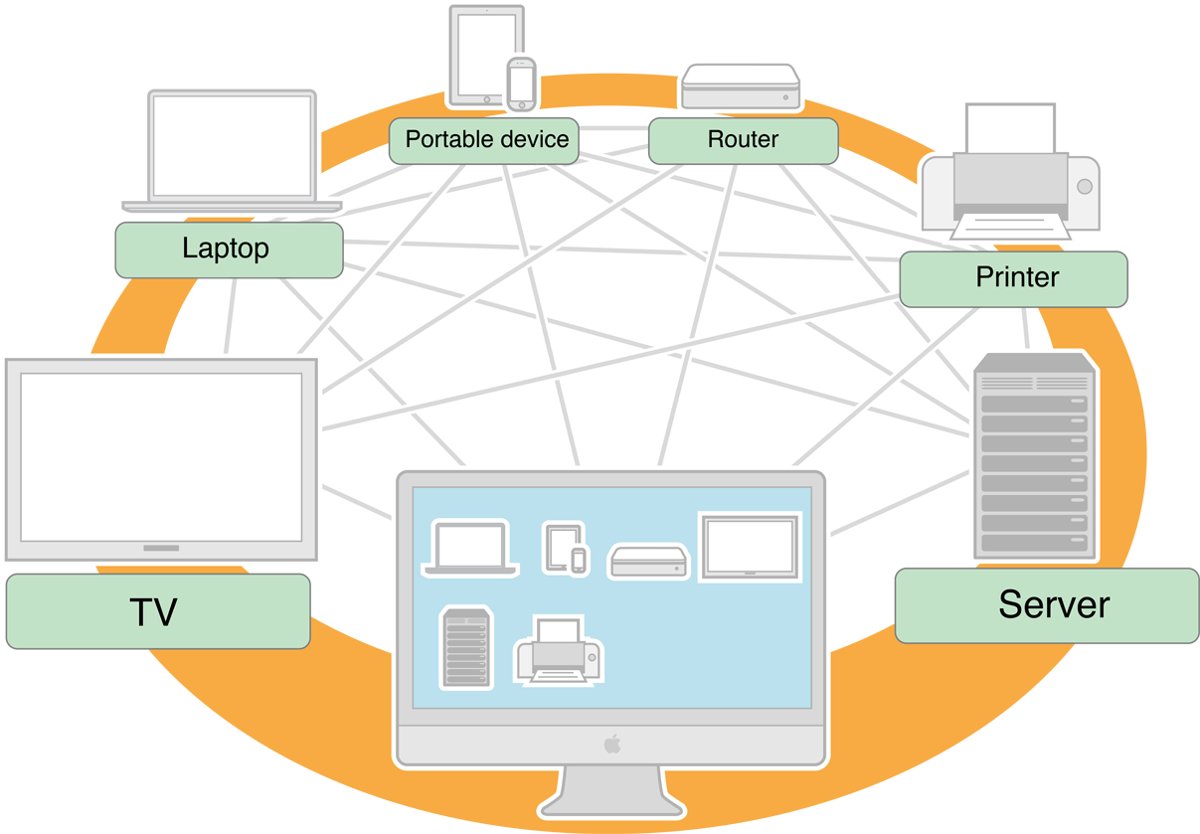
Bonjour is Apple's zero-configuration networking service: it lets your computer find printers, Apple TVs and shared music libraries on the local network without typing IP addresses.
On Windows it arrives with Apple software such as iTunes or Bonjour Print Services, and you only need it if you use those local-network features.
What Is the Bonjour Service (and Do You Need It)?
Apple describes Bonjour as zero-configuration networking that discovers devices and services on a local network using standard IP protocols.
On a Windows PC the running process is mDNSResponder.exe, which Apple also calls Bonjour for Windows.
Keep Bonjour if you print to a Bonjour printer through Bonjour Print Services, share an iTunes library on your network or stream to an Apple TV from iTunes. Otherwise it is safe to stop the service or uninstall it. Bonjour only advertises and finds services on your local network. Nothing in Windows itself depends on it, so removing it affects only the Apple features that use it.
Do You Really Need Bonjour?
Match your own setup to a row. The deciding question is whether any app on this PC discovers Apple devices or Bonjour printers over the network.
| Your situation | What to do | Why |
|---|---|---|
| You use iTunes Home Sharing, music sharing or AirTunes/AirPlay from iTunes | Keep Bonjour running | Apple says mDNSResponder.exe lets iTunes discover music sharing, Apple TV and AirTunes on the local network |
| You added a printer with the Bonjour Printer Wizard | Keep Bonjour running | Bonjour Print Services finds and configures Bonjour-enabled printers through it |
| You installed iTunes or iCloud only to back up an iPhone | Set the service to Manual or Disabled | Backups over a USB cable do not need network discovery |
| You never installed Apple software and do not recognise Bonjour | Check Installed apps for the Apple app that brought it, then decide | Bonjour ships inside other installers, so it rarely appears on its own |
| Company or public network where discovery traffic is unwanted | Disable or uninstall Bonjour | Apple notes multicast DNS assumes every participant on the network is cooperative |
How to Manage and Disable Bonjour
Disabling the service is the reversible option: the software stays installed, but it no longer starts with Windows.
You need an administrator account. For a full tour of the console, see this Services.msc guide to Windows services management.
- Select Start, type Services, and press Enter.
- Scroll to the entry whose name begins with Bonjour and double-click it.
- Select Stop under Service status to end the running process now.
- Open the Startup type list and choose Disabled, or Manual if an Apple app should still be able to start it.
- Select Apply, then OK.
Stop and disable Bonjour with PowerShell
Open Windows PowerShell or Terminal with Run as administrator, because Microsoft states that Set-Service needs elevated permissions.
The display-name wildcard finds the Bonjour entry without you having to type its exact service name.
Get-Service -DisplayName "*Bonjour*" | Set-Service -Status Stopped -StartupType Disabled -PassThruGet-Service -DisplayName "*Bonjour*" selects every service whose display name contains Bonjour. Set-Service then stops it (-Status Stopped) and prevents it from starting again (-StartupType Disabled). -PassThru prints the changed service so you can see the result.
You should see: PowerShell prints one line with Stopped in the Status column and the Bonjour display name. No output at all means no Bonjour service is installed.
Practical Tips for Managing Bonjour
Uninstalling removes the software completely. Use it when no Apple app on the PC needs network discovery.
| Tip | How to do it | Why it matters |
|---|---|---|
| Uninstall on Windows 11 | Start > Settings > Apps > Installed apps, find Bonjour, select More (…) > Uninstall | Removes mDNSResponder.exe and its service |
| Uninstall on Windows 10 | Start > Settings > Apps > Apps & features, select Bonjour > Uninstall | Same result on the older Settings layout |
| Use Control Panel when Settings refuses | Control Panel > Programs > Programs and Features, right-click Bonjour > Uninstall | Microsoft notes some programs only uninstall from Control Panel |
| Pick Manual over Disabled if unsure | Set Startup type to Manual | Apple apps can still start it when they need it |
| Expect it to return | Check the Services list after reinstalling or updating Apple software | Bonjour is bundled with Apple installers |
| Leave it alone on a Mac | No action needed | Bonjour is part of macOS and iOS, not an add-on |
To see everything else that starts with Windows, get a list of services running on your computer.
How to check Bonjour is stopped or removed
- Open Windows PowerShell and run
Get-Service -DisplayName "*Bonjour*" | Select-Object Name, StartType, Status. - Confirm StartType shows Disabled (or Manual) and Status shows Stopped.
- If you uninstalled it, confirm the command returns nothing.
- Press Ctrl + Shift + Esc, open the Details tab and confirm mDNSResponder.exe is not listed.
Understanding the Foundations of Bonjour
Apple's developer documentation splits Bonjour into three jobs that normally need a DHCP server, a DNS server and manual setup.
| Job | What Bonjour does | What you see |
|---|---|---|
| Addressing | Assigns a link-local IP address in the 169.254.x.x range when no DHCP server answers | Two devices on a bare cable or ad-hoc link can still talk |
| Naming | Reserves the .local domain for names advertised with multicast DNS | Names such as a printer's .local hostname resolve without a DNS server |
| Service discovery | Advertises and finds services with multicast DNS (mDNS) and DNS Service Discovery | Printers, speakers and shared libraries appear in app lists by name |
Apple publishes the implementation as open source under the Apache 2.0 licence, and most modern printers build it in.
How Does Bonjour Work?
Bonjour reuses ordinary DNS record types but sends queries to every device on the local link instead of to a DNS server.
Traffic stays on the local network; Apple states it is not routed across the internet.
| Piece | Role | Detail |
|---|---|---|
| PTR record | Lists every instance of a service type | How an app asks "which printers are here?" |
| SRV record | Turns a service name into a hostname and port | Tells the app where to connect |
| A / AAAA record | Turns the hostname into an IPv4 or IPv6 address | The final address the app uses |
| TXT record | Carries extra service details | Settings such as supported features |
| UDP port 5353 | Multicast DNS | Used by Bonjour, AirPlay, Home Sharing and printer discovery |
| UDP port 1900 | SSDP | Listed by Apple under Bonjour |
| UDP ports 5350 and 5351 | NAT Port Mapping Protocol | Listed by Apple under Bonjour |
The Process in Practice
These are the everyday cases Apple uses to explain Bonjour. Each one replaces a manual IP or DNS step.
| Scenario | Without Bonjour | With Bonjour |
|---|---|---|
| Adding a network printer | Find and type the printer's IP address | The printer announces itself and appears by name |
| Sharing an iTunes library | No automatic way to find other libraries | iTunes lists shared libraries on the same network |
| Streaming from iTunes to an Apple TV | Enter the device address manually | The Apple TV shows up as a playback target |
| Sharing photos between two iPhones over Bluetooth | Configure IP addresses on both | The app finds the other phone and connects |
Platforms Supporting Bonjour
| Platform | How Bonjour is present | Programming interface |
|---|---|---|
| macOS | Built into the operating system | Foundation, Core Foundation, C |
| iOS and iPadOS | Built into the operating system, including Bonjour over Bluetooth | Foundation, Core Foundation, C |
| Windows | Installed with Apple software or Bonjour Print Services for Windows | C API through the Bonjour SDK for Windows |
| Linux | Available from Apple's open-source mDNSResponder code | C API |
| Printers and other devices | Built into most modern printers and many consumer products | Vendor firmware |
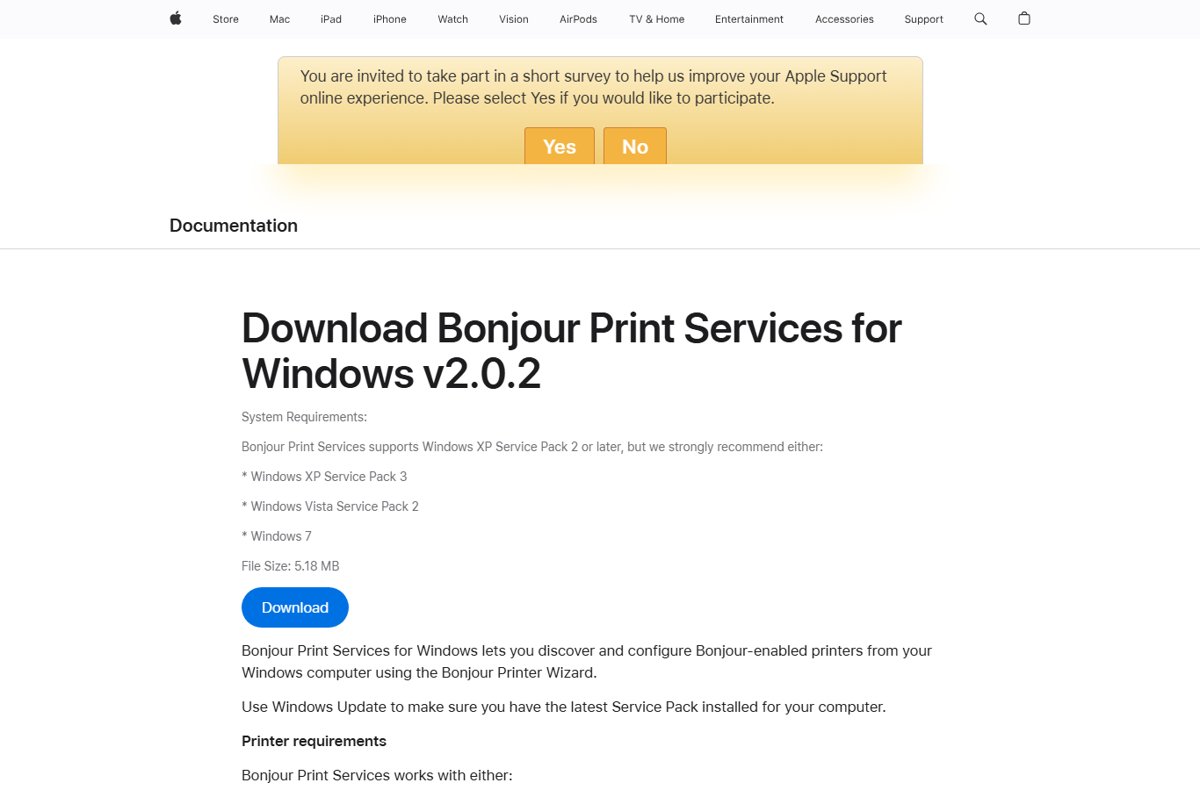
Bonjour Print Services for Windows is version 2.0.2 and is 5.18 MB. Apple lists Windows XP SP2 or later as the requirement, with XP SP3, Vista SP2 or Windows 7 recommended, so it predates Windows 10 and 11.
Why Is Bonjour Popular?
| Reason | What it means for you |
|---|---|
| No configuration | Devices find each other without IP addresses or a DNS server |
| Built on open standards | It uses standard DNS records, so other vendors' devices speak it too |
| Open source under Apache 2.0 | Printer and device makers can ship it in firmware |
| Language support | Developers can call it from Cocoa, Ruby, Python, C and other languages |
| Wide hardware support | Most modern printers already advertise themselves with it |
Potential Drawbacks of Bonjour
| Drawback | Detail | What to do |
|---|---|---|
| Trusts everyone on the network | Apple states multicast DNS assumes participants cooperate | Use WPA2-PSK or stronger Wi-Fi security so only trusted devices join |
| Exposure on open Wi-Fi | Anyone on a public hotspot shares the same local link | Disable Bonjour on laptops that live on public networks |
| Past security flaws | Apple has shipped a security update for mDNSResponder, the code behind Bonjour | Keep Apple software updated or remove Bonjour if unused |
| Old Windows package | Bonjour Print Services lists Windows XP to Windows 7 as its targets | Prefer a printer's own Windows driver when the maker offers one |
| Firewall dependency | Bonjour printing needs UDP port 5353 open | Allow the port only on private networks |
Alternatives to Bonjour
Bonjour is Apple's implementation of open protocols, so the alternatives are other ways to do discovery rather than rival brands.
| Alternative | When it fits | Source |
|---|---|---|
| DNS-SD and mDNS support built into Windows apps | Microsoft recommends DNS-SD and mDNS for service discovery after removing the PNRP APIs | Microsoft Learn |
| SSDP and UPnP discovery | Windows uses the SSDP Discovery and UPnP Device Host services to make a PC visible on the network | Microsoft Learn |
| Manual IP address | Add a printer or device by typing its fixed IP address | No discovery protocol needed |
| Wide-Area Bonjour | Unicast discovery configured manually or through a gateway | Apple, for open or large networks |
| Bonjour gateway products | Wi-Fi access points that filter and relay discovery traffic | Apple, for managed networks |
How to enable the Bonjour service again
If a printer or Apple TV disappears after you disabled Bonjour, turn the service back on. Run PowerShell as administrator for the command route.
- Select Start, type Services, and press Enter.
- Double-click the entry whose name begins with Bonjour.
- Set Startup type to Automatic, then select Apply.
- Select Start under Service status, then OK.
- Or run
Get-Service -DisplayName "*Bonjour*" | Set-Service -StartupType Automatic -Status Runningin an elevated PowerShell window. - If you uninstalled it, reinstall the Apple app or Bonjour Print Services for Windows from Apple's support site.
Fix Bonjour printing and sharing problems
Bonjour printer not found by Bonjour Print Services for Windows
The Bonjour service is stopped, or the firewall blocks UDP port 5353.
- Open Services and confirm the Bonjour entry shows Running.
- Allow UDP port 5353 for your private network in your firewall, as Apple requires.
- Connect the PC and printer to the same local network or Wi-Fi.
- Run the Bonjour Printer Wizard again.
Shared libraries or Apple TV missing in iTunes for Windows
iTunes uses mDNSResponder.exe to discover music sharing and Apple TV, so a disabled Bonjour hides them.
- Set the Bonjour service Startup type to Automatic and start it.
- Restart iTunes.
- Confirm the other computer or Apple TV is on the same local network.
Frequently Asked Questions
What is the Bonjour service on Windows 11?
It is Apple's zero-configuration networking service, running as mDNSResponder.exe. On Windows 11 it lets Apple software find printers, Apple TVs and shared music on your local network. Windows 11 does not need it for anything of its own.
What is the Bonjour service on Windows 10?
It is the same Apple service as on Windows 11. It usually arrives with iTunes or Bonjour Print Services and lets those apps discover devices on the local network. You can set it to Manual or uninstall it if you do not use those features.
Why is Bonjour service on my computer?
An Apple installer put it there. iTunes for Windows and Bonjour Print Services for Windows both use it to find devices on the network. Check Installed apps in Settings for the Apple app that came with it.
What is Bonjour used for?
Bonjour finds devices and services on a local network without manual setup. Typical uses are adding network printers, sharing iTunes libraries, streaming to an Apple TV and letting iPhones find each other for sharing.
What does the Bonjour service do in Windows?
It answers and sends multicast DNS queries on UDP port 5353 so Apple apps can list printers, Apple TVs and shared libraries by name. It also resolves .local hostnames on your network.
What does the Bonjour program do?
The Bonjour program is the background process mDNSResponder.exe. It advertises this PC's shared services and finds services on other devices on the same network. It has no window of its own and runs as a Windows service.
Is the Bonjour service safe?
Yes, Bonjour is legitimate Apple software. Apple notes multicast DNS trusts every device on the network, so keep your Wi-Fi protected with WPA2 or better and keep Apple software updated. Disable it on laptops that often use public Wi-Fi.
How do I enable the Bonjour service?
Open Services, double-click the Bonjour entry, set Startup type to Automatic, select Apply, then Start. If it is not listed, reinstall the Apple app or Bonjour Print Services for Windows.
What are Bonjour Print Services for Windows?
It is a free Apple package that installs Bonjour and the Bonjour Printer Wizard. It finds Bonjour printers on Wi-Fi or Ethernet and USB printers shared by a Mac. The current version is 2.0.2 and needs UDP port 5353 open.
Will uninstalling Bonjour break iTunes?
iTunes keeps playing and syncing over a cable, but it loses network discovery. Apple says mDNSResponder.exe lets iTunes find music sharing, Apple TV and AirTunes, so those features stop working without it.
In Summary
Set Bonjour to Manual or uninstall it if you only use Apple software to back up a phone or play local music. Keep it running if you print through Bonjour Print Services or share media with iTunes and Apple TV. Bonjour is harmless Apple discovery software with a small footprint, but it only earns its place when an app on your PC actually looks for devices on the network.