Sign in to another administrator account and change your account type back to Administrator under Settings > Accounts > Other users.
When no other administrator exists, Safe Mode and the command line can restore access on your own PC, while a work or school PC needs its IT administrator.
Lost administrator rights in Windows 11
Only an administrator can change an account type, so this route needs a second account with admin rights. Ask whoever owns that account to sign in, or sign in yourself.
- Sign in to the other administrator account.
- Open Settings > Accounts > Other users.
- Under Other users, select your account to expand it.
- Next to Account options, select Change account type.
- Select Administrator in the dropdown, then select OK.
- Sign out, then sign back in to your own account.
Windows 11 lost administrator privileges: what caused it and how to fix it
| Your situation | Likely cause | Use this |
|---|---|---|
| Another administrator account works | Your account was changed to Standard User | Change the account type from that account |
| You can open an elevated Command Prompt with another admin's password | Your account is out of the Administrators group | Add it back with net localgroup |
| Your personal PC has no other working administrator | The only admin was removed or demoted | Sign in through Safe Mode |
| The PC is managed by a work or school | A device policy or Autopilot profile sets who is an administrator | Ask your IT administrator |
| You are still an administrator, but apps ask for approval | User Account Control or Administrator protection is working as designed | Approve the prompt or use Run as administrator |
| Nothing above works on your own PC | No admin account can be reached | Use Reset this PC as the last resort |
How to tell if you have administrator rights on Windows 11
List the members of the local Administrators group. This command works from a normal Command Prompt window, so it needs no elevation.
net localgroup AdministratorsIt lists the users and groups in the local Administrators group. Run net user first if you need the exact account names on the PC.
You should see: Your account name in the member list. If it is missing, your account is not a direct member of the group.
On a Microsoft Entra joined PC, a missing name is not final proof. Microsoft says users who get admin rights through the Entra local administrator role are not listed in the group, because their rights arrive through a sign-in token.
How to get administrative rights in Windows 11 from Safe Mode
Microsoft documents this behavior: when no other member of the local Administrators group is enabled, Safe Mode automatically enables the built-in Administrator account. Use this only on a PC you own.
If your drive is encrypted, have your BitLocker recovery key ready before you start.
- Hold Shift while you select Power > Restart on the Start menu or sign-in screen.
- In Windows RE, select Troubleshoot > Advanced options > Startup Settings > Restart.
- Select Restart again if asked.
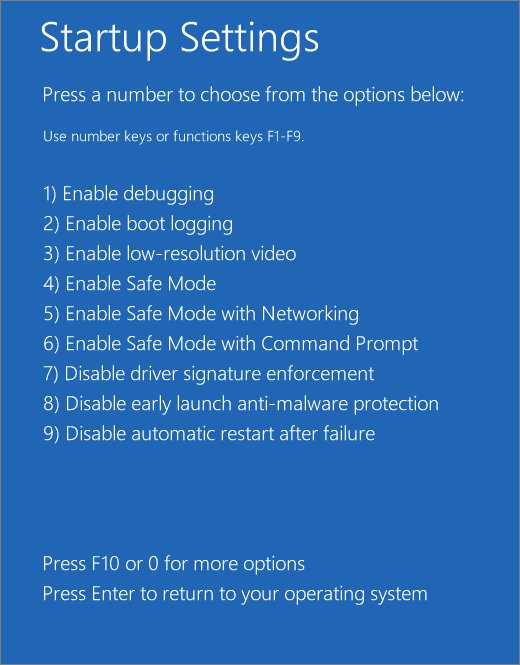
- On the Startup Settings screen, press 6 for Safe Mode with Command Prompt.
- Sign in as Administrator.
- Run
net userto see the exact account names. - Run
net localgroup Administrators YourUserName /add, using your account name. - Restart normally and sign in to your account.
Normal startup turns the built-in Administrator account off again. Confirm the fix by running net localgroup Administrators after you sign back in.
How to enable the built-in Administrator account in Windows 11
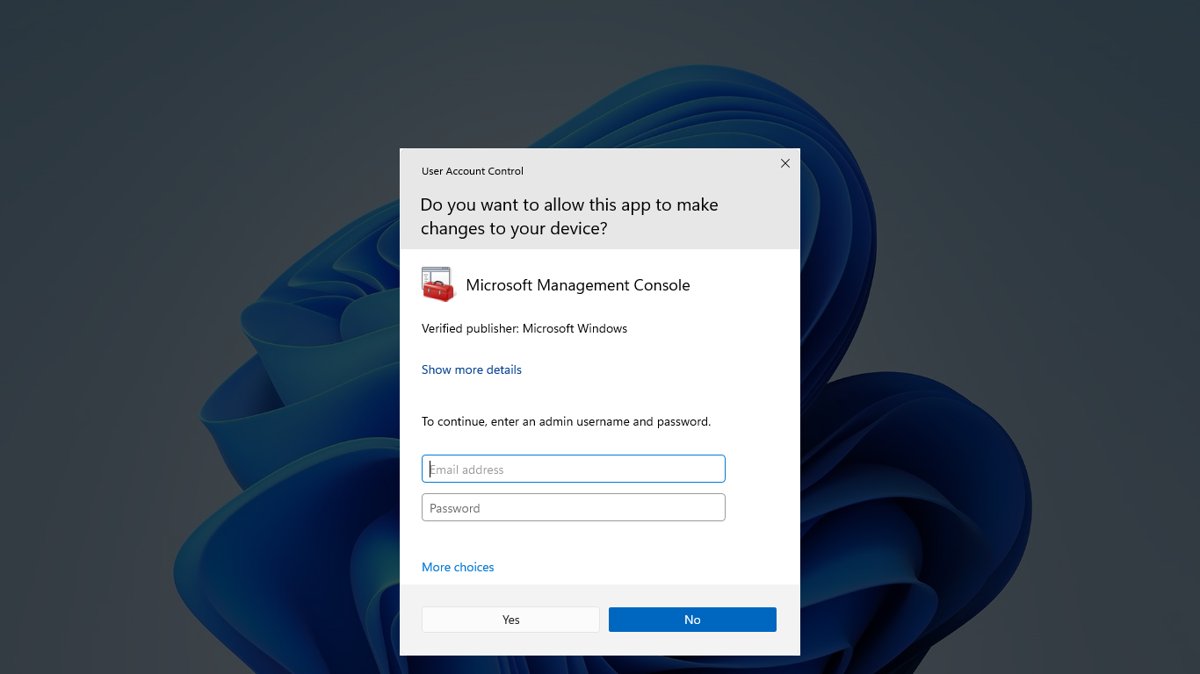
An elevated window gives you a second way in. You can enable the Administrator account when your own account can still approve elevation or you know an admin password.
- Search Start for
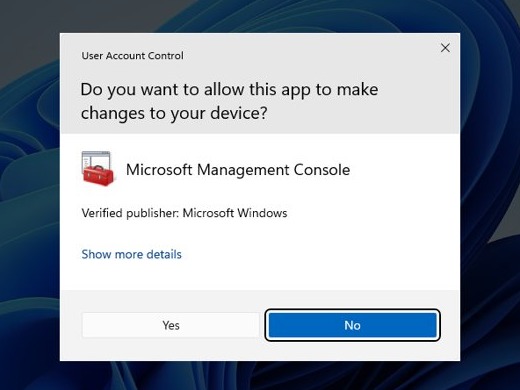
Command Prompt, right-click it, and select Run as administrator. - Approve the prompt, or enter administrator credentials if Windows asks.
- Run
net user administrator /active:yes. - Set a password with
net user administrator *, because Microsoft does not allow a blank password for this account. - Sign out, sign in as Administrator, and fix your own account in Settings > Accounts > Other users.
- Sign back in to your account and run
net user administrator /active:nofrom an elevated window.
Microsoft advises keeping this account disabled, so turn it off again when you finish.
Manage Local User and Group Management in Windows Home using Command line
Microsoft documents net user and net localgroup for managing local accounts, and both run from a Command Prompt. They are useful on any edition, including when the Local Users and Groups console will not open on yours.
Changes need an elevated window. Replace UserName with the real account name, and put names containing spaces in quotes.
| Task | Command | What it does |
|---|---|---|
| List local users | net user |
Shows every local account on the PC |
| Show one account | net user UserName |
Shows details, including its groups |
| Create a local account | net user UserName * /add |
Creates the account and prompts for a password |
| Delete a local account | net user UserName /delete |
Removes the account from the PC |
| List local groups | net localgroup |
Shows the groups on the PC |
| Make someone an administrator | net localgroup Administrators UserName /add |
Adds the account to the group |
| Remove admin rights | net localgroup Administrators UserName /delete |
Removes the account from the group |
| Add a Microsoft account in PowerShell | Add-LocalGroupMember -Group "Administrators" -Member "MicrosoftAccount\[email protected]" |
Adds that sign-in to the group |
Add-LocalGroupMember is not available in 32-bit PowerShell on a 64-bit system, so use the standard 64-bit window.
Cannot log out of Work or School account in Windows 11
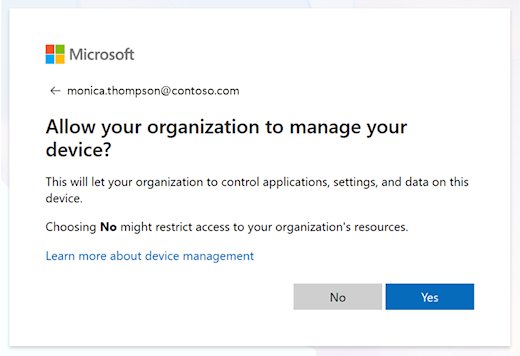
Disconnecting an account removes it from the PC's Access work or school page. Administrators of enrolled devices can enforce security policies, so check with IT before you do this on a company PC.
- Open Settings > Accounts > Access work or school.
- Select the work or school account.
- Select Disconnect.
- Restart the PC when you finish.
- If you cannot disconnect it, contact the organization's IT department, because the PC may be managed.
If you no longer have the device, go to the device list at myaccount.microsoft.com, expand the device, and select Disable lost device.
Windows 11 lost administrator rights on a work or school PC
Microsoft Entra adds the user who joins a device to the local Administrators group, but only at join time. Organizations can also stop this with a device registration policy, Windows Autopilot or a local group policy delivered through Intune.
| Who sets it | How it affects you | What fixes it |
|---|---|---|
| Device registration policy | Decides whether the user who joins the PC becomes a local administrator | An IT administrator changes the policy |
| Windows Autopilot profile | Can stop the primary user from becoming an administrator | An IT administrator changes the profile |
| Intune Account protection or Local Users and Groups policy | Sets who belongs to the local Administrators group | An IT administrator updates the policy |
| Microsoft Entra Joined Device Local Administrator role | Gives admin rights on every Entra joined device | An IT administrator assigns the role, then you sign out and back in |
| An existing local administrator on that PC | Can add a user by hand from Settings > Accounts > Other users > Add a work or school user | Or run net localgroup administrators /add "AzureAD\UserUPN" |
Role changes do not take effect at once. Microsoft says a new sign-in token can take up to 4 hours, and you must also sign out and back in. Locking and unlocking the PC is not enough.
How to install Windows 11 Pro with a Local Account
Windows 11 Pro for personal use and Windows 11 Home require internet and a Microsoft account during initial setup, and Microsoft has been removing known setup workarounds. The supported route is to finish setup, then add a local administrator. That second account is also your safety net if you lose rights again.
There are other ways of installing Windows 11 with a local account, including the answer file route for organizations.
- Complete Windows setup with your internet connection and Microsoft account.
- Open Settings > Accounts > Other users and select Add account.
- Select I don't have this person's sign-in information.
- Select Add a user without a Microsoft account, and enter a name and password.
- Under Other users, select the new account and choose Change account type.
- Select Administrator, then OK.
- To move your main account to local too, go to Settings > Accounts > Your info and select Sign in with a local account instead.
- Enter a new username, password and hint, select Next, then Sign out and finish.
What full administrator rights mean in Windows 11
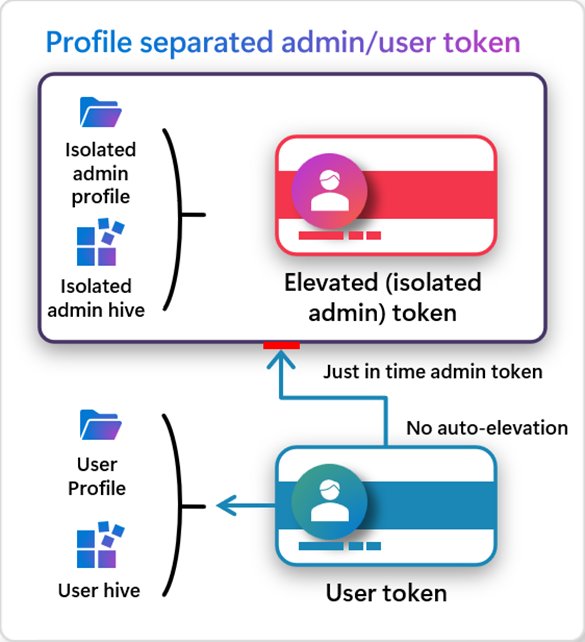
Windows can show admin prompts while you are still an administrator. By default, administrators and standard users alike run apps as a standard user until a task asks for more.
| Account setup | What happens at an admin task | What that means for you |
|---|---|---|
| Standard user | A credential prompt asks for an administrator's name and password | You need an administrator's credentials |
| Administrator, Admin Approval Mode | A consent prompt asks you to select Yes | You still have your rights |
| Administrator protection turned on | Windows asks you to verify with Windows Hello, then creates a temporary admin token | You still have your rights, and each admin task needs approval |
| Built-in Administrator | Full control of the PC, and Windows setup disables it | Keep it off for daily use |
Administrator protection in Windows 11 is off by default, but it turns on with the October 2026 update for organizations that use Windows security baselines. If prompts appeared suddenly on a work PC, that may be why.
How to remove administrator rights in Windows 11
Keep at least one other working administrator before you demote an account. Otherwise, you end up back at the start of this guide.
- Sign in to an administrator account other than the one you are changing.
- Open Settings > Accounts > Other users and select the account.
- Next to Account options, select Change account type.
- Select Standard User, then OK.
- For the command line, run
net localgroup Administrators UserName /deletefrom an elevated window.
Fix lost administrator rights in Windows 11 with Reset this PC
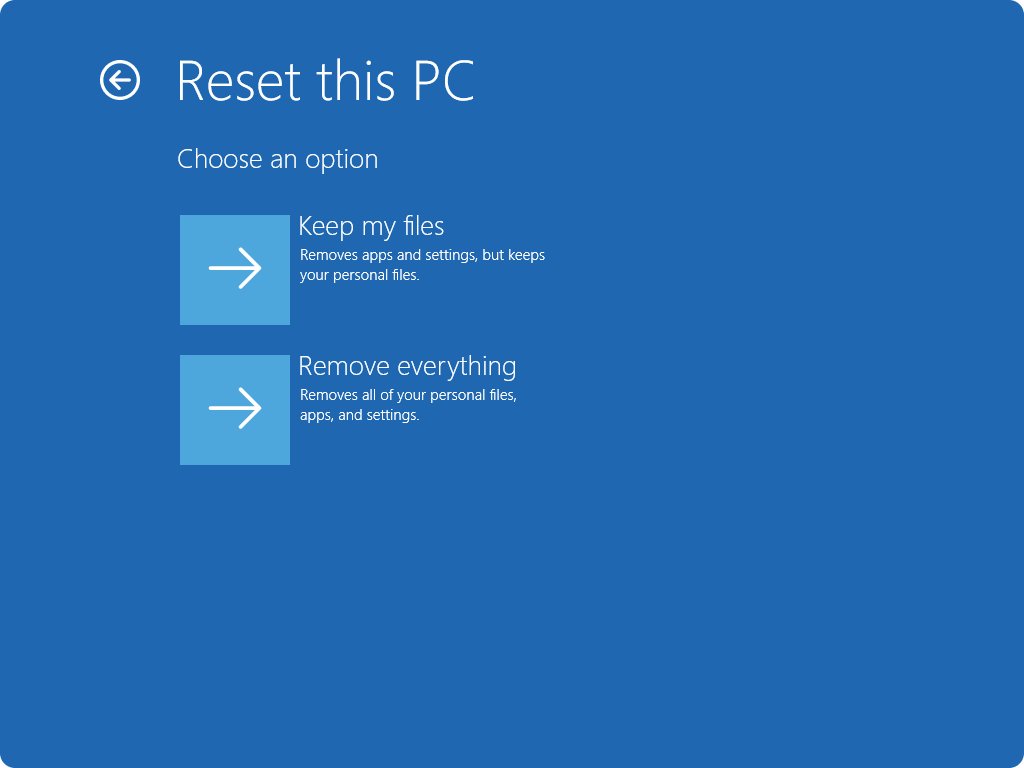
Microsoft says to reset the device when you have no administrator account and cannot use the password reset options. Keep my files keeps personal files but removes apps and settings, and Microsoft does not promise that it changes your account type.
Remove everything erases your files, apps and settings, then Windows setup creates a new account in the Administrators group. Back up important files before either option.
- Back up your important files.
- Hold Shift and select Power > Restart to enter Windows RE.
- Select Troubleshoot > Reset this PC.
- Select Keep my files to try the option that saves your data.
- Choose Cloud download or Local reinstall, and enter your BitLocker recovery key if asked.
- Follow the on-screen instructions. The screen can stay black for 15 minutes or more, so do not restart the PC yourself.
- If your account is still not an administrator, repeat the reset and select Remove everything.
Can't get administrator rights in Windows 11
I don't have administrator rights to run a command
The window is not elevated, so the group change is refused.
- Close the window.
- Search Start for
Command Prompt, right-click it, and select Run as administrator. - Approve the prompt, and run the command again.
- If Windows asks for credentials you do not have, use Safe Mode or ask the PC's administrator.
Windows 11 run as administrator missing
The right-click menu differs by item, and Windows 11 hides some entries behind Show more options.
- Search Start for the app and right-click the result.
- Select Run as administrator.
- If the entry is not there, right-click the app's shortcut and select Show more options.
- You can also run an app as administrator from Task Manager's Run new task dialog.
Windows 11 lost administrator account password
You still have an admin account, but you cannot sign in to it.
- On the sign-in screen, select the arrow, select OK, then select Reset password.
- Answer the security questions you set up, or use a password reset disk.
- If you are already signed in, go to Settings > Accounts > Sign-in options > Password > Change and select I forgot my password.
- If neither works and no other administrator exists, reset the PC.
Safe Mode does not offer the Administrator account
Microsoft says Safe Mode uses another enabled member of the Administrators group when one exists.
- Sign in with that other administrator account in Safe Mode.
- Add your own account back with
net localgroup Administrators YourUserName /add. - If you do not know that account's password, use its password reset options.
- On a work or school PC, ask your IT department instead.
Lost administrator rights FAQ
How to get administrative rights on Windows 11?
Ask an existing administrator to open Settings > Accounts > Other users, select your account, and change its type to Administrator. From an elevated Command Prompt, net localgroup Administrators YourUserName /add does the same job. Sign out and back in afterward so the change applies.
Can't get administrator rights on Windows 11. What now?
Find out whether another administrator exists with net localgroup Administrators. If one does, sign in with it and change your account type. If none is enabled on your own PC, start Safe Mode and sign in as Administrator. If the PC is managed, ask IT.
How to remove administrator rights on Windows 11?
Sign in to a different administrator account, open Settings > Accounts > Other users, select the account, and set Change account type to Standard User. You can also run net localgroup Administrators UserName /delete from an elevated window. Keep at least one working administrator on the PC.
Why did I lose administrator privileges on Windows 11?
Another administrator may have changed your account type, or you may be using a different account from the one that was set up as admin. On work and school PCs, device policies and Autopilot profiles decide who is a local administrator, so IT has to make the change.
What are full administrator rights in Windows 11?
Members of the Administrators group have full control of the PC, including its files, services and settings. Windows still runs their apps with a standard user token until a task needs more, so an approval prompt is normal and does not mean you lost your rights.
Can I regain admin rights without a password?
Usually only through Windows' own recovery routes. Safe Mode can enable the built-in Administrator account if no other administrator is enabled, and the sign-in screen offers Reset password for local accounts with security questions. Without those, Microsoft says you need to reset the device.
Do these fixes work if I lost administrator rights on Windows 10?
Yes. Microsoft's Change account type steps apply to Windows 10 and Windows 11, and net user and net localgroup work the same way on both. On Windows 10, Advanced startup sits under Settings > Update & Security > Recovery instead of System > Recovery.
Does resetting Windows 11 give me admin rights back?
Remove everything does, because Windows setup then creates a new account in the Administrators group, but it erases your files. Keep my files preserves personal files, though Microsoft does not promise it changes your account type. Back up first, and try the account and Safe Mode routes before resetting.