To turn off Silent mode on iPhone, flip the Ring/Silent switch toward the display, or press and hold the Action button on models that have one.
This guide covers every iPhone model, the Control Center and Settings routes, what still makes sound in Silent mode, and what to do when the iPhone stays quiet.
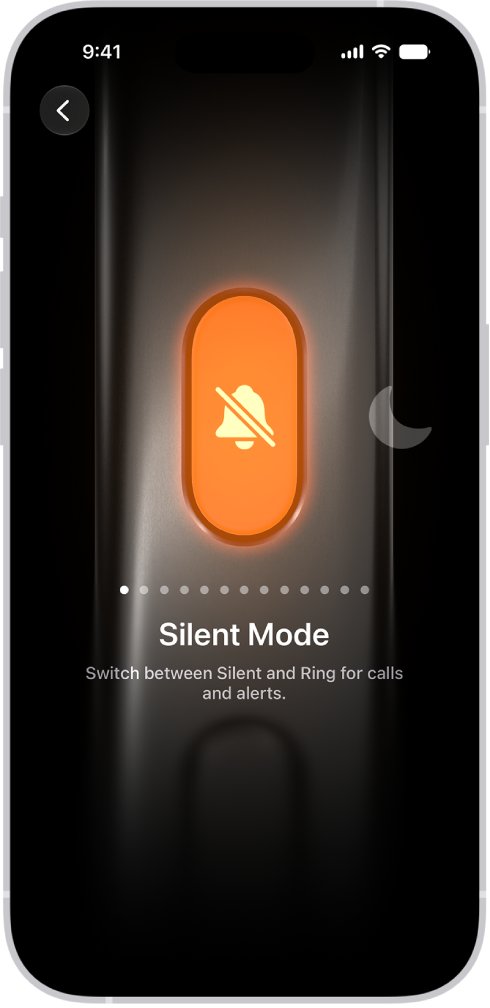
Step by step tutorial: Turning off Silent mode on iPhone
The control depends on the model in your hand. Match your iPhone to a row, do that one action, and the iPhone plays calls, alerts and system sounds again.
| Your iPhone | Do this | What you see afterwards |
|---|---|---|
| Has a Ring/Silent switch on the left edge | Flip the switch toward the display | No orange shows on the switch |
| Has an Action button set to Silent Mode | Press and hold the Action button | The Silent mode button leaves the status bar |
| Runs iOS 27, any model | Open Control Center and tap the Silent mode button | The button no longer shows Silent mode as on |
Step by step tutorial on how to turn off Silent mode on iPhone 12
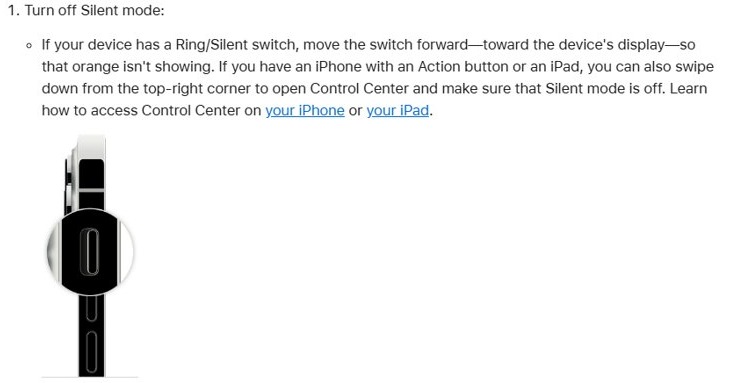
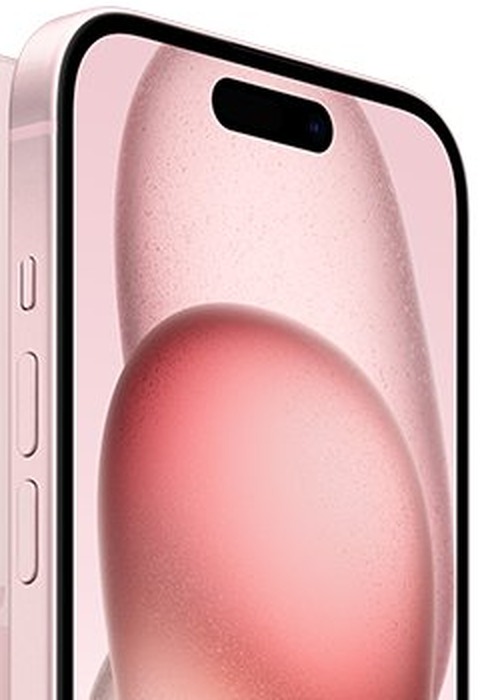
The iPhone 12 has a physical Ring/Silent switch, and so do the iPhone 12 mini, iPhone 12 Pro and iPhone 12 Pro Max. These steps also apply to any other iPhone with the switch.
- Hold the iPhone with the screen facing you and find the Ring/Silent switch on the upper left edge.
- Check the switch for an orange strip. Orange showing means Silent mode is on.
- Flip the switch toward the display so that no orange shows.
- Press the volume up button to raise the ringer if the volume is low.
- Open Settings, tap Sounds & Haptics, and drag the Ringtone and Alerts slider to hear a test sound.
If the volume buttons do nothing to the ringer, Change with Buttons is off. Drag the slider in Sounds & Haptics instead, or turn that setting back on.
How to turn off Silent mode on iPhone 17 and iPhone 16 with the Action button
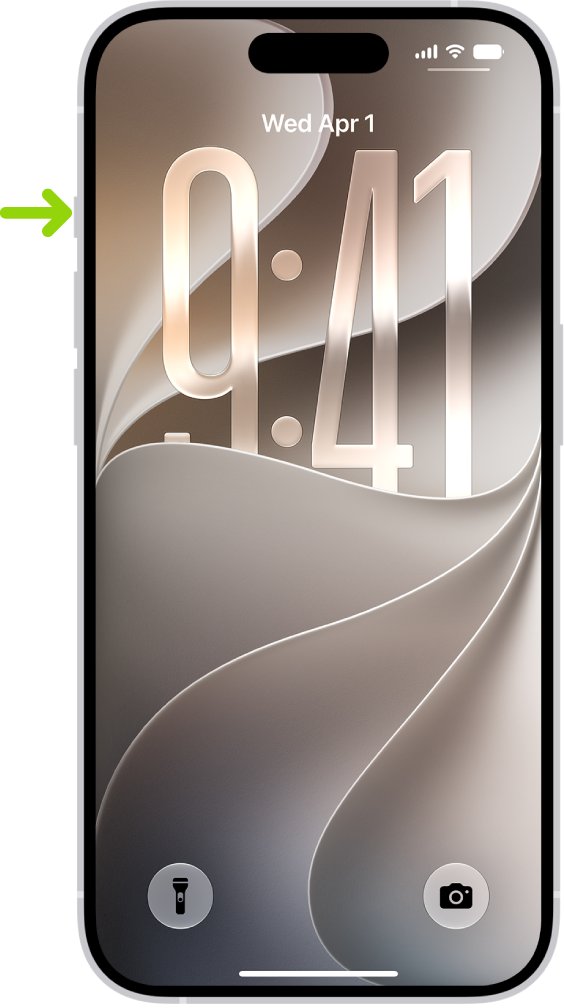
The Action button replaces the Ring/Silent switch on supported models, and Silent Mode is its default action. Pressing it briefly is not enough, because the button only acts on a press and hold.
- Press and hold the Action button on the upper left side of the iPhone.
- Look at the status bar. The Silent mode button disappears when Silent mode turns off.
- If a different feature starts instead, open Settings and tap Action Button.
- Swipe through the actions until Silent Mode appears below the dots.
- Press and hold the Action button again to turn off Silent mode.
You can also keep another action on the button and use Settings for Silent mode. Apple's other Action button choices include Focus, Camera and Flashlight, and the usual ways to turn the flashlight on and off keep working either way.
How to turn off Silent mode on iPhone 13, iPhone 11, iPhone SE and iPhone 8
Every model in Apple's current iPhone list falls into one of three groups. The table covers the models people search for most, from the iPhone 8 up to the iPhone 18 Pro.
| iPhone model | Hardware control | How to turn off Silent mode |
|---|---|---|
| iPhone 18 Pro, 18 Pro Max, 17, 17 Pro, 17 Pro Max, 17e, iPhone Air | Action button | Press and hold the Action button |
| iPhone 16, 16 Plus, 16 Pro, 16 Pro Max, 16e | Action button | Press and hold the Action button |
| iPhone 15 Pro, 15 Pro Max | Action button | Press and hold the Action button |
| iPhone 15, 15 Plus, iPhone 14, iPhone 13, iPhone 12, iPhone 11 | Ring/Silent switch | Flip the switch toward the display |
| iPhone XS, XS Max, XR, iPhone X | Ring/Silent switch | Flip the switch toward the display |
| iPhone SE (2nd and 3rd generation), iPhone 8, iPhone 8 Plus | Ring/Silent switch | Flip the switch toward the display |
| iPhone Duo | No Action button listed by Apple | Use Control Center or Settings |
How to turn off Silent mode on iPhone from Control Center
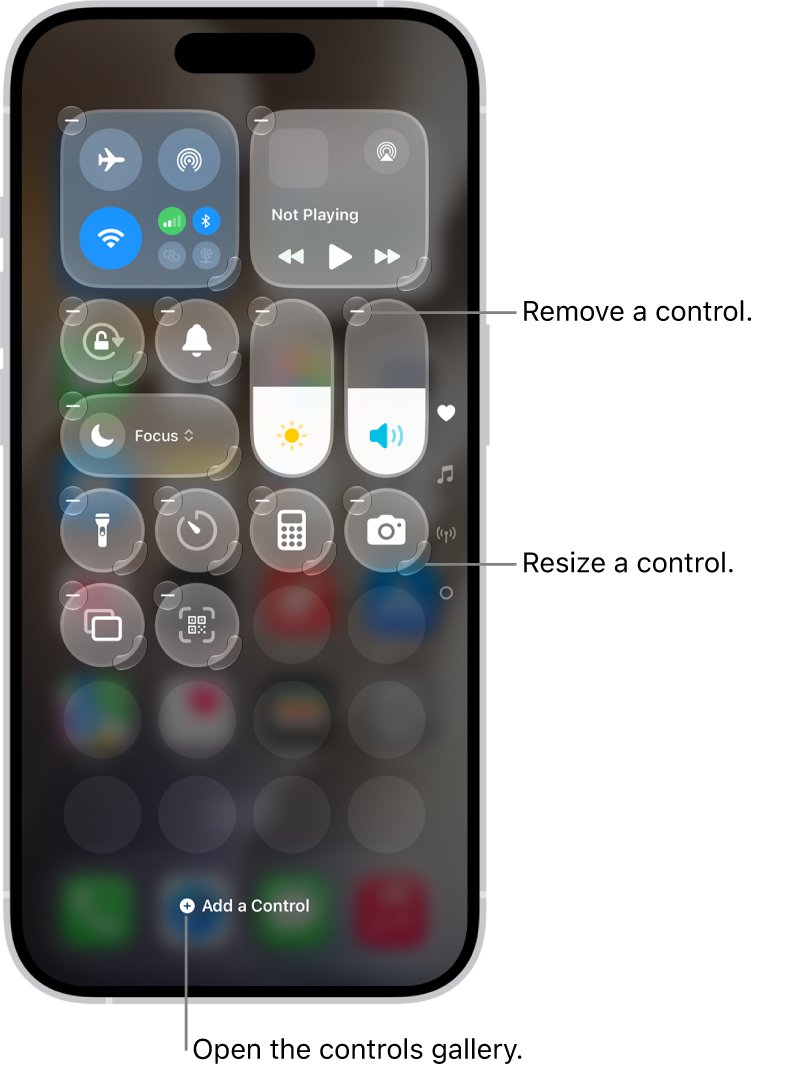
This route needs no hardware control, so it helps when the switch is damaged or the Action button is assigned to something else. Apple's iOS 27 guide lists it for every model.
- Swipe down from the top-right corner of the screen on an iPhone with Face ID or iPhone Duo.
- Swipe up from the bottom of the screen instead on an iPhone SE.
- Tap the Silent mode button to turn it off.
- Swipe up from the bottom center of the screen to close Control Center, or press the Home button on an iPhone SE.
If the button is missing, open the editing view in Control Center, tap Add a Control, and pick it from the controls gallery.
How to turn off Silent mode in iPhone Settings
- Open the Settings app.
- Tap Sounds & Haptics.
- Turn off Silent mode.
- Drag the Ringtone and Alerts slider to set how loud the iPhone rings.
Where Silent mode is on iPhone in iOS 27, iOS 26 and iOS 18
The routes Apple documents for Silent mode change with the iOS version and the model. If a toggle is missing on your iPhone, check your version in this table.
| iOS version | iPhone with Action button | iPhone with Ring/Silent switch |
|---|---|---|
| iOS 27 | Action button, Control Center, or Settings > Sounds & Haptics | Switch, Control Center, or Settings > Sounds & Haptics |
| iOS 26 | Action button or Settings > Sounds & Haptics | Switch |
| iOS 18 | Action button or Settings > Sounds & Haptics | Switch |
Apple's speaker troubleshooting article also points iPhones with an Action button to Control Center, so check there as well. If you cannot find a software toggle on an older iOS version, use the hardware switch.
How to tell if Silent mode is on or off on iPhone
- Look at the Ring/Silent switch on models that have one. Orange showing means Silent mode is on.
- Look at the status bar at the top of the screen. The Silent mode button appears there while Silent mode is on.
- Open Settings, tap Sounds & Haptics, and read the Silent mode toggle.
- Drag the Ringtone and Alerts slider in the same screen. A test sound means the speaker and ringer are working.
A missing status bar button does not always prove Silent mode is off. The Show in Status Bar setting can hide it, so trust the toggle in Settings if the two seem to disagree.
What still makes sound when iPhone is in Silent mode
Silent mode stops calls, alerts and system sound effects, but not everything. Sound from these sources can surprise you even with the mode on.
| Sound source | In Silent mode | What to know |
|---|---|---|
| Phone calls and notifications | Silenced | The iPhone may still vibrate |
| System sound effects | Silenced | These return when Silent mode is off |
| Clock alarms | Still sound | They play through the built-in speaker |
| Audio apps such as Music | Still play | They play through the built-in speaker |
| Many games | Still play | The behavior varies by game |
| Camera, Voice Memos and Emergency Alerts | Can still sound | This applies in some countries or regions |
Clock alarms ring regardless of the switch, so turn off the alarm itself if you want a quiet morning.
Silent mode vs Do Not Disturb on iPhone
These two settings get confused because both make the iPhone quieter. If the phone stays quiet after you turn off Silent mode, Do Not Disturb is the next setting to check. You can turn off Do Not Disturb in Settings under Focus.
| Question | Silent mode | Do Not Disturb |
|---|---|---|
| What it silences | Rings, alerts and sound effects | Calls, alerts and notifications |
| How you switch it | Switch, Action button, Control Center or Settings | Control Center > Focus, or Settings > Focus |
| Can it run on a schedule | No schedule in Apple's Silent mode steps | Yes, as a scheduled Focus |
| Best use | Keep the phone quiet right now | Silence interruptions for a set time or activity |
Tips: Managing Silent mode on your iPhone
A few settings in Sounds & Haptics decide how Silent mode behaves day to day. Each row below names the setting and what it changes.
| What you want | Setting to change | Result |
|---|---|---|
| Hide the status bar button | Turn off Show in Status Bar | The Silent mode button stays out of the status bar |
| Stop the volume buttons changing the ringer | Turn off Change with Buttons | Volume buttons only control media playback |
| Change how the iPhone vibrates | Tap Haptics under Ringtone, then choose a pattern | Calls use the pattern you picked |
| Give alarms their own volume | Turn off Match Ringtone Volume under Alarms and Timers | Alarm volume no longer follows the ringer |
| Use the Action button for something else | Settings > Action Button, then swipe to another action | Silent mode stays available in Settings |
| Silence calls on a schedule | Set up a Focus in Settings > Focus | The iPhone goes quiet at set times without Silent mode |
How to put iPhone on Silent mode again
- Flip the Ring/Silent switch toward the back of the iPhone until orange shows, on models with the switch.
- Press and hold the Action button, on models where it is set to Silent Mode.
- Open Control Center and tap the Silent mode button, on iOS 27.
- Look for the Silent mode button in the status bar to see the change.
Silent mode not turning off on iPhone
Start with the symptom that matches what you see. Each group below begins with the likely cause, then gives the fix in order.
iPhone does not exit Silent mode when you flip the switch
The switch has not moved all the way, or the iPhone needs a restart.
- Remove the case so nothing covers the switch.
- Flip the switch firmly toward the display until no orange shows.
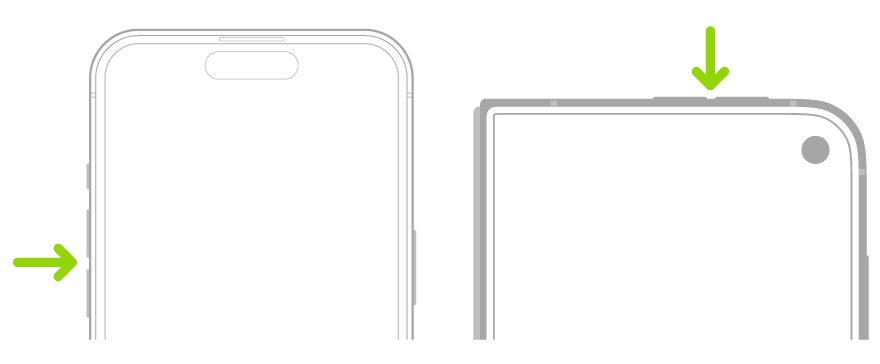
- On an iPhone X or later, press and hold either volume button and the side button until the power-off slider appears. On an iPhone 8 or iPhone SE (2nd or 3rd generation), press and hold the side button.
- Drag the slider, wait 30 seconds, then press and hold the side button until the Apple logo appears.
The Ring/Silent switch is broken
A damaged switch can hold the iPhone in Silent mode, which software cannot repair.
- Open Settings, tap Sounds & Haptics, and turn off Silent mode on iOS 27.
- Open Control Center and tap the Silent mode button if you prefer that route.
- Arrange a repair through Apple Service and Repair for iPhone if the switch itself will not move.
The Action button does not turn off Silent mode
The button is assigned to another action, or it has no selected option.
- Open Settings and tap Action Button.
- Swipe to Silent Mode and leave the screen.
- Press and hold the button rather than tapping it.
iPhone is off Silent mode but still does not ring
Do Not Disturb or a low ringer volume can still keep the phone quiet.
- Open Settings, tap Focus, tap Do Not Disturb, and turn it off.
- Open Settings, tap Sounds & Haptics, and drag the Ringtone and Alerts slider up.
- Remove any case, film or screen protector, then check the speaker opening for dirt.
- Clean a blocked opening with a small, clean, dry, soft-bristled brush.
The Ringtone and Alerts slider is dimmed or plays nothing
Apple treats a dimmed speaker button or a silent test as a sign the speaker may need service.
- Make a call and turn on speakerphone to test the speaker on a live call.
- Try again later or from another location if the call has static or crackling, because the network can cause it.
- Contact Apple Service and Repair for iPhone if the slider stays dimmed.
iPhone Silent mode FAQ
How do I turn off silent mode on my iPhone?
Flip the Ring/Silent switch toward the display, or press and hold the Action button on models that have one. On iOS 27 you can also tap the Silent mode button in Control Center or use Settings > Sounds & Haptics.
How do you turn off silent mode on iPhone 17?
Press and hold the Action button on the upper left side of the iPhone 17, as long as it is set to Silent Mode. You can also turn off Silent mode in Settings > Sounds & Haptics.
How do you turn off silent mode on iPhone 16?
Press and hold the Action button on the upper left side, which is set to Silent Mode by default. If you assigned another action, use Settings > Sounds & Haptics or reassign the button in Settings > Action Button.
How do you turn off silent mode on iPhone 13?
Flip the Ring/Silent switch on the upper left edge toward the display so that no orange shows. The iPhone 13 uses the physical switch and does not have an Action button.
How do you turn off silent mode on iPhone SE?
Flip the Ring/Silent switch on the upper left edge toward the display so no orange shows. On iOS 27, you can instead swipe up from the bottom of the screen and tap the Silent mode button in Control Center.
How do you turn off silent mode on iPhone 8?
Flip the Ring/Silent switch toward the display until no orange shows. The iPhone 8 has the physical switch, so it does not depend on an Action button or a Control Center button.
What if my iPhone doesn't exit silent mode when I flip the switch?
Flip the switch firmly with the case removed, then restart the iPhone. If the orange strip still shows or the switch will not move, arrange a repair through Apple Service and Repair for iPhone.
Can I control silent mode from the Control Center?
Yes. Apple's iOS 27 guide lists Control Center for all models: open it and tap the Silent mode button. On earlier iOS versions, Apple documents Settings and the Action button for models that have one, and the switch for others.
Will my alarm still sound if my iPhone is in silent mode?
Yes. Clock alarms play through the built-in speaker even when Silent mode is on. Their volume follows the ringer by default, and you can set it separately by turning off Match Ringtone Volume in Sounds & Haptics.
What should I do if my ring/silent switch is broken?
Turn off Silent mode in Settings > Sounds & Haptics or in Control Center if your iPhone runs iOS 27. If the switch itself is stuck or damaged, arrange a repair through Apple Service and Repair for iPhone.
Can I still use headphones to listen to audio when my iPhone is in silent mode?
Yes. Silent mode targets calls, alerts and system sounds, while audio apps such as Music keep playing. Audio from those apps is not silenced by the mode, so you can keep listening through headphones.