If the Action button starts a voice recording, it is set to the Voice Memo action; open Settings > Action Button and swipe back to Silent Mode so press and hold switches Silent mode again.
This guide covers every Action button option, other ways to turn Silent mode on, finding and deleting recordings made by accident, and fixes when the button still misbehaves.
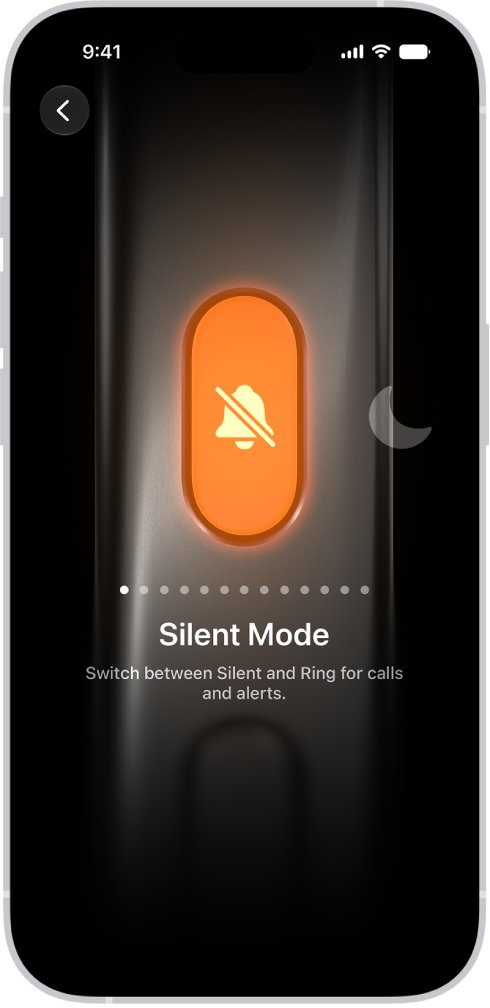
How to change the Action button back to Silent mode
Silent Mode is the default Action button setting. A button that records audio has been switched to the Voice Memo action, or to a shortcut that records.
- Open the Settings app.
- Tap Action Button.
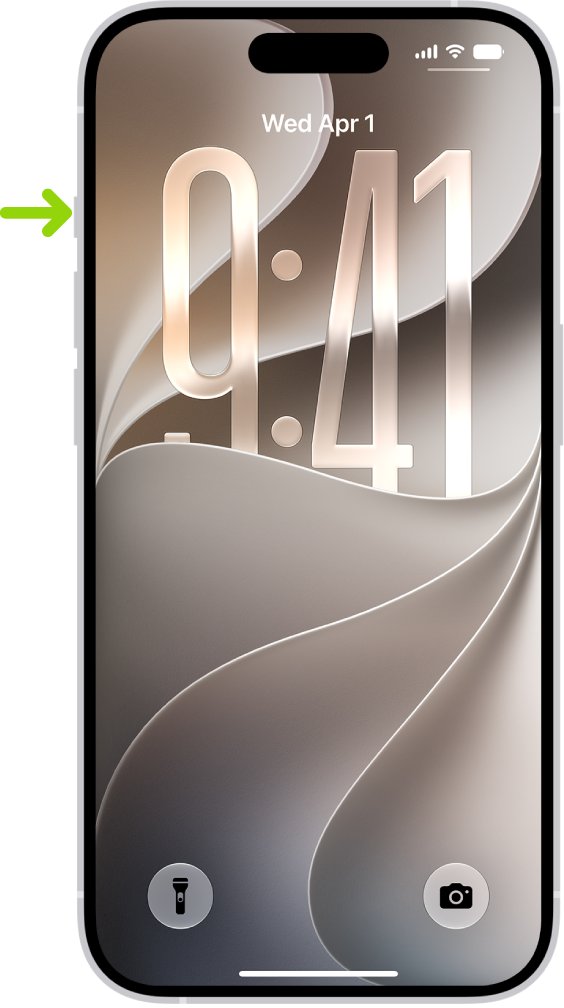
- Swipe across the actions on the image of the iPhone's side until Silent Mode appears below the dots.
- Return to the Home Screen.
- Press and hold the Action button to turn Silent mode on.
- Press and hold it again to turn Silent mode off.
The Action button works on press and hold, not on a quick tap. Once Silent Mode is selected, the same hold that started a recording now switches between Silent and Ring.
Why the iPhone Action button starts a voice recording
The Action button runs one assigned action. Recording is either that action itself or something the assigned shortcut does.
| Cause | What you see | Fix |
|---|---|---|
| Voice Memo is the selected action | Press and hold starts a new recording in Voice Memos | Swipe to Silent Mode in Settings > Action Button |
| Shortcut is selected and the shortcut records audio | The shortcut runs and starts recording | Choose a different shortcut, or swipe to Silent Mode |
| A case, film or debris around the button | The button responds only sometimes or acts when you do not expect it | Remove the case and films, and clean around the button with a soft cloth |
| The button is damaged | The button works intermittently even without a case | Set up an iPhone repair with Apple |
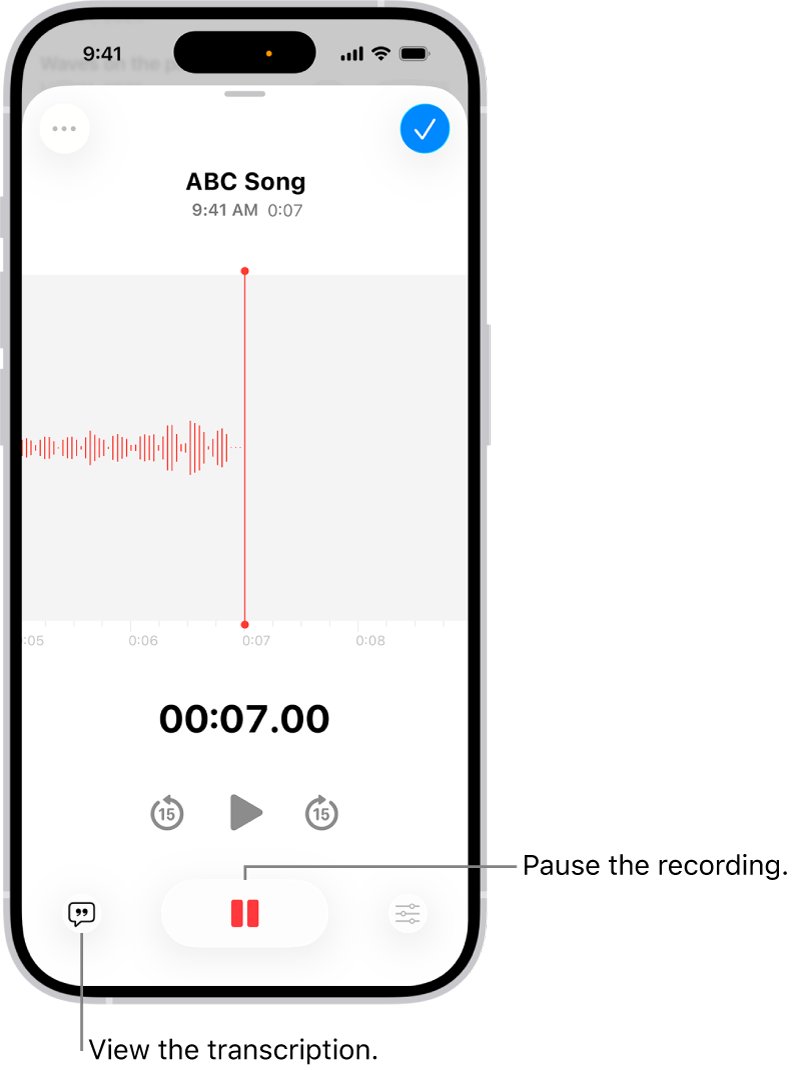
iPhone Action button options and what each one does
These are the actions listed in Settings > Action Button. For Controls, Shortcut and Accessibility, tap the button below the action and pick a specific option, or the Action button does nothing.
| Action | What press and hold does |
|---|---|
| Silent Mode | Switches between Silent and Ring for calls and alerts (the default) |
| Focus | Turns on a Focus to silence notifications |
| Camera | Opens the Camera app |
| Visual Intelligence | Shows information about places and objects around you; requires Apple Intelligence |
| Flashlight | Turns the flashlight on or off |
| Voice Memo | Starts a recording in Voice Memos |
| Recognize Music | Identifies a song playing nearby or on your iPhone with Shazam |
| Translate | Translates phrases or a conversation |
| Magnifier | Turns the iPhone into a magnifying glass |
| Controls | Opens a control you pick |
| Shortcut | Opens an app or runs a shortcut you pick |
| Accessibility | Turns on an accessibility feature you pick |
| No Action | Does nothing |
How to turn on Silent mode without the Action button
If you keep the Action button on another action, Silent mode is still one tap away in Control Center or Settings.
- Open Control Center.
- Tap the Silent mode button to turn Silent mode on; tap it again to turn it off.
- Or open Settings and tap Sounds & Haptics.
- Turn Silent Mode on or off.
- Turn on Show in Status Bar if you want the Silent mode icon visible while it is on.
To silence calls and notifications on a schedule instead, turn on or schedule a Focus such as Do Not Disturb. A Focus silences incoming calls too, which can make it seem as if your iPhone does not ring long enough before voicemail.
Find and delete accidental voice memos on iPhone
Each press and hold on the Voice Memo action saves a clip. Clips are named New Recording, or after your location when Location Services is on.
Voice Memos is still useful when you mean to record audio on iPhone, so remove only the clips you did not want.
- Open the Voice Memos app, which sits in the Utilities folder.
- Tap a recording you did not mean to make, then tap the delete button.
- To remove several at once, tap Select above the list, select the recordings, then tap delete.
- Open the Recently Deleted folder if you deleted one by mistake, select it, and tap Recover.
- To clear the folder now, tap Edit above the Recently Deleted list, then tap Delete All.
Deleted recordings stay in Recently Deleted for 30 days by default. Change that in Settings > Apps > Voice Memos > Clear Deleted.
When Voice Memos is turned on in iCloud, recordings also appear on your iPad and in Voice Memos on a Mac signed in to the same Apple Account.
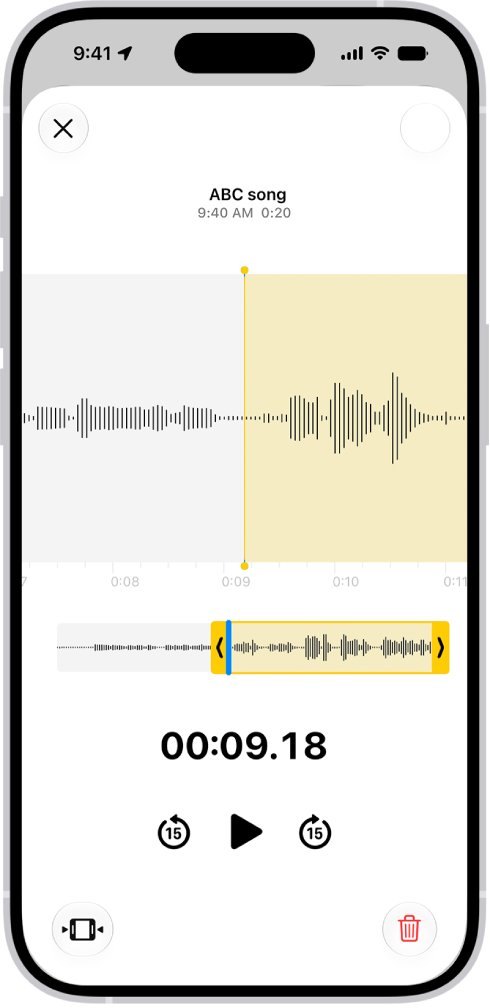
How to turn off the Action button on iPhone
If the button keeps firing in a pocket or bag, give it nothing to do. No Action stops every press from triggering a recording or any other feature.
- Open Settings and tap Action Button.
- Swipe through the actions until No Action appears below the dots.
- Return to the Home Screen.
- Press and hold the Action button to confirm nothing happens.
- Use Control Center to switch Silent mode while the button is off.
To keep a silencing action without full Silent mode, choose Focus instead and tap the button below it to pick which Focus turns on.
How to tell if your iPhone is on Silent mode
When Silent mode is on, iPhone does not ring or play alerts, although it may still vibrate.
- Press and hold the Action button once.
- Look for the Silent mode icon in the status bar.
- If you see no icon, open Settings > Sounds & Haptics and check whether Silent Mode is on.
- Turn on Show in Status Bar there so the icon appears next time.
- Ask someone to call you and confirm the iPhone vibrates without ringing.
Clock alarms, Music and many games still play through the built-in speaker in Silent mode. That is expected and not a sign the Action button failed.
iPhone Action button not working: how to fix it
Action button still starts a voice recording
Voice Memo is still selected, or the Shortcut action runs a shortcut that records.
- Open Settings > Action Button and read the name below the dots.
- If it says Shortcut, tap the button below it and choose a shortcut that does not record.
- Or swipe to Silent Mode and return to the Home Screen.
- Press and hold the Action button and check that the Silent mode icon appears.
Action button does nothing when pressed
No Action is selected, or Controls, Shortcut or Accessibility has no specific option chosen.
- Open Settings > Action Button.
- If No Action is selected, swipe to the action you want.
- For Controls, Shortcut or Accessibility, tap the button below the action and choose a specific option.
- Press and hold the button rather than tapping it.
Action button works only sometimes or feels stuck
A case, screen film or debris is blocking the button, or the button is damaged.
- Remove the case and any protective films that cover the button.
- Check for dirt around the button and clean it with a soft cloth.
- Test the button again without the case.
- If it is still unreliable or damaged, set up an iPhone repair with Apple.
Voice Memos plays a tone when recording starts
Start and stop tones play unless Silent mode is on, and some countries or regions always play them.
- Turn on Silent mode in Control Center before recording.
- Start the recording again and listen for the tone.
- If the tone still plays, your country or region requires the Voice Memos sound effect.
iPhone Action button and Silent mode FAQ
What is the Action button set to by default?
Silent Mode is the default Action button setting. Press and hold the button to put iPhone in Silent mode, and press and hold again to turn Silent mode off. Change it in Settings > Action Button.
Which iPhones have an Action button?
iPhone 15 Pro and iPhone 15 Pro Max, every iPhone 16 and iPhone 17 model including iPhone 16e and iPhone 17e, iPhone Air, and iPhone 18 Pro models. The button sits on the upper left side.
Can I get the Ring/Silent switch back on my iPhone?
No. On supported models the Action button replaces the Ring/Silent switch. Set the Action button to Silent Mode in Settings > Action Button and it switches between Silent and Ring the same way.
Can I turn off the Action button?
Yes. Open Settings > Action Button and swipe to No Action. The button then does nothing when you press and hold it, and you switch Silent mode from Control Center instead.
Where are Action button voice memos saved?
In the Voice Memos app in the Utilities folder. Each clip is named New Recording, or after your location when Location Services is on, and syncs to your other devices if Voice Memos is on in iCloud.
Why is there an orange dot on my iPhone when the Action button records?
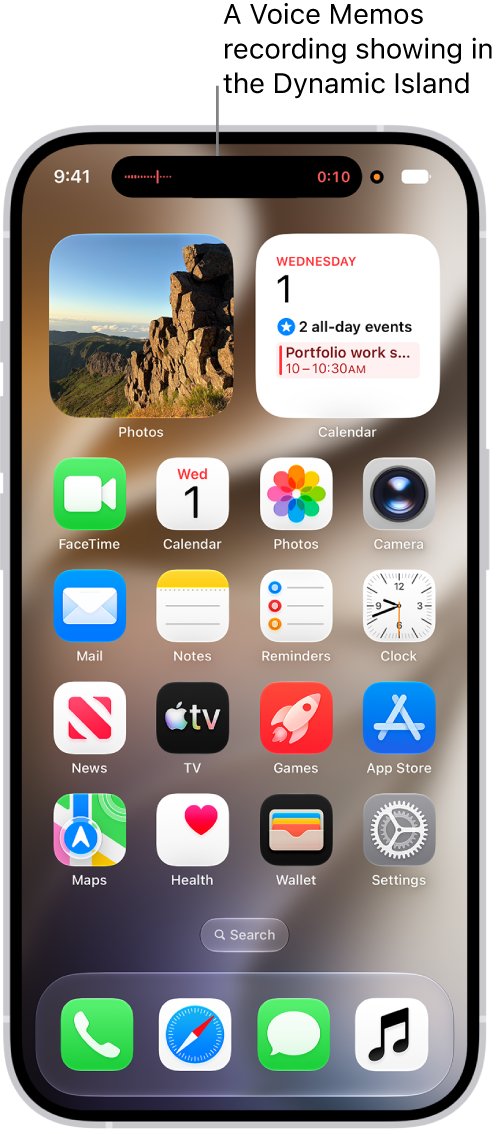
The orange dot shows the microphone is in use. It appears whenever Voice Memos records, so seeing it after a press of the Action button means the Voice Memo action started a recording.
Does Silent mode stop alarms on iPhone?
No. Clock alarms, audio apps such as Music and many games still play through the built-in speaker when Silent mode is on, so adjust the alarm volume if they are too loud. Silent mode mutes calls, notifications and system sounds.
Does Silent mode turn off vibration?
Not always. When Silent mode is on, iPhone does not ring or play alerts, but it may still vibrate. Change vibration patterns in Settings > Sounds & Haptics.