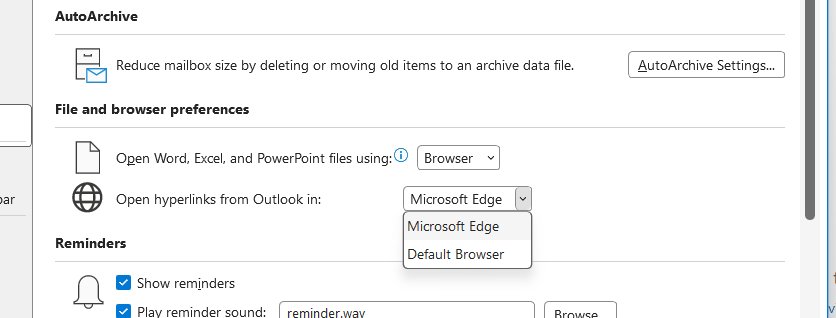
To stop Outlook opening links in Edge, change Open hyperlinks from Outlook in to your system default browser: in new Outlook under Settings > General > Files and links, in classic Outlook under File > Options > Advanced.
This guide covers both Outlook versions, the Edge banner, Windows default browser settings, document links, blocked links, Office repair and the admin policy that can lock the setting.
Stop Outlook links opening in Microsoft Edge
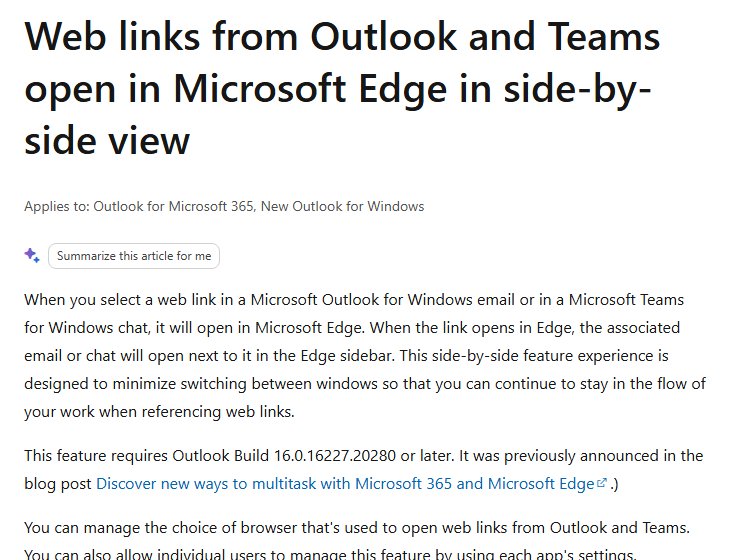
Microsoft 365 now opens web links from Outlook and Teams in Edge by default, with the email beside the page in the Edge sidebar. One setting turns it off.
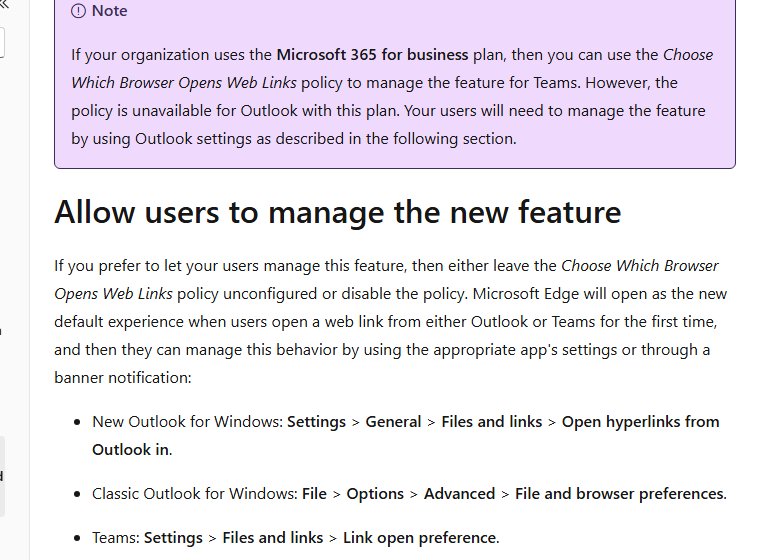
- In new Outlook for Windows, select Settings > General > Files and links.
- In classic Outlook, select File > Options > Advanced and find File and browser preferences.
- Open the Open hyperlinks from Outlook in dropdown.
- Choose the system default browser option to use the browser set in Windows, or pick a specific browser.
- Save the change in new Outlook if prompted, or select OK in classic Outlook.
- Click a link in an email to confirm it opens in your chosen browser.
The choice applies to both Outlook and Teams, so you do not need to change Teams separately.
Background: Why Outlook link problems are more complicated than they look
Several separate settings decide where a link goes. Changing the wrong one wastes time, so match your symptom to the layer first.
| Layer | What it controls | Where it lives |
|---|---|---|
| Outlook browser setting | Web links from Outlook and Teams, Edge by default since Outlook Build 16.0.16227.20280 | Open hyperlinks from Outlook in |
| Windows default browser | What the system default browser option in Outlook opens | Settings > Apps > Default apps |
| File open preference | Word, Excel and PowerPoint links on OneDrive or SharePoint | File open preference in classic Outlook |
| Junk and security settings | Whether links in a message work at all | Junk email options and plain-text format |
| Safe Links | Work accounts with Defender for Office 365 check links at click | Set by your organisation |
| Organization policy | Choose which browser opens web links can force Edge | Cloud Policy or Group Policy |
| Platform | The Edge default applies only on Windows 10 and Windows 11; Mac is not affected | Device |
1. Set the browser Outlook uses for email links
| Outlook version | Path | Setting to change |
|---|---|---|
| New Outlook for Windows | Settings > General > Files and links | Open hyperlinks from Outlook in > system default browser or a named browser |
| Classic Outlook for Windows | File > Options > Advanced > File and browser preferences | Open hyperlinks from Outlook in > system default browser or a named browser |
| Teams desktop app | Settings > Files and links > Link open preferences | Same choice; it syncs with Outlook |
| Outlook mobile | Settings > Open Links With | Edge or the system default browser |
The Edge default reaches Microsoft 365 commercial, Personal and Family subscribers, with work, school and Microsoft accounts such as Outlook.com and Hotmail.
2. Use the Edge first-run prompt carefully
The first time a link opens in Edge, a banner asks how you want links to open. Your answer sets the same Outlook option shown above.
- Click a link in an Outlook email and wait for the Edge banner.
- Select Manage my settings to return to the system default browser.
- Select Try Edge only if you want the side-by-side email view in the Edge sidebar.
- If Manage my settings is greyed out, your organization has set the policy to Edge, and the banner cannot change it.
3. Repair Windows default browser and web-link associations
The system default browser option in Outlook follows Windows. If Windows still has Edge as its default web browser, links keep opening in Edge after the Outlook fix.
- Select Start > Settings > Apps > Default apps.
- Under Set defaults for applications, select the browser you want, such as Chrome or Firefox.
- Select Set default at the top of the page.
- Select the browser again to see the link types it opens, and confirm HTTP and HTTPS are assigned to it.
- Close Outlook and open it again.
You can also make Chrome the default browser from inside Chrome, or remove Edge as the default browser if it keeps returning.
4. Separate a browser problem from a message security block
If a link does nothing at all, the browser setting is not the cause. Outlook disables links in some messages, and work accounts can route links through Safe Links.
| What you see | Cause | What to do |
|---|---|---|
| Links in new Outlook are not clickable | Block attachments, pictures, and links from anyone not in my Safe senders and domains list is on | Settings > Mail > Junk email, clear that option under Security options, select Save |
| InfoBar in classic Outlook says links are disabled | Outlook blocked external content for this message | Select the InfoBar and enable the content if you trust the sender |
| Link shows as plain text | The message is in plain-text format | Copy the address into the browser yourself |
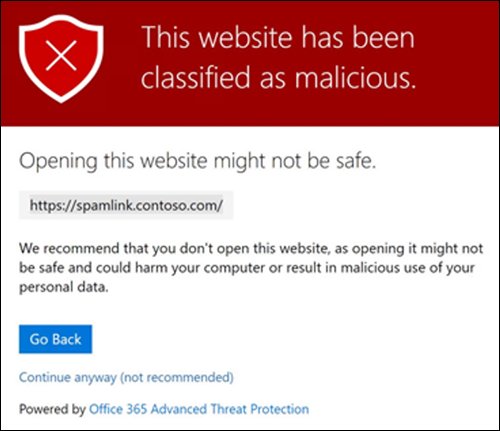
| Link opens a safelinks.protection.outlook.com page | Safe Links scans links at click in work accounts | Wait if it says the scan is in progress |
| A malicious or phishing warning page appears | Safe Links classified the URL as harmful | Do not continue; report the message to IT |
Turn the junk option off only if you understand the risk. Adding trusted senders to Safe senders and domains is the narrower fix.
5. Remember the Ctrl+Click rule when editing a message
While you write or edit a message, Outlook treats a click on a link as a cursor move. Hold Ctrl and click to open it.
- Open a new email message in classic Outlook.
- Select File > Options > Mail > Editor Options > Advanced.
- Find Use CTRL + Click to follow hyperlink.
- Leave it ticked to edit link text safely, or clear it to open links with a single click.
- Select OK twice.
6. Fix OneDrive and SharePoint document-link behavior separately
Links to Word, Excel and PowerPoint files on OneDrive or SharePoint follow their own setting. The browser choice above does not change them.
- In classic Outlook, select File > Options > Advanced.
- Under File open preference, choose Desktop to open files in Word, Excel or PowerPoint, or Browser for the web apps.
- Select OK.
- For a single link, right-click it, select Set open default and choose Desktop (default) or Browser.
- In Teams, select Settings and more > Settings > Files and links and choose an option under Always open Word, PowerPoint, and Excel files in.
This works only when you are signed in to Microsoft 365, and only for files stored in OneDrive or SharePoint. Office installed from the Microsoft Store on Windows 10 is not supported.
7. Update Microsoft 365, then repair Office if needed
If the Outlook option is missing or ignored, update first. Repair Office only when an update does not help.
- In classic Outlook, select File > Office Account. In Word or Excel, select File > Account.
- Under Product Information, select Update Options > Update Now. Select Enable Updates first if Update Now is missing.
- Close the You're up to date! window and restart Outlook.
- If the problem stays, right-click Start and open the installed apps list (Apps and Features on Windows 10).
- Select Microsoft 365 and select Modify.
- Choose Online Repair > Repair and follow the prompts, then restart the PC.
If Update Options is missing and only About appears, the PC has a volume license install or IT manages updates through Group Policy. If Outlook itself will not start normally, fix Outlook opening only in safe mode first.
8. Check device-specific settings and organization policies
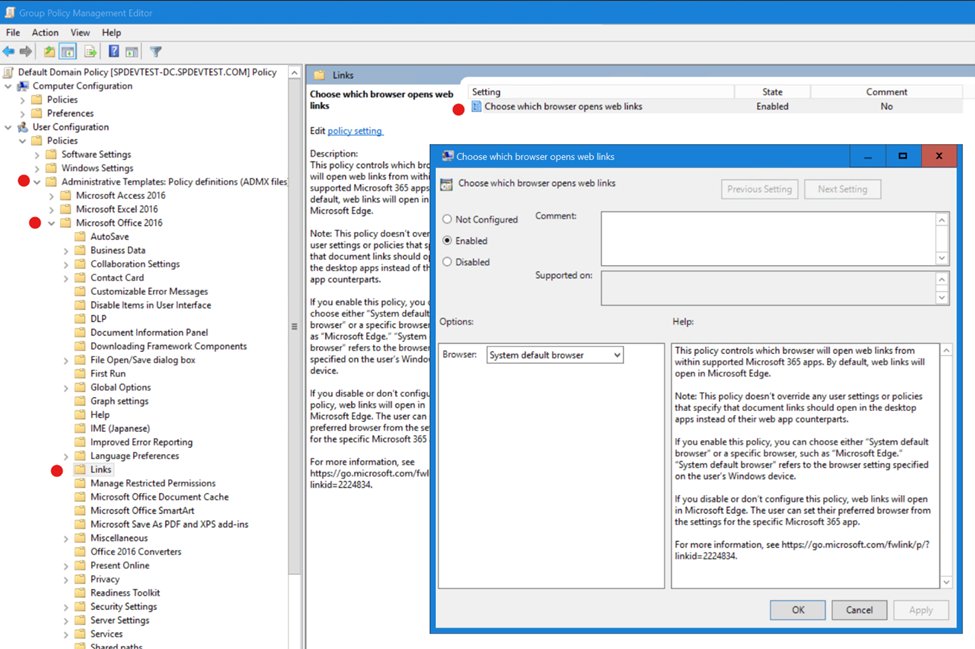
On a work or school PC, an administrator can decide the browser for every user with the Choose which browser opens web links policy.
| Situation | What happens | What to do |
|---|---|---|
| Policy enabled with System default browser | Outlook and Teams use the Windows default browser | Nothing; set your Windows default browser |
| Policy enabled with Microsoft Edge | Links always open in Edge; Manage my settings is greyed out | Ask IT; you cannot change it locally |
| Policy not configured or disabled | Edge is the default, and each user can change it in Outlook | Use the steps in section 1 |
| Admin: Cloud Policy | Set in the Microsoft 365 Apps admin center | Go to Microsoft 365 Cloud Policy > Create, search Choose which browser opens web links |
| Admin: Group Policy | Set with Administrative Templates for Microsoft 365 | Microsoft Office 2016 > Links > Choose which browser opens web links |
| Microsoft 365 for business plan | The policy covers Teams but is unavailable for Outlook | Users change the Outlook setting themselves |
| Outlook mobile with a work account | IT can manage or hide Open Links With | Ask IT |
A practical troubleshooting order that avoids unnecessary changes
| Step | Check | Move on when |
|---|---|---|
| 1 | Open hyperlinks from Outlook in is set to the system default browser | Links still open in Edge |
| 2 | Windows Default apps names your browser for HTTP and HTTPS | Windows is correct but Outlook still uses Edge |
| 3 | Edge banner: Manage my settings available or greyed out | Greyed out means policy; stop and ask IT |
| 4 | Link does nothing or shows a warning page | Treat it as a security block, not a browser problem |
| 5 | Document links open in the wrong app | Change File open preference instead |
| 6 | Update Microsoft 365 | The option is missing or ignored after updating |
| 7 | Run Online Repair | Contact support only if repair does not help |
Confirm Outlook opens links in your default browser
- Close Outlook completely and open it again.
- Open an email from a trusted sender that contains a web link.
- Click the link and confirm it opens in your chosen browser without the email appearing in an Edge sidebar.
- Click a link in a Teams chat and confirm it opens in the same browser.
- Click a OneDrive or SharePoint document link and confirm it opens where File open preference says.
Outlook links opening in Edge FAQ
Why do Outlook links open in Edge instead of Chrome?
Microsoft 365 opens web links from Outlook and Teams in Edge by default, so the email can sit beside the page in the Edge sidebar. Set Open hyperlinks from Outlook in to the system default browser to use Chrome or another default browser.
Where is the Open hyperlinks from Outlook in setting?
In new Outlook, it is under Settings > General > Files and links. In classic Outlook, select File > Options > Advanced and look under File and browser preferences.
Does changing the Outlook setting also change Teams?
Yes. The browser choice made in Outlook applies to the Teams desktop app as well, and a change made in Teams applies to Outlook. The two apps share the setting.
Why can't I change the browser for Outlook links?
Your organization has probably enabled the Choose which browser opens web links policy with Microsoft Edge selected. The Manage my settings option on the Edge banner is then greyed out, and only IT can change it.
Do Outlook links open in Edge on a Mac?
No. Microsoft applies the Edge link behaviour only on Windows 10 and Windows 11. Outlook for Mac keeps using the browser set in macOS.
Why do Word and Excel links from Outlook open in the browser?
Document links on OneDrive and SharePoint follow File open preference, not the web-link setting. In classic Outlook, set File > Options > Advanced > File open preference to Desktop.
Why do links in some Outlook emails not work at all?
Outlook disables links in messages it treats as unsafe, and in plain-text messages. In new Outlook, check Settings > Mail > Junk email > Security options. In classic Outlook, look for an InfoBar at the top of the message.