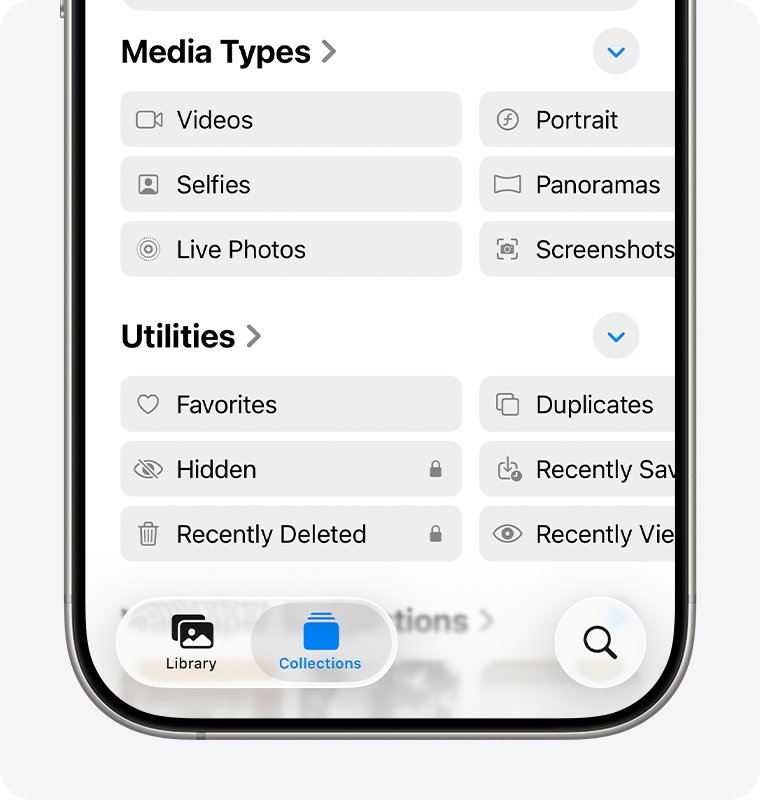
Open Photos, tap Recently Deleted under Utilities, unlock the album and tap Recover to get back any photo deleted in the last 30 days.
Past that window, the photo can only come back from iCloud.com, an older iCloud or computer backup, or a copy that still sits in Messages, a shared album or another app.
Check the Recently Deleted album first
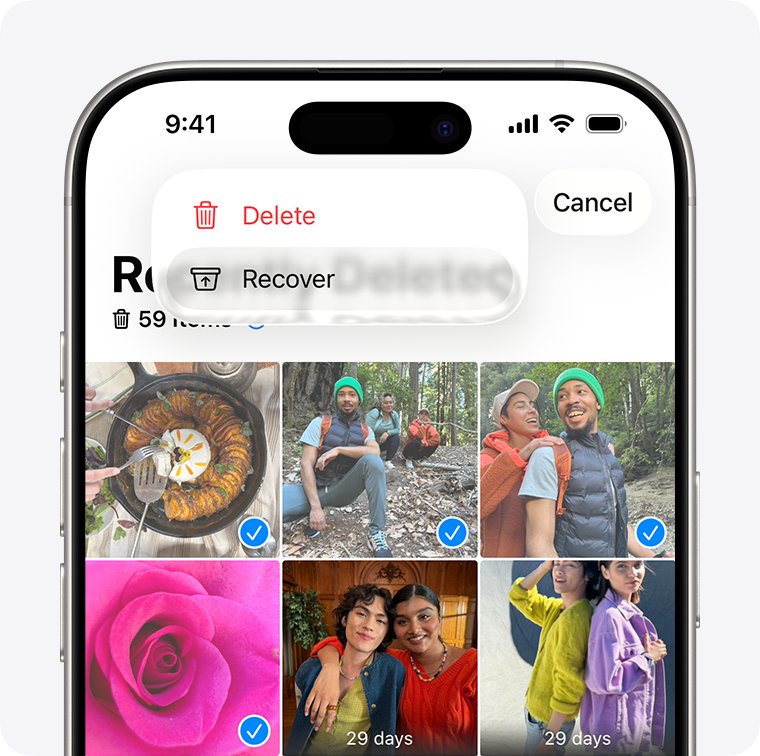
Every photo or video you delete goes to the Recently Deleted album and stays there for 30 days. After 30 days it is permanently deleted and Apple says you can't get it back.
- Open the Photos app and swipe up to the Utilities section.
- Tap Recently Deleted.
- Tap View Album, then unlock it with Face ID or Touch ID.
- Tap the photo or video, then tap Recover.
- To bring back several items, tap Select, pick the photos, tap the More button, then tap Recover.
- Confirm that you want to recover the photos or videos.
If the photo is not in Recently Deleted, the 30 days have passed or the album was emptied, so move on to iCloud.com and your backups.
Recover deleted photos on iPhone with or without a backup
| Your situation | Where to look | What you lose |
|---|---|---|
| Deleted less than 30 days ago | Recently Deleted album on the iPhone | Nothing |
| iPhone is lost, broken or wiped, but iCloud Photos was on | Recently Deleted on iCloud.com, or the library on any signed-in device | Nothing if the 30 days have not passed |
| iCloud Photos was off and an iCloud backup predates the deletion | Restore from iCloud Backup | Everything added to the iPhone since that backup |
| You backed up to a Mac or Windows PC before the deletion | Finder, Apple Devices app or iTunes backup | Everything added since that backup |
| The photo was ever sent, shared or uploaded | Messages, shared albums, your Google Photos library, email | Possibly full resolution |
| Past 30 days, no backup, never shared | No official route | The photo |
With iCloud Photos turned on, your pictures are not inside the nightly iCloud backup, so restoring a backup will not bring back photos deleted from that library.
Recover photos from iCloud Photos
When iCloud Photos is on, a deletion on the iPhone also lands in the Recently Deleted album on iCloud.com. This is the route when the phone itself is lost, broken or already erased.
- On any computer or tablet browser, go to icloud.com/photos.
- Sign in to your Apple Account.
- Select Recently Deleted in the sidebar. If the sidebar is hidden, click the Show Sidebar button in the upper-left corner.
- Select the photos or videos you want back.
- Select Recover.
The same 30-day limit applies on iCloud.com. In a shared library, any participant can delete a photo, but only the person who added it can permanently delete it before 30 days pass.
Restore deleted photos from an iCloud backup
An iCloud backup includes photos only when iCloud Photos was turned off. Restoring it also erases the iPhone, so anything added after the backup date is lost unless it is saved elsewhere.
- Back up your current data to a computer first, because the restore replaces what is on the iPhone now.
- Check the backup date in Settings > [your name] > iCloud > iCloud Backup; it must be older than the deletion.
- Go to Settings > General > Transfer or Reset iPhone and tap Erase All Content and Settings.
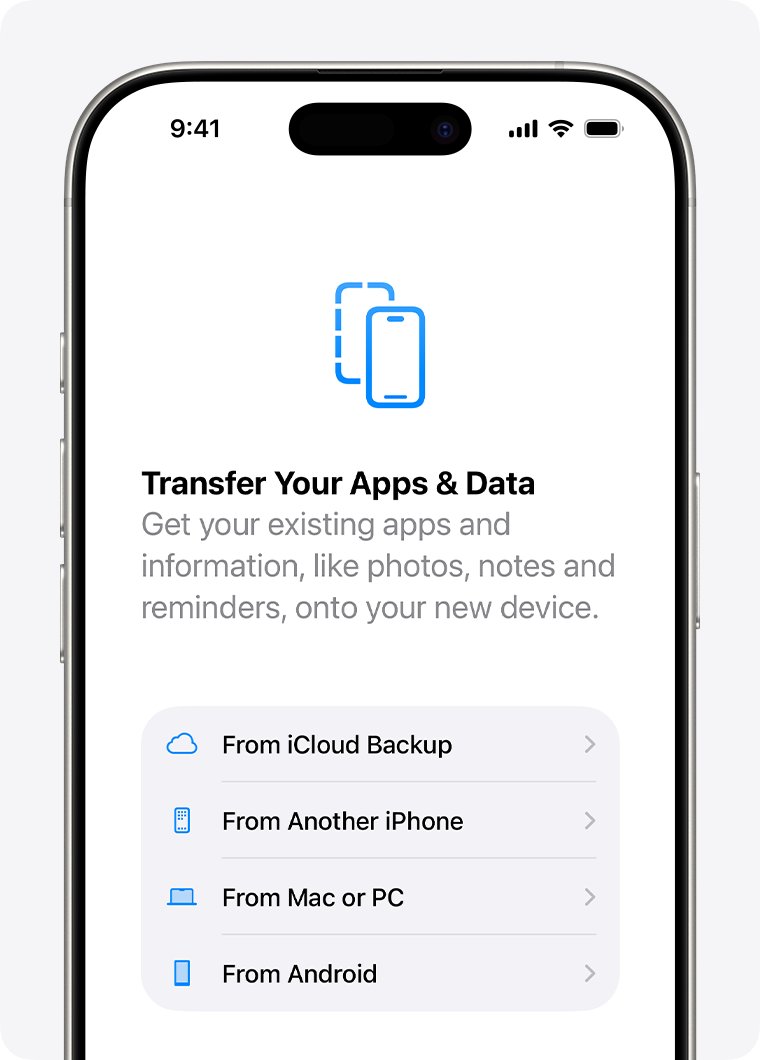
- Turn the iPhone on and follow the setup steps until you reach Transfer Your Apps & Data.
- Tap From iCloud Backup and sign in to your Apple Account.
- Review the date and size of each backup, then choose one made before the photos were deleted.
- Keep the iPhone on Wi-Fi and power until the progress bar finishes and the photos finish downloading.
To check whether iCloud Photos was on in that backup, open Settings > [your name] > iCloud > Photos after the restore. If Sync this iPhone is on, the photos live in iCloud Photos, not in the backup.
Recover photos using a Finder or iTunes backup
A computer backup made before the deletion holds the camera roll as it was that day. Restoring it replaces everything currently on the iPhone with the backup's content.
| Computer | Open this | Restore steps |
|---|---|---|
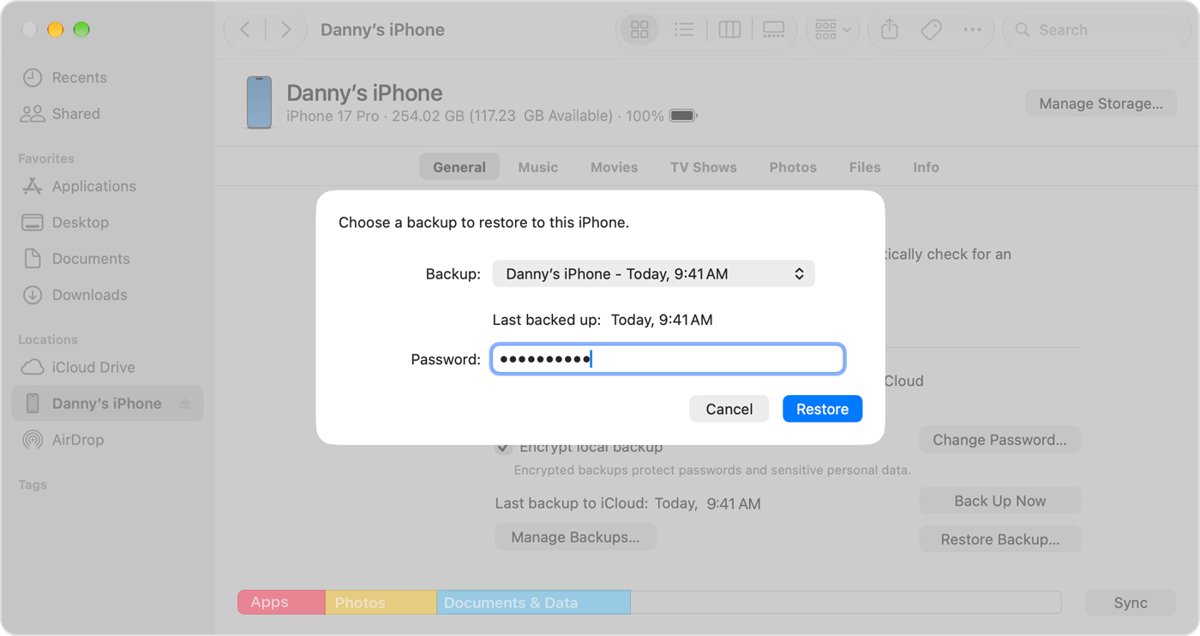
| Mac with macOS Catalina 10.15 or later | Finder | Connect the iPhone with a USB cable, select it in the sidebar, click Restore Backup, pick a backup older than the deletion, enter the encryption password if asked, click Restore |
| Windows 10 or later PC | Apple Devices app | Connect the iPhone, select it in the sidebar, click Restore Backup, choose the backup by date and size, click Restore |
| Mac with macOS 10.14 or earlier, or a PC without Apple Devices | iTunes | Click the iPhone button near the top left, click Summary, click Restore Backup, choose the backup, click Restore |
Keep the iPhone connected while it restarts and syncs, and disconnect it only after the sync finishes. If you are signed in to Find My, sign out before you restore from the computer.
Look for photos in Messages, shared albums, and other apps
A photo deleted from your library still exists anywhere you sent or shared it. These copies are worth checking before any restore that erases the phone.
| Place | How to find the copy | Note |
|---|---|---|
| Messages conversation | Open the conversation, tap the contact or group icon at the top, then tap Photos | Save the image back to your library with the Share button |
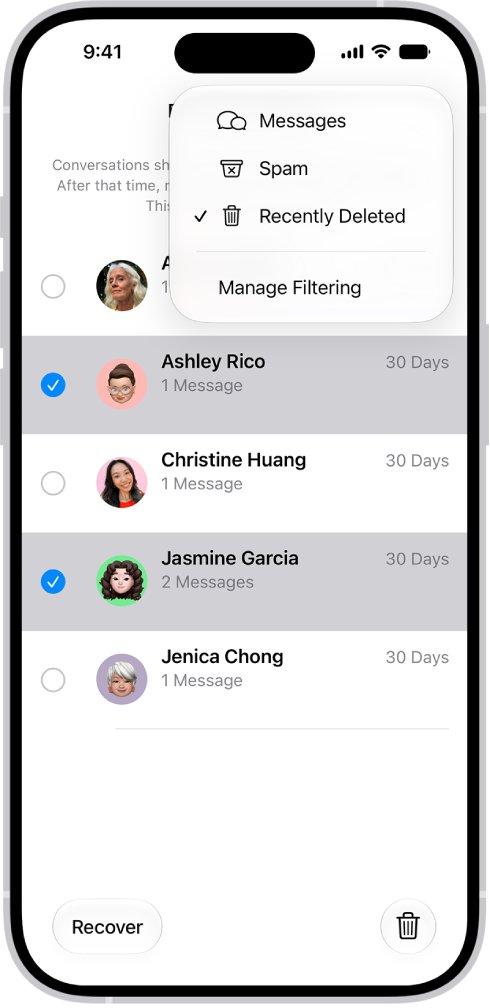
| Messages Recently Deleted | In the conversation list, tap the menu button at the top, tap Recently Deleted, select the conversation and tap Recover | Deleted messages and attachments stay for up to 30 days |
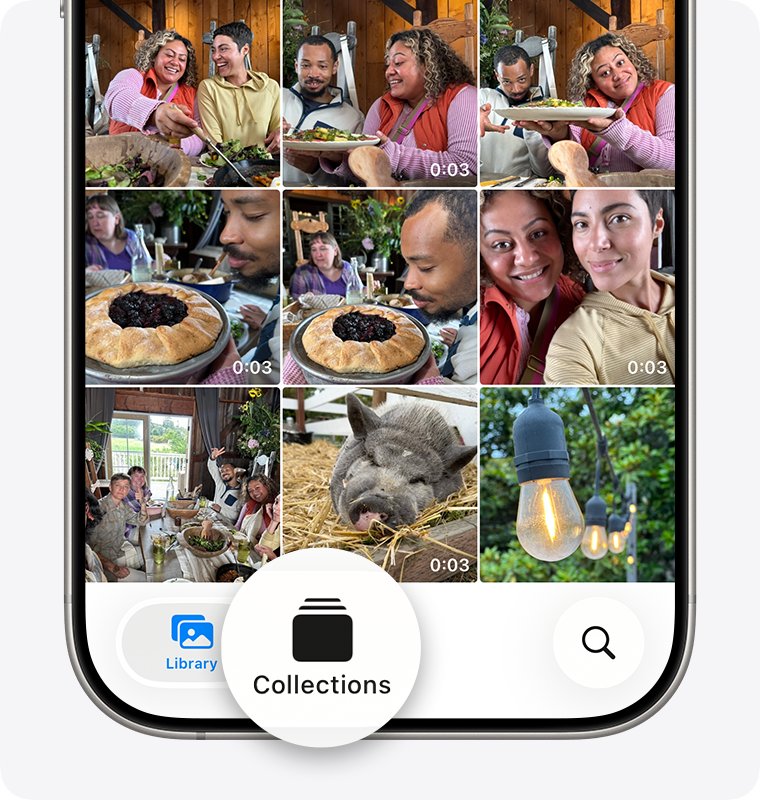
| Shared album | In Photos, tap Collections, scroll to Shared Albums, open the album, tap the photo, tap the Share button, then Save Image | In iOS 26 or earlier, shared album copies are reduced to 2048 pixels on the long edge |
| Hidden album | In Photos, tap Collections, scroll to Hidden under Utilities, tap View Album, then touch and hold a photo and tap Unhide | Hidden photos do not appear in the library, so they can look deleted |
| Google Photos app | Open Google Photos, tap Collections, then Trash, and restore the items | Trash keeps items for 30 days |
| Email, cloud drives, social apps | Search your sent mail and uploads for the file | Uploaded copies are often compressed |
If a picture never reached the other person, fix photos not sending in iMessage before you rely on that thread as a copy.
Emptying the Google Photos trash, or deleting your whole Google Photos library, removes those copies for good.
How to see if your iPhone photos are backed up to iCloud
- Open the Photos app and tap Collections.
- Look at the account icon in the top-right corner for the sync status.
- A partially filled blue circle means photos are still uploading; a red exclamation mark means iCloud storage is full.
- Tap your account icon to see the last time the iPhone synced with iCloud.
- Open the date of the recovered photo in Library and confirm it is back in place.
Turn on Settings > [your name] > iCloud > Photos > Sync this iPhone so the next deletion stays recoverable from any device for 30 days.
What to do if your photos still aren't recoverable
Recently Deleted is empty or the photo is not in it
More than 30 days have passed, or someone removed it from Recently Deleted by hand.
- Sign in at icloud.com/photos and check Recently Deleted there too.
- Check the Hidden album under Utilities in case the photo was hidden, not deleted.
- Look for a backup dated before the deletion in Settings > [your name] > iCloud > iCloud Backup, or on your computer.
Restored from iCloud Backup but the photos are missing
iCloud Photos was on, so the photos were never in the backup, or the download is still running.
- Stay connected to Wi-Fi so photos can keep downloading after setup.
- Open Settings > [your name] > iCloud > iCloud Backup; a message says if the restore is still in progress.
- If the photos are still missing, restore from a different iCloud backup or a computer backup.
Finder or iTunes does not list an older backup
No computer backup was made before the deletion, or it was made on another computer.
- Connect the iPhone to every Mac or PC you have used with it and check Restore Backup on each.
- On Windows with iTunes, choose Edit > Preferences, then click Devices to see stored backups.
- Enter the encryption password if the backup shows a lock icon.
Photos were deleted from a shared album
Deleting a photo in a shared album removes it from every member's device.
- Ask other members whether they saved the photo to their own library.
- Check whether the original is still in the library of the person who added it.
Apple's own documentation states that a photo permanently deleted after 30 days can't be recovered. Treat any app or service that promises otherwise with caution, and never hand over your Apple Account password to one.
Recover deleted iPhone photos FAQ
Can I recover iPhone photos after deleting them from Recently Deleted?
Only from a copy made before the deletion. Check Recently Deleted on iCloud.com, an iCloud backup made while iCloud Photos was off, a Finder or iTunes backup, or a copy sent in Messages or a shared album.
Will restoring an iCloud backup bring back my deleted photos?
Only if iCloud Photos was off when the backup was made and the backup predates the deletion. With iCloud Photos on, photos are not in the backup, and the restore also replaces everything currently on the iPhone.
Does iCloud Photos keep deleted photos forever?
No. A photo deleted with iCloud Photos on goes to Recently Deleted on every device and on iCloud.com, and it is permanently deleted after 30 days.
Should I stop using my iPhone after deleting important photos?
Do not erase it or restore a backup until you have checked Recently Deleted, iCloud.com and your shared copies. Back up current data to a computer before any restore, because a restore replaces what is on the phone.
Can Apple recover permanently deleted photos for me?
No. Apple states that items removed from Recently Deleted after 30 days are permanently deleted and can't be brought back.
How long do deleted photos stay on iPhone?
Deleted photos and videos stay in the Recently Deleted album for 30 days. After that, the iPhone deletes them permanently and removes them from iCloud Photos as well.
Can I recover deleted iPhone photos on a computer?
Yes. Sign in at icloud.com/photos and open Recently Deleted, or restore a Finder, Apple Devices or iTunes backup made before the deletion. On a Mac with iCloud Photos, Recently Deleted also appears in the Photos sidebar.