To install an add-in in Microsoft Outlook, select More apps > Add apps in new Outlook or Outlook on the web, or Home > All Apps > Get Add-ins in classic Outlook, then search for the add-in and select Add.
This guide covers installing from the Microsoft Marketplace (formerly AppSource and the Office Store), using, turning off and removing add-ins, classic COM add-ins, organization-deployed add-ins, permissions and fixes.
Install Add-ins from Microsoft AppSource
Microsoft's add-in store is now called Microsoft Marketplace; older menus still say Office Store. The steps below are for new Outlook for Windows and Outlook on the web.
- Select More apps on the ribbon or the left app bar.
- Select Add apps.
- Search for the add-in by name, or browse the list.
- Select the add-in to read its details and privacy policy.
- Select Add.
An add-in you install in new Outlook also appears in your other versions of Outlook signed in to the same account. A common example is the Grammarly add-in for Office.
Check Your Outlook Version and Add-in Support
Each version opens the store from a different place. Classic Outlook has File > Options; new Outlook and Outlook on the web do not.
| Your Outlook | Where to get add-ins | Notes |
|---|---|---|
| New Outlook for Windows | More apps > Add apps | Store and custom add-ins; installs carry over to your other Outlook versions |
| Classic Outlook (Microsoft 365, 2024, 2021) | Home > All Apps > Get Add-ins (or the … button on the Simplified Ribbon) | Also runs COM add-ins installed with desktop software |
| Outlook on the web | More apps > Add apps | Work or school account with a valid license |
| Classic Outlook on the web | Settings gear > Manage add-ins | Toggles for free add-ins, Get it for paid ones |
| Outlook for Mac | Get Add-ins on the ribbon | Store add-ins |
Install add-ins in classic Outlook for Windows
- Make sure the Reading Pane is set to Right or Bottom; add-ins are unavailable with it off.
- On the ribbon, select Home > All Apps (the … button on the Simplified Ribbon).
- Select Add Apps or Get Add-ins.
- Search for the add-in in the dialog that opens.
- Select the add-in to review its details, then select Add.
Install a custom add-in from a file
Use this for an add-in your company or a developer gave you as an XML manifest. Add from URL is no longer offered; download the file from the URL first.
- Go to
aka.ms/olksideloadin a browser and sign in. - Select My add-ins.
- Under Custom Addins, select Add a custom add-in > Add from file.
- Choose the XML file and select Install.
- Close the dialog and refresh Outlook.
Manage Installed Add-ins in Outlook
Installed add-ins appear where they are designed to work: when reading a message, writing one, or opening a meeting.
| You are | New Outlook and web | Classic Outlook |
|---|---|---|
| Reading a message | More apps on the ribbon, or Apps on the message action bar | Home tab |
| Writing or replying | Message tab, or Apps if it is hidden | Message tab, or All Apps |
| In an appointment or meeting | Open it in a pop-up window, then the ribbon | Appointment or Meeting tab |
| Want one-click access | Right-click the add-in in More apps and select Pin | Use the left app bar or More Apps |
Enable, Disable, or Remove Add-ins
Turning an add-in off keeps it installed for later. Removing it uninstalls it from your mailbox.
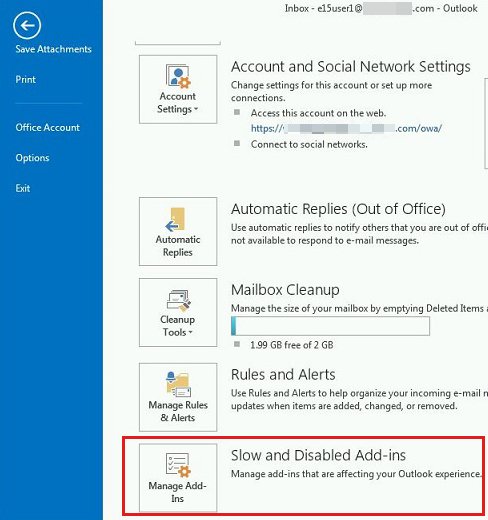
- To turn an add-in off in classic Outlook, select File > Manage Add-ins; Outlook on the web opens.
- In the Turned on column, clear the box for the add-in; check it again to turn it back on.
- To remove an add-in in new Outlook or on the web, select More apps > Add apps.
- Select Manage your apps.
- Find the add-in and select More options > Remove.
Turn COM add-ins on or off in classic Outlook
COM add-ins come with desktop programs such as the Teams Meeting add-in. They are managed separately from store add-ins.
- In classic Outlook, select File > Options.
- Select the Add-ins tab and review the Active Application Add-ins and Disabled Application Add-ins lists.
- Next to Manage, choose COM Add-ins and select Go.
- Select a box to turn an add-in on, or clear it to turn it off.
- Select OK on every open dialog box, then restart Outlook.
To uninstall a COM add-in for good, uninstall the program that added it from Windows.
Handle Admin-Managed and Organization Add-ins
In a work or school tenant, administrators deploy add-ins centrally from the Microsoft 365 admin center under Settings > Integrated apps.
| Situation | What it means for you |
|---|---|
| Your admin deployed an add-in | It appears on the read or compose surface it was built for, without you installing it |
| A newly deployed add-in is missing | Restart Outlook; deployed add-ins can take 24 to 72 hours to reach the ribbon |
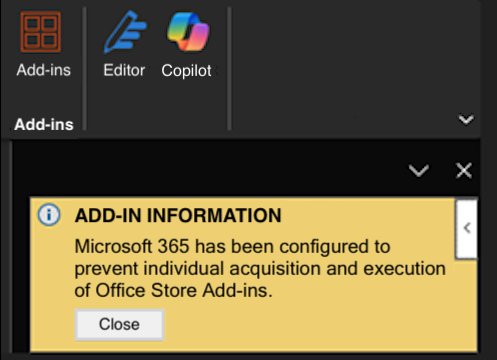
| Office store not available message | Your organization turned off Marketplace access; ask your administrator |
| Using a shared mailbox | You can't install add-ins there; yours install to your primary mailbox |
| Default add-ins in shared mailboxes | My Templates, Unsubscribe and Action Items can still be used |
| An add-in update is pending | Admins must consent to permission changes before you get the new version |
Review Add-in Permissions and Security
Every Outlook add-in declares one of four permission levels, and you can see the level on its Marketplace page before you select Add. Microsoft validates all store add-ins.
| Permission level | What the add-in can do |
|---|---|
| Restricted | Nothing tied to you or the message's contents |
| Read item | Read the open message or appointment, including its body and recipients |
| Read/write item | Change the open item, such as adding text or attachments |
| Read/write mailbox | Create, read and change items and folders, and send mail on your behalf |
Prefer add-ins that ask for the lowest level that fits the job. Be wary of a simple tool that requests read/write mailbox.
How to check an add-in is installed and working
- Open a message and select More apps or All Apps; the add-in should be listed.
- Select the add-in and confirm its pane opens without an error.
- In classic Outlook, confirm COM add-ins appear under Active Application Add-ins in File > Options > Add-ins.
- Sign in to Outlook on another device and confirm the store add-in appears there too.
Troubleshoot Add-in Problems
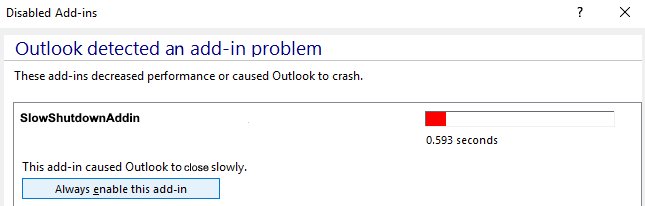
Outlook says it disabled an add-in because it was slow
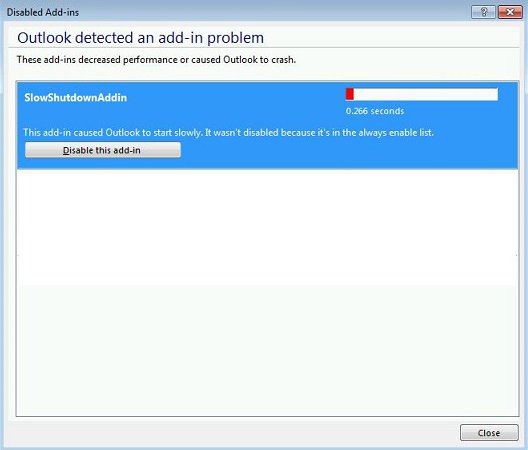
Classic Outlook turns off add-ins that slow startup or shutdown.
- Select View Disabled Add-ins on the notification.
- Select Always enable this add-in only if you need it despite the slowdown.
Outlook won't start or crashes after installing an add-in
A COM add-in fails while loading.
- Right-click Start, select Run, type
outlook /safeand select OK. - If Outlook opens in safe mode, turn off COM add-ins one at a time in File > Options > Add-ins.
- Restart Outlook normally after each change to find the culprit.
Add-in buttons are missing in classic Outlook
The Reading Pane is off, or the add-in is hidden behind All Apps.
- Set the Reading Pane to Right or Bottom.
- Select All Apps on the Home tab to find the add-in.
Error loading add-ins in the status bar
A wrong PC clock or a damaged add-in package.
- Close Outlook and check the PC's date and time.
- Remove the add-in and install it again from the store.
An add-in stops working when you go offline
Task pane and event-based add-ins need an internet connection in new Outlook.
- Reconnect to the internet.
- Restart Outlook so the add-in loads again.
Frequently Asked Questions
How do I install add-ins in Outlook?
In new Outlook or Outlook on the web, select More apps > Add apps, find the add-in and select Add. In classic Outlook, select Home > All Apps > Get Add-ins, then Add.
Where do I find add-ins in Outlook?
Installed add-ins appear under More apps or Apps in new Outlook and on the web, and under All Apps on the Home tab in classic Outlook. You can pin favourites to the ribbon.
How do I remove an add-in from Outlook?
Select More apps > Add apps > Manage your apps, then More options > Remove next to the add-in. COM add-ins are removed by uninstalling the program that installed them.
How do I enable an add-in that Outlook turned off?
For store add-ins, select File > Manage Add-ins and check the box in the Turned on column. For COM add-ins, go to File > Options > Add-ins, choose COM Add-ins, select Go and check the box.
What are Microsoft add-ins?
Add-ins are small apps from Microsoft and other publishers that add features inside Outlook, Word, Excel and PowerPoint, such as translation, scheduling or CRM tools. Microsoft validates the ones in its store.
How do you manage add-ins in Microsoft 365?
Users manage their own add-ins from Outlook's Manage your apps page. Administrators deploy and assign add-ins to users and groups from the Microsoft 365 admin center under Settings > Integrated apps.
Why can't I install add-ins in Outlook?
Your organization may have turned off Marketplace access, or you may be in a shared mailbox. Ask your administrator, or switch to your primary mailbox and try again.
Can I install add-ins for Excel the same way?
Excel, Word and PowerPoint use File > Get Add-ins or Home > Add-ins instead. The store is the same, but each app lists the add-ins built for it.
Bottom Line
Install add-ins from More apps > Add apps, check each one's permission level first, and remove anything you no longer use from Manage your apps. Store add-ins follow your account across new Outlook, classic Outlook and the web, so one tidy list covers every device, while classic Outlook's COM add-ins are best kept to the few your desktop software needs.