You earn Google Play Points by buying apps, games, in-app items and subscriptions on Google Play after joining the free program, and you use them in the Play Store under Play Points > Use for Play Credit, coupons and in-game items.
This guide covers joining, the US earn rates by level, how to check and spend your balance, what happens on refunds, and how to fix missing or failed redemptions.
How to use (redeem) Google Play Points
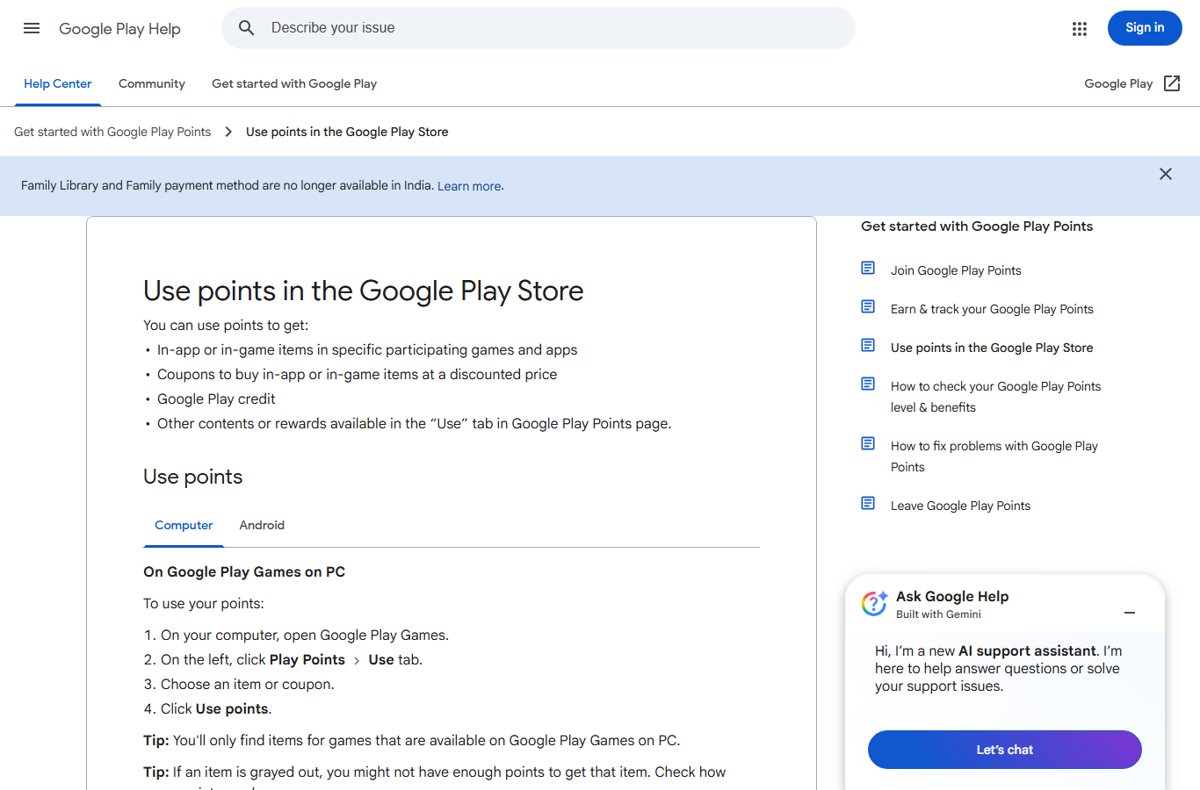
Spending points takes a few taps once you have a balance. The same Use tab lists Play Credit, coupons, in-game items and charity donations.
- Open the Google Play Store app.
- At the top right, tap the profile icon.
- Tap Play Points, then open the Use tab.
- Select an item, coupon, Play credit, or a cause to donate to.
- Tap Use points to confirm.
On a computer, go to play.google.com, click your profile icon, click Play Points > Use, select a reward and click Use points. A grayed-out item means you do not have enough points yet.
What Google Play Points are (and how they work)
Google Play Points is Google's free rewards program for the Play Store. Points you earn count twice: once toward a spendable balance and once toward your yearly level.
| Part | How it works |
|---|---|
| Points balance | What you spend; deducted when you use points; expires one year after you last earned or used points |
| Level progress | Points earned in a calendar year; never reduced when you spend points |
| Levels | Bronze, Silver, Gold, Platinum and Diamond in the US |
| Level duration | Once reached, you keep a level until the end of the next calendar year |
| Cost | Free to join; you cannot buy points or cash them out |
Prerequisites: make sure you can earn and redeem
| Requirement | Details |
|---|---|
| Country | One of 36 supported countries, including the United States, United Kingdom, Australia and India |
| Device | A computer or Android device that works with Google Play |
| Account | A Google Play account not managed by a school or a parent |
| Payment method | A valid payment method on the account |
| Billing address | Must match your Google Play country |
To join on Android, open the Google Play Store app, tap the profile icon, tap Play Points, then Join. On a computer, open the Play Store, click Play Points on the left and click Join. Purchases made before you join earn nothing.
How to earn Google Play Points
Every purchase made through Google Play from your enrolled account earns points, on a phone, a computer or a smart TV.
- Buy apps or games in the Play Store.
- Make in-app or in-game purchases and subscriptions billed through Google Play.
- Subscribe to Google One from an Android device.
- Check Play Points > Earn for promotions with a higher earn rate, and activate any that require it.
- Claim the weekly prize under Play Points > Perks once you reach Silver or higher.
Install promotions count only for a first-time install, and you must spend at least 2 minutes in the app within 24 hours. Those points can take up to 7 days to appear.
How points are calculated
Multiply the item's price, before tax, by your level's earn rate, then round to the nearest whole number. A $5 purchase earns 5 points at Bronze and 6 points at Silver, rounded up from 5.5.
| US level | Points needed in a year | Points per $1 | Extra benefits |
|---|---|---|---|
| Bronze | 0 to 149 | 1 | In-game points events, book multipliers |
| Silver | 150 to 599 | 1.1 | Adds Silver weekly prizes |
| Gold | 600 to 2,999 | 1.2 | Gold Super Weekly Prize |
| Platinum | 3,000 to 9,999 | 1.4 | Super Weekly Prize, 1 Super Ticket a week, premium support |
| Diamond | 10,000 or more | 1.6 | Super Weekly Prize, 1 Super Ticket a week, premium support |
When a promotion offers a better rate than your level, the promotion rate applies to that purchase. Promotions cannot be combined on a single purchase. Rates and levels differ outside the US.
How to view your Google Play Points
- Open the Google Play Store app and tap the profile icon at the top right.
- Tap Play Points to see your balance.
- Tap More > Level benefits to see your level, benefits, and the points needed for the next level.
- Tap More > Points history to see each purchase, reward and weekly prize.
- On a PC, open Google Play Games and click the Play Points icon on the left; your balance is at the top.
Which reward should you choose?
| Your situation | Choose this | Why |
|---|---|---|
| You buy different apps, books or subscriptions | Google Play Credit | Works across Play purchases, but expires after a year |
| You spend regularly in one game | That game's in-game item or coupon | Coupons apply automatically when the purchase meets their conditions |
| You are paying for something now | Points at checkout, where offered | Covers part of the order; another payment method pays the rest |
| You have points about to expire | Any reward, or a donation | Unused points expire one year after your last earn or use |
| You might want a refund later | Avoid in-game items and donations | Those cannot be refunded |
How to check a redemption worked
- Open Play Points > More > Points history and find the redemption with its point cost.
- For Play Credit, check that your Google Play balance went up.
- For a coupon, make a qualifying in-app purchase; the discount applies on its own.
- For an in-game item, open the game and look for the item there.
Troubleshooting: points not showing up after a purchase
No points after buying something
You were not enrolled at the time, or the points are still confirming.
- Open Play Points and confirm you have joined.
- Wait, then check Points history again; some devices, such as Android TV, take longer to confirm.
- Remember that tax is not counted and purchases before joining earn nothing.
Install offer points are missing
The offer criteria were not met or Google could not confirm app activity.
- Confirm it was your first install of that app.
- Use the app for at least 2 minutes within 24 hours of installing.
- Wait up to 7 days before checking Points history.
Points disappeared
A refund, a cancelled purchase, a country change or the one-year expiry.
- Check Points history for a refund deduction.
- If you changed your Play country, the points cannot be recovered.
- Contact Google Play support if none of these apply.
Common reasons redemption fails (and fixes)
Used points for an in-game item but did not receive it
The app has not synced the item yet.
- Check Points history to confirm the points were spent.
- Force stop the game and restart your device.
- Update the Play Store and check the device's date and time.
- Contact the game's developer if the item still does not appear.
Coupon or in-app credit will not apply
The item costs less than the coupon, or another coupon or promotion is active.
- Pick an item worth at least as much as the coupon.
- Remove any other coupon or promotion from the purchase.
- Clear the Play Store app's cache and data, then try again.
Cannot access Play Points at all
Google restricts access when it detects fraud or abuse on an account.
- Check that your billing address matches your Play country.
- Contact Google Play support to review the account.
Google Play Points vs Google Play balance vs refunds
| Item | What it is | Refund behaviour |
|---|---|---|
| Play Points | Rewards earned on purchases | Points from a refunded or cancelled purchase are deducted from balance and level |
| Google Play balance (credit) | Money value usable on Play purchases; points can be exchanged for it | Credit from points expires after a year |
| Coupons from points | Discounts on qualifying in-app purchases | Expire after a year |
| In-game items and donations from points | Delivered inside the app, or sent to a cause | Cannot be refunded |
| Checkout redemption | Points cover part of an order | If the transaction fails, points return within 1 to 7 days |
Best practices to maximize value
| Practice | Reason |
|---|---|
| Join before making any purchase | Earlier purchases never earn points |
| Check Earn for promotions before buying | Promotion rates beat base rates on select items |
| Claim the weekly prize every week from Silver up | Weekly prizes reset on Friday in your Play country |
| Spend or earn at least once a year | The balance expires one year after your last activity |
| Keep the same Play country | Changing it wipes your points and level |
| Use points on one account only | Points cannot be moved between accounts, even in a family group |
If you also search with Bing, Microsoft Rewards points follow a similar earn-and-redeem model. PC players can also earn and spend through Google Play Games on Windows.
FAQs
What are Google Play Points?
Google Play Points is a free rewards program from Google Play. You earn points on Play Store purchases and use them for Play Credit, discount coupons, in-game items or donations, with higher levels earning more per dollar.
How do Google Play Points work?
After you join, each dollar spent on Google Play earns points at your level's rate, from 1 point at Bronze to 1.6 at Diamond in the US. Points build a spendable balance and count toward next year's level.
Is Google Play Points free?
Yes. Joining costs nothing. You need a supported country, a valid payment method and a billing address that matches your Play country. You cannot buy points with money.
How do I get Google Play Points for free?
Without spending, the main routes are install promotions for new apps and games under Play Points > Earn, and weekly prizes from Silver level up. Most points come from purchases.
How do I redeem Google Play Points?
Open the Play Store app, tap your profile icon, tap Play Points, open the Use tab, choose a reward and tap Use points. On a computer, use play.google.com and click Play Points > Use.
What can I use Google Play Points for?
You can exchange points for Google Play Credit, coupons for in-app purchases, items in participating games, donations to causes, and in some countries part of an order at checkout.
Can I gift my Google Play Points?
No. Google does not allow transferring points between accounts or to another person, even within a family group. You also cannot convert points to cash.
Do Google Play Points expire?
Yes. Your points balance expires one year after the last time you earned or used points. Credit and coupons you get from points also expire after a year.
Is Google Play Points worth it?
If you already buy apps, games or subscriptions on Google Play, it is worth joining because it is free and returns value on spending you would do anyway. Do not buy things just to earn points.
Bottom Line
Join Google Play Points before your next Play purchase, check the Earn tab for promotions, and spend your balance at least once a year. Joining is free, purchases before enrolment earn nothing, and unused points expire one year after your last activity.