To earn Microsoft Bing Rewards, sign in at rewards.bing.com with a free Microsoft account, then collect points from Bing searches, the daily set, Xbox and Microsoft Store purchases, and spend them on the Redeem tab.
This guide covers joining, the Member, Silver and Gold levels, every earning route with its limit, redeeming gift cards, sweepstakes and donations, and the account rules that cancel points.
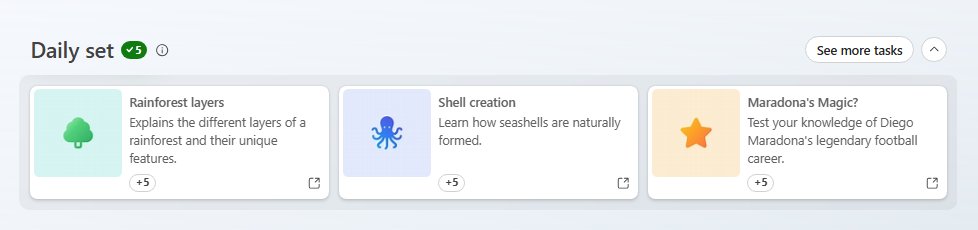
The fastest way to start earning and redeeming Microsoft Rewards
Bing Rewards is now called Microsoft Rewards. The program is free, and the routine below takes a few minutes a day.
- Open rewards.bing.com and select Sign in with your Microsoft account.
- Complete each card in the Daily set on the Dashboard until it shows a green checkmark.
- Search on bing.com while signed in to the same account, up to your level's daily search limit.
- Claim any points listed under Ready to claim before they expire.
- Select Redeem, pick a gift card, donation or sweepstakes entry you can afford, and confirm it.
What Microsoft Bing Rewards Is and How It Works
Microsoft Rewards is Microsoft's loyalty program. Former Bing Rewards members were moved to Microsoft Rewards automatically, and the dashboard still lives at rewards.bing.com.
You earn points for everyday Microsoft activity and redeem them for gift cards, donations and sweepstakes. Points have no cash value, and Microsoft says about 5,000 points usually redeems something worth $5.
Your level depends on the points you earn in the current calendar month. A higher level raises your search cap and adds monthly bonuses.
| Benefit (US figures) | Member | Silver | Gold |
|---|---|---|---|
| To reach the level each month | Join | 500 points | 750 points plus 2 level-up activities |
| Daily Bing search points (3 per search) | 15 | 30 | 60 |
| Points per $1 on select Microsoft Store hardware | 1x | 10x | 10x |
| Points per $1 on games and add-ons (up to) | 4x | 4x | 4x |
| Monthly level bonus | 60 | 180 | 420 |
| Default search bonus per month | 30 | 90 | 210 |
| Bing Star bonus per month (up to) | 300 | 900 | 2,100 |
| Redemption discount coupon | None | 100 points | 200 points |
Monthly bonuses become available within the first five days of the month and usually expire about 30 days later if unclaimed. Some support pages still call the tiers Level 1 and Level 2, and figures vary by country.
How to Sign Up and Start Earning Points
There is no fee or separate sign-up form. The Microsoft Services Agreement says a Microsoft account in a participating region is enrolled automatically, but you must activate Rewards on the dashboard before you can redeem.
- Create a free Microsoft account if you do not have one. Under-13s, or the child age in your country, need a parent or guardian's consent.
- Check that your country appears on Microsoft's Microsoft Rewards regions support page.
- Go to rewards.bing.com and select Sign in.
- Add a mobile or landline number when asked. VoIP numbers are not accepted.
- Open the Dashboard tab and complete your first Daily set activity.
- Sign in to Bing, Microsoft Edge, the Bing app and Xbox with the same account so every point lands in one balance.
The Bing Rewards dashboard guide walks through every tile on the dashboard once you are signed in.
Best Ways to Earn Microsoft Rewards Points
Every route below pays into the same balance. Start with the free daily routes, then add purchases you would make anyway.
| Earning route | What pays | Limit or catch |
|---|---|---|
| Bing searches on PC or phone | 3 points per qualifying search | 15, 30 or 60 points a day by level; same cap on PC and mobile |
| Windows search box on the taskbar | Web searches from the taskbar box on Windows 10 and 11 earn points | Daily limits apply and vary by country |
| Daily set, quizzes and trivia on the Earn page | Points shown on each card, refreshed daily | Completing the set daily builds a streak |
| Bing homepage quiz | Points shown on the quiz card | One of the daily activities |
| Bing app, Microsoft Edge and Bing as default search | Search points plus the monthly default search bonus | Mobile routes vary by region |
| Xbox: Rewards hub on console, Xbox PC app or Xbox mobile app | Game quests and activities; up to 4x points per $1 on games and add-ons | The Rewards with Xbox hub is for players 18 and over in supported regions |
| Game Pass Essential, Premium or Ultimate | Silver and Gold members can earn up to 40 points per $1 on qualifying content | Needs an active subscription and Silver or Gold level |
| Microsoft Store purchases | 1x to 10x points per $1 on select hardware | Subscriptions and gift card purchases do not qualify; up to 20,000 points a month |
| Work or school account linked to your personal account | Personal points for work searches | Link the work account to your personal Microsoft account first |
Playing the Bing homepage quiz is one daily way to add points. A purchase earns only one Rewards offer at a time, so a featured offer replaces the standard rate.
How to Redeem Points for Gift Cards, Sweepstakes, and Donations
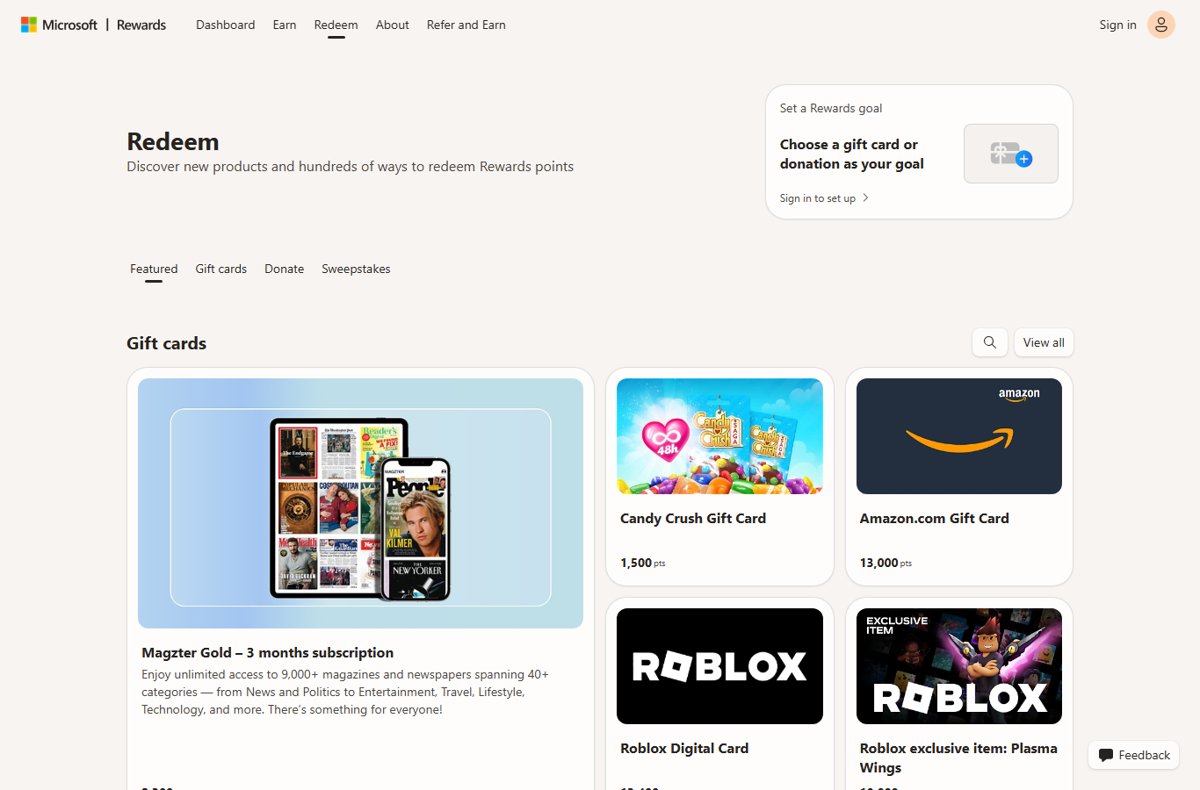
Rewards you can afford become visible once your balance is high enough. Redeem in the country you signed up in, with no VPN running.
- Go to rewards.bing.com and select the Redeem tab.
- Choose Gift cards, Donate or Sweepstakes, then select View all to see the full list.
- Select the reward to open its details page.
- Pick an option from Options if the reward comes in several values.
- Select Redeem Rewards and confirm.
- Enter the code texted to your phone if Microsoft asks for verification.
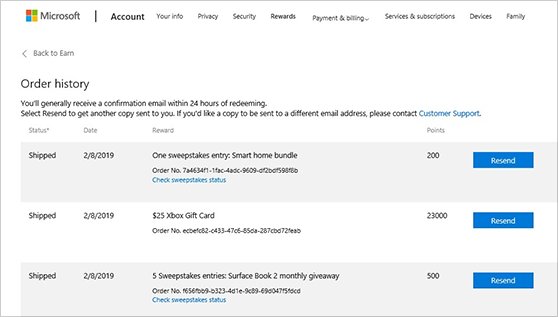
- Open Order history and select Order Details at the far right to get the code or link.
Codes are also emailed to the primary email of your Microsoft account. Microsoft and Xbox gift cards go straight into your Microsoft account balance as promotional balance, which can expire under the promotion's terms.
What you can redeem points for in the US catalog
Prices below were listed on the US Redeem page in September 2026. Catalogs differ by country, and gift cards go in and out of stock without notice.
| Reward | Points | Notes |
|---|---|---|
| Candy Crush Gift Card | 1,500 | Gift card |
| Magzter Gold, 3 months | 2,300 | Digital magazine subscription |
| Roblox exclusive item: Plasma Wings | 10,000 | Roblox virtual item |
| Amazon.com Gift Card | 13,000 | Gift card |
| Roblox Digital Card | 13,400 | Code redeemed on Roblox for Robux or Roblox Credit |
| Donations to listed nonprofits | From 100 | Save the Children, Doctors Without Borders, Make-A-Wish, Special Olympics and others |
| Sweepstakes entries | 100 to 200 per entry | Winners are posted at rewards.bing.com/redeem/winners |
Robux come through the Roblox Digital Card, not as a direct points conversion. Claiming Robux from Microsoft Rewards covers applying that code. Use Set a Rewards goal on the Redeem page to track progress toward one gift card or donation.
How to check your points and orders went through
- Open rewards.bing.com and read the balance at the top of the Dashboard.
- Check that today's Daily set cards show a green checkmark.
- Select Redeem, then Order history, and read the Status column for each order.
- Select Resend if the confirmation email with your code did not arrive.
- For sweepstakes, check the results at rewards.bing.com/redeem/winners after the entry period ends.
Tips to Maximize Your Rewards Earnings
The biggest gains come from reaching Silver or Gold each month, because the level multiplies search points and monthly bonuses.
- Finish the Daily set every day, since the daily cards and quizzes refresh each day.
- Search manually up to your daily cap; extra searches earn nothing until the counter resets.
- Reach 500 points in a month for Silver, or 750 points plus two level-up activities for Gold.
- Pick easy level-up activities, such as searching seven days in a row or setting Bing as your default search for 14 days.
- Claim bonuses from Ready to claim once they appear early in the month.
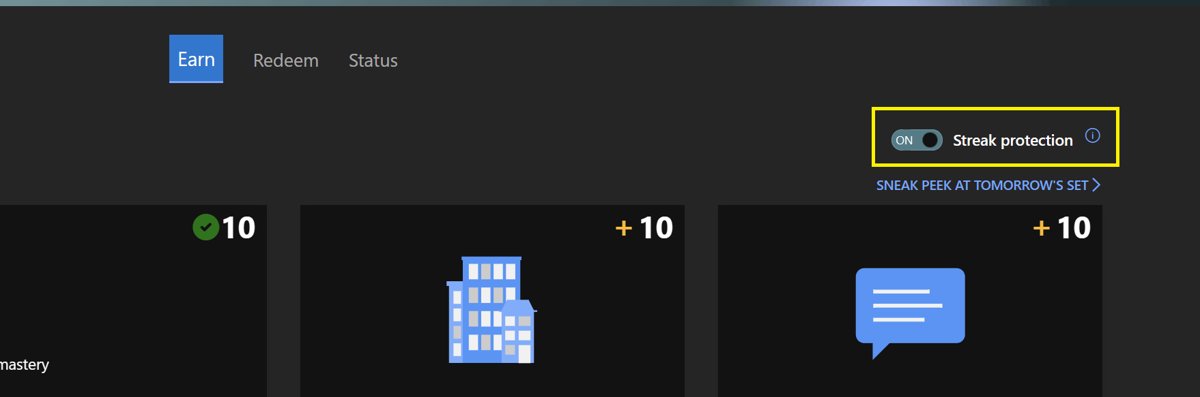
- Turn on Streak protection before a trip; you get 14 protection days per calendar year.
- Time Xbox game and add-on purchases to featured Rewards offers, and use Game Pass for the higher per-dollar rate.
Common Problems, Limits, and Eligibility Rules
These rules come from the Microsoft Services Agreement and the Rewards support pages. Breaking them can cancel the account and forfeit every point.
| Rule | What Microsoft states |
|---|---|
| Accounts | One Rewards account per person, even with several email addresses; six per household |
| Phone number | Mobile or landline only, no VoIP; a number can serve at most six accounts |
| Automation | Searches by a bot, macro or other automated means do not count and breach the terms |
| VPN and location | A VPN that masks your location may cancel the account; earning from outside your market breaks program policy |
| Travel | Points cannot be redeemed while travelling in another region |
| Regions | Rewards runs only in the countries on the Microsoft Rewards regions page; offers vary by country |
| Annual cap | No more than 550,000 points redeemed per calendar year |
| Expiry | Points expire after 12 consecutive months with no earning or redeeming |
| Inactive account | The Rewards account may be cancelled after 12 months without signing in to the Microsoft account |
| Refunds | A redemption cannot be cancelled for points back, except for defective products or where law requires |
| Opting out | Leaving the program forfeits all points, and they are not reinstated if you rejoin |
Microsoft reserves the right to cancel an account and void its points if it believes you abused the program. Redeem points you want to keep before opting out.
Fix Microsoft Rewards when points or redemptions fail
Bing searches are not earning points
Give Mode is on, you are signed in to another account, or the daily counter is already maxed.
- Check the account name in the top-right of Bing matches your Rewards account.
- Check whether Give Mode is on, since it stops points reaching your own balance.
- Stop searching once you reach 15, 30 or 60 points; the counter resets the next day.
- Turn off any VPN and search from your home country.
Microsoft Rewards is not showing on Bing
You are signed out, or Rewards or Bing search earning is not offered in your region.
- Select Sign in on bing.com with your Microsoft account.
- Check your country on the Microsoft Rewards regions support page.
- Open rewards.bing.com directly to confirm the account is active.
Balance is not updating
Browser data is not syncing, you use a different account, or you are earning outside your market.
- Sign out of Bing and sign back in with the Rewards account.
- Refresh the Dashboard and compare the balance.
- Check Give Mode, which can make the dashboard show a different balance.
Redemption is blocked or the order was cancelled
A VoIP number, a VPN, a wrong code, a phone number already used six times, or redeeming across regions.
- Use a mobile or landline number for verification.
- Wait 48 hours after too many failed verification codes before trying again.
- Turn off any VPN or proxy and redeem from your sign-up country.
- Check Order history for the cancellation status, then contact Microsoft Rewards Support through the form on its support page.
Daily streak reset to zero
The daily set was missed, a VPN or different time zone confused the date, or another account was used.
- Set your device to your real time zone, since streaks follow it.
- Turn on Streak protection next to its label on the desktop dashboard.
- Finish the Daily set every day, counted in your device's time zone.
Bottom Line
Join if you already use Bing, Edge or Xbox: do the daily set, search to your cap and aim for Silver each month. Silver doubles the search cap and adds monthly bonuses, while about 5,000 points buys a $5 reward, so steady daily use pays and bots or VPNs risk the whole balance.
Frequently Asked Questions
What is Microsoft Bing Rewards?
Microsoft Bing Rewards is the old name for Microsoft Rewards, a free loyalty program. You earn points for Bing searches, daily activities, Xbox play and Microsoft Store purchases, then redeem them for gift cards, donations or sweepstakes entries at rewards.bing.com.
What is the difference between Bing Rewards and Microsoft Rewards?
There is no difference today. Bing Rewards became Microsoft Rewards, and existing Bing Rewards members were moved over automatically. The dashboard still sits on the Bing domain at rewards.bing.com, which is why both names are still used.
How do I use Microsoft Bing Rewards?
Sign in at rewards.bing.com with your Microsoft account, complete the daily set, and search on Bing while signed in. When your balance is high enough, open the Redeem tab, choose a reward, and confirm it with a phone verification code if asked.
How many Microsoft Rewards points can I earn per day with Bing searches?
In the US, each qualifying search earns 3 points, up to 15 points a day for Members, 30 for Silver and 60 for Gold. The cap is the same on PC and mobile, and daily limits vary by country.
What can I redeem Microsoft Rewards points for?
You can redeem points for gift cards such as Amazon and Roblox, Microsoft and Xbox balance, nonprofit donations and sweepstakes entries. Donations and sweepstakes start at about 100 points, and the catalog changes by country.
Can you get Robux with Microsoft Rewards points?
Yes, through the Roblox Digital Card, listed at 13,400 points on the US Redeem page in September 2026. You redeem the card for a code, then enter that code on Roblox. A Roblox exclusive item, Plasma Wings, was listed at 10,000 points.
Why is my Microsoft Bing Rewards not working?
Searches stop earning when Give Mode is on, you are signed in to another account, the daily counter is maxed, or you appear to be outside your market. Redemptions fail with VoIP numbers, VPNs, wrong codes, or a phone number already used on six accounts.
Why isn't Microsoft Rewards on Bing?
Rewards appears on Bing only when you are signed in with a Microsoft account in a supported region. Microsoft notes that searching on Bing may not earn points in every country, so check the Microsoft Rewards regions page.
Can I use multiple Microsoft accounts to earn more Rewards points?
No. The Microsoft Services Agreement allows one Rewards account per person, even with several email addresses, and six per household. Breaking that rule can cancel the account and forfeit its points.
Do Microsoft Rewards points expire?
Yes. Points expire if you do not earn or redeem any points for 12 consecutive months. Unclaimed monthly bonuses expire sooner, usually about 30 days after they become available.
Is Microsoft Bing Rewards legit?
Yes. Microsoft Rewards is Microsoft's own program, governed by the Microsoft Services Agreement, and it costs nothing to join. Points have no cash value, and about 5,000 points usually redeems a reward worth $5.
Is Microsoft Bing Rewards safe?
Joining is as safe as using your Microsoft account. Sign in only at rewards.bing.com or Microsoft's own apps, and never use bots, macros or VPNs to farm points, because those can cancel the account.




How to Redeem a Gift Card on a Microsoft Account - Techdows
[…] redeem page will not accept it. If you want Robux through your Microsoft account, see how to earn them with Microsoft Rewards points […]
Google Play Points: how to earn and use them - Techdows
[…] you also search with Bing, Microsoft Rewards points follow a similar earn-and-redeem model. PC players can also earn and spend through Google Play […]