Install Microsoft PowerToys in Windows 11 by running winget install --id Microsoft.PowerToys --source winget in Terminal, or by getting it free from the Microsoft Store or the PowerToys GitHub releases page.
This guide covers every install route, the first settings to check, how to use the twelve most useful utilities, and how to update, disable, fix or uninstall PowerToys.
The fastest way to install PowerToys in Windows 11
WinGet ships with Windows 11, so one command installs PowerToys without opening a browser or the Store.
winget install --id Microsoft.PowerToys --source wingetRight-click Start, select Terminal, paste the command and press Enter. --id picks the exact PowerToys package and --source winget skips the Microsoft Store catalog. Accept the User Account Control prompt if it appears.
You should see: When setup finishes, the PowerToys overview window opens with a short introduction to each utility.
Which install method should you use?
Microsoft recommends the GitHub installer or the Microsoft Store. The package managers install the same app and suit scripted setups.
| Your situation | Use this | Why |
|---|---|---|
| You want the simplest click-to-install route | Microsoft Store (aka.ms/getPowertoys) | No installer file to manage; the Store page installs it directly |
| You need it for every account on the PC | GitHub machine-wide installer | Installs to Program Files so all users can open it |
| You have no admin rights | GitHub per-user installer | Installs to your own AppData\Local\Programs folder |
| You set up PCs from a script | winget install --id Microsoft.PowerToys --source winget |
Accepts /quiet, /passive and /log installer switches |
| You already manage apps with Chocolatey or Scoop | choco install powertoys or scoop install powertoys (after scoop bucket add extras) |
Community packages that update with the rest of your tools |
System Requirements and What to Know Before Installing
PowerToys has modest requirements, and Windows 11 on any supported PC meets them.
| Requirement | Detail |
|---|---|
| Windows version | Windows 11, or Windows 10 version 2004 (build 19041) or newer |
| Processor | 64-bit x64 or ARM64; there is no 32-bit build |
| WebView2 Runtime | The latest Microsoft Edge WebView2 Runtime is installed by the setup bootstrapper if missing |
| Cost and licence | Free and open source, published by Microsoft on GitHub |
| Background process | Utilities such as Keyboard Manager and Awake only work while PowerToys is running |
| Elevated apps | PowerToys cannot move or send keys to apps run as administrator unless PowerToys is also elevated |
How to Install PowerToys in Windows 11
Use these steps for the GitHub installer, which lets you choose a per-user or machine-wide install. For the Store route, open the PowerToys page at aka.ms/getPowertoys and install it from there; PowerToys has been available in the Windows 11 Microsoft Store since 2021.
- Open the Microsoft PowerToys GitHub releases page at aka.ms/installpowertoys.
- Expand the Assets list under the latest release.
- Select
PowerToysSetup-0.##.#-x64.exefor Intel or AMD PCs, orPowerToysSetup-0.##.#-arm64.exefor ARM PCs. Pick the machine-wide file if every user needs it, or the per-user file if you lack admin rights. - Open the downloaded file and follow the setup prompts.
- Wait for the overview window to appear, which confirms the install finished.
Both installer types receive updates the same way, so the choice only affects who can use the app and where it lives.
First-Time Setup: Settings You Should Check
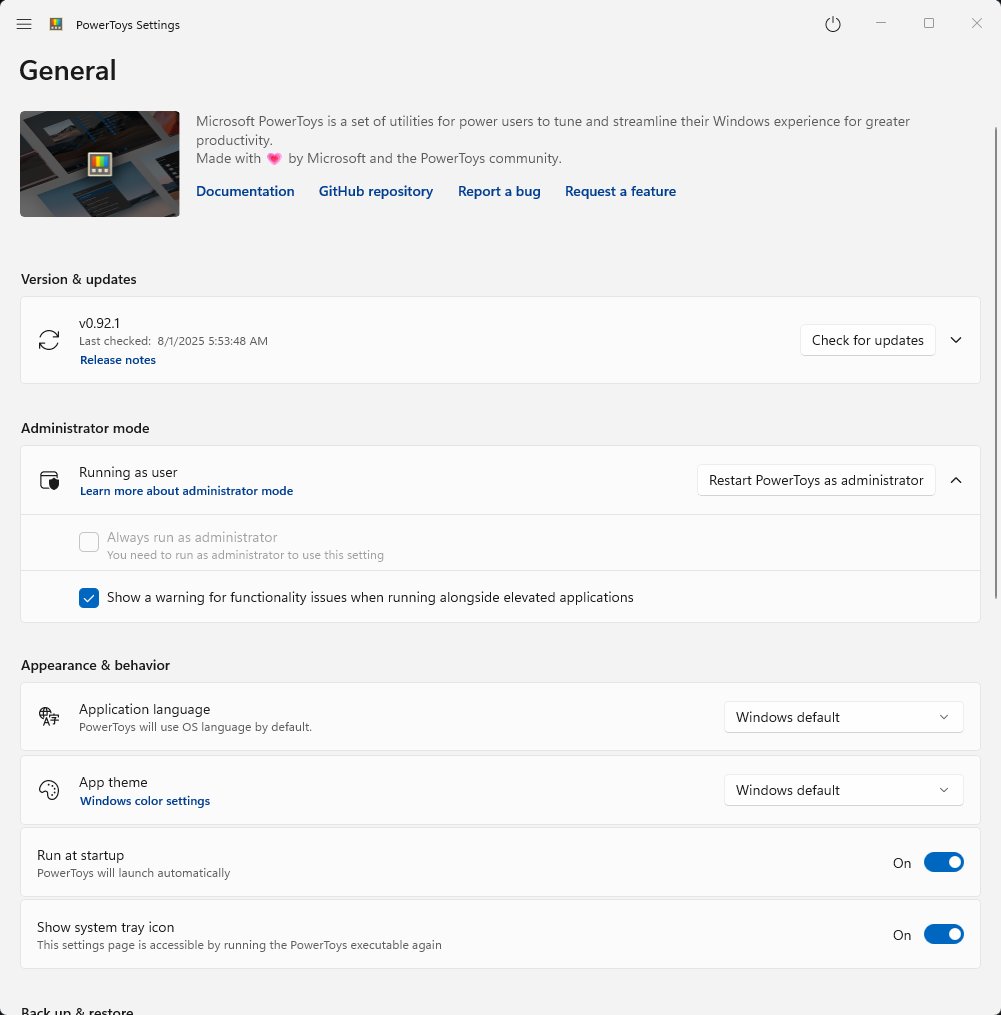
Open PowerToys Settings from the PowerToys icon in the taskbar system tray. The General page holds the options that decide how PowerToys behaves day to day.
- Select General and turn on Run at startup so remaps and shortcuts work after every sign-in.
- Under Administrator mode, select Restart as administrator when you need PowerToys to work with elevated apps such as Task Manager. Turn on Always run as administrator only if you hit that often.
- Under Version & updates, keep Download updates automatically on and check for a new version.
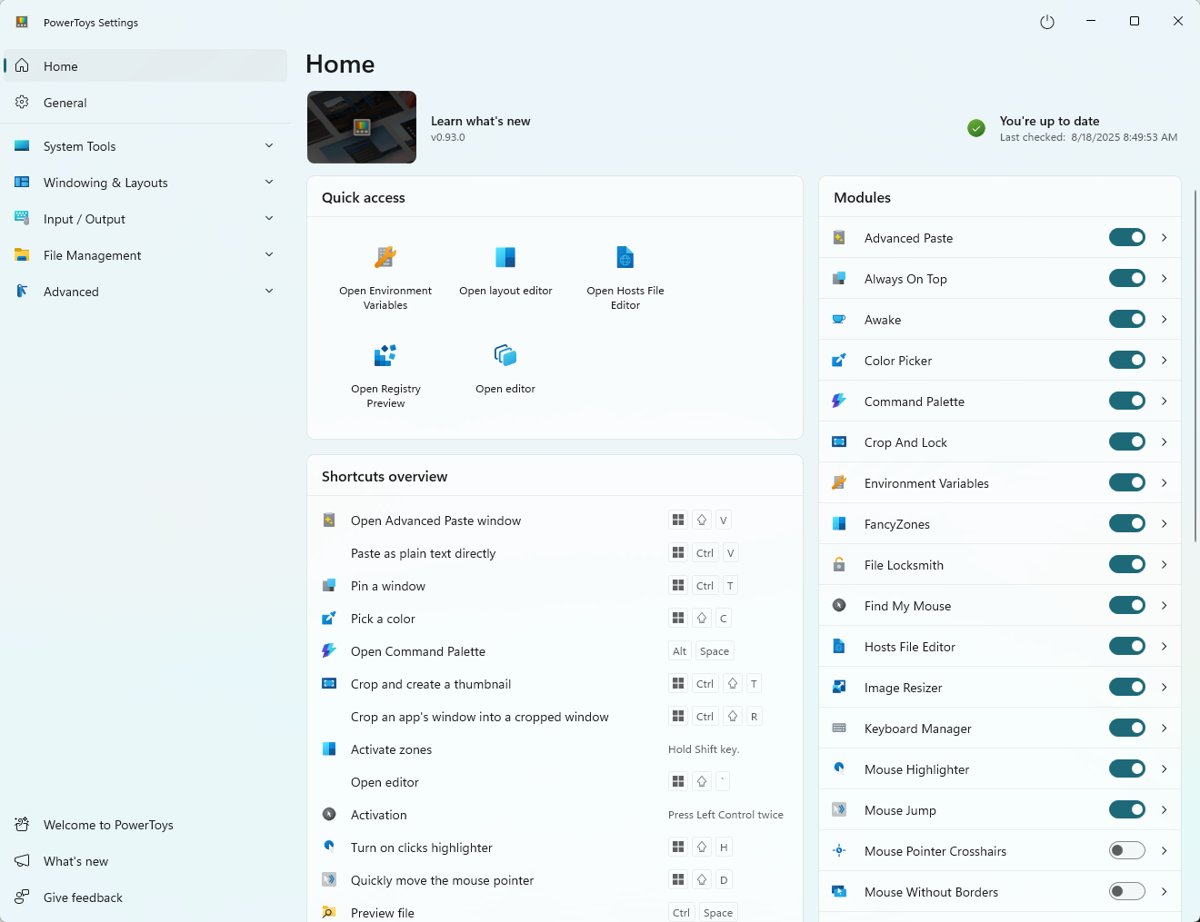
- Open Home and switch off the utilities you do not plan to use.
- Use Back up & restore to choose a folder for a settings backup before you customise anything.
Microsoft advises against running any app as administrator permanently, so prefer Restart as administrator when an elevated window needs it.
Use FancyZones to Create Better Window Layouts
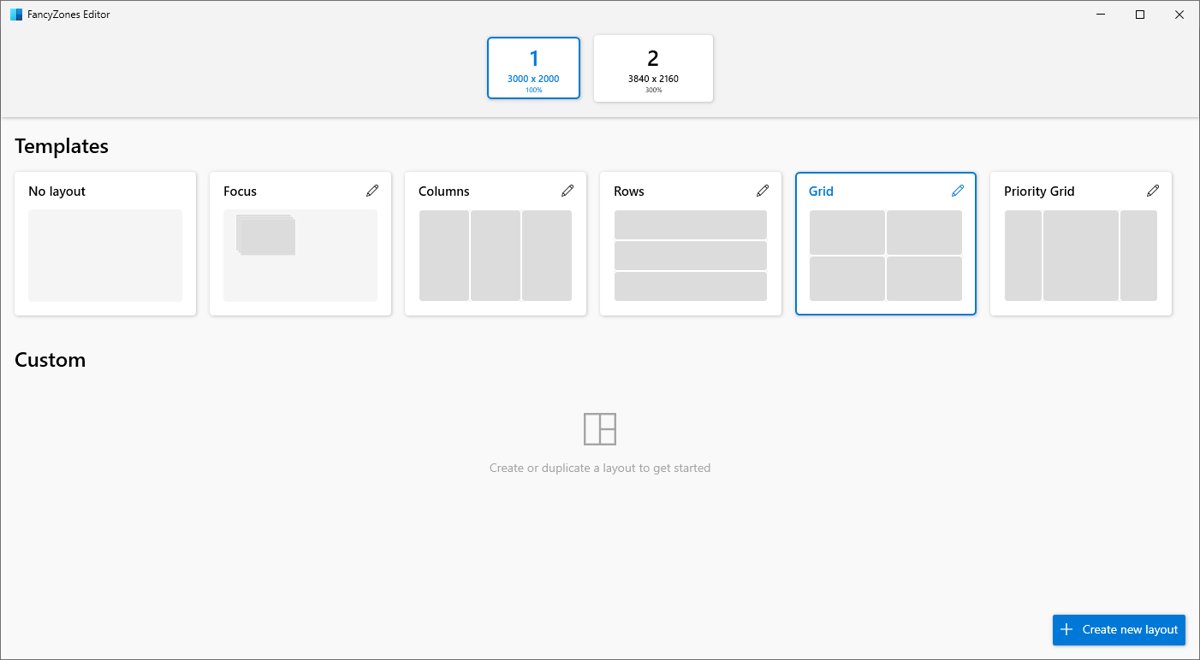
FancyZones splits each monitor into zones, and any window dropped on a zone resizes to fill it.
- Open PowerToys Settings, select FancyZones and turn it on.
- Select Open layout editor, or press the Windows key + Shift + the backtick key.
- Pick a template layout, or select Create new layout and choose Grid or Canvas.
- In a Grid layout, click inside a zone to split it and drag the dividers to resize zones, then save the layout.
- Drag any window while holding Shift, and release it over the highlighted zone.
- Press Win + PgUp or Win + PgDn to cycle between windows snapped into the same zone.
To snap with the keyboard instead, turn on Override Windows Snap and use Win + arrow keys to move the focused window between zones.
Use PowerToys Run as a Faster Launcher
PowerToys Run opens a search box that launches apps, files and commands. Microsoft now develops its successor, Command Palette, which opens with Win + Alt + Space.
| Type after Alt + Space | What happens |
|---|---|
| An app name, then Enter | Launches the app; Ctrl + Shift + Enter runs it as administrator |
= 2+2 |
Shows the calculator result |
? road |
Searches indexed files, such as roadmap.txt |
> ping localhost |
Runs a shell command |
%% 10 ft to m |
Converts units |
$ display |
Opens matching Windows Settings pages |
< outlook |
Switches to an open window whose title contains Outlook |
?? your search |
Searches the web in your default browser |
!! |
Shows results you selected earlier |
Press Esc to hide the box. Press Ctrl + Shift + E on a result to open its folder in File Explorer.
Remap Keys and Shortcuts with Keyboard Manager
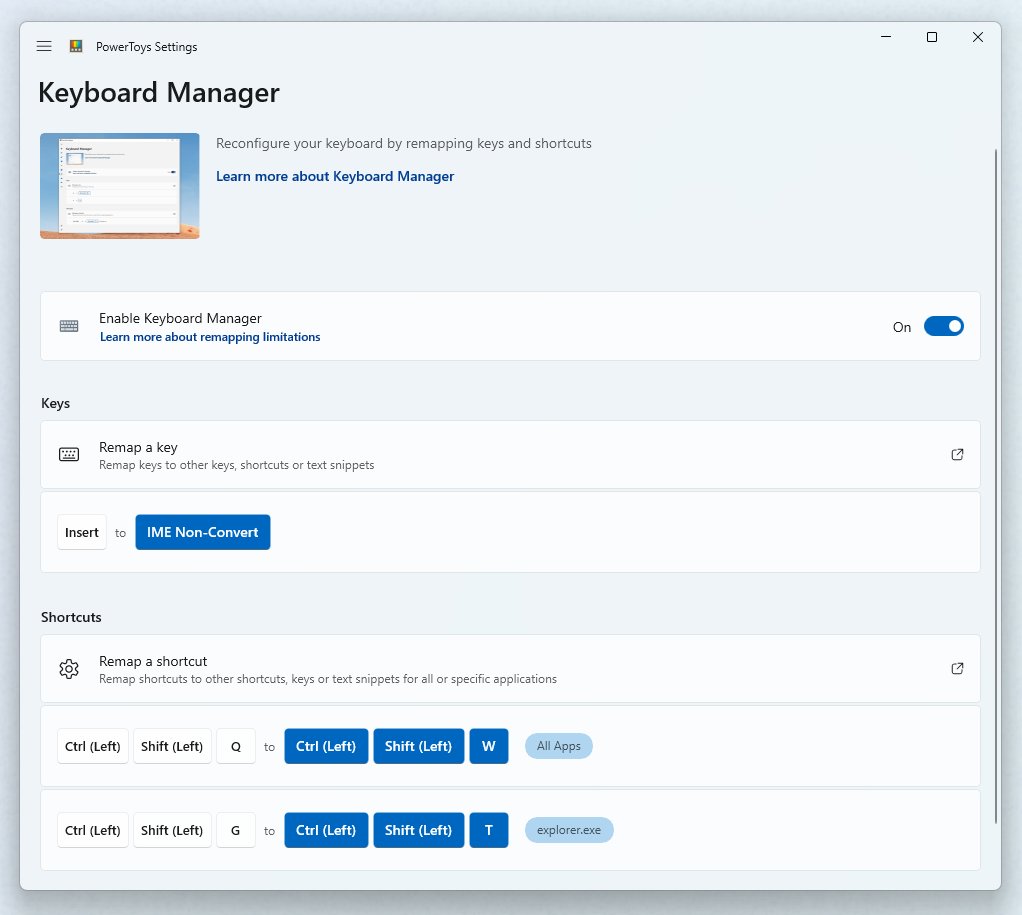
Keyboard Manager reassigns single keys or whole shortcuts, globally or for one app. Remaps stop working whenever PowerToys is closed.
- Open PowerToys Settings and select Keyboard Manager.
- Select Remap a key, then select Add key remapping.
- In the Select column choose the physical key, such as Caps Lock.
- In the To send column choose the new key, a shortcut, or Text to type a phrase.
- Select OK; the remap works immediately without a restart.
- For combinations, select Remap a shortcut instead, and enter a process name such as
msedgein Target app to limit it to one program.
Win + L and Ctrl + Alt + Del are reserved by Windows and cannot be remapped. Microsoft also advises against using Keyboard Manager while gaming, because it can lower frame rates.
Rename Many Files at Once with PowerRename
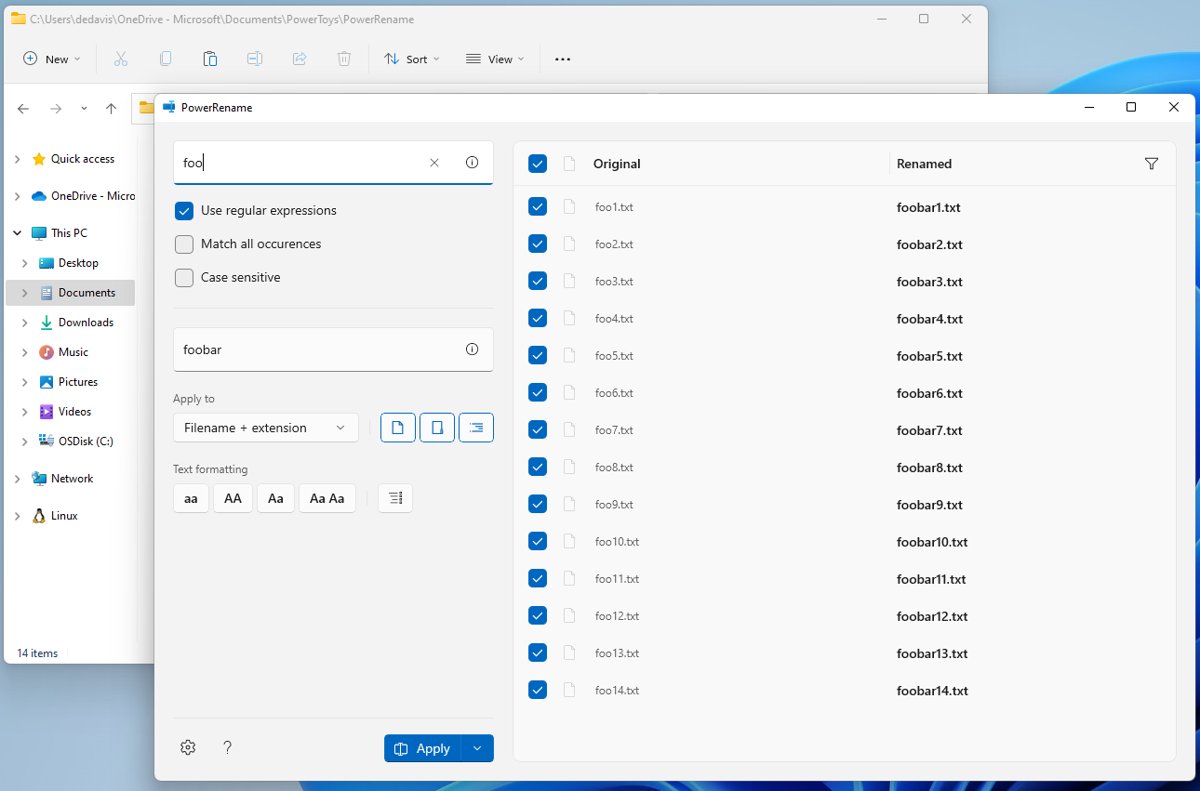
PowerRename adds bulk search-and-replace renaming to File Explorer, with a live preview before anything changes.
- Select the files or folders in File Explorer.
- Right-click them and choose Rename with PowerRename.
- Type the text to change in Search for and the new text in Replace with.
- Tick Match all occurrences to replace every match, not just the first, and Use regular expressions for patterns.
- Check the new names in the preview pane, then confirm the rename.
- Press Ctrl + Z in File Explorer if you need to undo the rename.
Tick Enumerate items and put ${} in Replace with to add a running number to each file.
Find What Is Locking a File with File Locksmith
File Locksmith lists the processes holding a file or folder open, so you can close the right one when Windows refuses to delete or move it.
- Turn on Enable File Locksmith in PowerToys Settings.
- Right-click the locked file or folder in File Explorer.
- Select Show more options, then Unlock with File Locksmith.
- Select Restart as administrator if the process could belong to another user or an elevated app.
- Select End task next to the process holding the file, then retry your delete or move.
Keep a Window Visible with Always On Top
Always On Top pins any window above everything else, which suits a video call, a calculator or reference notes.
- Select the window you want to keep visible.
- Press Win + Ctrl + T to pin it; a coloured border marks the pinned window.
- Work in other windows; the pinned one stays in front.
- Press Win + Ctrl + T again, or close the window, to unpin it.
Remote Desktop, Citrix and VMware windows can already be topmost, so a pinned window may still appear behind them.
Keep Your PC Awake Without Changing Power Settings
Awake stops the PC from sleeping during long downloads or renders without editing your power plan. When Awake stops, your normal plan applies again.
- Open PowerToys Settings, select Awake and turn on Enable Awake.
- Choose Keep awake indefinitely, Keep awake for a time interval or Keep awake until expiration.
- Set the hours and minutes, or the end date and time, if you chose a limited mode.
- Turn on Keep screen on if the display must stay lit as well.
- Right-click the Awake icon in the system tray to change the mode later.
Awake does not work while the lock screen is showing. For a locked PC that must stay on, change the Windows power plan instead.
Grab Any On-Screen Color with Color Picker
Color Picker copies the exact colour under the pointer, in HEX by default, from any app or web page.
- Press Win + Shift + C to start Color Picker.
- Scroll up to zoom in on the area under the pointer for precise picks.
- Left-click to copy the colour and open the editor, or middle-click to copy and close.
- In the editor, select the centre of the colour bar to fine-tune the HSV, RGB or HEX values.
- Paste the value from the clipboard into your design or code.
The editor keeps the last 20 picked colours. Change the copied format under Default color format in Color Picker settings.
Copy Text from Images with Text Extractor
Text Extractor uses Windows OCR to copy text from images, videos, scanned PDFs and apps that block selection.
- Press Win + Shift + T to show the capture overlay.
- Click and drag a box around the text; hold Shift to move the box instead of resizing it.
- Release the mouse button; the recognised text goes to the clipboard.
- Paste the text and proofread it, since OCR can misread characters.
Press Esc to cancel a capture. Text Extractor reads only languages whose OCR pack is installed.
Preview Files Quickly with Peek
Peek shows a full preview of images, Office documents, videos, PDFs, Markdown and code without opening the app.
- Select a file in File Explorer.
- Press Space (the default shortcut since PowerToys 0.95) to open the preview.
- Use the arrow keys to move through the other files in the folder.
- Press Enter or select Open with to open the file in its default app.
- Press Space again to close Peek.
Select the pin button to keep the Peek window's size and position for the next file.
Resize Images from File Explorer
Image Resizer resizes one photo or a whole batch from the right-click menu, using presets you define.
- Select one or more images in File Explorer.
- Right-click and choose Resize with Image Resizer.
- Pick a preset size, or enter custom dimensions in pixels, percent, inches or centimetres.
- Choose Fill, Fit or Stretch for how the image meets the new size.
- Confirm the resize; the file name follows the pattern set in Image Resizer settings, so
%1 (%2)turns example.png into example (Small).png.
Fit keeps the whole image without cropping, Fill crops to fill the size, and Stretch distorts the proportions.
Use Mouse Utilities to Find and Highlight the Pointer
Mouse Utilities help on large or multiple monitors and during screen recordings. Turn each one on under Mouse utilities in PowerToys Settings.
| Utility | How to use it | Best for |
|---|---|---|
| Find My Mouse | Press Ctrl twice or shake the mouse; click or press a key to dismiss | Locating a lost pointer on big displays |
| Mouse Highlighter | Press Win + Shift + H to show a mark on every click | Tutorials and screen recordings |
| Mouse Jump | Press its shortcut, then click a spot in the screen preview | Crossing several monitors in one move |
| Mouse Pointer Crosshairs | Press its shortcut to draw lines through the pointer | Precision work and low vision |
| CursorWrap | Move past a screen edge to appear on the opposite side | Reducing long mouse travel |
What Is Microsoft PowerToys?
PowerToys is a free, open-source set of utilities from Microsoft that adds features Windows does not include. Each tool can be turned on or off separately.
| Fact | Detail |
|---|---|
| Publisher | Microsoft, developed in the open on GitHub |
| Price | Free |
| Utility count | More than 30, from FancyZones to ZoomIt |
| Where it lives | A system tray icon, a Settings app and a Quick Access flyout |
| Updates | Built-in update checker, with automatic downloads on by default |
Other PowerToys Tools Worth Trying
| Tool | What it does |
|---|---|
| Command Palette | Keyboard-first launcher for apps, commands, files and settings (Win + Alt + Space) |
| Advanced Paste | Pastes clipboard text in another format, with an optional AI feature |
| Workspaces | Opens a set of apps in saved positions with one click |
| ZoomIt | Screen zoom, annotation and recording for presentations |
| Crop And Lock | Makes an interactive cropped window of part of another window |
| Quick Accent | Types accented characters your keyboard lacks |
| Screen Ruler | Measures pixels on screen using edge detection |
| Shortcut Guide | Shows keyboard shortcuts for Windows and your apps |
| New+ | Creates files and folders from your own templates in File Explorer |
| Hosts File Editor | Edits the Windows hosts file in a simple interface |
| Environment Variables | Manages environment variables with switchable profiles |
| Registry Preview | Views and edits .reg files before you apply them |
| Mouse Without Borders | Controls several PCs with one keyboard and mouse |
| File Explorer add-ons | Adds Preview pane and thumbnail support for more file types |
| Light Switch | Switches between light and dark themes by time of day |
| Grab And Move | Moves and resizes windows by holding a key and dragging anywhere |
How to Change PowerToys Shortcuts
Every utility with a hotkey has an Activation shortcut setting on its own settings page.
- Open PowerToys Settings and select the utility, such as Always On Top or Color Picker.
- Select the control next to Activation shortcut.
- Press the new key combination and confirm it.
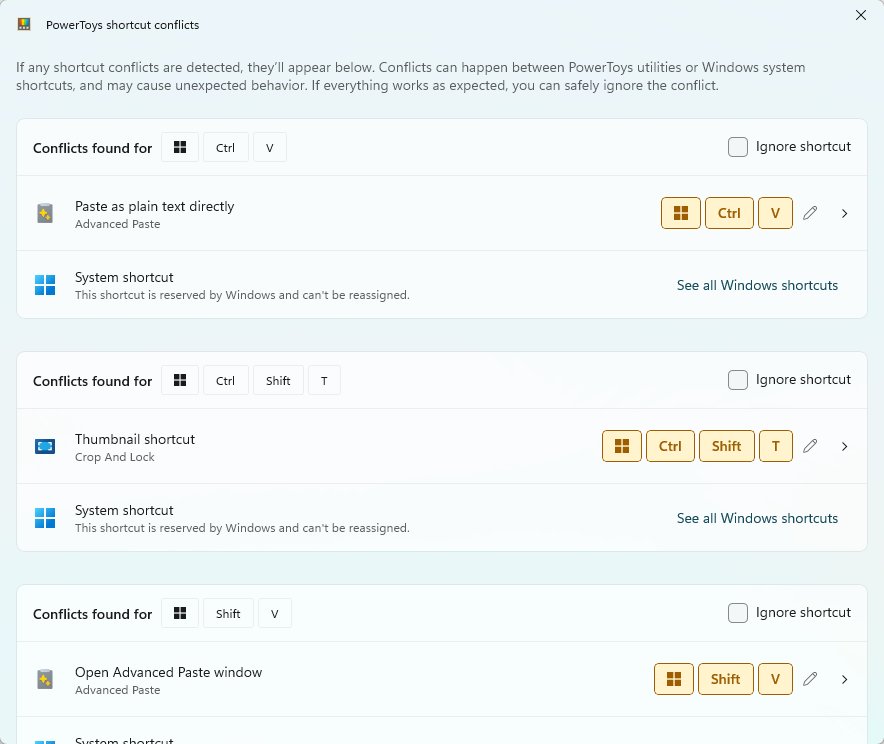
- If PowerToys shows a shortcut conflicts window, reassign or remove the clashing shortcut there.
- Press the new shortcut to confirm the utility responds.
Use the search box at the top of PowerToys Settings to jump straight to a utility's shortcut setting.
How to Disable PowerToys Tools You Do Not Use
Disabled utilities stop listening for shortcuts and drop out of the File Explorer right-click menu.
- Open PowerToys Settings and select Home.
- Switch off each utility you do not need.
- For a quicker toggle later, open the Quick Access flyout from the tray icon and switch utilities there.
- To stop everything at once, close PowerToys; remaps and shortcuts end until it starts again.
How to check PowerToys is installed and working
- Look for the PowerToys icon in the system tray, including the hidden-icons area.
- Open PowerToys Settings and confirm the utilities you use show as on under Home.
- Press Win + Ctrl + T on any window; a coloured border confirms Always On Top is active.
- Press Alt + Space or Win + Alt + Space; a search box confirms the launcher is running.
- Open General and check the version under Version & updates.
How to Update PowerToys
PowerToys checks for updates while it runs and downloads them automatically unless you turned that off. Settings are backed up before each update.
- Open PowerToys Settings and select General.
- Check for updates under Version & updates, then install any new version it finds.
- Or run
winget upgrade --id Microsoft.PowerToysin Terminal. - If you installed from the Microsoft Store, update PowerToys through the Microsoft Store app.
- For Chocolatey use
choco upgrade powertoys; for Scoop usescoop update powertoys.
After an automatic update, PowerToys restarts itself and shows a notification naming the new version.
How to Uninstall PowerToys
Uninstalling removes every utility at once, and any key remaps stop immediately.
- Close PowerToys so no utility is running.
- Select Start > Settings > Apps > Installed apps.
- Find PowerToys, select More (the three dots) and then Uninstall.
- Confirm, and follow the uninstaller prompts.
- Or run
winget uninstall --id Microsoft.PowerToys --source wingetin Terminal.
If an uninstall fails partway, Microsoft publishes cleanup scripts in the tools folder of the PowerToys GitHub repository.
Troubleshooting Common PowerToys Problems
These symptoms come from the troubleshooting and compatibility notes in Microsoft's PowerToys documentation.
Shortcuts or remaps do nothing in some apps
The app in focus runs as administrator and PowerToys does not.
- Open PowerToys Settings and select General.
- Select Restart as administrator.
- Try the shortcut again in the elevated app.
Keyboard Manager remaps stopped working
PowerToys is not running, or another app is intercepting keyboard input.
- Confirm the PowerToys icon is in the system tray and start PowerToys if it is not.
- Open Keyboard Manager, switch it off, then switch it back on.
- Turn on Run at startup under General so remaps return after sign-in.
FancyZones will not snap a window
Zones need Shift while dragging by default, and some apps cannot be zoned.
- Hold Shift while you drag the window.
- Restart PowerToys as administrator if the window belongs to an elevated app.
- Check whether the app appears in the Exclude applications from snapping to zones list and remove it.
Text Extractor shows "No Possible OCR languages are installed"
No Windows OCR language pack is available for recognition.
- Open Windows PowerShell as administrator.
- Run
Get-WindowsCapability -Online | Where-Object { $_.Name -Like 'Language.OCR*' }to list OCR packs. - Install your language, for example
Get-WindowsCapability -Online | Where-Object { $_.Name -Like 'Language.OCR*en-US*' } | Add-WindowsCapability -Online. - Select the language under Preferred language in Text Extractor settings.
The PowerToys tray icon is missing
The icon is hidden or turned off, or TaskbarX is blocking PowerToys at startup.
- Open PowerToys from the Start menu.
- Under General, turn on Show system tray icon.
- If TaskbarX is installed, close it and restart PowerToys.
Frequently Asked Questions
Is Microsoft PowerToys free and safe to install?
Yes. PowerToys is a free, open-source project published by Microsoft, and its code is public on GitHub. Install it only from the Microsoft Store, the official GitHub releases page or WinGet so you get Microsoft's signed build.
Does PowerToys work on Windows 10?
Yes. PowerToys runs on Windows 10 version 2004 (build 19041) or newer, as well as Windows 11. It needs a 64-bit x64 or ARM64 processor, so 32-bit Windows is not supported.
Does PowerToys install for all users?
It depends on the installer. The GitHub machine-wide installer puts PowerToys in Program Files for every account, while the per-user installer puts it in your own AppData folder so only you can use it.
Does PowerToys need to keep running in the background?
Yes. Keyboard Manager remaps, Awake and every activation shortcut only work while PowerToys is running. Turn on Run at startup under General so it starts each time you sign in.
Can I install PowerToys with winget?
Yes. Open Terminal and run winget install --id Microsoft.PowerToys --source winget. Update it later with winget upgrade --id Microsoft.PowerToys, which fetches the latest release from the same source.
Is PowerToys Run being replaced by Command Palette?
Microsoft describes Command Palette as the evolution of PowerToys Run. Both ship in PowerToys today: Run opens with Alt + Space and Command Palette opens with Win + Alt + Space, and each can be switched off separately.
Does PowerToys Awake change my power plan?
No. Awake asks Windows to stay awake only while it runs and leaves your power plan untouched. When you disable Awake or exit PowerToys, the normal sleep settings apply again.
Why can't I remap Ctrl + Alt + Del or Win + L?
Windows reserves both combinations, so Keyboard Manager cannot change them. The Fn key usually cannot be remapped either, although F1 to F24 can be.
Best PowerToys Tools for Most Windows 11 Users
Start with these five and switch the rest off until you need them. They solve daily problems that Windows 11 has no built-in answer for.
| Tool | Turn it on if you |
|---|---|
| FancyZones | Work across a wide or multi-monitor desk and want layouts beyond Snap |
| PowerToys Run or Command Palette | Launch apps, files and calculations from the keyboard |
| Always On Top | Keep a call, timer or notes window visible |
| PowerRename | Rename photos, downloads or documents in bulk |
| Text Extractor | Copy text from screenshots, videos or locked PDFs |