Install the free HEIF Image Extensions from the Microsoft Store, then open the .heic file in the Photos app on Windows 11 or Windows 10.
This guide covers that install, the free Apple and Microsoft routes that hand Windows a JPEG instead, and the fixes when a HEIC photo still refuses to open.
The Best Free Official Method: Install HEIF Image Extensions from Microsoft
Microsoft's Photos support article names two Store extensions for these files. HEIF Image Extensions is free and HEVC Video Extensions costs $0.99.
- Open the Microsoft Store from the Start menu.
- Search for HEIF Image Extensions and open the listing.
- Select the install button; Microsoft lists this extension as free.
- Close the Photos app if it is running, then open it again.
- Double-click the .heic file in File Explorer to view it.
Microsoft states you need both extensions, even if you only plan on using photos and not videos.
If you will not pay the $0.99, use one of the free Apple or Microsoft routes below that delivers a JPEG instead.
Which free official route fits your files
| Your situation | Free official route | Why it works |
|---|---|---|
| A few .heic files are already on the PC | HEIF Image Extensions from the Microsoft Store | Microsoft lists this extension as free and names it as the fix for the Photos error |
| Photos keeps asking for the paid HEVC extension | Download the photos again from iCloud.com as Most Compatible | Apple converts them to JPEG before the download starts |
| The photos live in iCloud Photos | iCloud for Windows | Apple documents iCloud Photos appearing in File Explorer or Microsoft Photos |
| The iPhone is in your hand and plugged in | Import with the Photos app over USB | Apple states imported media might be converted to JPEG or H.264 |
| You only need to look at one photo now | The OneDrive website in any browser | Microsoft documents previewing HEIF and HEVC files on the OneDrive website |
| Every future photo should be a JPEG | Settings > Camera > Formats > Most Compatible on the iPhone | All new photos and videos then use JPEG or H.264 |
What Is a HEIC File?
| Fact | Detail |
|---|---|
| Full name | HEIF, the High Efficiency Image File Format, introduced alongside iOS 11 and macOS High Sierra |
| What the extension means | HEIF is a container. Files compressed with HEVC typically use .heic; files compressed with AV1 typically use .avif |
| Why Apple uses it | Apple states HEIF and HEVC offer better compression than JPEG and H.264, so they use less storage space |
| Which devices capture it | iPhone 7 or later, iPad (6th generation) or later, iPad Air (3rd generation) or later, iPad mini (5th generation) or later, the listed iPad Pro models, and Apple Vision Pro |
| How Windows reads it | Through a HEIF extension codec for Windows Imaging Component, downloaded from the Microsoft Store |
| What Photos reads without it | Microsoft lists JPEG, PNG, GIF, BMP and TIFF as formats the Photos app supports |
How to Open HEIC Files in Windows Photos
Photos shows You need an extension to use this file when the codec is missing. Install the extension first, then point .heic at Photos.
- Install HEIF Image Extensions from the Microsoft Store.
- Open Settings, then select Apps > Default apps.
- Type
.heicin the search bar and select the result that appears. - Choose Photos as the app that opens files of that type.
- Double-click any .heic file in File Explorer.
- Restart Photos if it was already running when the extension installed.
The same Default apps page sets .heif, .avif and any other extension the reader collects from a phone.
What If Windows Asks You to Install HEVC Video Extensions?
| Question | What Microsoft documents |
|---|---|
| Which extension does a .heic photo need? | HEIF Image Extensions, listed as free in the Microsoft Store |
| Why does Photos ask for the HEVC one as well? | Microsoft's Photos article says you need both, even if you only plan on using photos and not videos |
| What does HEVC Video Extensions cost? | $0.99 in the Microsoft Store |
| Why is a video codec involved in a photo? | HEIF is a container whose default compression method is HEVC, and those files use the .heic extension |
| Is there a free way past the $0.99? | Yes. Have Apple or Microsoft convert the photo first, through iCloud.com, a USB import, or the iPhone camera format |
| What about Windows 10 N or Windows 11 N? | Install the Media Feature Pack and restart, then add HEIF Image Extensions from the Store |
The Media Feature Pack does not prompt for a restart, but Microsoft says the install only completes after one.
Open HEIC Files for Free with iCloud for Windows
Apple distributes iCloud for Windows through the Microsoft Store, so nothing is downloaded from a third-party site.
- Open the Microsoft Store and install iCloud for Windows.
- Update the PC to Windows 11 or later for the latest version, with Outlook 2021 or later for mail.
- Open iCloud for Windows and sign in with your Apple Account.
- Turn on iCloud Photos.
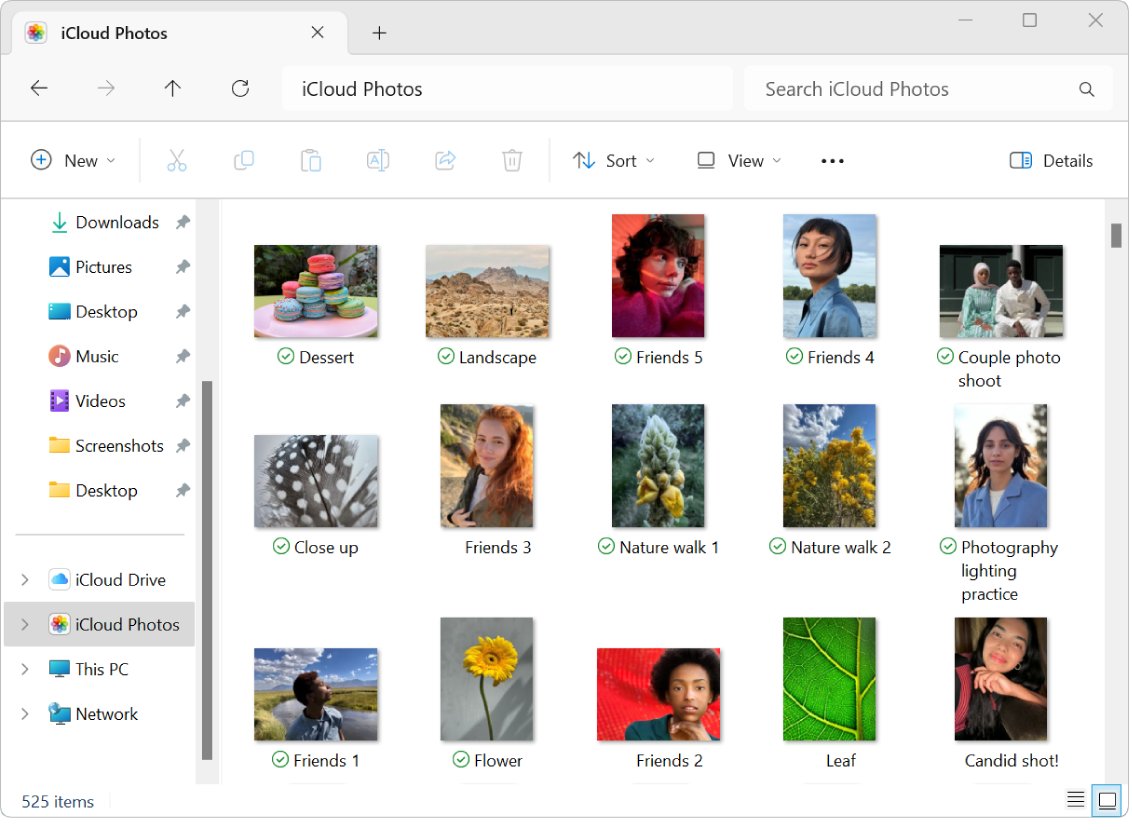
- Open File Explorer or Microsoft Photos to browse the synced library.
- Install HEIF Image Extensions so the .heic files render inside Photos.
Apple states that iCloud for Windows does not support Managed Apple Accounts, so a school or work account may not sign in.
Open or Download HEIC Photos Through iCloud.com
This is the route that needs no install at all. Apple converts the copy on its side before the download.
- Go to iCloud.com/photos and sign in with your Apple Account.
- Select one or more photos; hold the Ctrl key on a PC to select several.
- Keep the selection to 1,000 items or fewer, which is Apple's stated limit.
- Select the More button, then choose More Download Options.
- Choose Most Compatible for JPEG, or Unmodified Originals to keep the .heic file.
- Select Download.
Highest Resolution is the third option, and Apple notes it is typically HEIC or H.265.
Use OneDrive to View HEIC Files Officially
Microsoft lists OneDrive as one of three fixes for the Photos extension message, for photo files only.
- Sign in to the OneDrive website in any browser on the PC.
- Open the folder holding the photos uploaded from the phone.
- Select a .heic file to preview it in the browser.
- Download the file when you need it in a desktop app.
- Install HEIF Image Extensions if that downloaded copy is still .heic.
OneDrive for iOS uploads HEIF photos in their original format to preserve image quality, so the file in OneDrive is usually still .heic.
Convert HEIC to JPEG for Free Using Official Apple Settings
Changing the capture format stops the problem at the source. It affects new photos only, not the ones already taken.
- On the iPhone or iPad, open Settings, then tap Camera.
- Tap Formats, then tap Most Compatible.
- Confirm the change; all new photos and videos now use JPEG or H.264.
- Tap High Efficiency later to return to the space-saving formats.
- For photos already taken, open Settings, tap Apps, then tap Photos.
- Leave Keep Originals unselected so media imported over USB is converted.
Apple notes Most Compatible appears only on devices that can capture HEIF or HEVC, and Microsoft notes some iOS devices no longer offer it.
Import HEIC Photos from an iPhone to Windows
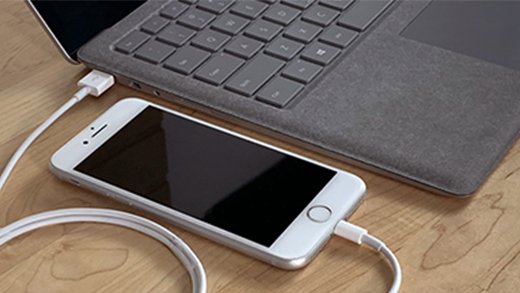
- Connect the iPhone to the PC with a USB cable that can transfer files.
- Turn the phone on and unlock it, because Windows cannot find a locked device.
- Select Trust or Allow on the Trust This Computer prompt.
- On the PC, select Start, then select Photos.
- Select Import, select the connected device, then follow the instructions.
- Pick the items to import and choose where to save them.
Apple states media imported over USB might be converted to JPEG or H.264, which is why this route often ends the problem outright.
Microsoft points readers to iCloud for Windows when the photos sit in iCloud but not on the device itself. An iPhone import also drops .aae edit files beside the pictures; see How to open aae files on Windows 11.
How to Tell Whether HEIC Support Is Working
- Double-click a .heic file in File Explorer.
- Confirm it opens in Photos and the picture renders on screen.
- Confirm the message You need an extension to use this file does not appear.
- Open Settings > Apps > Default apps, type
.heic, and confirm Photos is the listed default. - For files converted on Apple's side, confirm the name in File Explorer ends in .jpg or .jpeg.
A .mov video from the same phone can still prompt for HEVC Video Extensions, which is the $0.99 item.
Troubleshooting: HEIC Still Will Not Open
Photos shows "You need an extension to use this file"
The HEIF codec is missing, or Photos was running while it installed.
- Install HEIF Image Extensions from the Microsoft Store.
- Close Photos completely, then open it again.
- Open the same file and check whether the image renders.
Why can't Windows open HEIC files even after the extension is installed?
Microsoft states both extensions are needed, and the HEVC half is the paid one.
- Read the exact wording of the Photos message and note which extension it names.
- Download the same photo from iCloud.com/photos using More Download Options > Most Compatible.
- Open the JPEG copy in Photos, which needs no extension at all.
- Buy HEVC Video Extensions for $0.99 only if HEVC videos also have to play on this PC.
The Microsoft Store will not install HEIF Image Extensions
Store access is restricted on a managed PC, or this is an N edition missing media components.
- On Windows 10 N or Windows 11 N, install the Media Feature Pack and restart the PC.
- Open the Microsoft Store again and install HEIF Image Extensions.
- On a work or school PC, ask the administrator to allow the Store app.
- View the photos at iCloud.com/photos or on the OneDrive website meanwhile.
How to open HEIC files on Windows 7
Microsoft publishes the HEIF extension through the Microsoft Store, which targets Windows 10 and Windows 11.
- Sign in at iCloud.com/photos in a browser and view the photos there.
- Use More Download Options > Most Compatible to download JPEG copies.
- Set the iPhone camera to Settings > Camera > Formats > Most Compatible for future shots.
- Email the photos from the phone to yourself, which Microsoft lists as an automatic conversion route.
Can You Open HEIC Files in File Explorer?
Does File Explorer open a HEIC file by itself?
No. File Explorer hands the file to whichever app is registered as the default for .heic. Set that default under Settings > Apps > Default apps by typing the extension in the search bar and choosing Photos.
Do you need the extension just to copy or move .heic files?
No. Copying, renaming and moving never decode the picture. Only an app that has to display the image needs the HEIF extension codec, which is why the transfer succeeds while the preview fails.
Where do iCloud photos appear in File Explorer?
Apple states that once iCloud for Windows is installed and iCloud Photos is turned on, your iCloud Photos are available in File Explorer or in Microsoft Photos on the same PC.
Can Paint Open HEIC Files?
The HEIF codec plugs into Windows Imaging Component, which is the imaging layer Windows apps decode pictures through.
| App | Opens a .heic photo | What the official documentation says |
|---|---|---|
| Photos | Yes, with HEIF Image Extensions installed | Microsoft names the two extensions as the fix for the Photos extension message |
| Paint | Not documented by Microsoft | Microsoft does not publish a HEIC support statement for Paint; open the photo in Photos or use a JPEG copy |
| A browser at iCloud.com | Yes | Apple documents finding iCloud Photos at iCloud.com/photos in a web browser on any device |
| The OneDrive website | Yes, as a preview | Microsoft documents viewing HEIF and HEVC files on the OneDrive website in any browser |
| Apps built on Windows Imaging Component | Yes, once the HEIF extension codec is installed | Microsoft Learn lists HEIF as a WIC extension codec downloaded from the Microsoft Store |
Free Official Ways to Convert HEIC to JPEG on Windows
| Free official route | Where you do it | What lands on the PC |
|---|---|---|
| iCloud.com download options | iCloud.com/photos in any browser | JPEG, because Most Compatible delivers JPEG or MP4/H.264 |
| USB import with the Photos app | Windows 11 or Windows 10 | JPEG or H.264, since Apple states imported media might be converted |
| iPhone camera format change | Settings > Camera > Formats | JPEG for every new photo taken after the change |
| Email the photo to yourself | The iPhone Mail or Photos share sheet | A more common format, which Microsoft lists as an automatic conversion |
| OneDrive conversion for photos | The OneDrive service | Microsoft lists OneDrive as an automatic conversion route for photo files only |
None of these five routes costs anything, and none of them installs software from outside the Microsoft Store.
Should You Avoid Third-Party HEIC Openers?
Stay on the routes Microsoft and Apple document: the Store extension, the Photos app, iCloud, and OneDrive. Every outcome a third-party converter promises is already available free from the two companies that own the format and the operating system. A downloaded converter adds an installer nobody vouches for, and no image codec is worth turning off security software to install.
Frequently Asked Questions
How do you open HEIC files in Windows 11?
Install HEIF Image Extensions from the Microsoft Store, restart the Photos app, then double-click the .heic file. Microsoft lists that extension as free and names it as the fix for the Photos message about a missing extension.
How do you open HEIC files in Windows 10?
The same way as on Windows 11. Install HEIF Image Extensions from the Microsoft Store and open the photo in Photos. On a Windows 10 N edition, install the Media Feature Pack and restart the PC first.
How do you open HEIC files in Windows 11 for free?
HEIF Image Extensions costs nothing. If Photos still demands the $0.99 HEVC Video Extensions, download the photo again from iCloud.com using More Download Options > Most Compatible, which delivers a JPEG.
How do you open HEIC files in Windows 10 for free?
Use the free Store extension, or sidestep it entirely. Viewing the photo at iCloud.com/photos or on the OneDrive website in a browser needs no install, and both are documented by Apple and Microsoft respectively.
Why can't Windows open HEIC files?
Windows has no built-in HEIF decoder. Microsoft ships HEIF as an extension codec for Windows Imaging Component, downloaded separately from the Microsoft Store, so Photos reports a missing extension until that codec is installed.
How do you open HEIC files in Windows 7?
Not through the Store extensions, which target Windows 10 and Windows 11. View the photos at iCloud.com/photos in a browser, or download Most Compatible copies so they arrive as ordinary JPEG files.
How do you open HEIC files on Windows generally?
Two approaches cover every version. Either teach Windows the format with HEIF Image Extensions, or have Apple or Microsoft convert the photo to JPEG before it reaches the PC.
Do you have to pay to view HEIC photos on Windows?
No. The image extension is free. The $0.99 charge applies to HEVC Video Extensions, which Microsoft says is needed alongside it, and every free conversion route on this page avoids that purchase.
Can you open HEIC images in applications other than Photos?
Yes, in apps that decode pictures through Windows Imaging Component, because HEIF is published as a WIC extension codec. Microsoft documents the Photos app explicitly and does not publish a HEIC statement for Paint.
Bottom line
Install the free HEIF Image Extensions, set Photos as the default app for .heic, and keep iCloud.com's Most Compatible download as the fallback. That pair covers both cases: the files already sitting on the PC, and the ones still on the phone that are cheaper to convert than to decode.
Another Apple format Windows will not open on its own is the disk image; see How to open DMG files on Windows PC.