Press Ctrl + Shift + W to close all tabs in Microsoft Edge at once, because that shortcut closes the window and every tab inside it.
This guide covers the keyboard shortcuts, the tab right-click commands, closing Edge entirely, the Browser Task Manager, and how to bring the tabs back.
The fastest way to close all tabs in Edge
Microsoft documents Ctrl + Shift + W as "Close the current window". Every tab in that window goes with it.
- Select any tab in the Edge window you want to clear.
- Press Ctrl + Shift + W.
- Confirm the dialog if Edge asks before closing a window with multiple tabs.
- Repeat in any other Edge window that is still open.
Alt + F4 does the same thing and is easier to reach one-handed.
Which method should you use?
| Your situation | Use this | Why |
|---|---|---|
| One window, every tab can go | Ctrl + Shift + W | Closes the current window and every tab in it |
| Keep the page you are reading | Right-click that tab, select Close other tabs | Leaves only the tab you right-clicked |
| Clear only what you opened last | Right-click a tab, select Close tabs to the right | New tabs open to the right of an existing tab |
| Several Edge windows are open | Alt + F4 in each window | Closes the current window each time |
| A single tab is the problem | Ctrl + W | Closes the current tab only |
| Edge ignores clicks and shortcuts | taskkill /f /im msedge.exe /t |
Ends every Edge process from Command Prompt |
Understanding the Need to Close All Tabs in Edge
Each tab, extension and subframe in Edge runs as its own process, so a crowded window costs real memory.
| Reason to close all tabs | What closing them changes |
|---|---|
| Edge is using high CPU or memory | Microsoft lists one or more busy msedge.exe processes as a symptom, and ending tab processes drops the load |
| Switching between tabs feels slow | Slow tab switching is another symptom Microsoft names for high resource use in Edge |
| Memory is high with only a few tabs open | Sleeping tabs and closed tabs both release the memory a tab process holds |
| You are handing the computer to someone else | Nothing from the previous session stays on screen |
| You want a clean window next launch | Edge can restore the last session at startup, so the tabs return unless that startup action is changed |
| Edge keeps working after the last window closes | Turning off background apps stops processes that survive closing every tab |
Method 1: Using the Close All Tabs Button
Edge has no button labelled Close all tabs. The window Close button does that job, because closing the window closes every tab in it.
- Select the Edge window that holds the tabs you want gone.
- Select the Close button (X) in the top-right corner of the window.
- Confirm the dialog if Edge asks for confirmation before closing a window with multiple tabs.
- Close any remaining Edge window the same way.
That confirmation dialog is a setting, not a fixed behaviour: see Enable or disable Close all tabs prompt in New Microsoft Edge.
Method 2: Keyboard Shortcuts for Closing Tabs
These are the closing shortcuts Microsoft publishes for Edge on Windows.
| Shortcut | What it does |
|---|---|
| Ctrl + Shift + W | Closes the current window, and with it every tab in that window |
| Alt + F4 | Closes the current window |
| Ctrl + W | Closes the current tab |
| Ctrl + F4 | Closes the current tab |
| Ctrl + Shift + T | Reopens the last closed tab and switches to it |
| Ctrl + Shift + D | Saves all open tabs as favorites in a new folder before you close them |
Method 3: Using the Browser Menu
Right-clicking a tab opens the menu that holds the bulk close commands.
- Right-click the one tab you want to keep.
- Select Close other tabs, which closes every other tab in the window.
- Right-click the first tab you opened and select Close tabs to the right to clear everything opened after it.
- Press Ctrl + W to close the last remaining tab.
Edge keeps its tab management commands in this right-click menu rather than in the Settings and more menu.
Method 4: Closing Edge Entirely
Closing every window is not always the end of it. Extensions and apps can keep running after the last window shuts.
- Go to
edge://settings/systemin Edge. - Turn off Continue running background extensions and apps when Microsoft Edge is closed.
- Press Alt + F4 in each open Edge window until none remain.
- Check the notification area for a remaining Edge icon.
Step-by-Step Guide to Closing Edge Entirely
Use this when a window refuses Alt + F4. Open Command Prompt first, then run the line below.
taskkill /f /im msedge.exe /t/im msedge.exe names the image to terminate, /f ends it forcefully, and /t ends the child processes that each tab runs in.
You should see: Every Edge window disappears and no msedge.exe entry is left in Task Manager.
Anything typed into a page and not submitted is lost, so treat this as the last option rather than the first.
How to check it worked
Closing the window is not proof that the tab processes ended.
- Look at the Edge tab strip: a cleared window shows one new tab, or no Edge window is left on screen.
- Press Shift + Esc in any remaining Edge window to open the Browser Task Manager.
- Sort by Memory and confirm no tab from the old set is still listed.
- Open Task Manager in Windows and confirm no
msedge.exeprocess is running. - Go to
edge://discardsif you want the full report of which tabs were discarded.
How to reopen the tabs you just closed
Closing all tabs is reversible for as long as the session history lasts.
- Press Ctrl + Shift + T to reopen the last closed tab and switch to it.
- Press Ctrl + Shift + T again for each earlier tab, in reverse order.
- Press Ctrl + H to open History and reopen anything the shortcut no longer reaches.
- Set the startup action to Restore the last session so the tabs come back the next time Edge opens.
For the longer version, including other browsers, read How to Restore Tabs in Your Browser: Complete Guide for Edge and All Major Browsers.
Important Considerations
One startup choice changes what closing all tabs actually means.
Submit or save anything typed into a page before you close the window, and decide on the startup action before you rely on closing all tabs as a clean slate. Choosing Restore the last session reopens the URLs that were open when Edge closed, and Microsoft notes that this option turns off settings that rely on sessions or act on exit, such as clearing browsing data on exit and session-only cookies.
Tips for Managing Multiple Tabs Effectively in Microsoft Edge
| Tip | How to do it |
|---|---|
| Save the window before you clear it | Press Ctrl + Shift + D to save all open tabs as favorites in a new folder |
| Stop idle tabs using memory | Turn on Save resources with sleeping tabs at edge://settings/system/managePerformance |
| Keep one site awake | Add it to the exception list on the same performance page |
| Shorten how long a tab stays awake | Adjust the inactivity timeout on that page |
| Close a tab with the mouse alone | Set up the double-click method in How to close tabs in Microsoft Edge with double click |
| Keep work and personal pages apart | Right-click a tab and select Add tab to new group |
Using the Chrome-style Tab Grouping for Better Management
Tab grouping in Edge works the way grouping works in other Chromium browsers, and a group closes as one unit.
- Right-click a tab and select Add tab to new group.
- Pick a colour from the selector and type a name for the group.
- Right-click the next tab, select Add tab to new group, then choose the existing group from the menu.
- Select Remove from group on any tab you want to take back out.
- Close the whole group when the work is done, which closes every tab inside it.
Closing All Tabs Programmatically (Advanced)
This runs inside an Edge extension, not in the page console. The extension needs the tabs permission to read tab titles and URLs.
chrome.tabs.query({currentWindow: true}, (tabs) => chrome.tabs.remove(tabs.map(t => t.id)));chrome.tabs.query returns every tab that matches the properties you pass, and chrome.tabs.remove closes the tab ID or list of tab IDs it is given.
You should see: Every tab in the current window closes.
Troubleshooting Common Issues When Closing All Tabs in Edge
A tab will not close
The page's own code is still running, so the tab process ignores the close request.
- Press Shift + Esc in Edge to open the Browser Task Manager.
- Sort by CPU to find the busy tab.
- Select that row, then select End process.
- Close the emptied tab with Ctrl + W.
Why did Microsoft Edge close all my tabs?
Edge restarted, usually to apply an update that had already downloaded, or the browser stopped responding and closed.
- Press Ctrl + Shift + T repeatedly to bring the tabs back.
- Go to
edge://settings/helpand read the update status. - Select Restart if an update is waiting to be applied.
- Set the startup action to Restore the last session so a restart no longer costs you the session.
Why did all my tabs suddenly close on their own?
The startup action is set to open a new tab, so nothing is restored after the computer or the browser restarts.
- Open Edge settings and find the startup action.
- Change it from Open a new tab to Restore the last session.
- Close Edge and reopen it to confirm the previous tabs return.
- Press Ctrl + H and reopen from History anything that did not come back.
Edge closes every tab with no warning prompt
The confirmation dialog before closing a window with multiple tabs is turned off, or an administrator has not enabled it.
- Turn the prompt back on using Enable or disable Close all tabs prompt in New Microsoft Edge.
- On a managed device, ask the administrator about the AskBeforeCloseEnabled policy.
- Use Ctrl + Shift + D before closing, which saves all open tabs as favorites in a new folder.
- Keep Ctrl + Shift + T in mind as the immediate undo.
Ensure Browser is Up to Date
A pending update explains a surprising share of closing and crashing behaviour.
- Select Settings and more > Help and feedback > About Microsoft Edge, or go to
edge://settings/help. - Read the status line: Microsoft Edge is up to date means nothing more is needed.
- Select Download and install if an update is offered.
- Select Restart to apply an update that has already downloaded.
- Turn on Download and install updates automatically if that toggle is available.
On a managed device the toggles can be dimmed, which means the organisation controls updates.
Force Close All Tabs Manually
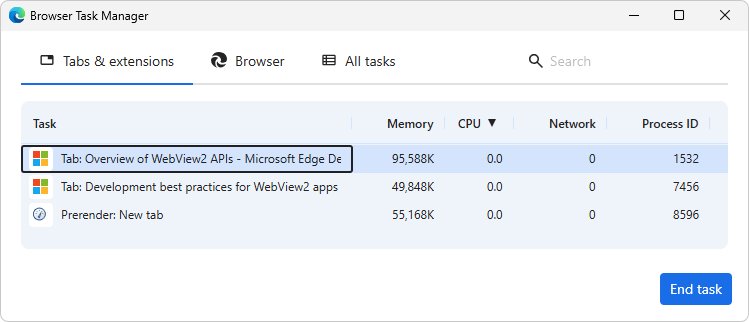
The Browser Task Manager ends individual tabs without touching the rest of the browser.
- Press Shift + Esc in Edge to open the Browser Task Manager.
- Sort by CPU or Memory to rank the tabs, extensions, subframes and utility processes.
- Select a tab row, then select End process.
- Repeat for each tab that refuses to close normally.
- Close the emptied window with Ctrl + Shift + W.
Check for Extensions or Apps Interfering
An extension that hooks tab events can hold a window open or push the CPU high enough that nothing responds.
- Go to
edge://extensions/. - Turn off all extensions.
- Try closing the tabs again and watch whether the window closes.
- Turn the extensions back on one at a time to find the one that causes the problem.
- Go to
edge://settings/systemand turn off Continue running background extensions and apps when Microsoft Edge is closed.
Use Task Manager or Activity Monitor
When Edge stops drawing its own window, the operating system's process tool is the way out.
- On Windows, open Task Manager and look for the Microsoft Edge entry and its
msedge.exeprocesses. - Select the Microsoft Edge entry and end the task.
- On a Mac, open Activity Monitor and select Microsoft Edge under Process Name.
- Select the stop button in the upper-left corner of the Activity Monitor window.
- Choose Quit, which does the same as choosing File > Quit inside the app.
A process marked (Not Responding) appears in red in Activity Monitor, which tells you which one to end.
Reset or Reinstall Edge
A reset is the supported repair for tab behaviour that survives every other fix.
- Go to
edge://settings/helpfirst and apply any pending update. - Go to
edge://settings/reset. - Select Restore settings to their default values.
- Confirm, then restart Edge and try closing the tabs again.
A reset keeps favorites, history and saved passwords. It resets pinned tabs, the startup page, the search engine and extensions.
Frequently Asked Questions
How do you close all tabs in Edge?
Press Ctrl + Shift + W. Microsoft documents that shortcut as "Close the current window", and closing the window closes every tab in it. Alt + F4 has the same effect. To keep one page, right-click its tab and select Close other tabs.
Is there a close all tabs shortcut key in Edge?
Ctrl + Shift + W is the closest thing to one. There is no shortcut that empties the tab strip while leaving the window open, so closing the window is the route. Ctrl + W closes only the current tab.
Why did Microsoft Edge close all my tabs?
Edge usually closed because it restarted to apply an update, or because it stopped responding. Press Ctrl + Shift + T to reopen the tabs, then check edge://settings/help and select Restart if an update is waiting.
Why did all my tabs suddenly close?
If the tabs vanish after every restart, the startup action is set to open a new tab rather than restore the last session. Change it to Restore the last session and Edge reopens the URLs that were open when it closed.
How do you quickly close all tabs?
Press Ctrl + Shift + W once per Edge window. Save the set first with Ctrl + Shift + D, which stores all open tabs as favorites in a new folder, so nothing is lost when the window goes.
How do you close tabs that won't close?
Press Shift + Esc to open the Browser Task Manager, sort by CPU, select the stuck tab and select End process. If the whole browser is frozen, run taskkill /f /im msedge.exe /t from Command Prompt.
How do you close all tabs in Chrome?
The same window-close shortcuts apply, because Chrome and Edge share the Chromium tab model. Close all opened browser tabs at once in Chrome, Edge, or Firefox covers each browser in turn.
How do you close all tabs in Windows 11?
Tabs belong to the browser, not to Windows, so close them in Edge with Ctrl + Shift + W. To end the browser and every tab process from outside it, use Task Manager or run taskkill /f /im msedge.exe /t.
Why should you close all tabs?
Every tab, extension and subframe runs as its own process in Edge. Microsoft lists high memory with few tabs open and slow tab switching as symptoms of heavy resource use, and closing tabs ends those processes.
Does closing all tabs also close Microsoft Edge?
Closing the last window closes the visible browser, but background extensions and apps can keep running. Turn off Continue running background extensions and apps when Microsoft Edge is closed at edge://settings/system to stop that.