Close the browser window to close every tab in it at once: press Ctrl + Shift + W in Chrome or Edge, or Alt + F4 in any browser on Windows.
This guide covers Chrome, Edge and Firefox on Windows and Mac, closing every tab but one, the phone apps, saving tabs before you close them, and what to do when tabs refuse to close.
The fastest way: close the whole browser window
A browser window holds all of its tabs, so closing the window closes them in one move. If you have several windows open, repeat it for each one or quit the browser.
- Click anywhere in the browser window whose tabs you want gone.
- On Windows, press Alt + F4. In Chrome and Edge, Ctrl + Shift + W does the same job.
- On a Mac, press Command + Shift + W in Chrome or Edge to close the window.
- To close every window of the browser at once on a Mac, press Command + Q to quit it.
- If a prompt asks whether you want to close all tabs, confirm it.
Closed something by mistake? Reopen the browser and press Ctrl + Shift + T (Mac: Command + Shift + T) to bring the tabs back.
Close all tabs in Chrome
Chrome gives you three levels: close one window, quit Chrome entirely, or close a tab group. Chrome's help pages document no command that closes every tab except one, so use the drag-out trick in the last step for that.
- To close all tabs in the current window, click Close at the top right of the window (top left on a Mac), or press Ctrl + Shift + W (Mac: Command + Shift + W).
- To quit Chrome and close every Chrome window, select More (three dots) > Exit on Windows, or press Alt + F then X.
- On a Mac, select Chrome > Quit Google Chrome, or press Command + Q.
- To close a tab group, right-click the group's name and select Close group. Chrome saves the group rather than deleting it.
- To remove a group for good, right-click it, select Delete group, then confirm Delete group.
- To keep one tab and close the rest, drag that tab out of the tab strip so it opens in a new window, then close the original window.
Close all tabs in Microsoft Edge
Edge uses the same window and quit shortcuts as Chrome. It can also show a confirmation before a multi-tab window closes, which techdows covered when Edge added the close-all-tabs warning.
- To close all tabs in the current window, press Ctrl + Shift + W or Alt + F4 (Mac: Command + Shift + W), or click the X at the top of the window.
- If Edge asks Do you want to close all tabs?, select the close button to confirm.
- To quit Edge on a Mac and close every window, press Command + Q.
- To keep one tab and close the rest, drag it out of the tab strip into its own window, then close the old window.
- If Edge is frozen and ignores these shortcuts, use Windows Task Manager as described in the troubleshooting section.
Edge's tab right-click menu also carries a close-others command that Microsoft briefly removed and then re-added to Edge in 2019.
Close all tabs in Firefox
Firefox has the most complete tab menu of the three. Its Close Multiple Tabs submenu closes tabs to either side, every other tab, or duplicates.
- To close all tabs in the current window on Windows, press Alt + F4, or use the menu bar's File > Close Window.
- To quit Firefox and close every window on Windows, open the main menu (three lines) and select Exit. On Linux the item is Quit, and on a Mac select Firefox > Quit Firefox or press Command + Q.
- To keep only the current tab, right-click it and select Close Multiple Tabs > Close Other Tabs.
- To trim one side of the tab strip, right-click a tab and select Close Multiple Tabs > Close Tabs to Right or Close Tabs to Left.
- To remove repeat copies of the same page, select Close Multiple Tabs > Close Duplicate Tabs.
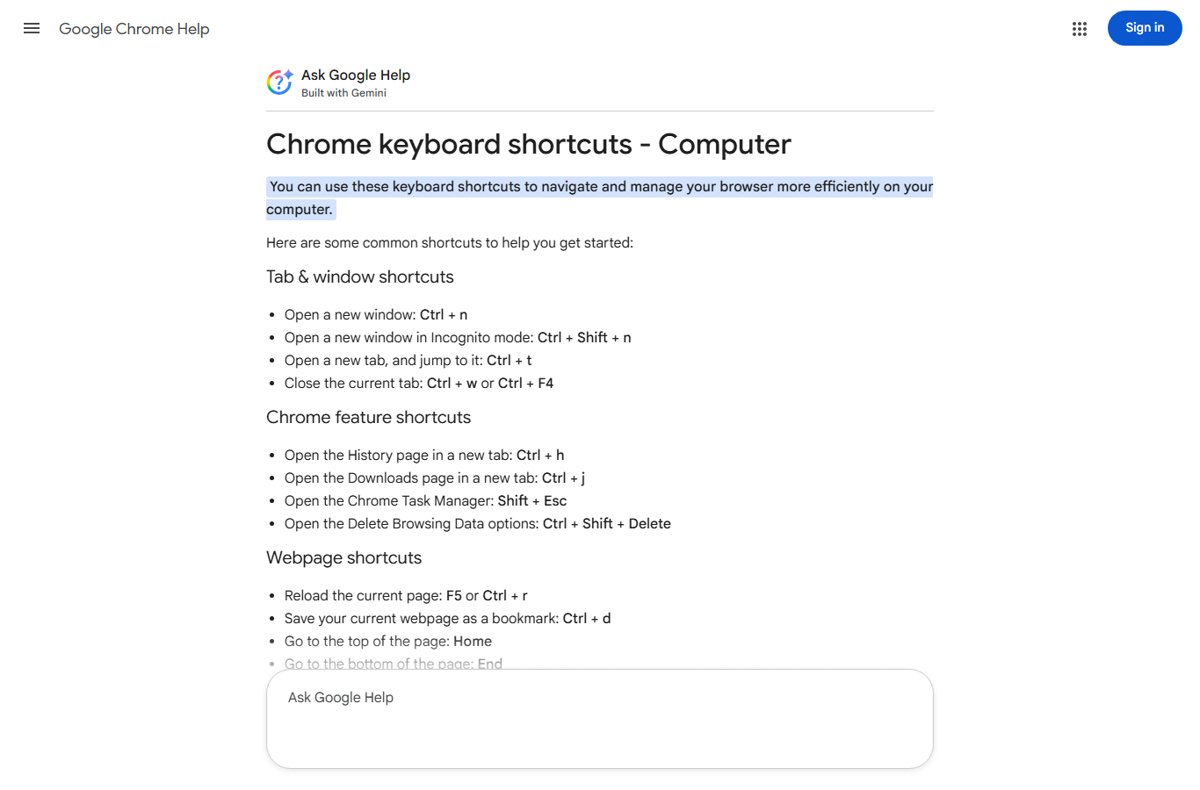
Close-all shortcuts and menus for each browser
Use this table as a quick reference. Mac shortcuts are in brackets.
| Action | Chrome | Microsoft Edge | Firefox |
|---|---|---|---|
| Close the current tab | Ctrl + W or Ctrl + F4 (Command + W) | Ctrl + W (Command + W) | Ctrl + W |
| Close the current window and all its tabs | Ctrl + Shift + W or Alt + F4 (Command + Shift + W) | Ctrl + Shift + W or Alt + F4 (Command + Shift + W) | Alt + F4; File > Close Window |
| Quit the browser and close every window | Alt + F then X; More > Exit (Command + Q) | (Command + Q) | Main menu > Exit (Command + Q) |
| Close every tab except one | Drag the tab into its own window, then close the old window | Drag the tab into its own window, then close the old window | Right-click the tab > Close Multiple Tabs > Close Other Tabs |
| Save all open tabs first | Ctrl + Shift + D (Command + Shift + D) | Ctrl + Shift + D (Command + Shift + D) | Bookmarks > Bookmark All Tabs |
| Reopen what you closed | Ctrl + Shift + T (Command + Shift + T) | Ctrl + Shift + T (Command + Shift + T) | Ctrl + Shift + T; main menu > Restore previous session |
Close all tabs without losing them forever
If you only want a clean screen, save the tabs before you close them. Pick one of these, then close the window as normal.
- In Chrome, press Ctrl + Shift + D (Mac: Command + Shift + D) to save all open tabs as bookmarks in a new folder.
- In Edge, press the same Ctrl + Shift + D to save all open tabs as favorites in a new folder.
- In Firefox, select Bookmarks > Bookmark All Tabs from the menu bar.
- To have the tabs come back automatically, set Chrome's On startup option to Continue where you left off, Edge's When Edge starts option to Open tabs from previous session, or tick Firefox's Open previous windows and tabs under Startup.
- Close the window. The saved folder, or the next launch, brings the tabs back.
- If you forgot to save first, press Ctrl + Shift + T right after reopening the browser.
For every recovery route per browser, including history and sync, see how to restore tabs in your browser.
Close all tabs on iPhone, iPad, and Android
Chrome's phone apps have a real close-all command. The Edge mobile help documents closing tabs one at a time only.
| App | Close all tabs | Undo or recover |
|---|---|---|
| Chrome on Android | Tap Switch tabs to the right of the address bar, then tap More > Close all tabs | Chrome on Android can also restore all closed tabs at once |
| Chrome on iPhone | Tap Switch tabs at the bottom, then tap Close All at the bottom left | Tap Undo at the bottom left straight away |
| Chrome on iPad | Tap Close in the upper right corner of each tab | Reopen pages from history |
| Chrome inactive tabs (Android and iPhone) | Open Inactive tabs, tap Close all inactive, then Close all (Android: Close all inactive tabs > Close all) | Reopen pages from history |
| Edge on Android or iPhone | Tap the numbered square icon, then tap X on each tab or swipe it left or right. On Android, Exit browser in the menu closes the app | Open the menu > History and select the page |
How to make the browser ask before closing many tabs
A confirmation stops one stray Alt + F4 from wiping out a research session. Firefox 94 and later no longer warn by default, so the setting has to be turned back on.
| Browser | Where to turn the warning on | Notes |
|---|---|---|
| Firefox | Open Settings > General. Under Tabs, tick Ask before closing multiple tabs, and Ask before quitting with the quit shortcut if it is shown | Firefox says every quit and close warning can be managed from Settings |
| Microsoft Edge | Edge shows Do you want to close all tabs? when a window with several tabs closes. Tick the don't-ask option in the prompt to stop it, or search Settings for closing to turn it back on |
The option arrived in Edge 89; the menu location has moved since |
| Chrome | Chrome's help pages list no close-all warning | Save tabs with Ctrl + Shift + D or set Continue where you left off instead |
What happens to pinned tabs, private tabs, and unsaved work?
| Tab type | When you close the window or quit | How to protect it |
|---|---|---|
| Pinned tabs | They close with the window like any other tab. In Chrome on Android, touch and hold a pinned tab and select Close tab to close it on its own | Set the browser to reopen previous tabs at startup so pinned tabs return |
| InPrivate (Edge) and Incognito (Chrome) tabs | Edge deletes history, cookies and site data when the last InPrivate window closes. Chrome keeps no record of Incognito sites | Nothing restores them. Bookmark a page first if you need it later; bookmarks and downloads are kept |
| Tab groups in Chrome | Close group keeps the group saved; Delete group removes it | Use Close group, not Delete group |
| Unsaved typing in web forms | Text you typed but did not submit is usually lost. Some sites show a leave-page warning first | Submit or copy the text before closing the window |
Best method for common situations
| Your situation | Use this | Why |
|---|---|---|
| One window full of tabs | Ctrl + Shift + W or Alt + F4 | One keystroke, and Ctrl + Shift + T undoes it |
| Several windows open | Quit the browser (Alt + F then X in Chrome, Exit in Firefox, Command + Q on Mac) | Closes every window together |
| Keep one tab, lose the rest | Firefox: Close Other Tabs. Chrome and Edge: drag the tab out, then close the old window | The kept tab survives in its own window |
| Want the tabs back later | Ctrl + Shift + D first, then close | The tabs land in a bookmarks or favorites folder |
| Browser frozen | Windows Task Manager > End task | Works when the browser ignores keystrokes |
| Phone full of old tabs | Chrome: Switch tabs > Close all tabs or Close All | One tap instead of dozens of swipes |
How to check every tab really closed
- Look at the taskbar (Mac: the Dock). No browser window thumbnail should remain for the browser you closed.
- In Chrome, open the browser again. With On startup set to Open the New Tab page, only a single new tab appears.
- In Windows Task Manager, check that the browser is gone from the Apps list under Processes.
- On a phone, open the tab switcher. It should show no open tabs.
Troubleshooting: when tabs will not close
The browser is frozen and tabs will not close
A page or extension has hung the browser, so it ignores clicks and shortcuts.
- Right-click Start and select Task Manager (or press Ctrl + Alt + Delete and select Task Manager).
- Select Processes in the left menu.
- Under Apps, right-click Google Chrome, Microsoft Edge or Firefox and select End task.
- Close Task Manager and reopen the browser.
- Press Ctrl + Shift + T if you want the tabs back.
Closed tabs come back every time the browser opens
The startup setting is set to reopen the previous session.
- In Chrome, select More > Settings > On startup and choose Open the New Tab page.
- In Edge, select Settings and more > Settings > Start, home, and new tab page, and under When Edge starts choose Open the new tab page.
- In Firefox, open Settings > General and clear Open previous windows and tabs.
- Close the browser and reopen it to confirm only a new tab appears.
Why does the browser keep opening new tabs?
Unwanted software or an extension is opening pop-ups and tabs, or changing your homepage.
- On Windows, go to Start > Settings > Apps > Installed apps.
- Select any program you do not recognise or did not install and select Uninstall.
- On a Mac, open Finder > Applications, right-click the unwanted program and select Move to Trash.
- In Chrome, select More > Settings > Reset settings > Restore settings to their original defaults > Reset settings.
- Remove browser extensions you did not add yourself.
Why is Chrome closing with tabs open?
Chrome crashed, often because the computer ran out of memory with many tabs, apps and downloads open.
- Reopen Chrome and press Ctrl + Shift + T (Mac: Command + Shift + T) to reopen the tabs that were open before it closed.
- Close every tab except the one you need.
- Close other apps and pause any downloads.
- Quit Chrome fully and reopen it, then load the page again.
Frequently Asked Questions
How do I close all tabs in my browser at once?
Close the browser window. Press Ctrl + Shift + W in Chrome or Edge, or Alt + F4 in any browser on Windows. On a Mac, press Command + Shift + W in Chrome or Edge, or Command + Q to quit the browser and close every window.
How do I close all tabs except the current one?
In Firefox, right-click the tab and select Close Multiple Tabs > Close Other Tabs. In Chrome or Edge, drag the tab you want to keep out of the tab strip into its own window, then close the original window.
How do I close my browser without closing tabs?
Turn on session restore before you close it. Choose Continue where you left off in Chrome's On startup settings, Open tabs from previous session in Edge, or Open previous windows and tabs in Firefox. The tabs reopen at the next launch.
How do I keep my tabs when closing the browser?
Save them as a folder first with Ctrl + Shift + D in Chrome or Edge, or Bookmark All Tabs in Firefox. Alternatively set the browser to reopen previous tabs at startup, so closing the window never loses them.
How do I reopen closed browser tabs?
Press Ctrl + Shift + T on Windows or Command + Shift + T on a Mac. Each press reopens one more tab, and in Chrome it also reopens a closed window. Firefox also has Restore previous session in its main menu.
How do I close all tabs on my phone?
In Chrome on Android, tap Switch tabs, then More > Close all tabs. In Chrome on iPhone, tap Switch tabs, then Close All at the bottom left, and tap Undo if you change your mind.
How do I stop my browser opening new tabs by itself?
Remove unwanted programs from Settings > Apps > Installed apps, remove extensions you did not add, and in Chrome use Settings > Reset settings. Tabs that open on their own are a listed sign of unwanted software.
Why is Chrome closing with tabs open?
Chrome is usually crashing, often from low memory. Reopen it and press Ctrl + Shift + T to get the tabs back, then close tabs you do not need, close other apps and pause downloads.
Does closing a private or Incognito window delete everything?
Yes for browsing records. Edge deletes history, cookies and site data when the last InPrivate window closes, and Chrome keeps no record of sites visited in Incognito. Bookmarks and downloads you made are kept.