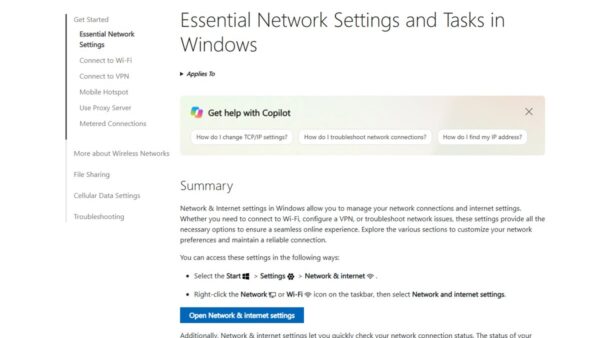
To run any troubleshooter on Windows 11, open Settings > System > Troubleshoot > Other troubleshooters and select Run next to the problem; on Windows 10, open Settings > Update & Security > Troubleshoot > Additional troubleshooters.
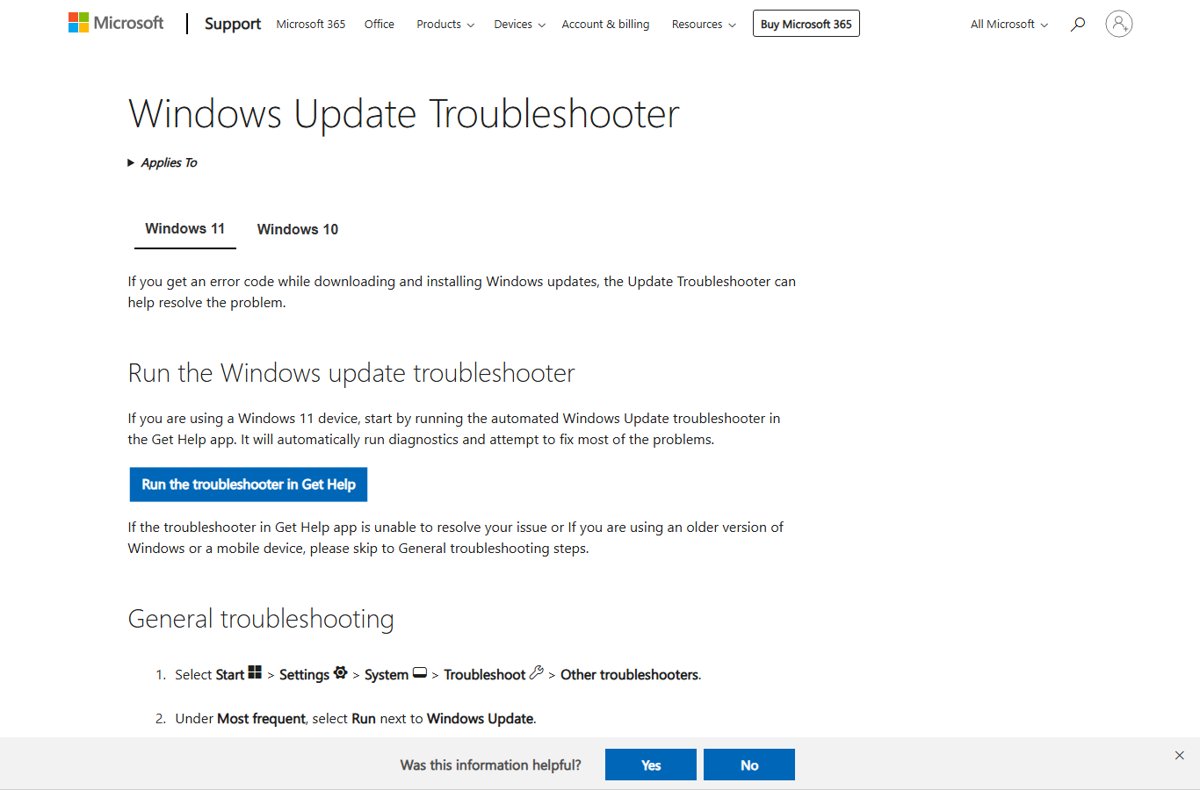
On current Windows 11 releases those buttons open troubleshooters in the Get Help app, because Microsoft retired the old MSDT troubleshooters. This guide covers every launch route, which troubleshooter fits which problem, where results are logged, and what to do when a troubleshooter is missing or fails.
Run a Troubleshooter in Windows 11 Settings
This is Microsoft's own route on Windows 11. On releases newer than 22H2, the Run button hands the job to the Get Help app.
- Select Start > Settings.
- Select System, then scroll down and select Troubleshoot.
- Select Other troubleshooters.
- Find your problem. Windows Update, for example, sits under Most frequent.
- Select Run next to it.
- If Get Help opens, agree to the diagnostics prompt and follow the on-screen instructions.
- Restart the PC when the troubleshooter finishes, then test the thing that was broken.
Get Help reports what it found and suggests remedies at the end of each run. If nothing changed, work through the fixes in the last two sections of this guide.
Which way to open a troubleshooter fits your PC
| Your situation | Use this | Why |
|---|---|---|
| Windows 11, you know the problem area | Settings > System > Troubleshoot > Other troubleshooters | Every supported troubleshooter is listed with its own Run button |
| Windows 10 | Settings > Update & Security > Troubleshoot > Additional troubleshooters | Windows 10 still runs the legacy built-in troubleshooters |
| You want to type the problem in plain words | The Get Help app | Search for the troubleshooter by name, for example printer troubleshooter |
| You want the Troubleshoot page in one step | Press Windows logo key + R and run ms-settings:troubleshoot |
Opens the Troubleshoot page directly on both versions |
| An old app misbehaves | Program Compatibility troubleshooter in Get Help | It checks compatibility settings for the program |
| You need Keyboard, Power or Search and Indexing | The fixes in the missing-troubleshooter section below | Microsoft removed those troubleshooters from newer Windows 11 releases |
What Windows Troubleshooters Can and Cannot Do
A troubleshooter runs a fixed set of checks for one problem area and applies the fixes it knows. It does not repair hardware faults or replace a missing driver from a vendor.
| Troubleshooters can | Troubleshooters cannot |
|---|---|
| Restart and reset Windows services tied to the problem, such as Windows Update or BITS | Fix a failed component, such as a dead speaker or a broken Wi-Fi card |
| Detect common misconfigurations in audio, network, printer, camera and Bluetooth | Fix problems inside a router, printer firmware or an internet provider's network |
| Report each finding as fixed, not fixed, or not found | Guarantee a fix; a run can end with the problem detected but not fixable |
| Suggest remedies in Get Help when no automatic fix exists | Repair corrupted Windows system files; that is the job of sfc and DISM |
| Run some fixes automatically in the background through recommended troubleshooting | Override settings your organization enforces through Group Policy |
Run a Troubleshooter in Windows 10 Settings
Windows 10 is not affected by the MSDT retirement. It keeps running the legacy built-in troubleshooters from Settings.
- Select Start > Settings > Update & Security.
- Select Troubleshoot in the left-hand menu.
- Select Additional troubleshooters.
- Under Get up and running, select the troubleshooter you need, such as Windows Update, Playing Audio or Internet Connections.
- Select Run the troubleshooter.
- Follow the prompts, apply any fix it offers, then close the window.
- Restart the PC and check whether the problem is gone.
The Windows 10 network troubleshooter also has a shortcut: Settings > Network & Internet > Status > Network troubleshooter. It opens a window titled Troubleshoot problems.
Use Windows Search to Launch Troubleshooters Quickly
- Select Start or the search box on the taskbar.
- Type
troubleshoot. - Select the troubleshoot settings result to land on the Troubleshoot page.
- Select Other troubleshooters on Windows 11, or Additional troubleshooters on Windows 10.
- Select Run next to the troubleshooter you need.
To skip the list entirely, type get help in the same search box instead and search for the troubleshooter by name inside the app.
Use the Get Help App for Modern Troubleshooting
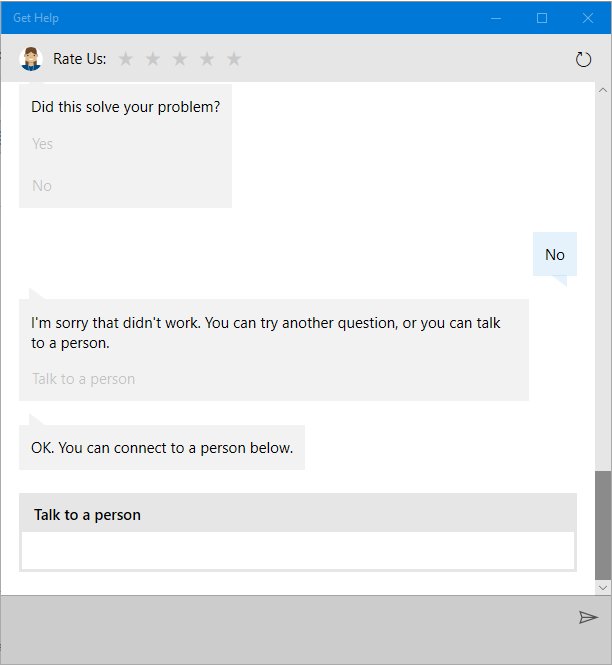
Get Help is where Windows 11 troubleshooters now live. It needs you to be signed in with a Microsoft personal account or a work or school account.
- Select Start, type
get helpand select Get Help from the results. - Type the troubleshooter name in the search bar, for example
audio troubleshooterorwindows update troubleshooter. - Select Start on the troubleshooter that appears.
- Consent to diagnostics when Get Help asks.
- Follow the on-screen instructions and answer its questions about the problem.
- Read the findings and suggested remedies at the end, and apply the ones that match your case.
Get Help also carries Microsoft 365, classic Outlook, classic Teams and Copilot troubleshooters. It replaced the Microsoft Support and Recovery Assistant for those Office problems.
Run Troubleshooters from Control Panel
The classic Troubleshooting item in Control Panel is the front end for the legacy MSDT troubleshooters. Use it on Windows 10; on newer Windows 11 releases those troubleshooters are redirected to Get Help or removed.
- Press Windows logo key + R to open Run.
- Type
control.exe /name Microsoft.Troubleshootingand press Enter. - Browse the categories shown, such as Hardware and Sound or Network and Internet.
- Select the troubleshooter you want and follow its prompts.
- To see past runs, open
control.exe /name Microsoft.Troubleshooting /page HistoryPageinstead.
Microsoft documents Microsoft.Troubleshooting as the canonical Control Panel name and HistoryPage as its history page. To place the Settings route on your desktop instead, right-click the desktop, select New > Shortcut, and enter ms-settings:troubleshoot as the location.
Run Troubleshooters from Settings Commands
Settings pages have their own URIs. The Troubleshoot page is ms-settings:troubleshoot, and it works from Run, a desktop shortcut or a script.
start ms-settings:troubleshootOpens Settings straight on the Troubleshoot page. Type it in Command Prompt or PowerShell, or type only ms-settings:troubleshoot in the Run box (Windows logo key + R).
You should see: The Settings window opens on Troubleshoot, showing Other troubleshooters on Windows 11 or Additional troubleshooters on Windows 10.
Related pages have their own URIs: ms-settings:windowsupdate for Windows Update, ms-settings:sound for Sound and ms-settings:bluetooth for Bluetooth. Fixing a setting there sometimes solves the problem without any troubleshooter.
About msdt.exe and Legacy Troubleshooter Commands
MSDT, the Microsoft Support Diagnostic Tool, is the engine behind the old built-in troubleshooters. Microsoft deprecated it in January 2023 and retired it on newer Windows 11 releases in three phases.
| Year | What Microsoft changed | Effect on you |
|---|---|---|
| 2023 | Began redirecting some troubleshooters to Get Help | Legacy troubleshooters showed a retirement notice with a learn-more link |
| 2024 | Finished the redirection and removed the rest | Nine troubleshooters moved to Get Help; fourteen were removed |
| 2025 | Removed the MSDT platform | msdt.exe commands and /id troubleshooter packs stop being a reliable route on Windows 11 |
| Windows 11 22H2 and older, Windows 10 | Not affected | Legacy built-in troubleshooters keep running |
Redirected to Get Help: Audio, Background Intelligent Transfer Service (BITS), Bluetooth, Camera, Network and Internet, Printer, Program Compatibility, Video Playback and Windows Media Player.
Removed: Connection to a Workplace using DirectAccess, Devices and Printers, Hardware and Devices, HomeGroup, Incoming Connections, Internet Explorer Performance, Internet Explorer Safety, Keyboard, Power, Search and Indexing, Speech, System Maintenance, Shared Folders and Windows Store Apps.
Organizations that run custom troubleshooting packs with MSDT got it as a feature on demand during the transition. Home users should use Settings or Get Help instead of msdt commands.
Run a Troubleshooter as an Administrator
Several fixes change system services or network settings, so Windows asks for administrator approval. Get this sorted before you start, or the troubleshooter stops halfway.
- Sign in with an administrator account, or have the administrator's password ready.
- Start the troubleshooter from Settings or Get Help as usual.
- When the User Account Control prompt appears, select Yes, or enter the administrator password.
- On a work or school PC, contact IT if the prompt refuses your account; policy may block troubleshooting.
- After an elevated run, run the related repair commands below if the problem persists.
Legacy troubleshooter results are stored per user in %LOCALAPPDATA%\Diagnostics, and elevated runs in %LOCALAPPDATA%\ElevatedDiagnostics.
Use the Right Troubleshooter for Common Problems
Pick the troubleshooter by symptom. The Get Help search term is the exact phrase Microsoft lists for each one.
| Problem | Troubleshooter | Get Help search term | Windows 10 Settings entry |
|---|---|---|---|
| No internet or Wi-Fi keeps dropping | Network and internet | connect to network and internet |
Internet Connections or Network Adapter |
| No sound or wrong audio device | Audio | audio troubleshooter |
Playing Audio |
| Microphone not picking up | Audio | audio troubleshooter |
Recording Audio |
| Printer offline or documents stuck in the queue | Printer | printer troubleshooter |
Printer |
| Windows Update fails | Windows Update | windows update troubleshooter |
Windows Update |
| Bluetooth device will not pair | Bluetooth | Bluetooth troubleshooter |
Bluetooth |
| Webcam not detected | Camera | camera troubleshooter |
Use Get Help |
| Videos stutter or will not play | Video playback | Video playback troubleshooter |
Video Playback |
| Older program will not open correctly | Program compatibility | Run the Windows Program Compatibility troubleshooter |
Program Compatibility Troubleshooter |
| Downloads or updates stall in the background | BITS | Background Intelligent Transfer Service troubleshooter |
Background Intelligent Transfer Service |
Windows Media Player problems have their own entry too: search for Windows Media Player troubleshooter in Get Help.
View Troubleshooting History and Results
The history list proves a troubleshooter ran, including the ones Windows ran by itself.
- On Windows 11, go to Start > Settings > System > Troubleshoot > Recommended troubleshooter history.
- On Windows 10, go to Start > Settings > Update & Security > Troubleshoot > View troubleshooting history.
- Look for the troubleshooter's name and date. An automatic Windows Update repair, for example, appears as Windows Update troubleshooter – Automatically repair system files and settings to improve device security.
- For a Get Help run, read the findings screen at the end; it lists what was found and the remedies suggested.
- Test the original problem once more: play a sound, print a page, or select Check for updates.
A legacy run reports each cause as fixed, not fixed, detected but not fixable, or not found. "Not found" means the troubleshooter checked its list and the fault lies elsewhere.
Control Recommended Troubleshooting
Recommended troubleshooting lets Windows and Microsoft apply fixes for known problems on their own. Critical fixes run automatically by default.
Choose your preference on the Troubleshoot page in Settings. On Pro, Enterprise and Education, an administrator can lock it with the Group Policy Troubleshooting: Allow users to access recommended troubleshooting for known problems, under Computer Configuration > System > Troubleshooting and Diagnostics > Microsoft Support Diagnostic Tool.
| Level | What Windows does | Notifies you |
|---|---|---|
| Off | Applies no troubleshooting, whether from you, system features or Microsoft | No |
| Critical (default) | Fixes critical problems automatically | No |
| Prompt | Fixes critical problems, and asks you before fixing other problems | Yes, before other fixes |
| Notify | Fixes critical and other problems automatically | Yes, after a fix |
| Silent | Fixes critical and other problems automatically | No |
| Configurable | Lets each user choose their own setting | Depends on the user's choice |
When that policy is set to a fixed level, only an administrator can change how troubleshooting is applied on the PC.
What to Do If a Troubleshooter Is Missing
The Hardware and Devices troubleshooter is gone
Microsoft removed Hardware and Devices, and Devices and Printers, in the MSDT retirement.
- Pick the troubleshooter for the specific device instead: Audio, Bluetooth, Camera or Printer.
- Run it from Settings > System > Troubleshoot > Other troubleshooters, or search for it in Get Help.
- Restart the PC and test the device again.
Keyboard, Power or Search and Indexing troubleshooters are missing
These were removed on Windows 11 releases newer than 22H2, with no direct replacement.
- For search results that miss files, open Settings > Privacy & security > Search and review Find my files and the indexed locations.
- Use Get Help and describe the problem in plain words to find the matching article.
Why can't I run a troubleshooter on Windows 10?
A policy blocks troubleshooting, or you are signed in without administrator rights.
- Sign in with an administrator account and try again.
- On a work PC, ask IT whether Troubleshooting: Allow users to access recommended troubleshooting for known problems is set to Off.
- Update Windows from Settings > Update & Security > Windows Update > Check for updates, then restart.
- Run
sfc /scannowfrom an administrator Command Prompt to repair damaged system files, then retry.
Get Help opens but the troubleshooter will not start
Get Help needs a signed-in Microsoft account or work or school account.
- Sign in to Get Help with a Microsoft personal account or a work or school account.
- Search for the troubleshooter by its exact name, such as
printer troubleshooter. - Accept the diagnostics consent prompt when it appears.
What to Do When a Troubleshooter Does Not Fix the Problem
Internet still does not work after the network troubleshooter
The TCP/IP stack, IP lease or DNS cache is stuck.
- Type
cmdin the search box, right-click Command Prompt and select Run as administrator. - Run
netsh winsock reset. - Run
netsh int ip reset. - Run
ipconfig /release, thenipconfig /renew. - Run
ipconfig /flushdns, then restart the PC.
Windows Update still fails after the troubleshooter
Pending updates need a restart, or system files are damaged.
- Restart the PC.
- On Windows 11, select Start > Settings > Windows Update > Check for updates.
- On Windows 10, select Start > Settings > Update & Security > Windows Update > Check for updates.
- Run the Windows Update troubleshooter a second time if the error returns.
Problems keep coming back across several areas
Corrupted Windows system files that no troubleshooter checks.
- Open Command Prompt as administrator.
- Run
DISM.exe /Online /Cleanup-image /Restorehealthand wait for it to finish. - Run
sfc /scannowand leave the window open until verification reaches 100%. - Restart the PC and run the troubleshooter again.
The problem started after a recent app, driver or update install
The change itself caused the fault, so no troubleshooter reverses it.
- Press Windows logo key + R, type
rstrui.exeand press Enter. - Select Next and pick a restore point from before the problem began.
- Select Scan for affected programs to see what will be removed.
- Select Next, then Finish. Personal files are not affected.
Tips for Getting Better Results from Troubleshooters
| Do this | Why it helps |
|---|---|
| Reproduce the problem just before you run the troubleshooter | Checks for a live fault find more than checks after it cleared |
| Pick the narrowest troubleshooter, such as Printer rather than a general search | Each one only checks its own area |
| Plug in and switch on the device first | A disconnected printer or headset is reported as not found |
| Approve the administrator prompt | Without it, service and network fixes are skipped |
| Restart after the run, even if not asked | Some service and update fixes only take effect after a restart |
| Run it a second time if the first run fixed something | Microsoft recommends a rerun when an update problem persists |
| Note the findings screen before closing it | The cause it names is the lead for the next fix or a support request |
Frequently Asked Questions
How do I run a troubleshooter in Windows 10?
Select Start > Settings > Update & Security > Troubleshoot > Additional troubleshooters. Pick the troubleshooter under Get up and running, such as Windows Update, and select Run the troubleshooter. Windows 10 still runs the legacy built-in troubleshooters.
How do I run a troubleshooter on Windows 11?
Select Start > Settings > System > Troubleshoot > Other troubleshooters, then Run next to the problem. On Windows 11 releases newer than 22H2, the button opens the troubleshooter in the Get Help app.
Where do I find the Windows troubleshooter?
It lives on the Troubleshoot page of Settings: under System on Windows 11 and under Update & Security on Windows 10. Type ms-settings:troubleshoot in the Run box to jump straight there.
How do I run the Windows hardware troubleshooter?
The general Hardware and Devices troubleshooter was removed from newer Windows 11 releases. Run the troubleshooter for the specific device instead, such as Audio, Bluetooth, Camera or Printer, from Other troubleshooters or the Get Help app.
How do I run a Microsoft troubleshooter?
Open the Get Help app from Start, type the troubleshooter name, such as windows update troubleshooter, and select Start. Get Help holds the Windows, Microsoft 365, classic Outlook, classic Teams and Copilot troubleshooters.
How do I run troubleshooting on my computer?
Match the symptom to a troubleshooter, then run it from Settings or Get Help. Use Network and internet for connection problems, Audio for sound, Printer for printing and Windows Update for update errors.
Why can't I run a troubleshooter in Windows 10?
You are usually signed in without administrator rights, or a Group Policy has turned troubleshooting off. Sign in as an administrator, ask IT about the recommended troubleshooting policy on a work PC, and run sfc /scannow if Settings itself misbehaves.
How do I use the Windows system troubleshooter?
The legacy System Maintenance troubleshooter was removed from newer Windows 11 releases. For system-wide problems, run DISM.exe /Online /Cleanup-image /Restorehealth and then sfc /scannow from an administrator Command Prompt.
Does msdt.exe still work?
Microsoft deprecated MSDT in January 2023 and removed the platform from newer Windows 11 releases in 2025. Windows 10 and Windows 11 22H2 and older keep the legacy troubleshooters, but Settings and Get Help are the supported routes.
Do Windows troubleshooters run automatically?
Yes, for critical problems by default. Recommended troubleshooting lets Windows apply known fixes on its own, and every automatic run appears in Recommended troubleshooter history on Windows 11 or View troubleshooting history on Windows 10.


![How to Manage Power Management Settings in Windows 11/10 [Guide]](https://techdows.com/wp-content/uploads/2026/09/Control-Panel-All-Items-view-with-Power-Options-icon-highlighted-600x338.jpg)