To map a network drive on Windows 11 or Windows 10, open File Explorer, select This PC, choose Map network drive, pick a drive letter, enter the share path such as \\Server01\Shared, and select Finish.
This guide covers the File Explorer route on both versions, the net use and PowerShell equivalents, connecting with a different account, removing a mapping, and fixes for drives that will not map or reconnect.
How to Map a Network Drive Using File Explorer
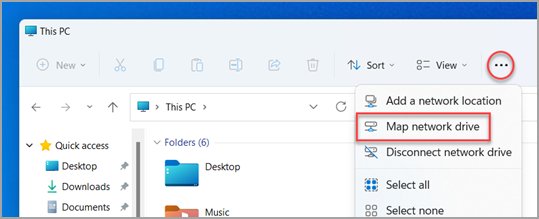
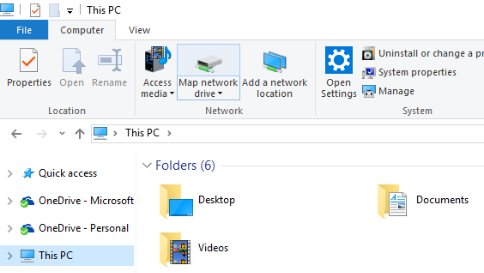
File Explorer is the fastest route for a one-off mapping. These steps are for Windows 11; the Windows 10 difference is a single button, shown in the table below the steps.
- Press Windows logo key + E to open File Explorer.
- Select This PC in the left pane.
- On the toolbar, select More, then choose Map network drive. You can also right-click This PC in the left pane and pick Map network drive there.
- In the Drive list, pick an unused drive letter.
- In the Folder box, type the share path, for example
\\Server01\Shared, or select Browse to pick it from the network. - Tick Reconnect at sign-in if the drive should come back every time you sign in.
- Select Finish. Enter a user name and password if the server asks for them.
The mapped drive opens in a new window and stays listed under This PC. Replace Server01 and Shared with your own server and share names.
Where Map network drive is in Windows 11 and Windows 10
The dialog is identical on both versions. Only the button that opens it moved when Windows 11 replaced the ribbon.
| Windows version | Where to click | What follows |
|---|---|---|
| Windows 11 | File Explorer > This PC > More > Map network drive, or right-click This PC | Drive, Folder, Reconnect at sign-in, Finish |
| Windows 10 | File Explorer > This PC > Computer tab > Map network drive | Drive, Folder, Reconnect at sign-in, Finish |
Which method should you use?
All three routes create the same Windows mapping, so File Explorer and net use both see a drive made by any of them.
| Your situation | Use this | Why |
|---|---|---|
| Mapping one drive on your own PC | File Explorer | No syntax to remember, and Browse finds the share for you |
| Mapping the same drive on several PCs, or from a batch file | net use in Command Prompt |
One line, and /persistent:yes keeps it after restarts |
| Writing a PowerShell script or passing a stored credential | New-PSDrive -Persist |
Takes a PSCredential object and works inside scripts with -Scope Global |
| The share needs an account other than your Windows sign-in | net use ... /user: or New-PSDrive -Credential |
Both accept a separate user name and prompt for the password |
What You Need Before Mapping a Network Drive
Collect these details first. A mapping fails at the Finish button when any one of them is wrong.
| Item | What it looks like | Where to get it |
|---|---|---|
| Server name or IP address | Server01 or an IP address |
The person who runs the server or NAS, or the device's own admin page |
| Share name | Shared, giving the full path \\Server01\Shared |
The same admin; the path always starts with two backslashes |
| An account the share accepts | Server01\UserName or DOMAIN\UserName |
Needed when the share does not accept your Windows sign-in |
| A free drive letter | Any unused letter, commonly from the end of the alphabet | The Drive list only offers letters that are free |
| A network the share can be reached on | Same office or home network, or a connected VPN | Mapping cannot succeed while the server is off or unreachable |
Check that the share is reachable before mapping it. Type the path, for example \\Server01\Shared, into the File Explorer address bar and press Enter. If the folder opens, mapping will work. If a path contains spaces, wrap it in quotation marks when you use it in Command Prompt.
How to Map a Network Drive Using Command Prompt
Open Command Prompt normally, not as administrator. A drive mapped in an elevated window belongs to that elevated session, and File Explorer will not show it.
net use Z: \\Server01\Shared /persistent:yesZ: is the drive letter to assign; type * instead to take the next free letter. \\Server01\Shared is the share. /persistent:yes saves the connection and restores it at the next sign-in. Without the switch, net use repeats whatever persistence setting was used last.
You should see: Run net use on its own afterwards. The list shows Z: against \\Server01\Shared with the status OK.
To map a subfolder inside the share, add it to the path: net use Y: \\Server01\Shared\Reports. A connection made without a drive letter is never persistent.
Common net use options
| Option | What it does | Example |
|---|---|---|
* as the device name |
Assigns the next available drive letter | net use * \\Server01\Shared |
* as the password |
Prompts for the password without showing it on screen | net use Z: \\Server01\Shared * |
/user: |
Connects with a different user name, optionally with a domain | /user:Server01\UserName |
/savecred |
Stores the credentials you provide for reuse | net use Z: \\Server01\Shared /savecred |
/persistent:yes or no |
Saves connections and restores them at the next sign-in, or stops saving new ones | net use /persistent:yes |
/delete |
Cancels a connection; with * it cancels all of them |
net use Z: /delete |
| No options at all | Lists every current connection and its status | net use |
The full parameter list is in Microsoft's net use reference).
How to Map a Network Drive Using PowerShell
New-PSDrive makes a real Windows mapped drive only when you add -Persist. Without it, the drive exists inside that PowerShell window and nowhere else.
Run it in a normal PowerShell window. Microsoft notes that drives mapped in an elevated session are not visible to sessions started with different credentials.
New-PSDrive -Name "Z" -PSProvider "FileSystem" -Root "\\Server01\Shared" -Persist-Name must be a single drive letter with no colon. -PSProvider must be FileSystem. -Root must be a UNC path on another computer. -Persist saves the mapping in Windows so File Explorer and net use see it after the window closes.
You should see: PowerShell prints a line with Name Z and provider FileSystem. Get-ChildItem Z: lists the share's contents, and the drive appears under This PC.
Inside a .ps1 script, add -Scope Global. Without it the mapping is local to the script and disappears when the script exits.
How to Connect with Different Credentials
Use this when the share rejects your Windows sign-in, such as a NAS with its own accounts or a server in another domain.
- Open Command Prompt without elevation.
- Type
net use Z: \\Server01\Shared * /user:Server01\UserName /persistent:yesand press Enter. UseDOMAIN\UserNamefor a domain account. - Type the password at the prompt and press Enter. The characters do not appear as you type.
- In PowerShell instead, run
$cred = Get-Credentialand enter the account in the dialog. - Then run
New-PSDrive -Name "Z" -PSProvider "FileSystem" -Root "\\Server01\Shared" -Persist -Credential $cred. - To store a password for the server without mapping anything yet, run
cmdkey /add:Server01 /user:UserName; cmdkey asks for the password.
Windows allows only one set of credentials per server per user. If any connection to Server01 already exists under another account, disconnect it first, as described in the troubleshooting section below.
How to check the mapped drive works
- Open File Explorer and select This PC. The drive letter and share name appear with the other drives.
- Open the drive and create a small test file, then delete it. This proves you have write access, not just read access.
- In Command Prompt, run
net use. The drive should show the status OK; Unavailable means it is saved but not connected. - In PowerShell, run
Get-SmbMappingto see the same list with a Status column. - Restart the PC and sign in. A drive mapped with Reconnect at sign-in or
/persistent:yesshould be back without any action.
How to Disconnect or Remove a Mapped Network Drive
Close any file or window that is using the drive first. Windows cannot disconnect a drive that is the current directory or held open by a running program.
- Open Command Prompt without elevation, since the mapping belongs to your normal session.
- Run
net useto list your mapped drives and confirm the letter. - Run
net use Z: /deleteto remove theZ:mapping. The saved connection is removed as well, so it does not return at sign-in. - To remove every mapping at once, run
net use * /delete. - In PowerShell, run
Remove-PSDrive -Name Zinstead. Microsoft states this permanently deletes a Windows mapped drive, not just the session copy. - To remove a password saved for the server, run
cmdkey /list, find the entry, then runcmdkey /delete:Server01.
Saved Windows credentials also appear in Credential Manager. Type credential manager in the taskbar search box, open it, and select Windows Credentials to review them.
How to Fix Common Network Drive Mapping Problems
Work through the symptom that matches what you see. Each fix keeps Windows security settings in place.
Windows cannot find the path or the share (error 1203)
The path is mistyped, the server is off, or the PC cannot see the server on the network.
- Type the path, such as
\\Server01\Shared, into the File Explorer address bar and press Enter. If it fails here, the problem is not the mapping. - Check the path starts with two backslashes and uses quotation marks in Command Prompt if a name has spaces.
- Try the server's IP address in place of its name, for example
\\192.168.1.20\Sharedwith your server's real address. - Confirm both computers are on the same network and that a Wi-Fi network is set to Private.
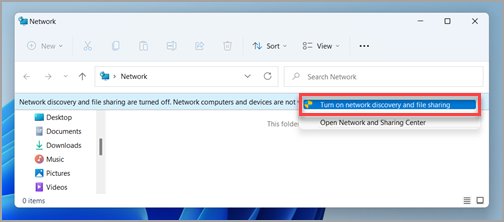
- On the computer sharing the folder, open Settings, search for manage advanced sharing settings, and under Private networks turn on Network discovery and File and printer sharing. On Windows 10 this is under Network & internet > Sharing options.
"Multiple connections to a server or shared resource by the same user, using more than one user name, are not allowed" (error 1219)
A connection to that server already exists under a different account, often from an earlier mapping or a saved password.
- Run
net useand note every connection to the same server. - Remove each one with
net use Z: /delete, using the listed letter, ornet use \\Server01\Shared /deletefor a connection without a letter. - Run
cmdkey /listand delete any stale entry for the server withcmdkey /delete:Server01. - Map the drive again with the account you want, using
/user:.
Access denied, or the password is rejected every time
The account has no permission on the share, or Windows keeps sending an old saved password.
- Open Credential Manager from taskbar search, select Windows Credentials, and look for an entry for the server.
- Delete the stale entry with
cmdkey /delete:Server01. - Map again with
net use Z: \\Server01\Shared * /user:Server01\UserNameso Windows prompts for a fresh password. - If the new password is also refused, ask the share's owner to grant your account access to that share.
A NAS or older device stopped working on Windows 11, or guest access is blocked
Windows 11 blocks guest (no-password) connections by default, and version 24H2 also requires SMB signing, which guest connections cannot use.
- Sign in to the NAS or device's own management page.
- Create a user name and password on the device and give that account access to the share.
- Turn on SMB signing in the device's settings if it offers the option.
- Map the drive with that account using the Connect with Different Credentials steps above.
- Leave insecure guest logons turned off. Microsoft warns they expose the PC to spoofed servers and adversary-in-the-middle attacks.
Red X on the drive, or "Could not reconnect all network drives" after sign-in
Windows tried to restore the drive before the network was ready, or the server dropped an idle connection.
- Double-click the drive in File Explorer. An idle connection usually reconnects as soon as it is opened.
- Run
net use; if the drive shows Unavailable, confirm the server is on and reachable by its path. - Remove and re-map the drive with Reconnect at sign-in ticked, or with
/persistent:yes. - On a laptop that joins Wi-Fi or a VPN after sign-in, Microsoft's workaround is a scheduled task at log on that remaps unavailable drives once a network connection is available.
The drive mapped fine in a command window but File Explorer does not show it
The command ran as administrator, and mappings made in an elevated session are not visible in your normal session.
- Open Command Prompt or PowerShell without Run as administrator.
- Run the same
net useorNew-PSDrive -Persistcommand again. - Refresh This PC in File Explorer.
Frequently Asked Questions
How do I map a network drive in Windows 11?
Open File Explorer, select This PC, then select More and Map network drive. Pick a drive letter, type the share path such as \\Server01\Shared in the Folder box, tick Reconnect at sign-in if you want it permanent, and select Finish.
How do I map a network drive in Windows 10?
Open File Explorer, select This PC, and on the Computer tab select Map network drive. Choose a drive letter, enter the share path or use Browse, tick Reconnect at sign-in to keep it, and select Finish.
How do I map a network drive using cmd?
Open Command Prompt without administrator rights and run net use Z: \\Server01\Shared /persistent:yes, replacing the letter and path with your own. Add * /user:Server01\UserName before /persistent to connect with another account. Run net use alone to confirm it shows OK.
Why can't I map a network drive in Windows 11?
The usual causes are a wrong path, a server Windows cannot reach, a conflicting saved credential, or a NAS that only allows guest access. Windows 11 blocks guest connections by default, so give the device a user name and password and map with that account.
Why would you map a network drive?
A mapped drive gives a shared folder its own drive letter, so it appears under This PC like a local disk. Programs, scripts and shortcuts can then use a short path such as Z:\ instead of the full network path, and the connection can return at every sign-in.
What is the correct network path format for mapping a drive?
Use two backslashes, the server name, one backslash and the share name, as in \\Server01\Shared. You can add a subfolder, such as \\Server01\Shared\Reports. An IP address works in place of the server name, and paths with spaces need quotation marks in Command Prompt.
How do I make a mapped network drive reconnect after restarting Windows?
Tick Reconnect at sign-in in the Map network drive dialog, or add /persistent:yes to the net use command. In PowerShell, New-PSDrive with -Persist creates a saved mapping. If it still shows a red X, the network was probably not ready at sign-in.
Can I map a network drive using a different username and password?
Yes. Run net use Z: \\Server01\Shared * /user:Server01\UserName and type the password when prompted, or pass a Get-Credential object to New-PSDrive with -Credential. Only one account per server is allowed, so disconnect any existing connection to that server first.
How do I remove a mapped network drive I no longer use?
Run net use Z: /delete in a normal Command Prompt, or Remove-PSDrive -Name Z in PowerShell, using your drive's letter. Both remove the saved mapping so it does not return at the next sign-in. Close any files open on the drive first.
How do I map a network drive on a Mac?
A Mac connects to a Windows share from Finder rather than by drive letter. In Finder, choose Go > Connect to Server, enter the server's address, select Connect, and sign in as a registered user. File > Add To Sidebar keeps it one click away.
Bottom Line
Map a single drive from File Explorer with Reconnect at sign-in ticked, and use net use or New-PSDrive -Persist only when you are repeating the job across PCs or need a separate account. All three create the same saved Windows mapping, so the only difference is speed of setup. Run every method without administrator rights, or the drive will not appear in File Explorer.

![How to Create a Survey in MS Forms [Step-by-Step Guide]](https://techdows.com/wp-content/uploads/2026/09/Microsoft-Forms-portal-with-New-Form-and-New-Quiz-buttons-600x242.jpg)