To cancel or delete a stuck print job in Windows 11, open Settings > Bluetooth & devices > Printers & scanners, select the printer, select Open print queue, then right-click the job and select Cancel. If the job will not leave the queue, restart the Print Spooler service, and if it still comes back, stop the spooler and delete the files in C:\Windows\System32\spool\PRINTERS.
Windows 10 uses Settings > Devices > Printers & scanners > Open queue for the first step. Every other fix below works the same way on both versions, from the taskbar printer icon to a PowerShell one-liner.
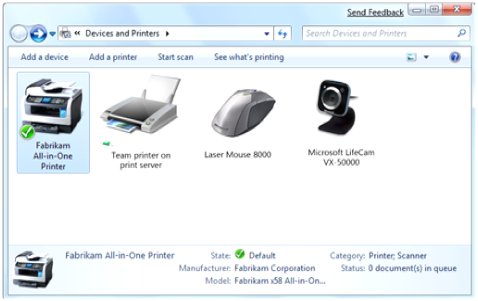
Why print jobs get stuck in Windows 11/10
Every document you print goes to the Print Spooler, the Windows service that stores print jobs on disk and hands them to the printer one at a time. A job gets stuck when the spooler cannot finish handing it over, and every job behind it waits.
The usual causes are:
- The printer went offline or lost its connection part-way through the job, so the spooler keeps waiting for it.
- The printer is paused, or set to Use Printer Offline, which holds every job and looks like a stuck queue.
- A paper jam, an open cover or empty ink stops the printer from accepting data.
- A damaged or mismatched printer driver produces data the printer cannot read, and can crash the spooler.
- The spool files are corrupted, so the spooler cannot cancel the job it is holding.
That is why the fixes run from light to heavy: cancel the job, restart the spooler, then delete the spool files themselves.
Which method should you use?
Each fix goes one level deeper than the last. Start at the row that matches what you see and stop as soon as the queue is clear.
| What you see | Use this | Why it works |
|---|---|---|
| One job is stuck and others wait behind it | Cancel it in Open print queue | Removes only that job and lets the rest print |
| Many jobs are stuck | … > Cancel all in the Windows 11 queue | Clears the whole queue in one action |
| You prefer the classic printer window | Devices and Printers > See what's printing | Opens the same queue from Control Panel |
| Cancel does nothing, or the job says Deleting | Restart the Print Spooler service | The spooler is holding the job and needs a restart |
| The job returns after a spooler restart | Stop the spooler and delete the spool files | A restart replays every job still saved on disk |
| You manage printers by script or remotely | Remove-PrintJob in PowerShell |
Deletes a job by printer name and job ID |
| The queue is empty but the printer still prints | Cancel on the printer itself | The job has already left Windows |
| Jobs get stuck again and again | Troubleshooter, driver reinstall, connection checks | Removes the cause instead of the symptom |
Cancel print jobs from Windows Settings
This is the route Microsoft lists first for a job stuck in the queue, and it clears most stuck jobs in under a minute. No administrator rights are needed.
Cancel print jobs in Windows 11
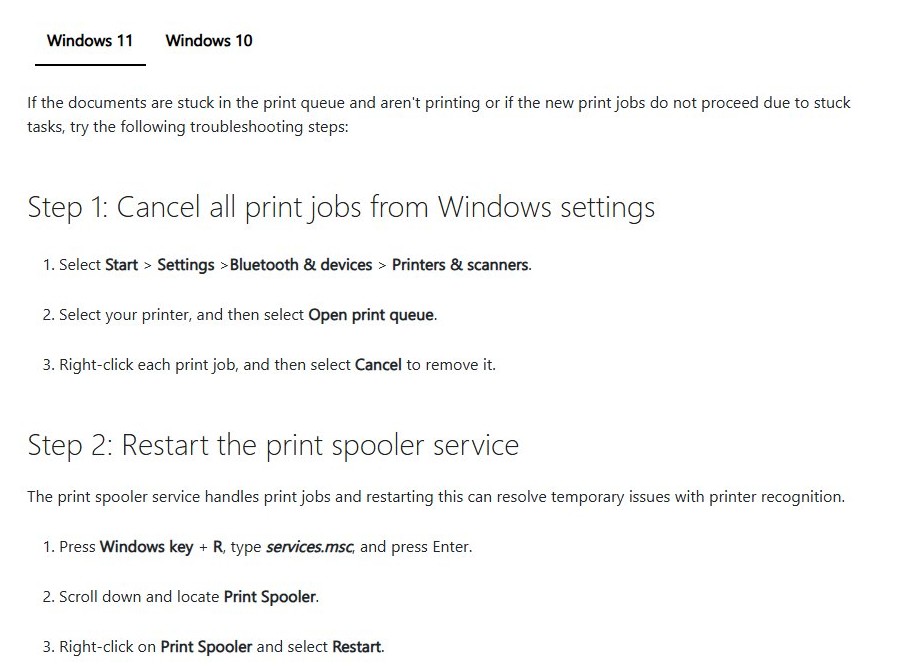
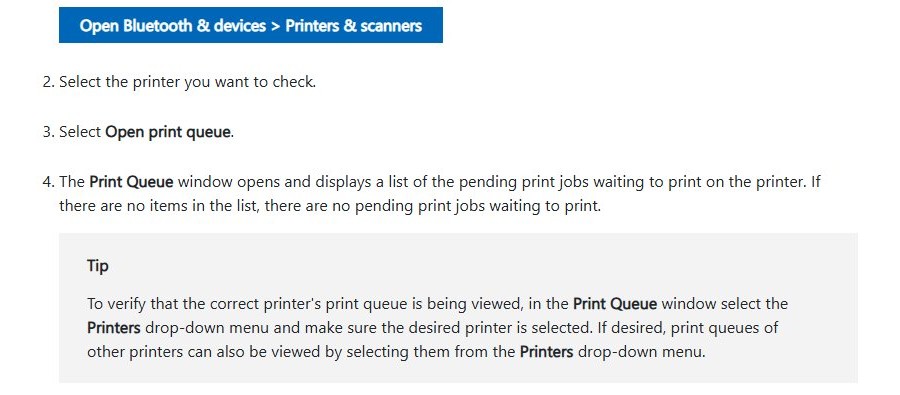
- Select Start > Settings > Bluetooth & devices > Printers & scanners.
- Select the printer that holds the stuck job.
- Select Open print queue.
- Right-click the stuck job and select Cancel, then confirm with Yes.
- To clear everything at once, select the … menu at the top of the queue and select Cancel all.
Cancel print jobs in Windows 10
- Select Start > Settings > Devices > Printers & scanners.
- Select the printer, then select Open queue.
- Right-click each stuck job and select Cancel.
- To clear the whole list, open the Printer menu and select Cancel All Documents.
If a job shows Deleting and never goes, or comes straight back, skip ahead to restarting the Print Spooler service.
Check the print queue and cancel the job
While a document is printing, Windows shows a printer icon in the notification area at the bottom-right of the taskbar. It is the quickest way into the queue when Settings is not already open.
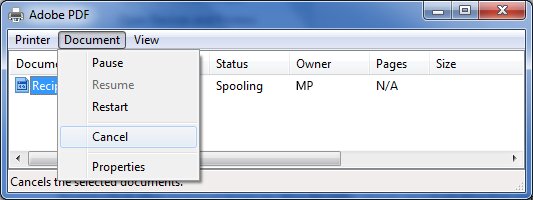
- Right-click the Printer icon on the taskbar. If it is hidden, select the arrow that shows hidden icons first.
- Select Open All Active Printers, then select the printer you want.
- Select the job under Document Name.
- Open the Document menu and select Cancel, then select Yes.
- Wait for the job to disappear before you close the window.
In the same window, open the Printer menu and clear Pause Printing and Use Printer Offline if either is ticked. If the icon vanishes the moment you print, the job has already reached the printer, so cancel it on the printer's own panel instead.
Cancel print jobs using Control Panel
The classic Devices and Printers window opens the same queue through a right-click menu, and it still exists in both Windows 11 and Windows 10.
- In Windows 11, open Settings > Bluetooth & devices > Printers & scanners, select the printer, then select More devices and printer settings.
- In Windows 10, press Win + R, type
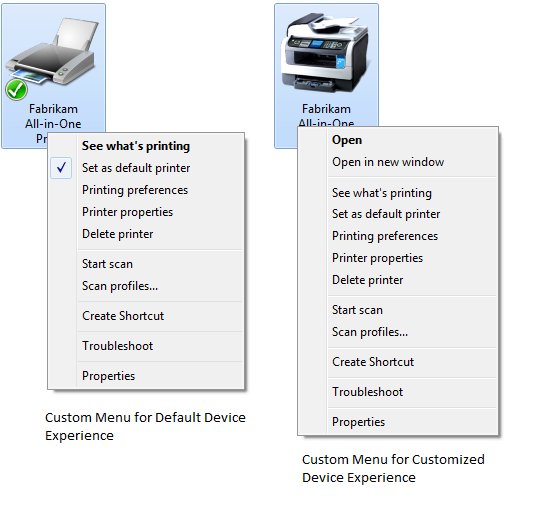
control printersand press Enter. - Right-click the printer icon and select See what's printing.
- Right-click each stuck job, select Cancel, and confirm with Yes.
Some printers install a manufacturer page in this window. For those, the right-click menu shows Open instead of See what's printing, and it opens the maker's device page rather than the queue. Use the Settings route for those printers.
Restart the Print Spooler service
Restarting the spooler releases a job that Cancel cannot remove. It needs an administrator account, and the Services console is where Microsoft does it.
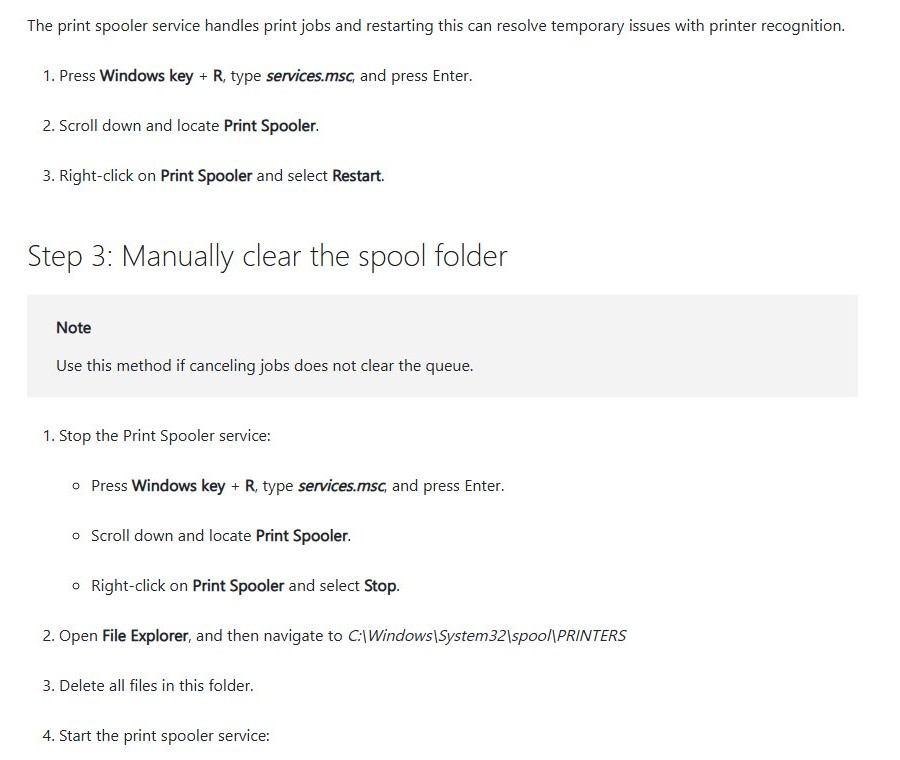
- Press Win + R, type
services.mscand press Enter. - Scroll down to Print Spooler.
- Right-click Print Spooler and select Restart.
- Reopen the print queue and cancel any job still listed.
If the service shows as stopped, double-click Print Spooler, select Start, set Startup type to Automatic, then select OK. A restart replays every job the spooler still has on disk, so a job that reappears now needs its spool files deleted.
Clear the print queue with Command Prompt
Command Prompt can stop the spooler, empty the spool folder and start it again in three lines, which is the fastest fix for a job that keeps coming back. Open an elevated window first: search for cmd, right-click Command Prompt and select Run as administrator.
net stop spooler
del /Q /F /S "%systemroot%\System32\spool\PRINTERS\*.*"
net start spooler
spooler is the service name of Print Spooler. The first line stops it so the spool files are no longer locked, del deletes every file in the PRINTERS folder without prompting, and the last line starts the service again. To restart the spooler without deleting anything, run only net stop spooler and then net start spooler.
You should see: "The Print Spooler service was stopped successfully", a list of deleted files (or none if the folder was empty), then "The Print Spooler service was started successfully".
A normal Command Prompt window cannot stop a Windows service and returns "Access is denied". If that happens, close it and open one with administrator rights.
Manually delete Print Spooler files
Windows keeps each queued job as files in the spool folder, and those files are what bring a job back after a spooler restart. Microsoft's instruction is to use this method when cancelling jobs does not clear the queue. Deleting the files clears every queued job for every printer on the PC, so reprint anything you still need afterwards.
- Press Win + R, type
services.mscand press Enter. - Right-click Print Spooler and select Stop. The files stay locked while the service runs.
- Open File Explorer and go to
C:\Windows\System32\spool\PRINTERS. Typing%WINDIR%\system32\spool\printersin the taskbar search box opens the same folder. - Select every file inside PRINTERS and delete it. Delete the files only, never the folder.
- Back in Services, right-click Print Spooler and select Start.
- Double-click it and check that Startup type is Automatic, then select OK.
- Open the print queue and confirm it is empty.
Delete a stuck print job with PowerShell
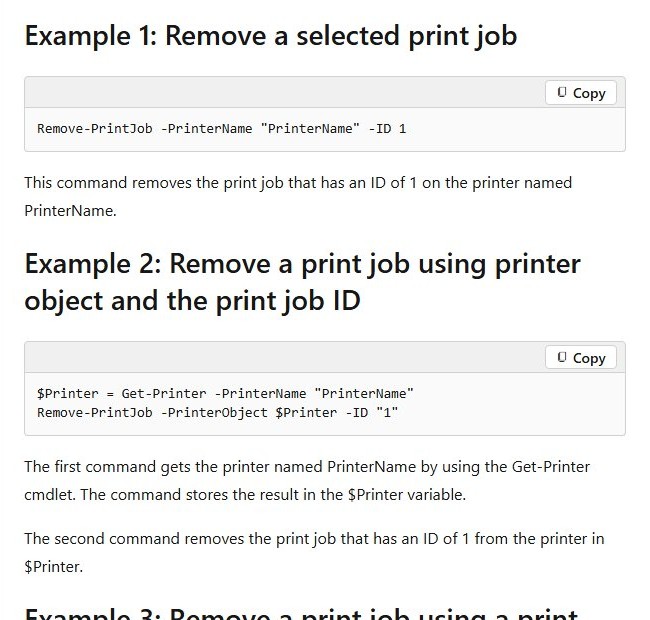
The PrintManagement module removes jobs by printer name and job ID. It does not need administrator rights and works in a remote PowerShell session, which makes it handy for help desks. Replace Printer name with the name exactly as Printers & scanners shows it.
Get-PrintJob -PrinterName "Printer name"
Get-PrintJob -PrinterName "Printer name" | Remove-PrintJob
Remove-PrintJob -PrinterName "Printer name" -ID 1
The first line lists every job on that printer with its ID. The second passes all of them to Remove-PrintJob and deletes them. The third deletes a single job; change 1 to the ID the first line showed. Wildcards are not accepted in the printer name.
You should see: Running the first line again returns nothing, and the print queue window is empty.
Restart the printer and computer
A full power cycle clears jobs held in the printer's own memory as well as anything Windows still has open. Microsoft lists it as the last step for a job stuck in the queue.
- Turn off the printer.
- Wait at least 60 seconds. Unplugging the power cable during the wait clears the printer's memory more reliably.
- Turn the printer back on and wait until it is ready.
- Restart the PC from Start > Power > Restart.
- Open the queue and print again.
A restart on its own does not always remove a stuck job. If the spool files are still on disk, the spooler loads the job again at startup, so clear the spool folder first when the job keeps returning.
Run the printer troubleshooter
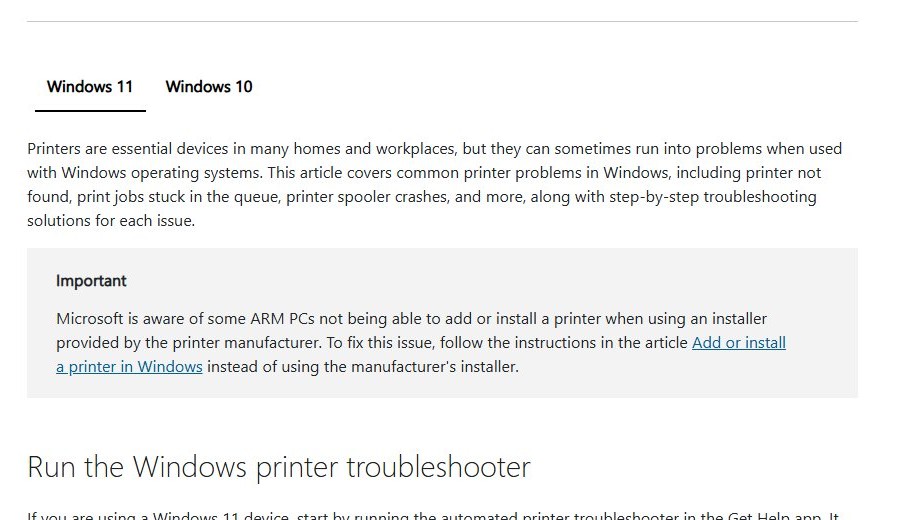
On Windows 11, Microsoft's first recommendation for printer problems is the automated printer troubleshooter in the Get Help app. It runs diagnostics on the printer, the driver and the spooler and tries to fix what it finds.
- Select Start, type Get Help and open the app.
- Type printer troubleshooter in the search box and run it.
- Pick the printer that holds the stuck job when asked, and follow the prompts.
- Open the print queue afterwards to confirm the job is gone.
The troubleshooter is worth running when jobs get stuck repeatedly, because it also checks the spooler and connection problems that cause the next stuck job.
Update or reinstall the printer driver
A conflicting or damaged driver is a common reason for a print spooler that keeps crashing or jobs that never finish. Microsoft's fix is to remove the printer, add it again and install the latest driver.
- Clear the print queue first so the spooler starts clean.
- Open Settings > Bluetooth & devices > Printers & scanners, select the printer, then select Remove and confirm with Yes.
- Select Add device (or Refresh) and wait while Windows searches. Select Add device next to your printer, or Add manually if it does not appear.
- Install the latest driver from the printer manufacturer's support site if Windows does not offer a current one.
- Print a test page to confirm the printer works again.
On Windows 10, the same buttons sit under Settings > Devices > Printers & scanners, where you select the printer and choose Remove device.
Verify printer connectivity
A printer that drops off the network leaves its job stuck in the queue with a status such as Offline or Error. Fix the connection before you send the document again.
- Wired printer: check that the USB cable is firmly connected at both ends.
- Wireless printer: confirm the printer's wireless option is on and that it is on the same Wi-Fi network as the PC. Extenders and routers with separate network names often split them.
- Printer in error state: check for low paper or ink, an open cover or a paper jam.
- Printer shows offline: in the queue, clear Use Printer Offline on the Printer menu.
If the printer will not stay connected, removing it and connecting the wireless printer again usually restores a clean link.
Cancel a print job on HP, Brother, Epson or Canon printers
When Windows shows an empty queue but paper keeps coming out, the job is already in the printer's memory and only the printer can stop it.
- Press the Cancel or Stop button on the printer's control panel. On most models it is marked with an X or a stop symbol.
- On a touchscreen printer, open the job or status screen and select the cancel option for the active job.
- If nothing responds, turn the printer off, unplug it for at least 60 seconds, and plug it back in.
- Check the printer's manual or the manufacturer's support site for how that model clears jobs held in memory.
Manufacturer apps such as HP Smart or Epson's printer utilities can also show and cancel jobs for printers they manage, but the Windows queue and the printer's own panel cover every brand.
How to confirm the queue is clear
An empty queue does not prove the printer can take new work. Print a test page to check the whole path.
- Open Printers & scanners and select the printer. Its status should no longer show an error, paused or offline state.
- Open the print queue and confirm no jobs are listed.
- In Windows 11, select Printer properties. In Windows 10, select Manage > Printer properties.
- On the General tab, select Print Test Page.
- Watch the queue: the test page should appear, print and leave the list.
What to do if the print job keeps coming back
Find the symptom that matches what you see, then work through the steps under it in order.
Print job won’t cancel or delete in Windows
The spooler is holding the job and ignoring Cancel.
- Restart Print Spooler from
services.mscand cancel the job again. - If it still shows Deleting, stop the spooler, delete the files in
C:\Windows\System32\spool\PRINTERS, and start it again. - Restart the PC from Start > Power > Restart.
Deleted print job reappears after a spooler restart
A spooler restart replays every job still saved in the spool folder.
- Stop Print Spooler instead of restarting it.
- Delete every file in the PRINTERS folder.
- Start the spooler and check the queue before sending anything new.
Same document keeps printing again
Something outside your queue is sending it again: another PC or phone on a shared printer, or the app that printed it.
- Ask anyone else who prints to the same printer whether they sent the document, and cancel it in their queue too.
- Close the app that printed the document, then cancel the job again.
- Turn the printer off, unplug it for 60 seconds, then turn it back on.
If the printer keeps printing an empty queue
The job already left Windows and sits in the printer's memory.
- Use the cancel or stop button on the printer.
- Turn the printer off, unplug it for 60 seconds, then reconnect it.
Print job disappears but nothing prints
The printer is paused, offline or unreachable.
- Clear Pause Printing and Use Printer Offline on the queue's Printer menu.
- Confirm a wireless printer is on the same Wi-Fi network as the PC.
- Remove the printer in Printers & scanners, add it again, and print a test page.
Print Spooler won’t start: Error 1068
A service that Print Spooler depends on is not running.
- In Services, right-click Print Spooler and select Properties.
- Open the Dependencies tab and note each service in the first box.
- Start each of those services and set its Startup type to Automatic.
- Start Print Spooler again.
If jobs keep getting stuck
A damaged driver, missing updates or corrupted system files keep breaking the spooler.
- Reinstall the printer with the latest driver, as described above.
- Open Settings > Windows Update, select Check for updates and install what is offered, since printing fixes often ship in cumulative updates.
- Open Command Prompt as administrator and run
sfc /scannowto repair protected Windows system files, then restart. - If the spooler still stops, restart the Print Spooler and run the printer troubleshooter in Get Help again.
Tips to prevent print queue problems
- Keep the printer on the same network as the PC, ideally with a fixed IP address set on the router, so it does not drop out mid-job.
- Install the manufacturer's current driver rather than an old generic one, and update it after major Windows updates.
- Avoid sending huge jobs all at once. Print very large PDFs in page ranges.
- Cancel jobs from the queue, not by switching the printer off, so the spooler is never left with half a job.
- Check paper and ink before long jobs, because a printer in error state holds the whole queue.
Stuck print job FAQ
How do I cancel or delete a stuck print job?
Open Printers & scanners in Settings, select the printer, then select Open print queue (Windows 11) or Open queue (Windows 10). Right-click the job and select Cancel. If it will not leave, restart the Print Spooler service from services.msc.
Why will a print job not cancel or delete?
The Print Spooler service is holding the job and not responding. Restart it in services.msc. If the job survives that, stop the service, delete the files in C:\Windows\System32\spool\PRINTERS, and start the service again.
How do I force clear the print queue in Windows 11?
Open Command Prompt as administrator and run net stop spooler, then delete the files in %systemroot%\System32\spool\PRINTERS, then run net start spooler. This removes every queued job for every printer, including jobs Cancel cannot touch.
Will restarting my computer delete a stuck print job?
Not always. A restart clears jobs that were only stuck in memory, but the spooler reloads any job whose files are still in the spool folder. Delete the spool files with the service stopped to remove it for good.
Where are stuck print jobs stored in Windows 10 and Windows 11?
Queued jobs are stored as files in C:\Windows\System32\spool\PRINTERS, also written as %WINDIR%\system32\spool\printers. The path is the same in both versions. Stop the Print Spooler service before deleting them.
Why does the deleted print job keep coming back?
Either the job's files are still in the spool folder, or another device or app keeps sending it. Stop the spooler, delete the files in the PRINTERS folder, start the service, and cancel the job on any other PC that shares the printer.
Do I need administrator rights to clear a stuck print job?
Cancelling a job in the queue and running Remove-PrintJob do not need administrator rights. Stopping the Print Spooler service, running net stop spooler or deleting spool files needs an administrator account or an elevated Command Prompt.
Can I cancel a print job from the app before it reaches the queue?
Yes, briefly. Office apps such as Excel show a printing dialog for a moment after you select Print, and selecting Cancel there stops the job. Once that dialog closes, cancel it from the print queue instead.







How To Connect a Wireless Printer Easily to Windows 11/10 PC - Techdows
[…] Select the printer, open its print queue, and cancel any job stuck at the top. […]