To scan a document in Windows 11 or Windows 10, place it on the scanner, open the Scan app, choose your scanner, source and file type, then select Scan; the file lands in the Scans folder inside Pictures.
This guide covers adding the scanner in Printers & scanners, getting the Scan app from the Microsoft Store, the older Windows Fax and Scan tool, where scans are saved, the file formats on offer, and fixes when the scanner or the app is missing.
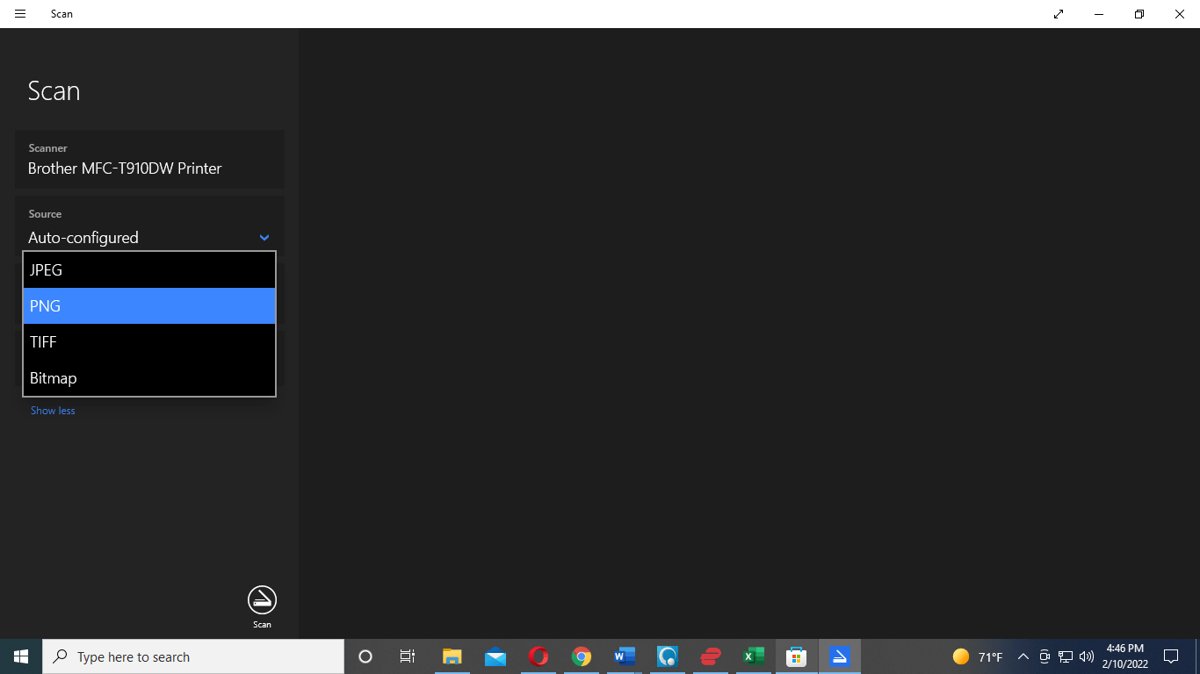
The fastest way to scan a document with the Scan app
These steps assume Windows already lists your scanner under Printers & scanners. If it does not, add it first using the Settings section further down.
- Turn the scanner on and place the document face down on the flatbed glass, or load it in the document feeder.
- Right-click Start, select Search, type
Windows Scan, and select Scan under Apps. On Windows 10, type it in the Type here to search box. - In the Scanner drop-down, check that your scanner is selected.
- In the Source drop-down, choose Flatbed, Feeder or Auto-configured.
- In the File type drop-down, choose JPEG, PNG, TIFF or Bitmap.
- Select Scan at the bottom of the window.
- When the scan finishes, select View to open it in Photos, or Close to start another scan.
The Scan app saves the file automatically. Unless you picked another folder, it goes to Pictures > Scans in your user folder.
Choose the right Windows scanning tool for your situation
Windows has one current scanning app, one legacy tool, and a Settings page that only connects the hardware. Match your situation to a row.
| Your situation | Use this | Why |
|---|---|---|
| The scanner is new or Windows does not list it | Settings > Printers & scanners | Scanning apps only see a scanner after Windows installs it |
| You want a quick scan saved as an image file | The Scan app (Windows Scan) | Microsoft's documented scanning app for Windows 11 and 10 |
| The Scan app does not appear in search | Microsoft Store | Windows Scan is a free Microsoft app you can reinstall from the Store |
| You already use Windows Fax and Scan, or also need faxing | Windows Fax and Scan optional feature | It is an optional feature and is not preinstalled after Windows 11, version 22H2 |
| You need a PDF and have no scanner | OneDrive app on an Android phone or iPhone | OneDrive's Scan option saves every scan as a PDF |
Check what you need before you scan
| Requirement | How to confirm it | If it is missing |
|---|---|---|
| Scanner powered on and connected | USB cable seated at both ends, or the scanner on the same Wi-Fi network as the PC | Reconnect the cable, try another USB port, or join the scanner to your network |
| Scanner installed in Windows | It appears under Printers & scanners in Settings | Select Add device on that page |
| All-in-one printer detected as a scanner | The printer's page in Printers & scanners shows Scanner settings | Update the driver through Windows Update or the manufacturer's support site |
| Scan app installed | Searching Windows Scan shows Scan under Apps |
Install Windows Scan from the Microsoft Store |
Add your scanner in Settings > Printers & scanners
Windows 11 installs most USB and network scanners from this page. A multifunction or all-in-one printer might appear only as a printer, even when its scanner is installed too.
- Plug the scanner into the PC with USB, or connect it to your network, and turn it on.
- Select Start > Settings > Bluetooth & devices > Printers & scanners.
- Select Add device next to Add printer or scanner.
- Wait while Windows searches; it can take a few minutes.
- Select Add device next to your scanner when it appears in the list.
- If it never appears, select Add a new device manually next to The printer that I want isn't listed, and follow the Add Printer window.
- Select an all-in-one printer in the list and confirm Scanner settings is shown on its page.
On Windows 10, open Start > Settings > Devices > Printers & scanners, select Add a printer or scanner, pick the scanner, and select Add device. If it is not found, select The printer that I want isn't listed.
Install the Windows Scan app when it is missing
If searching for Windows Scan returns no Scan app, it is not installed. Microsoft's instruction is to install it from the Microsoft Store, where it is listed as Windows Scan by Microsoft, free.
- Open Microsoft Store from the Start menu.
- Type
Windows Scanin the Store search box and press Enter. - Select Windows Scan with Microsoft shown as the publisher.
- Select the install button and wait for the download to finish.
- Search
Windows Scanagain and select Scan under Apps to open it.
Check the publisher before installing. Other scanning apps in the Store with similar names are not the Microsoft app this guide describes.
Add Windows Fax and Scan if you prefer the older tool
Windows Fax and Scan is a Windows optional feature that adds faxing and scanning. Microsoft's feature documentation notes it is not preinstalled after Windows 11, version 22H2, so many newer PCs do not have it.
Optional features download from Windows Update, so the PC needs an internet connection.
- Open Settings and type
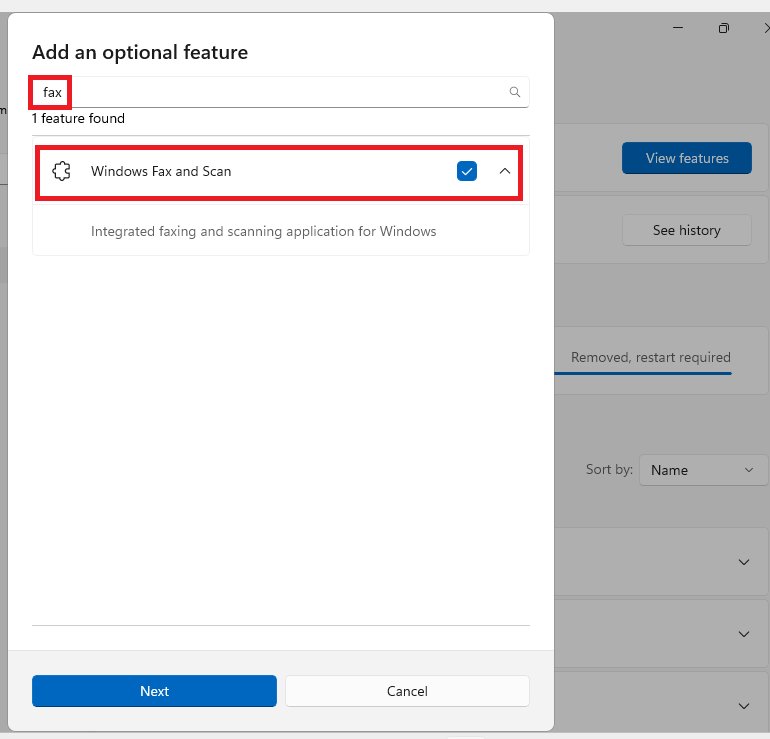
Optional featuresin the search box, then open Optional features. - On Windows 11, select View features next to Add an optional feature. On Windows 10, select Add a feature.
- Type
faxin the search box. - Select the check box next to Windows Fax and Scan.
- Select Next if shown, then select Install.
- When the install finishes, search Windows for
Windows Fax and Scanand open it.
To add the same feature from an administrator Command Prompt, run DISM /Online /Add-Capability /CapabilityName:Print.Fax.Scan~~~~0.0.1.0. The capability name comes from Microsoft's Features on Demand list.
If Windows Fax and Scan does not appear in the list, your edition or version of Windows does not offer it. Use the Scan app instead.
Scan a document with your phone when there is no scanner
The Windows Scan app needs a scanner connected to the PC. With no scanner, Microsoft's OneDrive app on Android and iPhone scans paper with the phone camera and saves the result to OneDrive, where your PC can open it.
- Open the OneDrive app and sign in with your Microsoft account.
- Tap Scan, or tap Add and then Scan.
- Choose Document from Whiteboard, Document, Business Card or Photo.
- Hold the phone over the page and tap the white circle to capture it.
- Crop or rotate the page if needed, then tap Done.
- Enter a file name and tap Save.
OneDrive saves every scan as a PDF. Multi-page scans hold up to 30 pages on iPhone and up to 10 pages on Android.

Where the Scan app saves files and which formats it offers
Microsoft's help page lists four image formats for the Scan app. The File type list can differ by scanner and app version, so open it to see what yours offers, and pick the format by what you will do with the file.
| Setting | Options or default | When to use it |
|---|---|---|
| Default save folder | Pictures > Scans in your user folder | Used whenever you have not chosen another folder |
| File type: JPEG | Compressed image, smallest files | Emailing or uploading a document where size matters |
| File type: PNG | Lossless compression | Text and line drawings you want sharp without huge files |
| File type: TIFF | High quality, large files | Archiving a document or passing it to software that expects TIFF |
| File type: Bitmap | Uncompressed, largest files | Only when another program specifically asks for a .bmp file |
| Source | Flatbed, Feeder, Auto-configured | Feeder for a stack of pages in the document feeder, Flatbed for a page on the glass |
Change the save folder and file type before scanning
- Open the Scan app and confirm the correct Scanner is selected.
- Open the File type drop-down and pick JPEG, PNG, TIFF or Bitmap.
- Select Show more to reveal the Save file to option.
- Use Save file to to pick a different folder, such as Documents or a OneDrive folder.
- Select Scan. The file saves straight into the folder you chose.
If you never change Save file to, look in Pictures > Scans for every scan.
Check that the scan saved correctly and tidy it up
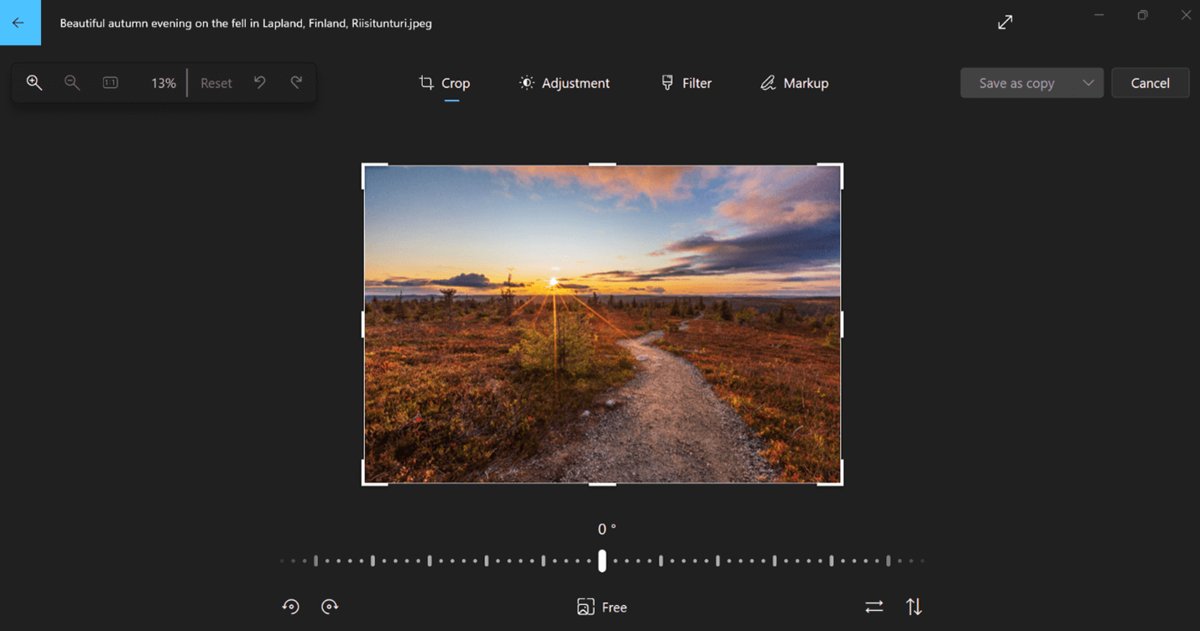
The View button opens a finished scan in the Photos app, where you can rotate or trim the page before sharing it. The editing labels below are from the Windows 11 Photos app.
- After the scan completes, select View at the top of the Scan app.
- Zoom in and check that text is readable and no edge of the page is cut off.
- In Photos, select Edit image or press Ctrl + E.
- Use Rotate clockwise, Rotate counterclockwise or the crop handles to fix the page.
- Save the edited image, then close Photos.
- Open File Explorer, go to Pictures > Scans or your chosen folder, and confirm the file is there.
If the page is crooked or cut off, straighten it on the glass and rescan rather than cropping heavily.
Fix the Scan app when the scanner or the app is missing
Find the symptom that matches, then work through the fix under it.
The Scan app cannot find your scanner
The scanner is off, disconnected, on a different network, or not installed in Windows.
- Turn the scanner on and check the USB cable is firmly connected at both ends, or try a different USB port.
- For a wireless scanner, confirm it is on the same Wi-Fi network as the PC.
- Open Settings > Bluetooth & devices > Printers & scanners and confirm the scanner is listed.
- If it is not listed, select Add device next to Add printer or scanner and add it.
- Reopen the Scan app and choose the scanner in the Scanner drop-down.
An all-in-one printer prints but will not scan
Windows installed the printer part only, so there is no scanner for the Scan app to use.
- In Printers & scanners, select the printer and check whether Scanner settings appears.
- If it does not, select Remove on the printer's page to uninstall it.
- Select Add device next to Add printer or scanner and add the printer again.
- Get the latest driver through Windows Update, which Microsoft recommends for printer drivers.
- If Windows Update has nothing, download the driver for your exact model from the manufacturer's official support site.
The Scan app is missing from search
Windows Scan is not installed on this PC or was removed.
- Search
Windows Scanand check under Apps for Scan. - If it is not there, open Microsoft Store and search
Windows Scan. - Install Windows Scan published by Microsoft.
- Open it from search and select your scanner.
Windows Fax and Scan is missing
It is an optional feature that is not preinstalled after Windows 11, version 22H2.
- Open Settings and search for
Optional features. - Add Windows Fax and Scan from the feature list and select Install.
- If it is not offered, use the Windows Scan app instead.
The scanner was found once but now fails to connect
A stale device entry or driver problem stops Windows talking to the device.
- Restart the scanner and the PC.
- For an all-in-one printer, run the automated printer troubleshooter in the Get Help app.
- Remove the device from Printers & scanners and add it again with Add device.
- Install driver updates from Windows Update.
Frequently asked questions
How do I scan a document using a printer?
Use an all-in-one printer with a built-in scanner. Add it in Settings > Bluetooth & devices > Printers & scanners, confirm Scanner settings appears on its page, then open the Scan app, pick the printer in Scanner, and select Scan.
How do I scan a document using an HP printer?
An HP all-in-one works with the Windows Scan app like any other scanner. Add it in Printers & scanners, open Scan, select the HP device in the Scanner drop-down, choose a source and file type, and select Scan. The file saves to Pictures > Scans. HP’s own app is the other route: you can scan with the HP app on a computer or phone.
How do I scan a document using an Epson, Canon, Brother or Kyocera printer?
The Windows steps do not change by brand. Install the printer in Printers & scanners, check that Scanner settings is listed for it, then scan from the Scan app. If Windows does not detect the scanner, install the model's driver from the manufacturer's official support site.
How do I scan a document using a scanner on Windows?
Connect and turn on the scanner, add it under Printers & scanners if Windows has not already, then open the Scan app. Place the page face down on the glass, choose Flatbed as the Source, pick a File type, and select Scan.
How do I scan a document into files on my PC?
The Scan app saves each scan as a file automatically. By default it goes to Pictures > Scans in your user folder. To save somewhere else, select Show more in the Scan app and change Save file to before you select Scan.
Can the Windows Scan app save a scan as a PDF?
Microsoft's help page lists JPEG, PNG, TIFF and Bitmap as the Scan app's file types, so open the File type list to see whether your scanner and app version offer PDF. If they do not, the OneDrive app on an Android phone or iPhone saves every document scan as a PDF.
How do I scan a document using an iPhone?
Install Microsoft OneDrive on the iPhone, tap Scan, choose Document, and tap the white circle to capture the page. Tap Done, name the file and tap Save. OneDrive stores it as a PDF you can open on your Windows PC.
How do I scan a document using an Android or Samsung phone?
Open the OneDrive app, tap Scan or Add > Scan, and pick Document. Capture the page, crop or rotate it, tap Done, then name the file and tap Save. The scan is saved as a PDF in OneDrive, up to 10 pages per file.
Can I scan a document using my laptop camera?
Not with the Windows Scan app, which works only with a scanner selected in its Scanner drop-down. Without a scanner, use the OneDrive app's Scan option on a phone, which captures the page with the camera and saves it as a PDF.
How do I properly scan a document?
Place the page straight on the flatbed glass, face down, and close the lid. Choose Flatbed as the source, pick PNG or TIFF for sharp text, and select Scan. Select View afterwards to check the page is straight, readable and not cut off.
What does scanning a document do?
Scanning turns a paper page into a digital file on your computer. The Windows Scan app saves it as an image file, such as JPEG or PNG, which you can email, print, back up or attach to other documents.
How does document scanning work?
The scanner captures an image of the page and sends it to the PC over USB or your network. The Windows Scan app receives that image and saves it in the file type you picked, in Pictures > Scans unless you chose another folder.







How to Download Epson Scan 2 for Windows 11: Quick Guide - Techdows
[…] Microsoft lists JPEG, PNG, TIFF and Bitmap as its file types, so there is no PDF output. For a walkthrough with screenshots, see how to scan a document using the Scan app in Windows 11/10. […]