To scan a document on an HP printer, place the page face down on the scanner glass, open the HP app on your computer or phone, select your printer and start a scan.
This guide also covers scanning without the HP app through HP Printer Assistant, Windows Fax and Scan, the Windows Scan app and Image Capture on a Mac, and what to do when the scanner is not found. For scanner settings that sit in Windows rather than in HP's software, start at the Windows 11 scanner and printer guide.
Quickest way to scan a document on an HP printer
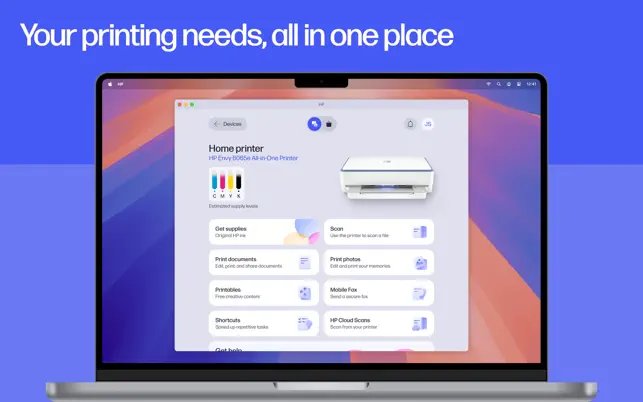
HP Smart has been folded into the HP app, which runs on Windows, macOS, iOS and Android and handles printing and scanning on supported HP devices.
- Turn on the HP printer and make sure it is connected to your computer by USB or to the same Wi-Fi network.
- Lift the scanner lid and place the document face down on the glass, or load the pages into the document feeder if your model has one.
- Open the HP app on your computer or phone. If it is not installed, go to 123.hp.com and follow the prompts to get it.
- Select your printer on the app's home screen.
- Choose the scan option, set the page size and file type, and start the scan.
- Save the scan to your device or share it by email when the app shows the finished pages.
The exact button names in the HP app vary by printer model, region and device, so the scan option can sit on a tile or in a menu.
Which HP scanning method should you use?
| Your situation | Use this | Why |
|---|---|---|
| You want HP's own tools and editing | HP app (formerly HP Smart) | Works on Windows, Mac, iPhone, iPad and Android; can scan multiple pages, flatten pages and extract text |
| Windows PC with the full HP driver installed | HP Printer Assistant | Ships with most HP printer drivers and needs no account |
| You need a built-in Windows tool with no HP software | Windows Scan app | Free Microsoft app that saves JPEG, PNG, TIFF or Bitmap files |
| You also send faxes or prefer the classic tool | Windows Fax and Scan | Optional Windows feature that keeps fax and scan in one window |
| You use a Mac | Image Capture | Built into macOS and lists connected and shared scanners |
What your HP printer needs before it can scan
| Requirement | Details |
|---|---|
| A scanner in the printer | Only all-in-one (multifunction) HP models have a scanner glass or document feeder; print-only models cannot scan. |
| A connection | USB cable, Ethernet on supported models, or the same Wi-Fi network as your computer or phone. |
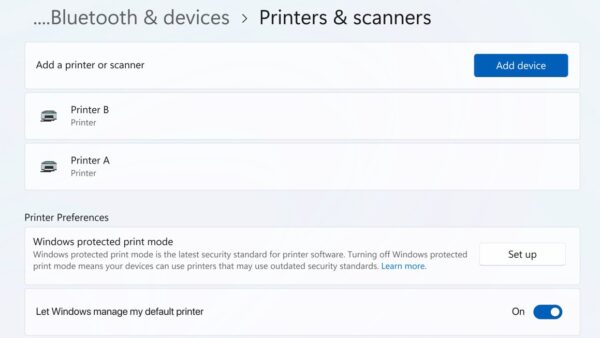
| Printer added to the computer | Windows 11: Settings > Bluetooth & devices > Printers & scanners. Windows 10: Settings > Devices > Printers & scanners. |
| Software | The HP app for app scanning, or the HP driver package for HP Printer Assistant. The Windows and Mac built-in tools need only a working scanner driver. |
| HP account | The HP app needs an HP account for full functionality and an internet connection. |
If Windows has not picked up the printer yet, add the printer in Windows 11 first, then come back to the scan steps.
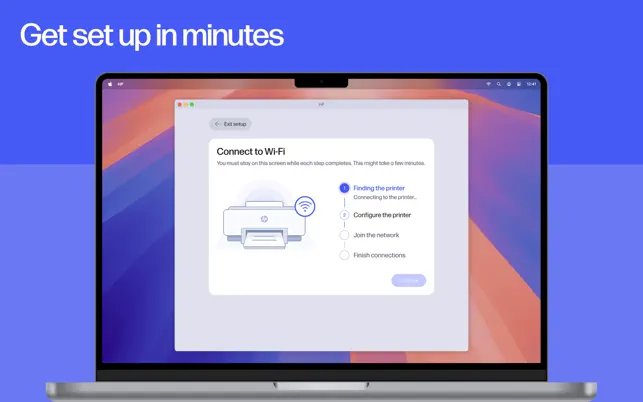
Using HP Smart (now the HP app)
HP says the HP Smart app is no longer available for download and that the HP app combines features from HP Smart and myHP.
If you already used HP Smart, the HP app finds your existing printers on first launch and keeps your saved printers and shortcuts when you sign in with the same HP account.
- Go to 123.hp.com in a browser, or open the Microsoft Store, Mac App Store, App Store or Google Play and search for the HP app.
- Install the app and sign in with your HP account.
- Select the plus sign or Set up a new printer if your printer is not listed yet, and follow the guided setup.
- Place the document on the scanner glass or in the feeder.
- Select your printer, then choose the scan option.
- Adjust the scan settings, such as page size, color and file type, then start the scan.
- Edit the result if needed, then save it or share it by email.
On iOS the app needs iOS 17.0 or later, and on a Mac it needs macOS 12.0 or later. The HP app can also correct images, name files and scan several pages at once.
Using HP Assistant tool (HP Printer Assistant)
HP Printer Assistant is the Windows utility included with most HP printer drivers. It is a good route when you do not want to sign in to an HP account.
- Place the document face down on the scanner glass.
- Press Windows + R, type
control printersand press Enter. - Double-click your HP printer in the window that opens.
- Open HP Printer Assistant if it does not open automatically.
- Select the scan option in the HP Printer Assistant window.
- Choose the document or photo preset, the file type and the save folder, then start the scan.
If the printer has no HP Printer Assistant entry, the full HP driver is not installed. Download the driver for your model from HP's Software and Drivers page at support.hp.com.
Using Windows Fax and Scan
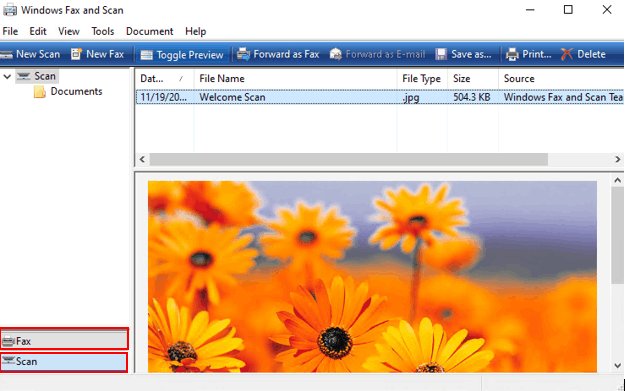
Windows Fax and Scan is an optional feature. After Windows 11, version 22H2, it is no longer preinstalled, so you may need to add it first.
- Select Start, type Windows Fax and Scan and open it from the results.
- If it is missing, open Settings, search for Optional features, choose View features next to Add an optional feature, tick Windows Fax and Scan, then select Next and Install.
- Place the document face down on the HP scanner glass.
- Select New Scan on the toolbar.
- Pick your HP scanner if Windows asks which device to use, then check the source and file settings in the dialog.
- Start the scan and save the result from the scanned document list.
Install Windows Fax and Scan with DISM
If the optional feature does not appear in Settings, add the same capability from an elevated Terminal or Command Prompt. Windows downloads the files from Windows Update.
DISM.exe /Online /Add-Capability /CapabilityName:Print.Fax.Scan~~~~0.0.1.0/Online targets the running copy of Windows, and /Add-Capability installs the Windows Fax and Scan feature on demand.
You should see: DISM reports that the operation completed successfully, and Windows Fax and Scan then appears in Start search.
Scan from an HP printer with the Windows Scan app
The free Windows Scan app from Microsoft works with any HP all-in-one that Windows has detected as a scanner, with no HP software or account. It saves images, so combine the scans into one PDF afterwards if you need a PDF file.
- Right-click Start, select Search, type Windows Scan and select Scan under Apps.
- Choose your HP printer in the Scanner list.
- Set Source to Flatbed or Feeder, and pick a File type: JPEG, PNG, TIFF or Bitmap.
- Select Show more and change the folder under Save file to if you do not want the default.
- Select Scan, then View to open the result in Photos or Close to finish.
Scan a document from an HP printer on a Mac with Image Capture
- Connect the HP printer to the Mac or to the same network, then turn it on.
- Place the document on the scanner glass or in the feeder.
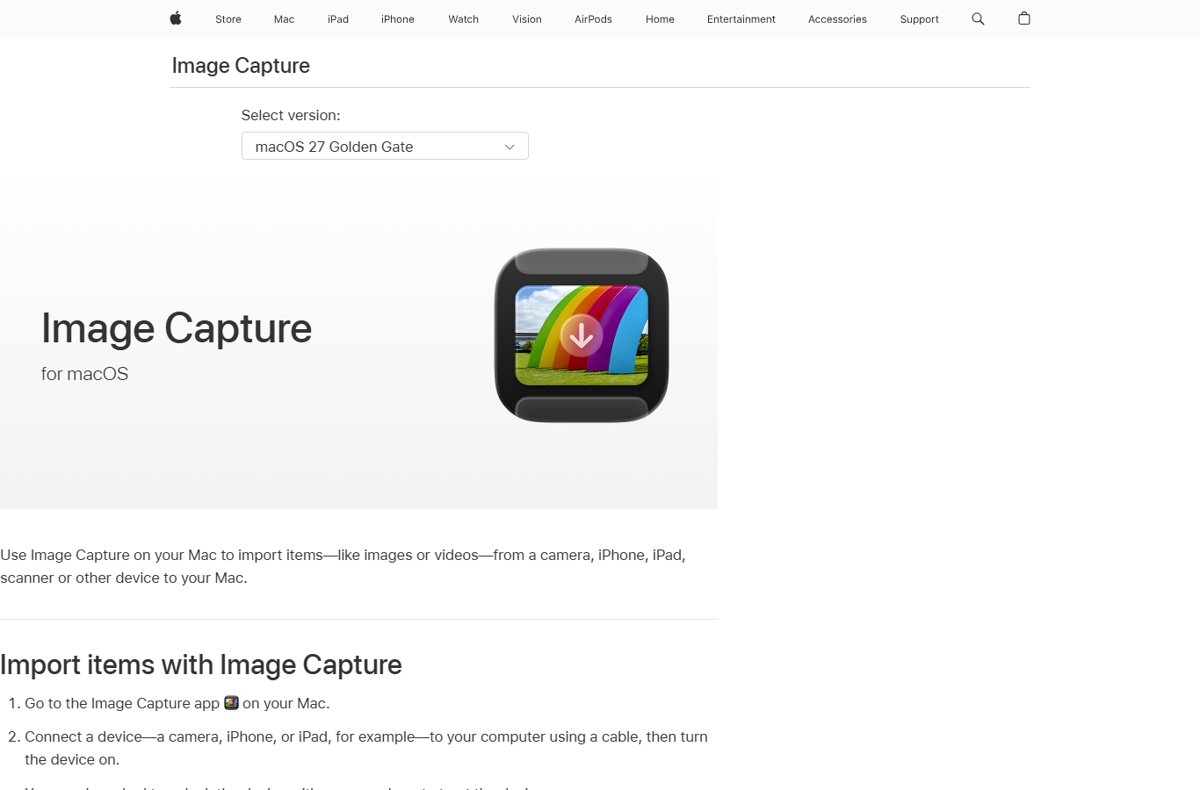
- Open the Image Capture app.
- Select the HP printer under Devices or Shared in the sidebar.
- Choose the scan settings and destination, then start the scan.
With a document feeder, Image Capture can scan a multipage document into a single file. On the flatbed it can save each item to its own file.
How to find the scanned document on your computer
- Windows Scan app: right-click Start, open File Explorer and go to Pictures > Scans, or the folder you chose under Save file to.
- HP app and HP Printer Assistant: open the folder you picked in the save dialog before the scan finished.
- Image Capture: open the destination shown in the app's scan settings.
- Open the file and zoom in to check that the text is sharp and no edge of the page is cut off.
If you save scans to a folder that syncs, such as Documents, you can find the Documents folder from the File Explorer sidebar.
Fix an HP printer that will not scan
The HP printer is not listed as a scanner in Windows
Windows installed it as a printer only, or the scan driver is missing.
- Open Printers & scanners and select the HP printer.
- On Windows 11, look for Scanner settings; on Windows 10, select Manage and look for an entry that starts with Scanner:.
- If neither appears, select Add device next to Add printer or scanner and wait a few minutes for the search.
- If the printer still is not found, select Add a new device manually and follow the Add Printer window.
The HP app cannot find the printer
The phone or computer and the printer are on different networks, or discovery is blocked.
- Connect the computer or phone to the same Wi-Fi network as the printer.
- Restart the router, the printer and your device.
- Turn off any VPN while you scan.
- Run the printer's Wireless Setup Wizard again, or add the printer by its IP address.
Scanning fails or the scan driver keeps erroring on Windows
A damaged driver install or queue problem.
- Run HP Print and Scan Doctor from the HP app or HP's support site; it fixes common discovery and driver problems.
- Remove the printer in Printers & scanners, then add it again with Add device.
- Reinstall the full driver package for your model from HP's Software and Drivers page.
The Windows Scan app or Windows Fax and Scan is missing
Neither tool is guaranteed to be installed on current Windows 11 builds.
- Install Windows Scan from the Microsoft Store.
- Add Windows Fax and Scan through Optional features or the DISM command above.
The HP printer does not appear in Image Capture on a Mac
macOS has no driver for that scanner, or the connection is down.
- Check the cable or Wi-Fi connection and make sure the printer is turned on.
- Install the HP app or HP's Mac software for the model, then open Image Capture again.
Paper jams, offline errors and other common HP printer problems also stop scanning, so clear those on the printer first.
HP printer scanning FAQ
Can I scan on an HP printer without HP Smart?
Yes. Without HP Smart or the HP app you can scan with HP Printer Assistant, which comes with most HP printer drivers, or with Microsoft's Windows Scan app and Windows Fax and Scan. On a Mac, use the built-in Image Capture app.
Is HP Smart still available?
No. HP says the HP Smart app is no longer available for download. It has been replaced by the HP app, which combines HP Smart and myHP and still prints and scans from supported HP printers.
Where do scanned documents go on an HP printer?
Scans are saved on the computer or phone, not the printer. The Windows Scan app saves to Pictures > Scans by default. The HP app, HP Printer Assistant and Image Capture save to the folder chosen in their save settings.
Does Windows 11 include Windows Fax and Scan?
Not always. After Windows 11, version 22H2, Windows Fax and Scan is no longer preinstalled. Add it from Settings > Optional features, or run the DISM command that installs the Print.Fax.Scan capability.
Can I scan multiple pages into one file on an HP printer?
Yes, if you use the HP app or a document feeder. The HP app can scan multiple pages at once, and Image Capture on a Mac can scan a multipage document from the feeder into a single file.
Can I scan from an HP printer to my phone?
Yes. Install the HP app on your iPhone, iPad or Android phone, put the phone on the same Wi-Fi network as the printer, select the printer and start a scan. You can then save or email the result.
Why does my HP printer print but not scan?
Usually Windows installed only the print driver, or the printer has no scanner. Check Printers & scanners for Scanner settings, install the full HP driver for your model, and run HP Print and Scan Doctor if scanning still fails.
Which file types can I save an HP scan as in Windows?
The Windows Scan app saves HP scans as JPEG, PNG, TIFF or Bitmap. For other formats such as PDF, use the HP app or HP Printer Assistant, where the available file types depend on your printer model.