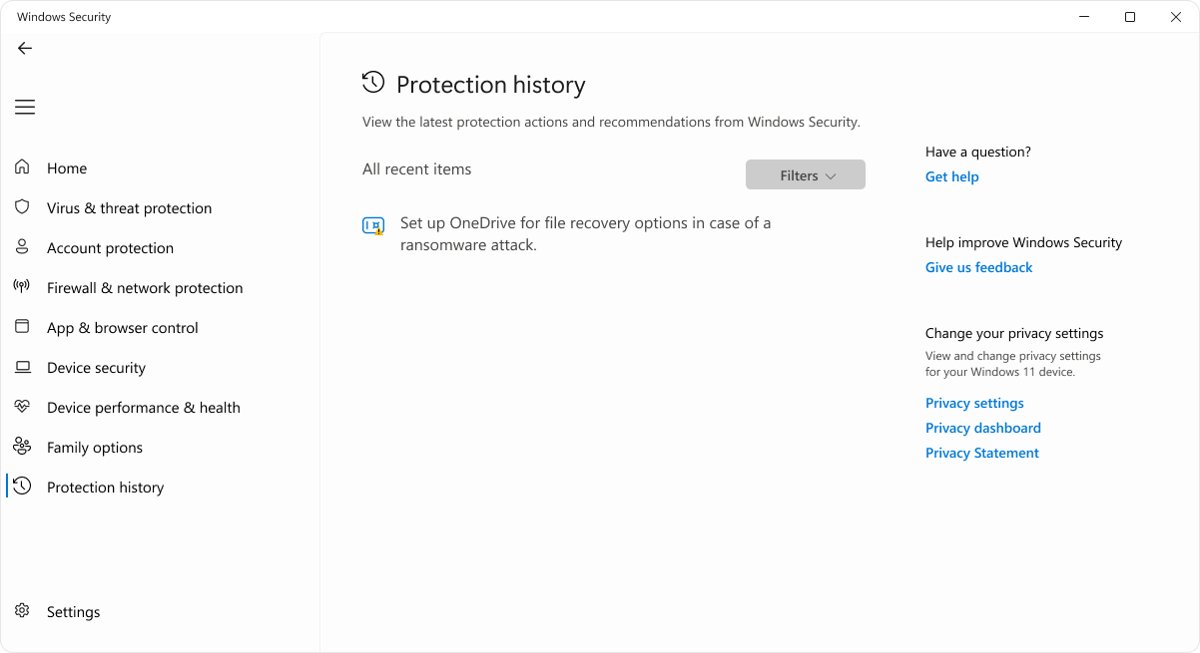
To manually allow a blocked file or app, open Windows Security > Virus & threat protection > Protection history, select the blocked item, and choose Allow on device or Allow from its Actions menu.
This guide also covers exclusions, Controlled folder access, the Unblock check box for downloaded files, SmartScreen and Edge download blocks, the firewall, and how to undo an allow later.
Manually allow blocked file or app in Windows Security
Protection history lists every file and app that Microsoft Defender Antivirus or SmartScreen has acted on. You need administrator rights on the PC to open the details of a threat.
- Select Start, type Windows Security and open the app.
- Select Virus & threat protection, then Protection history. You can also paste
windowsdefender://historyinto the Run box. - Select the card for the blocked file or app to expand it, and select Yes if User Account Control asks.
- Open the Actions menu on the card.
- For a Threat found – action needed item, select Allow on device.
- For a Threat blocked item or a This app has been blocked item, select Allow.
- If the file was deleted when it was blocked, download it again; Allow applies the next time Windows sees the file.
Choose Allow only for a file from a source you trust. Microsoft recommends Quarantine for anything you are not sure about, because an allowed threat can put your data and device at risk.
Windows Security protection history status and actions
The status line on each Protection history card tells you what Windows Security already did and which actions you can still take.
| Status | What it means | Action that lets the file run |
|---|---|---|
| Threat found – action needed | Defender is waiting for your decision | Allow on device |
| Threat quarantined | The file is isolated but not removed | Restore, then Allow on device on the new item it creates |
| Threat blocked | Defender already removed the file | Allow, then download the file again |
| This app has been blocked | SmartScreen stopped a potentially unwanted app before installation | Allow, then run the installer again |
| Remediation incomplete | Defender could not finish cleaning the threat | Run a full scan before allowing anything |
A restored file goes back to its original folder, and Defender detects it again straight away, which is why a second Allow on device is needed. A red card is serious; a yellow card is not urgent but should still be checked.
How do I add apps to Windows Security?
An exclusion tells Microsoft Defender Antivirus to stop scanning a file, folder, file type or process in real time. Use it for an app you trust that keeps getting flagged, never as a general workaround.
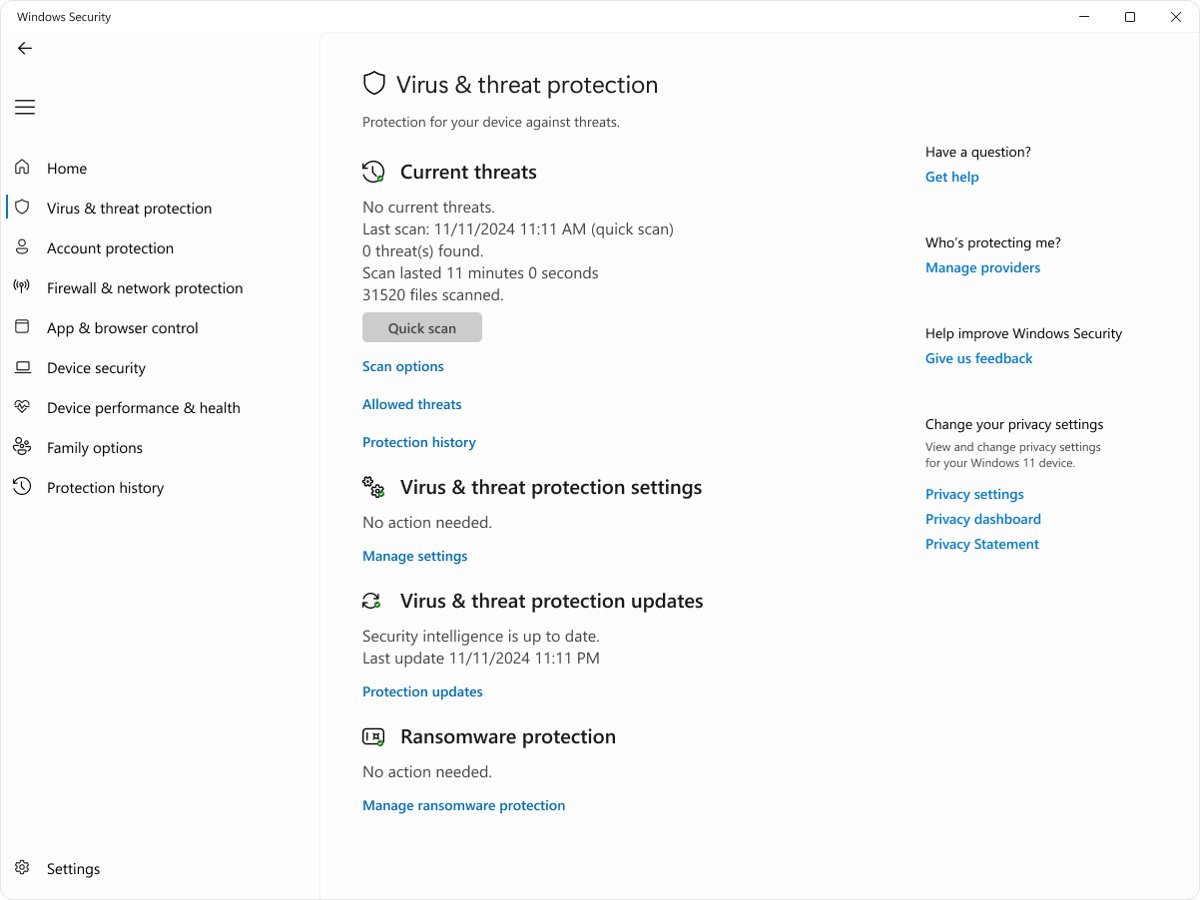
- Open Windows Security and select Virus & threat protection.
- Under Virus & threat protection settings, select Manage settings.
- Scroll to Exclusions and select Add or remove exclusions.
- Add a new exclusion and choose its type: File, Folder, File type or Process.
- Browse to the item, or type it, and confirm.
Exclude the narrowest item that solves the problem: one file is safer than a whole folder. For a process, Microsoft recommends using the full path and file name. Exclusions apply only to real-time scanning, and the app's file location gives you the exact path to paste in.
How to allow an app through Controlled folder access
Controlled folder access stops untrusted apps from changing files in protected folders such as Documents and Pictures. When it blocks an app you use, Windows shows an App is blocked notice instead of saving the file.
- Note the path of the blocked app shown in the notification.
- Open Windows Security > Virus & threat protection and select Manage settings under Virus & threat protection settings.
- In the Controlled folder access section, select Manage Controlled folder access.
- On the Ransomware protection page, select Allow an app through Controlled folder access, then select Yes in the User Account Control prompt.
- Select Add an allowed app, then Recently blocked apps and pick the app from the list.
- If the app is not listed, select Browse all apps and choose its
.exeor.comfile.
Restart the app after you allow it. Only add apps you trust, because an allowed app that is later compromised can change or encrypt the files in your protected folders.
Allow an app through Controlled folder access with PowerShell
Add-MpPreference -ControlledFolderAccessAllowedApplications "C:\Program Files\Example\app.exe"Run it in PowerShell opened as administrator, replacing the path with the full path of your app. Add-MpPreference adds the app to the allowed list without touching existing entries; Set-MpPreference would replace the whole list.
You should see: The command returns no output. The app then appears under Allow an app through Controlled folder access in Windows Security.
How do I manually unblock a file?
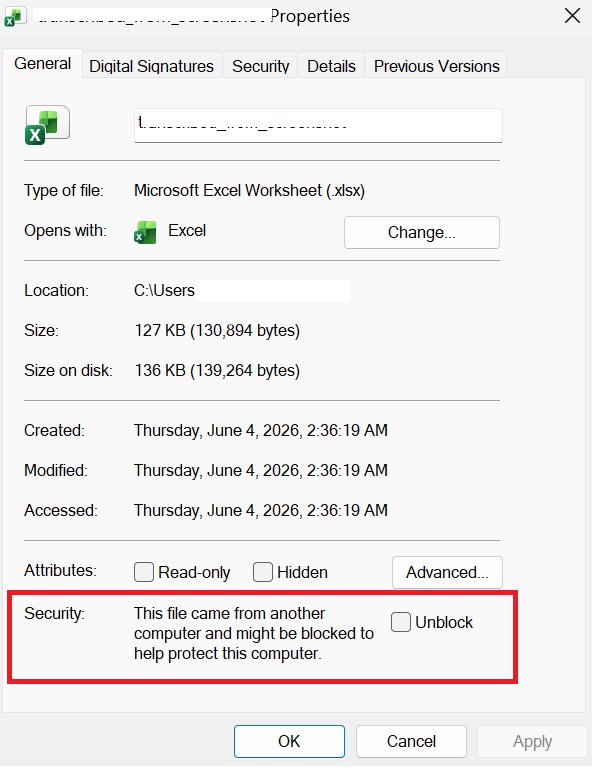
Windows marks files that arrive from the internet or as email attachments with a Mark of the Web. Office blocks macros in those files and Windows shows extra warnings until you unblock them.
- Right-click the downloaded file in File Explorer and select Properties.
- Stay on the General tab.
- Select the Unblock check box.
- Select OK.
- Open the file again.
Mark of the Web only applies on NTFS drives, so files saved to a FAT32 USB drive do not carry it. If the check box is missing, the file is not marked or comes from a network share; see the fixes below.
Unblock a downloaded file with the Unblock-File cmdlet
Unblock-File -Path "$env:USERPROFILE\Downloads\report.xlsm"Unblock-File removes the Zone.Identifier data that marks a file as downloaded. It does the same thing as the Unblock check box on the file's General tab, which makes it handy for several files at once.
You should see: The command returns no output, and the Unblock check box is no longer shown in the file's Properties.
How to allow a blocked download in Microsoft Edge
When Microsoft Defender SmartScreen flags a download, Edge stops it in the downloads panel. You can keep a file you trust without turning SmartScreen off.
- Open the downloads panel in Edge from the notification or the Downloads button on the toolbar.
- Select More actions (…) next to the blocked download.
- Select Keep.
- Select Show more, then Keep anyway.
If Edge shows Couldn't download – Virus detected, Microsoft Defender removed the file, so allow it in Protection history first and then download it again. A Blocked result on a work PC can come from a download policy that only your IT administrator can change.
How to run an app when Windows protected your PC appears
The blue Windows protected your PC screen is SmartScreen warning that an app is unsigned or not yet widely downloaded. New apps from small developers often trigger it.
- Check where the file came from and that the publisher is the developer you expect.
- On the Windows protected your PC screen, select More info.
- Read the app and publisher names shown.
- Select Run anyway.
If no Run anyway button appears, your organization's policy prevents continuing. On Windows 11, Smart App Control may also block unsigned files before SmartScreen gets the chance to warn.
How to allow an app through Windows Firewall
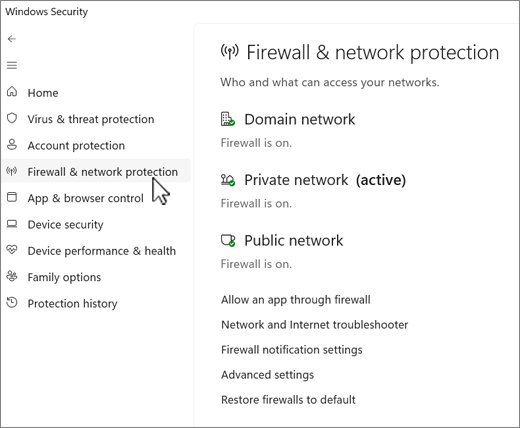
If a game, chat or server app cannot accept connections, the firewall rather than the antivirus may be blocking it. Allowing an app is safer than opening a port, because the app only opens the ports it needs while it runs.
- Open Windows Security and select Firewall & network protection.
- Select Allow an app through firewall.
- Select Change settings and confirm with an administrator account if asked.
- Tick the check box next to the app, and choose Private, Public or both.
- If the app is not listed, select Allow another app, browse to its file and add it.
- Select OK.
If Change settings stays greyed out, an administrator has locked the firewall settings on that PC.
Can you allow an app blocked by Smart App Control?
No. There is no way to allow a single app through Smart App Control; Protection history, exclusions and the Unblock check box do not change its decision. Microsoft states that individual apps cannot bypass Smart App Control. The supported routes are to ask the app's developer to sign it with a valid signature, or to use a signed version or a Microsoft Store version of the app. Turning Smart App Control off removes the protection for every app, so treat that as a last resort rather than a fix for one program.
How to enable a blocked file that still will not open
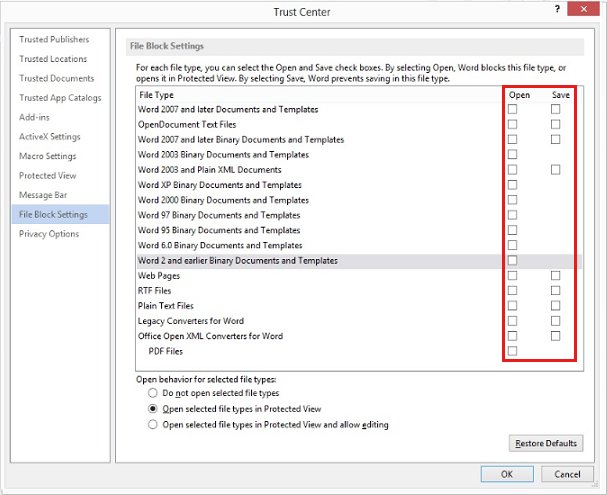
Office says the file type is "blocked by your File Block settings in the Trust Center"
Office's File Block settings stop that file type from opening or saving.
- Open a blank document in the Office app named in the message and select File > Options.
- Select Trust Center > Trust Center Settings.
- Select File Block Settings and clear the Open or Save check box for the file type.
- Select OK twice and open the file again.
File Block check boxes are greyed out
A Group Policy setting from your organization controls File Block.
- Ask your IT administrator to change the File Block Settings policy for that Office app.
Office shows a red Security Risk banner about macros
The file carries a Mark of the Web, so Office blocks its macros.
- Close the file.
- Right-click it, select Properties, select Unblock on the General tab and select OK.
- Open the file again.
There is no Unblock check box
Files opened from some network shares do not show it, and unblocking has no effect when the share is in the Internet zone.
- Copy the file to a local folder and check its Properties again.
- On a work network, ask your administrator to add the share to the Trusted sites or Local intranet zone.
Defender blocks the file again after Restore
Restore puts the file back, and Defender creates a new Threat found item for it.
- Open Protection history and select the new item.
- Select Actions > Allow on device.
How to remove an allowed threat or exclusion in Windows Security
Every allow can be reversed. After you remove it, Windows Security acts on the item again the next time it sees it.
- Open Windows Security > Virus & threat protection.
- On the Virus & threat protection page, open Allowed threats.
- Select the item and select Don't allow.
- To remove an exclusion, open Manage settings > Add or remove exclusions, select the exclusion and select Remove.
If Defender keeps flagging a file you are sure is clean, submit it as a false positive through the Microsoft Security Intelligence file submission portal instead of leaving a permanent exclusion. To check recent detections first, view the Defender protection history on the PC.
Windows Security blocked file FAQ
How to allow blocked files in Windows Security?
Open Windows Security > Virus & threat protection > Protection history, select the blocked item and choose Allow on device or Allow from Actions. For a file Defender keeps flagging, add a File exclusion under Manage settings > Add or remove exclusions.
How to enable a blocked file?
Right-click the file, select Properties, tick Unblock on the General tab and select OK. If Defender blocked it, allow it in Protection history instead. Office file types blocked by File Block settings are enabled in Trust Center > File Block Settings.
How to allow a blocked download?
In Microsoft Edge, open the downloads panel, select More actions next to the file, then Keep > Show more > Keep anyway. If Defender removed the file, allow it in Protection history and download it again.
Where is Protection history in Windows 11?
Open the Windows Security app and select Virus & threat protection, then Protection history. The windowsdefender://history link opens it directly. You need administrator rights on the PC to see the details of each threat.
Why does Windows Security block a file again after I allowed it?
Allow on a removed threat only applies the next time Windows sees the file, so the original copy is gone and must be downloaded again. A restored quarantined file is detected again and needs Allow on device on the new item.
Does an exclusion turn off Microsoft Defender for that file?
An exclusion stops Microsoft Defender Antivirus from scanning that file, folder, file type or process in real time. Microsoft warns this makes the device more vulnerable, so exclude only the specific item you trust.
Can I allow an app blocked by Smart App Control?
No. Microsoft states there is currently no way to bypass Smart App Control for individual apps. Ask the developer for a signed version, or use the app's Microsoft Store version if there is one.