Advanced system settings in Windows 11 sits at Settings > System > About, and the fastest way in is Win + R, then SystemPropertiesAdvanced.
Both routes open the classic System Properties dialog, where Performance, virtual memory, User Profiles, Startup and Recovery, and Environment Variables live. The sections below cover every route, the Windows 10 difference, the admin prompt, and fixes when the dialog will not open.
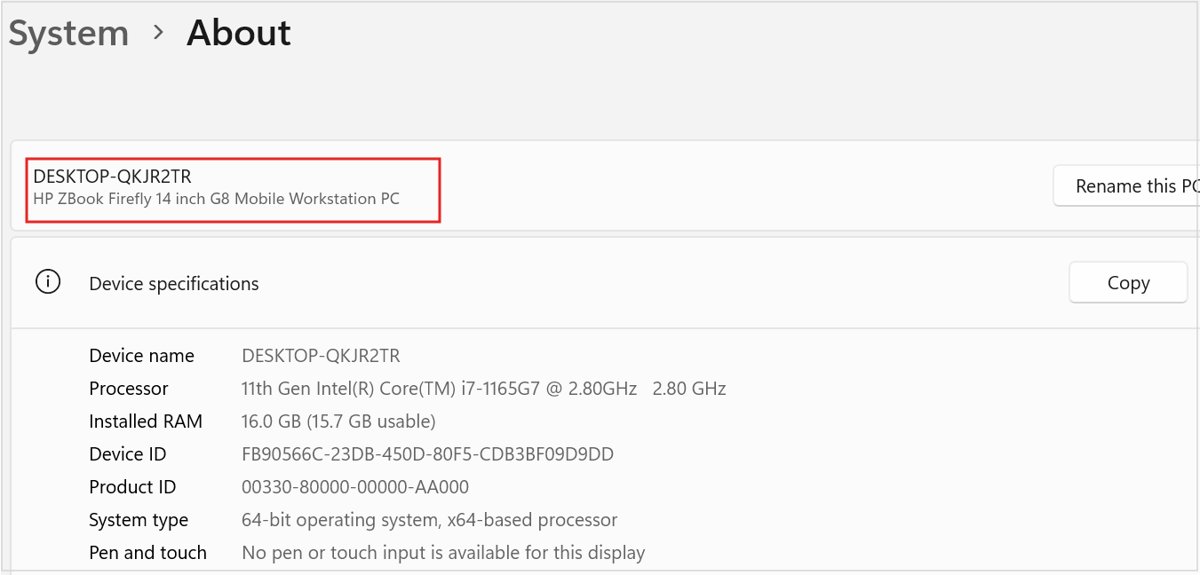
The fastest way to open advanced system settings in Windows 11
The Run command skips Settings and Control Panel entirely, and Microsoft lists it as the direct route to the tool.
- Press Win + R to open the Run dialog.
- Type
SystemPropertiesAdvancedin the Open box. - Press Enter, or select OK.
- Approve the User Account Control prompt if one appears. System Properties opens with the Advanced tab in front.
Advanced system settings is not a page inside the Settings app. It is the older System Properties dialog, which Microsoft describes as the place for settings not typically available in Settings or Control Panel.
Which route into advanced system settings fits your situation
Every route below ends in the same System Properties dialog. Pick by where you already are, or use this table as the quick reference.
| Your situation | Use this | Why |
|---|---|---|
| Keyboard in reach, any window open | Win + R, then SystemPropertiesAdvanced |
One dialog, one word, lands on the Advanced tab |
| You prefer menus to typing | Win + I > System > About > Advanced system settings | The documented Settings path on Windows 11 |
| You already have the About page in mind | Win + Pause on a keyboard with a Pause key, then Advanced system settings | Microsoft maps Win + Pause to System > About on Windows 11 |
| You remember the name, not the location | Start menu search for advanced system settings |
Microsoft lists Start menu search as a supported route |
| You live in Control Panel | Control Panel > System, then Advanced system settings | On Windows 11 the System item hands off to Settings, then the link opens the dialog |
| You are in Command Prompt, PowerShell, or Windows Terminal | SystemPropertiesAdvanced or control sysdm.cpl,,3 |
Both are Microsoft-documented launchers for System Properties |
| You are in File Explorer | Use Win + R instead of the address bar | Microsoft documents the Run box, not the Explorer address bar, for this command |
| You open it several times a week | A desktop shortcut to %windir%\system32\SystemPropertiesAdvanced.exe |
Double-click from then on |
When advanced system settings needs administrator permissions
Opening the dialog is not the hurdle; saving changes is. Microsoft ships the System Properties pages as .exe files so a standard user is prompted for administrator credentials.
| What you are doing | Administrator rights needed? | What Microsoft documents |
|---|---|---|
| Opening System Properties from a standard account | You are prompted for admin credentials | The SystemProperties*.exe commands exist so standard users get a credential prompt |
| Changing Startup and Recovery options | Yes | You must be logged on as an administrator; network policy may still block it |
| Deleting a profile in User Profiles | Yes | Membership of the local Administrators group is required |
| Joining a domain from the Computer Name tab | Yes, plus a Pro, Enterprise, or Education edition | Home is not on Microsoft's list of editions that can join a domain |
| Changing system Environment Variables | Yes, in practice | System variables apply to everyone on the PC, and Microsoft stores them under HKEY_LOCAL_MACHINE |
Open advanced system settings from Windows Settings
Microsoft moved the old Control Panel System page into Settings > System > About and kept the advanced controls one link away.
- Press Win + I to open Settings, or right-click Start and select Settings.
- Select System in the left pane.
- Scroll down and select About.
- Select the Advanced system settings link on the About page.
- Approve the User Account Control prompt if one appears.
Settings > System > Advanced is a different page. Microsoft renamed the former For developers page to Advanced, and it holds Developer Mode, long paths, and Terminal options, not System Properties.
Search for advanced system settings from the Start menu
- Select Start, or press Win + S to open search.
- Type
advanced system settings. - Select the matching result to open System Properties.
- To reach one tool directly, search
Adjust the appearance and performance of Windowsfor Performance Options, orCreate a restore pointfor the System Protection tab.
Open advanced system settings from Control Panel
On Windows 11 the Control Panel System item no longer has its own page. Microsoft confirms it opens the Settings app, where the link waits.
- Select Start, type
Control Panel, and open Control Panel. - Set View by to Large icons.
- Select System. The Settings app opens on the About page.
- Select Advanced system settings.
- For the Computer Name tab alone, select Domain or workgroup instead.
Create a desktop shortcut for advanced system settings
- Right-click an empty area of the desktop, point to New, then select Shortcut.
- Type
%windir%\system32\SystemPropertiesAdvanced.exeas the location, then select Next. - Name it
Advanced system settings, then select Finish. - Double-click the new icon to open System Properties on the Advanced tab.
Point the shortcut at SystemPropertiesPerformance.exe or SystemPropertiesProtection.exe instead when you only ever use one tool.
Run sysdm.cpl or SystemPropertiesAdvanced from Command Prompt, PowerShell, or Windows Terminal
Two commands reach the dialog. SystemPropertiesAdvanced.exe is Microsoft's dedicated launcher for the advanced page; sysdm.cpl is the Control Panel module behind System Properties, and a tab number picks the page.
SystemPropertiesAdvanced          Run box, Command Prompt, PowerShell, Windows Terminal
control sysdm.cpl,,3              Opens the System item on its third tab (Advanced)
sysdm.cpl                         Opens System Properties from the Run box
SystemPropertiesAdvanced lives in %windir%\system32, so no path is needed. In control sysdm.cpl,,3, the number after the two commas is the tab to open; Microsoft notes tab numbering changed after Windows XP, where Advanced was the fourth tab.
You should see: The System Properties window opens with Performance, User Profiles, and Startup and Recovery on the Advanced tab, and the console returns to the prompt.
Where advanced system settings lives in Windows 11 and Windows 10
The dialog itself is the same on both versions. The route to it and what Win + Pause does are where they part.
| Windows version | Settings path | Control Panel path | Win + Pause | Run command |
|---|---|---|---|---|
| Windows 11 | Settings > System > About > Advanced system settings | Control Panel > System opens Settings About; select Advanced system settings | Opens Settings > System > About | SystemPropertiesAdvanced |
| Windows 10 | Settings > System > About > Advanced system settings | Control Panel > System opens Settings About; select Advanced system settings | Microsoft's Windows 10 shortcut list says it displays System Properties | SystemPropertiesAdvanced |
| Windows Server 2012 to 2019 | Not applicable | Control Panel > System opens the classic System applet; select Advanced system settings | Not covered here | SystemPropertiesAdvanced |
The switch dates from Windows 10 Insider build 20161, when Microsoft redirected links for the Control Panel System page to Settings > System > About.
How to check you opened the right dialog
Two different things carry the word advanced in Windows 11. These checks confirm you have System Properties and not the Settings Advanced page.
- Confirm the window title reads System Properties and it is a small dialog, not the Settings app.
- Check the Advanced tab shows three areas: Performance, User Profiles, and Startup and Recovery, each with a Settings button.
- Check the Environment Variables button is on the same Advanced tab.
- Confirm the Computer Name and System Protection tabs are present along the top.
- If you see Developer Mode or End Task toggles, you are on Settings > System > Advanced instead. Go back to About.
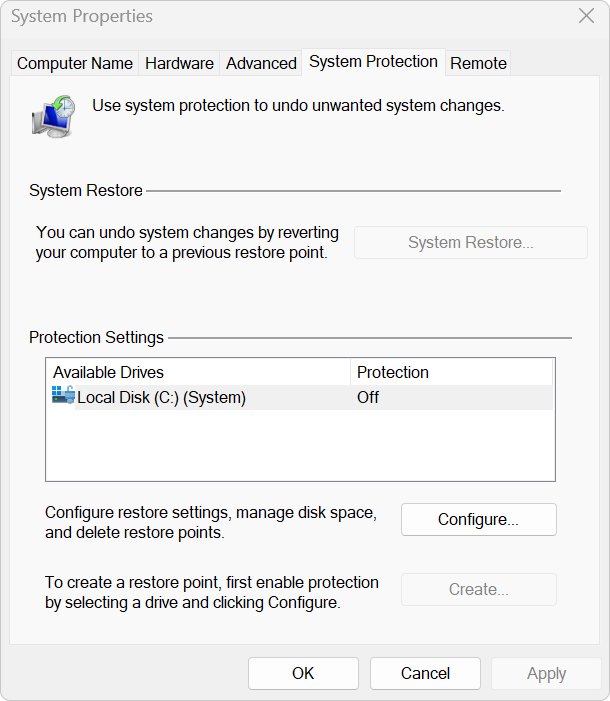
What you can change in advanced system settings, tab by tab
Microsoft describes the dialog as the home of system properties, environment variables, performance settings, and user profiles. Each row names the direct command when one exists, so you can skip the dialog next time.
| Tool | Where in System Properties | What it controls | Open it directly |
|---|---|---|---|
| Performance Options: visual effects | Advanced > Performance > Settings > Visual Effects | How Windows draws its visual effects; Microsoft's PC speed tips pick Adjust for best performance | SystemPropertiesPerformance, or search Adjust the appearance and performance of Windows |
| Virtual memory (paging file) | Advanced > Performance > Settings > Advanced > Virtual memory > Change | Page file size per drive; system-managed by default, growing up to 3 x RAM or 4 GB, whichever is larger | SystemPropertiesPerformance, then the Advanced tab |
| User Profiles | Advanced > User Profiles > Settings | Lists every profile stored on the PC; Delete removes one. Copying profiles here is disabled | No separate command |
| Startup and Recovery | Advanced > Startup and Recovery > Settings | Write an event to the system log, Automatically restart, and the memory dump type (default Automatic Memory Dump) | No separate command |
| Environment Variables | Advanced > Environment Variables | User variables for your account and system variables for everyone; a value can be up to 32,767 characters | No separate documented command |
| Computer Name | Computer Name tab > Change | Rename the PC or join a domain or workgroup | SystemPropertiesComputerName |
| System Protection | System Protection tab | Configure restore points and disk space, Create a restore point, run System Restore | SystemPropertiesProtection |
| Remote | Remote tab | Remote access settings for this PC | SystemPropertiesRemote |
Fix advanced system settings when it will not open
Match your symptom, then run only the fix under it.
"Windows cannot find" SystemPropertiesAdvanced.exe
The command was mistyped, or the file in %windir%\system32 is missing or damaged.
- Press Win + R and type
SystemPropertiesAdvancedwith no spaces, then press Enter. - Try the second launcher: press Win + R, run
control sysdm.cpl,,3. - If both fail, type
cmdin Search, right-click Command Prompt, and select Run as administrator. - Run
DISM.exe /Online /Cleanup-image /Restorehealthand wait for it to finish. - Run
sfc /scannow, restart the PC, then try Win + R again.
The Advanced system settings link opens nothing, or Control Panel and Settings will not start
The Prohibit access to Control Panel and PC settings policy stops Control.exe and SystemSettings.exe from starting.
- Press Win + R and run
SystemPropertiesAdvanced. The policy as documented names Control.exe and SystemSettings.exe, not this launcher. - On a work or school PC, ask the administrator about the policy. Only they can change it.
- On your own Pro, Enterprise, or Education PC, press Win + R, run
gpedit.msc, and open User Configuration > Administrative Templates > Control Panel. - Set Prohibit access to Control Panel and PC settings to Not Configured, then sign out and back in.
Windows asks for an administrator password, or changes will not save
You are signed in with a standard account, and changes such as Startup and Recovery or profile deletion need administrator rights.
- Type the credentials of an administrator account at the User Account Control prompt.
- If the change is still refused on a work PC, network policy may block it. Ask the administrator.
- On a home PC, sign in with the administrator account, reopen System Properties, and make the change there.
You found "Advanced" in Settings but none of these options
Settings > System > Advanced is the renamed For developers page, a different tool.
- Select About under System in Settings.
- Select Advanced system settings on that page.
- Confirm the dialog that opens is titled System Properties.
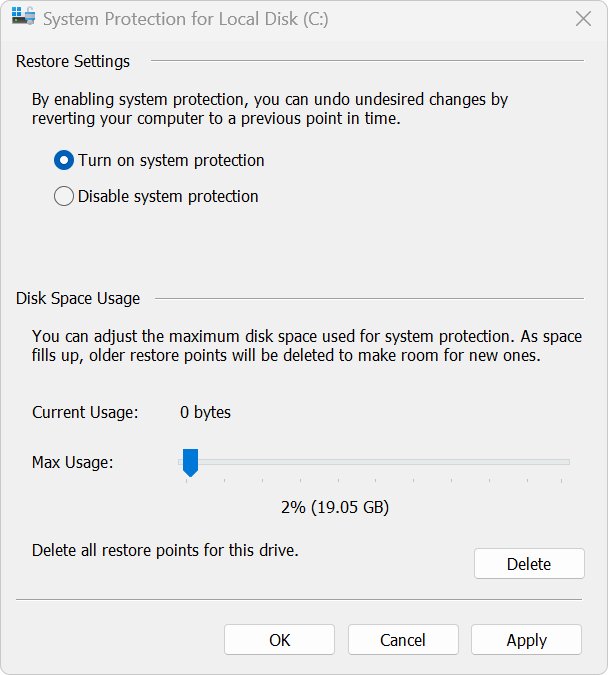
Create a restore point before changing advanced settings
Microsoft warns that incorrect settings in this dialog can affect system stability. A restore point gives you a way back from a bad paging file or recovery change.
- Press Win + R, run
SystemPropertiesProtection, and approve any prompt. - If protection is off for your system drive, select it, select Configure, and turn protection on.
- Select Create, type a description such as
Before virtual memory change, and select Create. - Change one setting at a time, then restart and check the PC before changing the next.
- If something breaks, return to the System Protection tab and select System Restore.
Keep the paging file on the boot volume if you move or resize it. Microsoft notes a crash dump file is only written when a page file there is large enough to hold it.
Frequently asked questions
How do I find advanced system settings in Windows 11?
Open Settings with Win + I, select System, then About, and select Advanced system settings. The link opens the System Properties dialog on the Advanced tab, where Performance, User Profiles, Startup and Recovery, and Environment Variables sit.
How do I find advanced system settings in Windows 10?
The route matches Windows 11: Settings > System > About > Advanced system settings. Since Windows 10 build 20161, the Control Panel System item redirects to that About page. Pressing Win + R and running SystemPropertiesAdvanced also works on Windows 10.
How do I open advanced system settings with a command?
Press Win + R, type SystemPropertiesAdvanced, and press Enter. The same word works in Command Prompt, PowerShell, and Windows Terminal. The alternative control sysdm.cpl,,3 opens System Properties on its third tab, which is Advanced.
How do I run advanced system settings as administrator?
Launch it normally. Microsoft built the System Properties launchers as .exe files so Windows shows a User Account Control prompt for administrator credentials. Approve it, or type an administrator's password if you use a standard account.
How do I access advanced system settings from Control Panel?
Open Control Panel, set View by to Large icons, and select System. On Windows 11 and Windows 10 this opens the Settings About page, where you select Advanced system settings to reach the System Properties dialog.
How do I go to advanced system settings from the Start menu?
Select Start and type advanced system settings, then open the matching result. Searching Adjust the appearance and performance of Windows goes straight to Performance Options, and Create a restore point opens the System Protection tab.
Why does Windows say it cannot find advanced system settings?
The command was mistyped or the system file is damaged. Retype SystemPropertiesAdvanced with no spaces, or try control sysdm.cpl,,3. If both fail, run DISM.exe /Online /Cleanup-image /Restorehealth and sfc /scannow from an administrator Command Prompt, then restart.
Where do I find advanced settings in Windows 11?
It depends on which one you mean. Settings > System > Advanced holds developer options such as Developer Mode and long paths. The classic performance, virtual memory, and recovery options are under Settings > System > About > Advanced system settings.
Where is virtual memory in advanced system settings?
Open System Properties, select the Advanced tab, then Settings under Performance. In Performance Options, select the Advanced tab and Change under Virtual memory. Page files are system-managed by default, growing up to 3 x RAM or 4 GB.
Is advanced system settings the same as sysdm.cpl?
They open the same System Properties dialog. sysdm.cpl is the Control Panel module for the whole dialog, and a tab number such as sysdm.cpl,,3 picks the page. SystemPropertiesAdvanced is Microsoft's dedicated launcher for the Advanced page.



![Beginner’s guide to Windows 11 [2026 updated]](https://techdows.com/wp-content/uploads/2026/10/Beginners-guide-to-Windows-11-2026-updated-1-600x338.jpg)


How to Edit Environment Variables on Windows 10 or 11 - Techdows
[…] variables, and click Environment Variables. You can also reach it from Control Panel, System, Advanced system settings, on the Advanced […]