When a Windows PC restarts instead of shutting down, run shutdown /s /t 0 to force a full shutdown; if that works, fast startup or a pending update is the cause, and the fixes below remove it for good.
The six fixes cover fast startup, the automatic restart after a crash, unfinished updates, devices that wake the PC, and a bad driver, plus how Event Viewer shows what triggered each restart.
Fix 1: Force a full shutdown from Command Prompt
The Start menu's Shut down uses hybrid shutdown when fast startup is on: Windows hibernates the kernel session instead of closing it. The shutdown command does a full shutdown by default.
shutdown /s /t 0/s shuts the computer down and /t 0 sets a zero-second delay. Without /hybrid, the command performs a full shutdown and skips fast startup.
You should see: The PC powers off and stays off. If it still restarts, the cause is a crash or a wake device, covered in fixes 3 and 5.
Save your work first: with a time-out of zero, open apps close at once.
Which fix matches your symptom?
| What you see | Start with | Why |
|---|---|---|
| The shutdown command works but Start > Shut down restarts | Fix 2: turn off fast startup | Only hybrid shutdown is failing |
| A blue screen flashes, then the PC restarts | Fix 3: turn off automatic restart | A crash during shutdown triggers an automatic reboot |
| It restarts with an updating screen | Fix 4: finish pending updates | Windows needs a restart to complete the install |
| It shuts down, then switches itself back on later | Fix 5: block wake devices and timers | A device or timer is powering it back up |
| It started after a new driver or update | Fix 6: roll back the driver | The new driver crashes at shutdown |
Fix 2: Turn off fast startup
With fast startup on, shutdown signs everyone out and then hibernates the system. If a driver fails during that hibernation step, the shutdown fails. Microsoft notes fast startup never applies to Restart, and it does not recommend leaving it off, so treat this as a test.
- Open Control Panel, set View by to Large icons and select Power Options.
- Select Choose what the power buttons do on the left.
- Select Change settings that are currently unavailable.
- Under Shutdown settings, clear Turn on fast startup (recommended).
- Select Save changes, then shut down from the Start menu.
If shutdown now works, a driver is failing the hibernation step. Update storage and chipset drivers from the PC maker, then turn fast startup back on.
Fix 3: Stop Windows restarting automatically after a crash
By default, Windows reboots straight after a Stop error. If the crash happens while shutting down, it looks like a restart. Turning this off keeps the error on screen so you can read its code.
- Press Windows + R, type
sysdm.cpland press Enter. - Open the Advanced tab.
- Under Startup and Recovery, select Settings.
- Under System failure, clear Automatically restart.
- Select OK twice and shut down again.
- If a blue screen appears, note the stop code and look it up in Microsoft's bug check reference.
Fix 4: Finish pending Windows updates
Windows needs a restart to complete many updates. Until the install finishes, shutting down can turn into a restart to apply it.
- Open Settings > Windows Update (Windows 10: Settings > Update & Security > Windows Update).
- Select Check for updates and let any downloads finish.
- If a restart is pending, select Restart now and let the update complete.
- Return to Windows Update and confirm no restart is still waiting.
- Shut down again from the Start menu.
Fix 5: Stop devices and wake timers from turning the PC back on
If the PC powers off and then starts again on its own, a device or a scheduled wake timer is waking it. Powercfg lists both.
- Right-click Start and open Terminal (Admin) or an administrator Command Prompt.
- Run
powercfg /lastwaketo see what woke the PC last time. - Run
powercfg /devicequery wake_armedto list every device allowed to wake the PC. - Block a device with
powercfg /devicedisablewake "Device name", copying the name exactly from the list. - Run
powercfg /waketimersto list active wake timers and the task that set each one. - If the network adapter appears, also check the PC's firmware settings for a wake-on-LAN option.
Fix 6: Roll back the driver or update that started it
Microsoft's reboot troubleshooting starts with what changed. A driver installed shortly before the restarts began is the usual suspect.
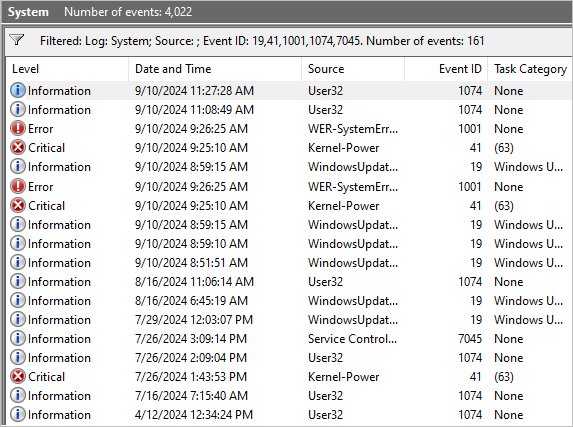
- Open Event Viewer > Windows Logs > System.
- Select Filter Current Log and enter
7045, 19to list recently installed services and updates. - Note any driver or update installed just before the problem began.
- Open Device Manager, right-click that device, select Properties > Driver > Roll Back Driver.
- For a Windows update, open Settings > Windows Update > Update history > Uninstall updates and remove it.
- Restart once, then test shutdown.
How to check what restarted the PC
Event Viewer records who or what asked for each restart. Check it after any failed shutdown.
- Press Windows + R, type
eventvwr.mscand press Enter. - Open Windows Logs > System and select Filter Current Log.
- Enter
1074, 41, 6008, 1001and select OK. - Open the latest 1074 event (source User32): it names the process that started the restart and the reason.
- If you see 41 (Kernel-Power) or 6008 instead, the PC restarted without a clean shutdown; a 1001 entry gives the bug check code.
Fix a computer that keeps restarting
The PC keeps restarting on its own, not just at shutdown
Repeated Stop errors, power problems or overheating restart Windows without a clean shutdown.
- Check Event Viewer for event 41 with a non-zero BugcheckCode; that points to a crash.
- If the bug check code is zero, suspect power: test with a different outlet and check the power supply can handle all installed parts.
- Remove any overclocking and check for overheating components.
- Run Windows Memory Diagnostic to test the RAM.
Windows restarted overnight and you want to know why
Windows Update or an app requested the restart.
- Filter the System log for event 1074.
- Read the process name and reason; Windows Update restarts list an update reason.
- Set active hours in Settings > Windows Update > Advanced options so updates restart outside your working day.
Shutdown returns to the lock screen instead of turning off
Fast startup's hibernation step failed, often logged as event 45 in the System log.
- Use
shutdown /s /t 0to shut down for now. - Turn off fast startup as in Fix 2 to confirm the cause.
- Update storage and chipset drivers, then turn fast startup back on.
Frequently asked questions
Why does my computer restart instead of shutting down?
The usual causes are a fast startup failure, a crash during shutdown that triggers an automatic restart, a pending Windows update, or a device that wakes the PC. Event 1074 in Event Viewer shows what requested the restart.
Why did Windows restart by itself?
Open Event Viewer, filter the System log for event 1074 and read the latest entry. It names the process, user and reason. Event 41 or 6008 instead means the PC restarted without a clean shutdown, usually from a crash or power loss.
How do I restart Windows completely?
Select Start > Power > Restart. Restart always performs a full boot cycle, even with fast startup on, so it clears the kernel session that a normal shutdown would keep.
Why does restarting a computer fix things?
Restart closes every app, unloads drivers and starts Windows fresh. Shut down with fast startup on keeps the kernel session in the hibernation file, so a restart clears problems that shutting down does not.
How do I hard restart a Windows computer?
Press and hold the power button for at least four seconds until the PC turns off, then press it again. Use this only when Windows is unresponsive, because it skips the normal shutdown and can lose unsaved data.
Where is Restart in Windows?
Select Start, then the Power icon, then Restart. You can also press Ctrl + Alt + Delete and use the power icon in the bottom-right corner, or run shutdown /r /t 0 in Command Prompt.
How do I fix a PC that keeps restarting?
Turn off Automatically restart under Startup and Recovery so you can read any blue screen code, then check Event Viewer for event 41. Roll back recent drivers, check the power supply and look for overheating.
Is it safe to turn off fast startup?
Yes, nothing breaks, but Windows starts more slowly after a shutdown. Microsoft does not recommend leaving it off, so use it as a test and turn it back on once the faulty driver is updated.