To enable Wake on LAN (WOL) in Windows 11, open Device Manager, select Allow this device to wake the computer on your Ethernet adapter's Power Management tab, and set Wake on magic packet to Enabled on its Advanced tab.
This guide covers the BIOS/UEFI switch, how to disable WOL again, which power states it works from, how to test it with powercfg, and the fixes for a PC that will not wake.
How do you enable Wake on LAN (WOL) in Windows 11?
Windows 11 arms the network adapter from Device Manager. You need an administrator account and a wired Ethernet adapter that supports wake events.
- Select Start, type Device Manager, and open it.
- Expand Network adapters, right-click your wired Ethernet adapter and select Properties.
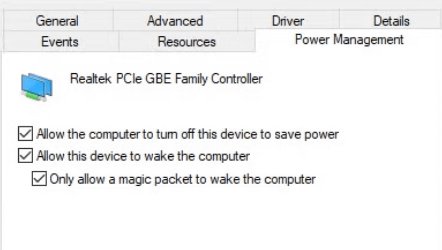
- Open the Power Management tab and select Allow this device to wake the computer.
- Select Only allow a magic packet to wake the computer so ordinary network traffic cannot wake the PC.
- Open the Advanced tab, select Wake on magic packet in the Property list and set Value to Enabled.
- Select OK, then turn on the network wake option in your PC's BIOS/UEFI if the PC must wake from hibernate or shutdown.
The Advanced tab names come from the adapter driver, so the exact wording varies by vendor. If there is no Power Management tab at all, jump to the troubleshooting section below.
Quick decision guide
Pick the row that matches what you want the PC to do, then follow the section it points to.
| Your situation | What to configure | Why |
|---|---|---|
| Wake a desktop from Sleep on your home network | Device Manager Power Management and Advanced tabs only | Windows supports WOL from Sleep (S3) with no extra changes |
| Wake the PC from Hibernate | Device Manager settings, plus the BIOS/UEFI network wake option | Windows keeps the adapter armed when you choose Hibernate yourself |
| Wake the PC from a full shutdown | Device Manager, BIOS/UEFI wake option, and turn off Fast Startup | Fast Startup shutdown disarms the adapter; wake from S5 depends on firmware |
| PC wakes by itself after a few seconds or minutes | Only allow a magic packet to wake the computer | Pattern-match wakes respond to routine traffic such as ARP requests |
| Laptop on Wi-Fi only | Use an Ethernet adapter or dock instead | Remote wake features in Modern Standby need a wired connection |
| Many PCs in an organisation | Configuration Manager's Allow network wake-up client setting | It sets the adapter properties for every managed PC |
| You never use remote wake | Clear Allow this device to wake the computer | Removes accidental network wakes and the related exposure |
What is Wake on LAN and what does it do?
Wake on LAN wakes a computer from a low-power state when its network adapter detects a wake event. The adapter stays powered and listens while the rest of the PC sleeps.
| Term | What it means in Windows 11 |
|---|---|
| Wake event | A network packet that tells the adapter to wake the system; usually a specially constructed Ethernet frame |
| Magic packet | A frame containing 16 contiguous copies of the target adapter's MAC address; the adapter wakes the PC only if the address matches its own |
| Wake on pattern match | The adapter wakes the PC when an incoming packet matches a pattern Windows registered, such as an ARP request or a NetBIOS name query for the PC |
| Allow this device to wake the computer | The Device Manager check box that lets the adapter wake Windows from Sleep |
| Only allow a magic packet to wake the computer | Restricts wakes to magic packets and ignores pattern matches |
| MAC address | The adapter's hardware address; Windows shows it as Physical Address |
Why WoL matters in Windows 11
Remote wake lets a PC sleep most of the day and still be reachable when you need it. The value is saving power without losing access.
| Use | How WOL helps |
|---|---|
| Remote Desktop or file sharing at home | Wake the desktop from another device, connect, then let it sleep again |
| Overnight maintenance | IT staff wake sleeping PCs to install updates and software at a deadline |
| Lower energy use | The PC can sleep on a short timer instead of running all day |
| PCs under a desk or in another room | No need to reach the power button |
What do you need before enabling WOL?
Check these first. Key WoL limitations sit in the hardware and network, not in Windows, and the security considerations are covered further down.
| Requirement | Why it matters | How to check |
|---|---|---|
| A wired Ethernet adapter with wake support | Magic packets are Ethernet frames; Wi-Fi wake support is limited and adapter-specific | The adapter shows a Power Management tab and a wake property on its Advanced tab |
| Administrator rights | Device Manager and the PowerShell cmdlets change driver settings | Your account type in Settings > Accounts > Your info |
| Mains power | On battery, Modern Standby PCs may drop the Ethernet link to save power | Keep laptops plugged in; Surface devices require AC power for WOL |
| Firmware support | Wake from hibernate or shutdown depends on the BIOS/UEFI, not Windows | Look for a network wake option in the PC's firmware setup |
| The target's MAC address | The magic packet must carry the exact adapter address | Run ipconfig /all (next section) |
| A sender on the same network | Routers do not forward the broadcast by default | A phone, PC or router feature on the same subnet |
How do you identify the correct Ethernet adapter and MAC address?
Many PCs list several adapters, including Wi-Fi, Bluetooth and virtual ones. Arm the physical Ethernet adapter and note its MAC address for the sending device.
- Select Start, type cmd, and open Command Prompt.
- Type
ipconfig /alland press Enter. - Find the block headed Ethernet adapter Ethernet (or the name of your wired connection) and read its Description line.
- Copy the Physical Address value from that block; this is the MAC address, shown as six pairs separated by hyphens.
- Optionally run
getmac /vto see each connection name, adapter name and physical address in one table. - In Device Manager > Network adapters, open the adapter whose name matches the Description line.
Ignore entries for Hyper-V virtual switches and VPN adapters. A magic packet must target the physical adapter that is cabled to the network.
Enable WOL in UEFI/BIOS
Wake from Sleep usually needs no firmware change. Wake from hibernate or shutdown does, because the firmware decides whether the adapter keeps power.
- Select Start > Settings > System > Recovery, then select Restart now next to Advanced startup.
- After the restart, select Troubleshoot > Advanced options > UEFI Settings > Restart.
- Open the power management or advanced menu in the firmware setup.
- Enable the option for Wake on LAN or wake from a network or PCIe device; the name depends on the manufacturer.
- Save the change and exit the firmware setup.
If the firmware has no network wake option even after you update the PC firmware, the PC can still wake from Sleep through Windows, but not from shutdown.
BIOS/UEFI inconsistencies: critical analysis of what varies
Firmware is the least consistent part of Wake on LAN. Microsoft notes that some systems arm the adapter for wake from S4 or S5 without Windows being involved at all.
| What differs between PCs | Effect on WOL | What to do |
|---|---|---|
| Setting name and menu location | The switch exists under different names, or not at all | Check the PC or motherboard manual for the network wake option |
| Wake from shutdown (S5) | Supported only when the firmware keeps the adapter powered | Test from Sleep first, then from shutdown |
| USB Ethernet adapters and docks | A USB-attached wired adapter can lose wake capability in Modern Standby | Use the built-in Ethernet port, or a dock the PC maker lists as WOL-capable |
| Surface devices | WOL needs a supported Surface Ethernet adapter or dock and AC power | Wake from hibernate or shutdown needs Surface Dock 2 or the Surface Thunderbolt 4 Dock |
Does WOL work from sleep, hibernate, and shutdown?
The main technical caveat is shutdown. With Fast Startup on, which is the default, a shutdown is a hybrid shutdown, and Windows explicitly disarms the adapter so the PC draws no power.
| Power state | WOL from Windows 11 | Notes |
|---|---|---|
| Sleep (S3) | Supported | The standard case; Device Manager settings are enough |
| Modern Standby (S0 low power) | Supported on capable hardware | Depends on the driver's Modern Standby magic packet support; Surface works by default |
| Hibernate (S4) chosen by you | Supported | Windows keeps the adapter armed for a hibernate transition |
| Shutdown with Fast Startup on | Not supported | The hybrid shutdown disarms the adapter |
| Full shutdown (S5) with Fast Startup off | Firmware-dependent | Works only if the BIOS/UEFI keeps the adapter powered and armed |
Fine-tune Windows 11 power settings for WOL
WOL is only useful if the PC actually sleeps or hibernates. Set the timers and add Hibernate to the Windows 11 power button settings if you want to use it.
- Open Settings > System > Power & battery.
- Select Screen, sleep, & hibernate timeouts.
- Set Make my device sleep after for Plugged in to the idle time you want.
- To add Hibernate to the power menu, open Control Panel > System and Security > Power Options.
- Select Choose what the power buttons do, then Change settings that are currently unavailable.
- Under Shutdown settings, select Hibernate if it is listed, then select Save changes.
If Hibernate is not listed, hibernation is turned off. Run powercfg.exe /hibernate on in an administrator Command Prompt to make it available.
Disabling Fast Startup for wake from shutdown
This step is optional. Do it only if the PC must wake from shutdown and its firmware supports that, because Microsoft does not recommend turning off Fast Startup in general.
- Open Control Panel and select Power Options.
- Select Choose what the power buttons do.
- Select Change settings that are currently unavailable.
- Clear Turn on fast startup (recommended).
- Select Save changes, then shut down and test a wake.
Adjusting Windows Defender Firewall for WoL
The other half of the optional step 4 is the firewall, and the answer is short: the wake itself needs no firewall rule.
Leave Windows Defender Firewall as it is for the wake. Allow only the app you connect with afterwards, such as Remote Desktop or file sharing. The network adapter compares the magic packet's MAC address with its own while Windows is asleep, so the packet never reaches a Windows firewall rule. Firewall rules matter only for the service you use once the PC is awake.
Enable or disable Wake on LAN with PowerShell
The NetAdapter cmdlets change the same driver settings as Device Manager. Run them in an elevated PowerShell window, and replace Ethernet with your adapter's name from ipconfig /all.
Set-NetAdapterPowerManagement -Name "Ethernet" -WakeOnMagicPacket Enabled -WakeOnPattern DisabledTurns on wake by magic packet and turns off wake by pattern match on the adapter named Ethernet. Use -WakeOnMagicPacket Disabled to switch WOL off. The adapter restarts briefly unless you add -NoRestart.
You should see: Get-NetAdapterPowerManagement -Name "Ethernet" returns WakeOnMagicPacket : Enabled and WakeOnPattern : Disabled.
How do you disable Wake on LAN in Windows 11?
Turning WOL off stops the network adapter from waking the PC. Do it on every adapter that is armed, including docks.
- Select Start, type Device Manager, and open it.
- Expand Network adapters, right-click the Ethernet adapter and select Properties.
- On the Power Management tab, clear Allow this device to wake the computer.
- On the Advanced tab, set Wake on magic packet and Wake on pattern match to Disabled.
- Select OK.
- Optionally turn off the network wake option in the BIOS/UEFI to stop wake from shutdown as well.
From an administrator Command Prompt, powercfg /devicedisablewake "device name" also stops a device from waking the PC. Get the exact name from powercfg /devicequery wake_armed.
How do you test Wake on LAN?
Confirm Windows has armed the adapter before you send a packet. Then test from Sleep, which is the state Windows supports most reliably.
- Search for PowerShell, select Run as administrator, run
powercfg /devicequery wake_armedand confirm your Ethernet adapter is listed. - Run
Get-NetAdapterPowerManagement -Name "Ethernet"and check that WakeOnMagicPacket shows Enabled. - Note the MAC address from
ipconfig /all, then select Start > Power > Sleep. - From another device on the same network, send a magic packet to that MAC address with a Wake on LAN app or your router's wake feature.
- When the PC wakes, run
powercfg /lastwakeand confirm the wake source is the network adapter. - Repeat the test from Hibernate and from shutdown if you need those states.
Which powercfg commands diagnose wake problems?
Run these in Command Prompt or PowerShell opened as administrator. They show what can wake the PC, what is armed, and what woke it last.
| Command | What it tells you |
|---|---|
powercfg /devicequery wake_armed |
Devices currently allowed to wake the PC; the Ethernet adapter must appear here |
powercfg /devicequery wake_programmable |
Devices you can configure to wake the PC |
powercfg /lastwake |
What woke the PC from its last sleep |
powercfg /waketimers |
Active wake timers, which can also wake the PC from sleep and hibernate |
powercfg /requests |
Apps and drivers that stop the PC from sleeping in the first place |
powercfg /availablesleepstates |
Which sleep states (S3, Modern Standby, hibernate) the PC supports |
powercfg /devicedisablewake "name" |
Stops one device from waking the PC |
Why is WOL not working?
Find the symptom that matches what you see. Each one has a single most common cause.
The WOL setting or Power Management tab is missing
The selected adapter or its driver does not expose wake control, or it is a Wi-Fi adapter on a Modern Standby PC where Windows manages power itself.
- Confirm you opened the wired Ethernet adapter, not Wi-Fi or a virtual adapter.
- Install the current network driver from the PC or adapter maker's website.
- Reopen Properties and check the Power Management and Advanced tabs again.
The PC wakes from Sleep but not from shutdown
Fast Startup disarms the adapter at shutdown, or the firmware does not power it.
- Turn off Turn on fast startup (recommended) in Power Options.
- Enable the network wake option in the BIOS/UEFI.
- Shut down and test again; if it still fails, use Sleep or Hibernate instead.
The adapter does not appear armed in Windows
Allow this device to wake the computer is cleared, or a driver update reset it.
- Run
powercfg /devicequery wake_armedas administrator. - If the adapter is missing, select Allow this device to wake the computer in Device Manager again.
- Run the command again to confirm the adapter is listed.
The packet reaches the PC but nothing happens
The packet targets the wrong MAC address, or the adapter's magic packet wake is disabled.
- Compare the MAC address in the sending app with Physical Address in
ipconfig /all. - Set Wake on magic packet to Enabled on the Advanced tab.
- Send from a device on the same subnet to rule out the router.
The PC wakes randomly
Wake on pattern match responds to routine traffic, or a wake timer fires.
- Run
powercfg /lastwakeafter an unwanted wake to identify the source. - Select Only allow a magic packet to wake the computer on the Power Management tab.
- Set Wake on pattern match to Disabled on the Advanced tab.
- Run
powercfg /waketimersif the source is a timer rather than the network adapter.
Wake on LAN troubleshooting workarounds and common pitfalls
These pitfalls catch PCs that pass every check in Device Manager and still stay asleep.
WOL works plugged in but not on battery
On battery, Modern Standby PCs can disconnect Ethernet to save power.
- Connect the laptop to mains power before it sleeps.
- Test again from Sleep.
A USB Ethernet adapter or dock does not wake the PC
USB-attached wired adapters can lose wake capability during Modern Standby.
- Check the PC maker's list of WOL-capable docks and adapters.
- Use the built-in Ethernet port if the PC has one.
- Update the dock firmware and adapter driver from the maker's site.
WOL stopped working on a Wi-Fi connection
Magic packet wake is designed for wired adapters; Wi-Fi wake support depends on the adapter.
- Connect the PC with an Ethernet cable.
- Arm the Ethernet adapter in Device Manager.
- Test from Sleep.
Does WOL work over Wi-Fi?
Wired Ethernet is the reliable path. Some wireless adapters support wake on wireless LAN from sleep, but support and settings vary by adapter and driver.
Use a wired Ethernet connection for Wake on LAN. Treat Wi-Fi wake as a bonus to test, not a feature to rely on. Microsoft documents remote wake for Remote Desktop and file sharing in Modern Standby as available only over Ethernet, and Surface WOL requires a wired adapter or dock. Some Wi-Fi adapters on Modern Standby PCs also hide the Power Management tab by design.
Why does WOL work locally but fail over the internet?
A magic packet is normally sent as a broadcast to the local subnet, often on UDP port 9. Routers do not forward those broadcasts from outside unless reconfigured.
| Approach | How it works | Trade-off |
|---|---|---|
| Send from inside the network | Connect by VPN to your home or office network, then send the packet from there | Needs a VPN server or an always-on device on the network |
| Router wake feature | Some routers can send a magic packet to a LAN device | Depends on the router model |
| Subnet-directed broadcast | The router forwards a broadcast to the target subnet | Needs router changes and exposes the network to broadcast-based denial-of-service (smurf) attacks |
| Unicast packet | The packet goes directly to the PC's address | The router needs a valid ARP entry for a sleeping PC; some adapters do not respond to unicast in every sleep state |
| Peer on the same subnet | An awake PC on the subnet sends the packet, as Configuration Manager does | Needs a managed environment or a second machine |
What are the power and security trade-offs?
WOL keeps the network adapter powered while the PC sleeps and gives the network a way to start the machine.
| Trade-off | Impact | Mitigation |
|---|---|---|
| Power draw | The adapter stays powered in sleep, and in shutdown if the firmware allows it | Disable WOL on PCs you never wake remotely |
| Unwanted wakes | Pattern-match wakes respond to normal traffic and cut sleep time | Allow only magic packets |
| Anyone on the LAN can wake the PC | A magic packet has no password or authentication | Keep the PC on a trusted network and protect the sign-in |
| Open router ports | Forwarding broadcasts from the internet widens the attack surface | Use a VPN instead of port forwarding |
Security implications: risks and mitigations
Waking a PC does not unlock it. The risk lies in what is reachable once it is awake and in the router changes people make to reach it.
| Risk | Mitigation |
|---|---|
| A woken PC exposes Remote Desktop or shares to the network | Require a strong password or Windows Hello sign-in, and allow only the services you need in the firewall |
| Router forwards subnet-directed broadcasts | Leave it off; if you must, allow it only from one sender and one non-default UDP port |
| Random wakes drain a laptop battery in a bag | Allow only magic packets, or disable WOL on laptops |
| Unmanaged PCs in an office | Set wake behaviour centrally, for example with Configuration Manager's Allow network wake-up setting |
Notable strengths and persistent weaknesses of Wake on LAN
WOL has real-world value for home desktops and office fleets. It also carries cautions that never go away because they sit in the hardware.
| Strengths | Weaknesses and cautions |
|---|---|
| Built into Windows and most wired adapters; nothing to install on the target PC | Wake from shutdown depends on firmware and is blocked by Fast Startup |
| Lets PCs sleep on short timers and still be reachable | Wi-Fi wake is unreliable and adapter-specific |
| IT tools such as Configuration Manager wake PCs at update deadlines | Does not cross routers without a VPN or router changes |
| Magic-packet-only mode stops accidental wakes | No authentication on the wake packet itself |
Wake on LAN references from Microsoft
These official references document the behaviour and commands used above.
- Wake on LAN behavior in Windows — Which power states support WOL and how Fast Startup affects it
- Unwanted wake-up events when you enable WOL — Why pattern-match wakes happen and the magic-packet-only setting
- Powercfg command-line options — devicequery, lastwake, waketimers and related switches
- Set-NetAdapterPowerManagement — PowerShell parameters for magic packet and pattern wake
- Wake On LAN for Surface devices — Supported Surface models, adapters and docks
Wake on LAN in Windows 11 FAQ
How do I enable Wake on LAN?
Open Device Manager, open your Ethernet adapter's Properties, and select Allow this device to wake the computer on the Power Management tab. Then set Wake on magic packet to Enabled on the Advanced tab, and enable the network wake option in the BIOS/UEFI for wake from shutdown.
Does Wake on LAN work when a Windows 11 PC is completely turned off?
Only on some PCs. With Fast Startup on, Windows disarms the adapter at shutdown, so WOL fails. With Fast Startup off, wake from a full shutdown works only if the BIOS/UEFI keeps the network adapter powered and armed.
Why does WOL wake my PC from Sleep but not from shutdown?
Windows supports Wake on LAN from Sleep and from a Hibernate you choose, but a Fast Startup shutdown explicitly disarms the network adapter. Turn off Fast Startup and enable the firmware's network wake option, or put the PC to sleep instead.
Why is the Power Management tab missing from my Ethernet adapter?
The adapter's driver does not expose power controls, or you opened a virtual or Wi-Fi adapter. On some Modern Standby PCs, Windows hides the tab on wireless adapters by design. Install the current driver from the PC or adapter maker and check again.
Can Wake on LAN work over Wi-Fi?
Rarely in a way you can rely on. Magic packet wake is built for wired Ethernet, and Microsoft's remote wake features in Modern Standby work only over Ethernet. Some Wi-Fi adapters support wake on wireless LAN from sleep, so test yours before depending on it.
Should Wake on magic packet be enabled or disabled?
Enable Wake on magic packet if you want to wake the PC remotely; it reacts only to a packet carrying the adapter's own MAC address. Disable it if you never use remote wake, which also stops the adapter waking the PC.
Should Wake on pattern match be enabled or disabled?
Disable Wake on pattern match on most home PCs. It wakes the PC for packets such as ARP requests and name lookups aimed at it, which routine network traffic generates. Magic packet wake alone is enough for remote wake.
What does Allow this device to wake the computer do?
It lets the network adapter bring Windows out of Sleep when it receives a wake event. Clearing it disables Wake on LAN for that adapter from Windows, whatever the Advanced tab wake properties say.
How can I stop Windows 11 from waking unexpectedly?
Run powercfg /lastwake after an unwanted wake to see the source. If it is the network adapter, select Only allow a magic packet to wake the computer or clear Allow this device to wake the computer. If it is a timer, check powercfg /waketimers.
How do I disable Wake on LAN in Windows 10?
The steps match Windows 11. Open Device Manager, open the Ethernet adapter's Properties, clear Allow this device to wake the computer on the Power Management tab, and set the wake properties on the Advanced tab to Disabled.
The bottom line on Wake on LAN in Windows 11
Enable Wake on LAN with magic-packet-only wake on a wired desktop you reach remotely, and wake it from Sleep rather than shutdown. Sleep is the state Windows 11 supports without firmware changes or turning off Fast Startup, and magic-packet-only wake removes the random wakes that make people turn WOL off again. Disable it on laptops and PCs you never wake remotely.