Xbox Cloud Gaming lag almost always comes from the network, so plug in with Ethernet or move to a 5 GHz Wi-Fi band, restart your router, and stop other downloads before you stream.
This guide covers those fixes step by step, why the stream lags even on fast internet, input lag from controllers and TVs, Fortnite and PC lag, and what to try when nothing helps.
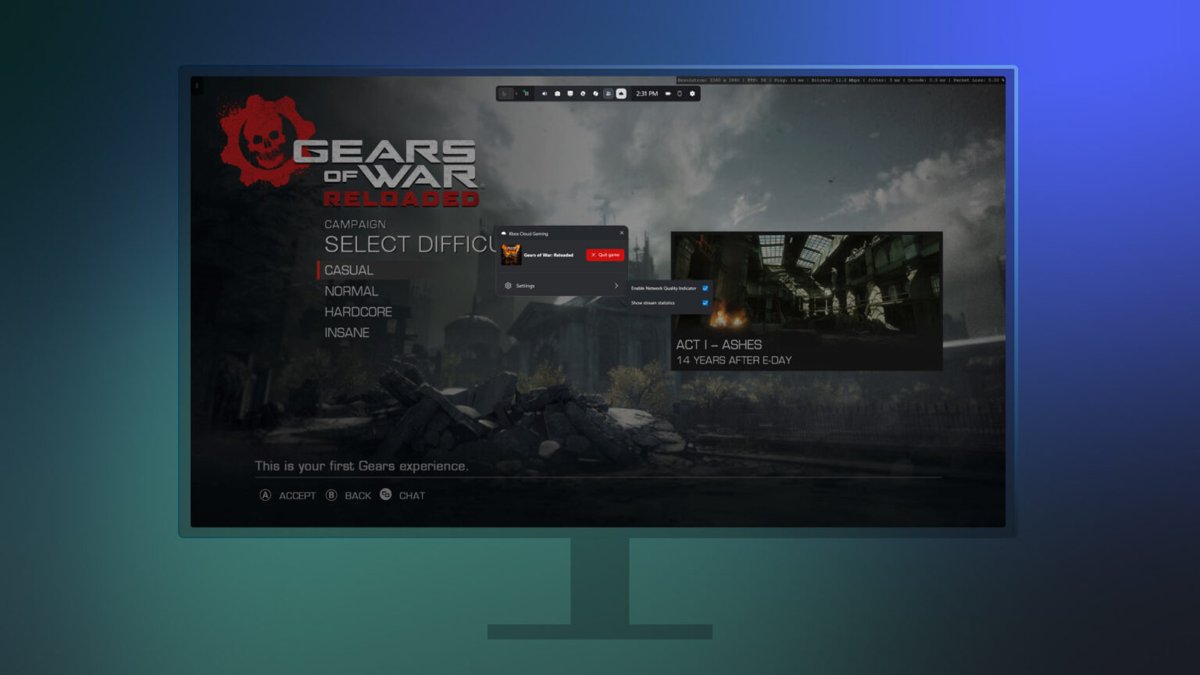
How to fix Xbox Cloud Gaming lag
Xbox Support states that most audio and video problems during cloud gaming are caused by the network connection. Work through these steps in order and test a game after each one.
- Reset your router: unplug the router and modem, wait about 30 seconds, plug them back in, and wait for the internet light to come back.
- Switch to a wired Ethernet connection, or connect to the 5 GHz band of your Wi-Fi instead of 2.4 GHz.
- Clear your browser cache and cookies if you play at xbox.com/play.
- Use Microsoft Edge or Google Chrome on Windows, or the Xbox app for Windows.
- Disconnect other devices from your network, and pause downloads, updates and video streams on the same connection.
- Update your browser and your operating system, then restart the device and start the game again.
If you are new to streaming on Windows, the steps to play Xbox games from the cloud on PC cover the Xbox app and browser setup.
Which fix should you try first?
| What you notice | Try this first | Why |
|---|---|---|
| Blurry picture, stutter or freezes | Ethernet or 5 GHz Wi-Fi | Video quality drops when the connection can't keep up |
| Lag started suddenly on a setup that used to work | Check Xbox Status, then restart the router | Rules out a service problem before you change settings |
| Picture is sharp but buttons respond late | Wired controller and TV game mode | Input and display latency add delay the network test never shows |
| Lag only in the browser | Clear cache, try Edge or Chrome, turn off extensions | Browser issues are a separate Xbox troubleshooting category |
| Lag only when others are online at home | Disconnect devices or pause their downloads | Other traffic competes with the stream |
| Lag on a phone away from home | Switch to Wi-Fi | Mobile networks add jitter, especially while moving |
Why does Xbox Cloud Gaming lag?
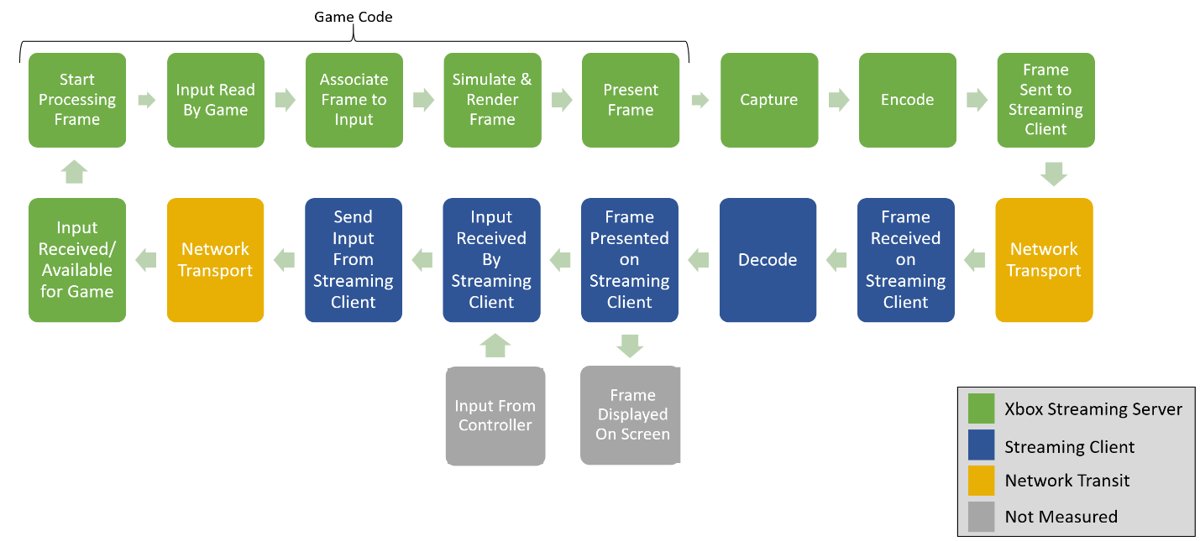
Every button press travels to a Microsoft server in an Azure datacenter, and the video frame travels back. Microsoft's own documentation splits the delay into these stages.
| Stage | What adds delay | What you can change |
|---|---|---|
| Network | Distance to the datacenter, connection speed, 2.4 GHz Wi-Fi, ISP buffering and jitter | Ethernet, 5 GHz or 6 GHz Wi-Fi, fewer devices online |
| Server | Capturing and compressing each frame for your bandwidth | Nothing; it scales to your connection |
| Game | The game engine's own input-to-frame time | Nothing; it varies by game |
| Your device | Decoding the video and waiting for the screen refresh, about 8 ms on a 60 Hz screen | Keep the device updated and plugged in |
| Display | A TV without game mode can add hundreds of milliseconds | Turn on the TV's game mode or use a gaming monitor |
| Controller | Bluetooth can add noticeable latency | Use a USB cable or cloud connect |
This is why Xbox Cloud Gaming can feel laggy even with fast internet: speed is only one factor, and a stable, low-jitter connection matters as much as raw Mbps.
Best Wi-Fi settings for Xbox Cloud Gaming
Xbox Support lists these changes to improve audio and video quality when you stream. Run a speed test before and after so you can see what helped.
- Connect to a 5 GHz 802.11ac or 802.11n network; a 6 GHz Wi-Fi 6E network is faster again if your router and PC support it.
- Give each band its own network name (SSID) in your router settings so you know which one you joined.
- Move your PC, console or tablet closer to the router, with as few walls in between as possible.
- Move the router to the middle of the home and higher up, away from metal objects and microwaves.
- Pick the least congested channel; on 2.4 GHz use channel 1, 6 or 11.
- Turn on WMM (Wi-Fi multimedia) and turn off older wireless protocols in the router settings.
- Update your router firmware and your PC's wireless drivers.
How to clear cache for Xbox Cloud Gaming in Microsoft Edge
Clearing cached files and cookies in Edge signs you out of xbox.com, so have your Microsoft account password ready.
- In Edge, select Settings and more > Settings > Privacy, search, and services.
- Select Clear browsing data, then Choose what to clear next to Clear browsing data now.
- Under Time range, choose All time.
- Tick Cookies and other site data and Cached images and files.
- Select Clear now, close Edge, and open xbox.com/play again.
How to fix Xbox Cloud Gaming input lag
Input lag is the delay between pressing a button and seeing the result. It often comes from the controller and screen, not the internet.
- Connect an Xbox Wireless Controller with a USB cable instead of Bluetooth.
- On a TV, turn on its game mode in the TV's picture settings.
- On a laptop or tablet, plug in the charger so power saving does not slow the device.
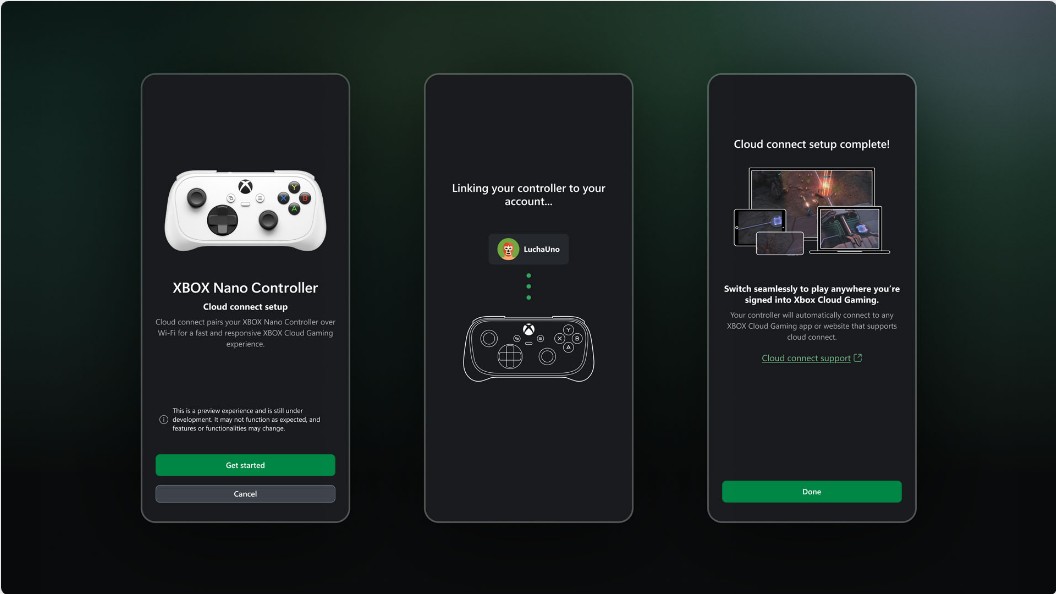
- With an Xbox Nano Controller, try cloud connect: double-press the Pair button and wait for the Xbox button's heartbeat light.
- Close other apps and browser tabs that use the network while you play.
Cloud connect sends inputs from the controller straight to Xbox cloud servers over Wi-Fi, so games can respond faster than over Bluetooth. It is in preview, and PC use needs an Xbox Insider membership.
How to fix lag on Xbox Cloud Gaming Fortnite
Fortnite is free to play at xbox.com/play, so it is often the first game people stream. Fast online matches make any network delay obvious.
- Plug the PC or console into the router with Ethernet, or join the 5 GHz band.
- Pause other downloads, game updates and video streams at home.
- Clear the Edge or Chrome cache, then sign in again at xbox.com/play.
- Use a wired controller, or mouse and keyboard in Edge or Chrome on PC.
- Check Xbox Status for a cloud gaming problem before you change anything else.
- Restart Fortnite from the cloud library after each change.
Free play with ads has session limits, so a stream that ends after a while is not always lag.
Alternative solutions for Xbox Cloud Gaming lag
| Option | When it helps | What to do |
|---|---|---|
| Disable VPN and ad blockers | Lag or a black screen only with a VPN or extension on | Disconnect the VPN and turn off ad-blocking extensions for xbox.com, then reload |
| Upgrade your internet plan | Speed tests regularly fall below 20 Mbps, the figure Xbox gives for smart TVs | Ask your ISP for a faster or more stable plan |
| Upgrade your router | An old router has no 5 GHz band or only old Wi-Fi standards | Use a router with 5 GHz or Wi-Fi 6E (6 GHz) |
| Use the Xbox app instead of a browser | Browser lag on a Windows PC | Install the Xbox app for Windows and stream from there |
| Contact Xbox Support | Lag remains on a wired connection with nothing else online | Use the support virtual agent on support.xbox.com |
A VPN adds an extra hop and can route you farther from the nearest Xbox datacenter, which raises latency.
Is Xbox Cloud Gaming laggy today?
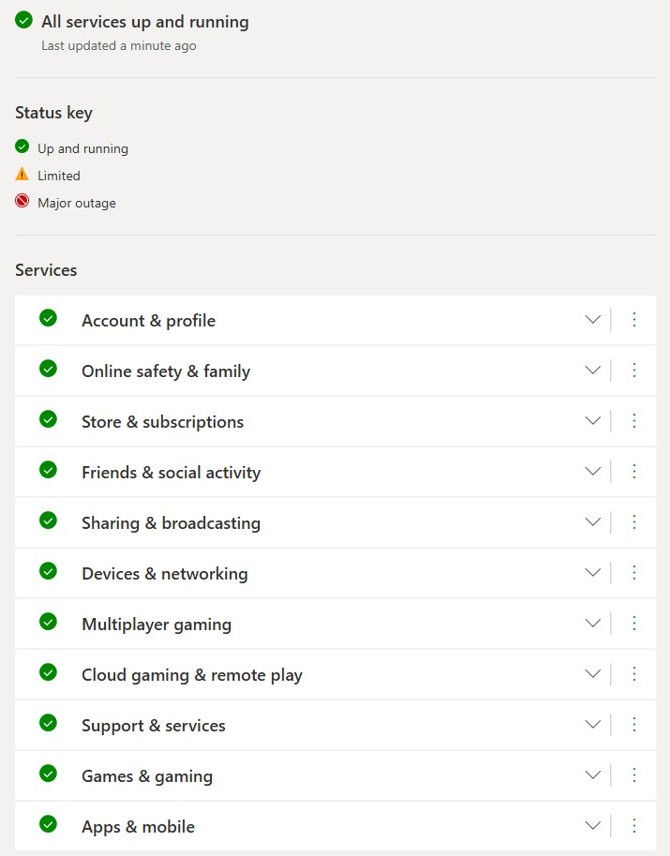
Lag that appears on every device at once usually points to the service, not your setup.
- Open the Xbox Status page at support.xbox.com/xbox-live-status.
- Look for Limited or Major outage next to any service.
- If everything shows Up and running, run a speed test on the device you stream from.
- Compare a wired result with a Wi-Fi result in the same room.
- If the wired test is fine but Wi-Fi is slow, the fix is your Wi-Fi setup, not Xbox.
Tips for the best Xbox Cloud Gaming experience
| Tip | Why |
|---|---|
| Use a supported browser: Edge or Chrome 85+ on Windows, Safari 14+ on iPhone and iPad | Unsupported browsers are not tested by Xbox |
| Keep Windows 10 on version 20H2 or later, Android on 12 or later | Those are Xbox's minimum versions for browser play |
| Plug in laptops and tablets while streaming | Xbox lists it as a performance tip |
| Power down devices far from the router | Distant devices slow the Wi-Fi for everyone |
| Stop Windows downloads and cloud backups before you play | Xbox recommends preventing unnecessary traffic from your PC |
| Stream on Wi-Fi rather than mobile data on a phone | Mobile connections add jitter when your phone switches towers |
| Game Pass Ultimate members can stream at up to 1440p on supported devices | Higher bitrate needs a stronger connection, so drop back if it stutters |
Xbox Cloud Gaming still not working?
Xbox Cloud Gaming laggy on PC
Wi-Fi on the 2.4 GHz band, old wireless drivers, or background downloads on the PC.
- Plug in with Ethernet or join the 5 GHz band.
- Update the wireless driver and install Windows updates.
- Pause Windows Update downloads and cloud sync while you play.
- Try the Xbox app if you stream in a browser, or the browser if you use the app.
Xbox Cloud Gaming slow and laggy even with fast internet
Jitter, Wi-Fi interference or a distant router hurt the stream more than raw speed.
- Compare a wired speed test with Wi-Fi in the same room.
- Change the router's Wi-Fi channel to a less congested one.
- Turn on WMM in the router settings.
Buttons respond late but the picture looks fine
Controller and display latency.
- Connect the controller with a USB cable.
- Turn on the TV's game mode.
- Try cloud connect if you have an Xbox Nano Controller.
Audio or video cuts out on a smart TV
The TV's Wi-Fi or a connection below 20 Mbps.
- Connect the TV with an Ethernet cable if it has a port.
- Run a speed test and make sure the connection reaches at least 20 Mbps.
- Move the router closer to the TV or use a 5 GHz band.
Lag on a phone
Mobile data jitter or a 2.4 GHz connection.
- Switch to a 5 GHz Wi-Fi network.
- Stay in one place while you play; moving between cell towers causes latency spikes.
- Use the Xbox app or a supported browser: Edge or Chrome on Android 12+, Safari or Chrome on iOS 14.4+.
Xbox Cloud Gaming lag: frequently asked questions
Why is Xbox Cloud Gaming so laggy?
Most cloud gaming lag comes from the network connection. A 2.4 GHz Wi-Fi band, distance from the router, other devices downloading, and jitter from your ISP all delay the stream. A wired or 5 GHz connection fixes most cases.
Why is Xbox Cloud Gaming so laggy even with fast internet?
Speed is not the only factor. Jitter, Wi-Fi interference, Bluetooth controllers and TVs without game mode all add delay that a speed test does not show. Test on Ethernet with a wired controller to see whether the lag disappears.
What internet speed do I need for Xbox Cloud Gaming?
Xbox asks for a connection of 20 Mbps or higher for cloud gaming on smart TVs. A stable wired or 5 GHz Wi-Fi connection matters as much as the speed itself, because drops and jitter cause stutter even on faster plans.
Is Microsoft Edge really better for Xbox Cloud Gaming than Chrome?
Both are supported on Windows. Xbox lists Microsoft Edge and Google Chrome 85 or later, and mouse and keyboard play works only in those two browsers on PC and Mac. Try the other one if the stream lags in one.
Does using a VPN cause Xbox Cloud Gaming lag?
It can. A VPN routes your traffic through another server, which adds an extra hop and can send you to a more distant datacenter. Disconnect the VPN and test again to see if the lag improves.
Can I play Xbox Cloud Gaming on my phone without lag?
Yes, on a good Wi-Fi connection. Use a 5 GHz network, stay in one place, and use the Xbox app or a supported browser. Mobile data while moving causes latency spikes as the phone switches between cell towers.
How do I make Xbox Cloud Gaming less laggy?
Use Ethernet or 5 GHz Wi-Fi, restart your router, close other downloads and streams, connect your controller by USB, and turn on game mode on your TV. Clear your browser cache if you play at xbox.com/play.
Why is Fortnite so laggy on Xbox Cloud Gaming?
Fortnite's fast matches expose any network delay. Use a wired connection or 5 GHz Wi-Fi, pause other traffic at home, and use a wired controller. Free play with ads also has session limits, which can end a stream.
Is Xbox Cloud Gaming laggy today?
Check the Xbox Status page at support.xbox.com/xbox-live-status. If a service shows Limited or Major outage, the lag is on Xbox's side and will clear when it is fixed. If everything is up, the problem is your connection.
Quick summary
Play Xbox Cloud Gaming on Ethernet or 5 GHz Wi-Fi with nothing else downloading, and use a wired controller on a screen with game mode on. Network quality causes most cloud gaming lag, while controllers and TVs add the input delay that a faster plan alone never fixes.