To make Google dark on a computer, search on google.com, select Settings > See all settings > Appearance, choose Dark theme and select Save.
This introduction to Google's night view covers Google Search, Chrome, Gmail and YouTube, Android and iPhone, whole-website darkening, and fixes when a page stays white.
Enabling dark mode on Google Search
This works in any desktop browser, including Chrome, Edge and Firefox. By default, Search pages follow your device's color scheme.
- Do a search on google.com.
- Sign in to your Google Account if you want the setting on every desktop browser.
- At the top left, select Settings > See all settings.
- On the left, select Appearance.
- Choose Dark theme.
- Select Save at the bottom.
The Google homepage, search results and Search settings now use light text on a dark background. To switch quickly later, open Settings and pick Device default, Dark theme or Light theme.
Which Google dark mode setting do you need?
Each Google product has its own switch. Pick the row for the screen that is still too bright.
| What is still bright | Setting to change | Where |
|---|---|---|
| Google Search pages | Appearance > Dark theme | google.com Settings > See all settings |
| Chrome toolbar, tabs and New Tab page | Customize Chrome > Appearance > Dark | Bottom right of a New Tab page |
| Gmail inbox | Theme > View all > Dark | Gmail Settings (gear) > Quick settings |
| YouTube | Appearance > Dark theme | Profile picture menu |
| Every app on the phone | Dark theme (Android) or Dark Mode (iPhone) | Device Settings |
| Web pages with no dark theme | Android expanded dark theme, Google app Auto Dark mode, or an extension | See the entire-websites section |
Why use dark mode on Google?
| Benefit | What Google and Apple say |
|---|---|
| Less glare at night | YouTube's Dark theme tones down screen glare with a dark background |
| Easier reading in dim rooms | Google's Auto Dark mode can make text easier to read in a dark room |
| Battery savings on some screens | Android's dark theme can save battery on some screens |
| One look across apps | With device dark theme on, many apps switch to dark too |
Enabling dark mode in Google Chrome
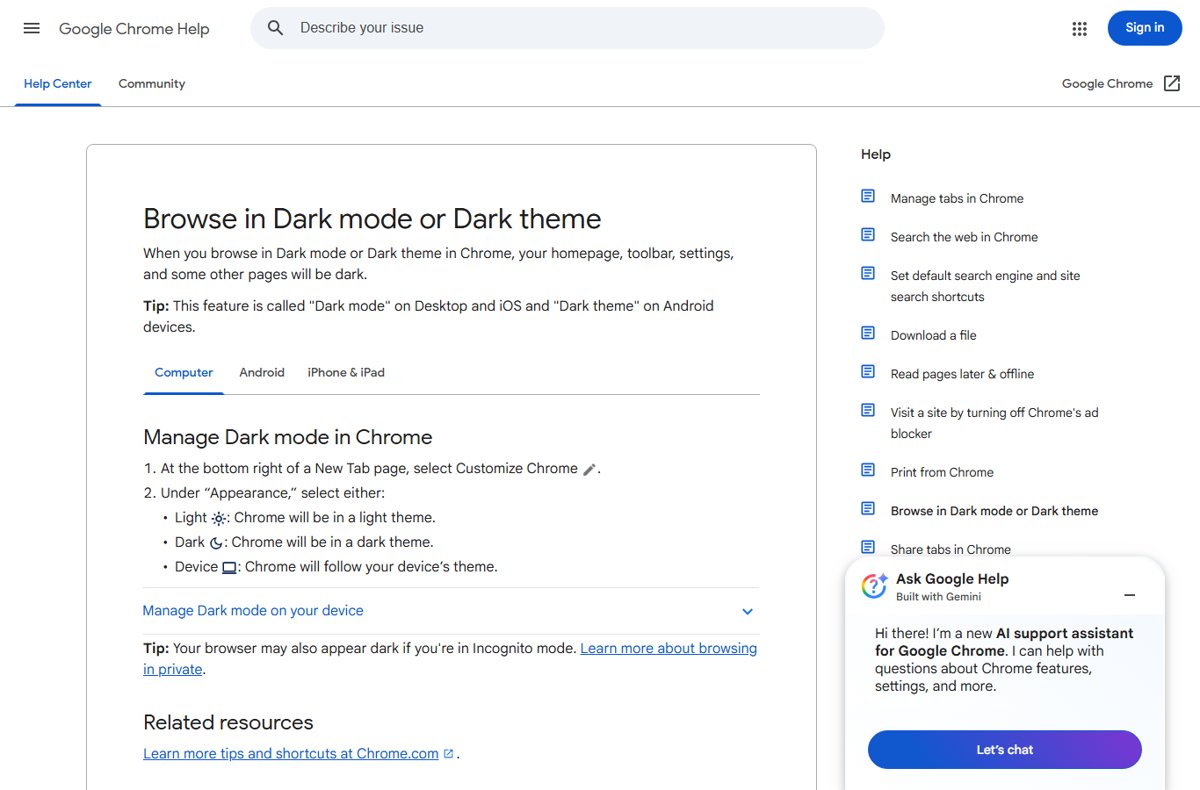
Chrome calls it Dark mode on computers and iPhone, and Dark theme on Android. It darkens the toolbar, New Tab page and settings, not the websites you visit.
- On a computer, open a New Tab page in Chrome.
- Select Customize Chrome at the bottom right.
- Under Appearance, choose Dark, or Device to follow your computer's theme.
- On Android, open Chrome and tap More > Settings > Theme.
- Choose Dark, or System Default to follow the phone's dark theme and Battery Saver.
With Device selected on Windows 11, Chrome turns dark as soon as you turn on Windows 11 dark mode.
Enabling dark mode in Gmail
- On a computer, open Gmail and select Settings (the gear) at the top right.
- In Quick settings, go to the Theme section and select View all.
- Select Dark and then Save.
- On Android, open the Gmail app, tap Menu > Settings > General settings > Theme, and choose Dark.
- On iPhone or iPad, turn on the device's Dark Mode; the Gmail app follows it on iOS 13 and later.
Enabling dark mode on YouTube
- Open YouTube and select your profile picture.
- Select Appearance.
- Select Dark theme, or Use device theme to follow your system setting.
YouTube's Ambient mode works only after the YouTube dark theme is on for that device.
Enabling dark mode in Google Chrome browsing entire websites
Chrome's own Dark mode leaves web pages as their owners designed them. To darken sites that have no dark theme, use one of these device-level options.
- On Android 13 or later, open Settings > Display & touch > Dark theme and choose Expanded.
- If one app looks wrong in Expanded, tap Settings next to the option and turn that app off.
- On iPhone, turn on Dark Mode, open the Google app and tap any link from Home or search results.
- Tap More > Auto Dark mode at the top right and turn the toggle on.
- On a computer, use a trusted dark-mode extension from the Chrome Web Store, as described in the next section.
Expanded dark theme can alter images or make text over images hard to read. Select Standard on the dark theme page to turn it off for all apps.
Using browser extensions for Google dark mode
Extensions that darken every page need permission to read and change site data. Install only one you trust, and limit where it runs.
- Open the Chrome Web Store and find a dark-mode extension.
- Select Add to Chrome, review the permissions, and select Add extension.
- Select the extension's icon to the right of the address bar to use it.
- To limit it, select More > Extensions > Manage extensions, then Details on the extension.
- Change its site access to On specific sites if you only need it on a few pages.
Extensions cannot be added in Incognito mode or as a guest, and work or school PCs may block them.
Enabling or creating a "night mode" on Android or iOS devices
- On Android, open Settings > Display and turn Dark theme on.
- For quick access, tap the dark theme tile in Quick Settings.
- On iPhone or iPad, open Settings > Appearance and select Dark; on iOS 26 and earlier the options are under Display & Brightness.
- To switch from Control Center, touch and hold the brightness bar and select Dark Mode.
- Open Google apps such as Chrome, Gmail and YouTube; set them to follow the device theme.
Customizing Google dark mode experience
| You want | Setting | Where |
|---|---|---|
| Dark only at night on iPhone | Appearance > Automatic, then Options for a schedule | iPhone Settings |
| Google Search to match the device | Device default | google.com Settings > Appearance |
| Chrome to match the device | Device (computer) or System Default (Android) | Customize Chrome or Chrome Settings > Theme |
| A photo instead of plain dark in Gmail | My photos in the theme window | Gmail Settings > Theme > View all |
| Darker corners or blur on a Gmail theme | Vignette or Blur | Bottom of the Gmail theme window |
| Auto Dark mode off for one site in the Google app | Modify for this site | Google app > More > Auto Dark mode |
How to check Google dark mode is on
- Reload google.com; the homepage and results should show light text on a dark background.
- Open a New Tab page in Chrome; the toolbar and tab strip should be dark.
- Open Gmail; the inbox background should be dark.
- On a signed-in second computer, open google.com and confirm the Dark theme carried over.
Troubleshooting common Google dark mode issues
Google Search goes back to light on another browser
The Search theme is saved per desktop unless you are signed in.
- Sign in to your Google Account on google.com.
- Set Appearance to Dark theme again.
- Select Save.
Chrome is dark but websites are still white
Chrome's Dark mode covers the browser interface, not page content.
- Use the site's own dark theme where it has one, such as Search, Gmail or YouTube.
- On Android, turn on the Expanded dark theme option.
- On a computer, add a trusted dark-mode extension.
An Android app stays light with dark theme on
The app does not offer a dark theme, or it opted out of the expanded option.
- Open the app's settings and look for Theme or Display.
- Turn on Expanded dark theme if the app has no own setting.
- If the app looks broken, turn it off in the expanded option's Settings.
Gmail dark theme options are missing
Some themes do not support text background, vignette or blur changes.
- Open Settings > Theme > View all.
- Select Dark rather than a picture theme.
- Select Save.
Additional tips for optimal night viewing on Google
Set your device to dark first, then set Chrome, Google Search and YouTube to follow the device, and give Gmail its Dark theme. Device-following settings switch together when you change one toggle, and Gmail on a computer is the one product that needs its own theme choice.
Google dark mode FAQ
Does Google have a dark mode?
Yes. Google Search, Chrome, Gmail, YouTube and the Google app all offer a dark theme. On a computer, Google Search uses Settings, See all settings, Appearance, Dark theme.
How do I make Google dark mode on a PC or laptop?
Search on google.com, select Settings, then See all settings, and choose Dark theme under Appearance. Select Save. For the Chrome window itself, open Customize Chrome on a New Tab page and choose Dark.
How do I make Google dark mode on Windows 11?
Set Google Search's Appearance to Device default and Chrome's Appearance to Device, then turn on dark mode in Windows 11. Both follow the system theme automatically.
How do I make Google dark mode on Edge?
Google Search's theme works in any browser. In Edge, search on google.com, open Settings, then See all settings, then Appearance, choose Dark theme and select Save.
How do I put Google in dark mode on my phone?
Turn on dark theme in Android Settings, Display, or Dark Mode in iPhone Settings, Appearance. The Google app turns dark based on your device setting, and Chrome follows it when set to System Default.
How do I make Google Docs dark mode on a PC?
Chrome's Dark mode darkens the browser interface but not page content such as a document. On a computer, a trusted dark-mode extension from the Chrome Web Store is the way to darken Docs pages.
Can I make Google Sheets or Google Classroom dark?
On a computer, the same limit applies: Chrome's Dark mode does not change web page content. On Android, the expanded dark theme option can darken apps that lack their own dark theme.