A keyboard that stops typing on Windows 11 is usually fixed by turning off Filter Keys, reconnecting the keyboard to a different port, or reinstalling its driver in Device Manager.
This guide covers wired, wireless and Bluetooth keyboards, laptop keyboards, a dead Windows key, wrong characters, and how to keep working with the On-Screen Keyboard while you fix it.
Fastest fix for a keyboard not typing on Windows 11
Run these three checks in order. Use the mouse for every step, since the keyboard cannot be trusted yet.
- Unplug the keyboard cable or USB receiver, wait a few seconds, and plug it into a different USB port on the PC itself, not a hub.
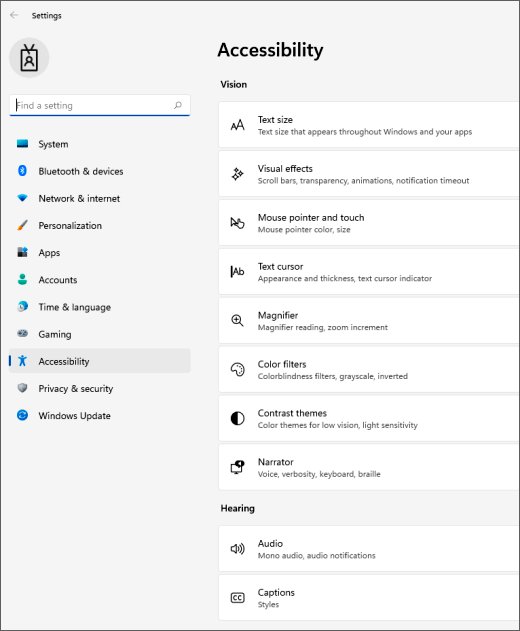
- Open Start > Settings > Accessibility > Keyboard with the mouse.
- Turn off the Filter keys and Sticky keys switches if either one is on.
- Restart the PC from Start > Power > Restart.
- Open Notepad and type a full line to confirm every key registers.
If the keyboard still does nothing, match your symptom in the table below and jump to that fix.
Which keyboard fix matches your symptom?
| What you see | Most likely cause | Fix to try |
|---|---|---|
| No lights, no response at all | Cable, port, hub power or dead batteries | Hardware checks for a keyboard that is not typing |
| Keys work only when held down, or ignore quick presses | Filter Keys is on | Turn off Filter Keys and Sticky Keys |
| Wireless or Bluetooth keyboard stopped after a restart | Lost pairing or receiver connection | Reconnect the wireless or Bluetooth keyboard |
| Keyboard stopped after a Windows update | Damaged or replaced driver | Reinstall the keyboard driver in Device Manager |
| Wrong characters, such as @ and " swapped | Wrong keyboard layout | Check the keyboard layout |
| Everything works except the Windows key | Keyboard setting or driver problem | Windows key or WinKey fixes |
| Keyboard works on another PC but not this one | Driver or Windows setting on this PC | Device Manager and Windows Update fixes |
Keyboard not typing, not working or unresponsive on Windows 11/10
Start with the physical connection. Microsoft lists these checks first because a loose cable or flat battery causes most dead keyboards on Windows 11 and Windows 10.
- Unplug the USB cable and wait a short while so Windows unloads the device driver.
- Plug the keyboard into a different USB port on the PC.
- If you use a USB hub, make sure the hub has power, or connect the keyboard directly to the PC instead.
- Check the cable for cuts, kinks or a bent connector.
- Replace the batteries or charge the keyboard if it runs on battery power.
- Clear crumbs or dirt from under the keys that do not respond.
- Connect the keyboard to another PC. If it shows no lights and does not type there either, the keyboard itself has failed.
Some keyboards need their own driver before they work, so install the maker's driver when you test on the second PC.
Turn off Filter Keys and Sticky Keys in Windows 11
Filter Keys makes Windows ignore brief or repeated keystrokes, so a keyboard with it switched on can look dead. Holding the right Shift key for eight seconds toggles it, which is how many people turn it on by accident.
- Press Windows logo key + U, or select Start > Settings > Accessibility.
- Select Keyboard.
- Turn off the Filter keys switch.
- Turn off the Sticky keys switch if you did not set it up on purpose.
- Turn off Toggle keys if the PC beeps every time you press Caps lock, Num lock or Scroll lock.
- Close Settings and test typing in Notepad.
Pressing Shift five times toggles Sticky Keys, and holding Num lock for five seconds toggles Toggle Keys. You can also disable Sticky Keys and its shortcut so it stops turning on by accident.
Reconnect a wireless or Bluetooth keyboard on Windows 11
Wireless keyboards lose their link more often than wired ones. If yours uses a small USB receiver, the wireless keyboard fixes cover receiver range and interference in more depth.
- Press the Reset button on the bottom of the keyboard or on its USB receiver, if it has one.
- Unplug the USB receiver, wait about 10 seconds, and plug it back in.
- For Bluetooth, open Start > Settings > Bluetooth & devices and make sure Bluetooth is on.
- Open the Airplane mode quick setting from the network, sound or battery icon on the taskbar and make sure it is off.
- In Settings > Bluetooth & devices > Devices, select More options next to the keyboard, then Remove device > Yes.
- Put the keyboard in pairing mode as its manual describes.
- Select the chevron on the Bluetooth quick setting, choose the keyboard under New devices, and select Done when pairing finishes.
If the pairing light flashes and turns off, the keyboard is paired to another nearby PC. Remove it there first, then pair it again here.
Update or reinstall the keyboard driver in Device Manager
A corrupted driver stops a working keyboard from sending keystrokes to Windows. Reinstalling it makes Windows load a clean copy at the next start.
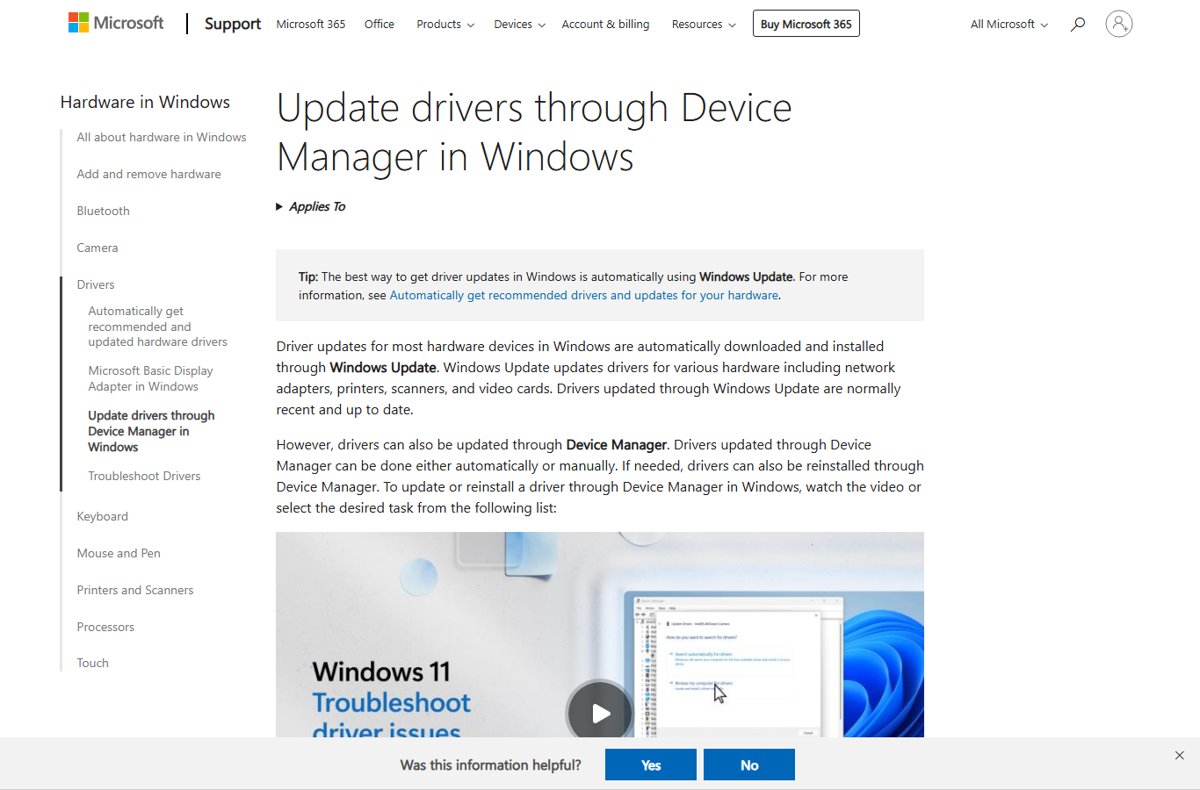
- Right-click the Start button and choose Device Manager.
- Expand Keyboards and right-click your keyboard.
- Select Update driver, then Search automatically for updated driver software.
- If Windows finds nothing, select Search for updated drivers on Windows update, then Close.
- If the keyboard still does not type, right-click it again and select Uninstall device, then confirm with Uninstall.
- Restart the PC from the Start menu so Windows reinstalls the driver.
Laptop owners can also download the keyboard or chipset driver from the PC maker's support site and install it with Update driver > Browse my computer for drivers.
Install keyboard driver updates from Windows Update
Windows Update delivers many keyboard and laptop input drivers. Some arrive only as optional updates, so check both lists.
- Open Start > Settings > Windows Update.
- Select Check for updates and install anything offered.
- Select Advanced options, then Optional updates under Additional options.
- Tick any driver updates listed and select Download and install.
- Restart the PC, even if no update asked for it.
Fix a keyboard typing wrong characters by checking the layout
If keys type the wrong symbols, Windows is using a different layout from the one printed on the keys. Windows logo key + Spacebar switches keyboard languages and layouts, so a stray press can change it.
- Look at the input language icon in the system tray and select it to see the active layout.
- Pick the layout that matches your keyboard, for example US for a US keyboard.
- To remove an unwanted layout, open Settings > Time & language > Language & region.
- Select … next to the language, then Language options.
- Under Keyboards, select … next to the extra layout and choose Remove.
If Remove is greyed out, that layout is the only one for the display language. Add the correct layout with Add a keyboard first.
Windows key or WinKey not working on Windows 11
When every key works except the Windows logo key, test whether the key is dead or just blocked. Shortcuts such as Windows logo key + L (lock) and Windows logo key + U (Accessibility settings) make a quick test.
- Press Windows logo key + U. If Accessibility settings opens, the key works and only a single app or shortcut is affected.
- If nothing happens, check the keyboard's manual for a Windows key lock or game mode switch and turn it off.
- Open the keyboard maker's own software, if installed, and check whether the Windows key is disabled there.
- Unplug and reconnect the keyboard, or re-pair it if it uses Bluetooth.
- Update or reinstall the keyboard driver in Device Manager as described above.
- Connect another keyboard. If its Windows key works, the original key has failed.
Type without a keyboard using the On-Screen Keyboard
The On-Screen Keyboard lets you type with the mouse or touch while you troubleshoot, including on the sign-in screen when you need to enter a password.
- Open Start > Settings > Accessibility > Keyboard.
- Turn on the On-Screen Keyboard switch.
- On the sign-in screen, select the Accessibility button in the lower-right corner and choose On-Screen Keyboard.
- If some keys still work, press Windows logo key + Ctrl + O to open it instantly.
- Press Windows logo key + H for voice typing as another way to enter text.
How to check the keyboard is typing again on Windows 11
- Open Notepad and type every letter, number and symbol row once.
- Press Caps lock and Num lock and confirm their lights change.
- Press Windows logo key + U to confirm the Windows key and shortcuts respond.
- Open Device Manager and expand Keyboards. No entry should show a yellow warning icon.
- Restart the PC and confirm the keyboard types at the sign-in screen before Windows loads fully.
Keyboard not typing problems on Windows 11 by symptom
Keyboard is on but not typing anything
Lights prove power, not a working connection; Filter Keys or a driver fault is usually to blame.
- Turn off Filter keys in Settings > Accessibility > Keyboard.
- Move the keyboard to a different USB port on the PC.
- Uninstall the keyboard in Device Manager and restart.
Laptop keyboard not typing but an external keyboard works
The built-in keyboard driver has failed, or the keyboard hardware is faulty.
- Uninstall the internal keyboard under Keyboards in Device Manager and restart.
- Install optional driver updates from Settings > Windows Update > Advanced options > Optional updates.
- Download the keyboard or chipset driver for your exact model from the laptop maker's support site.
- If the keys still do nothing, contact the laptop maker for a hardware repair. Lenovo owners can follow these Lenovo keyboard fixes.
Keyboard suddenly not typing after it worked earlier
A recent update, a flat battery, or an accidental Filter Keys shortcut.
- Replace or charge the batteries on a wireless keyboard.
- Check whether Filter keys was switched on by holding the right Shift key.
- Restart the PC so Windows reloads the driver after any recent update.
Keyboard not typing correctly or typing the wrong characters
The active keyboard layout does not match the keys.
- Select the input language icon in the system tray and choose the correct layout.
- Remove extra layouts under Settings > Time & language > Language & region > Language options.
Keyboard not typing certain keys
Debris under the keys, or Num lock is off for the number pad.
- Clean under the keys that fail.
- Press Num lock if only the number pad is dead.
- Test the keyboard on another PC to rule out a hardware fault.
Microsoft keyboard not typing
Weak batteries or a lost Bluetooth pairing.
- Check the batteries face the right way, then replace them.
- Turn the keyboard off and on with its power button.
- Hold the pairing button for 5 to 7 seconds and pair it again from Settings > Bluetooth & devices.
- Turn Airplane mode on for 10 to 15 seconds, then off.
Keyboard not working in certain programs or games
The problem sits in that app, not in Windows or the keyboard.
- Type in Notepad. If it works there, the keyboard and driver are fine.
- Check the app's own keyboard or control settings.
- Turn off any game mode or Windows key lock on the keyboard.
- Update the app, then restart it.
Windows 11 keyboard not typing FAQ
Why is my keyboard not typing anything?
The usual causes are a loose cable or receiver, flat batteries, Filter Keys switched on, or a damaged driver. Reconnect the keyboard to another USB port, turn off Filter Keys in Settings > Accessibility > Keyboard, then reinstall the driver in Device Manager.
How do I fix my keyboard not typing?
Reconnect the keyboard to a different port on the PC, turn off Filter Keys, and restart Windows. If that fails, uninstall the keyboard in Device Manager, restart so Windows reinstalls it, and install any driver updates from Windows Update.
Why isn't my laptop keyboard typing?
A laptop keyboard usually stops typing because of a driver fault after an update, Filter Keys, or a hardware failure. Reinstall the keyboard driver in Device Manager, then install the keyboard or chipset driver from the laptop maker's support site.
Why is my keyboard not typing correctly?
Windows is using a different layout from the one printed on your keys. Select the input language icon in the system tray and pick the right layout, or remove extra layouts in Settings > Time & language > Language & region.
Why is my Microsoft keyboard not typing?
Weak batteries and a lost Bluetooth pairing cause most Microsoft keyboard failures. Replace the batteries, hold the pairing button for 5 to 7 seconds, and pair the keyboard again from Settings > Bluetooth & devices.
Can you accidentally lock your keyboard?
Yes. Holding the right Shift key for eight seconds turns on Filter Keys, which makes Windows ignore quick keystrokes. Turn it off in Settings > Accessibility > Keyboard by switching off Filter keys.
How do you unlock the Fn key on a keyboard?
The Fn lock method depends on the keyboard or laptop maker, and Windows has no setting for it. Check the manual or the maker's support page for your model to find its Fn lock key or setting.
Is there a keyboard lock button?
Windows has no button that locks only the keyboard. Windows logo key + L locks the whole PC, and some keyboards have their own Windows key lock or game mode switch that disables the Windows key.
Why is my computer keyboard not typing after a restart?
A wireless keyboard may have lost its connection, or the driver failed to load. Reconnect or re-pair the keyboard, try another USB port, and uninstall the keyboard in Device Manager so Windows reinstalls it at the next restart.
Bottom line: what to try first when a Windows 11 keyboard stops typing
Check the connection and turn off Filter Keys first, then reinstall the driver in Device Manager. Those three steps fix most dead keyboards in minutes, and testing on a second PC tells you quickly whether the keyboard itself needs replacing.