The WhatsApp for iPad app does support video calls: install it from the App Store, sign in, open a chat and tap the video call icon.
WhatsApp calls are free apart from data charges, have no time limits, and are end-to-end encrypted. This guide covers setup, one-to-one and group video calls, screen sharing, call settings and the fixes for calls that will not connect.
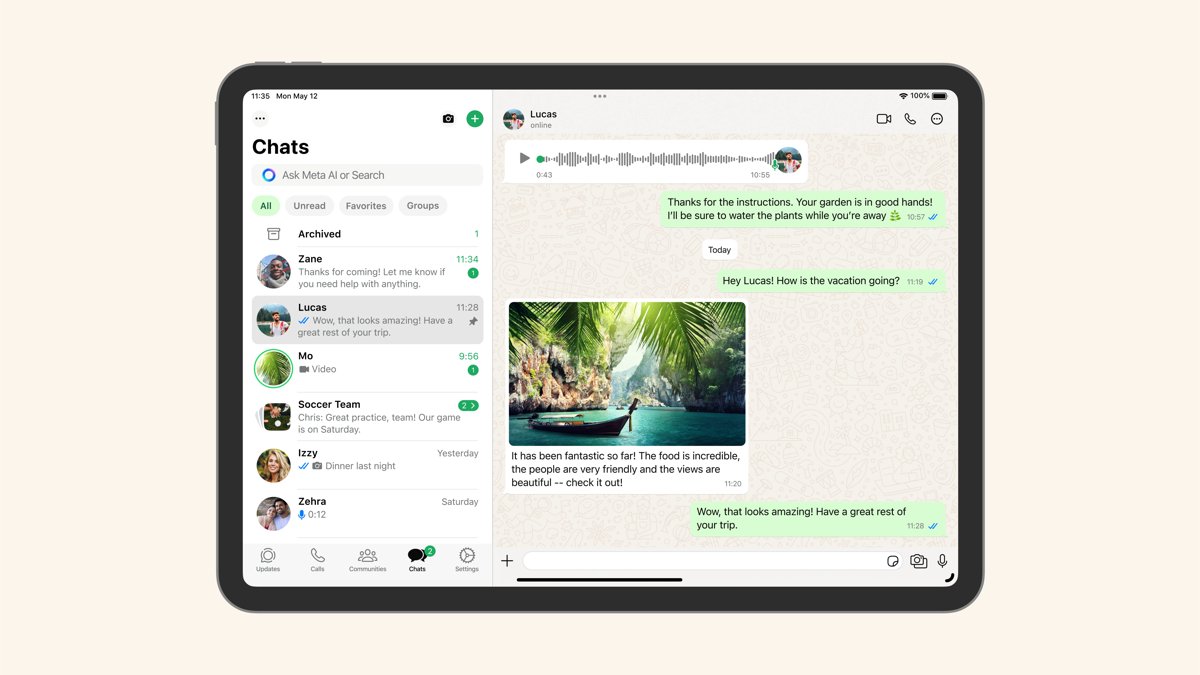
WhatsApp for iPad app with video calls: how to start one
These steps take you from no app to a live call, using the WhatsApp account you already have on your phone.
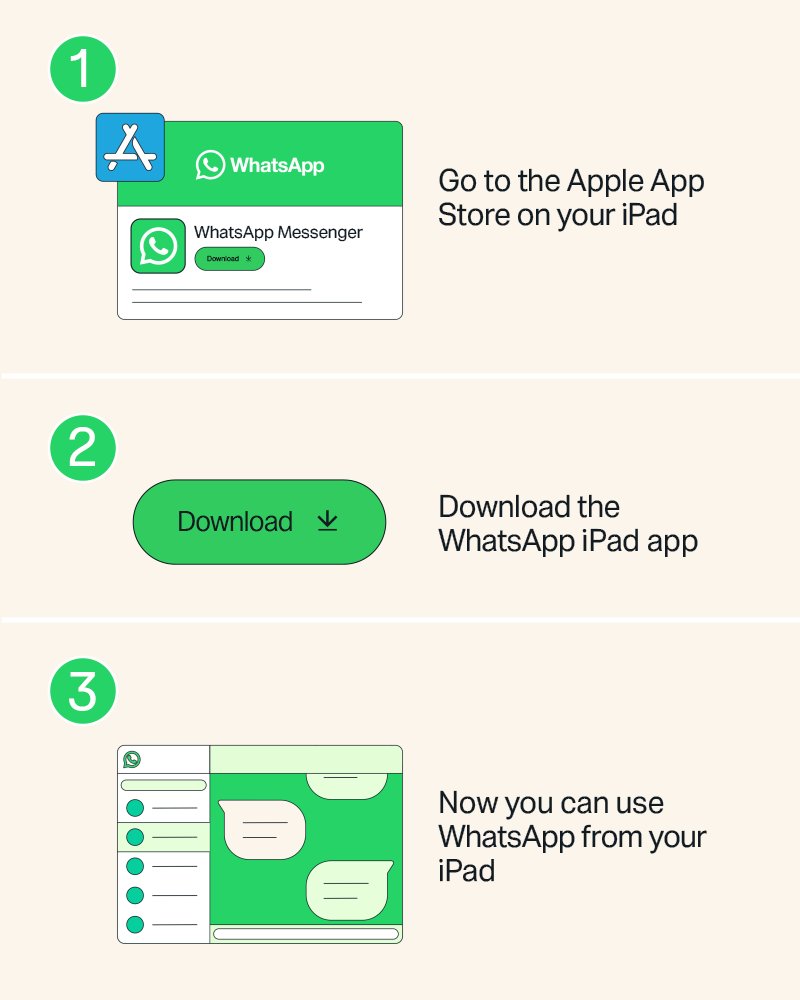
- Open the App Store on your iPad, search for WhatsApp, and install it.
- Open WhatsApp on your iPad so that the QR code appears.
- On your phone, open WhatsApp and go to Settings or your profile picture, then Linked devices > Link device.
- Point your phone at the QR code on the iPad.
- When your chats appear on the iPad, open the chat with the person you want to call.
- Tap the video call icon, and allow camera and microphone access if iPadOS asks.
No phone to link? Since July 2026, WhatsApp lets you register an account directly in the iPad app.
WhatsApp for iPad requirements
| Requirement | Details |
|---|---|
| iPad software | iPadOS 15.1 or later |
| Where to get it | The Apple App Store, where WhatsApp is listed for iPhone, iPad, Mac and Apple Watch |
| Account | An existing account linked from your phone, or a new account registered on the iPad |
| Phone number | An active number that can receive a WhatsApp registration code, if you register on the iPad |
| Internet | A strong, stable connection for you and the person you call |
| Cost | No charge for WhatsApp calls, though your provider's data charges may apply |
On older tablets, the iPad mini models that run WhatsApp show how the iPadOS 15.1 limit plays out in practice.
How to get WhatsApp on iPad and link your account
Linking keeps your existing chats. The iPad syncs up to a year of recent history, and your phone keeps the full record. You can link up to four devices to one primary phone.
- Install WhatsApp from the App Store and open it on your iPad.
- On an iPhone, open WhatsApp and tap Settings or your profile picture, then Linked devices > Link device > OK.
- On an Android phone, tap the three-dot menu, then Linked devices > Link a device.
- Verify your identity with Face ID, Touch ID or your phone's PIN if prompted.
- Point your phone at the QR code on the iPad screen.
- Tap Link device if WhatsApp asks you to confirm an unrecognized device.
Open WhatsApp on your primary phone at least once every 14 days, or linked devices get logged out. An unused linked device also disconnects after 30 days.
Can you use WhatsApp on iPad without a phone?
Yes, since WhatsApp added iPad sign-up in July 2026. Some older Help Center wording still says you need a primary phone, so update the app if you do not see the option.
- Update or install WhatsApp from the App Store.
- Open the app and choose to register an account on the iPad instead of linking.
- Enter an active phone number.
- Enter the registration code WhatsApp sends to that number.
- Finish setting up your account, then start a call from any chat.
Make a 1:1 WhatsApp video call on iPad
WhatsApp publishes video call steps for iOS, and has no separate call guide for iPad. These are the iOS steps, and icon positions can differ on the bigger screen. There are two ways to start a WhatsApp call.
- Open the individual chat with your contact.
- Tap the video call icon.
- Or open the Calls tab, start a new call, find the contact and tap the video icon.
- Tap Record video note to leave a short message if they do not answer.
- Tap the camera switch icon during the call to swap between the front and rear cameras.
Calls begin with the front camera on by default. If a call does not go through, the other person may be on an older operating system or WhatsApp version.
WhatsApp group video call on iPad
Group calls hold up to 32 people, with unlimited duration. A group larger than that needs you to pick who is called.
- Open the group chat you want to call.
- Tap the call icon, then Call group if the group has 32 or fewer people.
- In a bigger group, select up to 31 people, then tap the Call button showing that number.
- To grow a 1:1 call instead, wait for the contact to accept, tap the add icon, find someone and tap Add to call.
- If you missed a call that is still running, open the Calls tab or the group chat, and tap Join.
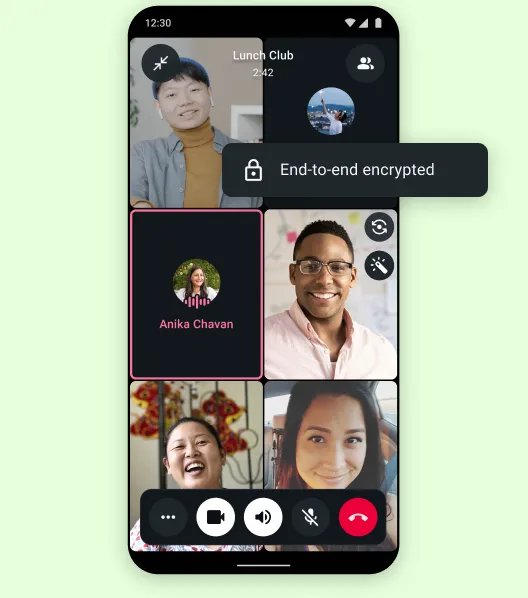
A shared call link also lets people without a WhatsApp account join as guests from a desktop web browser. Guests can use audio, video, screen sharing and reactions, but they cannot send messages or add people.
Share your screen on a WhatsApp iPad video call
Screen sharing works during video calls only, not on audio calls. Everything on your screen is visible to the other side, including any usernames and passwords, so close private apps first.
- Start or join a video call.
- Open the video controls, then tap Share screen.
- Tap Start Broadcast when the recording prompt appears.
- Tap Stop Sharing when you are done.
WhatsApp says shared screens are end-to-end encrypted and never recorded by the company. If someone on the call is out of date, a prompt tells them to update before sharing.
Move a WhatsApp call from iPhone to iPad
You can move an active call to another device on the same account. You can be active on one device at a time, so the call ends on the first device after you switch.
- Update WhatsApp on both devices, and make sure both use the same account.
- Stay on the call on your first device, and open WhatsApp on your iPad.
- Go to the Calls tab or the group chat on the iPad, and tap Join here.
- Tap Join at the prompt, then carry on with the call on the iPad.
- For a call you joined through a link, open that same call link on the iPad and tap Join.
WhatsApp video call settings on iPad
These controls appear during a call or in Settings. Data Saver only applies when a call runs over cellular, so it matters on an iPad with cellular service.
| Setting | What it does | Where |
|---|---|---|
| Data Saver | Lowers the quality of incoming video on a 1:1 cellular call, while yours stays at full quality | During the call, and it resets when the call ends |
| Use less data for calls | Cuts data use on calls | WhatsApp Settings > Storage and data |
| Turn video off | Turns your camera off on a 1:1 call, and the other person can keep their video on | Video icon during the call |
| Hide self-view | Removes your own tile from your screen, while others still see you | Drag the floating tile to the edge of the screen |
| Picture-in-Picture | Keeps the call visible while you use other apps | Search for Picture-in-Picture in your device settings, then confirm WhatsApp is selected |
| Raise hand | Signals that you want to speak | Raise hand in the call controls |
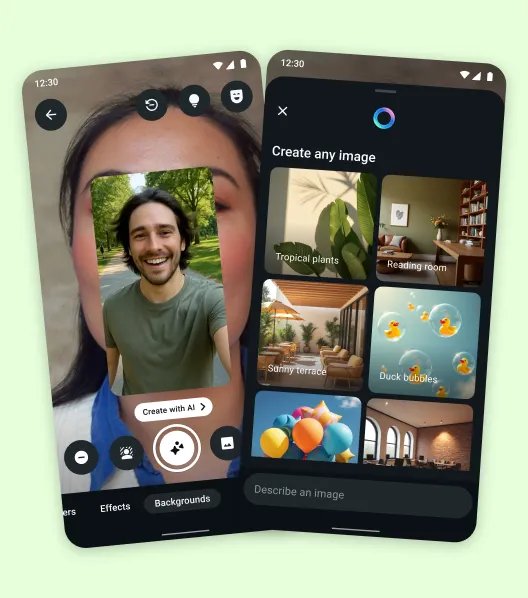
| Effects and backgrounds | Adds a filter or a background to your video | During a video call |
WhatsApp also notes limits on calls: you cannot switch between voice and video on group calls, and you cannot reach emergency numbers such as 911 through the app.
What works in the WhatsApp iPad app
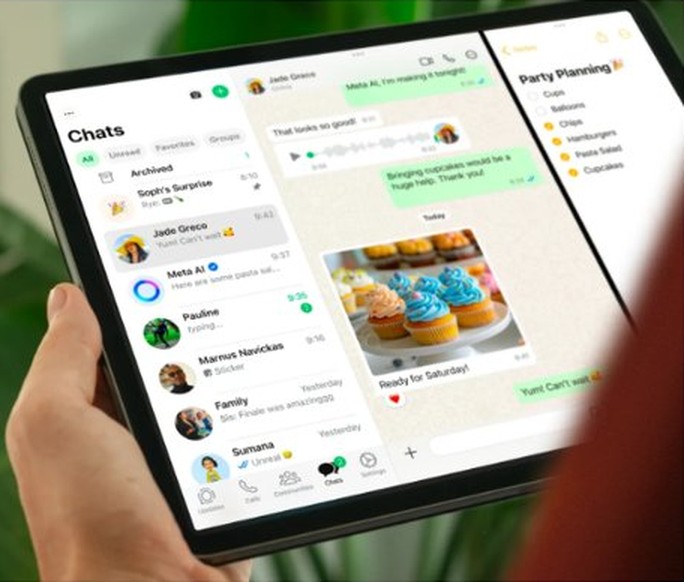
WhatsApp describes the app as built specially for iPad. It also warns that linked devices may not have every feature found on your phone.
| Feature | On iPad |
|---|---|
| Video and voice calls | Yes, including group calls of up to 32 people |
| Call links | Yes, for inviting others to a call |
| Screen sharing | Yes, during a video call |
| Multitasking | Stage Manager, Split View and Slide Over |
| Accessories | External keyboards and Apple Pencil |
| Documents, photos and videos | Send and receive |
| Chat lock | Yes, to hide specific chats from others using your iPad |
| Events and polls | Create them in your chats |
| Live location on linked devices | Not supported for viewing |
| Broadcast lists on linked devices | Not supported for creating or viewing |
You pay only for the data a call uses, and WhatsApp call costs and data use break down what that means.
WhatsApp Web for iPad: can you make video calls?
Use the app for video calls on an iPad. WhatsApp Web now handles calls in a browser, but WhatsApp lists Windows, Linux and macOS as its supported systems, and iPadOS is not on that list.
| Question | WhatsApp iPad app | WhatsApp Web |
|---|---|---|
| Supported on iPad | Yes, on iPadOS 15.1 or later | iPadOS is not a listed system |
| Where it runs | Installed from the App Store | In a browser on Windows, Linux or macOS |
| Calling | Calls and screen sharing inside the app | Works best on Chrome, Edge, Firefox, Safari and Opera |
Loading the site on an iPad brings its own problems, such as WhatsApp Web partially syncing on iPad Pro.
WhatsApp video call not working on iPad
WhatsApp suggests that both you and the person you are calling try these, because the fault can sit on either side.
Video call stuck on reconnecting or dropped right away
Usually a weak connection or an outdated app.
- Connect to a strong, stable Wi-Fi network.
- Update WhatsApp to the latest version in the App Store.
- Force quit WhatsApp and open it again.
- Turn the iPad off, wait 30 seconds and turn it back on.
- Turn off battery saver and Bluetooth, then call again.
You cannot call one particular person
Their device or WhatsApp version may be too old.
- Ask them to update WhatsApp and restart their phone.
- Check that your iPad runs iPadOS 15.1 or later.
- Try the call again from the Calls tab.
Camera or sound does not work during a call
A permission or another app is holding the camera or microphone.
- Close other apps that may be using the camera or microphone.
- Turn your WhatsApp permissions off and on again in your device settings.
- Turn the camera off and on during the call.
- Turn mute off and on again, then end and restart the call if needed.
Calls fail on one Wi-Fi network only
Router or firewall settings can block WhatsApp calling.
- Open your router's firewall settings, or ask your network administrator to.
- Allow WhatsApp calling on UDP and TCP ports 3478, 3480 and 3484.
- Contact your service provider if you cannot change those settings.
WhatsApp logged out on the iPad
A linked iPad logs out when the primary phone goes unused for over 14 days.
- Open WhatsApp on your primary phone.
- Link the iPad again from Linked devices > Link device.
WhatsApp for iPad video calls FAQ
Is there WhatsApp for iPad?
Yes. WhatsApp for iPad is an official app in the Apple App Store, and it needs iPadOS 15.1 or later. It brings chats, calling, status and screen sharing to a larger screen, along with Stage Manager, Split View and Slide Over support.
Can you use WhatsApp on an iPad for video calls?
Yes. WhatsApp lists iPad among the devices that can make calls, and its iPad app supports screen sharing, which only works during a video call. Open a chat and tap the video call icon, or start one from the Calls tab.
How do I download WhatsApp on iPad?
Open the App Store on your iPad, search for WhatsApp and install it. Then link it to your phone by scanning the QR code, or register a new account directly in the iPad app. Avoid unofficial apps, because linking one can get your account banned.
Can I put WhatsApp on my iPad with the same number as my phone?
Yes. Link the iPad as a device on your account from Linked devices on your phone, and both devices then use the same number and chats at once. One primary phone can link up to four devices, and each one connects independently.
Does WhatsApp have video calls with a time limit?
No. WhatsApp says its video and voice calls have no time limits, including group calls of up to 32 people. Calls are free and end-to-end encrypted, but your internet provider or cellular plan may charge for the data they use.
Does WhatsApp work on an iPad over Wi-Fi?
Yes. WhatsApp calls run over your internet connection, and WhatsApp suggests making and answering calls on Wi-Fi to save data. A strong, stable connection on both sides gives the best video, whichever iPad you use.
How do I use WhatsApp video during a call?
Tap the camera switch icon to change cameras, or the video icon to turn your camera off. You can minimize the call to reach a chat, drag your own tile to the screen edge to hide it, and share your screen from the video controls.