Windows 11 lets each monitor run its own resolution: select the monitor in Settings > System > Display and pick the (Recommended) value under Display resolution.
This guide covers per-monitor resolution and scaling, lining up screens of different sizes, the Windows 10 steps, and fixes for black screens, grey screens after updates and over-saturated colours.
Fix dual monitors with different resolutions in Windows 11
Each display keeps its own resolution, scale and refresh rate, so a 4K monitor and a 1080p monitor can sit side by side without either one looking stretched.
- Press Windows key + P and choose Extend so each monitor gets its own desktop.
- Open Start > Settings > System > Display.
- Select Identify to see which number belongs to which screen.
- Select the first monitor's box at the top of the page.
- In the Display resolution row, choose the value marked (Recommended).
- Confirm the change when Windows asks Keep these display settings?
- Select the second monitor's box and repeat the resolution change for it.
The (Recommended) value is the panel's native resolution. A monitor can run lower than native, but text loses sharpness and the picture may look small, centred, black-edged or stretched.
Dual monitor resolution issues
Match what you see to a row, then jump to the section that fixes it.
| What you see | Likely cause | What to do |
|---|---|---|
| Text is tiny on one monitor and huge on the other | Different pixel density, same scale | Set a separate Scale value per monitor |
| The pointer sticks or jumps when it crosses screens | Display boxes are not aligned in Settings | Drag the boxes so the shared edges line up |
| Second monitor is stuck below its native resolution | Generic or outdated graphics driver, or a limited cable/port | Update or reinstall the display driver, then try another port |
| Screen went black after a resolution change | The monitor cannot show the mode you picked | Wait for the automatic revert or reset the driver with Windows + Ctrl + Shift + B |
| Wallpaper is cut off or too small on the external screen | Resolutions differ between the built-in and external screen | Change the external resolution once, then select Revert |
| Colours look over-saturated or washed out on one screen | HDR or the colour profile on that display | Adjust HDR, SDR content brightness or the colour profile for that monitor |
Dual monitor setup with different resolutions
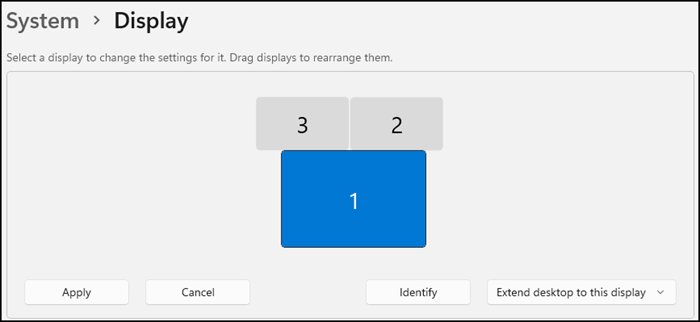
Screens with different resolutions have edges of different pixel lengths. Windows moves the pointer only across the part of the edge where the two boxes touch in Settings, so the layout matters more than with matched monitors.
- Open Start > Settings > System > Display.
- Select Identify and note which number appears on the left and right screens.
- Drag each numbered box so it matches where the monitor physically sits on your desk.
- Line up the top or bottom edges of the boxes the same way the real screens line up.
- Select Apply.
- Move the pointer slowly across the shared edge to test the crossing point.
- Expand Multiple displays and tick Remember window locations based on monitor connection if you dock and undock a laptop.
The same page also lets you adjust orientation, HDR and brightness for each monitor, or make either screen the main display.
Multiple monitors different resolution fix
A 27-inch 4K screen and a 24-inch 1080p screen at the same scale show text at very different sizes. Scale is set per monitor, so you can make windows look the same size on both.
- Open Start > Settings > System > Display and select the higher-resolution monitor.
- Under Scale & layout, open Scale and choose the (Recommended) value.
- Select the other monitor and pick its (Recommended) Scale value.
- Drag a window between the screens and compare the text size.
- Adjust Scale on one monitor a step at a time until text looks similar on both.
- Sign out of Windows and sign back in so older apps pick up the new scale.
If an app still looks blurry on one screen, matching both monitors to one middle value (for example 125% on screens recommended at 150% and 100%) is the workaround Microsoft gives for apps that only scale to the primary monitor. You can also set a different scaling level per monitor with custom values.
Multiple screens on Windows 10
Windows 10 has the same controls under slightly different labels. Microsoft ended Windows 10 support on October 14, 2025, so these steps no longer receive fixes.
| Task | Windows 11 | Windows 10 |
|---|---|---|
| Choose how screens are used | Windows key + P > Extend | Windows key + P > Extend |
| Find which screen is which | Settings > System > Display > Identify | Settings > System > Display > Rearrange your displays > Identify |
| Find a missing monitor | Multiple displays > Detect | Multiple displays > Detect |
| Change resolution | Display resolution row | Scale and layout > Display resolution |
| Change text and app size | Scale & layout > Scale | Change the size of text, apps, and other items |
| Rotate a screen | Display orientation | Orientation |
| Get a newer display driver | Settings > Windows Update > Check for updates | Settings > Update & Security > Windows Update |
The four Windows key + P modes are PC screen only, Duplicate, Extend and Second screen only. Only Extend gives each monitor its own desktop. If the screens are not connected yet, set up dual monitors on Windows 10 with the right cables first.
Dual monitors with different resolutions Windows 10
- Press Windows key + P and select Extend.
- Open Start > Settings > System > Display.
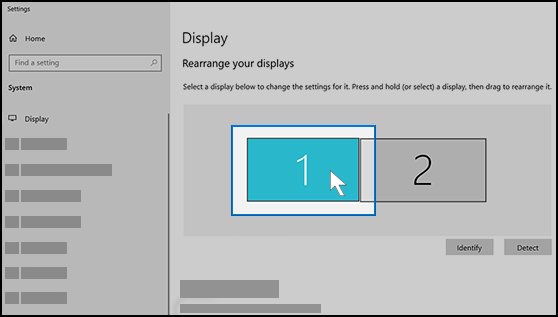
- Under Rearrange your displays, select the monitor you want to change.
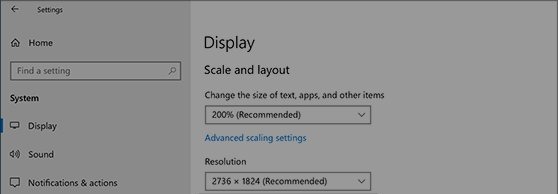
- Scroll to Scale and layout and open Display resolution.
- Choose the value marked (Recommended) and confirm it at Keep these display settings?
- Set Change the size of text, apps, and other items for that monitor.
- Select the other monitor and repeat the resolution and size changes.
- Drag the monitor boxes so their edges line up, then select Apply.
Can a PC run 2 monitors at different resolutions?
Yes. In Extend mode Windows treats each monitor as a separate display with its own settings.
| Setting | Per monitor? | What to know |
|---|---|---|
| Resolution | Yes | Native (Recommended) gives the sharpest text |
| Scale | Yes | Use it to even out text size between screens |
| Refresh rate | Yes | Set in Advanced display > Choose a refresh rate; rates with an asterisk change the resolution |
| HDR | Yes | Not available in Duplicate mode; use Extend |
| Colour profile | Yes | Set in Display > Color profile for the selected monitor |
| Number of monitors | Depends on the graphics adapter | Ask the adapter maker how many outputs it supports; a splitter only duplicates one signal |
How to see the current resolution of each monitor
- Open Start > Settings > System > Display.
- Select one monitor's box at the top of the page.
- Scroll down and select Advanced display.
- Read the Display information panel for that monitor's resolution and refresh rate.
- Go back, select the other monitor and open Advanced display again.
Each monitor should show its own native resolution. If one shows a lower value than its (Recommended) option, the driver section below applies.
Changed resolution, now black screen on Windows 11
The screen went black right after you picked a new resolution
The monitor cannot display the mode you selected.
- Do not press any key, and wait for Keep these display settings? to time out.
- Let Windows revert to the previous resolution on its own.
- Pick a different value, preferably the (Recommended) one.
Both screens stay black or the picture never comes back
The graphics driver stalled or the display mode is stuck.
- Press Windows key + Ctrl + Shift + B to reset the graphics driver; a beep or flicker means it worked.
- Press Windows key + P, press P again and press Enter to cycle display modes.
- Repeat the cycle until a picture appears on one screen.
- Press and hold the power button for 20 seconds if nothing responds, then start the PC again.
Black screen after every restart
Windows starts with the unsupported resolution saved.
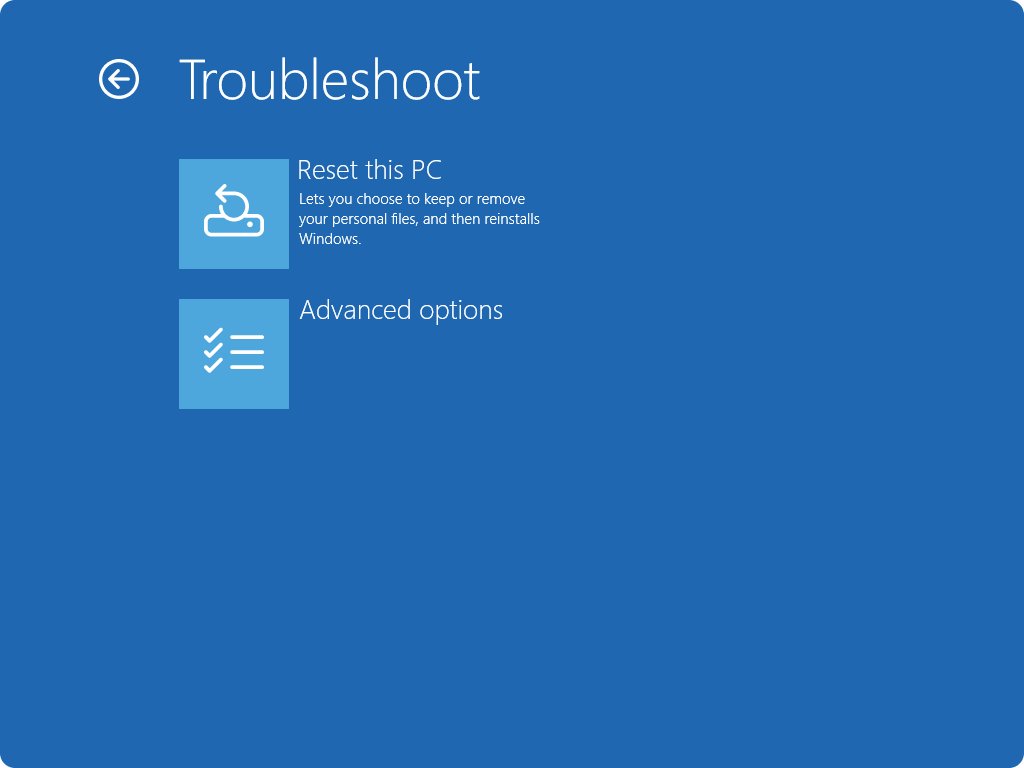
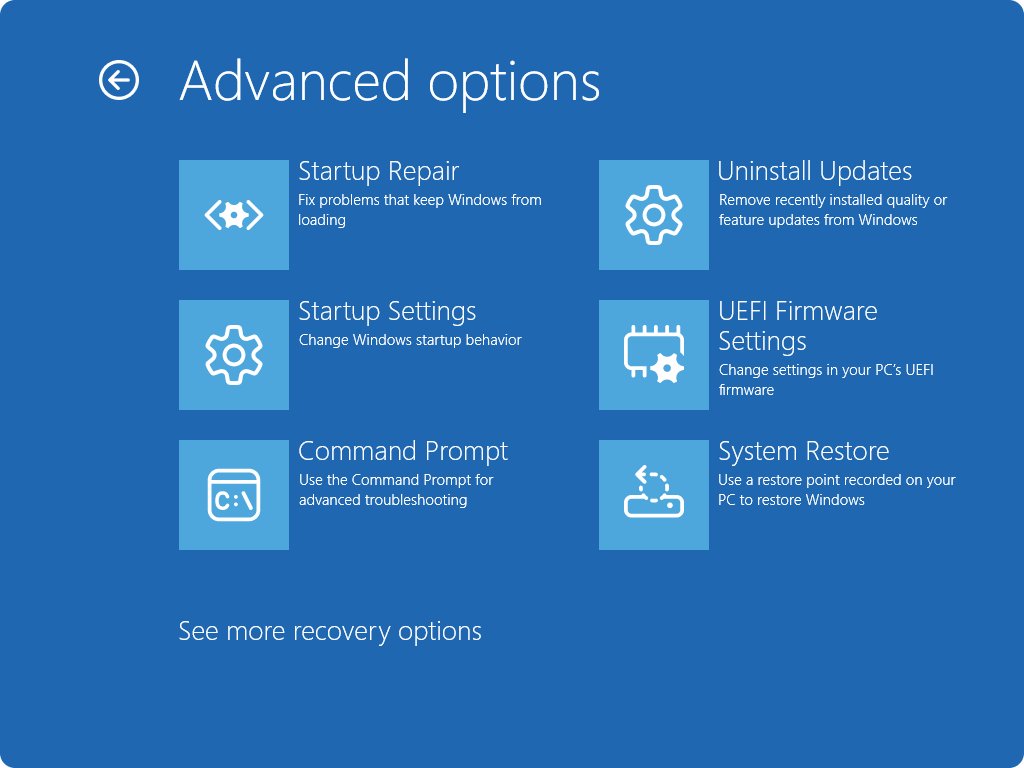
- Turn the PC off with the power button during startup two or three times to open Windows Recovery Environment.
- Select Troubleshoot > Advanced options > Startup Settings > Restart.
- Press 3 or F3 for Enable low-resolution video.
- Open Settings > System > Display and set each monitor to its (Recommended) resolution.
- Restart normally.
If a BitLocker recovery screen appears in Windows RE, you need your BitLocker key before Startup Settings will open.
Grey screen after update in Windows 11 [fix]
A blank or grey screen after an update is most often an incompatible display driver or an incomplete update.
Grey or blank screen with a pointer after signing in
Windows Explorer did not start properly.
- Press Ctrl + Shift + Esc to open Task Manager.
- Right-click Windows Explorer and select Restart.
- If it is not listed, select File > Run new task, type
explorer.exeand press Enter.
Grey screen started with a new display driver
The updated driver does not suit your graphics adapter or monitor mix.
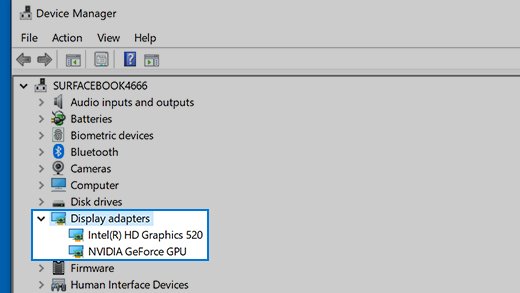
- Type device manager in the taskbar search box and open it.
- Expand Display adapters.
- Right-click the adapter and select Properties.
- Open the Driver tab and select Roll Back Driver, then Yes.
- Restart the PC.
Grey screen started with a Windows update
The quality update itself conflicts with your hardware.
- Open Start > Settings > Windows Update > Update history.
- Under Related settings, select Uninstall updates.
- Select the latest update and choose Uninstall.
- If you cannot reach the desktop, use Windows RE: Troubleshoot > Advanced options > Uninstall Updates.
- Use Troubleshoot > Advanced options > System Restore if removing the update does not help.
Over-saturated colors on my main monitor in Windows 11
Colours look too strong or desktop apps look desaturated with HDR on
Your HDR display interprets SDR content differently from the other monitor.
- Open Settings > System > Display and select the main monitor.
- Select HDR and drag the SDR content brightness slider to balance the picture.
- Restart any app whose colours do not change.
- Turn HDR off for that monitor if the desktop still looks wrong.
One monitor shows richer colours than the other with HDR off
The wrong colour profile is set, or colour management is off for that display.
- Open Settings > System > Display > Color profile and select the main monitor.
- Turn on Automatically manage color for apps if the option is offered.
- Choose the profile for your monitor model and select Set profile.
- Select Calibrate display and follow the steps to build a new profile.
- Use the monitor's own buttons to reset its picture mode if colours still differ.
Colour fringes around black text on a white background
An older display driver or an HDMI link that cannot carry the signal.
- Install the latest graphics driver from Settings > Windows Update or the PC maker's site.
- Connect the monitor with DisplayPort if it has one.
- On HDMI only, lower the rate in Advanced display > Choose a refresh rate, or lower the resolution.
Check Night light in Settings > System > Display as well; it warms the colours on every screen when it is on.
Dual monitors not showing same resolution
The second monitor is stuck at a low resolution
Windows is using a generic driver, or the cable or port limits the signal.
- Open Settings > Windows Update and select Check for updates.
- Disconnect docks, dongles and adapters, and plug the monitor straight into the PC.
- Swap the cable or move it to another video port such as DisplayPort or HDMI.
- In Device Manager, right-click the adapter, select Uninstall device, tick Attempt to remove the driver for this device and select Uninstall.
- Restart, then right-click the adapter and select Update driver > Search automatically for updated driver software.
The wallpaper does not fill the external monitor
The built-in and external screens run different resolutions.
- Open Settings > System > Display and select the external monitor.
- Pick any other value under Display resolution.
- Select Revert at Keep these display settings?
Apps look blurry on one monitor
The app scales only for the primary monitor and Windows stretches it on the other.
- Sign out of Windows and sign back in after docking or changing scale.
- Set both monitors to the same Scale value as a test.
- Move the app to the primary monitor if it still looks soft.
How to fix dual monitor display issues
The second monitor is not detected
Windows has not picked up the new connection or the mode is set to one screen.
- Press Windows key + P and select Extend.
- Open Settings > System > Display > Multiple displays and select Detect.
- Check that the monitor is on and set to the right input.
A third monitor stays blank while two work
The graphics adapter or the single video port cannot drive another screen.
- Check how many monitors the adapter supports with its maker.
- Use a docking station or a USB-C video adapter instead of a splitter.
- Connect the extra monitor and select Detect again.
Both screens flicker
A display driver or an incompatible app.
- Open Task Manager with Ctrl + Shift + Esc and watch whether it flickers too.
- If it flickers, roll back or update the display driver in Device Manager.
- If only the rest of the screen flickers, update or uninstall recently added apps from Settings > Apps > Installed apps.
If the monitor never appears at all, fix a second monitor that is not detected by working through ports, adapters and drivers.
Dual monitors with different resolutions FAQ
How do I fix dual monitors in Windows 11?
Press Windows key + P and choose Extend, then open Settings > System > Display. Select each monitor in turn and set its Display resolution to the (Recommended) value. If a screen is missing, select Multiple displays > Detect and check the cable.
How do I fix the dual monitors display layout?
Open Settings > System > Display, select Identify, and drag the numbered boxes so they match where the screens sit on your desk. Line up their edges, select Apply, and move the pointer across to test where it crosses.
How do I fix the display on a dual monitor that looks stretched?
Select that monitor in Settings > System > Display and choose the (Recommended) resolution. Lower resolutions can make the picture look stretched, small or black-edged. If the recommended value is missing, update the graphics driver.
How do I change resolution on dual monitors?
Open Settings > System > Display and select the monitor's box at the top. Choose a value in the Display resolution row and confirm it at the Keep these display settings? prompt. Then select the other monitor's box and set its resolution separately.
How do I fix dual monitor display issues after an update?
Press Windows key + Ctrl + Shift + B to reset the graphics driver first. If the problem stays, roll back the display driver from Device Manager or uninstall the latest update from Settings > Windows Update > Update history > Uninstall updates.
How do I fix resolution on multiple monitors when it keeps changing?
Unexpected resolution changes usually point to the graphics driver. Run Settings > Windows Update > Check for updates, or reinstall the display driver from Device Manager. Then set each monitor back to its (Recommended) resolution.
Parting words
Run every monitor at its own (Recommended) resolution and even out text size with Scale, not by lowering the resolution. Native resolution keeps text sharp on each panel, while per-monitor scale fixes the size mismatch without stretching the picture.