To restore My Card on iPhone, open Contacts, touch and hold your own contact and tap Make this My Card; if your contact is gone, create it with the + button first.
This covers the Siri route, recovering a deleted card from iCloud.com, setting My Card on a Mac, and why the card goes missing after moving to a new iPhone.
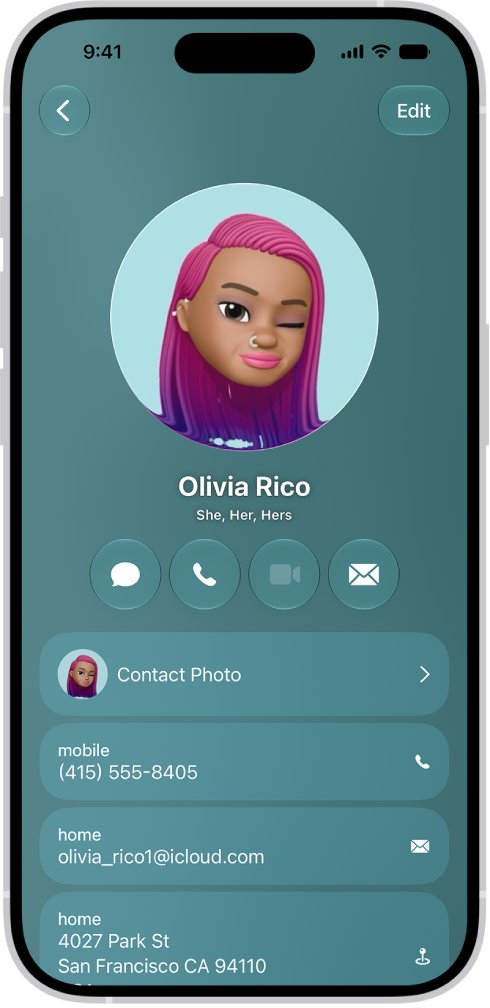
How to restore My Card on iPhone
My Card is your own contact card in the Contacts app. When it is missing, the top of the contacts list no longer shows your name.
- Open the Contacts app on your iPhone.
- Search the list for your own name. If your contact is missing, tap the + button, enter your name and phone number, then save it.
- Return to the contacts list, then touch and hold your own contact.
- Tap Make this My Card in the menu that opens.
Your name now sits under My Card at the top of the list. Siri, AutoFill and Name & Photo Sharing read from this card again.
Why My Card disappears on a new iPhone
iPhone builds My Card from your Apple Account. The card itself is an ordinary contact; what makes it yours is a designation that can go missing.
| Cause | What you see | Fix |
|---|---|---|
| Contacts were copied, but no card was designated as yours | Your contact exists, yet My Card is missing at the top | Touch and hold your contact, then tap Make this My Card |
| Your own contact was deleted | Your name isn't in the list at all | Restore an earlier contacts version on iCloud.com, or create the contact again |
| Contacts is off in iCloud settings | My Card is set on one device but not another | Turn on Contacts under iCloud on each device |
| Different Apple Accounts on your devices | The Mac and iPhone show different cards | Sign in to the same Apple Account everywhere |
| Another person's card was designated | Siri or AutoFill uses someone else's details | Make your own contact My Card instead |
How to set My Card from Siri settings on iPhone
Siri reads your name, home and work addresses from My Card. Picking your contact in Siri settings links that card again.
- Open the Settings app on your iPhone.
- Tap Siri, then tap Your Information.
- Tap your own name in the contacts list that appears.
Your personal information then stays up to date on every device signed in to the same Apple Account.
How to recover a deleted My Card contact from iCloud
If you deleted your own contact, iCloud keeps archived versions of your contacts. Restoring one brings the card back on every device that syncs Contacts with iCloud.
- Go to icloud.com/contacts and sign in with your Apple Account.
- Open the menu button in the toolbar, then select Data Recovery.
- Select Restore Contacts.
- Find a version dated before your card went missing.
- Select Restore to the right of that version.
- Wait for the restore to finish before you edit any contacts.
A contact deleted in the last day may not have an archive yet; it can take up to 24 hours to appear. Your current contacts are archived first, so you can switch back.
When the contact is back, open Contacts on iPhone, touch and hold it, and tap Make this My Card. If more than your own card went missing, you can get lost iPhone contacts back with the wider recovery steps.
How to make a contact My Card on Mac
A Mac creates a card for you during setup. Choosing a different card there also updates your other devices when they sync Contacts with iCloud.
- Open the Contacts app on your Mac.
- Select your own contact in the list.
- Choose Card > Make This My Card.
- Choose Card > Go to My Card to check the right contact opens.
The designation carries to your iPhone and iPad only when each device uses the same Apple Account and has Contacts turned on in iCloud.
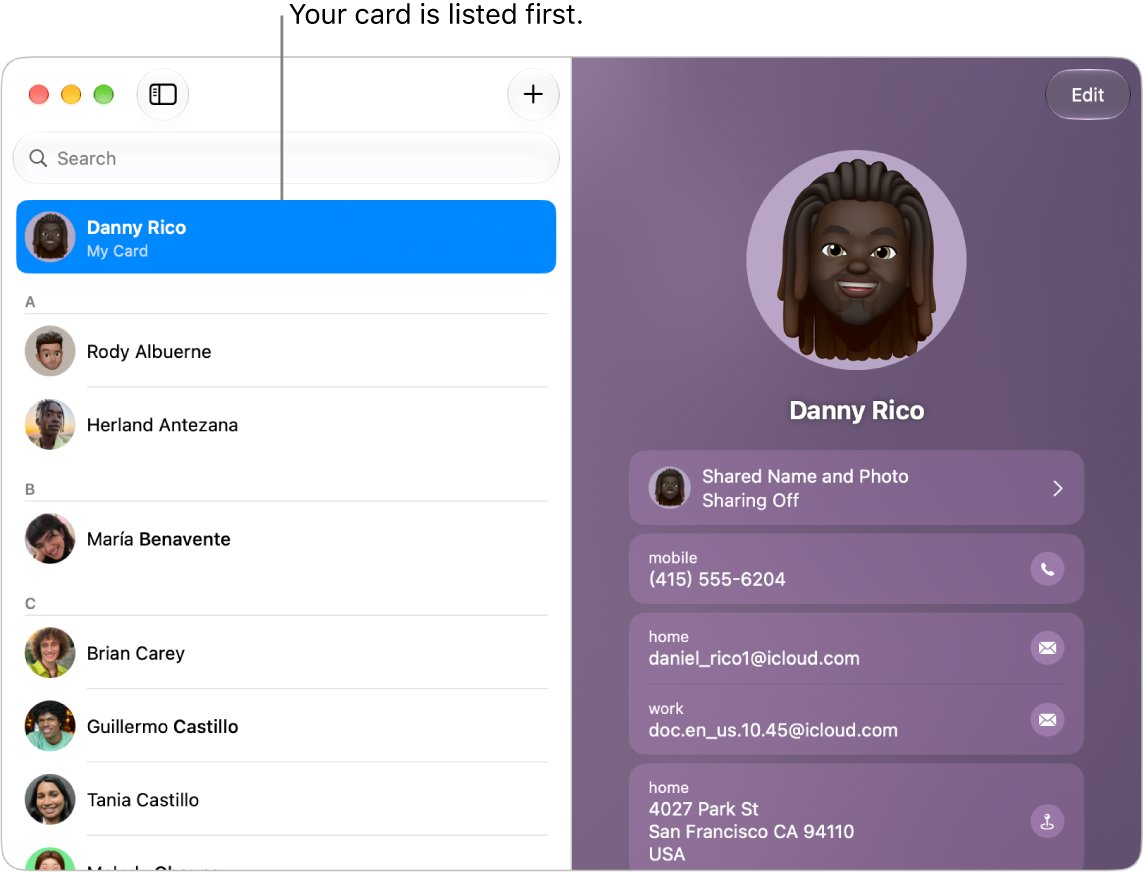
How to turn on iCloud Contacts so My Card syncs
With Contacts turned off in iCloud, each device keeps its own list and its own My Card.
- On iPhone or iPad, go to Settings > [your name] > iCloud.
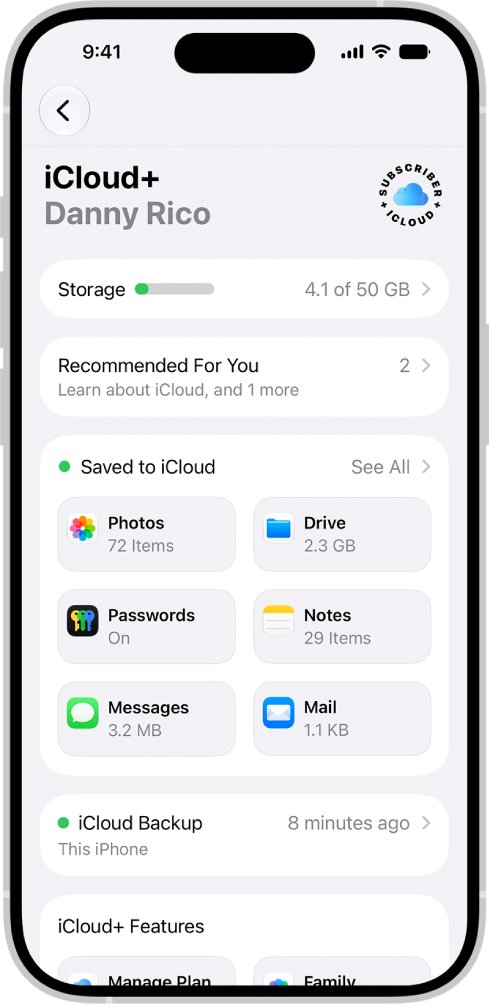
- Tap See All next to Saved to iCloud, then turn on Contacts.
- On a Mac with macOS 15 or later, choose Apple menu > System Settings, then click your name.
- Click iCloud, click See All next to Saved to iCloud, then turn on Contacts.
On macOS 13.3 to 14, the switch is under Apps Using iCloud after you click Show All or Show More Apps. Before switching phones, transfer contacts to the new phone through iCloud so your own card travels with them.
What My Card is used for on iPhone
Several features quietly depend on the card, which is why a missing My Card shows up in odd places.
| Feature | What it takes from My Card |
|---|---|
| Siri | Your name, home and work addresses, and relationships such as "Mom" |
| Safari AutoFill | Your address and contact details for online forms; editing My Card updates AutoFill |
| Contact Poster and avatar | The image and poster others see when you call or message them |
| Name & Photo Sharing | Which name, photo and poster you share automatically |
| Medical ID | Created and edited from your card in Contacts |
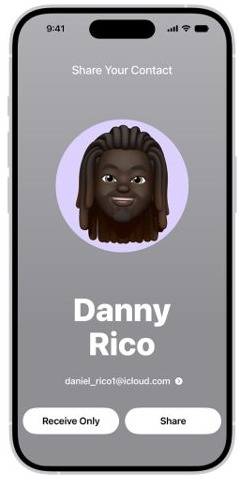
| NameDrop | The contact details you share with someone nearby |
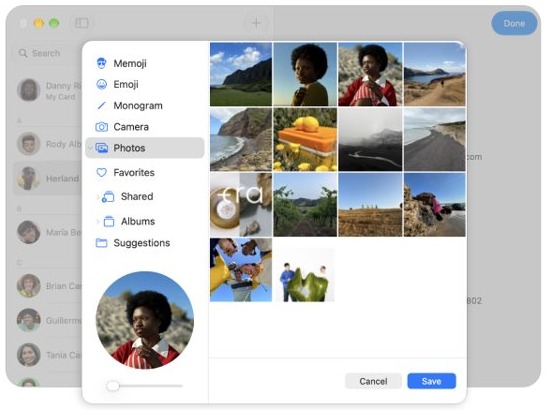
| Mac login and Apple Account picture | The picture or Memoji you choose for your card on a Mac |
How to edit My Card on iPhone
- Open Contacts and tap My Card at the top.
- Tap Edit, then update your name, phone number and email.
- Tap Add Address, enter your address, then tap the label to the left of it and select Home.
- Tap your contact photo, choose a style, then tap Customize to edit your avatar and poster.
- To share your name and photo automatically, tap your contact photo and turn on Name & Photo Sharing.
- To add a Medical ID, scroll down and tap Create Medical ID.
How to see My Card in Contacts on iPhone
- Open Contacts and look at the top of the list: My Card should show your name.
- Tap My Card and check the phone number, email and address are yours.
- Go to Settings > Siri > Your Information and check your name is selected.
- On a Mac, choose Card > Go to My Card in Contacts and check the same contact opens.
My Card not showing in Contacts on iPhone
No My Card at the top of Contacts
No contact in the list is currently designated as your own card.
- Find or create your own contact in Contacts.
- Touch and hold it, then tap Make this My Card.
My Card shows someone else's details
Another person's contact was designated, often after merging or copying contacts.
- Touch and hold your own contact and tap Make this My Card.
- Go to Settings > Siri > Your Information and tap your own name.
My own contact was deleted by mistake
The card went with the deleted contact.
- Go to icloud.com/contacts, open Data Recovery and select Restore Contacts.
- Restore a version from before the deletion; recent changes can take up to 24 hours to be archived.
- Make the restored contact My Card on your iPhone.
My Card is right on iPhone but wrong on Mac
Contacts isn't syncing through iCloud, or the devices use different Apple Accounts.
- Turn on Contacts in iCloud settings on both devices.
- Check both devices are signed in to the same Apple Account.
- On the Mac, select your contact and choose Card > Make This My Card.
Siri says your name wrong after restoring My Card
The restored card has no pronunciation field.
- Open Contacts, tap My Card, then tap Edit.
- Scroll down, tap add field and choose a pronunciation name field.
- Type how your name is said, then save the card.
My Card in Contacts FAQ
Where is My Card on iPhone?
My Card sits at the top of the contacts list in the Contacts app, above every other contact. If you see no card there, no contact is currently designated as yours, and you need to set one.
How do I make a contact My Card on iPhone?
Open Contacts, touch and hold the contact that holds your own details, then tap Make this My Card. The card moves to the top of the list and Siri starts using it.
Can I restore a deleted contact on iPhone?
Yes, if you use iCloud Contacts. Go to icloud.com/contacts, open Data Recovery, select Restore Contacts and pick a version from before the deletion. The restored contacts appear on every device syncing Contacts with iCloud.
Does My Card sync between iPhone and Mac?
Yes, when both devices are signed in to the same Apple Account and have Contacts turned on in iCloud settings. A card you choose as My Card on the Mac then becomes My Card on those devices.
Why doesn't Siri know my name?
Siri takes your name from My Card. If the card is missing or belongs to someone else, go to Settings > Siri > Your Information and tap your own name, then check My Card in Contacts.
How do I change my Contact Poster on iPhone?
Open Contacts, tap My Card, then tap Edit. Tap your contact photo, choose a style and tap Customize to edit your avatar and poster. Turn on Name & Photo Sharing to share it automatically.
Is my Medical ID part of My Card?
You create and edit the Medical ID from My Card. Open Contacts, tap My Card, tap Edit, then scroll down and tap Create Medical ID or Edit Medical ID to add allergies, conditions and emergency contacts.