The five built-in system information tools in Windows 11 are System Information (msinfo32), Settings > System > About, the systeminfo command, the PowerShell Get-ComputerInfo cmdlet and the DirectX Diagnostic Tool (dxdiag).
This guide shows what each one reports, how to open it, and which one fits a quick spec check, a saved report or a graphics problem.
How to open System Information in Windows 11
System Information (msinfo32.exe) is the most complete of the five, covering hardware, system components and the software environment.
- Press Win + R to open Run.
- Type
msinfo32and press Enter. - Read the System Summary page for OS name, version, processor, BIOS and installed memory.
- Expand Hardware Resources, Components or Software Environment in the left pane for detail.
Run it as administrator for full results. Without elevation, some drivers show as stopped even when they are running.
System Information tools in Windows 11/10
| Tool | How to open | Best for |
|---|---|---|
| 1. System Information (msinfo32) | Win + R, msinfo32 |
Full hardware, driver and software inventory, saved as .nfo or .txt |
| 2. Settings > System > About | Win + I, System, About | Quick look at device name, processor, RAM, edition and version |
| 3. systeminfo command | systeminfo in Command Prompt or Terminal |
Text or CSV output, OS install details, remote PCs |
| 4. Get-ComputerInfo (PowerShell) | Get-ComputerInfo in PowerShell |
Filtering specific properties in scripts |
| 5. DirectX Diagnostic Tool (dxdiag) | Win + R, dxdiag |
DirectX version, display and sound devices for game or graphics issues |
Save a System Information report in Windows 11
- Open System Information with
msinfo32. - Select File > Save to keep a .nfo file that msinfo32 can open later.
- Or select File > Export to write a plain .txt report.
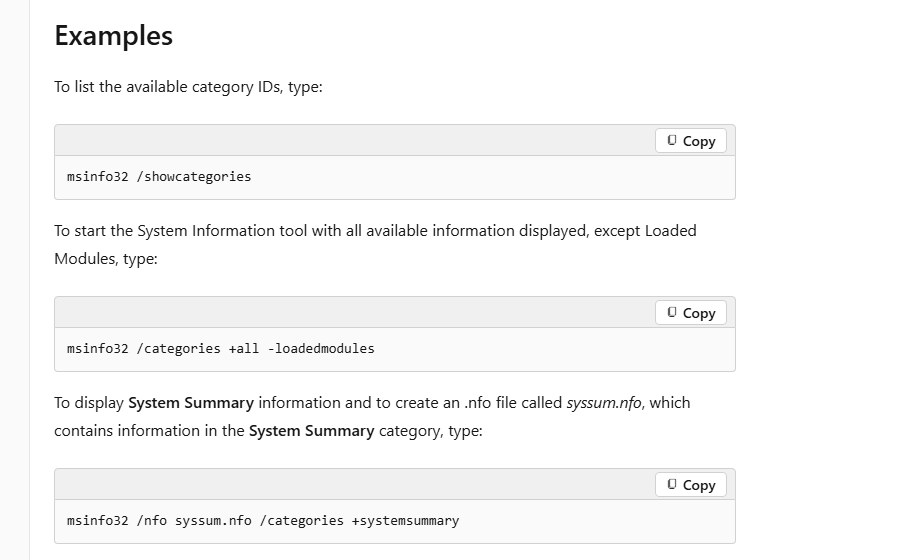
- From a command prompt, run
msinfo32 /nfo C:\Temp\pc.nfoto save without opening the window, ormsinfo32 /report C:\Temp\pc.txtfor a text report.
Check system specs in Windows 11 Settings
- Press Win + I to open Settings.
- Select System > About.
- Read Device specifications for device name, processor, installed RAM and system type (32-bit or 64-bit).
- Read Windows specifications for edition, version and OS build.
- Open System > Storage to see drive usage.
System information command in Windows 11: systeminfo
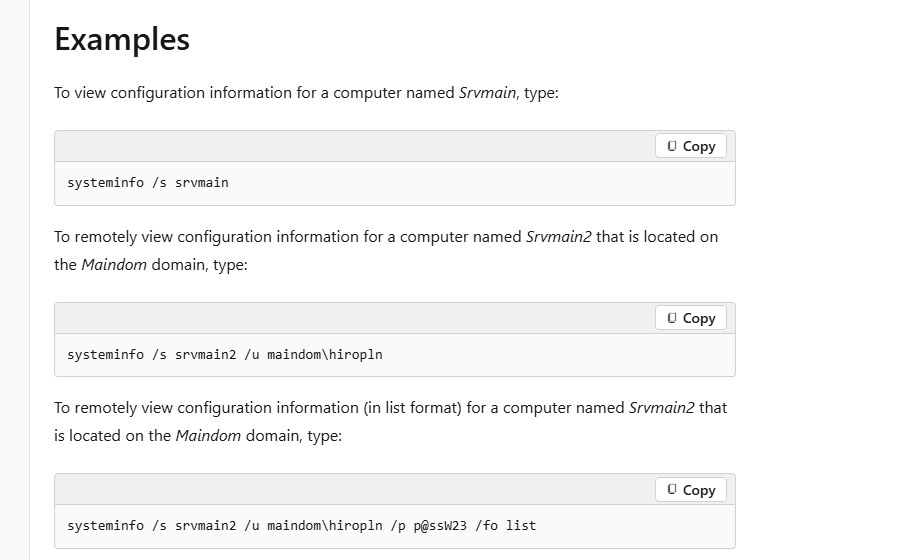
systeminfo prints OS configuration, security information, product ID and hardware properties such as RAM, disk space and network cards.
systeminfo /fo listLists every property one per line. Use /fo csv to save as spreadsheet data, /fo table for a table, and /s <computer> to query a remote PC.
You should see: Lines such as OS Name, OS Version, System Manufacturer, Total Physical Memory and Network Card(s) appear after a short delay.
Get system information with PowerShell Get-ComputerInfo
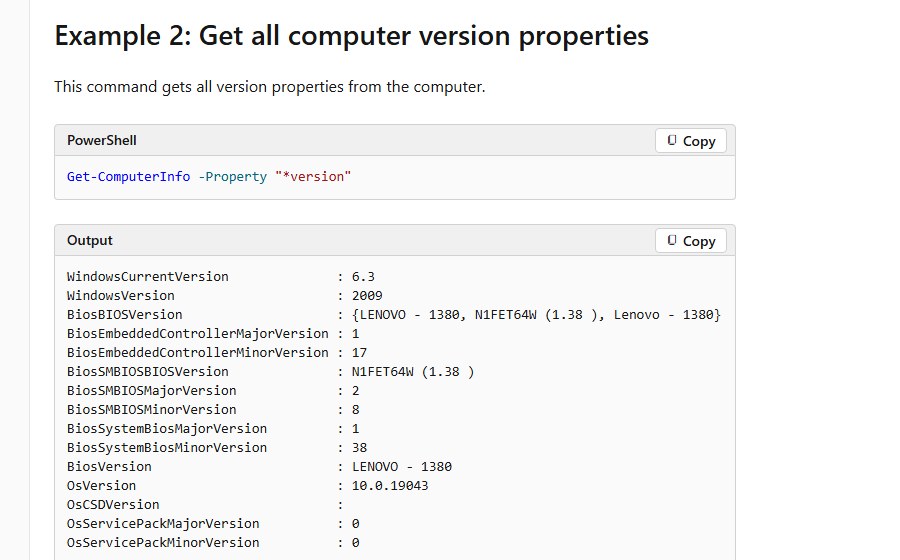
Get-ComputerInfo returns one object with system and operating system properties. It is built into Windows PowerShell 5.1 and later on Windows.
Get-ComputerInfo -Property "*version"Run plain Get-ComputerInfo for every property. -Property accepts wildcards, so "*version" returns only version fields such as WindowsVersion, BiosVersion and OsVersion. The short alias is gin.
You should see: PowerShell prints name : value pairs for the matching properties.
Open DirectX Diagnostic Tool (dxdiag) in Windows 11
Dxdiag.exe lives in the System32 folder and is built to troubleshoot DirectX issues.
- Press Win + R, type
dxdiagand press Enter. - Read the System tab for computer details and the installed DirectX version.
- Use the other tabs in the main window to display and diagnose DirectX-related information for your devices.
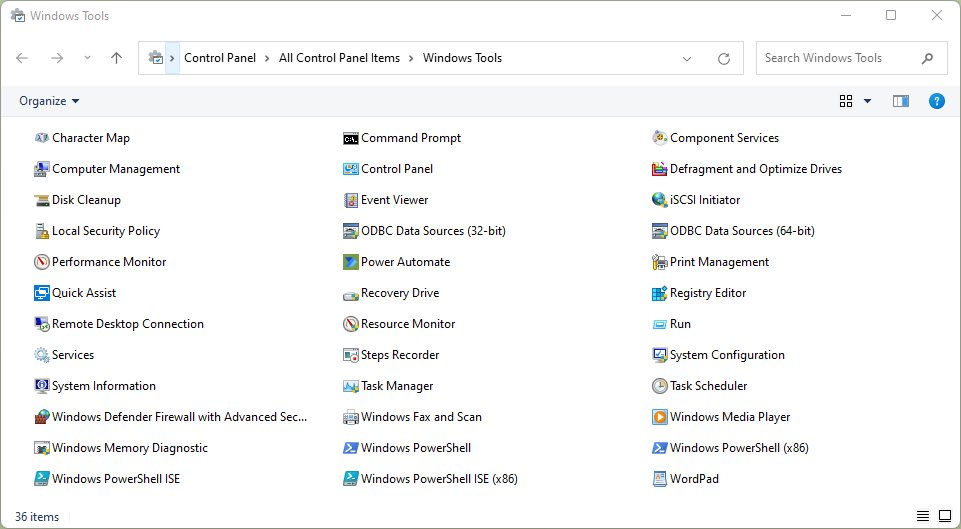
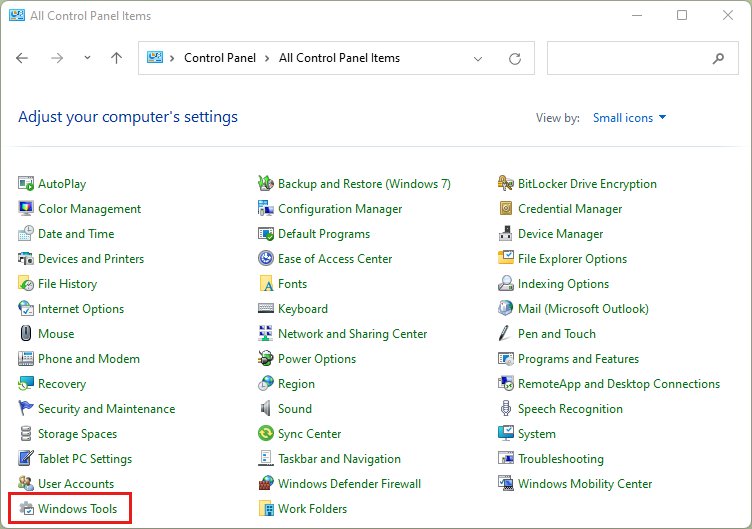
Where is system tools in Windows 11
Windows 11 groups its admin utilities in the Windows Tools folder in Control Panel, which replaced the Windows 10 Administrative Tools folder.
| Windows version | Folder name | How to reach it |
|---|---|---|
| Windows 11 | Windows Tools | Control Panel > Windows Tools, or search Windows Tools in Start |
| Windows 10 | Administrative Tools | Control Panel > Administrative Tools |
The tools inside vary by Windows edition. System Information is also listed there.
Confirm Windows 11 system information is complete
- Compare OS Name and Version in msinfo32 with Windows specifications in Settings. They should match.
- Check that Installed Physical Memory (RAM) in msinfo32 matches Installed RAM in Settings.
- If drivers show as stopped in msinfo32, close it and reopen it as administrator.
System Information not showing hardware details in Windows 11
Drivers listed as stopped in msinfo32
System Information was opened without administrator rights.
- Close System Information.
- Search System Information in Start, right-click it and select Run as administrator.
- Check the driver list again.
No hardware information in System Information
The PC is in Safe Mode, where msinfo32 does not show hardware details.
- Restart Windows normally.
- Open
msinfo32again.
systeminfo fails against another computer
The remote name or account permissions are wrong.
- Use the computer name or IP without backslashes after
/s. - Add
/u <domain>\<username>with an account that has rights on that PC.
Windows 11 system information tools FAQ
How do I find system information in Windows 11?
Press Win + R, type msinfo32 and press Enter to open System Information. For a quicker summary, open Settings > System > About, which shows processor, installed RAM, system type, edition and version.
Where is System Information in Windows 11?
System Information is msinfo32.exe. Open it by searching System Information in Start, by running msinfo32 from Run, or from the Windows Tools folder in Control Panel.
Where is system tools in Windows 11?
Windows 11 keeps its system and admin utilities in the Windows Tools folder in Control Panel. It replaced the Administrative Tools folder from Windows 10, and its contents vary by edition.
What is the command for system information in Windows 11?
Run systeminfo in Command Prompt or Windows Terminal for a text listing, or msinfo32 to open the graphical System Information tool. In PowerShell, Get-ComputerInfo returns the same kind of data as an object.
How do I view system information on Windows 11 without admin rights?
Settings > System > About, systeminfo and dxdiag all work from a standard account. msinfo32 also opens, but some drivers show as stopped unless you run it as administrator.
Which Windows 11 tool shows my graphics card details?
The DirectX Diagnostic Tool reports DirectX information for your graphics hardware and the installed DirectX version. Run dxdiag from Run and read its tabs, or open msinfo32 and expand Components.