Open Disk Cleanup, tick Delivery Optimization Files, then select OK and Delete Files to clear the Delivery Optimization cache in Windows 11 and Windows 10.
This guide covers all four ways to empty it, how to check how much space it uses, how to cap its size and bandwidth, and what to do when it fills up again.
How to clear the Delivery Optimization cache in Windows
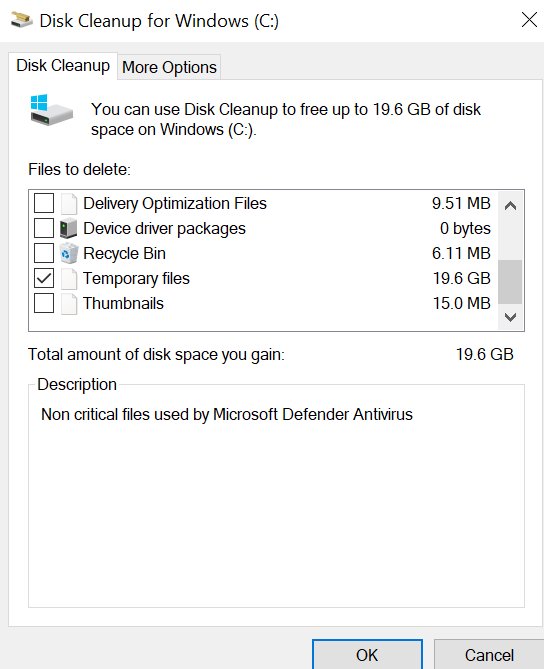
Microsoft's own instructions use the Disk Cleanup tool, and the steps are the same on Windows 11 and Windows 10. Windows also clears this cache on its own, so a manual clear is only needed when you want the space back now.
- Type Disk Cleanup in the search box on the taskbar and select it from the results.
- Choose the Windows drive (usually C:) if Disk Cleanup asks, then select OK.
- On the Disk Cleanup tab, select the Delivery Optimization Files check box.
- Clear any other boxes you do not want emptied, then select OK.
- Select Delete Files in the confirmation dialog.
What is the Delivery Optimization cache?
Delivery Optimization is the HTTP downloader that Windows Update, the Microsoft Store and most other Microsoft content providers use. It keeps recently downloaded files in a local cache so other devices on your network can fetch pieces from your PC instead of from Microsoft.
| Cache detail | Default value | What it means for you |
|---|---|---|
| Location | The operating system drive (%SYSTEMDRIVE%) | Run Get-DOConfig -Verbose in PowerShell; the WorkingDirectory line shows the exact cache folder |
| What it holds | Windows updates, Store apps, Microsoft Defender definitions, Microsoft 365 apps, Edge and Teams updates, Xbox Game Pass (PC) | Large update packages are the usual reason the cache grows |
| How long files stay | 259,200 seconds (three days), the Max cache age default | Most files leave the cache on their own within days |
| Maximum size | 20% of available drive space, the Max cache size default | On a drive with 100 GB free the cache can reach 20 GB |
| Smallest file shared with peers | 50 MB | Small downloads are not offered to other devices |
| Default sharing mode | LAN (1): devices on your local network only | PCs on the internet are not used unless you choose that option |
| Personal files | Never included | Delivery Optimization cannot send personal content and does not access your files or folders |
Why clear the Delivery Optimization cache?
The common reasons to clear the Delivery Optimization cache in Windows are disk space and a fresh start for downloads. Bandwidth and privacy are better handled with settings than with a cache clear.
| Reason | Does clearing help? | What actually fixes it |
|---|---|---|
| Recover substantial disk space | Yes. The cache can hold up to 20% of free space by default | Clear it now, then set a smaller size limit if it keeps returning |
| Regain control over your bandwidth | Only briefly. New downloads refill the cache | Turn on Limit bandwidth used for downloads and set upload limits in Delivery Optimization Advanced options |
| Resolve stubborn update errors | It removes cached copies so the next attempt downloads fresh files | Clear the cache and the downloaded update files, restart, then run Windows Update again |
| Enhance privacy and security | Not needed. The cache never contains personal files | Turn off Allow downloads from other devices to stop sharing update files with other PCs |
Preparation: Turn off Delivery Optimization (recommended)
Turning off peer downloads first stops your PC from serving cached files to other devices while you clear them. It does not stop Windows updates; your PC simply downloads straight from Microsoft.
- On Windows 11, open Start > Settings > Windows Update > Advanced options > Delivery Optimization.
- On Windows 10, open Start > Settings > Update & Security > Delivery Optimization.
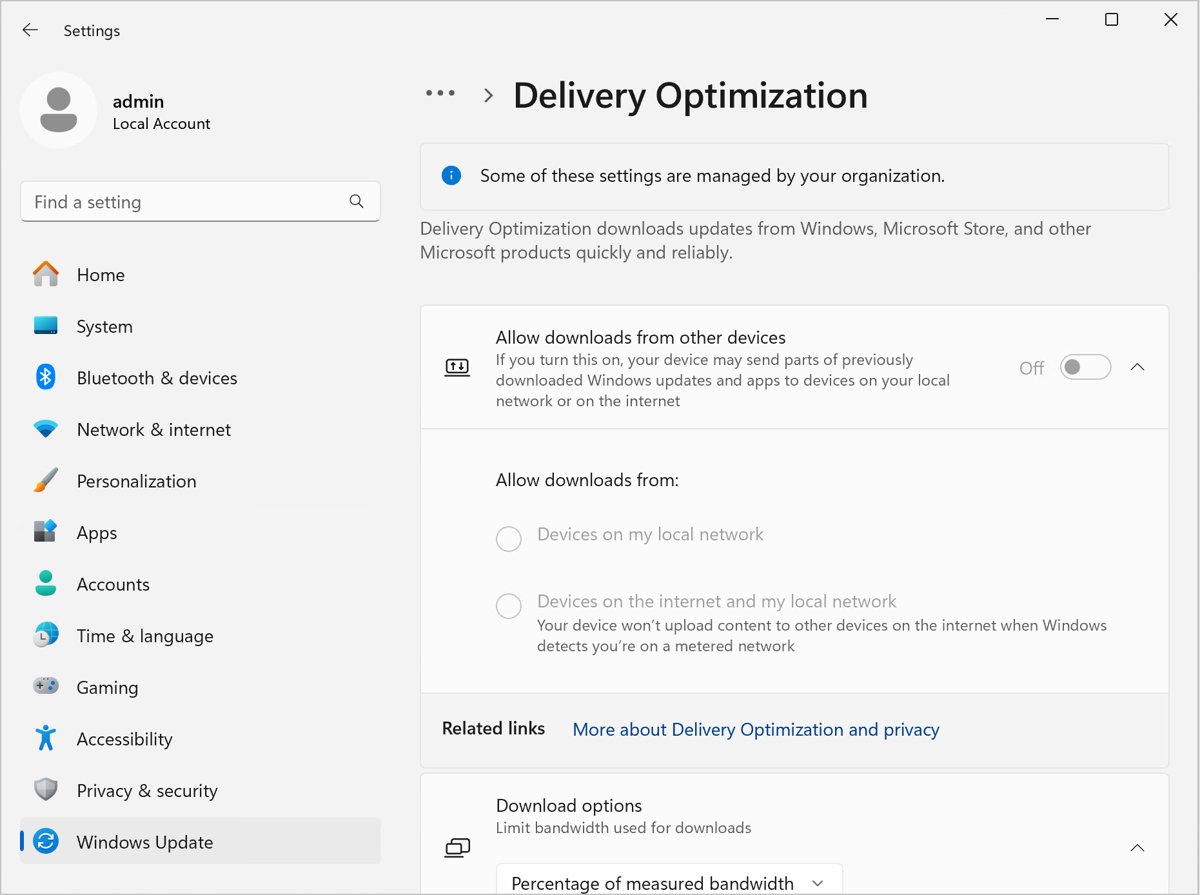
- Turn off Allow downloads from other devices (Windows 11) or Allow downloads from other PCs (Windows 10).
- Clear the cache with any method below.
- Turn the switch back on afterwards if you want to keep sharing updates with PCs on your local network.
If the switch is greyed out, Windows shows Some of these settings are managed by your organization. An IT administrator controls Delivery Optimization on that PC.
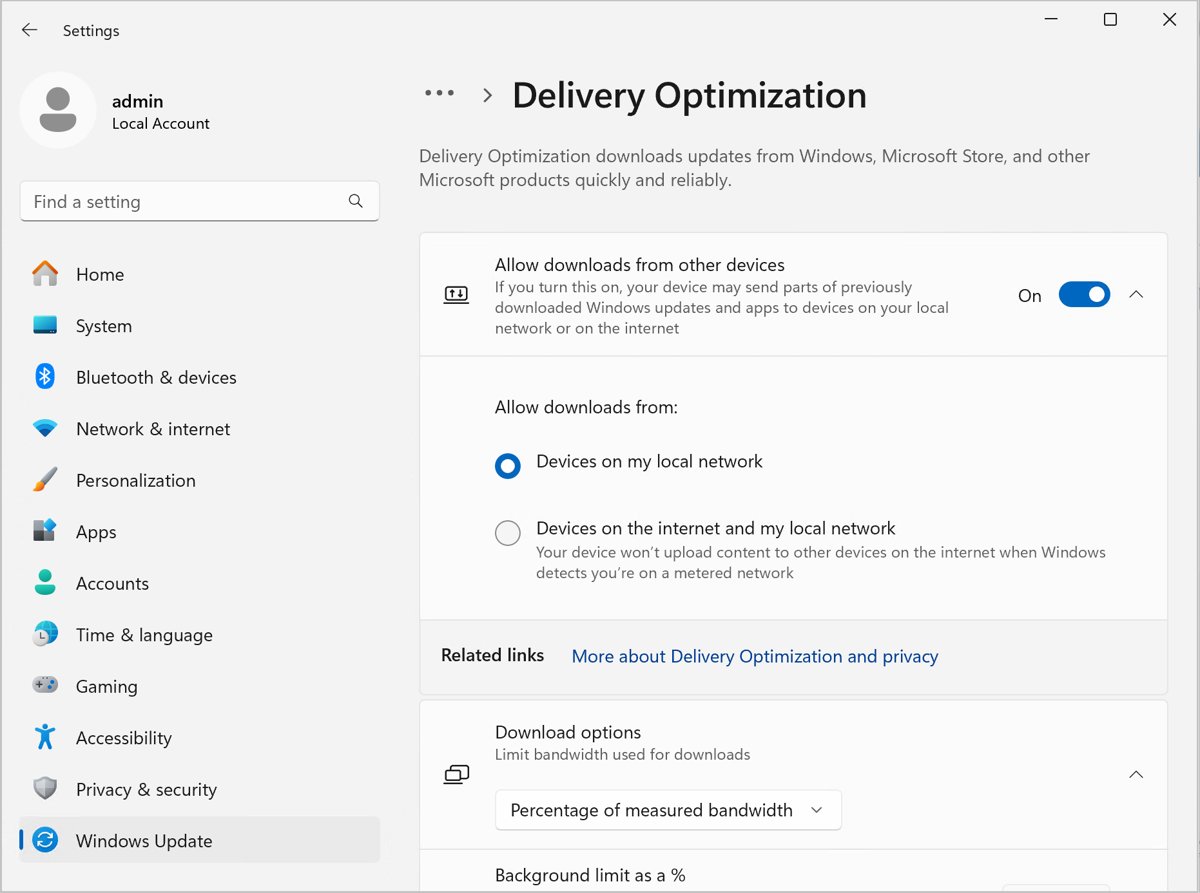
Method 1: The Disk Cleanup tool (easiest for beginners)
Disk Cleanup shows the size of the Delivery Optimization files next to the check box before you delete anything, which makes it the clearest option for most people.
- Press Win + R, type
cleanmgrand press Enter, or search for Disk Cleanup on the taskbar. - Select the Windows drive and select OK.
- Scroll the list of file types and select Delivery Optimization Files.
- Check the size shown next to it to see how much space you will get back.
- Select OK, then Delete Files.
Leave Previous version of Windows unticked if you see it. Deleting it cannot be undone and removes the option to go back to your earlier version of Windows.
Method 2: Windows Settings (quick and modern)
The Storage page in Settings groups cached update files with other temporary files. It needs administrator rights, the same as removing a previous Windows version from this page.
- Open Start > Settings > System > Storage.
- Under your drive information, select Temporary files.
- Wait for Windows to finish measuring each category.
- Select the Delivery Optimization Files check box and clear any boxes you want to keep, such as Downloads.
- Select Remove files and confirm.
If Delivery Optimization Files is not in the list on your build, use Disk Cleanup instead. On Windows 11, Cleanup recommendations on the same Storage page offers a quicker review of temporary files.
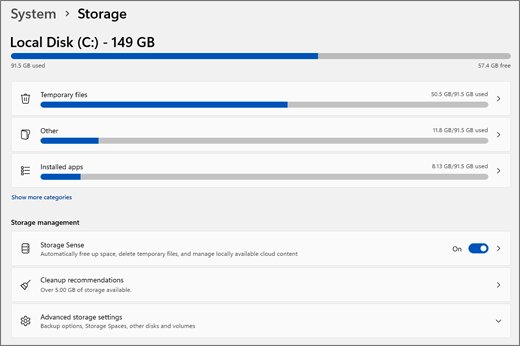
Method 3: Reset via PowerShell (for stuck services)
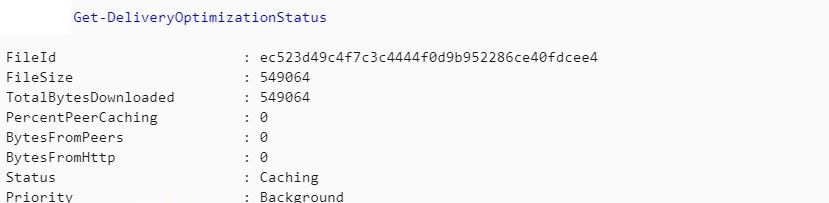
PowerShell has a dedicated cmdlet for the cache, available from Windows 10, version 1903. Use it when Disk Cleanup will not remove the files, or when a download appears stuck in the cache.
Open PowerShell as administrator: right-click Start, select Terminal (Admin) or Windows PowerShell (Admin), and first run Get-DeliveryOptimizationStatus to see the current jobs and their Status values.
Delete-DeliveryOptimizationCache -ForceDelete-DeliveryOptimizationCache clears files from the cache and removes all persisted data related to them. -Force skips the confirmation prompt. Add -IncludePinnedFiles to also delete files that were pinned to stay in the cache, or -FileID <id> to delete a single file.
You should see: The prompt returns with no error, and Get-DeliveryOptimizationStatus no longer lists the old files.
The Delivery Optimization service (DoSvc) shuts itself down when it is idle, so a stuck job clears once its files are gone and nothing is downloading.
Method 4: Command Prompt (classic administrative cleanup)
Command Prompt has no Delivery Optimization command of its own, but it can call the PowerShell cmdlet in one line. Search for cmd, right-click Command Prompt and select Run as administrator.
powershell -NoProfile -Command "Delete-DeliveryOptimizationCache -Force"This starts PowerShell without your profile, runs the cache cmdlet with no prompt, and returns you to Command Prompt. It works in scripts and scheduled tasks.
You should see: Command Prompt returns to a new prompt with no red error text.
To use Disk Cleanup from the command line instead, run cleanmgr /sageset:1, tick Delivery Optimization Files in the Disk Cleanup Settings dialog and select OK. After that, cleanmgr /sagerun:1 repeats the same cleanup on every drive without the dialog, and you can schedule it with Task Scheduler.
How much space does the Delivery Optimization cache use?
Run this in PowerShell before and after clearing. The Files and CacheSizeBytes values show what is in the cache right now.
Get-DeliveryOptimizationPerfSnapFiles is the number of files in the Delivery Optimization cache, CacheSizeBytes is the disk space they occupy, and AvailableDiskBytes is the free space left on that drive. Add -Verbose for bytes per source.
You should see: After a clear, Files and CacheSizeBytes drop to zero or close to it. They rise again when Windows Update or the Store downloads something new.
For a picture of this month's downloads by source, open Delivery Optimization > Activity monitor in Settings (Activity Monitor on Windows 10).
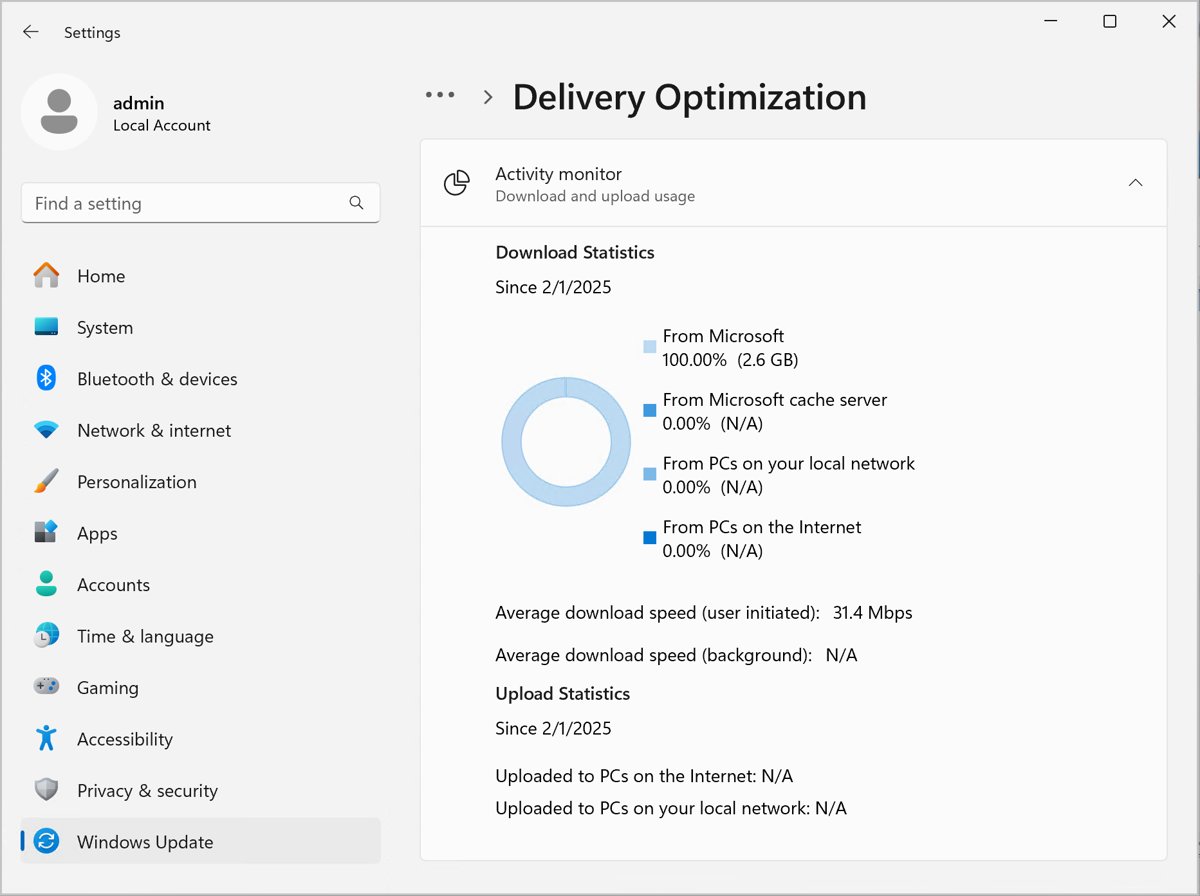
How to limit Delivery Optimization bandwidth and cache size
Clearing the cache is a one-off. These settings change how much it downloads, uploads and keeps.
| Your situation | Setting to change | Where it is |
|---|---|---|
| You do not want to upload to PCs on the internet | Select Devices on my local network (Windows 11) or PCs on my local network (Windows 10) | Settings > Delivery Optimization |
| You want no peer sharing at all | Turn off Allow downloads from other devices / Allow downloads from other PCs | Settings > Delivery Optimization |
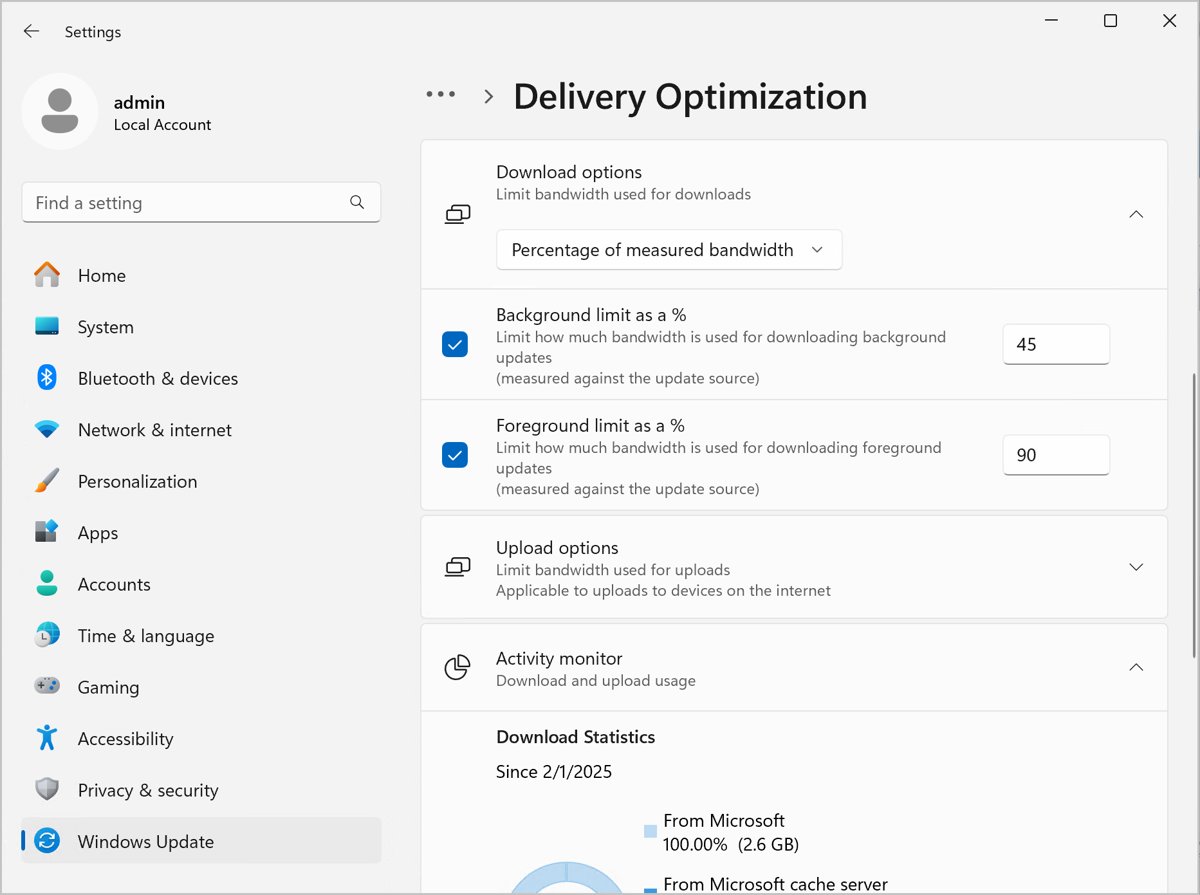
| Background updates slow your connection | Turn on Limit bandwidth used for downloads, then choose Absolute bandwidth limit (Mbps) or Percentage of measured bandwidth | Delivery Optimization > Advanced options |
| Uploads use too much data | Set a percentage under Upload options and a Monthly upload limit from 1 to 500 GB | Delivery Optimization > Advanced options |
| You are on a capped Wi-Fi plan | Turn on Metered connection (Windows 11) or Set as metered connection (Windows 10) to stop automatic sharing with internet PCs | Settings > Network & internet > Wi-Fi > your network |
| The cache takes too much room | Enable Absolute max cache size (in GBs), which overrides the 20% default | Group Policy: Computer Configuration > Administrative Templates > Windows Components > Delivery Optimization |
| Files should leave the cache sooner | Lower Max cache age (seconds; default 259,200) | Same Group Policy folder |
| Drive C: is small | Set Modify cache drive to another drive letter such as D: or a folder such as D:\DOCache |
Same Group Policy folder |
Download limits in Settings apply only to automatic update downloads. A manual Windows Update check or a Store app you install yourself still uses the full connection.
Precautions to take when clearing the Delivery Optimization cache in Windows
| Precaution | Why it matters |
|---|---|
| Let active downloads finish first | Run Get-DeliveryOptimizationStatus. A Downloading status means an update or app is still writing to the cache |
| Leave Previous version of Windows unticked | It sits next to Delivery Optimization Files in cleanup lists. Deleting it cannot be undone and blocks going back to your earlier version |
| Know that pinned files stay by default | Delete-DeliveryOptimizationCache only removes pinned files when you add -IncludePinnedFiles |
| No need to recover deleted Delivery Optimization files | Files deleted from this cache are not worth restoring from the Recycle Bin or with recovery tools. Windows downloads any update it still needs again from Microsoft |
| Check whether your PC is managed | On a work or school PC, an administrator's policy can refill or resize the cache, and Settings shows Some of these settings are managed by your organization |
| Never set Download Mode to 100 (Bypass) | It is deprecated in Windows 11 and can make some downloads fail with error 0x80d03002. Use 0 (HTTP only) to turn off peer-to-peer |
Delivery Optimization cache keeps filling up
The Delivery Optimization cache fills up again right after clearing
Every new Windows update, Store app, Defender definition or Edge update is cached, so a clear only lasts until the next download.
- Let pending updates finish in Settings > Windows Update, then clear the cache once.
- Cap the cache with Absolute max cache size (in GBs) in Group Policy, or lower Max cache age.
- Turn off Allow downloads from other devices if you do not need peer sharing.
Delivery Optimization cache is empty but there is still no disk space
The space is used by other categories such as temporary files, the Recycle Bin or a previous Windows installation.
- Open Settings > System > Storage and review the categories by size.
- Select Cleanup recommendations and choose Clean up for each section you want emptied.
- Turn on Storage Sense to remove temporary files and Recycle Bin items automatically.
- Run Disk Cleanup, select Clean up system files, and clear the rest of the Windows cache the same way.
Delivery Optimization settings are greyed out or managed by your organization
Group Policy or an MDM tool such as Intune sets Delivery Optimization on this PC.
- Run
Get-DOConfig -Verbosein PowerShell to see each setting and its provider. - Look for Mdm Provider or a Group Policy provider next to the setting you want to change.
- Ask your IT administrator to change the policy; local changes are overridden at the next policy refresh.
Downloads fail with error 0x80d03002
Download Mode is set to 100 (Bypass), which some content no longer supports.
- Run
Get-DODownloadModein PowerShell to see the active mode. - Change the Download Mode policy to HTTP Only (0) if you want peer-to-peer off.
- Restart the PC and run Windows Update again.
Delivery Optimization cache FAQ
Is it safe to delete Delivery Optimization files?
Yes. Delivery Optimization Files are cached copies of updates and apps that Windows has already installed or can download again. Windows clears them on its own after a short time, and Microsoft lists them as a normal Disk Cleanup option.
Will clearing the cache speed up my computer?
Not noticeably. The cache only takes disk space; it does not use memory like the RAM cache in Windows. Clearing it helps when the system drive is nearly full, because low free space slows updates and can stop them installing.
Do I need to delete the Windows.old folder when cleaning Delivery Optimization?
No. Windows.old is the previous version of Windows, a separate item in Temporary files and Disk Cleanup. Windows deletes it automatically ten days after an upgrade, and removing it early cannot be undone.
The cache keeps filling up immediately. How do I stop it permanently?
Set a cap rather than clearing repeatedly. Enable Absolute max cache size (in GBs) or a shorter Max cache age in Group Policy, and turn off Allow downloads from other devices if you do not need to share updates with other PCs.
Why is my Delivery Optimization cache empty, but I still have no disk space?
Something else is using the drive. Open Settings > System > Storage to see which category is largest, then use Cleanup recommendations, Storage Sense or Disk Cleanup's Clean up system files to remove it.
Does turning off Delivery Optimization stop Windows updates?
No. Turning it off stops your PC exchanging update files with other devices. Each update then downloads directly from Microsoft. To pause updates you need the Windows Update pause option or a policy for that component.
Where is the Delivery Optimization cache stored?
On the Windows drive by default, through the %SYSTEMDRIVE% variable. Run Get-DOConfig -Verbose in PowerShell; the WorkingDirectory line shows the exact folder. The Modify cache drive policy can move it to another drive.
How long does Delivery Optimization keep files?
Three days by default. The Max cache age setting is 259,200 seconds unless an administrator changes it, and Windows also trims the cache sooner when it passes 20% of the free space on the drive.
Should you turn off Delivery Optimization after clearing the cache?
Keep it on with local network sharing unless you have a reason to stop it. On a home PC it only shares with devices on your own network by default, it never touches personal files, and Windows trims the cache itself. Turn it off, or set a cache and bandwidth limit, if you are on a metered or slow connection or the system drive is small.