When a new iPhone 15 is stuck signing into iCloud, force restart it, check Apple's System Status page for an iCloud outage, then try the sign-in again on a different Wi-Fi network or skip it and sign in later from Settings.
This guide covers the setup screen that spins for half an hour, how to skip the Apple Account step, signing in after setup, verification code problems, and how to sign out of iCloud again.
New iPhone stuck signing into iCloud: the fastest fix
A sign-in screen that keeps spinning or cannot reach the server usually points to an outage or a network problem, not a fault in the iPhone 15. Apple's own advice for this exact symptom is to check System Status first, then change networks or try again later.
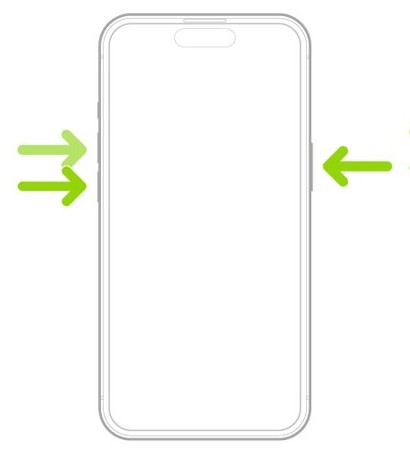
- If the screen is frozen and you cannot go back or turn the phone off, force restart it: press and quickly release volume up, press and quickly release volume down, then press and hold the side button.
- Release the side button when the Apple logo appears.
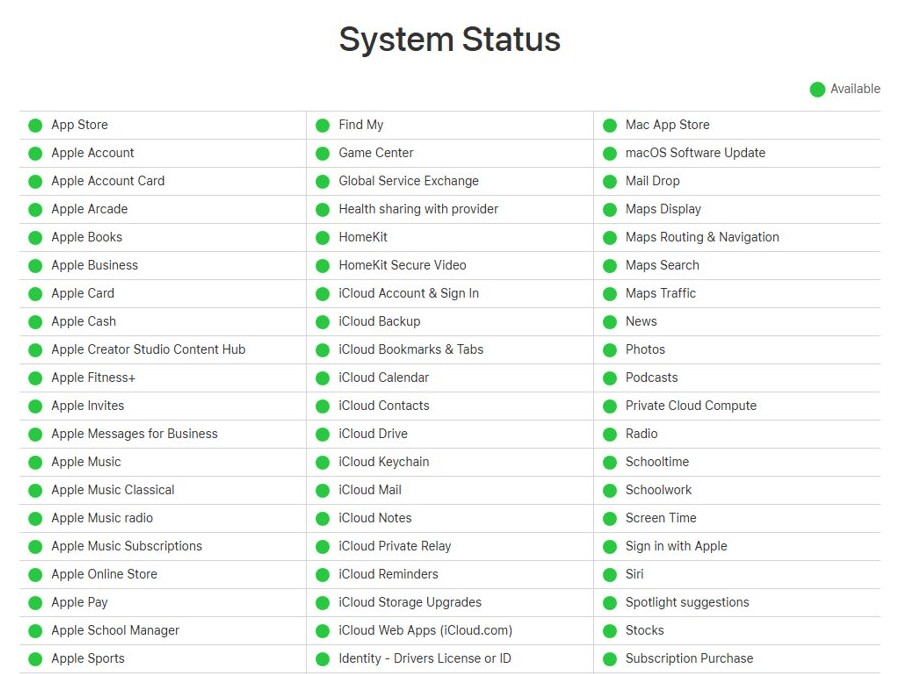
- On another device, open Apple's System Status page and look at iCloud Account & Sign In and Apple Account. If either is not green, wait for Apple to clear the outage.
- If there is no outage, join a different Wi-Fi network on the iPhone 15, or a personal hotspot from another phone, when setup asks for a network.
- Keep the iPhone plugged into power and near your old iPhone or iPad, with Bluetooth turned on for both.
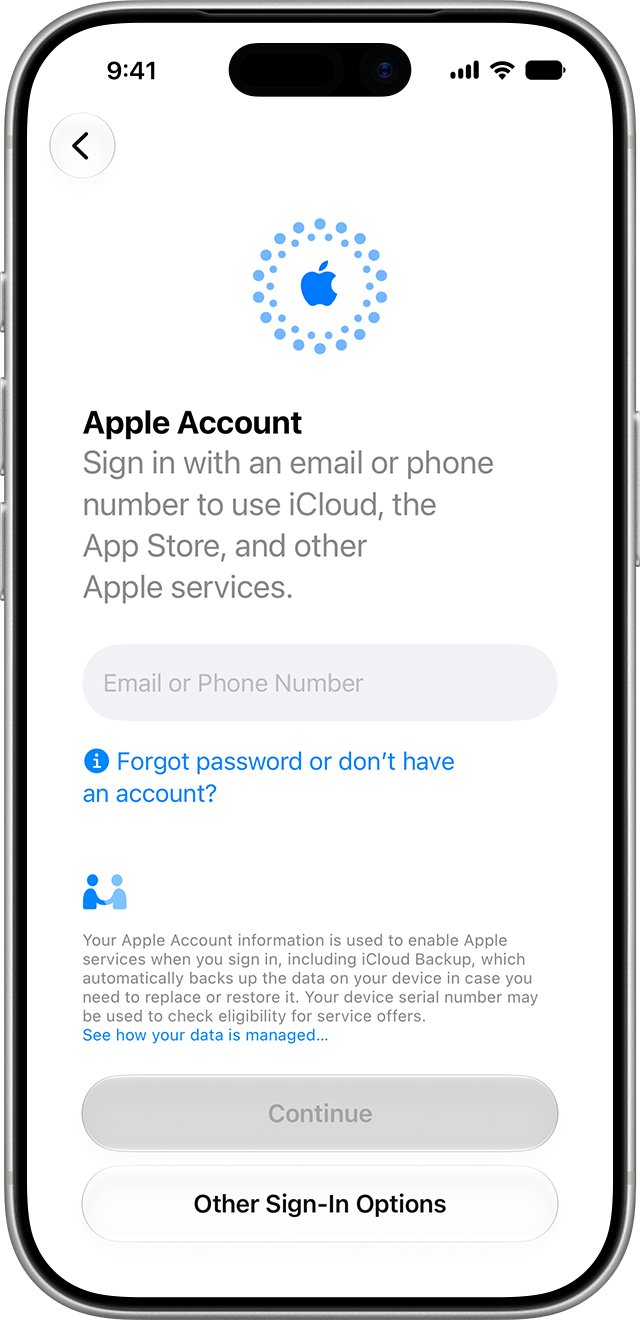
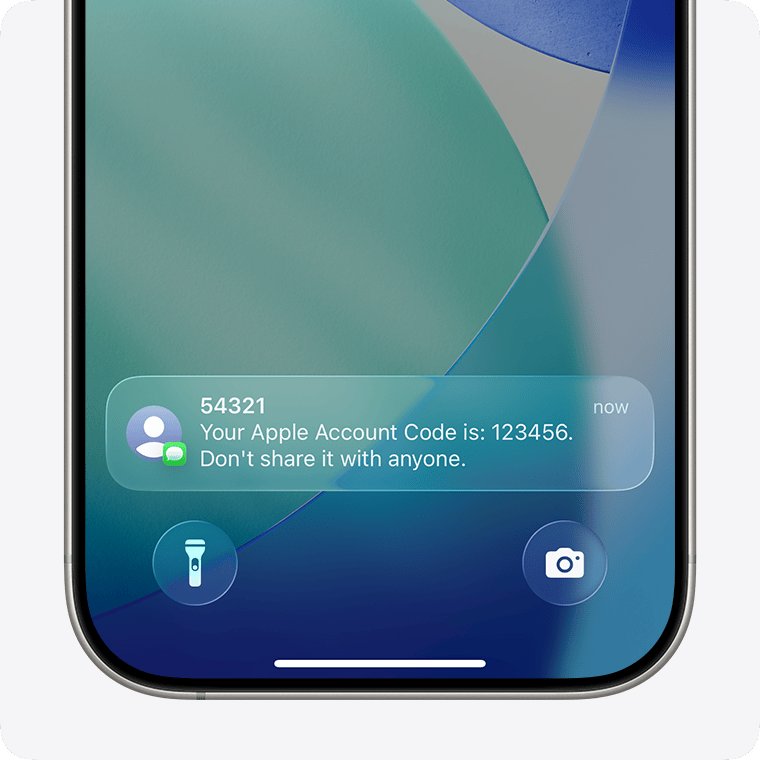
- At the Apple Account screen, enter your email address or phone number and password, then enter the six-digit code shown on your trusted device.
- If it spins again, tap Forgot password or don't have an Apple Account? and choose to set it up later, then sign in from Settings once setup is done.
Skipping the sign-in during setup loses nothing. You can sign in to the same Apple Account from Settings a few minutes later and iCloud starts syncing from there.
Why can't I sign into iCloud on my new iPhone 15?
Match what you see to the row below. Each cause comes from Apple's own iCloud and Apple Account sign-in help.
| What you see | Likely cause | What to do |
|---|---|---|
| Sign-in spins for minutes or cannot connect to the server | An Apple outage or a weak or blocked network | Check System Status, then switch to another network or try later |
| Sign-in fails away from Wi-Fi | Cellular data is turned off | Turn on Cellular in Settings, or connect to Wi-Fi |
| No verification code appears | Your trusted device is off, out of reach or not signed in | Tap Didn't Get a Code? and get a text or phone call |
| Message that the Apple Account is locked or disabled | Too many wrong password or account details | Unlock the account before trying again |
| Alert when you try to set up iCloud with a new account | Too many new Apple Accounts set up on one device in a year | Sign in with an existing account instead |
| Use Another Apple Device option missing or not working | Bluetooth off or older software on one device | Turn on Bluetooth and update both devices |
How to skip signing into iCloud on a new iPhone 15
Apple's setup assistant lets you leave the Apple Account step for later. This is the clean way out when the sign-in screen will not finish and you need the phone working now.
- Force restart the iPhone 15 if the sign-in screen is frozen, then work through setup again until you reach the Apple Account screen.
- Tap Forgot password or don't have an Apple Account? instead of entering your details.
- Choose the option to set it up later.
- Finish the remaining setup screens, such as automatic updates, Siri and Screen Time.
- Once you reach the Home Screen, sign in from Settings using the steps in the next section.
Choosing to set it up later lets you finish setup and reach the Home Screen, then retry the sign-in from Settings without starting setup over.
Signing into iCloud on new iPhone after setup
Signing in from Settings uses the same Apple Account servers as the setup screen, but the phone is fully usable while you retry, so a slow sign-in no longer blocks you.
- Open the Settings app on the iPhone 15.
- Tap Apple Account at the top.
- Tap Use Another Apple Device to approve the sign-in from your old iPhone or iPad running iOS 17, iPadOS 17 or later, held nearby.
- Or tap Sign in Manually, then enter your Apple Account email address or phone number and password.
- Enter the six-digit verification code sent to your trusted device or phone number.
- Follow any prompts about merging data, then wait for your name to appear at the top of Settings.
Once you are in, you can sign in to iCloud Mail in the Mail app with the same account.
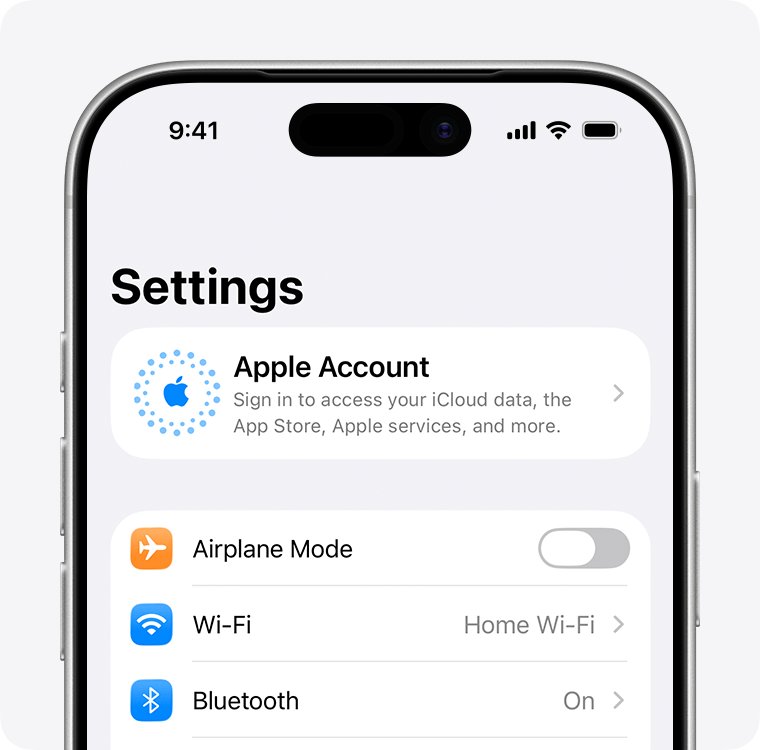
Check Apple System Status for iCloud sign-in outages
An outage looks exactly like a stuck iPhone. Checking System Status takes seconds and saves you from restarting a phone that is working fine.
- On a computer or another phone, open apple.com/support/systemstatus.
- Find iCloud Account & Sign In and Apple Account in the list.
- Read the colour beside each one: a green circle means the service is available.
- If either shows a problem, leave the iPhone 15 at the sign-in screen or skip sign-in and try again after the issue clears.
- If both are green, move on to a different network, because Apple's next step for a spinning sign-in is another internet connection.
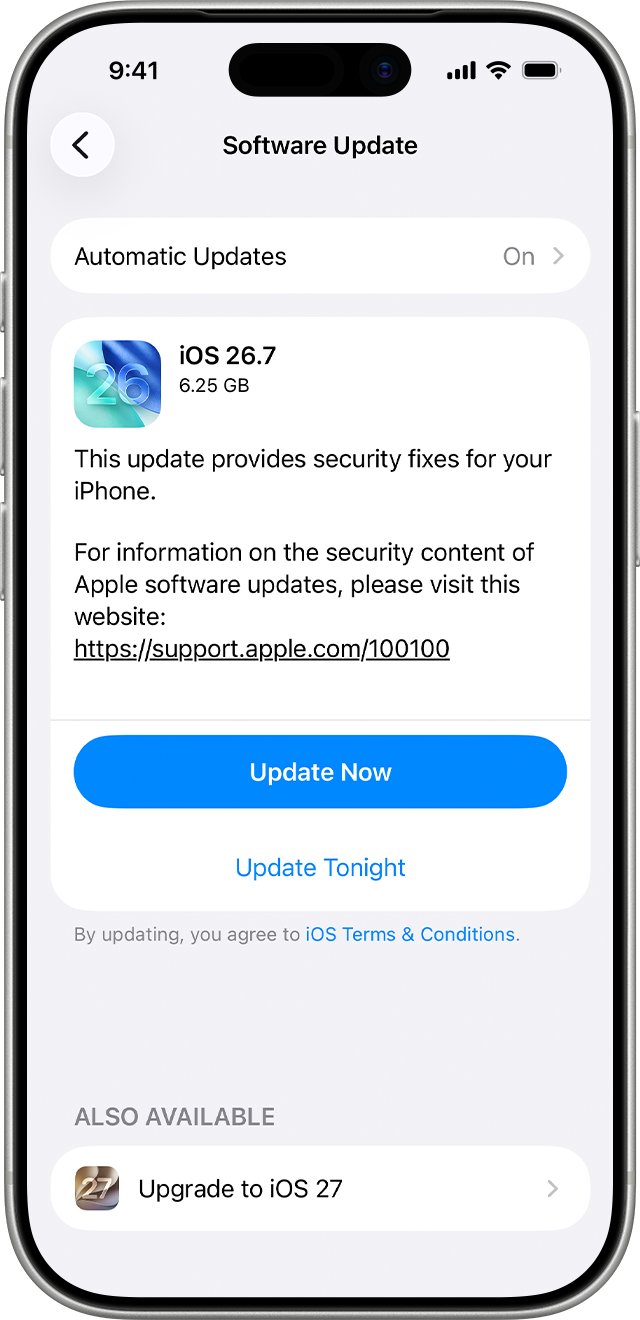
Update iPhone 15 to the latest iOS before signing into iCloud
Apple lists an up-to-date iOS as one of the first checks for iCloud sign-in problems. A new iPhone 15 may ship with an older iOS than your old device, which also stops Use Another Apple Device from appearing.
- Skip the Apple Account step during setup if it will not finish.
- Connect the iPhone 15 to Wi-Fi and plug it into power.
- Open Settings, tap General, then tap Software Update.
- If an update is available, tap Download and Install and follow the onscreen instructions.
- Update your old iPhone or iPad the same way if you plan to sign in with Use Another Apple Device.
- Sign in again from Settings > Apple Account.
Updating iOS keeps your data and settings unchanged, so it is safe to do before or after you sign in.
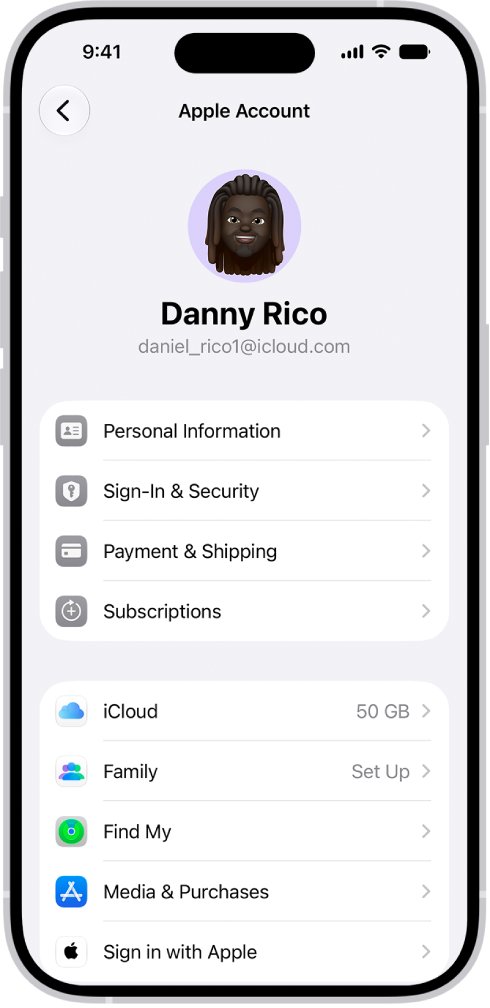
How to tell if you are signed into iCloud on iPhone 15
- Open Settings. Your name and photo now appear at the top instead of Apple Account.
- Tap your name, then tap iCloud.
- Look at the iCloud status icon. Green means iCloud is ready; if it is yellow or red, follow the onscreen message.
- Open Photos, Contacts or Notes and check that items from your other devices start to appear.
If your name shows but data stops at a pause message, fix the paused iCloud sync rather than signing in again.
Trouble signing into iCloud on iPhone 15
iPhone stuck on signing into iCloud and keeps spinning
Apple's servers are down or your network cannot reach them.
- Check iCloud Account & Sign In on Apple's System Status page.
- Join a different Wi-Fi network or a personal hotspot.
- If neither helps, skip sign-in and try again later from Settings > Apple Account.
iCloud not signing in on cellular data
Cellular data is turned off, so the iPhone cannot reach iCloud away from Wi-Fi.
- Open Settings and tap Cellular.
- Make sure cellular data is turned on.
- Check that the signal is strong, or connect to Wi-Fi, then sign in again.
Verification code not arriving on the new iPhone
The code goes to a trusted device or number you cannot see right now.
- Check your old iPhone, iPad or Mac for a sign-in notification and tap Allow to see the code.
- If no notification appears, tap Didn't Get a Code? or Can't get to your devices? on the new iPhone.
- Choose to receive the code by text or phone call on your trusted number.
- If you filter Unknown Senders in Messages, check that folder for the code.
- If you no longer have any trusted number, choose Can't use [phone number] to start Apple Account recovery.
Apple Account locked or disabled during sign-in
The account locked itself after too many wrong passwords or account details.
- Stop retrying the password on the iPhone 15.
- Follow the unlock steps in the locked or disabled message.
- Sign in again from Settings > Apple Account once the account is unlocked.
Why does my iCloud keep signing out or asking for the password?
An unfinished iCloud restore, a recently changed password, Automatic Downloads, or a Family Sharing request can keep the Apple Account password prompt coming back.
- If you restored from iCloud, keep the iPhone on reliable Wi-Fi and power until the restore finishes.
- If you changed your Apple Account password recently, enter the new password in each iCloud service that asks.
- Let any pending Automatic Downloads finish, entering your password when prompted.
- If you organise a Family Sharing group, check whether the prompt is a purchase request from a child and approve or decline it.
If the account itself is locked and you also cannot use Find My, unlock iCloud and Find My before you try the sign-in again.
How to sign out of iCloud on iPhone
Signing out and back in is a reasonable retry when the account signed in but services never started. Signing out also signs you out of the App Store, iMessage and FaceTime, and turns off Find My and Apple Pay on that phone.
- Make sure recent changes have synced to iCloud and that no iCloud backup is in progress.
- Open Settings, then tap your name.
- Scroll to the bottom and tap Sign Out.
- Choose Sign Out But Don't Erase to keep the phone's data, or Erase this iPhone to wipe it.
- Enter the iPhone passcode or your Apple Account password.
- Tap Confirm and Sign Out, or tap Sign Out twice if you chose to erase.
New iPhone 15 iCloud sign-in FAQ
How to skip signing into iCloud?
On the Apple Account screen during setup, tap Forgot password or don't have an Apple Account?, then choose to set it up later. Finish setup and sign in afterwards from Settings > Apple Account, using another Apple device or your email and password.
Why can't I sign into iCloud?
The usual causes are an Apple outage, a network that cannot reach Apple's servers, cellular data turned off, outdated iOS, a missing verification code or a locked Apple Account. Check Apple's System Status page first, then try another network and update iOS.
How to sign out from iCloud?
Open Settings, tap your name, scroll down and tap Sign Out. Choose Sign Out But Don't Erase or Erase this iPhone, enter your passcode or Apple Account password, then confirm. Signing out also turns off Find My, Apple Pay and iCloud Backup on that device.
Why does my iCloud keep signing out?
Repeated password prompts usually follow an unfinished iCloud restore, a recently changed Apple Account password, pending Automatic Downloads or a Family Sharing purchase request. Let the restore finish on Wi-Fi and power, and update the password in each service that asks.
How long should signing into iCloud take on a new iPhone?
Apple does not publish a time, but a sign-in that keeps spinning or cannot connect to the server is the symptom Apple treats as an outage or network problem. Check System Status, switch networks, or skip the step and sign in later from Settings.
Is a new iPad stuck on iCloud sign in fixed the same way?
Yes. Apple's setup steps are the same for iPhone and iPad: check System Status, change networks, update iPadOS, and use Forgot password or don't have an Apple Account? to set up the account later. Then sign in from Settings > Apple Account.
Why is iCloud for Windows stuck on signing in?
iCloud for Windows needs iCloud set up on an iPhone, iPad or Mac first. With Advanced Data Protection on, version 14.2 or later also needs your trusted Apple device in Bluetooth range or on the same Wi-Fi router, and any VPN turned off.