To hide apps on Android, open Home screen settings and use Hide apps on a Samsung Galaxy, or move the apps into private space on any phone running Android 15 or later.
This guide covers both routes, Samsung Secure Folder, folder and disable options for older phones and tablets, how to find and unhide hidden apps, and what to do when the hide option is missing.
How to hide apps on Android: step-by-step
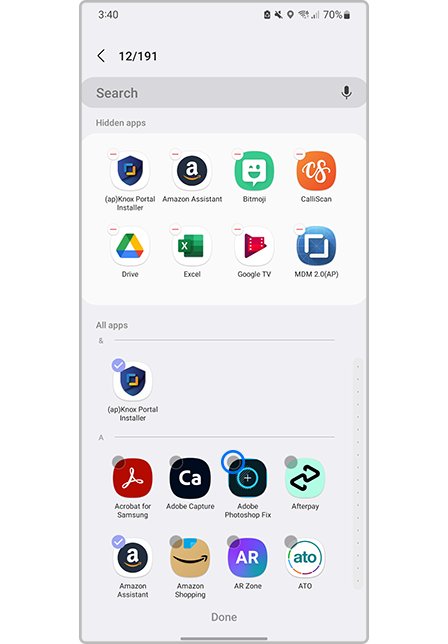
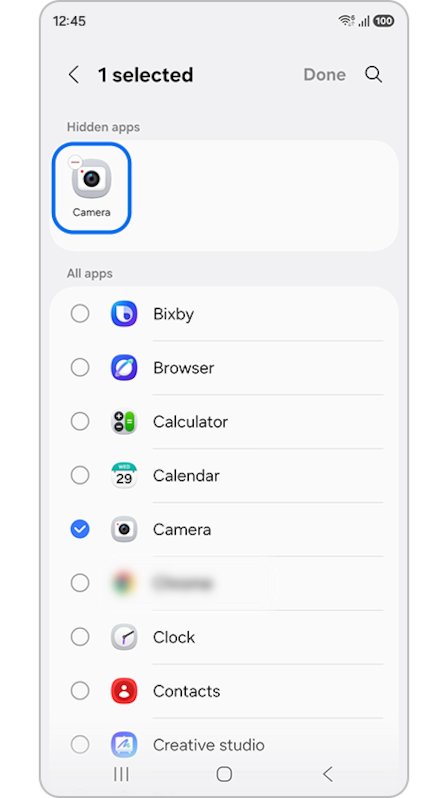
Samsung Galaxy phones and tablets have a built-in hide option in One UI Home, the default Samsung launcher. It removes the app icon from both the Home screen and the Apps screen without uninstalling anything.
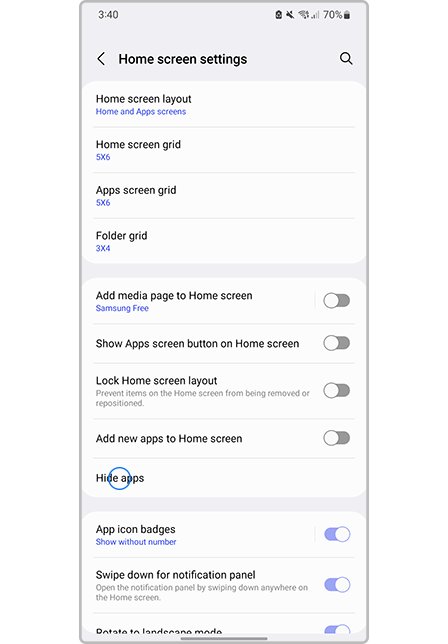
- Pinch two fingers together on the Home screen, or touch and hold an empty area of the Home screen.
- Tap Settings to open Home screen settings.
- Tap Hide apps.
- Tap each app you want to hide from the Apps screen and Home screen.
- Tap Done to apply the change.
- Swipe up on the Home screen to open the Apps screen and check that the icons are gone.
The hidden apps stay installed and keep their data. Anyone who opens Home screen settings can see and reverse the list, so use Secure Folder or private space when the app needs a lock.
Which method should you use?
| Your situation | Use this | Why |
|---|---|---|
| Samsung Galaxy phone or tablet, you just want icons out of sight | Hide apps in Home screen settings | Fastest route, no lock, nothing is uninstalled |
| Samsung Galaxy, the app must be locked | Secure Folder | A second copy of the app sits behind its own PIN, pattern, password or biometric lock |
| Pixel or other phone on Android 15 or later | Private space | Google's built-in container with a separate lock that can hide itself entirely |
| Android 14 or older phone without a hide option | A folder or an extra Home screen page | Works on any launcher, but the app still shows in the full app list |
| A pre-installed app you never use | Disable it | Turns the app off so it no longer shows in the app list |
| Anyone could pick up the phone | A screen lock | Protects every app at once, hidden or not |
Android 15 hide apps with private space
Private space is a separate, lockable area at the bottom of the All apps list. It needs Android 15 or later, the main user profile, and a device that is not managed by work or school.
- Open the Settings app.
- Tap Security & privacy.
- Under Privacy, tap Private space and authenticate with your screen lock.
- Tap Set up, then Got it. Sign in with a separate Google Account if you want one.
- Tap Use device screen lock, or tap Choose new lock to give private space its own PIN, pattern or password.
- Tap Done.
- To add an app, open All apps, touch and hold the app and tap Install app in Private space, or open private space and tap + Install.
Google recommends a dedicated Google Account for private space, because a shared account can sync photos, history and app recommendations back into the main space.
How to hide private space on Android
By default, a locked private space still shows as a container at the bottom of All apps. Turn on the hide setting so the container disappears every time it locks.
- Open the Home screen or All apps and scroll down to Private space.
- Tap Private space and authenticate with the private space lock.
- Tap Settings on the right of Private space.
- Under Hide, tap Hide private space when it's locked.
- Turn on Hide private space when it's locked.
- Lock the space by tapping Lock on the right of Private space.
To open a hidden private space later, go to Settings > Security & privacy > Private space and authenticate with its lock.
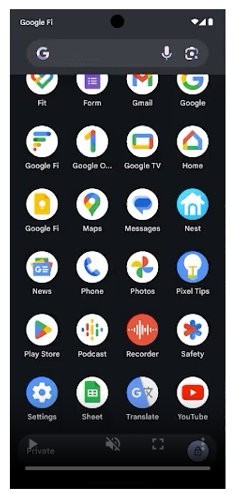
How to hide apps on Samsung with Secure Folder
Secure Folder is protected by Samsung Knox and encrypts everything inside it. Some older Galaxy models no longer support it.
- Open Settings and tap Security and privacy.
- Tap More security settings, then Secure Folder.
- Wait for setup to finish, tap Done, and choose a lock type.
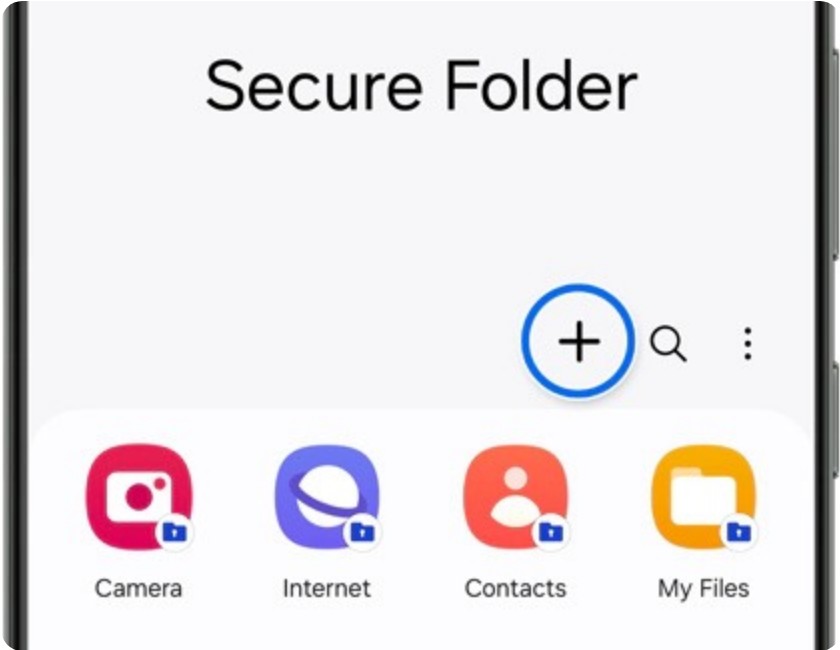
- Open Secure Folder from the Home or Apps screen and tap the Plus icon.
- Select the apps to add, or tap Download from Play Store or Download from Galaxy Store, then tap Add.
- To hide the folder itself, go back to Settings > Security and privacy > More security settings > Secure Folder.
- Turn off Add Secure Folder to Apps screen and tap Hide to confirm.
With the icon hidden, reach Secure Folder from the Quick Panel: swipe down with two fingers, tap the pencil icon, tap Edit, and drag the Secure Folder tile in.
Alternative solutions to hide apps on Android
Phones without Samsung's hide option or Android 15 still have three built-in ways to keep an app out of view.
| Option | What it does | What still shows the app |
|---|---|---|
| Disable a pre-installed app | Turns the app off and removes it from the app list until you enable it again | Settings > Apps |
| Bury apps in folders and extra pages | Moves the icon into a dull folder or onto a far Home screen page | The full app list and search |
| Lock your whole device | Asks for a PIN, pattern or password before anyone reaches any app | Nothing until the phone is unlocked |
| Uninstall the app | Removes the app; it can be reinstalled from Google Play | Your Google Play library |
If you never need the app again, uninstall it completely instead of hiding it.
How to hide apps on Android without disabling
A folder hides an app in plain sight on any Android launcher. It does not remove the app from the full app list.
- Touch and hold the app on the Home screen.
- Drag it on top of another app and lift your finger to make a folder.
- Drag more apps onto the folder to add them.
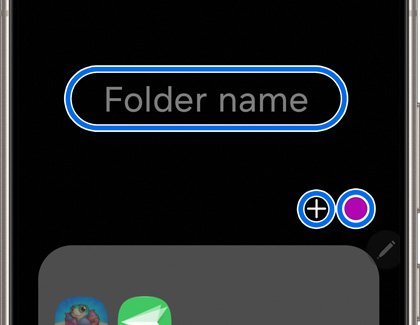
- Tap the folder, then tap the suggested name and type a dull name such as Tools.
- To push the folder off the first page, touch and hold it and slide it to the right until a blank Home screen appears, then lift your finger.
How to disable pre-installed apps on Android
Google notes that some system apps cannot be deleted, but on some phones they can be turned off so they no longer show in the list of apps. The exact screen depends on the manufacturer.
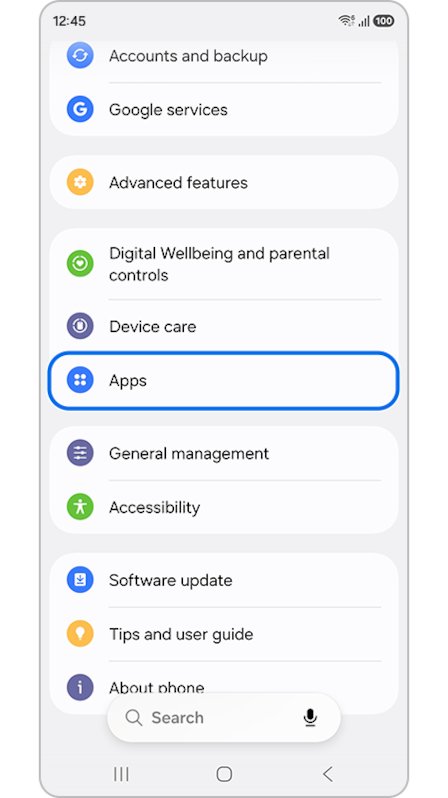
- Open Settings and tap Apps.
- Select the pre-installed app you want to remove from view.
- Tap Disable if the phone offers it instead of Uninstall, then confirm.
- Check the Apps screen; the disabled app no longer appears there.
- To bring it back, return to the same app in Settings > Apps and tap Enable.
Samsung warns against disabling anything that the phone needs for normal use, so leave system services you do not recognise alone.
How to find hidden apps on Android
- On a Samsung Galaxy, pinch the Home screen, tap Settings, then tap Hide apps; each hidden app shows with a minus icon beside it.
- For private space, scroll to the bottom of All apps and tap Private space, or open Settings > Security & privacy > Private space if the container is hidden.
- For Secure Folder, open Secure Folder from the Apps screen or its Quick Panel tile and unlock it.
- For disabled apps, open Settings > Apps and select the app you turned off.
- For apps buried in folders, swipe up to open the full app list, where every installed app still shows.
What happens when you hide an app on Android
Hiding an app on Android can mean four different things, and each one leaves a different trace.
| Method | App still installed | Data kept | Needs a lock to open |
|---|---|---|---|
| Samsung Hide apps | Yes | Yes | No |
| Private space | Yes, as a separate copy | Yes, inside private space only | Yes |
| Secure Folder | Yes, as a separate copy | Yes, encrypted inside the folder | Yes |
| Folder or extra page | Yes | Yes | No |
| Disable | Yes, but turned off | Yes | No |
Why is hiding apps on Android confusing?
Android is not one interface. The launcher, the app that draws your Home screen and app list, comes from your phone maker, so the hide option moves or disappears between brands.
| Phone | Built-in way to hide apps | Where it lives |
|---|---|---|
| Samsung Galaxy (One UI) | Hide apps, Secure Folder | Home screen settings; Settings > Security and privacy |
| Pixel and other phones on Android 15 or later | Private space | Settings > Security & privacy > Private space |
| Android 14 and older phones | Depends on the phone maker's launcher | Home screen settings, if the maker includes it |
| Work or school managed phones | Private space is not available | Ask the device administrator |
Google also notes that some third-party launcher apps do not support private space, so switch back to the default launcher if the container never appears.
Tips for hiding apps effectively on Android
| Tip | Why it matters |
|---|---|
| Set a screen lock first (Settings > Security > Screen lock) | Private space and Secure Folder both need one, and it protects every app |
| Give private space its own lock | Someone who knows your phone PIN still cannot open it |
| Use a separate Google Account in private space | Stops synced photos, history and app suggestions leaking to the main space |
| Turn on Hide private space when it's locked | The container itself disappears from All apps |
| Pick Every time device locks under Lock private space automatically | The space closes whenever the screen locks |
| Write down the private space lock somewhere safe | Google offers no recovery if you forget it |
| Keep apps that must run in the background out of private space | Locked private space apps are fully stopped and send no notifications |
How to unhide apps on Android
- On a Samsung Galaxy, pinch the Home screen, tap Settings and tap Hide apps.
- Tap the minus icon beside each app you want back, then tap Done.
- For private space, open Settings for the space and turn off Hide private space when it's locked to show the container again.
- For Secure Folder, turn Add Secure Folder to Apps screen back on in Settings > Security and privacy > More security settings > Secure Folder.
- For a disabled app, open Settings > Apps, select the app and tap Enable.
Deleting private space or uninstalling Secure Folder removes the apps inside it. Google states that private space data is deleted with no backup, so move anything you need out first.
Hide apps on Android still not working?
No Hide apps option in Home screen settings
The phone uses a launcher without a hide option, or a third-party launcher replaced the default one.
- Check which Android version the phone runs.
- On Android 15 or later, use private space instead.
- On older phones, use a folder on a far Home screen page or disable the app.
Private space is missing from Settings
Private space needs Android 15 or later and the main user, and it is blocked on managed devices, supervised accounts, secondary users and phones with more than four users or profiles.
- Switch to the main user on the device.
- Remove extra users or profiles if there are more than four.
- On a work or school phone, ask the administrator; private space cannot be turned on there.
The hidden app still shows in the app list or search
Folders and extra Home screen pages only move the icon; the full app list still includes the app.
- Move the app into private space or Secure Folder instead.
- In private space, lock the space; locked apps are not searchable and are hidden from recents and Settings.
App still shows in the app drawer after moving it to Secure Folder or private space
A second copy of the app in private space or Secure Folder does not remove the original from the main space.
- Install the app inside private space or Secure Folder.
- Uninstall the original copy from the main Apps screen.
- Sign in again inside the new copy; data does not move across.
Hide apps on Android: frequently asked questions
Can I hide apps on any Android phone?
Yes, but the method depends on the phone. Samsung Galaxy phones have Hide apps and Secure Folder, phones on Android 15 or later have private space, and any launcher can bury an app in a folder or an extra Home screen page.
Can you hide apps on an Android phone without a third-party app?
Yes. Samsung's Hide apps setting, Secure Folder and Google's private space are all built into the phone, so no extra app is needed. Folders and disabling pre-installed apps also work without installing anything.
How do you hide apps on an Android tablet?
Use the same steps as on a phone. A Samsung Galaxy Tab has Hide apps in Home screen settings, and a tablet on Android 15 or later can use private space from Settings > Security & privacy.
How do I hide apps on Android 14?
Android 14 has no private space, so use your phone maker's launcher option if it has one, such as Hide apps on a Samsung Galaxy. Otherwise, move the app into a folder on a far Home screen page or disable it if it came pre-installed.
Do hidden apps still run in the background?
It depends on the method. Apps hidden with Samsung's Hide apps or a folder keep running normally. Apps in a locked private space are completely stopped, so they cannot run in the background or show notifications until you unlock it.
How do I find an app I've hidden?
On a Samsung Galaxy, open Home screen settings and tap Hide apps to see the list. For private space, scroll to the bottom of All apps or open Settings > Security & privacy > Private space if it is hidden.
Does hiding an app delete its data?
No. Hiding an app with Hide apps, a folder or disabling it keeps the app and its data on the phone. Deleting private space or uninstalling Secure Folder does remove the apps and data inside them.
What's the most secure way to hide apps on Android?
Private space or Samsung Secure Folder. Both put the app behind its own lock, and private space can hide its container completely when locked. Pair either one with a separate lock from your phone's screen lock.
How do I hide apps on Android without disabling them?
Use Hide apps on a Samsung Galaxy, private space on Android 15 or later, or a folder on a far Home screen page. None of these turns the app off, so it keeps working as normal.
Quick summary
Use Hide apps in Home screen settings on a Samsung Galaxy for a quick cleanup, and private space or Secure Folder when the app needs a lock. Hide apps only removes icons and anyone can reverse it, while private space and Secure Folder keep a separate locked copy that others cannot open.
Hidden apps are only as private as the phone itself, so also set up Android Device Manager to lock or erase the phone if it goes missing.