To back up a Samsung phone to a PC, install Smart Switch on the computer, connect the phone with a data USB cable, click Backup in Smart Switch and tap Allow on the phone.
This guide covers the full backup, choosing what to save, backing up emails, where Smart Switch stores the files on Windows, how to restore them, and what to do when the PC does not see the phone.
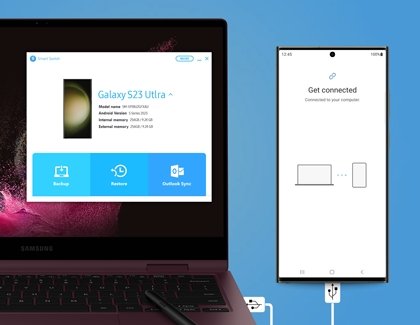
Backup data from phone to PC with Samsung Smart Switch
Check that the PC has enough free space first: open Start > Settings > System > Storage. A full phone backup can be large.
- Open Smart Switch on your Windows PC.
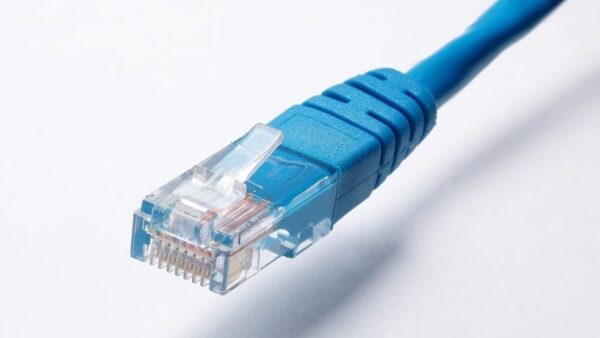
- Connect the phone with a USB cable that supports data transfer, such as the original Samsung cable.
- Tap Allow on the phone when it asks for permission.
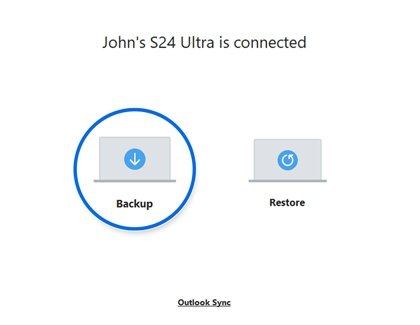
- Click Backup in Smart Switch.
- Review the list of data categories. Select all is the default; clear any you do not want.
- Select Backup to start, and keep the cable connected.
- When Smart Switch shows the backup is complete, select OK.
Smart Switch then lists what it saved. Emails are not included unless you turn on backup encryption, shown below.
What is Samsung Smart Switch for PC?
Smart Switch for Windows and Mac is Samsung's free desktop app for Galaxy phones and tablets. It is a separate download from the Smart Switch app on the phone.
| Smart Switch PC feature | What it does |
|---|---|
| Backup | Copies phone data to the computer over USB |
| Restore | Puts a saved backup onto the same or a new Galaxy device |
| iTunes backups | Restores data from an iTunes backup to a Galaxy device |
| Software update | Checks the connected device for software updates |
| Outlook Sync (Windows) | Syncs contacts and calendar items with Microsoft Outlook |
Samsung Smart Switch for Windows 11 requirements
| Item | Requirement |
|---|---|
| Windows | Windows 10 or later, including Windows 11 |
| Mac | macOS 10.9 or later |
| Android phone | Android 4.3 or later; Android 7.0 or later for encrypted data |
| Cable | A USB cable that carries data, not a charge-only cable |
| Media components | Microsoft Media Feature Pack, if your edition of Windows lacks it |
| Not supported | Chromebooks |
How to download Samsung Smart Switch on PC
Smart Switch for PC is free from Samsung's website. Installing a newer version does not require removing the old one first.
- Open the Smart Switch page on samsung.com and choose the Windows download.
- Run the installer and follow the prompts.
- Open Smart Switch from the Start menu once installation finishes.
- If Smart Switch shows an error on first launch, install the Microsoft Visual C++ redistributable package, then open Smart Switch again.
How to back up only selected content with Samsung Smart Switch
By default Smart Switch backs up everything except emails. Set your own list once and every later backup uses it.
- Open Smart Switch and connect the phone.
- Select MORE in the top-right corner.
- Select Preferences, then Backup items.
- Tick only the categories you want, such as contacts, messages, or photos and videos.
- Save the setting, then click Backup.
For a one-off choice, click a category in the backup list and pick specific items there instead.
How to back up emails and encrypt a Smart Switch backup
Smart Switch only includes emails in encrypted backups. Turn encryption on before the backup starts, because it applies to future backups only.
- Open Smart Switch on the PC.
- Click Check Encryption settings.
- Tick Encrypt data backup.
- Connect the phone and click Backup as usual.
- Follow any prompt on the phone to finish setting up the encrypted backup.
Does Samsung Smart Switch backup everything?
No. Smart Switch saves most personal data and app data, but some content stays behind. Check this table before you factory reset your Samsung phone or trade it in.
| Content | Backed up by Smart Switch? | Notes |
|---|---|---|
| Contacts, messages, call log | Yes | SIM contacts, Google account contacts and social network contacts are excluded |
| Photos, videos, music, documents | Yes | DRM-protected content cannot be transferred |
| Calendar | Yes | Items synced from external accounts are excluded |
| Apps | Yes, from Google Play | Apps from outside the Play Store must be reinstalled by hand |
| Memos, settings, app data | Galaxy devices only | Secure or encrypted app data does not transfer |
| WhatsApp chats | No | Encrypted chats need WhatsApp's own backup |
| Emails | Only with encryption on | Work email is excluded |
| Banking app logins | Often no | Note your login details before you switch |
| Live wallpapers and themes | No | Download them again on the new phone |
Where does Samsung Smart Switch store backups?
Unless you chose another folder, Smart Switch saves backups in your user profile. Samsung lists different default folders for Windows 10 and Windows 11.
- Open File Explorer.
- On Windows 10, paste
C:\Users\[username]\Documents\Samsung\SmartSwitchinto the address bar, replacing [username] with your account name. - On Windows 11, paste
C:\Users\[username]\AppData\Roaming\Samsung\SmartSwitchPCtoPCinto the address bar. - If that folder is empty, check the Documents path as well.
- Open the folder and check that it holds files from the backup you just ran.
On a Mac, backups go to /Users/[username]/Documents/Samsung/SmartSwitch/backup. Delete old backups you no longer need, then empty the Recycle Bin to free the space.
How to restore a Smart Switch backup from PC to a Galaxy phone
Charge the phone before you start so the restore is not interrupted. A backup can go back to the same phone or to a new Galaxy device.
- Open Smart Switch on the PC.
- Connect the Galaxy phone with a data USB cable.
- Tap Allow on the phone for any permission it requests.
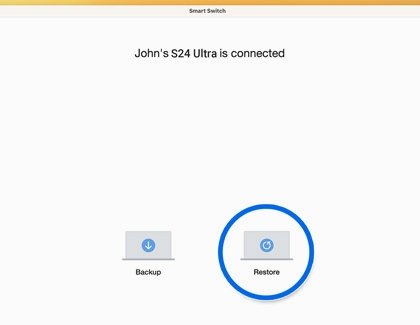
- Click Restore.
- Click Restore now for the latest backup, or Select a different backup to pick an older one.
- Optionally click Select your backup data to restore only some items.
- Select OK when the restore finishes.
If the phone is lost rather than replaced, find your lost Samsung Galaxy phone before you restore the backup to a new one.
How to sync a Samsung phone with Outlook using Smart Switch
- Open Smart Switch on a Windows PC and connect the phone.
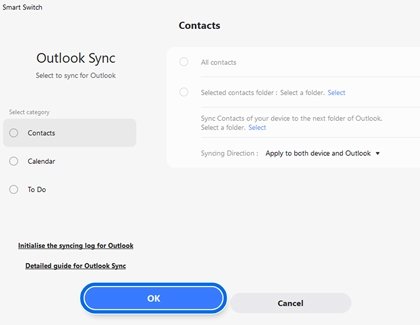
- Click Outlook Sync.
- Sign in with your Microsoft Outlook account if asked.
- Click Sync Preferences for Outlook, choose what to sync, then click OK.
- Click Sync Now, then Confirm.
Samsung Smart Switch not recognizing phone on PC
Smart Switch does not detect the phone
A charge-only cable, a declined permission prompt, or a missing USB driver.
- Swap to a cable that carries data, such as the one that came with the phone.
- Unlock the phone and tap Allow when it asks about access.
- In Smart Switch, click MORE in the top-right corner, then Reinstall device driver.
- Disconnect the phone while the driver installs, then reconnect it.
Smart Switch shows an error after installing
The Microsoft Visual C++ redistributable package is missing.
- Install the Microsoft Visual C++ redistributable package.
- Reopen Smart Switch and run the backup again.
Why can't I download Samsung Smart Switch?
The computer is a Chromebook or runs an older Windows version.
- Use a PC with Windows 10 or later, or a Mac with macOS 10.9 or later.
- If Windows says media components are missing, install the Microsoft Media Feature Pack, then run the installer again.
Backup stops or fails partway
The PC ran out of space, or the cable was disturbed.
- Check free space in Settings > System > Storage and delete old Smart Switch backups.
- Leave the cable connected and the phone unlocked until the backup ends.
- Clear large categories such as videos under MORE > Preferences > Backup items and back them up separately.
Samsung Smart Switch backup FAQ
Is Samsung Smart Switch free?
Yes. Smart Switch for Windows and Mac is a free download from Samsung's website, and the Smart Switch app for Galaxy phones is free as well. Backing up to your own PC over USB costs nothing.
Is Samsung Smart Switch safe?
Smart Switch is Samsung's own app, so download it only from samsung.com. A USB backup is saved on your own PC rather than online, and turning on Encrypt data backup encrypts the backup files.
Does Samsung Smart Switch transfer everything?
No. Contacts, messages, photos, videos, music, call logs and most apps transfer, but WhatsApp chats, secure app data, DRM content, SIM and Google account contacts, and live wallpapers do not. Emails need encryption turned on.
Where does Samsung Smart Switch store backups?
On Windows 10 the default is C:\Users\[username]\Documents\Samsung\SmartSwitch. Samsung lists C:\Users\[username]\AppData\Roaming\Samsung\SmartSwitchPCtoPC for Windows 11. On a Mac it is Documents/Samsung/SmartSwitch/backup.
Does Samsung Smart Switch transfer apps?
It transfers apps installed from Google Play and, between Galaxy devices, much of their app data. Apps installed from outside the Play Store must be reinstalled by hand, and banking apps often need you to sign in again.
Does Samsung Smart Switch transfer WhatsApp?
No. WhatsApp chats are encrypted, and Smart Switch does not move secure or encrypted app data. Back up chats inside WhatsApp before you switch phones.
Does Samsung Smart Switch need Wi-Fi to back up to a PC?
No. The PC backup runs over a USB cable that supports data transfer, so neither the phone nor the PC needs Wi-Fi for it. The Smart Switch phone app can also transfer wirelessly between phones.
Can I use Samsung Smart Switch on a Motorola?
Smart Switch can back up data from other Android phones running Android 4.3 or later, but it restores only to Samsung Galaxy devices. Use it to move a Motorola's data onto a Galaxy phone, not the other way round.
Does Samsung Smart Switch transfer photos?
Yes. Photos and videos are part of the default backup and restore. Only DRM-protected files are skipped, so ordinary camera photos and videos are copied to the PC and back.