You can download Roblox for Windows 11 or Windows 10 for free from the Microsoft Store or the official Roblox website. Mac users can install Roblox through the official website. After installation, sign in, choose an experience and select the Play button to launch it.
Official download options: Use the Roblox download page or install Roblox – Windows from Microsoft Store.
Safety note: Download Roblox only from Roblox.com, Microsoft Store or Apple’s official App Store for supported mobile devices. Third-party download sites can bundle modified installers or unwanted software.
Download Roblox for Windows
Roblox provides two official installation methods for Windows. You can install the newer Microsoft Store app or download Roblox Player after selecting an experience on the Roblox website.
| Download method | Supported system | Best for |
|---|---|---|
| Microsoft Store | 64-bit Windows 10 and Windows 11 | Simple installation and automatic app updates |
| Roblox website | 64-bit Windows 10 and Windows 11 | Launching experiences through a web browser |
| Roblox website for Mac | macOS 10.13 or later | Installing Roblox Player on a Mac |
Download Roblox for Windows 11/10 from Microsoft Store
The Microsoft Store provides the easiest way to download Roblox for Windows. Roblox now identifies its current Store app as Roblox – Windows.
- Open the Microsoft Store from the Start menu.
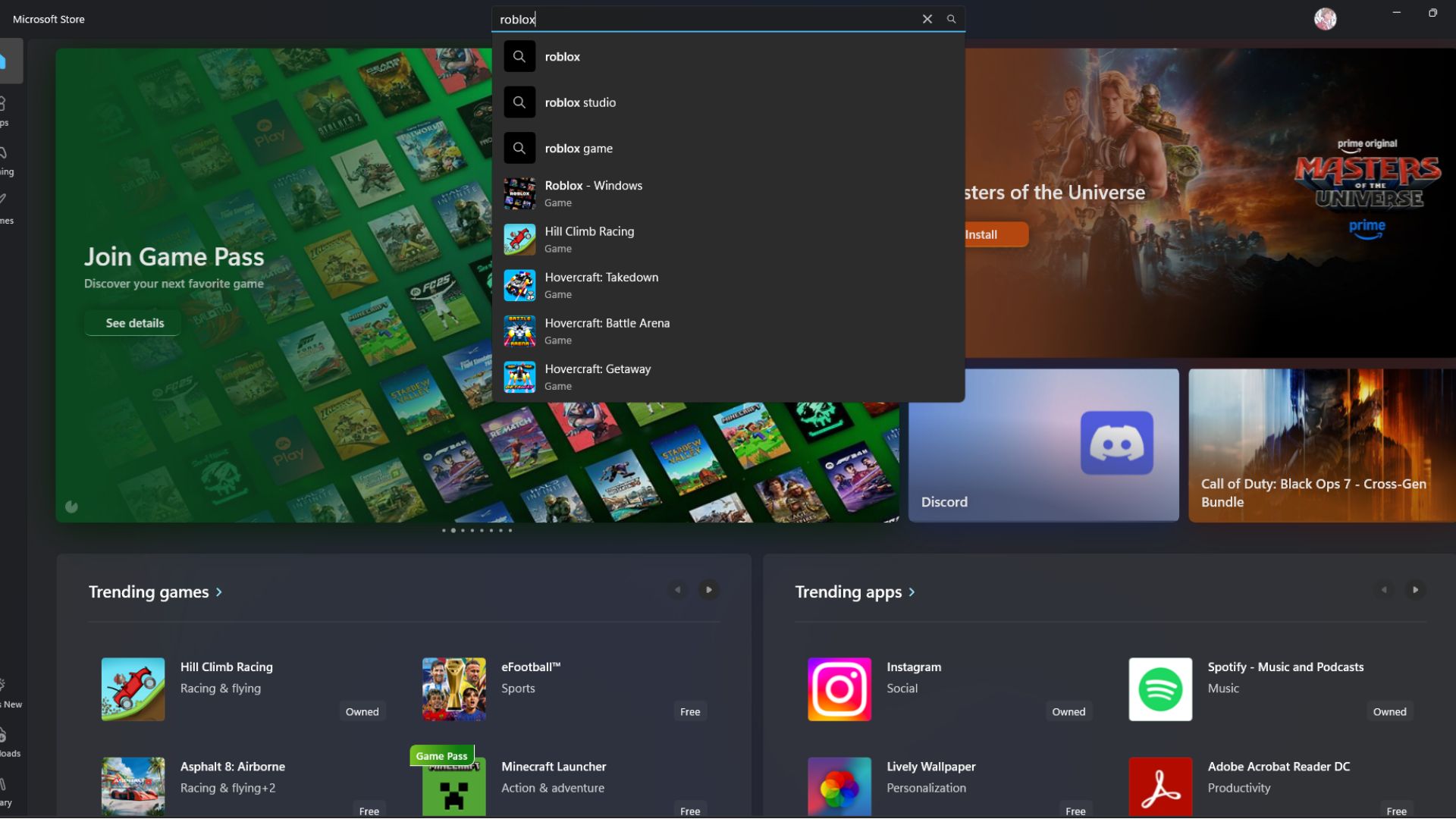
- Search for Roblox – Windows.
- Check that Roblox Corporation appears as the publisher.
- Select Get or Install.
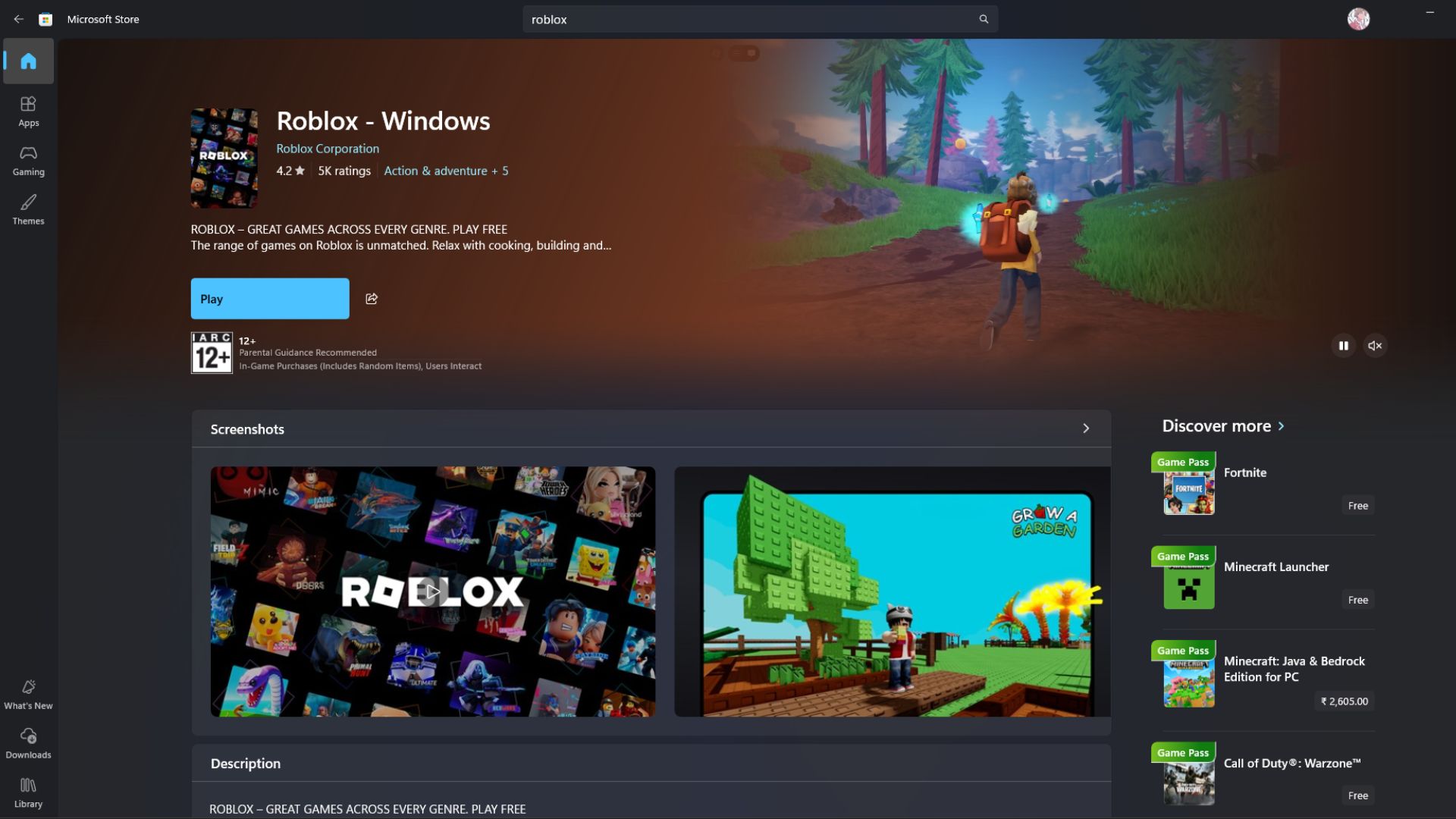
- Wait for Windows to download and install the app.
- Select Open, or launch Roblox from the Start menu.
- Sign in with your Roblox account or create a new account.
The current app uses a blue icon. The older Microsoft Store app is named only Roblox and uses a light gray icon. Install Roblox – Windows when both listings appear.
Method 2: Download Roblox Player from the Official Website
You can also install Roblox Player from a browser. Roblox officially supports Microsoft Edge, Google Chrome and Firefox on Windows.
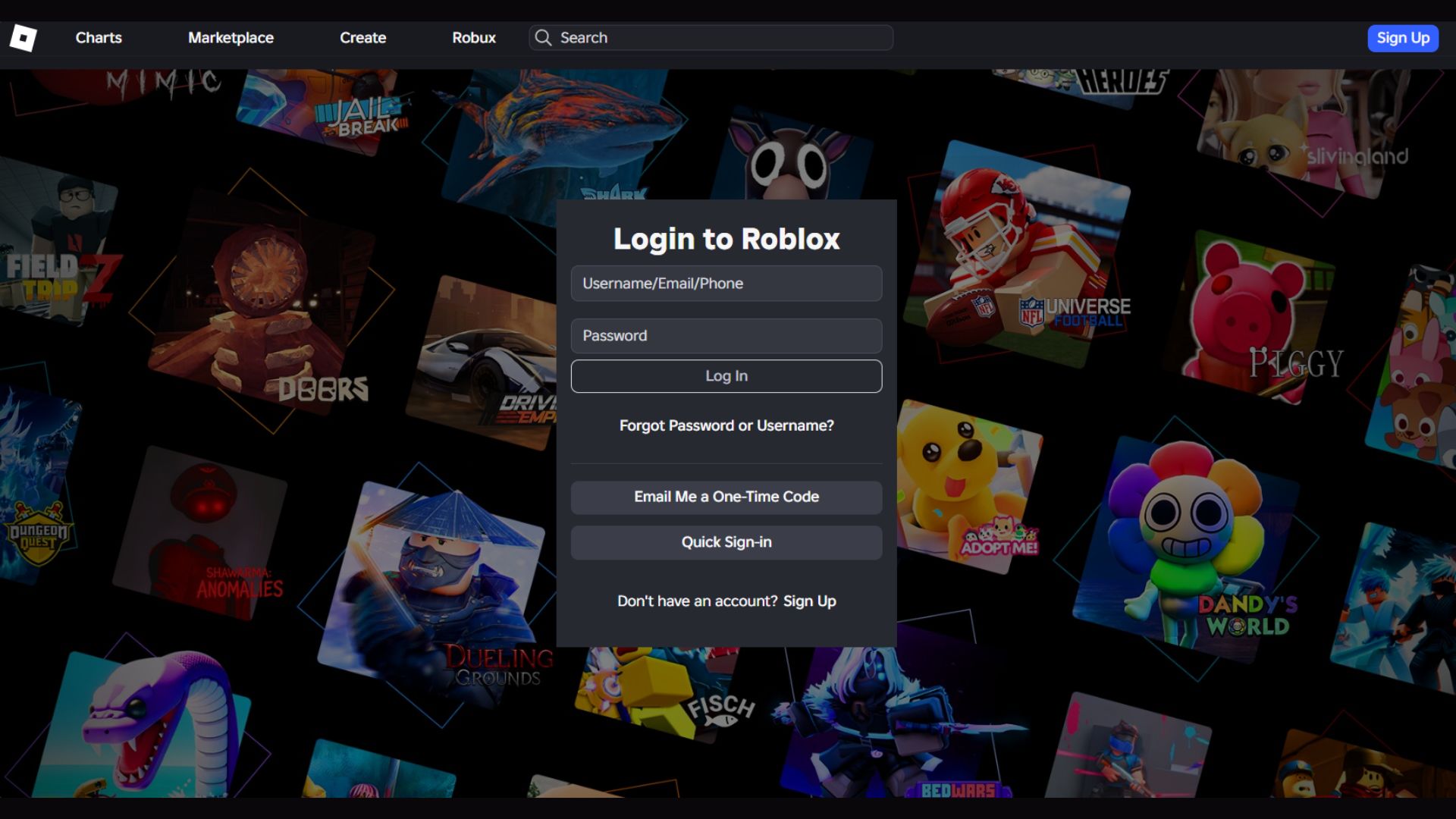
- Open Roblox.com.
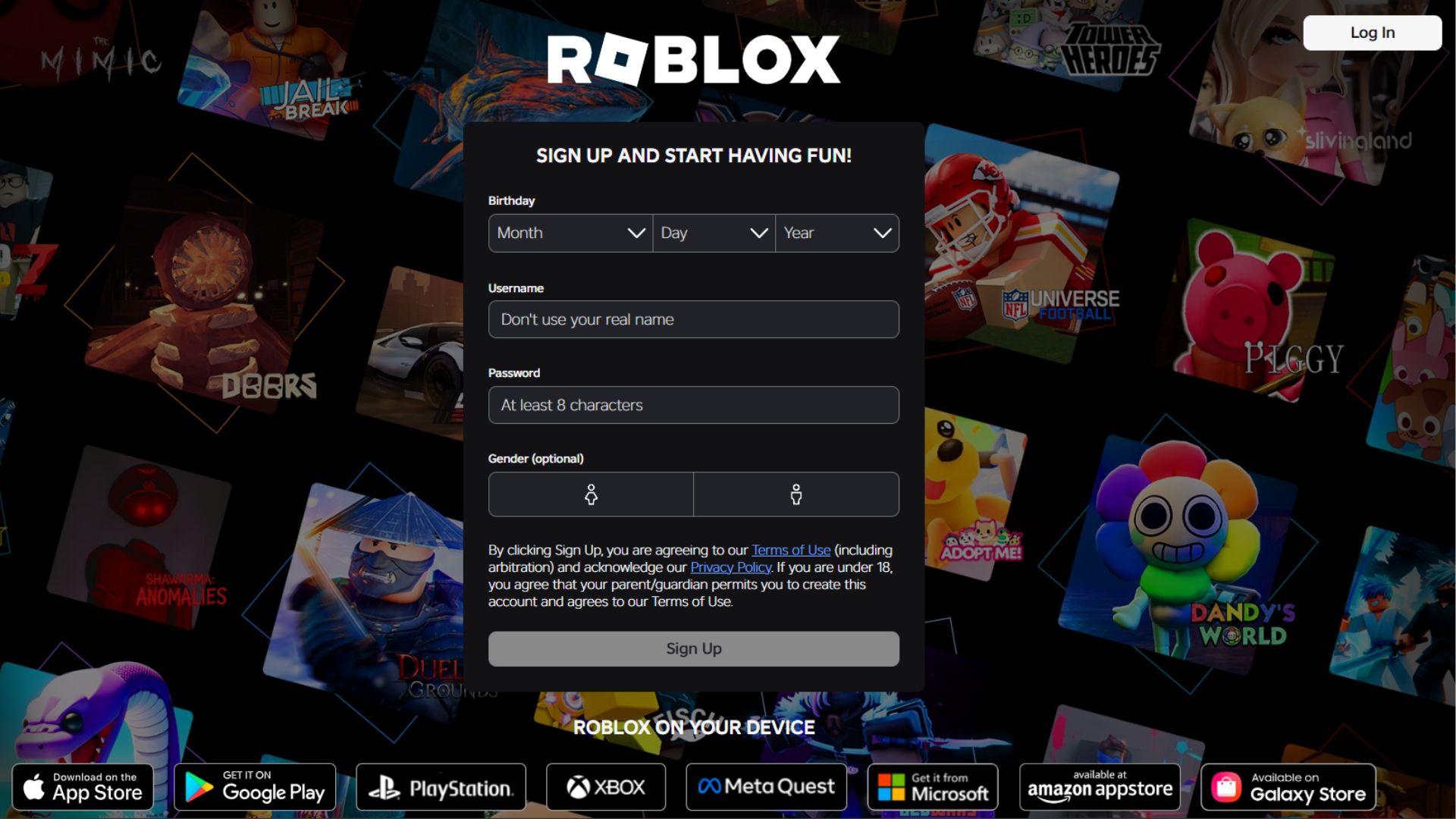
- Select Log In and enter your account details.
- Open any Roblox experience that you want to play.
- Select the green Play button.
- Choose Download and Install Roblox when prompted.
- Open the downloaded
RobloxPlayerInstaller.exefile. - Allow the installer to complete.
- Return to the experience page and select Play again.
- Choose Open Roblox if the browser asks which application to use.
The installer adds Roblox Player to Windows. You do not need to download the setup file again each time you play.
How to Find the Roblox Installer Download
Browsers normally save the Roblox installer in your Downloads folder.
- Press Windows + E to open File Explorer.
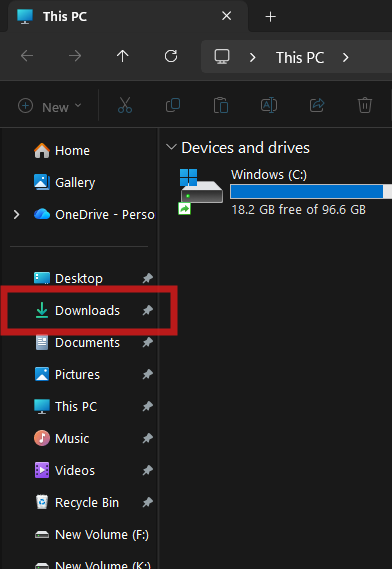
- Select Downloads in the left sidebar.
- Find
RobloxPlayerInstaller.exe. - Double-click the file to begin installation.
You can also press Ctrl + J in Edge, Chrome or Firefox to open the browser’s downloads list.
How to Install Roblox on Windows 11/10
The Microsoft Store completes installation automatically. A website download requires you to run the Roblox Player installer once.
Install the Microsoft Store Version
- Download Roblox – Windows from Microsoft Store.
- Wait until the Install button changes to Open.
- Select Open.
- Sign in and select an experience.
- Select the Play button to start playing.
Install the Website Version
- Open the downloaded
RobloxPlayerInstaller.exefile. - Select Yes if Windows asks for permission.
- Wait while Roblox downloads the required files.
- Select OK when installation finishes.
- Return to Roblox.com and open an experience.
- Select Play, followed by Open Roblox.
Roblox installs updates automatically when you launch it. You do not need a separate driver updater or third-party update tool.
Download Roblox for Mac
Roblox does not provide a Mac App Store version for playing experiences. Download Roblox Player through the official website using Safari, Chrome or Firefox.
- Open Safari, Google Chrome or Firefox on your Mac.
- Visit Roblox.com.
- Log in to your Roblox account.
- Open the experience that you want to play.
- Select the green Play button.
- Choose Download and Install Roblox.
- Open the downloaded Roblox installer from the Downloads folder.
- Follow the installation instructions.
- Return to the experience and select Play.
- Allow the browser to open Roblox when prompted.
Roblox supports macOS 10.13 High Sierra and later, including supported Apple silicon Macs.
Allow Roblox to Open on Mac
If macOS blocks the installer or app:
- Open the Apple menu > System Settings.
- Select Privacy & Security.
- Scroll to the security section.
- Select Open Anyway beside the blocked Roblox message, when available.
- Confirm that you want to open Roblox.
Only approve the application when you downloaded it directly from Roblox.com.
Roblox System Requirements for PC and Mac
Check the requirements before downloading Roblox, especially on an older computer.
| Requirement | Windows | Mac |
|---|---|---|
| Operating system | 64-bit Windows 10 or Windows 11 | macOS 10.13 High Sierra or later |
| Graphics | DirectX 10 feature-level support or higher | Hardware supported by a compatible macOS version |
| Processor | 1.6 GHz or faster recommended | Compatible Intel or Apple silicon processor |
| Memory | At least 1 GB RAM recommended | Enough memory to run macOS and Roblox |
| Storage | At least 300 MB available | At least 300 MB available is recommended |
| Internet | A connection of at least 4 to 8 Mbps is recommended for a single user | |
Roblox does not officially support 32-bit Windows or Linux. Windows 7 and Windows 8 are also outside the current supported Windows requirements.
Do You Need to Pay to Download Roblox?
Roblox is free to download and install on Windows and Mac. You can also create an account and play many experiences without paying.
Some experiences sell optional items, access passes or subscriptions using Robux. The installer does not require payment, and a website asking you to pay for a Roblox download is not an official source.
Roblox Player vs Roblox Studio
| Application | Purpose |
|---|---|
| Roblox Player or Roblox – Windows | Used to discover and play Roblox experiences |
| Roblox Studio | Used to create, edit, test and publish Roblox experiences |
You only need Roblox Player or Roblox – Windows to play. Install Roblox Studio when you want to develop your own experiences.
How to Update Roblox on Windows and Mac
Roblox checks for updates when it opens. The update normally downloads before the selected experience starts.
Update Roblox from Microsoft Store
- Open Microsoft Store.
- Select Library.
- Select Get updates or Check for updates.
- Install the available Roblox update.
- Restart Roblox.
Update Roblox Player
- Close every open Roblox window.
- Open Roblox.com in a supported browser.
- Select an experience and click Play.
- Allow Roblox to install the latest version automatically.
Reinstall Roblox when it repeatedly fails to finish an update.
Fix Roblox Not Downloading or Installing
1. Check the Windows Version
Press Windows + R, enter winver and select OK. Roblox requires a 64-bit installation of Windows 10 or Windows 11.
To check the system type, open Settings > System > About and look beside System type.
2. Restart the Computer
Close the installer, restart Windows or macOS and try the official download again. A restart clears unfinished installer processes that can block a new installation.
3. Run the Installer from the Downloads Folder
Do not repeatedly select the browser download button. Open the Downloads folder and run RobloxPlayerInstaller.exe directly.
4. Check Available Storage
Remove unnecessary files when the system drive has little free space. Roblox recommends at least 300 MB for installation, while updates and temporary files require additional room.
5. Repair or Reset the Microsoft Store App
- Open Settings > Apps > Installed apps.
- Find Roblox – Windows.
- Select the three-dot menu and choose Advanced options.
- Select Repair.
- Use Reset if Repair does not solve the problem.
On Windows 10, open Settings > Apps > Apps & features to find the same controls.
6. Clear the Microsoft Store Cache
- Press Windows + R.
- Enter
wsreset.exe. - Select OK.
- Wait for Microsoft Store to reopen.
- Search for Roblox – Windows and try the installation again.
7. Allow Roblox Through Security Software
Windows Security or another antivirus program can stop the installer after incorrectly treating it as suspicious. Check the protection history and allow Roblox only when the file came from Roblox.com or Microsoft Store.
Avoid turning off antivirus protection for an extended period. Add an exception only for the official Roblox application when necessary.
8. Reinstall Roblox
- Open Settings > Apps > Installed apps.
- Find Roblox and select Uninstall.
- Restart the computer.
- Download Roblox again from Microsoft Store or Roblox.com.
- Install and sign in.
If a website installation remains corrupted, press Windows + R, enter %localappdata% and remove the Roblox folder after uninstalling. Restart Windows before reinstalling.
Fix Roblox Download Stuck or Roblox Not Launching
Use these checks when Roblox installs but does not start:
- Close Roblox through Task Manager and open it again.
- Restart the computer.
- Install pending Windows or macOS updates.
- Update the graphics driver through Windows Update or the computer manufacturer.
- Check that the system date, time and time zone are correct.
- Disable browser extensions that block Roblox links.
- Allow the browser to open
roblox-playerlinks. - Repair the Store app or reinstall Roblox Player.
When a browser asks which application should open the link, select Roblox and allow it to remember the choice.
FAQs
How do I download Roblox for Windows?
Open Microsoft Store, search for Roblox – Windows and select Install. You can also sign in at Roblox.com, open an experience, select Play and run the downloaded Roblox Player installer.
Is Roblox free to download on PC?
Yes. Roblox is free to download and install on Windows and Mac. Optional Robux purchases and paid items are available inside the platform.
Can I download Roblox on Windows 11?
Yes. Roblox supports 64-bit Windows 11. Install Roblox – Windows from Microsoft Store or download Roblox Player through the official website.
Can I download Roblox on Windows 10?
Yes. Roblox supports 64-bit Windows 10. A 32-bit Windows installation is not supported.
Which Roblox app should I download from Microsoft Store?
Download the current app named Roblox – Windows. It uses a blue icon. The older Store release is named Roblox and has a light gray icon.
Can I install Roblox without Microsoft Store?
Yes. Visit Roblox.com in Edge, Chrome or Firefox, sign in, open an experience and select Play. The website will download the official Roblox Player installer.
Where is Roblox installed on Windows?
The website version normally stores its application files inside the Roblox folder under %localappdata%. Microsoft Store manages the Store version inside protected Windows app folders.
Why is Roblox not downloading on my PC?
Common causes include an unsupported Windows version, insufficient storage, a damaged Microsoft Store cache, blocked installer files or an incomplete previous installation. Restart the PC, confirm that it runs 64-bit Windows 10 or 11 and reinstall from an official source.
Can I download Roblox on a Mac?
Yes. Open Roblox.com in Safari, Chrome or Firefox, select an experience and click Play to download the Mac installer. Roblox requires macOS 10.13 or later.
Does Roblox support Apple silicon Macs?
Yes. Roblox supports Apple silicon Macs, including systems with Apple M-series chips.
Can I download Roblox on Linux?
No. Roblox does not officially support Linux.
Is RobloxPlayerInstaller.exe safe?
The installer is safe when downloaded directly from Roblox.com. Delete the file when it came from an advertisement, file-sharing service or third-party download website.
Do I need Roblox Studio to play Roblox?
No. Roblox Studio is a separate development tool for creating experiences. Install Roblox Player or Roblox – Windows when you only want to play.

Download Roblox Studio for PC, Windows 11/10 & Mac (Free) - Techdows
[…] official Roblox Studio download is a free installer from roblox.com, and it runs on Windows 11, Windows 10 and Mac. […]
How To Update Roblox on Windows and Mac – Complete Guide - Techdows
[…] update Roblox on Windows or Mac, sign in at roblox.com and click Play on any experience, or update the Roblox […]