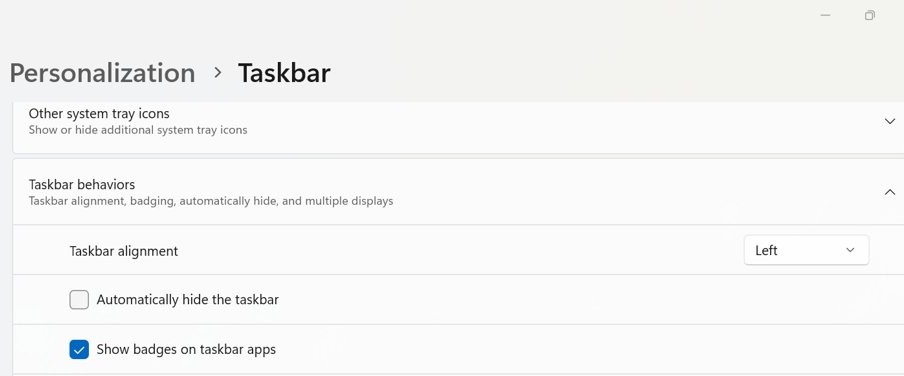
To disable the app menu that appears when you hover over a taskbar icon in Windows 11, open Settings > Personalization > Taskbar, expand Taskbar behaviors, and clear the option that shows jump lists when you hover over inactive apps.
This guide covers turning the hover menu off and back on, which Windows 11 builds have the setting, how to open the same menu with a right-click, and the other taskbar hover features you can switch off.
Disable mouse hover for inactive apps in the taskbar
The hover menu is the app's jump list. It appears when the pointer rests on a pinned app that is not running, so the setting only changes inactive icons. Microsoft added the switch under Taskbar behaviors in Windows 11 Insider Preview Build 22635.4010.
- Right-click an empty part of the taskbar and select Taskbar settings. You can also press Windows + R, type
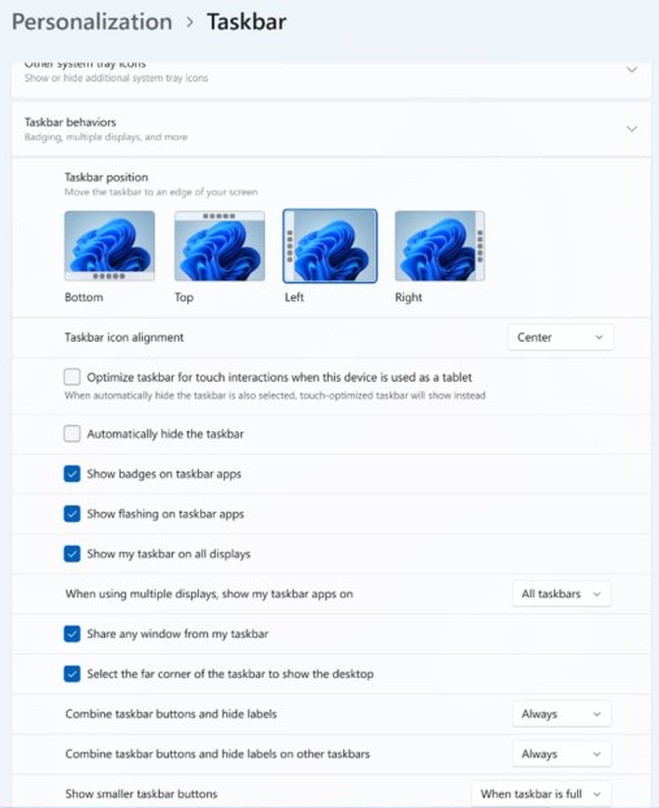
ms-settings:taskbarand press Enter. - Scroll down and expand Taskbar behaviors.
- Find the option that shows jump lists when you hover over inactive apps on the taskbar.
- Clear its checkbox. The change applies at once, with no restart.
- Move the pointer over a pinned app that is not open. The jump list no longer opens until you right-click the icon.
Running apps are not affected. Their icons have a line underneath, and hovering over them still shows the window preview.
Enable mouse hover for inactive apps in the taskbar
- Right-click the taskbar and select Taskbar settings.
- Expand Taskbar behaviors.
- Select the checkbox for showing jump lists when you hover over inactive taskbar apps.
- Hover over a pinned app that is not running to check that its jump list opens without a click.
If the menu does not return, the feature has not reached your PC. Microsoft rolled it out gradually, so some PCs on the same build never received it.
What is the Windows 11 taskbar hover jump list?
A jump list is the menu of recent files and app tasks that every taskbar app offers. Windows 11 normally opens it with a right-click; the hover version opens it as soon as the pointer rests on an inactive app.
| Fact | Detail |
|---|---|
| First appeared | Windows 11 Insider Preview Build 22635.4000, Beta Channel, July 26, 2024 |
| Setting to turn it off | Added in Build 22635.4010, August 9, 2024, under Settings > Personalization > Taskbar > Taskbar behaviors |
| Which icons it affects | Apps that have a jump list and are inactive, meaning pinned but not running |
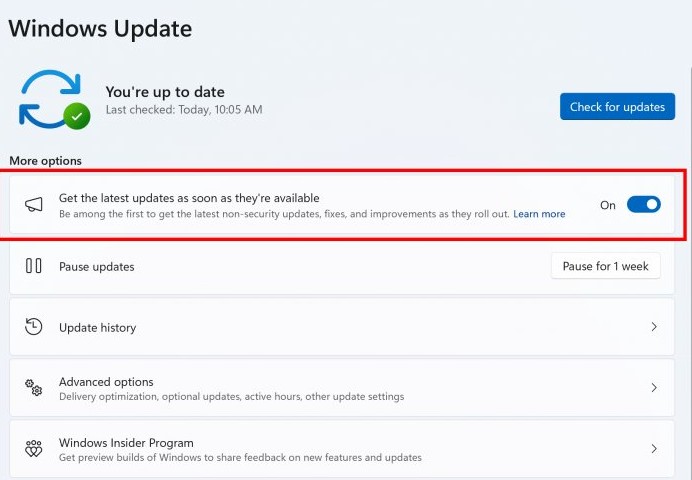
| Rollout | Gradual, for Beta Channel Insiders with the get-the-latest-updates toggle turned on |
| Same menu without hover | Right-click the app icon on the taskbar |
How to open a jump list on the Windows 11 taskbar with a right-click
Turning off the hover menu does not remove jump lists. The same menu is one right-click away on every taskbar app, active or not.
- Move the pointer to the app icon on the taskbar.
- Right-click the icon to open its jump list.
- Select a recent file, a task such as a new window, or Pin to taskbar or Unpin from taskbar.
- Press Esc or click elsewhere to close the menu.
Jump lists only list apps you keep on the taskbar, so pin apps to the taskbar that you want quick access to. You can also control what appears on jump lists item by item.
How to turn off recent items in Windows 11 taskbar jump lists
If the hover menu bothers you because it shows recent files, you can keep the menu and empty that list instead. The setting lives on the Start page, not the Taskbar page.
- Select Start > Settings > Personalization > Start.
- Turn off Show recently opened items in Jump Lists on Start or the taskbar.
- Right-click or hover over a taskbar app. The jump list now shows only the app's tasks, with no recent files.
Windows 11 taskbar hover settings you can turn off
Several things on the Windows 11 taskbar react to the mouse pointer. Each has its own switch, so turning off the hover jump list leaves the others as they were.
| What appears on hover | Setting | Where to change it |
|---|---|---|
| Jump list over a pinned app that is not running | Hover jump list option for inactive apps | Taskbar settings > Taskbar behaviors |
| Share button over a running app during a Microsoft Teams call | Share any window from my taskbar | Taskbar settings > Taskbar behaviors |
| Taskbar sliding up when the pointer reaches the screen edge | Automatically hide the taskbar | Taskbar settings > Taskbar behaviors |
| Recent files inside the jump list | Show recently opened items in Jump Lists on Start or the taskbar | Settings > Personalization > Start |
The taskbar Search icon has its own hover behaviour on some builds, and you can stop recent searches showing on hover separately.
Which Windows 11 build has the taskbar hover jump list setting?
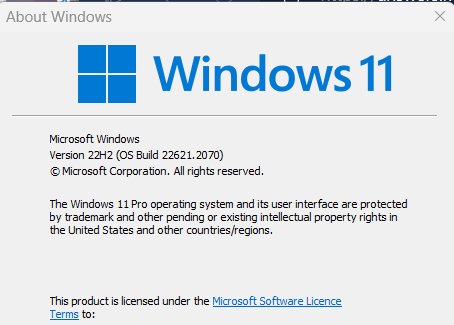
Microsoft announced the hover jump list and its off switch in Windows 11 Beta Channel builds 22635.4000 and 22635.4010. Check your build before looking for the option.
- Press Windows + R, type
winverand press Enter. - Read the OS Build number in the About Windows window.
- If you are a Windows Insider, go to Settings > Windows Update > Windows Insider Program to see your channel.
- Open Settings > Personalization > Taskbar > Taskbar behaviors and look for the inactive apps hover option. If it is not there, the feature is not active on this PC and hovering does not open a menu.
Taskbar hover menu setting missing in Windows 11
Taskbar behaviors has no hover option for inactive apps
The hover jump list was a gradual Insider rollout, and the switch appears only where the feature is turned on.
- Hover over a pinned app that is not running and wait a second.
- If no jump list opens, the feature is off on this PC and there is nothing to disable.
- Install the latest update from Settings > Windows Update > Check for updates, then check Taskbar behaviors again.
A share button still appears when hovering over a running app
That button comes from the Share any window feature for Microsoft Teams calls, not from the jump list.
- Open Taskbar settings and expand Taskbar behaviors.
- Clear Share any window from my taskbar.
- Hover over a running app during the next Teams call to confirm the button is gone.
A preview still appears over an open app
Running apps show a window preview on hover, and the inactive apps setting does not change it.
- Check whether the icon has a line underneath, which marks a running app.
- Close the app if you want its icon to behave as an inactive one.
- Hover over it again; with the hover option cleared, no menu opens.
Windows 11 taskbar hover menu FAQ
How do I stop the taskbar menu from opening when I hover in Windows 11?
Open Settings > Personalization > Taskbar, expand Taskbar behaviors, and clear the option that shows jump lists when you hover over inactive apps. The change takes effect at once and only affects pinned apps that are not running.
What is a jump list in Windows 11?
A jump list is a menu attached to each taskbar app that offers recent files and common tasks, such as opening a new window. You open it by right-clicking the app icon on the taskbar.
Why does a menu pop up when I hover over taskbar icons?
Microsoft tested showing jump lists on hover for inactive taskbar apps, starting with Windows 11 Insider Preview Build 22635.4000. PCs that received the test open the menu without a click until you turn the setting off.
Does turning off the hover menu remove jump lists?
No. Jump lists stay available on every taskbar app through a right-click. The setting only stops them opening automatically when the pointer rests on an inactive app.
How do I remove recent files from taskbar jump lists?
Go to Settings > Personalization > Start and turn off Show recently opened items in Jump Lists on Start or the taskbar. Jump lists then show only app tasks, both on hover and on right-click.
How do I turn off the share window button on taskbar hover?
Open Taskbar settings, expand Taskbar behaviors and clear Share any window from my taskbar. That button appears over running apps during Microsoft Teams calls and is separate from the jump list setting.