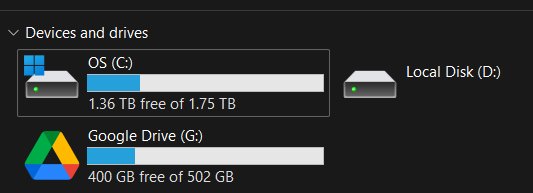
To mount Google Drive as a local disk in Windows, install Google's free Google Drive for desktop app and sign in; it creates a virtual drive named Google Drive, at G: by default, in File Explorer.
This guide covers the install, choosing streaming or mirroring, changing the drive letter or mounting Drive to a folder, offline access, and fixes when the drive will not appear.
Mount Google Drive as a local drive in Windows
Google Drive for desktop is the official way to get Google Drive as a drive letter. No network drive mapping, WebDAV or third-party tool is needed.
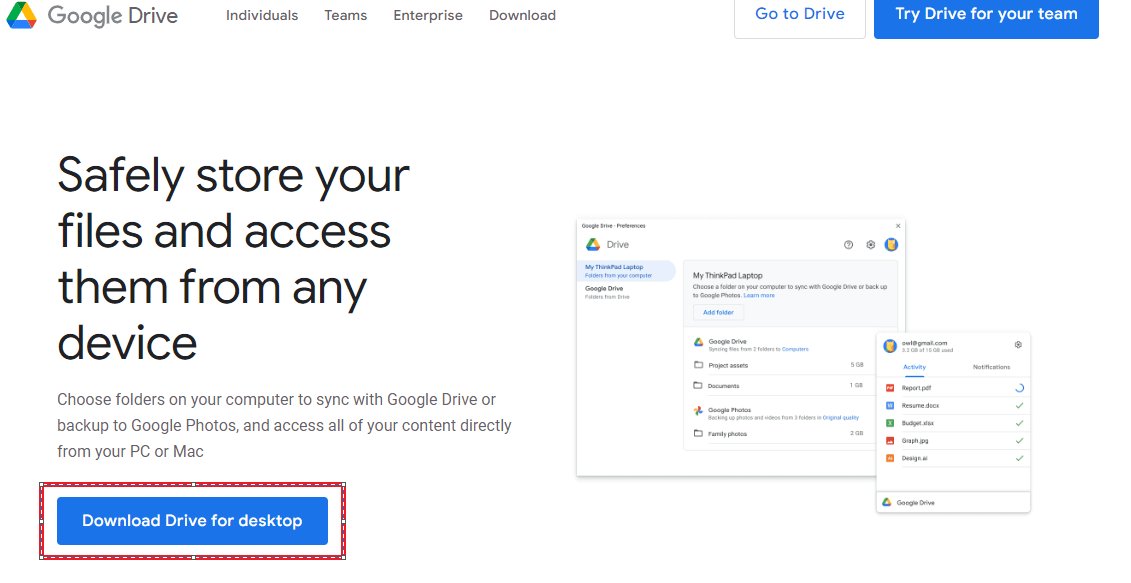
- Open the Use Google Drive for desktop page on Google Drive Help and select Download for Windows.
- Open GoogleDriveSetup.exe and follow the on-screen instructions.
- When Google Drive for desktop opens, click Get started, then Sign in.
- Sign in to the Google Account whose files you want to mount.
- Open File Explorer and select This PC.
- Open the Google Drive drive (G: by default) to see My Drive and Shared drives.
If the installer asks to download Microsoft WebView2, let it: Drive for desktop needs it and installs it automatically when it is missing. You can also get the installer from the techdows Google Drive for PC download page.
Google Drive as a mapped drive or a local folder: stream vs mirror
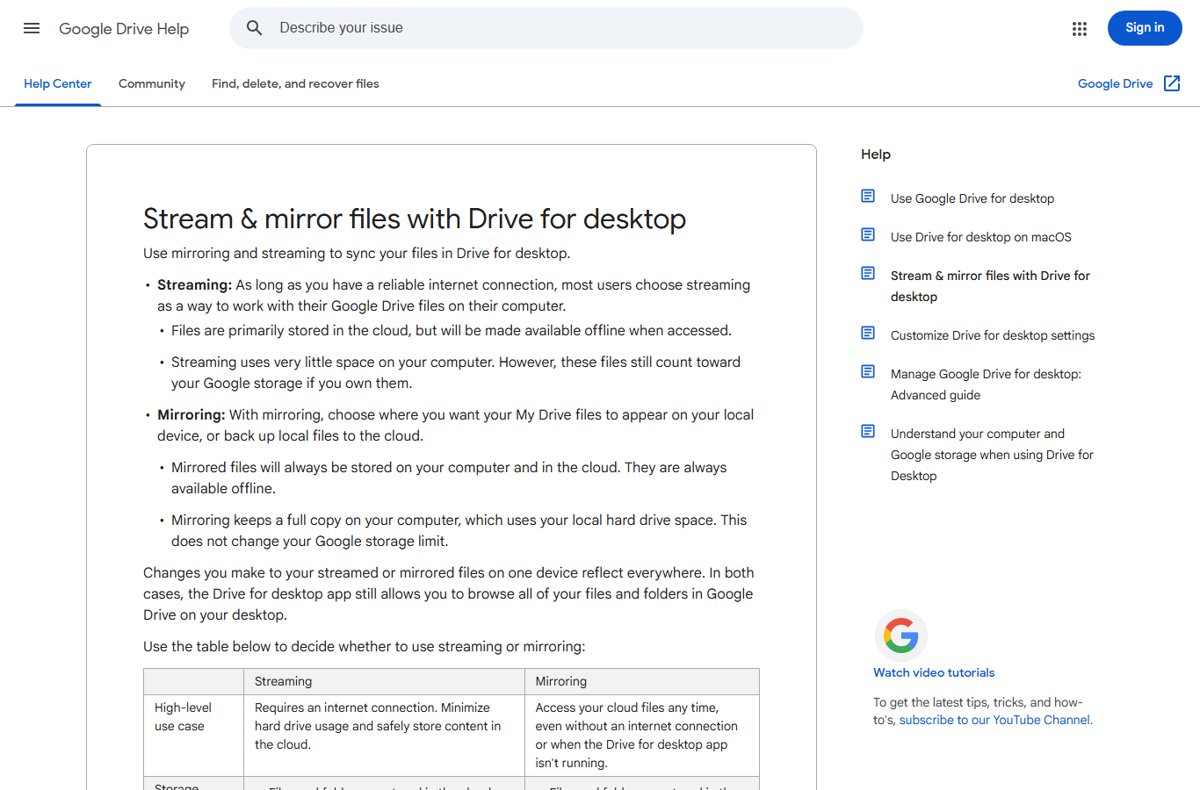
Drive for desktop syncs My Drive in one of two modes. Streaming is the default and is what gives you the virtual G: drive; mirroring puts real copies of your files in a normal folder.
| Your situation | Choose | Why |
|---|---|---|
| You want Google Drive as a drive letter on a small SSD | Stream files | Files stay in the cloud; disk space is used only for files you open or make available offline |
| You want every file on the PC, even with no internet | Mirror files | A full copy of My Drive sits on your disk and is always available offline |
| Apps must reach the files when Drive for desktop is closed | Mirror files | Streamed files are generally not accessible unless the app is running |
| Video editing or high-resolution photo work | Mirror files | Google says write-heavy apps run faster on mirrored files |
| You need shared drives on the PC | Stream files | Shared drives can only be streamed |
| You want a local folder backed up to Drive | Mirror under Folders from your computer | Local folders can only be mirrored |
Streamed files you own still count toward your Google storage. Mirroring uses local disk space but does not change your Google storage limit.
Google Drive for desktop system requirements on Windows
| Requirement | What Google supports |
|---|---|
| Windows (64-bit) | Windows 10 and later, and Windows Server 2016 and later |
| Windows on ARM64 | Windows 11 and later |
| Windows component | Microsoft WebView2, installed automatically by the setup if missing |
| Free drive letter | One unused letter for the virtual drive; G: is the default |
| Local disk space | Enough free space for the files you open, cache or mirror |
| Linux | No desktop app; use Google Drive on the web |
Switch Google Drive between stream files and mirror files
- Click the Google Drive for desktop icon in the notification area of the taskbar.
- Click Settings > Preferences.
- On the left, click Google Drive (some versions label it Folders from Drive).
- Under My Drive syncing options, select Stream files or Mirror files.
- Wait for the first sync to finish; the Sync status tile on the app home page shows progress.
Let recent changes finish syncing before you switch modes, especially from mirror to stream. Deleting the old mirrored folder before its changes upload loses those files.
Change the Google Drive letter or mount point in Windows
The streaming location decides where Drive mounts. Pick a different letter if G: clashes with a USB drive or network share, or mount Drive inside a folder instead of as a separate drive.
- Click the Google Drive for desktop icon in the notification area.
- Click Settings > Preferences, then the Advanced settings gear.
- Under Google Drive streaming location, click Change.
- Pick an unused drive letter from the drop-down list, or choose a local folder to mount Drive in.
- Restart Drive for desktop: click its icon, then Settings > Quit, and reopen it from Start.
- Open File Explorer and confirm Drive appears at the new letter or folder.
If the letter you pick is taken by another device, Drive for desktop selects the next free letter instead.
Make Google Drive files available offline on the local drive
In streaming mode, files download only when you open them. Mark the ones you need without internet.
- Open the Google Drive drive in File Explorer.
- Right-click the file or folder you want offline.
- Select Offline access > Available offline.
- Wait for the file to finish downloading before you disconnect.
The option is missing in mirror mode because every file is already on the PC. Google Docs, Sheets and Slides need offline access turned on in Drive on the web.
Mount more than one Google Drive account in Windows
Drive for desktop can run up to 4 Google Accounts at the same time, each with its own folder in the Google Drive location.
- Click the Google Drive for desktop icon in the notification area.
- Click your profile picture at the top right, then Add account.
- Sign in to the second account in your browser.
- Restart Google Drive for desktop.
- Open the Google Drive drive in File Explorer and confirm both accounts are listed.
Check that the Google Drive local disk is mounted
- Open File Explorer and select This PC.
- Look for Google Drive with its drive letter, G: unless you changed it.
- Open it and confirm My Drive shows your files.
- Click the Drive for desktop icon and check the Sync status tile on the home page for current activity.
- Press Ctrl + Alt + G to open Drive search and find a file you know is in your Drive.
The space tracker in the app shows free space on your PC's disk, not your Google Account storage.
Fix Google Drive not showing as a drive in File Explorer
"The streaming location you selected is already in use or can't be found"
Another device, such as a USB drive or network share, already uses the drive letter.
- Disconnect the device that uses the letter you picked, or
- Open Settings > Preferences > Advanced settings and choose a different letter under Google Drive streaming location.
- Restart Drive for desktop.
Drive for desktop can't load your account
Windows has no free drive letters left for the virtual drive.
- Disconnect or remove a mapped network drive or USB drive to free a letter.
- Click the Drive for desktop icon, then Settings > Quit.
- Reopen Google Drive for desktop from Start.
Low disk space error
Drive for desktop needs local space for its cache and offline files.
- Delete files on the drive named in the error message.
- Quit Drive for desktop and open it again.
- Switch to Stream files if you are mirroring a large My Drive.
Google Drive is empty or stops syncing
The app quit, the account disconnected, or a system cleaner edited its configuration.
- Click the Drive for desktop icon, choose Settings > Quit, then reopen the app.
- If that fails, click Disconnect account in Advanced settings, sign in again and choose the streaming location.
- Check the Lost & Found folder for files that failed to sync before the reconnect.
- Stop system cleaner apps such as CCleaner from touching Drive for desktop's data.
Google Drive local drive FAQ
How do I mount Google Drive in Windows?
Install Google Drive for desktop from Google Drive Help, open GoogleDriveSetup.exe and sign in with your Google Account. The app mounts your Drive as a virtual drive named Google Drive, at G: by default, which you open from This PC in File Explorer.
How do I connect Google Drive to my local computer?
Use Google Drive for desktop. In streaming mode your files appear on a G: drive and download only when opened. In mirroring mode My Drive is copied to a local folder you choose, so every file is on the PC and works offline.
Where is my Google Drive located on my PC?
Google Drive for desktop creates a drive named Google Drive under This PC in File Explorer. The default streaming location is G:, unless you or an earlier setup changed it to another letter or a folder in Advanced settings.
Can I map Google Drive to a local folder instead of a drive letter?
Yes. Open Settings > Preferences > Advanced settings, click Change under Google Drive streaming location and choose a folder. Alternatively, switch My Drive to Mirror files, which keeps a full copy in a normal local folder.
Does mounting Google Drive use space on my hard drive?
Streaming uses very little local space: only files you open, recently used files and files marked available offline are stored. Mirroring stores a full copy of My Drive on your disk. Neither mode changes your Google storage limit.
Can I access the G: drive when Google Drive for desktop is closed?
Generally no. Streamed files can only be reached while Drive for desktop is running and your account is connected. If you need files available with the app closed, switch My Drive to Mirror files.
Can I mount Google Drive on Linux?
Google does not make a Linux version of Google Drive for desktop. Google's own route on Linux is Google Drive on the web in a supported browser.
How many Google accounts can I mount at once?
Google Drive for desktop supports up to 4 accounts at the same time. Add one from your profile picture > Add account, sign in through the browser and restart the app.
Bottom line: best way to mount Google Drive as a local drive
Use Google Drive for desktop in its default streaming mode to get Google Drive as a G: drive, and switch to mirroring only if you need every file offline or with the app closed. It is Google's own client, needs no mapping tools, keeps disk use low, and lets you change the drive letter or mount point at any time. Drive for desktop is the product formerly called Google Drive File Stream, so older instructions under that name still apply.