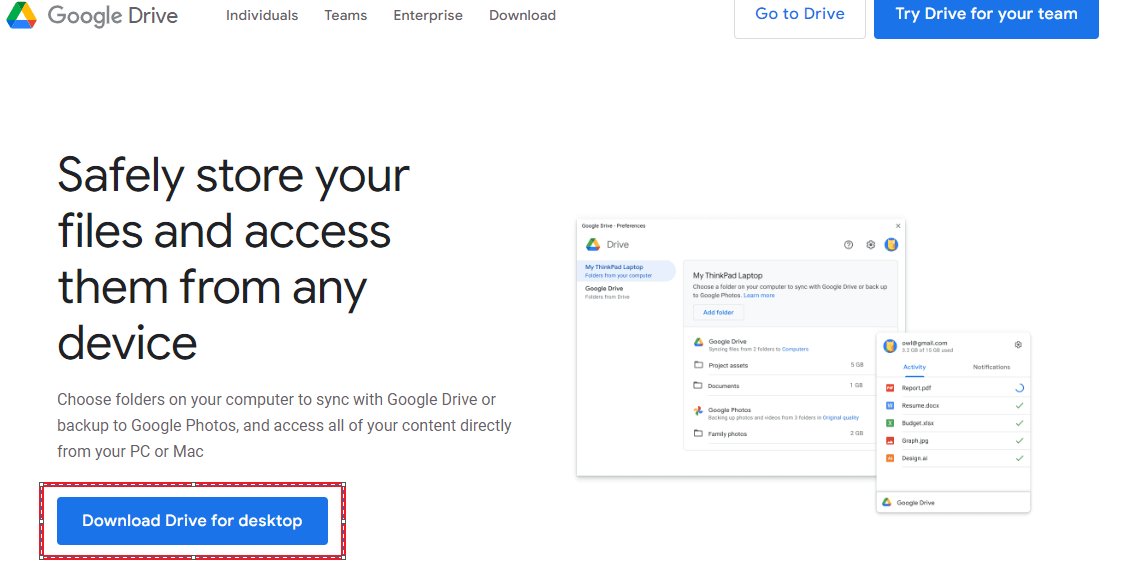
Google Drive File Stream is now called Google Drive for desktop, so install it by running GoogleDriveSetup.exe on Windows or GoogleDrive.dmg on a Mac and signing in with your Google Account.
This guide covers the install, the stream-versus-mirror choice, daily use in File Explorer and Finder, admin setup for Google Workspace, uninstalling, and fixes for the errors Google documents.
The fastest way to install Google Drive File Stream today
Google's own release notes describe Google Drive for desktop as the product "formerly Drive File Stream". The download link still lives under a drive-file-stream folder on Google's servers, which is why old guides and bookmarks still work.
- Open the Use Google Drive for desktop page on Google Drive Help and click Download Google Drive for desktop for your operating system.
- On Windows, open GoogleDriveSetup.exe. On a Mac, open GoogleDrive.dmg.
- Follow the on-screen instructions to finish the install.
- When Google Drive for desktop opens, click Get started, then Sign in.
- Sign in to the Google Account whose files you want on this computer.
- Open File Explorer or Finder and look for the new Google Drive location with My Drive inside it.
If the installer refuses a work or school account, your organization controls the install. Ask your administrator before trying again.
Stream or mirror: which sync mode should you pick?
Drive for desktop syncs My Drive in one of two modes. Streaming is the default and is the behaviour the old Drive File Stream was named after.
| Your situation | Choose | Why |
|---|---|---|
| Small SSD, reliable internet | Stream files | Files stay in the cloud; local space is used only for files you open or mark offline |
| You travel or work offline often | Mirror files | A full copy of My Drive sits on your disk and is always available offline |
| You need files when the app is closed | Mirror files | Streamed files are generally not reachable unless Drive for desktop is running |
| Video editing or high-resolution photo work | Mirror files | Google says write-heavy apps run faster on mirrored files |
| You mostly work in shared drives | Stream files | Shared drives, other computers and backed-up USB devices can only be streamed |
| You want to back up a local folder or the desktop | Mirror (under Folders from your computer) | Local folders can only be mirrored |
Either way, files you own count toward your Google storage. Mirroring also uses local disk space but does not change your Google storage limit.
Prerequisites for Installing Google Drive File Stream
| Requirement | What Google supports |
|---|---|
| Windows (64-bit) | Windows 10 and later, and Windows Server 2016 and later |
| Windows on ARM64 | Windows 11 and later |
| Windows component | Microsoft WebView2; the installer downloads it automatically if it is missing |
| Mac | macOS Ventura 13.0 or later |
| Not supported | 32-bit Windows, beta operating systems, and Linux (use Drive on the web instead) |
| Cache disk format | NTFS on Windows; APFS or HFS+ on macOS. Network volumes such as SMB and NFS are not supported |
| Work or school account | Drive for desktop must be allowed in the Google Admin console; users need admin rights on the computer to install |
| Microsoft Office real-time presence | Office 2010 or later |
The virtual drive Drive for desktop creates opens as a FAT file system, and Google notes that FAT32 limits a single file to 4 GB.
Step-by-Step Guide to Installing Google Drive File Stream
This is the full route, including the first-run settings the quick install skips. An offline installer route is covered in the techdows post on how to download Google Drive for desktop offline installer.
- Download the application: get GoogleDriveSetup.exe (Windows) or GoogleDrive.dmg (Mac) from Google Drive Help.
- Install the application: run the file and follow the prompts. On a Mac, drag Google Drive into the Dock from the Applications folder if you want quick access later.
- Sign in to your Google Account: click Get started, then Sign in, and finish the sign-in in your browser.
- Configure sync settings: click the Drive for desktop icon in the system tray (Windows, bottom right) or menu bar (Mac, top right), then Settings > Preferences.
- Under My Drive syncing options, select Stream files or Mirror files.
- Under Folders from your computer, add any local folder you want backed up to Drive.
- Complete the setup: close Preferences and let the first sync finish. The Sync status tile on the app's home page shows progress.
The Preferences page labels the Drive section Google Drive in Google's advanced guide and Folders from Drive in its stream-and-mirror article. Click whichever of the two your version shows.
Using Google Drive File Stream: A Practical Overview
Once synced, your Drive behaves like any other drive. On Windows it gets its own drive letter, such as G:.
- Access your files: open File Explorer (Windows) or Finder (Mac) and open the Google Drive location. You will see My Drive, Shared drives and any other synced folders.
- Open and edit files: double-click a file. Google Docs, Sheets and Slides open in your browser; Word, PDF and other files open in their default desktop app, and your saves sync back to Drive.
- Make files available offline: in streaming mode, right-click a file or folder and select Offline access > Available offline.
- Sync specific folders: open Settings > Preferences and add a folder under Folders from your computer to back it up to Drive.
- Share and manage files: shared drives appear under Shared drives in the Google Drive location; manage sharing permissions from Drive on the web.
- Search quickly: press Ctrl + Alt + G on Windows to open the Drive for desktop search, which finds files across your streamed Drive that Windows Search and Spotlight miss.
- Manage storage and capacity: check the space tracker in the app, which shows the free space on your computer's disk, not your Google Account storage.
Shared files you sync can fill your hard drive, but they never count against your own Google storage.
Turn on Drive for desktop for a Google Workspace organization
Drive for desktop is on by default for Google Workspace, Cloud Identity and G Suite editions. An admin with the Drive & Docs administrator privilege can switch it back on or restrict it.
- In the Google Admin console, go to Menu > Apps > Google Workspace > Drive and Docs > Google Drive for desktop.
- Optionally select an organizational unit or configuration group to apply the setting to only some users.
- Click Enable Drive for desktop and check Allow Google Drive for desktop in your organization.
- Check Only allow Google Drive for desktop on authorized devices if you want to limit it to managed devices.
- Check Show Google Drive for desktop download link so Drive on the web offers the installer to users.
- Under Syncing options, check Allow users to sync local folders to Drive and Allow users to mirror My Drive as needed.
- Click Save.
Drive for desktop updates itself through Google Update on Windows and Google Software Update on a Mac, so a machine that once ran Drive File Stream ends up on the current Drive for desktop build.
How to check Drive for desktop is working
- Look for the Drive for desktop icon in the Windows system tray or the Mac menu bar.
- Click it and confirm the Sync status tile shows recent activity and no error notification.
- Open File Explorer or Finder and confirm Google Drive > My Drive lists the same folders as drive.google.com.
- Create a small text file in My Drive, then refresh Drive on the web and confirm the file appears.
- In streaming mode, right-click a folder and confirm Offline access is on the menu.
Advanced Features and Tips for Efficient Usage
Most tuning lives in one place: click the Drive for desktop icon, then Settings > Preferences > Advanced settings.
| Feature | Where to set it | What it does |
|---|---|---|
| Drive letter or streaming folder | Google Drive streaming location > Change | Picks a different drive letter on Windows or a folder location |
| Search hotkey (keyboard shortcut) | Configure hotkey | Replaces the default Ctrl + Alt + G with your own combination |
| Start with Windows or macOS | Launch Google Drive when you login to your computer | Untick it to stop the app starting at sign-in |
| Notifications | Prompt me to back up devices | Controls the prompt when you plug in a USB device or camera |
| Bandwidth | Bandwidth settings | Caps download and upload rates in KB/s on slow or metered links |
| Proxy | Proxy settings | Auto-detect uses system settings; direct connection bypasses them |
| Microsoft Office integration | Real-time presence | Shows who else is editing a shared Word, Excel or PowerPoint file |
| Pause syncing | Drive for desktop menu > Settings > Pause syncing | Stops sync temporarily, for example on a metered connection |
| More accounts | Profile picture > Add account | Runs up to 4 Google Accounts side by side |
| Outlook add-in (work or school, Windows) | Available to work or school accounts on Windows | Inserts Drive files into emails and saves attachments to Drive |
Updates are automatic. Admins who need to hold a version can turn autoupdates off through Google Update policies.
Uninstalling or Switching to a Different Version
Before you uninstall or switch from mirroring to streaming, make sure every recent change has finished syncing. Google warns that deleting the old mirror folder before upload finishes loses those files.
- Click the Drive for desktop icon, then Settings > Preferences > Advanced settings.
- Click Disconnect account, then OK. In streaming mode this removes any offline copies.
- Click the Drive for desktop icon, then Settings > Quit.
- Remove Google Drive the normal way for your system: the installed apps list on Windows, or the Applications folder on a Mac.
- To switch versions, download the current installer from Google Drive Help and install it; there is no separate Drive File Stream build to go back to.
- To switch sync mode instead, open Settings > Preferences, and under My Drive syncing options choose Stream files or Mirror files.
If you mirrored files before uninstalling, the copies on your disk stay there but stop syncing.
Silently uninstall Drive for desktop on Windows
Admins can remove the app without prompts. The install folder still carries the old Drive File Stream name. Replace <VERSION> with the version folder on the machine.
"%PROGRAMFILES%\Google\Drive File Stream\<VERSION>\uninstall.exe" --silent --force_stop--force_stop is required when Drive for desktop is running and closes it first. --silent is optional and suppresses the uninstall dialogs and the user confirmation.
You should see: The command returns without a dialog, and Google Drive no longer appears in the installed apps list or the system tray.
Troubleshooting Common Issues
Start with Google's basic sequence for any sync fault: check the system requirements, check the internet connection, restart Drive for desktop, restart the computer, disconnect and reconnect the account, then reinstall. The fixes below target specific errors.
Files are not syncing, or Drive for desktop stops or quits suddenly
A stuck sync session, a dropped connection, or configuration data edited by a system cleaner app.
- Click the Drive for desktop icon, then Settings > Quit, and open the app again.
- Restart the computer if the problem returns.
- Remove system cleaner apps such as CCleaner or Advanced SystemCare from your routine; Google says they edit Drive's configuration data.
- Open Settings > Preferences > Advanced settings and click Disconnect account. Copy anything in Lost & Found somewhere safe first.
- Sign in again and choose a location for the Google Drive folder.
- If it still fails, download and install the latest version over the top.
"Can't load account"
No internet connection, no free drive letter on Windows, a proxy blocking Drive, or an admin who turned Drive for desktop off.
- Confirm the computer is online.
- On Windows, free up a drive letter by disconnecting an unused mapped drive or removable disk.
- Check Proxy settings under Advanced settings; switch between auto-detect and direct connection.
- Disconnect and reconnect the account.
- On a work or school account, ask the administrator whether Drive for desktop is allowed.
"There was an issue with your streaming location"
The chosen drive letter or folder is already in use or cannot be found.
- If a drive letter clashes, let Drive pick the next free letter, or set one under Google Drive streaming location > Change.
- If you chose a folder, make sure it is empty.
- Make sure Drive for desktop has permission to write to that folder.
Your disk space is low
Mirrored files, offline files or synced shared files have filled the local disk.
- Delete or move files off the affected drive.
- Quit Drive for desktop and open it again.
- Switch My Drive to Stream files after all changes finish syncing, if mirroring is the cause.
The "Available offline" option is missing, or offline files will not open
The option only exists in streaming mode, and streamed offline files need the app running with the account connected.
- Check that My Drive syncing options is set to Stream files; in mirror mode everything is already offline.
- Make sure Drive for desktop is running and your account is signed in.
- For Google Docs, Sheets and Slides, turn on offline access in Drive on the web instead.
- If you get "too many open files", mark files offline in smaller batches.
Outlook cannot save attachments to Google Drive
A damaged Outlook data file or a conflicting add-in.
- Run Outlook as an administrator and try again.
- Run the Inbox Repair Tool (ScanPST.exe) on your Outlook data file.
- Turn off other add-ins, such as Salesforce or Adobe ones, one at a time to find the conflict.
If none of this helps, click the Drive for desktop icon, then Settings > Send feedback, tick Include diagnostic logs, and click Submit.
Best Practices for Effective Use
| Practice | Why it matters |
|---|---|
| Wait for sync to finish before changing mode or uninstalling | Unsynced changes are lost if the local copy or cache is removed first |
| Stream shared drives and mark only what you need offline | Synced shared files can fill your disk even though they do not use your Google storage |
| Keep the cache on an internal NTFS, APFS or HFS+ disk | Network volumes such as SMB and NFS are not supported |
| Keep files under 4 GB on the virtual drive, or mirror large ones | The virtual drive opens as FAT, and FAT32 caps a single file at 4 GB |
| Move photo backups to the Google Photos app | Drive for desktop ended Google Photos backup support on August 10, 2026 |
| Leave automatic updates on | Google says they prevent service disruption and deliver security fixes |
| Avoid system cleaner apps | They edit Drive for desktop's configuration data and cause errors |
Frequently Asked Questions
Is Google Drive File Stream still available?
Not under that name. Google Drive File Stream became Google Drive for desktop, and Google's release notes describe it as "formerly Drive File Stream". Installing Drive for desktop gives you the same streaming feature plus mirroring, offline access and multiple accounts.
How do I install Google Drive on my computer?
Download Google Drive for desktop from Google Drive Help, run GoogleDriveSetup.exe on Windows or GoogleDrive.dmg on a Mac, and follow the prompts. Then click Get started, sign in with your Google Account, and your files appear in File Explorer or Finder.
Does Google Drive for desktop work on Windows 11 and Windows 10?
Yes. It supports 64-bit Windows 10 and later, Windows Server 2016 and later, and Windows 11 on ARM64. It does not support 32-bit Windows. It needs Microsoft WebView2, which the installer adds automatically if it is missing.
Can I install Google Drive for desktop on Linux?
No. Google does not make a desktop version of Drive for Linux. Use Google Drive on the web in a supported browser instead. On macOS, Drive for desktop needs macOS Ventura 13.0 or later.
Does streaming files use space on my hard drive?
Very little. Streamed files stay in the cloud, and local space is used only for files you open, recently used files and files you mark available offline. Mirroring keeps a full copy of My Drive on your disk instead.
Can I use Google Drive for desktop without an internet connection?
Yes, for files that are on your computer. In mirror mode every My Drive file is offline by default. In stream mode, right-click a file or folder and choose Offline access, then Available offline, while the app is running.
How many Google accounts can I use in Drive for desktop?
Up to four at the same time. Click the Drive for desktop menu, click your profile picture, choose Add account, sign in through your browser, then restart Drive for desktop.
What drive letter does Google Drive use on Windows?
Drive for desktop creates a virtual drive with its own letter, such as G:. Change it under Settings, Preferences, Advanced settings, Google Drive streaming location. If the letter is taken, Drive picks the next available one.
Do shared files count against my Google storage?
No. Files other people share with you never count against your Google storage, even when you sync them. They do use space on your computer if you mirror them or mark them available offline, so stream shared content where you can.
Bottom line
Install Google Drive for desktop, leave My Drive on Stream files, and mark only the folders you work on offline. Streaming is the Drive File Stream behaviour most people came for, it keeps disk use minimal, and switching to mirroring later takes one setting once your changes have synced. For more on the app itself, see the techdows guide to download Google Drive app for PC.



Download Google Sheets for PC, Windows 11/10 & Mac (Free) - Techdows
[…] Sheets as an app from Chrome or Edge. Add Google Drive for desktop only if you also want Drive files synced to File Explorer or Finder. Google ships no standalone […]